Field Work Order
Last updated: August 27, 2025
Preface
What is a Project?
A project is comprised of Phases and is associated with a workflow that guides its journey. When a project is created it is linked to a Master Workflow where there are a set of phases. Within those phases there are a set of Work Orders will open up.
Here is how the progression within a project works:
You may not progress to another Phase unless all preceding Phases are completed
Phases cannot be complete until all Work Orders are complete.
A Work Order cannot be complete unless "all" checklist items are checked.
What is a Work Order?
In a Project, there are multiple Phases that governs the flow of a project. Within the Phases are the Work Orders that contain a list of things to do and access to relevant information (i.e. forms) that will help you complete the work order.
Example: There's a contract intake phase where a customer signs a deal and you need to verify that you have the key information in order before you would get an NTP (Notice to Proceed). In the Work Order, there may be a checklist item that asks you to fill in a contract verification form. You would access the form from the Work Order, fill it in and then check off the task (i.e. "fill in contract verification form")
Field Work Order
There are two types of Work Orders: Office and Field. In this article we will cover the Field Work Order from the vantage point of day to day operations person.
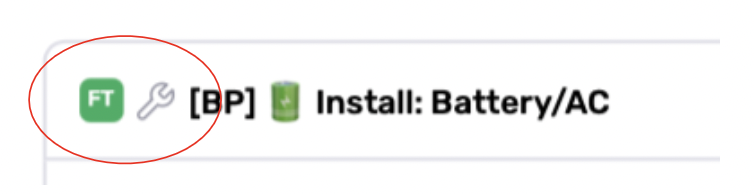
Field Work Orders are meant for team members who work in the field (with a wrench icon). Example: Site Surveys or Installations/Constructions. Below is an example of a set of Work Orders (and Forms) within a Construction Phase.
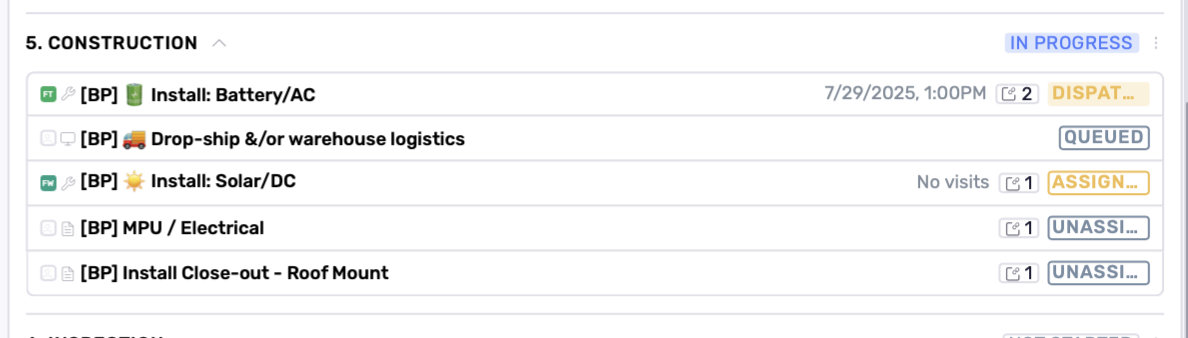
Below is the anatomy of a Field Work Order
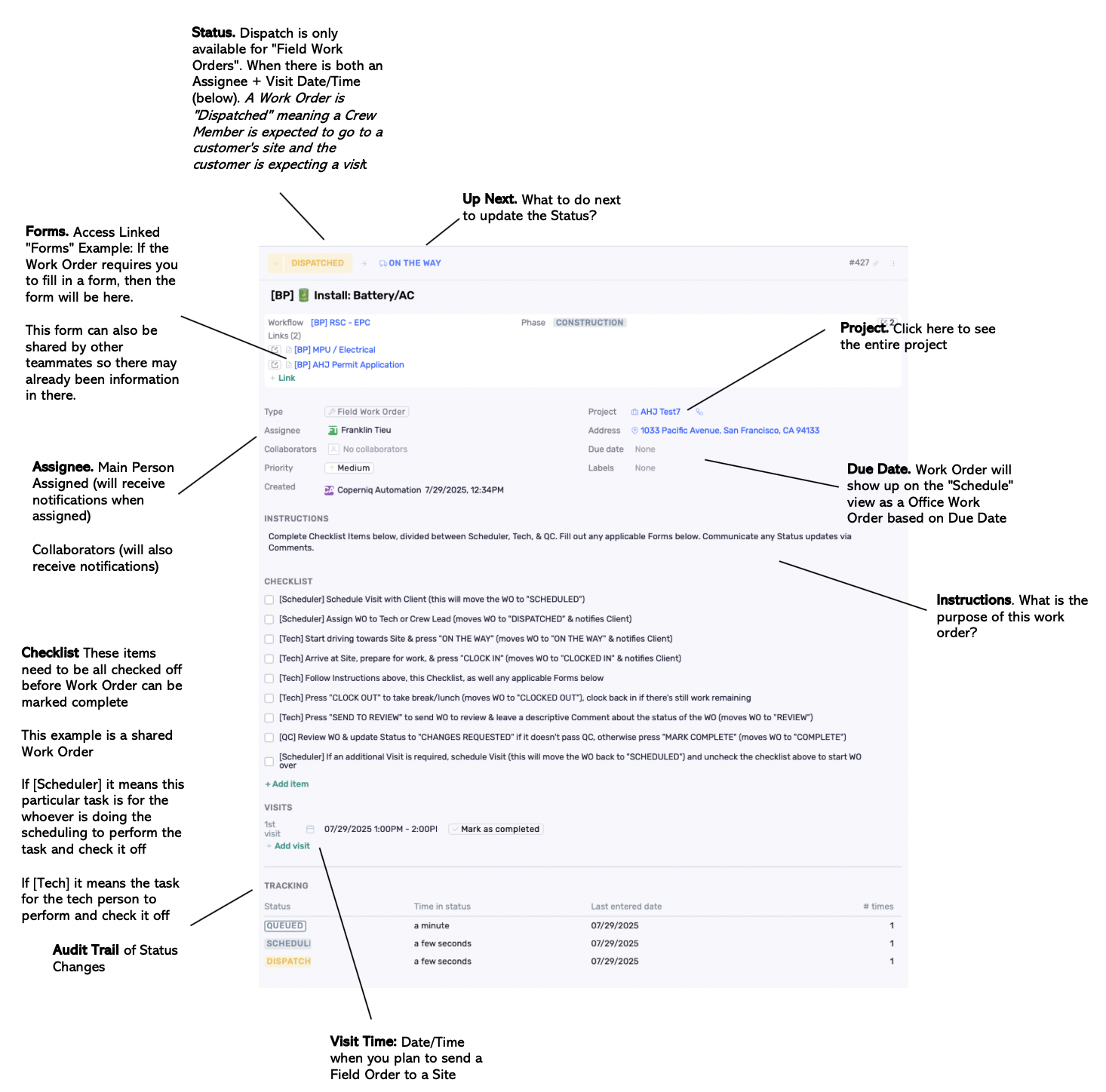
When a Field Work Order opened it'll either have a status of [Queued] or [Assigned]. From here on, if you've spoken with the customer and have a tentative date/time you'd like to block out you could add a visit time on the bottom of the work order. When doing so the status will update to "Scheduled".
Scheduled: Work Order was created, and there is a visit date/time is set. This means there is tentative timing (not official). This is mainly for forecasting an appointment. You can "dispatch" it by adding an Assignee
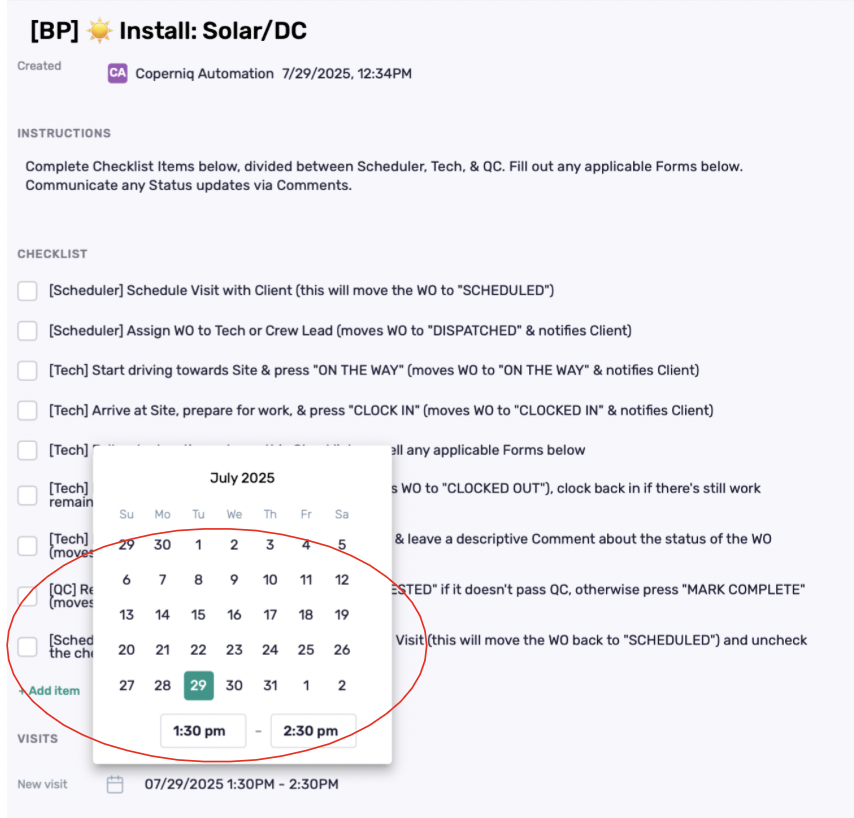
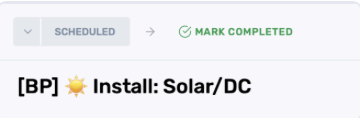
Now that you have a visit date/time, if you add an assignee to the Field Work Order, it will update it to Dispatch
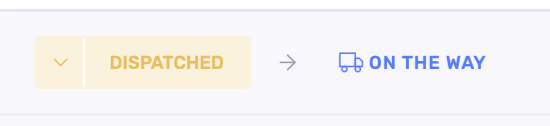
Dispatched: Work Order was created, and it was BOTH Assigned to a team member AND a visit date/time is set.
At this point, the field worker can download the Coperniq App in Apple Store or Android Store and then access the Coperniq Mobile app and begin their work from there. Here's a video on how Field Workers and Office Workers collaborate
When Field Work is done, Click [Send to Review] and it will update to "Review". In doing so, you are letting everyone in your team know that this work is ready for a supervisor to review the work.