Projects & Pipelines — Project Workflow: Stages, Work Orders
Last updated: January 4, 2026
Estimated reading time: 2–3 minutes
Overview
The Projects & Pipelines module in Coperniq allows you to manage projects across structured workflows. Each project is tracked through stages, with associated work orders that define the tasks needed for completion.
The workflow view gives you visibility into every project’s progress, from initiation through closeout, and allows you to assign tasks, track timelines, and manage dependencies across multiple trades.
Accessing Projects
Log into the Coperniq web app
From the left-hand menu, select Projects
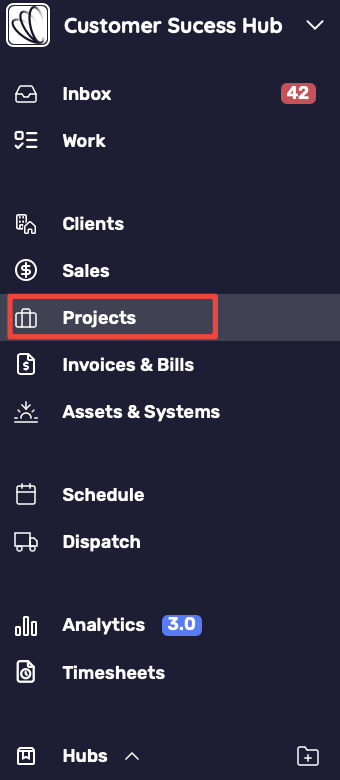
You’ll land on the Projects dashboard, which includes:
Workflow groupings showing where each project sits in the pipeline
A toolbar with filters, sorting, and grouping options
A customizable project table with columns such as Trades, Status, Project Value, Size, Sales Rep, Project Manager, and Owner

Projects Dashboard
Workflow View
Projects are organized by Workflow → Stage → Project.
Example:
Residential Workflow → Welcome → [Project #375]
Commercial Workflow → Engineering → [Project #378]
Solar Workflow → Permitting → [Project #372]
This structure allows you to quickly see:
Which workflow a project belongs to
Which stage it’s currently in
The number of projects in each stage
The trades involved (e.g., Solar, HVAC, Roofing)
The project’s active status

Grouping Options
Group by Workflow → organizes projects by workflow and stages (pipeline-style view)
Group by None → displays all projects in a simple list, one after another, without workflow or stage separation
👉 Use Group by None if you want a straightforward list view across all projects.
Opening a Project Record
Clicking a project opens its profile view with tabs for detailed management:
Header
The Header displays key project details at a glance, including:
Project ID, Trade Type, Client, Workflow, Stage, Owner, Sales Rep, Project Manager (PM), Project Size, Client Manager, Project Value, AHJ, Utility Details, Homeowner’s Email & Phone Number, Address, and Scope of Work.
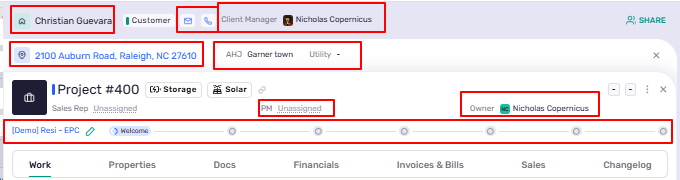
Icons and Actions:
Workflow Pin Icon: Shows which workflow the project belongs to; click it to move the project to a different workflow if needed.
Share Button: Displays who has access to the project and their roles.
Copy Icon: Copies a direct link to the project for easy sharing.
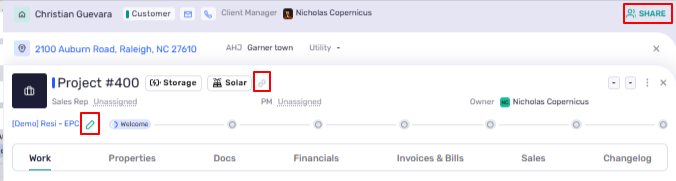
Phase Hover: Hovering over a project phase displays when it was entered and exited, along with the total time spent in that phase.

Tabs
Work → project tasks, grouped by phase (stages)
Properties → additional project attributes
Docs → uploaded project documents
Financials → overall project financial details
Invoices & Bills → linked accounting records
Sales → sales details and pipeline stage
Changelog → historical record of updates and changes

Work Tab – Stages & Work Orders
The Work tab organizes all project tasks into phases.
Phases
Stages represent the major steps in a project workflow. Examples include:
Welcome / Intake
Site Survey
Engineering
Permitting
Each stage can be:
Not Started
In Progress
Completed

Work Orders
Within each stage, you can add specific work items. Example:
Stage: Site Survey
Work Order: Drone inspection
Work Order: Roof measurements
Work orders show:
Status badge (e.g., In Progress, Queued, Not Started)
Due date or visit date (e.g., 5d)
Assignee
Stage & Work Order Actions
Start Phase Early → begin a later stage before previous ones are completed

Archive Work → archive all open or in-progress work in a stage once finished

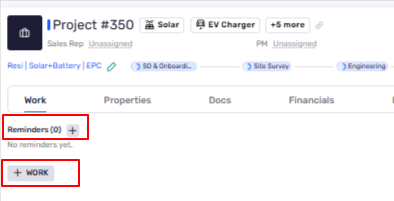
Add Work → create new work orders within any stage
Reminders → set task reminders linked to a project phase
Right Panel – Notes & Communication
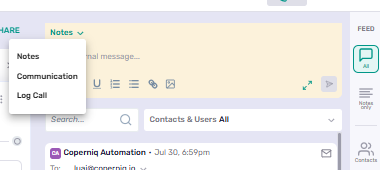
The right-hand panel provides project communication tools:
All → combined feed of notes and communications
Notes → internal notes with formatting and attachments
Communication → view and send project-related emails, SMS, and portal messages
Log Call → track call history and details
Homeowner Contact: Displays the homeowner’s email address and phone number
Use the dropdown at the top of the panel to switch between categories.
In each view, you can see existing entries or create new ones.
Best Practices
Use Workflow view to track projects by stage at a glance
Use Group by None if you prefer a simple project list without workflows
Adjust project workflows by clicking the Workflow Pin in the project header
Add detailed work orders within each stage for accurate task tracking
Use Start Phase Early when stages can overlap
Archive completed work regularly to keep dashboards clean
Centralize communication using the Right Panel so notes, messages, and calls are logged