Work Orders — Assign Crews, Manage Status, and Close Out Tasks
Last updated: January 4, 2026
Estimated reading time: 3-4 minutes
Overview
In Coperniq, Work Orders (WOs) represent individual, trackable tasks within a project.
They define the work to be performed, who is responsible, and the progress required to complete it.
Work Orders support both field and office operations:
🛠 Field Work Orders — On-site activities such as site surveys, installations, and inspections.
💻 Office Work Orders — Administrative or internal tasks such as permitting, engineering, and quality reviews.
Each Work Order maintains its own instructions, assignments, checklists, and status tracking to ensure accountability and consistency across teams.

Work Order Structure
Each Work Order contains key information that helps teams manage execution efficiently.
Header Information
The header provides an overview of essential details:
Type – Field or Office
Project – The parent project linked to the Work Order
Address – Site location (clickable map for field tasks)
Assignee – The primary user or crew lead responsible for completing the task
Collaborators – Additional users assisting or monitoring progress
Priority – Low, Medium, or High
Labels – Custom tags such as “Survey,” “Engineering,” or “QC”
Created By – The user or workflow that generated the Work Order
Status – The current phase of progress
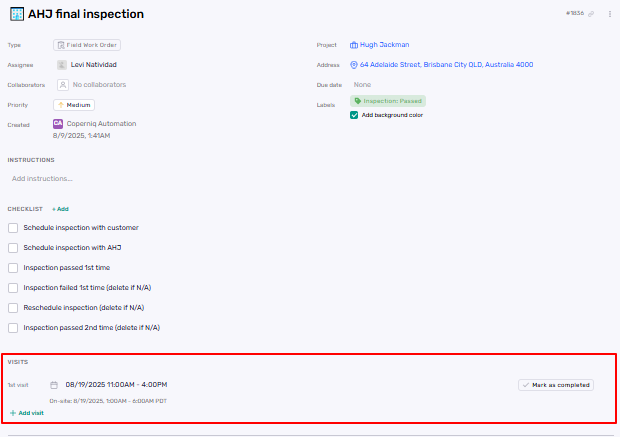
Assigning Crews and Collaborators
Clear ownership is essential for effective task management. Each Work Order can include both an Assignee and one or more Collaborators.
Assignee
The Assignee is the individual or crew primarily responsible for completing the Work Order.
Only one Assignee/Team can be assigned at a time.
Setting an Assignee automatically updates the status to ASSIGNED (if previously QUEUED).
The Assignee can update statuses, complete checklists, and upload documentation.
Assigning a technician to a Field Work Order may trigger scheduling workflows or dispatch notifications.
The Assignee is responsible for ensuring all requirements are completed before marking the Work Order as Completed.
Collaborators
Collaborators are team members who assist with or oversee the Work Order.
Multiple Collaborators can be added.
Collaborators have full visibility and can add notes, complete checklist items, or assist with updates based on their assigned role permissions.
Adding or removing collaborators does not change the Work Order’s status.
Common use cases include:
Supervisors reviewing progress
Project coordinators monitoring tasks
Secondary technicians assisting on-site
Keeping Assignees and Collaborators current ensures that every task remains visible, actionable, and properly supported.
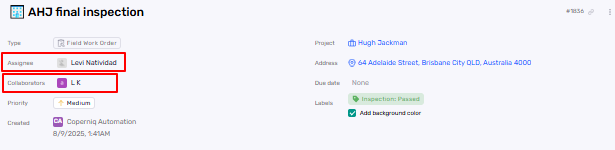
Instructions, Checklists, and Forms
Instructions
Each Work Order includes a detailed instruction section outlining task scope, objectives, and specific requirements.
Checklists
The checklist section defines step-by-step actions or validations required before the Work Order can be closed.
Some items may trigger automatic status changes or dependencies.
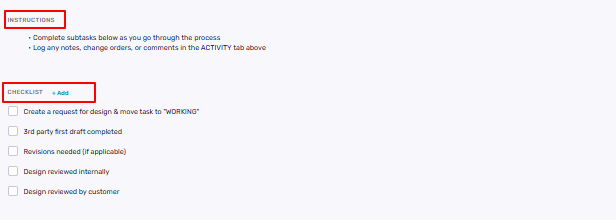
Forms
Forms standardize data collection and documentation.
There are two types of forms in Coperniq:
Embedded Forms – Located under the checklist within the Work Order (e.g., Site Survey Form, QC Report).

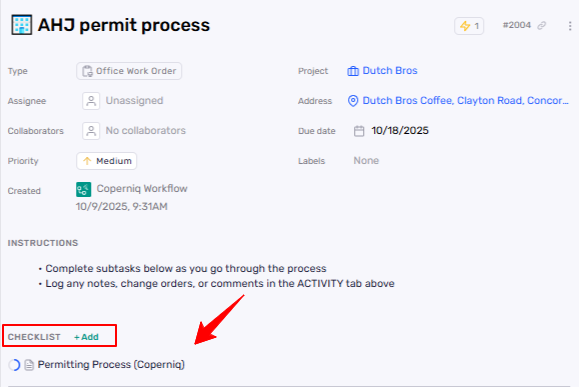
Embedded forms must be completed before the Work Order can be marked as Completed.
Independent Forms – Standalone forms accessible from the Forms module for audits or additional reporting.
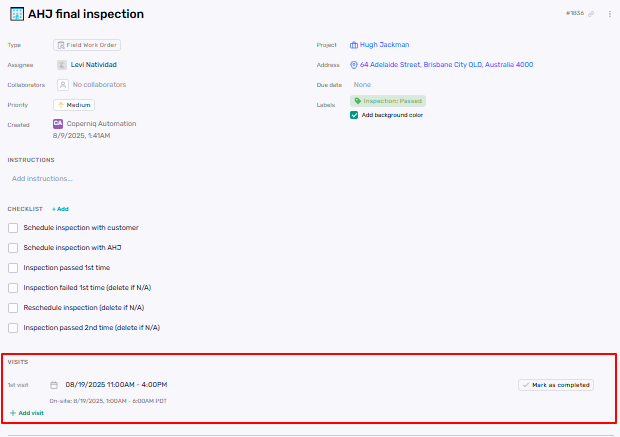
Visits (Field Work Orders Only)
Visits are available only for Field Work Orders. They represent on-site appointments or time logs associated with a specific task.
Each Visit records:
Scheduled date and time
Visit status (Scheduled, or Completed)
Duration and completion details
Multiple Visits can be logged under one Work Order to track repeat trips or staged progress.
This ensures precise timekeeping and accountability for field teams.
Work Order Status Lifecycle
Work Orders progress through a predefined sequence of statuses that reflect real-time task execution.
Status | Description | Applies To |
QUEUED | Default status for newly created Work Orders unless already assigned or scheduled. | Field / Office |
ASSIGNED | Updates automatically when an Assignee is added. | Field / Office |
SCHEDULED | Updates when at least one Visit is scheduled. | Field |
DISPATCHED | Updates when both a Visit is scheduled and an Assignee is set. | Field |
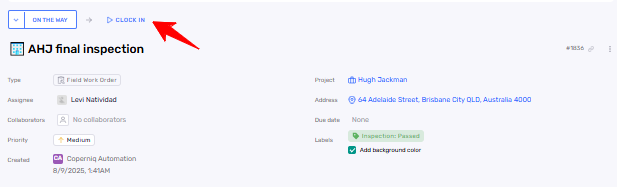
ON THE WAY | Indicates the technician is en route to the job site. Updated when the “On The Way” action is selected. | Field |
CLOCKED IN / WORKING | Field: The technician clocks in (manually or via geofencing). | Field / Office |
CLOCKED OUT / WAITING | Field: Technician clocks out after on-site work. | Field / Office |
REVIEW | Used when the Work Order is submitted for internal review or quality check. | Field / Office |
COMPLETED | All checklist items and required forms are finalized. The Work Order is marked as completed. | Field / Office |
CANCELED | The Work Order is no longer applicable and is manually marked as canceled. | Field / Office |
Status Shortcuts
Work Orders support single-click transitions between sequential statuses (for example, Dispatched → On The Way → Working), reducing the need for multiple manual steps.
Add Reference
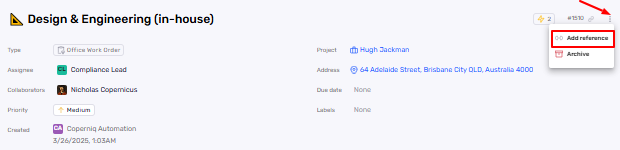
Link related Work Orders within the same project record to show dependencies or follow-ups.
To add a reference:
Open the WO and click the three-dot menu (⋮) in the top-right.
Select Add reference.
Search/select one or more other Work Orders from the same record to link.
Archiving Work Orders
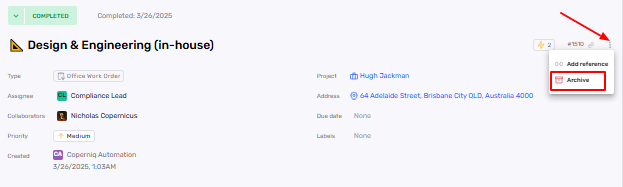
Archiving allows users to remove inactive Work Orders from main views without deleting them.
To archive a Work Order:
Open the Work Order.
Click the three-dot menu (⋮) in the upper-right corner.
Select Archive.
Archived Work Orders are hidden from the main dashboard and lists by default.
They only appear when users toggle on “Show Archived”.
Note: Archived WOs remain fully preserved in the system and can be unarchived at any time. Archiving does not delete data or affect project metrics.
Activity Tracking
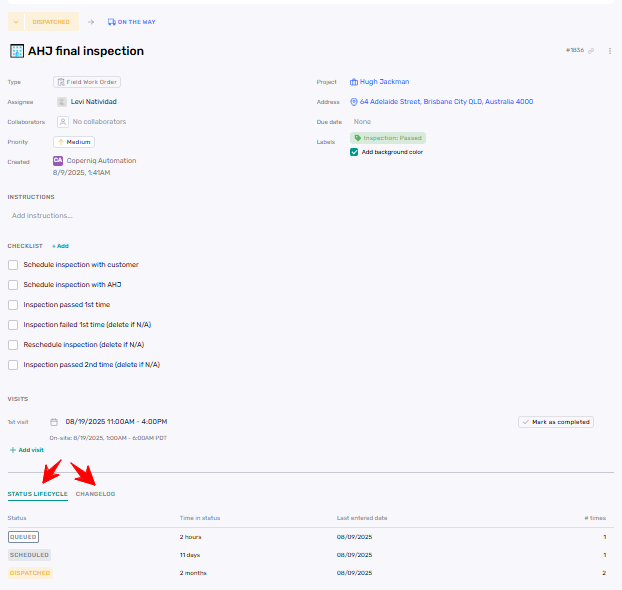
The Status Lifecycle panel records every stage transition, including:
All past and current statuses
Time spent in each phase
User responsible for the update
The Changelog tab provides a full audit history of actions such as:
Checklist completions
Collaborator updates
Added notes or attachments
This audit trail ensures transparency, compliance, and traceability throughout the task’s lifecycle.
Notes Panel
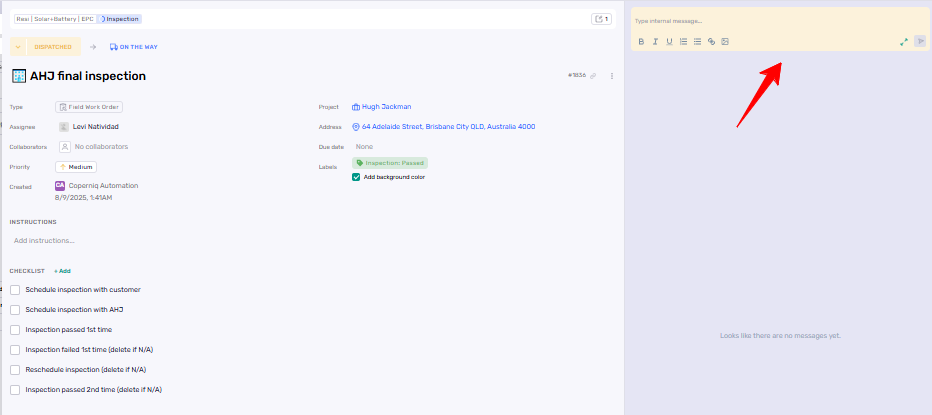
The right-hand panel of the Work Order is used exclusively for internal notes.
Notes allow users to log operational updates, field findings, or collaboration details without external communication.
Notes are visible only to internal users.
Entries support text formatting, file attachments, and image uploads.
All notes are timestamped and appear in chronological order.
Work Orders do not include email, SMS, or call logging — the Notes panel is strictly for internal collaboration.
Completing a Work Order
Before marking a Work Order as complete, verify the following:
All checklist items are finished.
All required forms are submitted.
All Visits (for Field WOs) are completed (if Applicable).
Final notes and attachments are added.
Any required review step is approved.
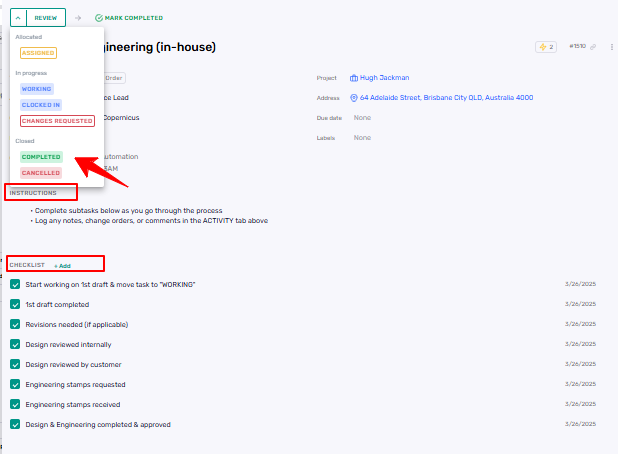
After verification, select Mark Completed.
If a WO doesn’t pass QC, you can return it to Review for follow-up corrections before closing.
Best Practices
Assign an Assignee immediately after creation.
Add Collaborators to ensure support and visibility.
Keep status updates current, especially for field activities.
Use labels and priorities for efficient organization.
Complete all checklists and forms before marking the WO as complete.
Maintain detailed notes for team visibility and traceability.
Attach all close-out documentation prior to completion