Opportunities (Sales) — Opportunity Workflow: Create, Triage, Convert to Project
Last updated: May 21, 2026
Estimated reading time: 3 minutes
Overview
The Opportunities section in Coperniq is the starting point of the sales process. This is where incoming leads and sales opportunities are captured, reviewed, and managed through a workflow before eventually being converted into Projects (and later into Work Orders).
The Opportunity workflow allows your team to:
Create and manage new opportunities
Move opportunities through custom workflow stages
Assign owners and track sales progress
Convert approved opportunities into Projects manually or automatically
Organize communication, notes, and customer activity in one place
Accessing Opportunities
Log into the Coperniq web app
From the left-hand menu, select Opportunities under the CRM section
Choose the Opportunities tab at the top

You’ll land on the Oppurtinities dashboard, which includes:
A list of Opportunities grouped by workflows (e.g., Service Pipeline, Project Pipeline)
Stages that track progress, such as New Opportunity , Proposal, Closed Won, Closed Lost, Nurture
A toolbar to search, filter, group, and sort requests
Multiple viewing layouts to customize how records are displayed
A CSV export option in the top-right corner to export Opportunity records

Creating a New Opportunity
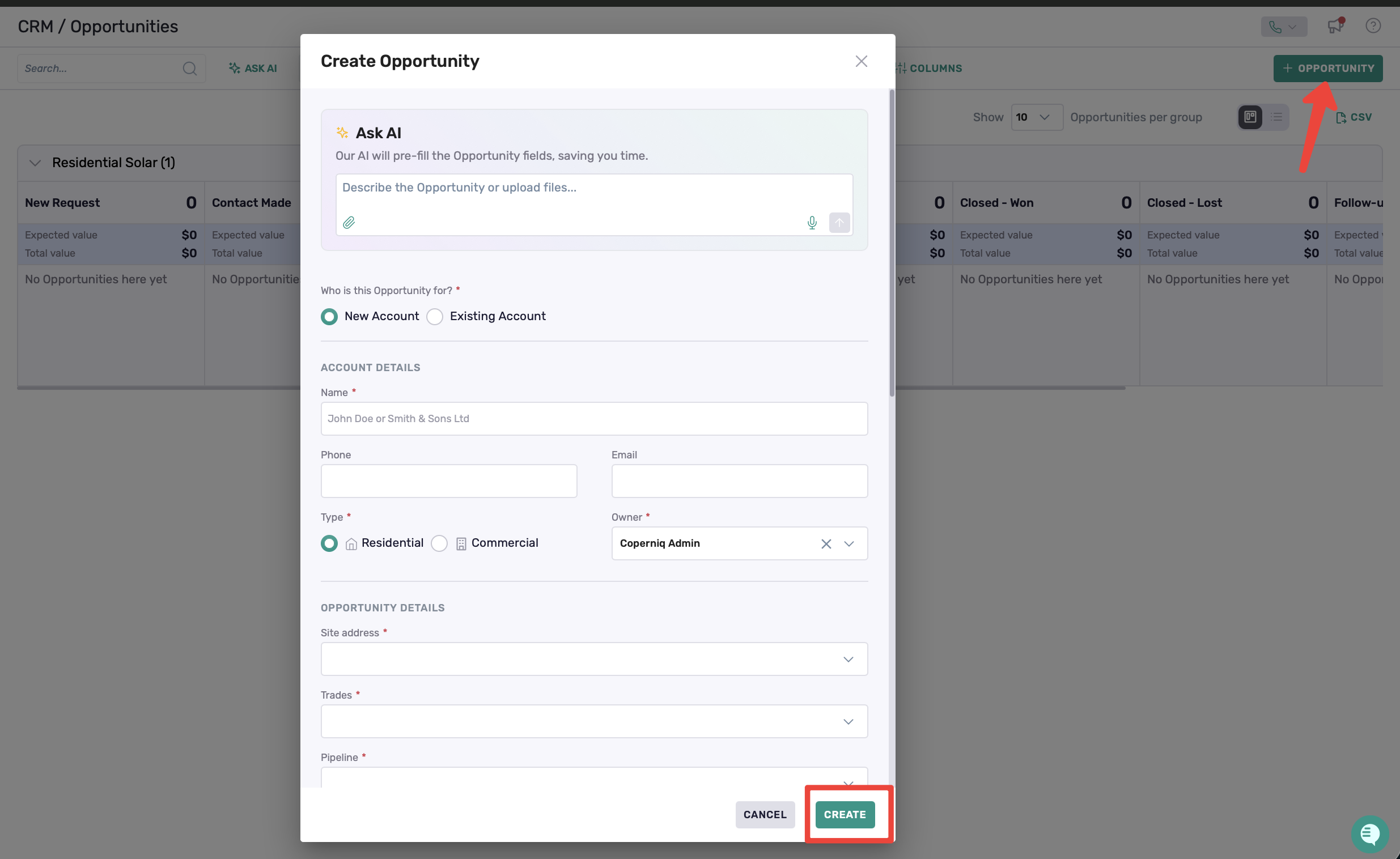
To create a new Opportunity, click the + Opportunity button in the top-right corner.
There are two ways to create an Opportunity in Coperniq:
Manually Creating an Opportunity
Complete the Opportunity form
Click Create
The opportunity will automatically appear in the first stage of the selected workflow.
Creating an Opportunity Using AI
Use the Ask AI section at the top of the form to speed up opportunity creation.
Simply enter a description or upload related files/documents, and the AI will automatically populate available opportunity details for you.
Opportunities may also be automatically created via:
Client portal submissions
Imported leads from external sources
Opportunity Workflow Stages
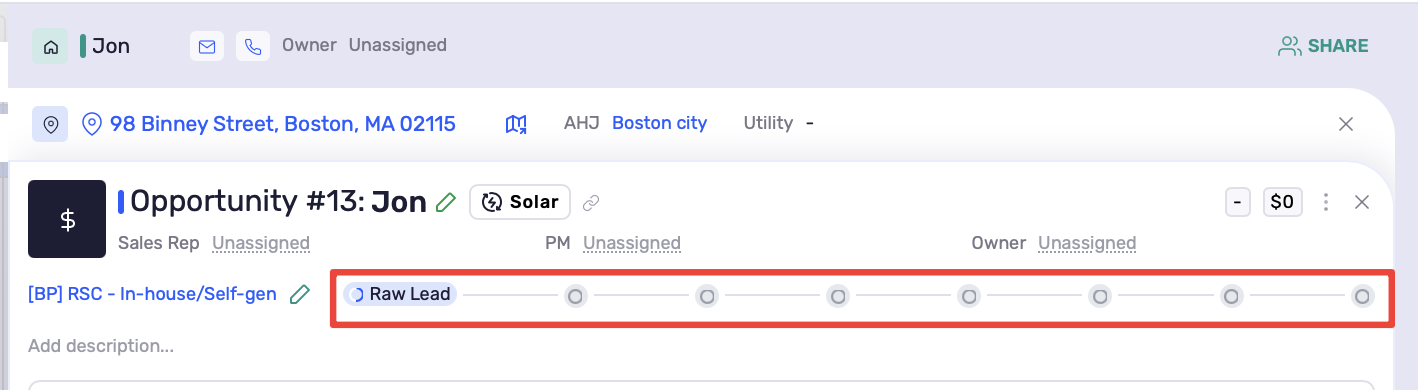
Opportunities move through a workflow pipeline that represents your sales process.
Opportunities can be advanced between stages as they progress (e.g., from New opportunity to Proposal, then to Closed Won).
Stages can differ depending on whether the opportunity belongs to a Service workflow or a Project workflow.
Each opportunity workflow can be customized, and the stages can be modified to reflect your team’s process.
Managing Opportunities
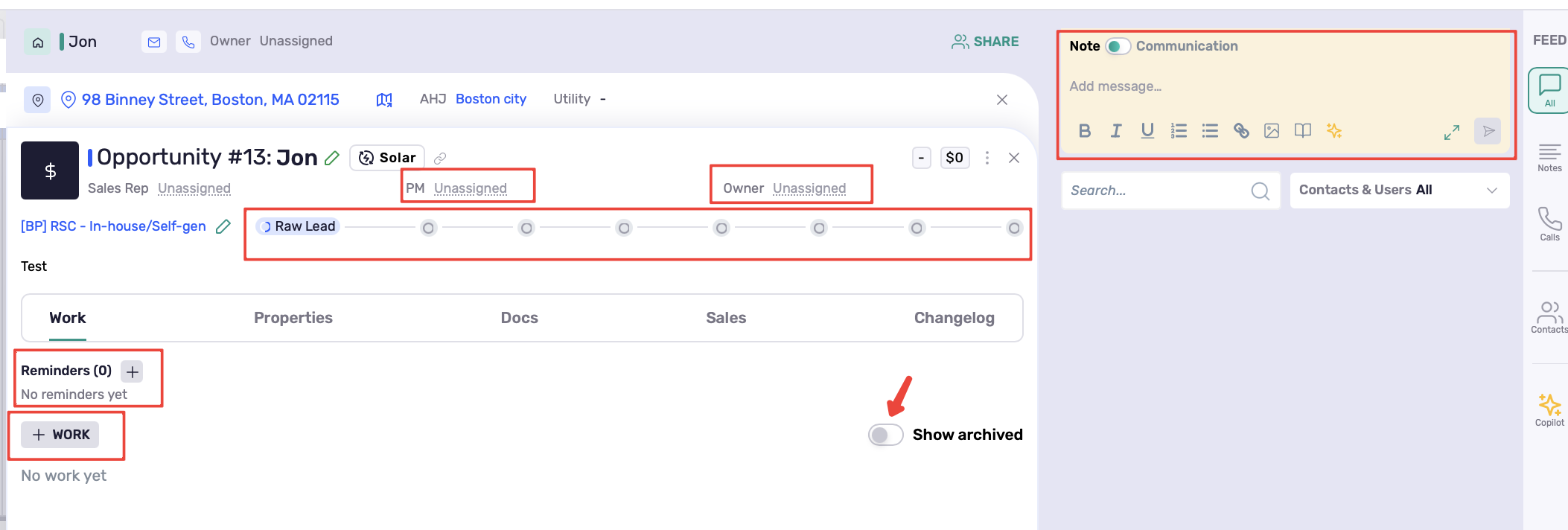
Triage ensures requests are reviewed and organized correctly:
Assign a sales rep or owner
Update missing details
Add notes or log communication in the right panel (notes, calls, emails, SMS, portal messages)
Toggle on Show Archived to view archived records/tasks when needed
Add reminders, tasks, Work Orders, forms, and other related activities
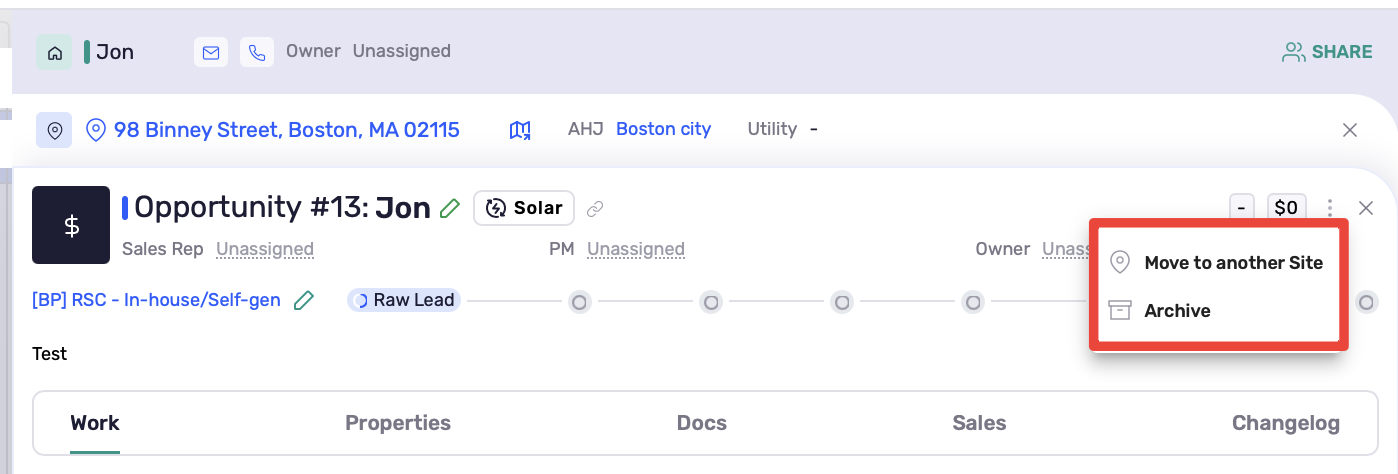
Move the Opportunity to another stage/site as needed
Archive invalid or duplicate Opportunities to keep the pipeline clean
Converting an Opportunity to a Project
When an Opportunity is moved to a Closed Won phase, it can be converted into a Project either manually or automatically.
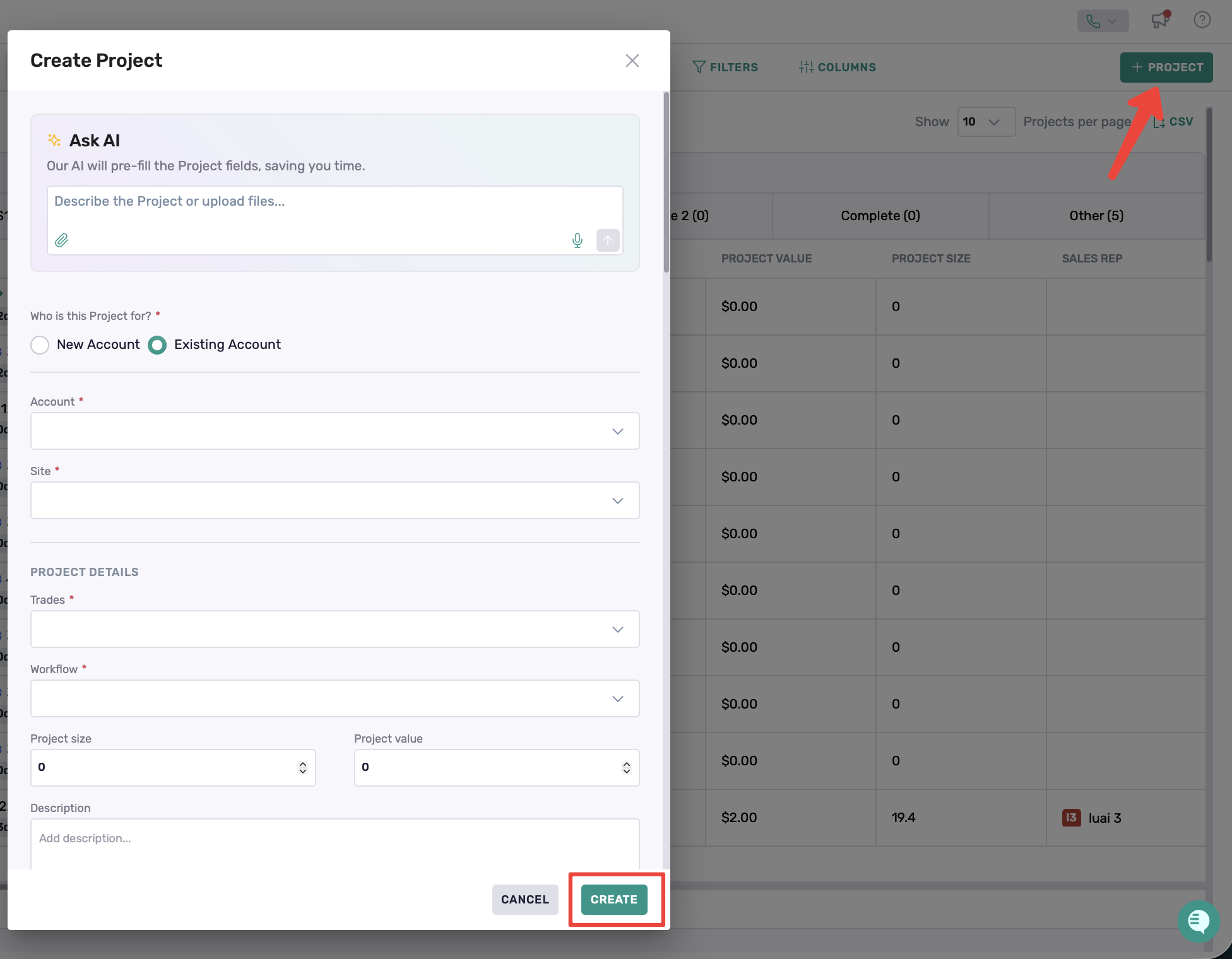
1. Manual Conversion
Go to the Projects page
Click + Project
Select the existing client linked to the Opportunity
Complete the required project details or utilize the AI feature to assist you
Click Create
The Opportunity will now be linked to the newly created Project.
2. Automatic Conversion from a Closed Phase
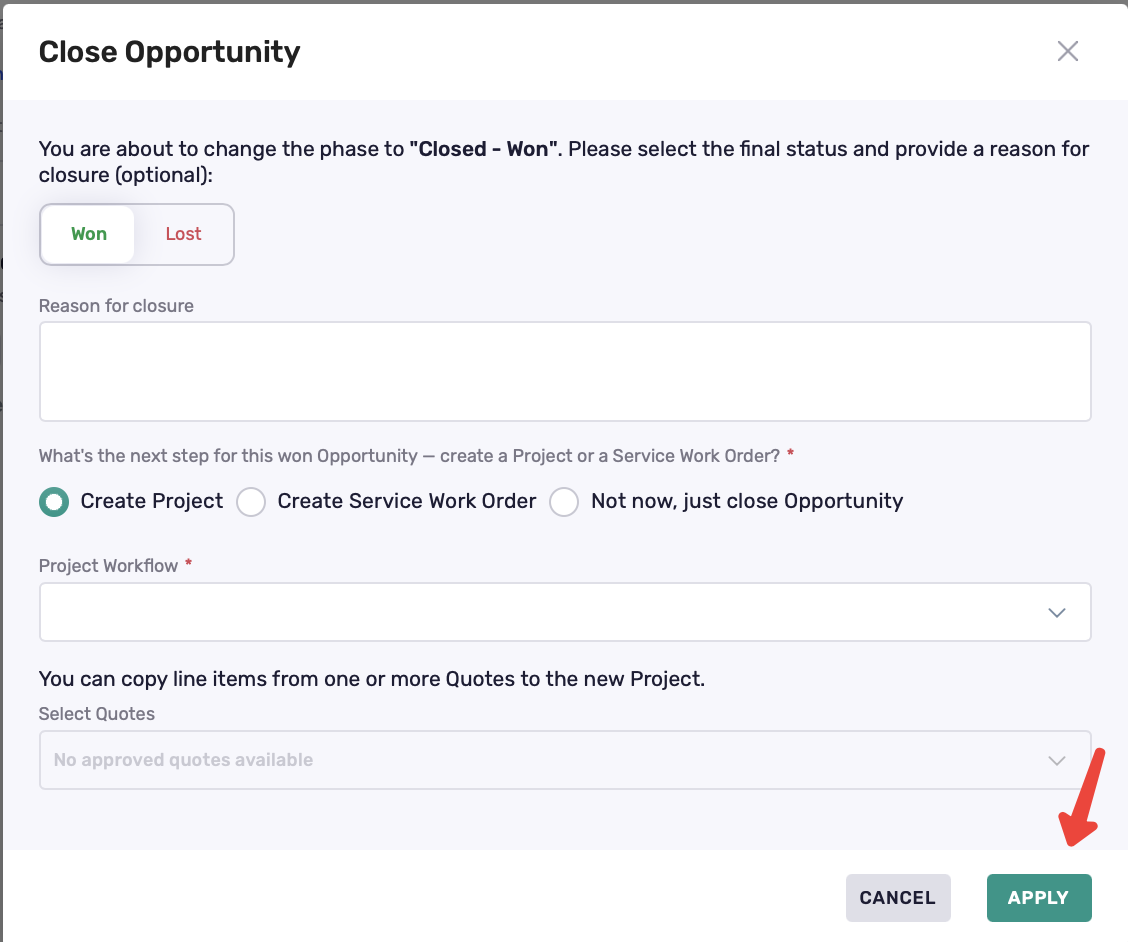
If the Opportunity phase is configured as a Closed phase type, moving the Opportunity into that phase will automatically open a conversion window.
From this window, users can:
Mark the Opportunity as Won or Lost
Add a reason for closure (optional)
Choose whether to:
Create a Project
Create a Service Work Order
Just close the Opportunity
Select the Project Workflow
Copy approved quote line items into the new Project (if available)
Click Apply
Best Practices
Move Opportunities through stages consistently to keep pipeline visibility clear
Modify workflow stages as needed to reflect your actual sales process
Use triage to maintain accurate ownership and complete details
Archive duplicates or disqualified Opportunity to keep the dashboard clean
Automate conversion from Closed Won → Project where possible to reduce manual effort