Custom Properties & Labels
Last updated: October 7, 2026
Estimated reading time: 2–3 minutes
Overview
Custom Properties and Labels help you organize and customize information in Coperniq. Custom Properties capture structured information specific to your workflows, while Labels provide a quick, visual way to categorize and filter Work Orders and Assets.
Custom Properties
Custom Properties are fields you can create to capture information specific to your business.
They are available for:
Accounts
Opportunities
Projects
Vendors
AHJs
Utilities
Each record type has its own Properties section in Company Settings.
Access Custom Properties
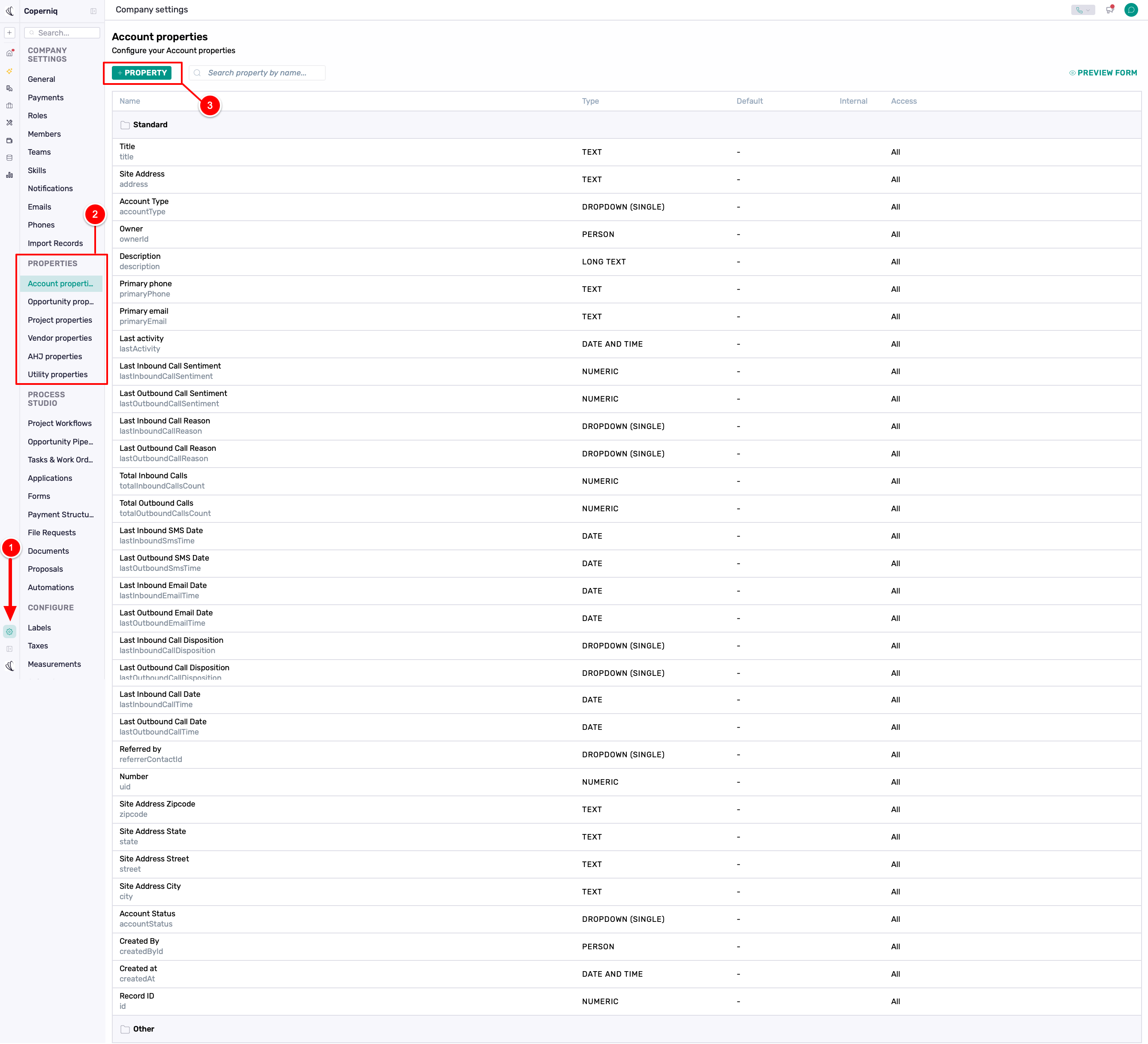
Go to Company settings
Under Properties, select the record type you want to configure.
Click + Property to create a new property or group.
Each section manages properties only for that record type.
Create a Custom Property
When creating a property, you can configure:
Property Name — the name displayed in Coperniq.
Property Type — the type of information stored, such as Text, Number, Date, or Dropdown.
Default Value — sets a default value when applicable.
Access — controls who can access the property.
Group — organizes the property within a group. If no group is selected, the property is placed under Other.
Icon URL — optionally adds an icon.
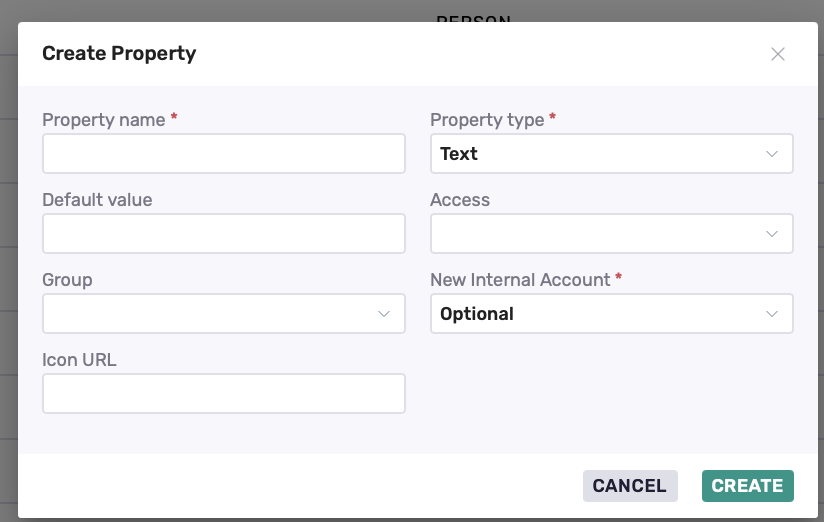
Available settings may vary by record type.
Internal and External Properties
Where available, choose how a property appears when a record is created:
Internal — created directly in Coperniq.
External — created through an external form, such as a Portal request.
Properties can be Required, Optional, or Hidden. For Hidden properties, use Access to control who can view or edit them.
Share Opportunity Properties with Projects
For Opportunity Properties, enable Share with Project to copy the property value when a Project is created from the Opportunity.
This is a one-time copy. Changes made to the Opportunity property later will not update the Project.
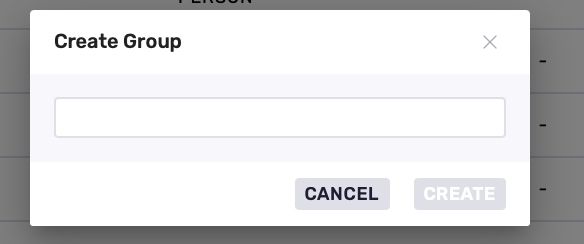
Create Group
Groups help organize properties into sections on records.
Use groups to:
Improve readability
Keep related fields together
Reduce clutter on forms
Examples include Design Details, Permitting, or Utility Information.
Project Properties
Include a Share with Request option
Search Properties
Use the Search property by name field at the top of the page to quickly locate a property, especially when managing a large list.

Preview Forms
In Project/Request and client properties, you’ll see a Preview Forms option.
This allows you to:
Preview how properties appear on project forms
Validate grouping, required fields, and layout
Test changes before rolling them out to users

Managing Existing Properties
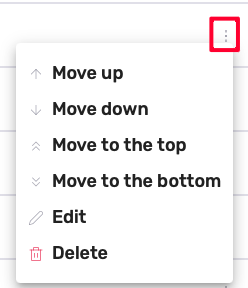
From the properties list, use the three-dot menu to:
Move up
Move down
Move to the top
Move to the bottom
Reorder properties
Edit property settings
Delete properties (removes stored values from all records)
Labels
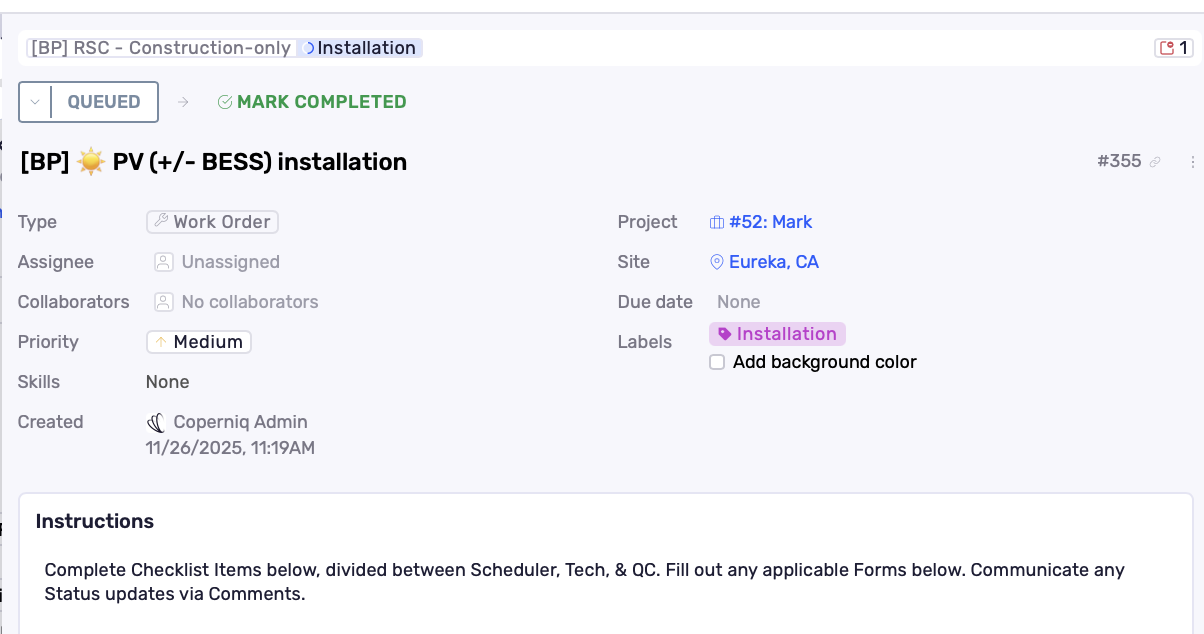
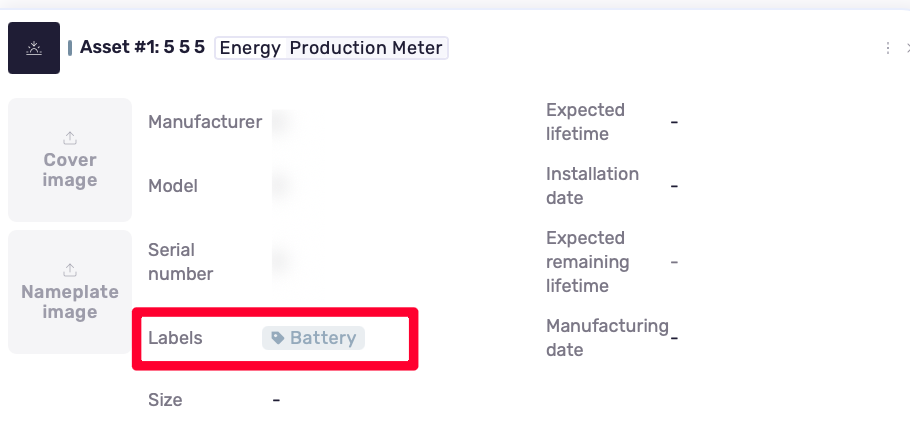
Labels are visual markers that make it easy to categorize and identify Work Orders and Assets.
Labels can be applied to:
Work Orders
Assets
Access Labels
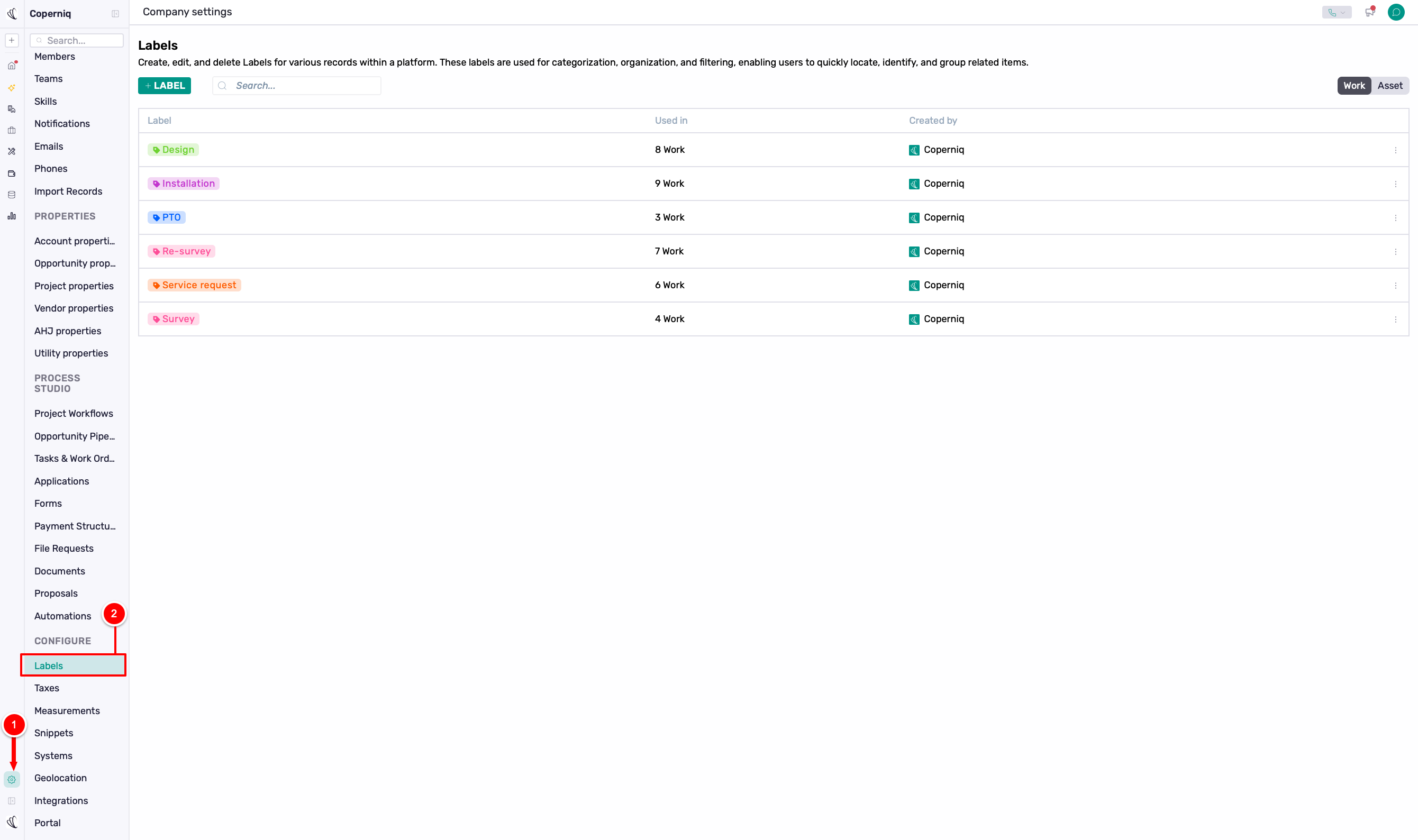
Go to Company settings
Under Configure, select Labels
Create and Manage Labels
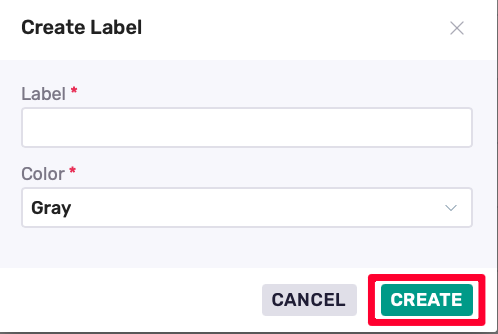
Click + Label
Enter a label name
Choose a color
Save
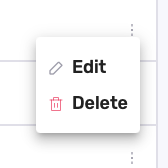
Labels can be edited or deleted at any time.
How Labels Appear Across the App
On Work Orders, labels appear on the record and in Work Order lists.
Without background color, labels appear more subtle in Schedule and Dispatch view.
With Add background color enabled, labels display as colored pills in Schedule and Dispatch view.

On Assets, labels appear on the asset record and in the Assets list.
Filtering with Labels
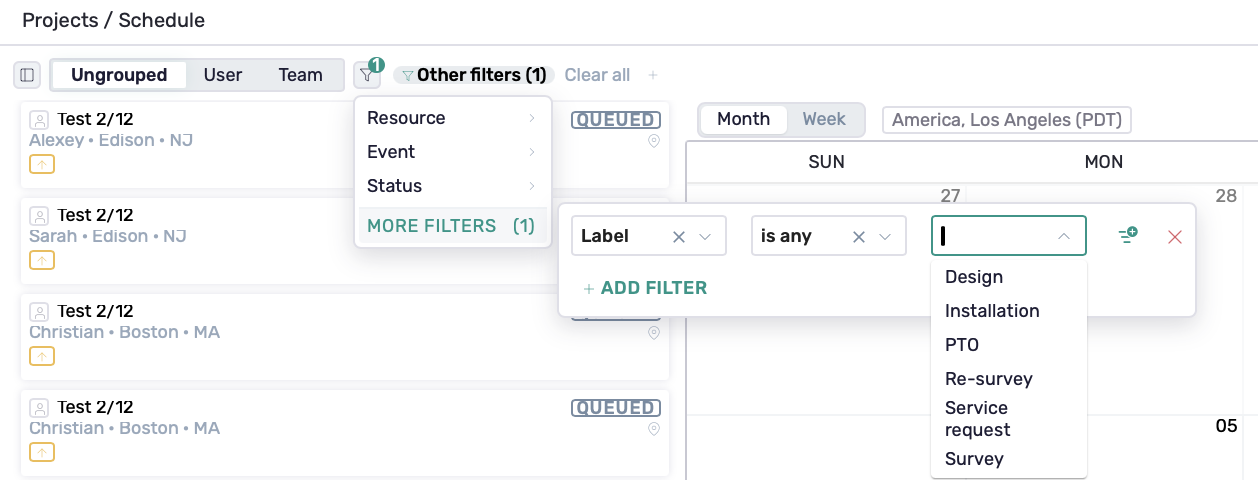
abels can be used to filter Work Orders across the Work and Schedule & Dispatch pages.
To filter by label:
Click the filter (funnel) icon
Select More filters
Choose Label.
Choose one or more labels
This applies to Work Orders, Assets, and views like Schedule and Dispatch.
Custom Properties vs. Labels
Use Custom Properties when you need to capture structured information, such as a permit number, system size, or date.
Use Labels when you need a quick way to categorize items, such as High Priority or Inspection Required.
Custom Properties store information. Labels categorize it.
Best Practices
Create custom properties only for data you need to track consistently.
Use groups to keep record layouts clean and readable.
Avoid duplicating properties across record types unless necessary.
Use labels for priority, status, or operational grouping.
Enable label background color only when high visibility is required.
Periodically review and remove unused properties and labels.