How to Import CSV Files
Last updated: January 4, 2026
This article provides guidance on importing CSV files containing projects or requests into Coperniq.
Setup CSV Import
Ensure your CSV file has all required headers for the corresponding object (i.e. for projects: Title, Address)
Click on your company name in the top left corner
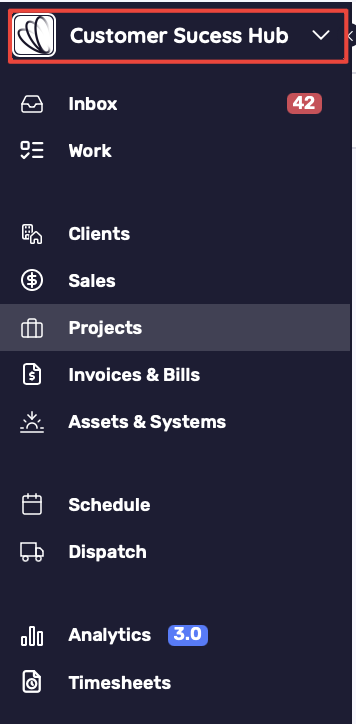
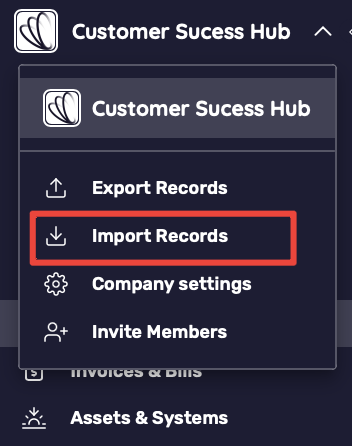
Select "Import Records" from the dropdown menu
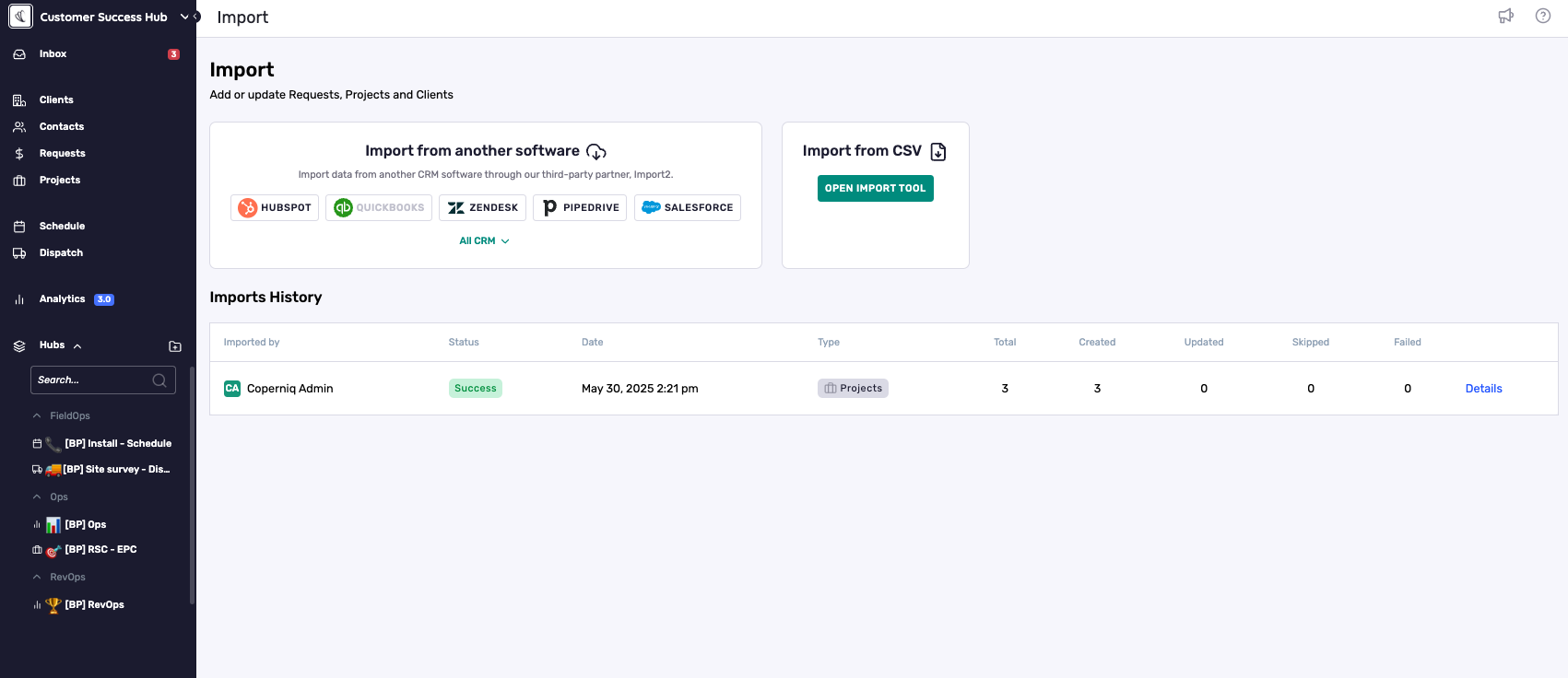
Select "Open Import Tool"
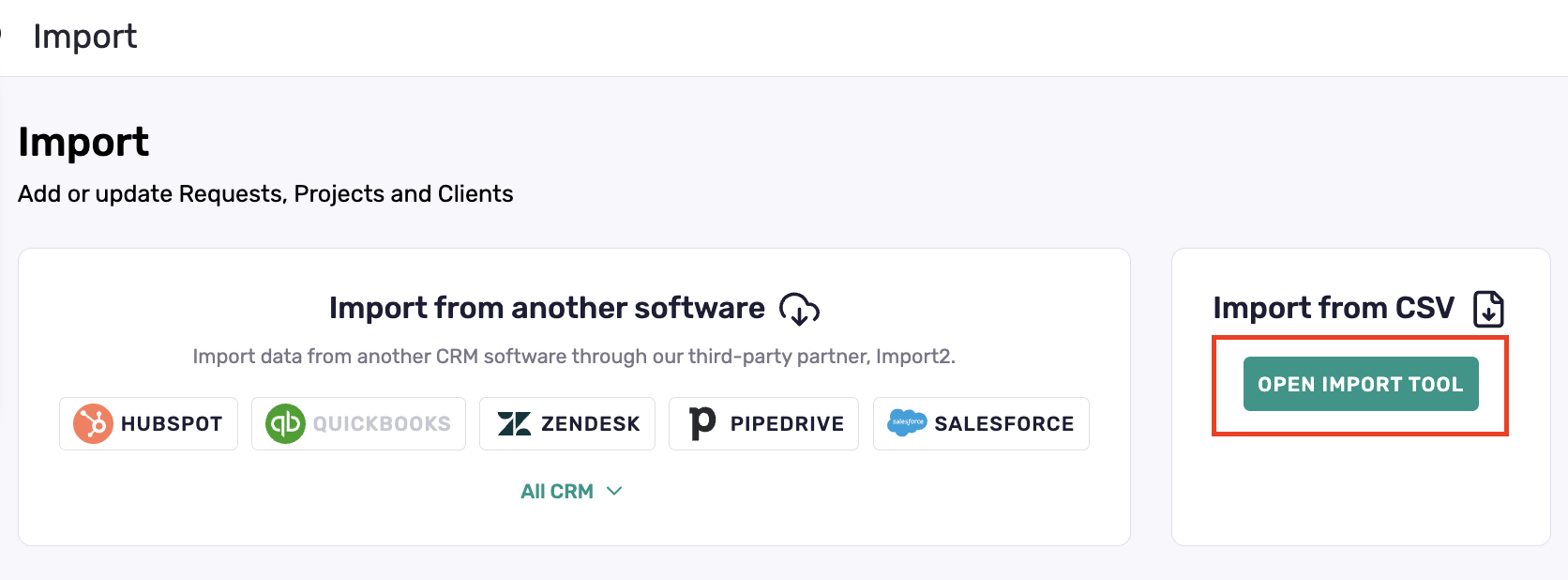
A new tab will open up in your browser
Drag a file into the "Add files" section or click "Upload file"
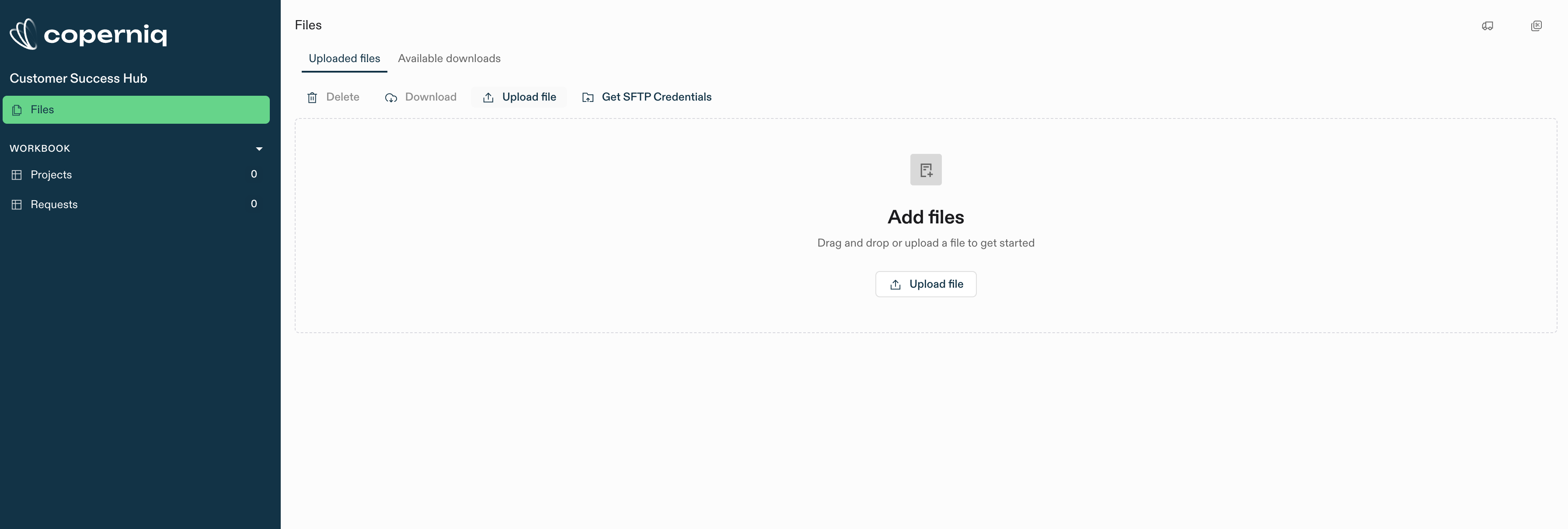
Upload your properly formatted CSV file

Click "Import" next to the file that you uploaded

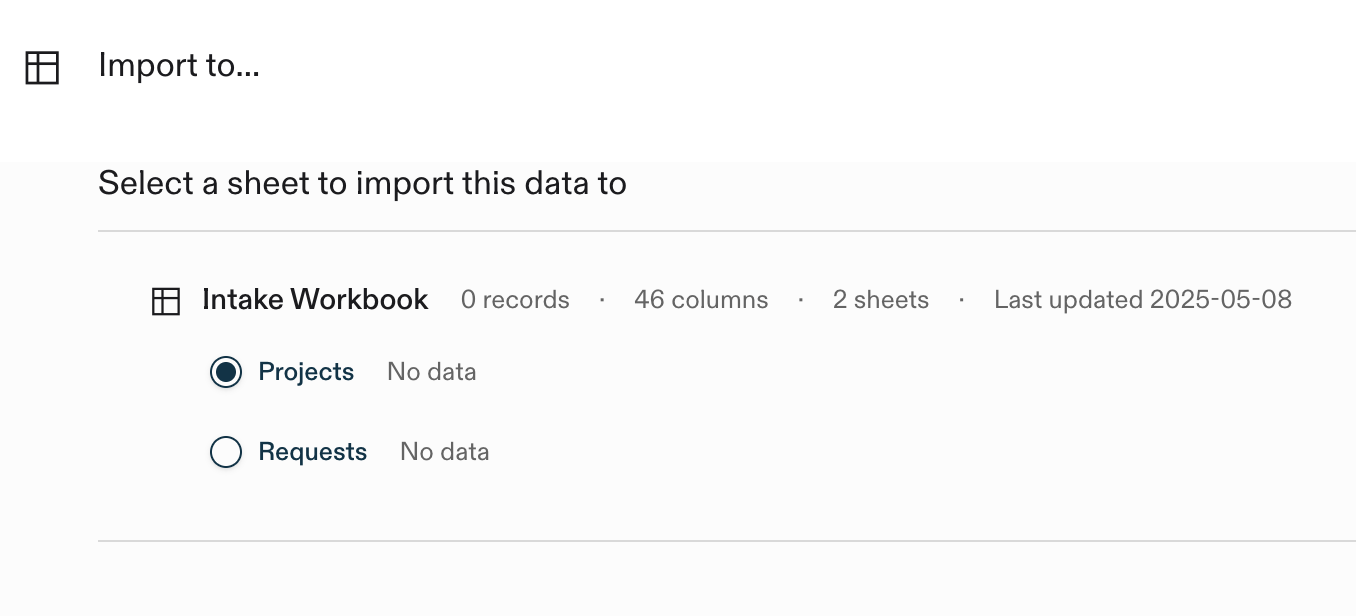
Select the object you want to import to (i.e. Projects) and click "Continue"
The next page that will appear is the "Map fields" page, where you can select your column header and map it to the corresponding field in Coperniq
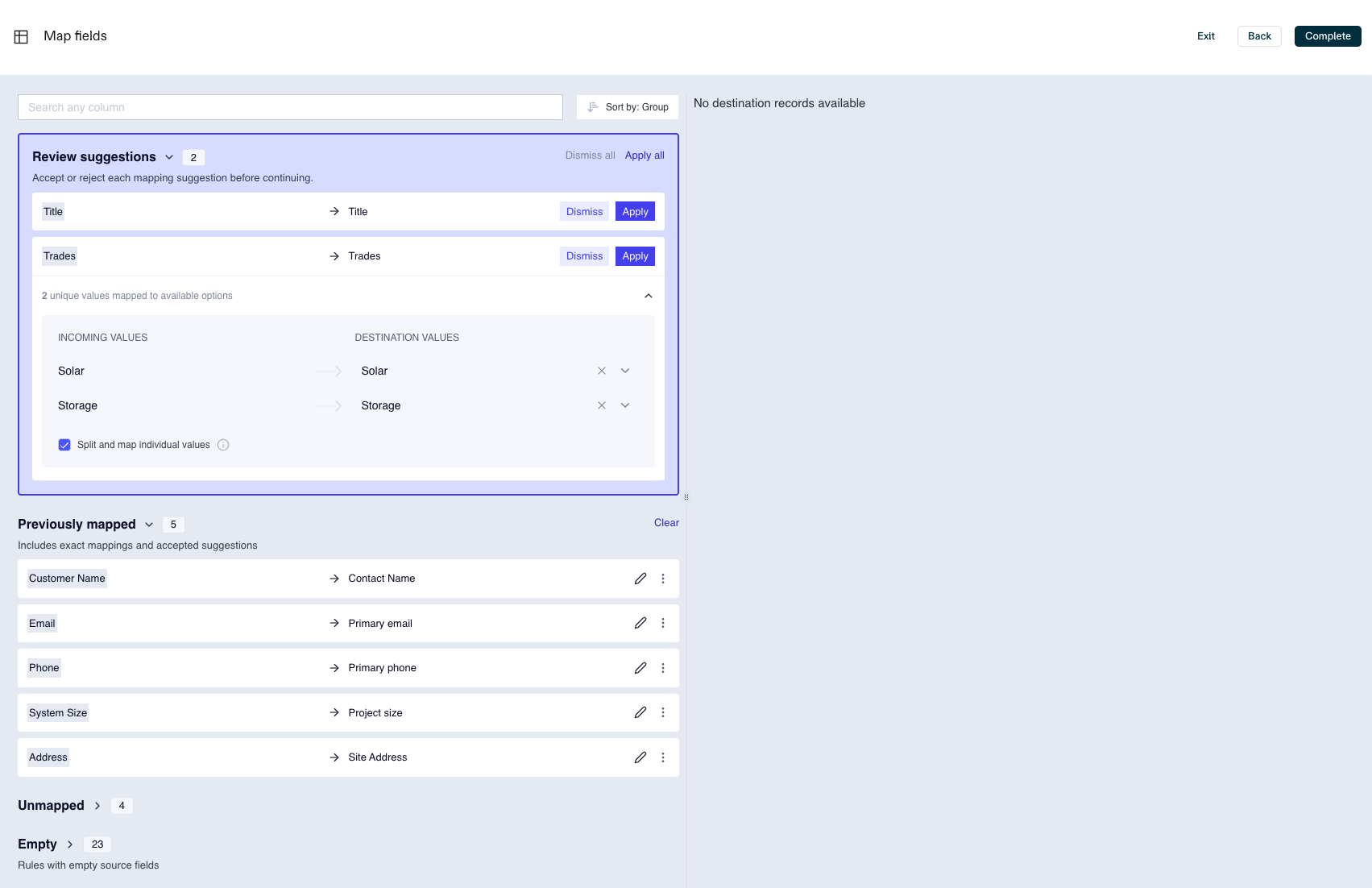
Perform the mapping field exercise for all required fields
The tool will provide suggestions for mapping which you can dismiss or apply
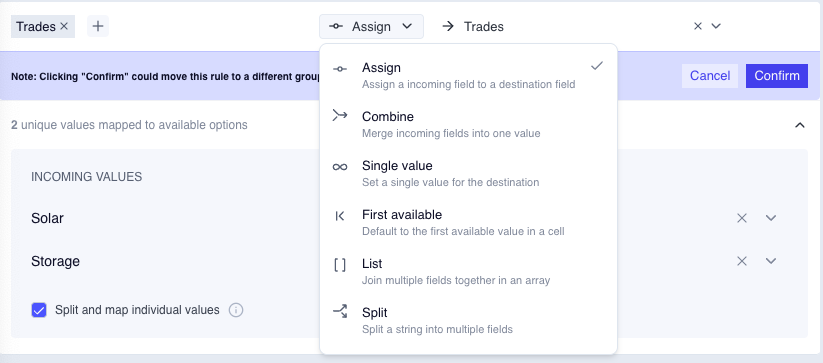
There are a few different options when mapping fields:
Assign - Assign an incoming field to a destination field
Combine - Merge incoming fields into one value
Single value - Set a single text value for the destination field
First available - Default to the first available value in a cell
List - Join multiple fields together in an array
Split - Split a string into multiple fields
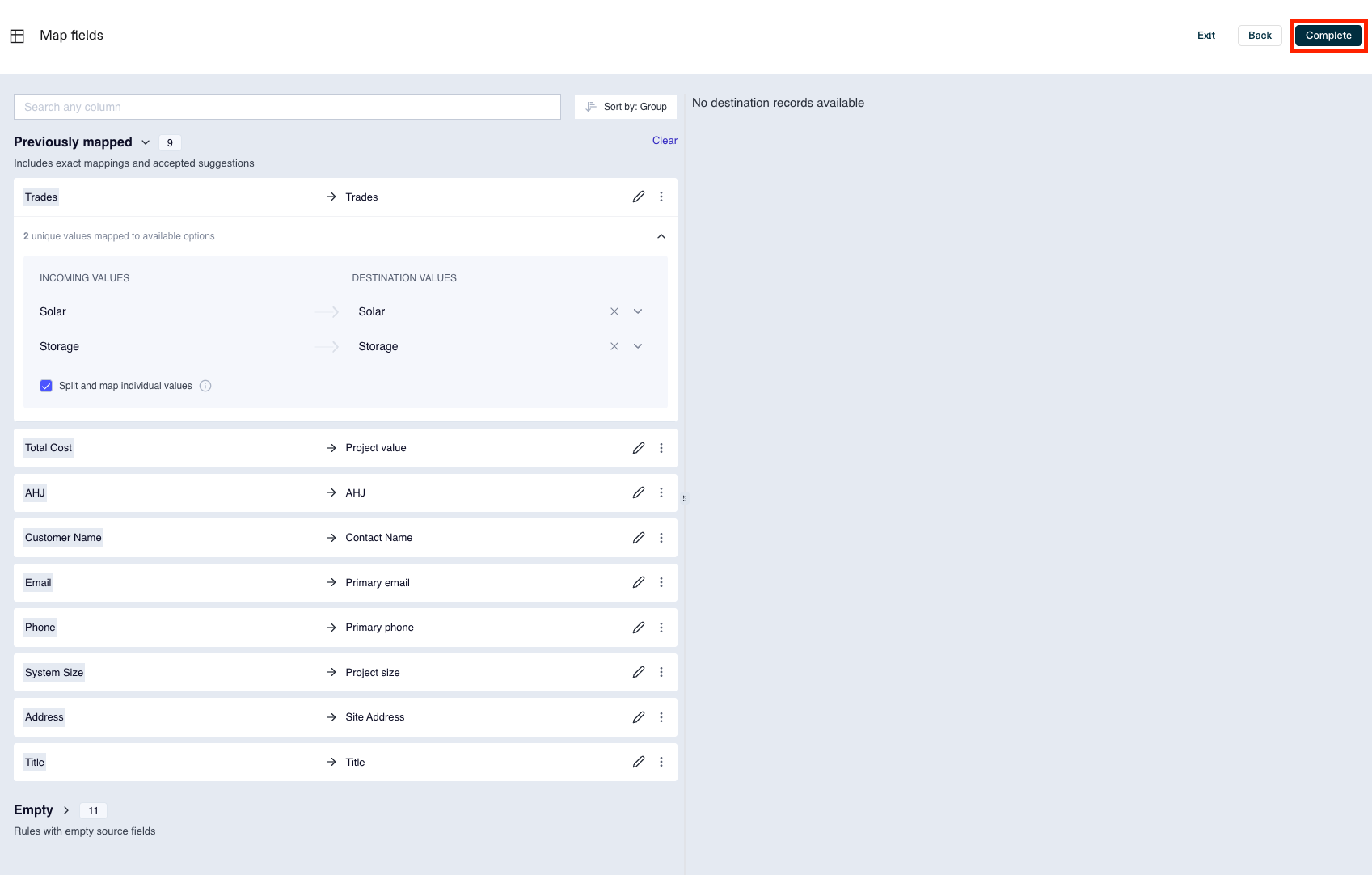
When assigning values to a dropdown or multi-select dropdown field in Coperniq, the tool will ask you to map incoming values to the correct dropdown value
When mapping is completed, click "Complete"
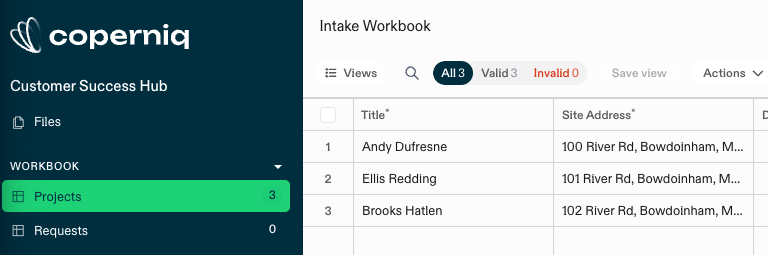
The records from the file will be imported into the "Projects" workbook, where you can verify that the mapping was processed correctly and make additional edits or resolve invalid rows
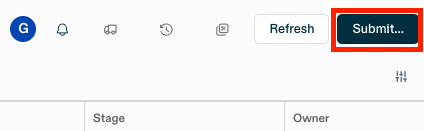
Once your rows are valid, click "Submit"
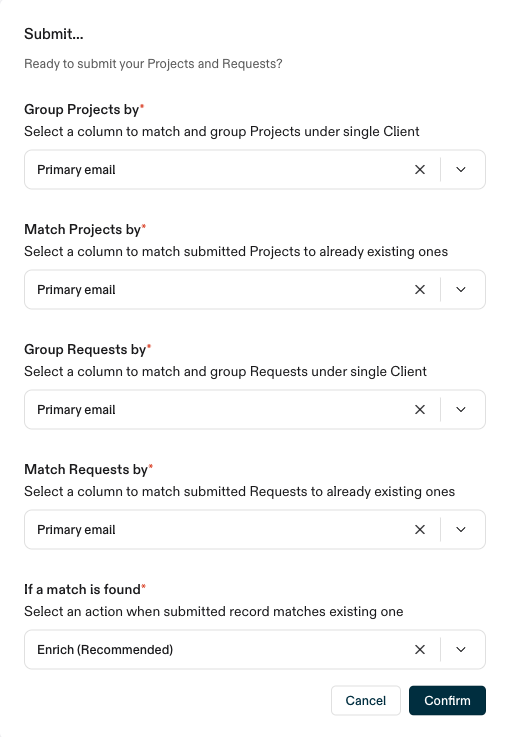
Define your import matching logic
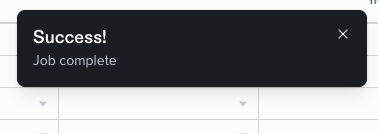
Wait for the import process to complete and you receive the success message - this may take a few minutes depending on file size
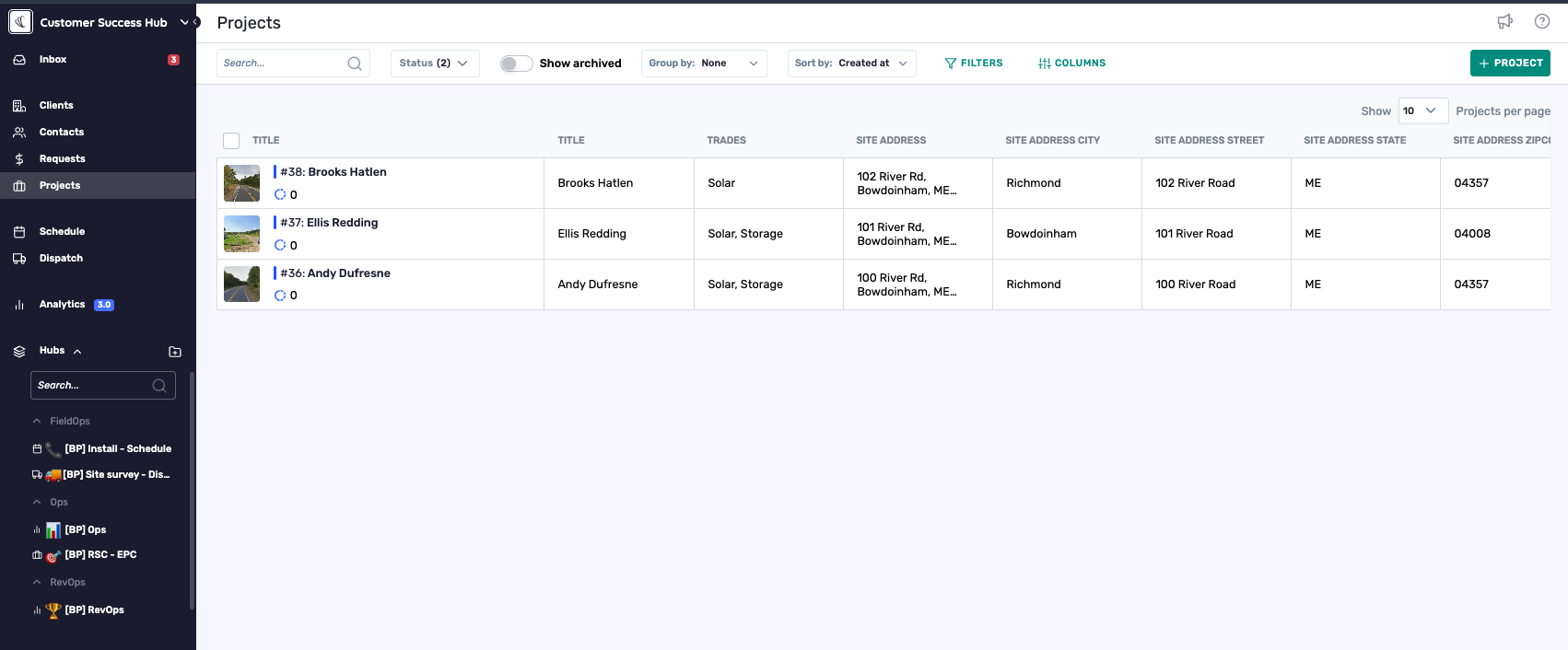
Return to Coperniq and view the results
Usage
If you are re-importing projects, make sure to archive any existing projects if you want to start fresh or change your enriching settings when clicking submit.
Additionally, you may want to clear out the "Projects" workbook in the import tool if you have new data that you want to import. This can be done by bulk selected all rows and clicking the trash icon.
Troubleshooting Tips
If your import appears stuck in "Progress" status, try clearing your browser cache and restarting the import process
Verify all required headers are present in your CSV file before importing