Geolocation
Last updated: October 8, 2026
Estimated Reading Time: 2–3 minutes
Overview
Geolocation connects field activity with job locations in Coperniq. It helps your team manage scheduled field work, track travel and working time, and keep homeowners informed when a technician is heading to their property.
Geolocation can be used to:
View assigned jobs and routes.
Track travel to job sites.
Clock users in and out automatically or remind them to do so.
Capture travel and working time in Work Orders and Timesheets.
Show homeowners a technician's progress and estimated arrival time in the Portal.
Geolocation applies to Work Orders and Service Work Orders. It does not apply to Tasks.
Access Geolocation Settings
Click the Settings (gear) icon in the bottom-left corner.
Under Company Settings, select Geolocation.
Turn Geolocation on to enable location-based features.
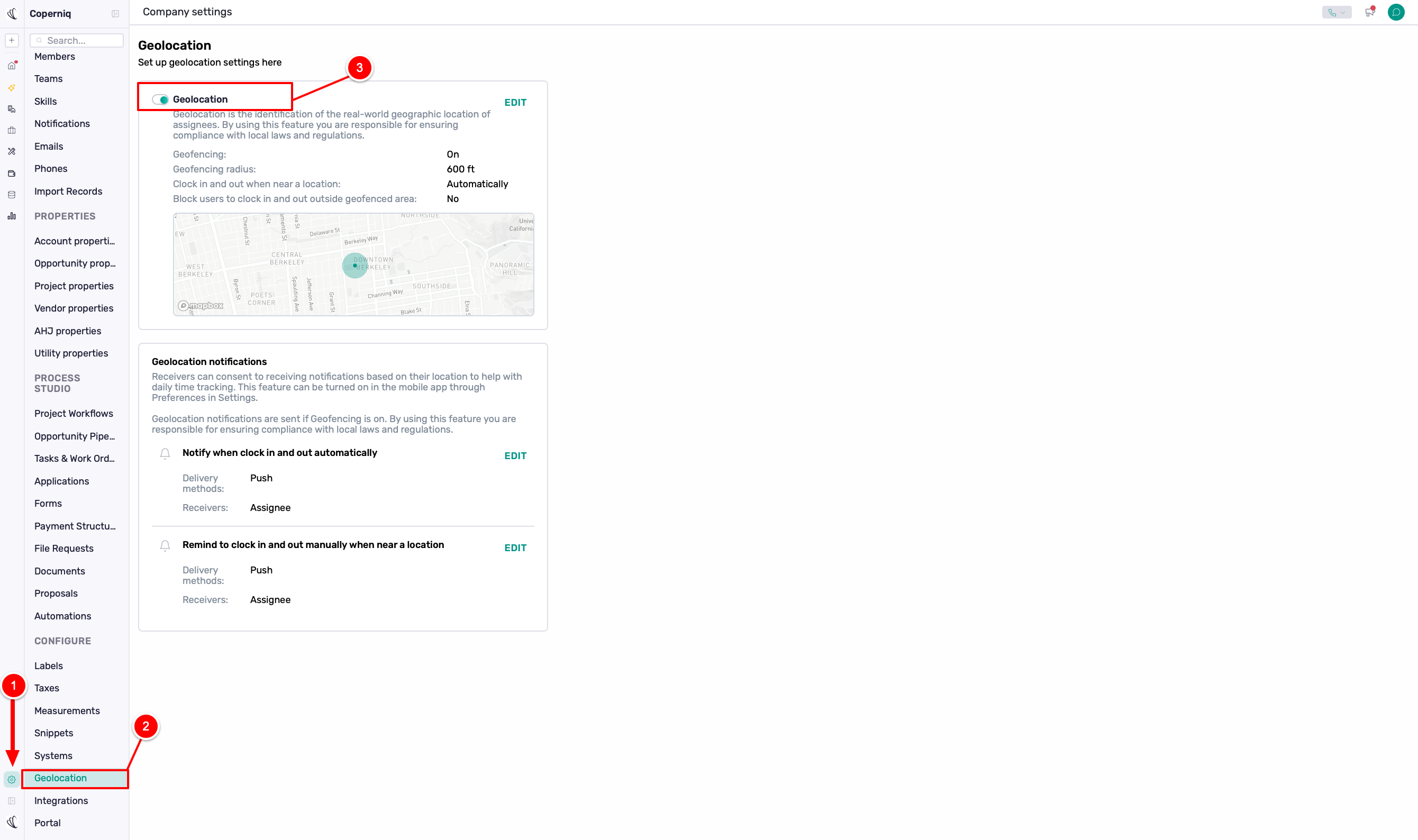
Set Up Geofencing
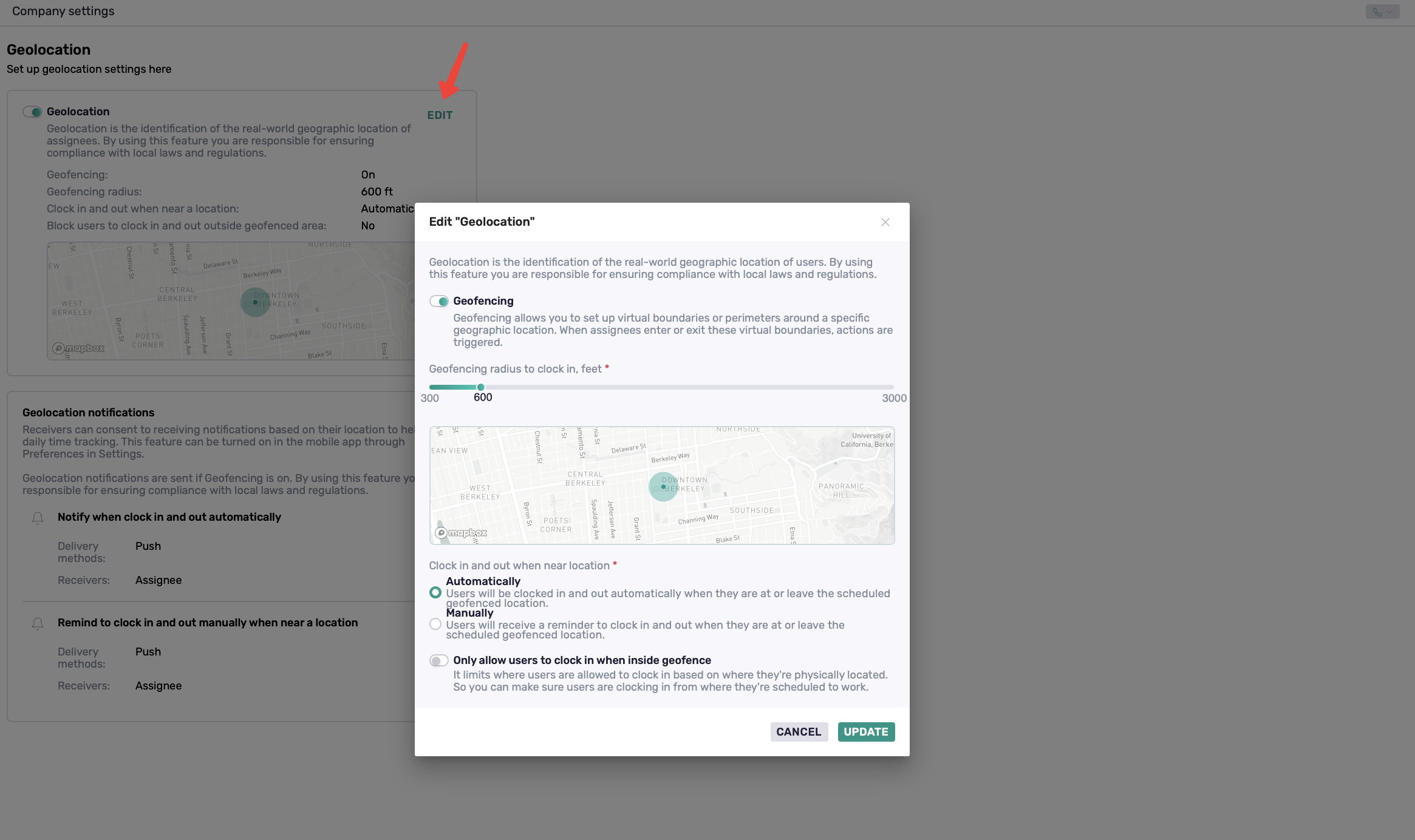
Click Edit on the Geolocation card to set up Geofencing.
From here, you can:
Turn Geofencing on or off — enable location-based clock-in and clock-out.
Set the geofencing radius — choose how close users need to be to the scheduled job location.
Choose how users clock in and out:
Automatically — clock users in when they arrive and out when they leave.
Manually — remind users to clock in when they arrive and out when they leave.
Only allow users to clock in when inside geofence — turn this on if users should only be able to clock in while within the geofenced area.
Click Update to save your settings.
Important: Assignees and collaborators must allow the Coperniq mobile app to access their phone's location for Geolocation features to work.
How It Works for Field Users
Once a Visit is scheduled for a Work Order or Service Work Order and assigned to a user, it appears on their Calendar.
On the day of the Visit, the user's scheduled jobs appear on the Home page of the mobile app. From there, they can:
See their scheduled jobs and locations.
View their jobs and routes on the map.
Start traveling to the next job.
Clock in when they arrive.
Click out when they finish
Complete their work and Visit.
This gives field users one place to manage their scheduled work throughout the day.
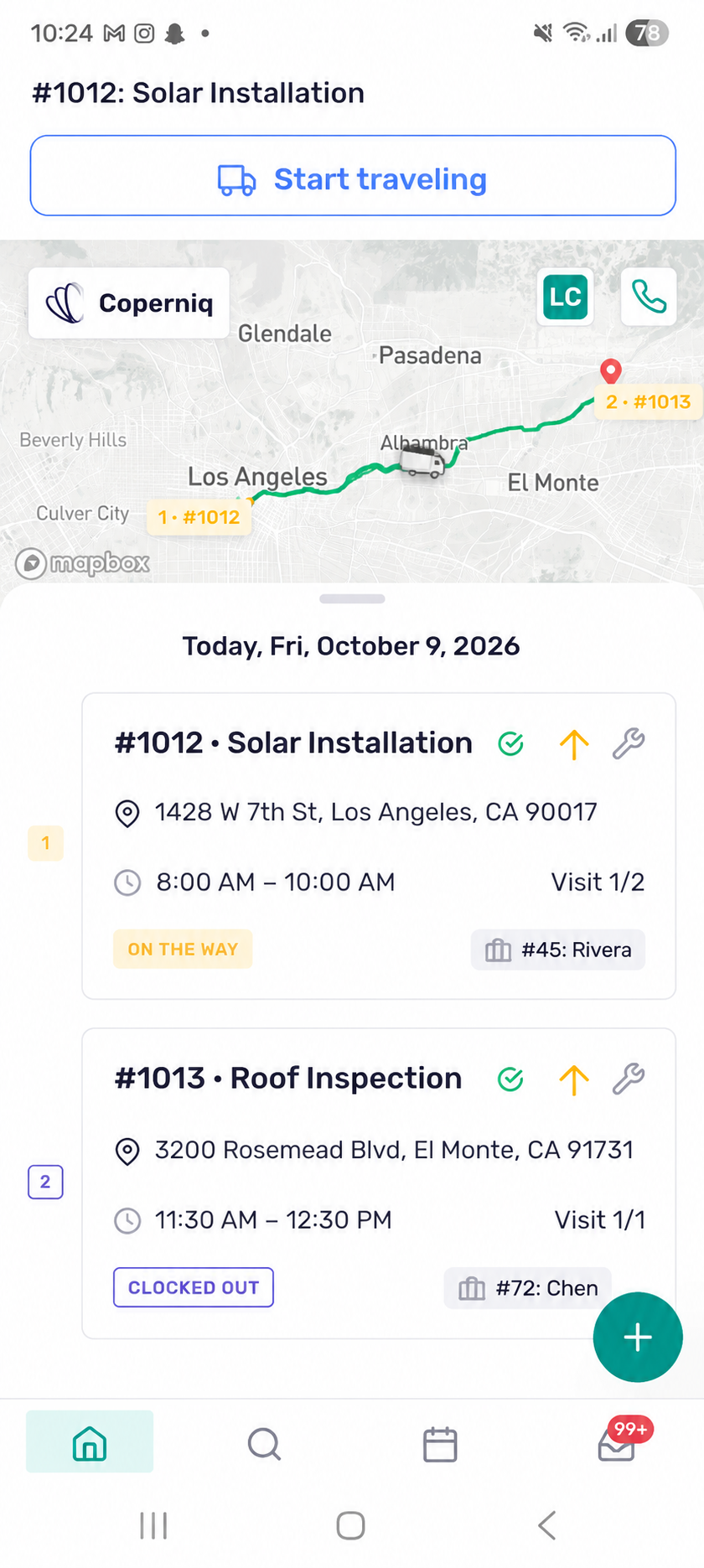
Track Travel & Time
When a user starts traveling to a job, Coperniq can track their travel activity and associate it with the Work Order.
Travel and working time can be viewed from the Work Order and in Timesheets, including:
Travel or working time
Start and end times
Duration
Mileage for travel entries
Travel route on the map
This provides a clear record of the time spent traveling to and working at each job.
Homeowner Tracking in the Portal
When a technician is On the way, homeowners can follow their progress directly from the Portal.
The Portal shows:
The technician who is On the way
Estimated arrival time
Progress toward the property
Route on the map
Arrived status
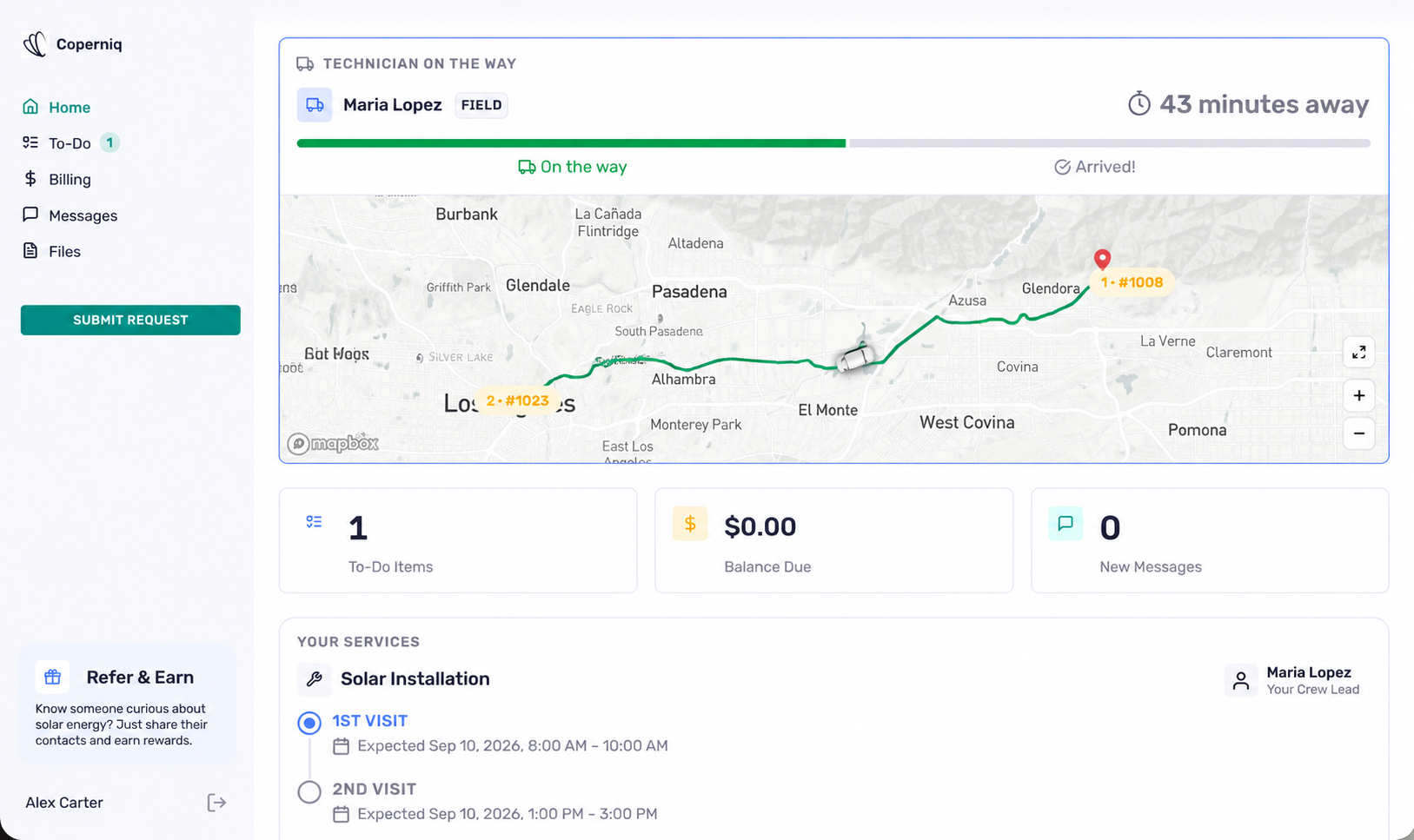
Homeowners can also receive notifications when the technician is On the way and when they arrive.
To manage these notifications, go to Company Settings → Portal → Notifications and turn the applicable notifications on or off.
Manage Geolocation Notifications
Geolocation notifications for field users can be managed from either:
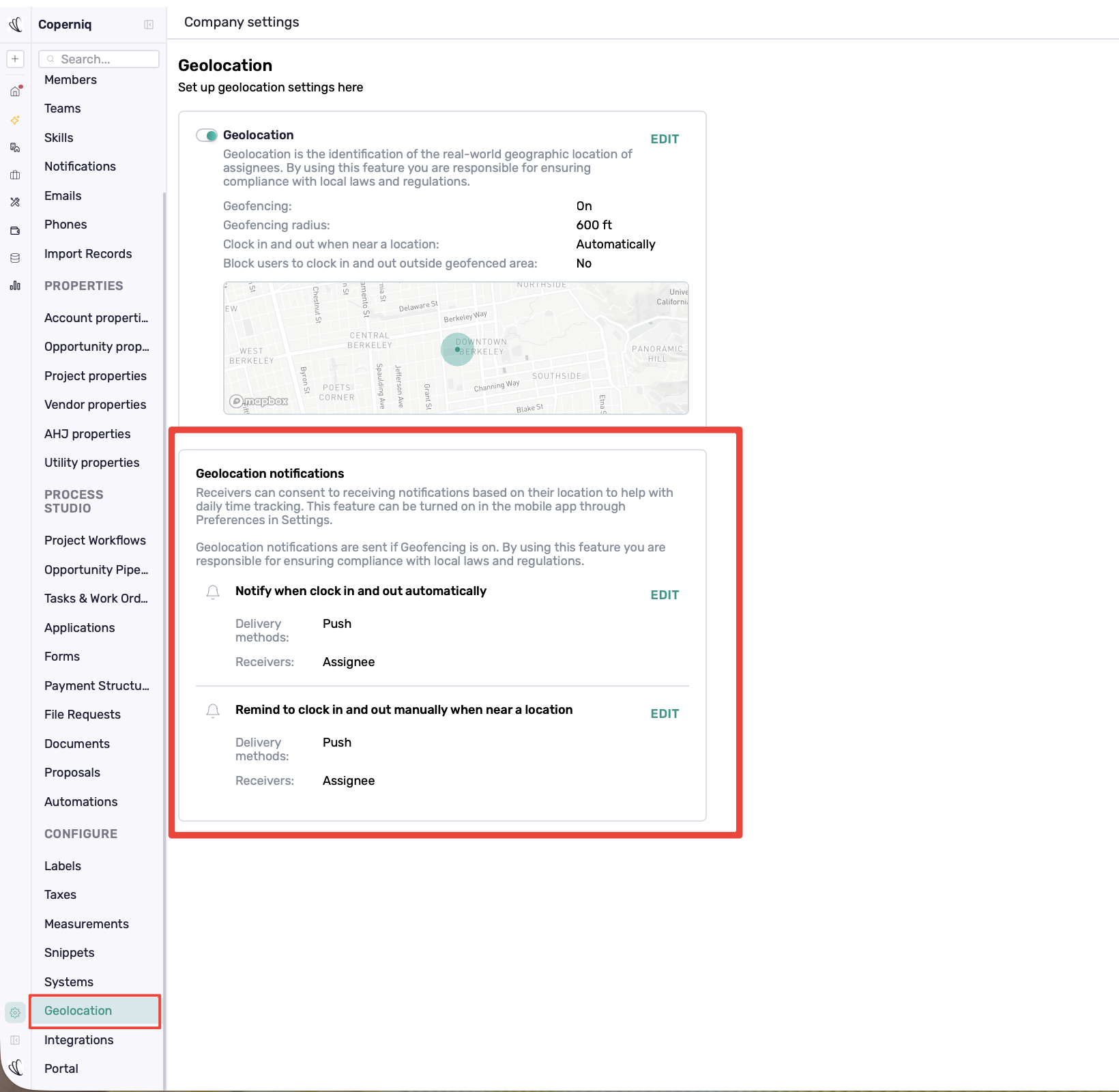
Company Settings → Geolocation
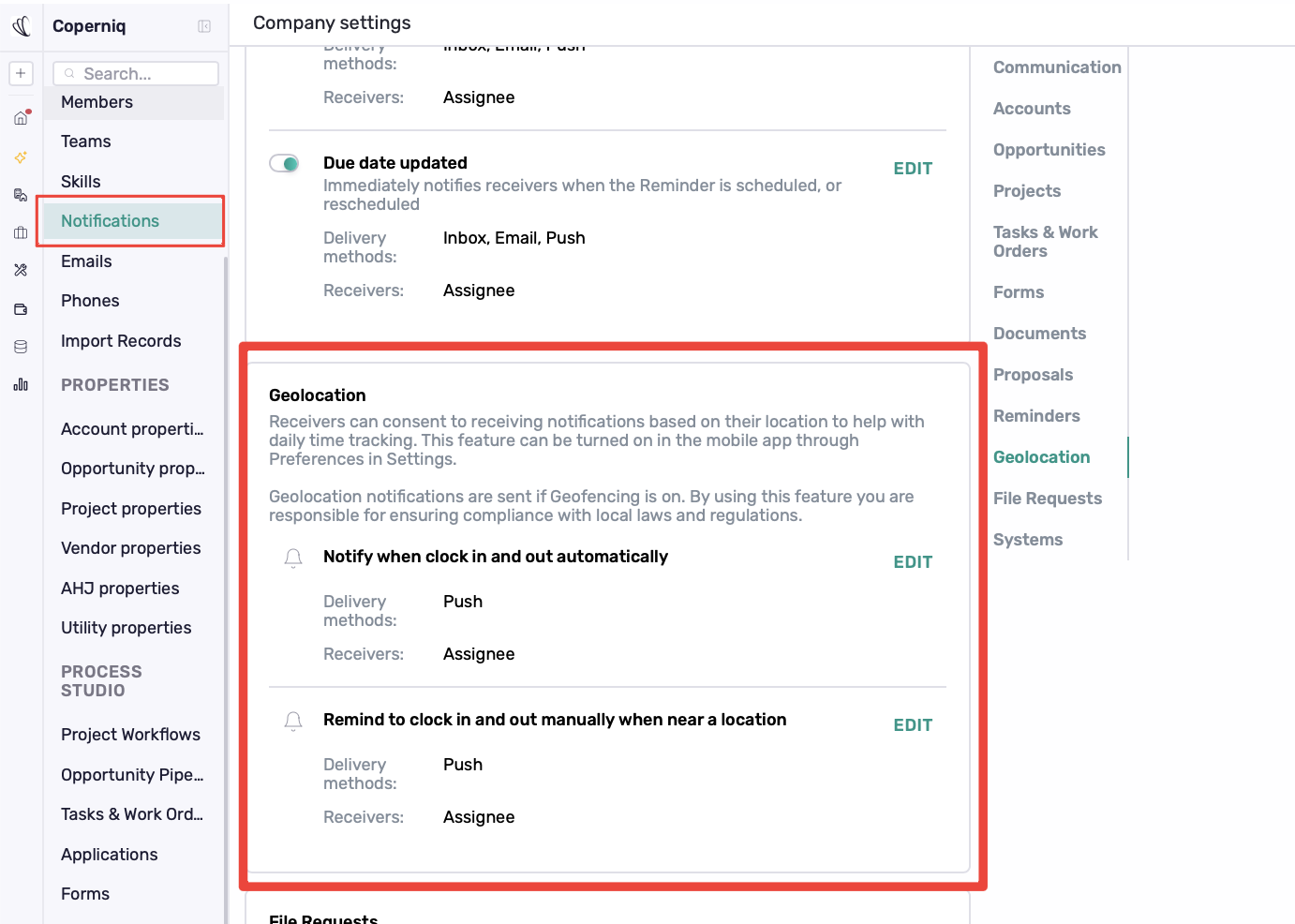
Company Settings → Notifications
Available notifications include:
Notify when clock in and out automatically — notifies the assignee when they are automatically clocked in or out.
Remind to clock in and out manually when near a location — reminds the assignee to clock in or out when they are near the scheduled job location.
Click Edit next to a notification to manage its available delivery method and receiver.
Best Practices
Make sure assignees and collaborators allow location access for the Coperniq mobile app.
Keep job addresses accurate for reliable tracking, routing, and Geofencing.
Set a geofencing radius that works for your job sites.
Choose Automatic or Manual clock-in/out based on your team's workflow.
Review Portal Notifications to control which travel and arrival updates homeowners receive.