Mobile App: Accounts, Sites, Opportunities, and Projects
Last updated: November 18, 2026
Use the Coperniq mobile app to view and update accounts, sites, opportunities, and projects while you are in the field. Mobile record pages are organized into tabs below the record header. The tabs and actions you see depend on your company setup and your role permissions.
Accounts
Use an account record to review customer-level information and related sites.
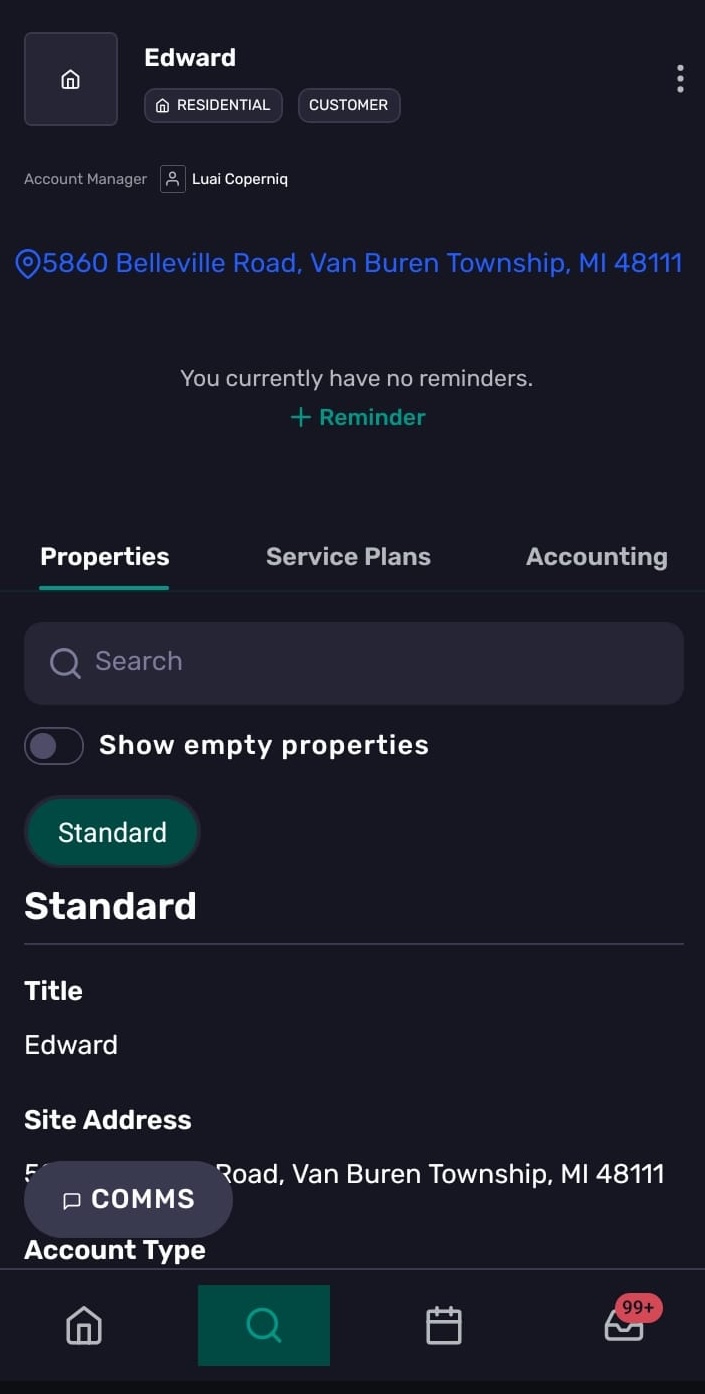
Account records can include tabs such as:
Properties — view or edit account fields when you have edit access.
Service Plans — view, assign, or cancel a service plan when your permissions allow it.
Accounting — review account accounting details when enabled for your role.
Accounts can also show reminders in the header. Tap Add Reminder to create a reminder when you have task-create access.
Opportunities
Use opportunity records to review and update sales work before a job becomes a project.
Opportunity records can include tabs such as:
Work — view related tasks, work items, reminders, and appointments.
Properties — view or edit opportunity fields when you have edit access.
Docs — view documents and upload files when enabled.
Proposals — review related proposals.
Changelog — review timeline changes.
To add details to an opportunity:
Open the opportunity.
Go to the tab where the detail belongs.
Tap the + menu when available.
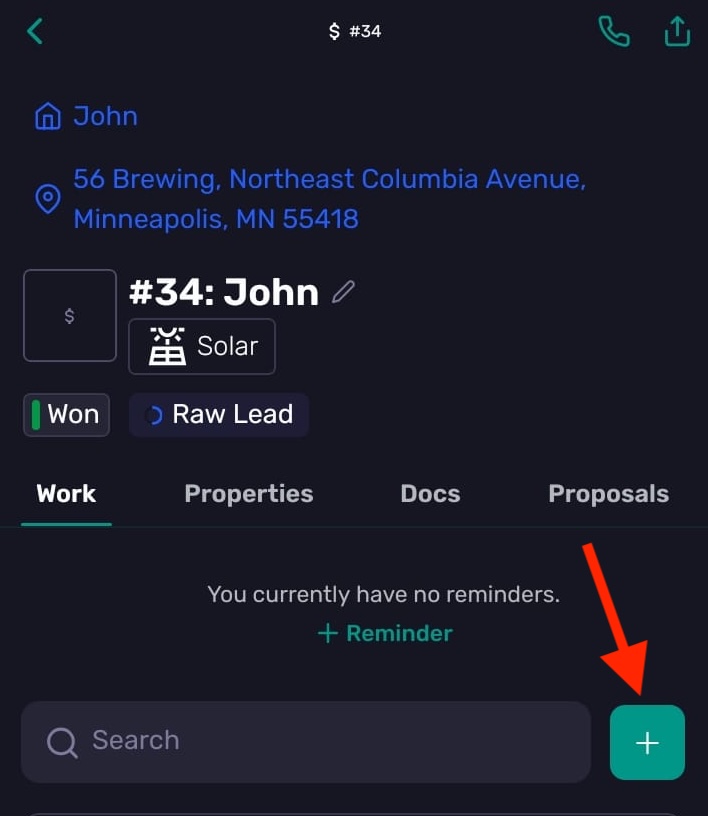
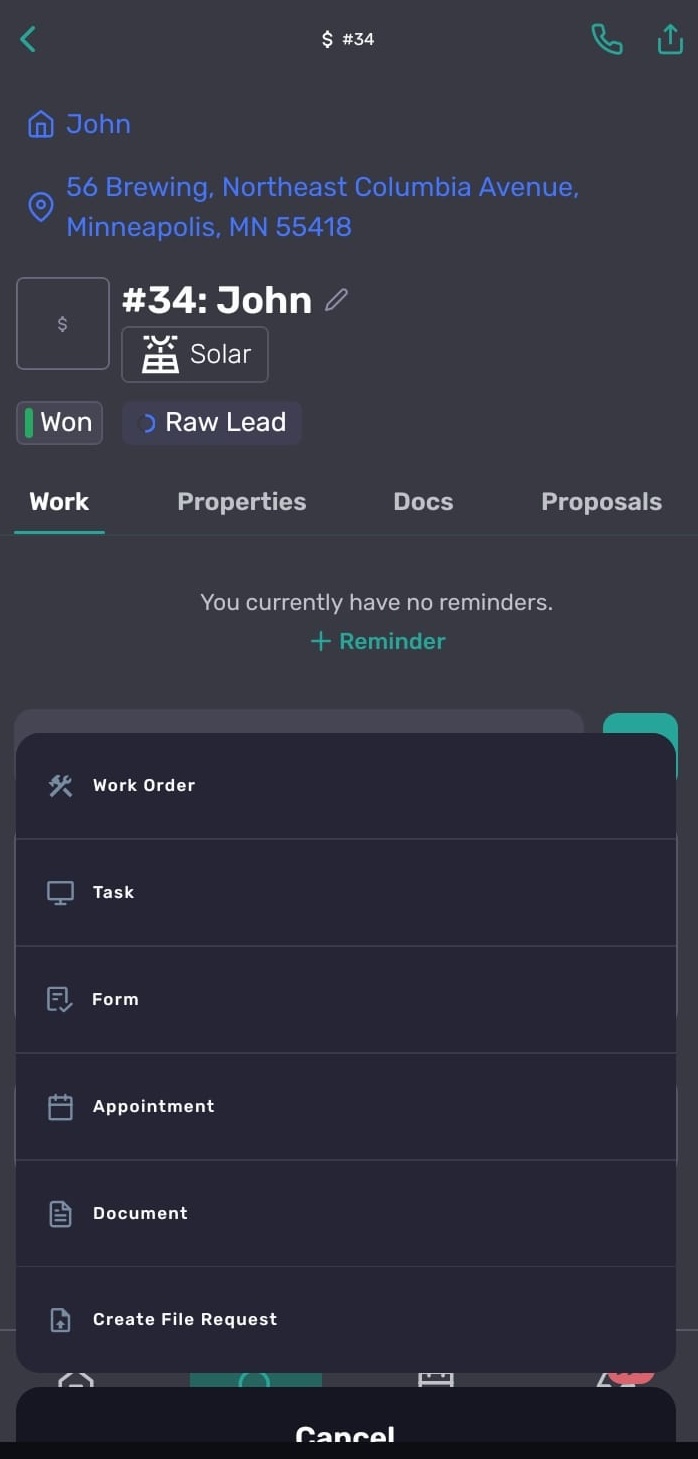
Choose the item to add, such as an appointment, task, work order, form, document, or file request.
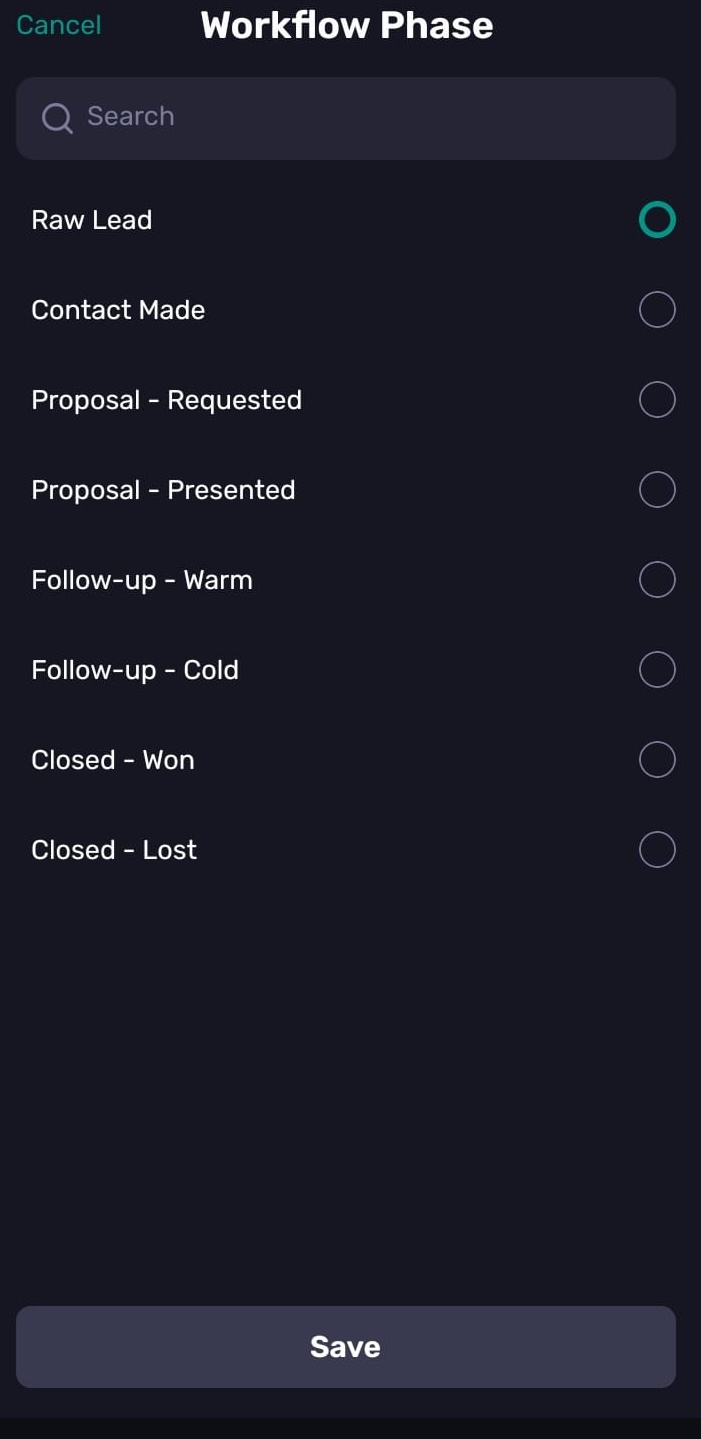
To update the opportunity phase, use the phase control in the record header. If you move an opportunity into a closed phase, Coperniq opens the close opportunity flow so you can mark it won or lost and complete the required follow-up details.
Projects
Use project records to manage active project work, documents, proposals, and financial details.
Project records can include tabs such as:
Work — view and add project work such as tasks, work orders, forms, documents, and file requests.
Properties — view or edit project fields when you have edit access.
Docs — organize project documents and files.
Financials — review contracts and financial details when your role has access.
Proposals — review related proposals.
Changelog — review timeline changes.
To add work to a project:
Open the project.
Go to the Work tab.
Tap +.
Select the type of work or detail you want to add, such as a work order, task, form, document, or file request.
Complete the required fields and save.
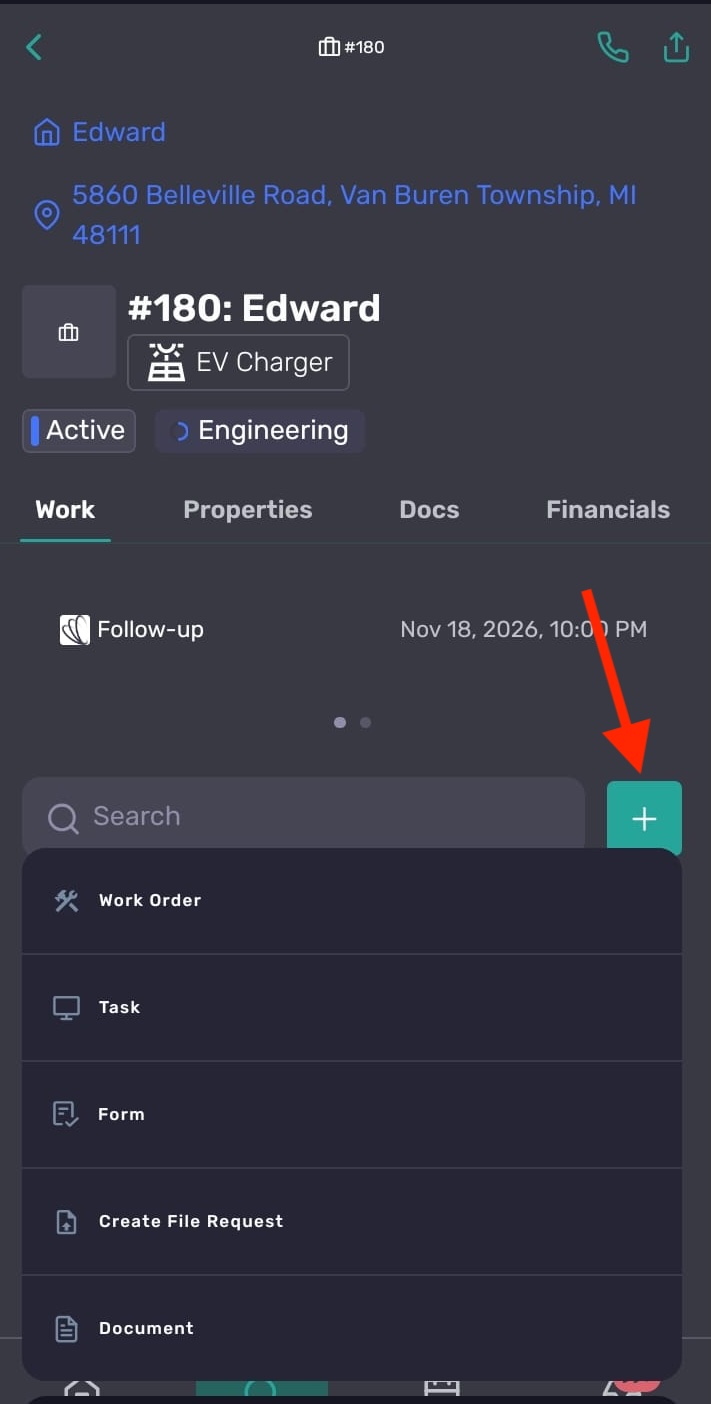
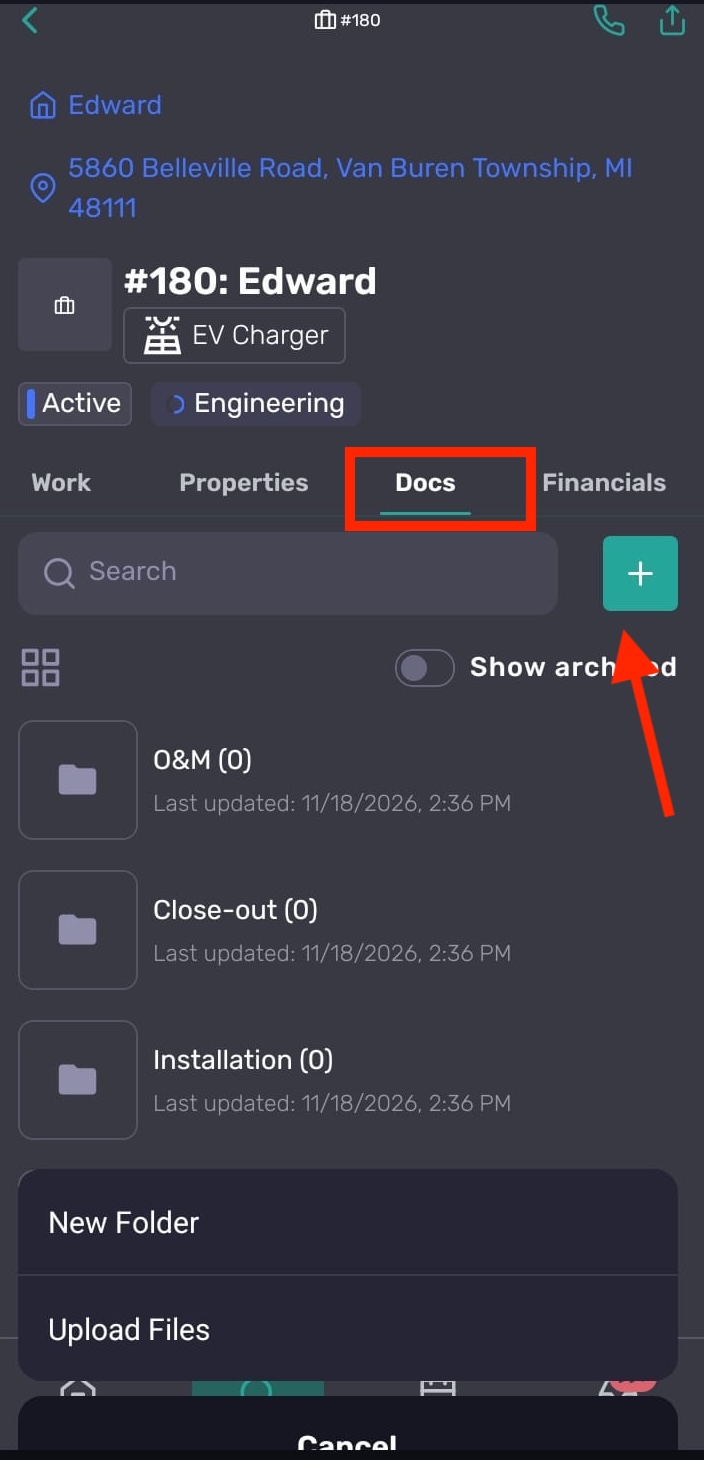
To add or manage project documents:
Open the Docs tab.
Tap +.
Choose New Folder or Upload Files.
Use the file menu to rename, archive, unarchive, or delete files when available.
Comments, contacts, and Ask AI
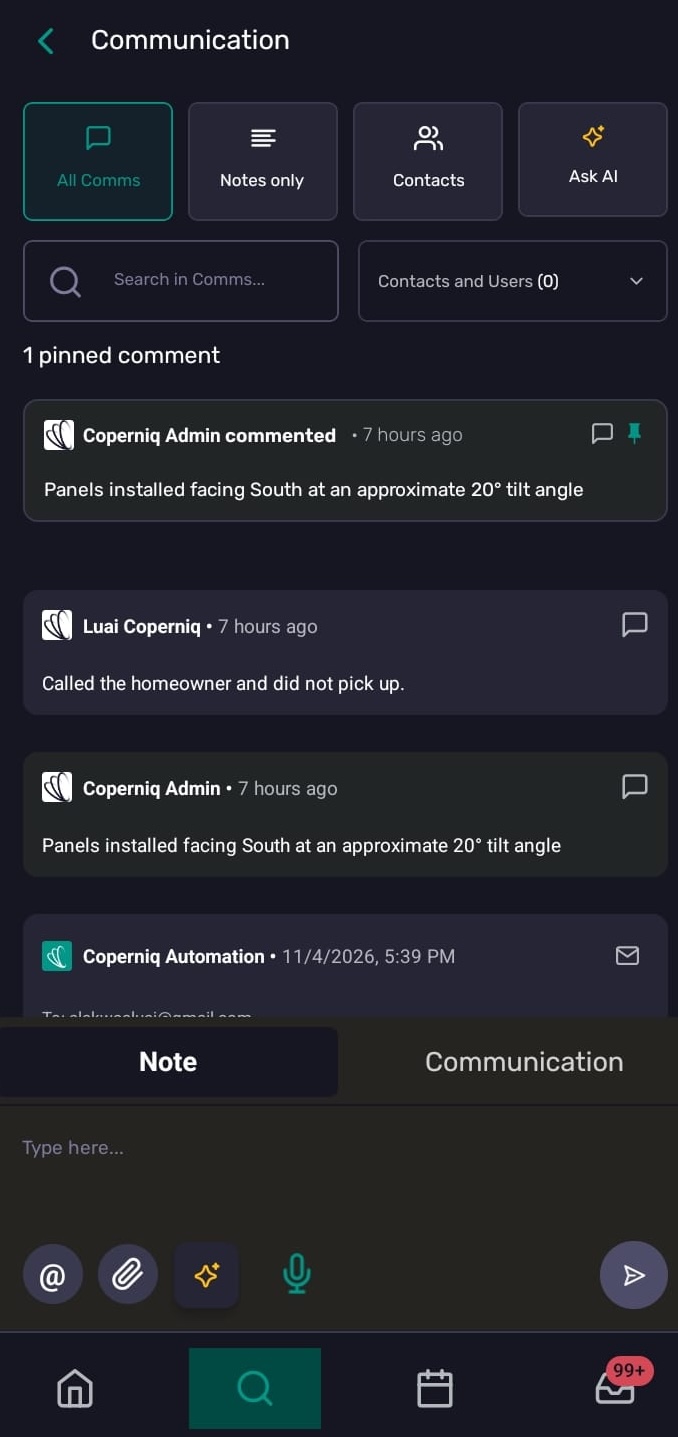
Use the Comms pill on a record to open the record feed. The feed is where you can work with communication and context for the record.
From the feed, you can:
View all communications.
Add internal notes or comments.
Mention users, teams, or agents in notes.
Attach files or images.
Send messages by email or SMS when those channels are available.
Filter to notes, contacts, or Ask AI when enabled.
To add or manage contacts, open the record feed and choose the Contacts filter. . Use + to create a contact, or use the contact card to call or email the person.
To learn more about using notes, email, SMS, and portal messages on mobile, see Mobile App: Notes, Email, SMS, and Portal Messages.
Quick actions and permissions
Depending on the record and your permissions, you may be able to:
Edit properties inline.
Add work from the Work tab.
Add documents or folders from the Docs tab.
Add comments, notes, attachments, email, or SMS from Comms.
Add reminders from the reminder card.
Manage contacts from the feed or contacts tab.
Change an opportunity phase or close an opportunity.
Open Ask AI for record context.
If you do not see a tab, button, or + option, it is usually because that feature is not enabled for your company, the record does not have that data, or your role does not have access.