Mobile App: Notes, Email, SMS, and Portal Messages
Last updated: November 18, 2026
Use mobile communications to add internal notes, message customers through Portal, email, or SMS, review contacts, and keep communication history connected to the right record.››
Where to open communications
On supported records, open communications from the record header.
Open a Project, Opportunity, Account, or Site record.
Tap the Comms pill.
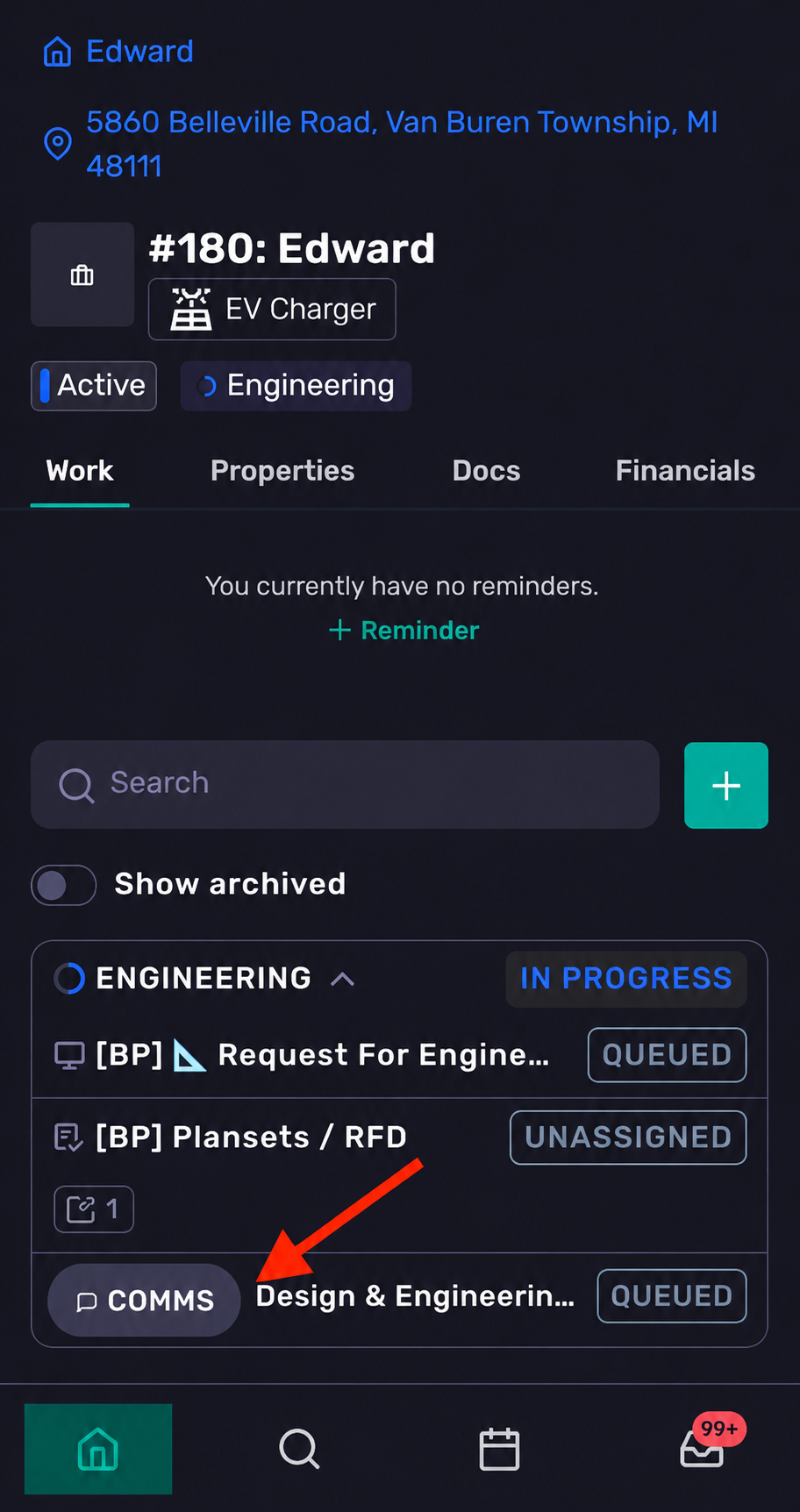
Use the feed to review notes, customer communications, contacts, and related activity.
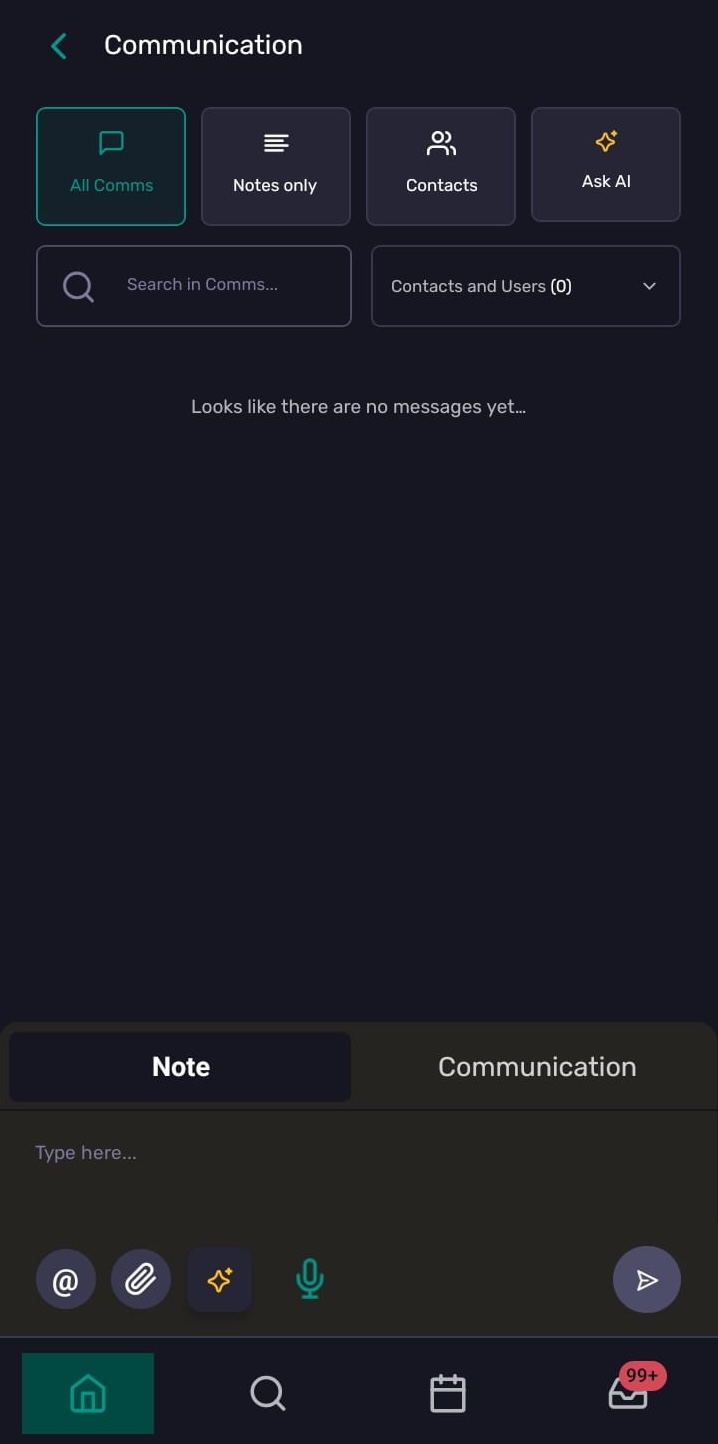
Filter the communications feed
At the top of the feed, use the filter chips to change what you see:
All Comms — shows the full communication feed
Notes only — shows internal notes
Contacts — shows contacts related to the record
Ask AI — appears on supported records, but is hidden on Sites
Search – allows you to search within the feed for notes and communications.
Contacts and Users-Filter the feed by the homeowner or a specific user
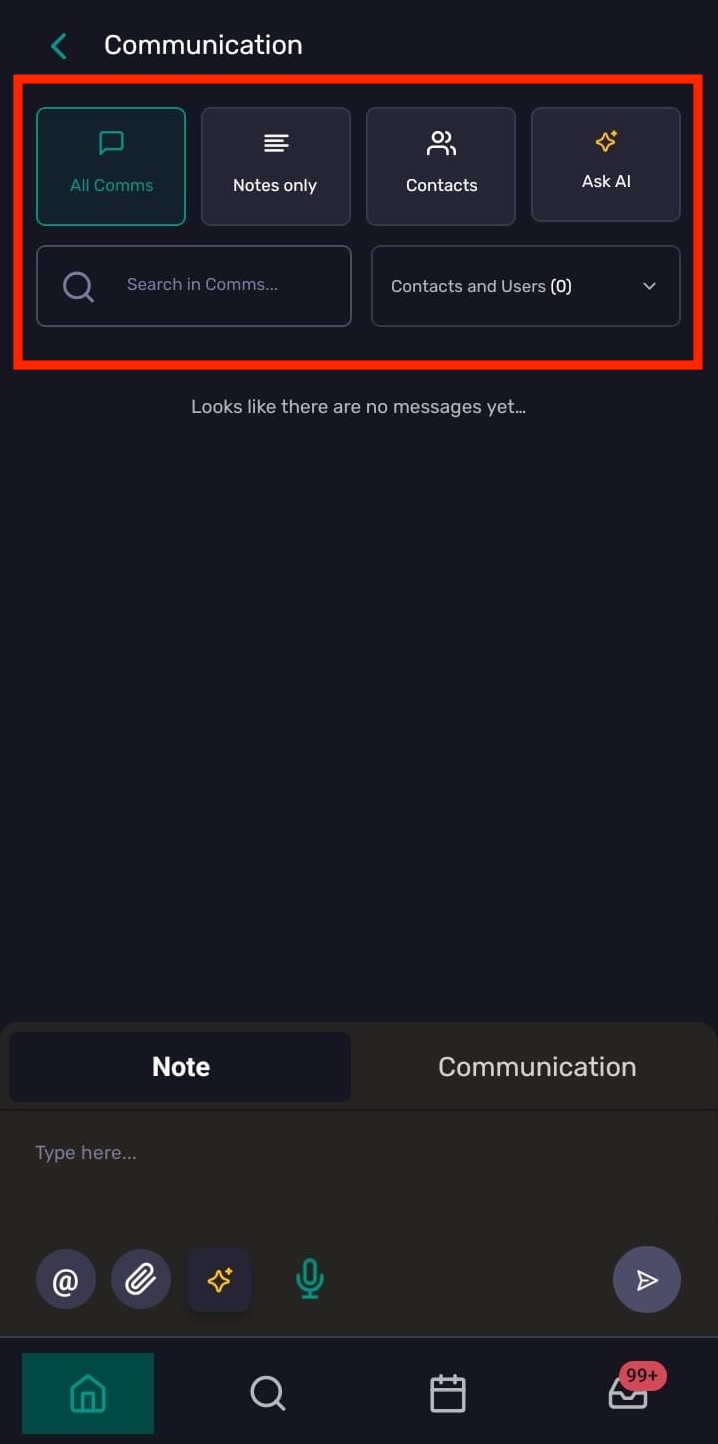
Add an internal note
Use Note mode for internal updates that should stay inside your team.
Open the record.
Tap Comms.
Make sure the composer is set to Note.
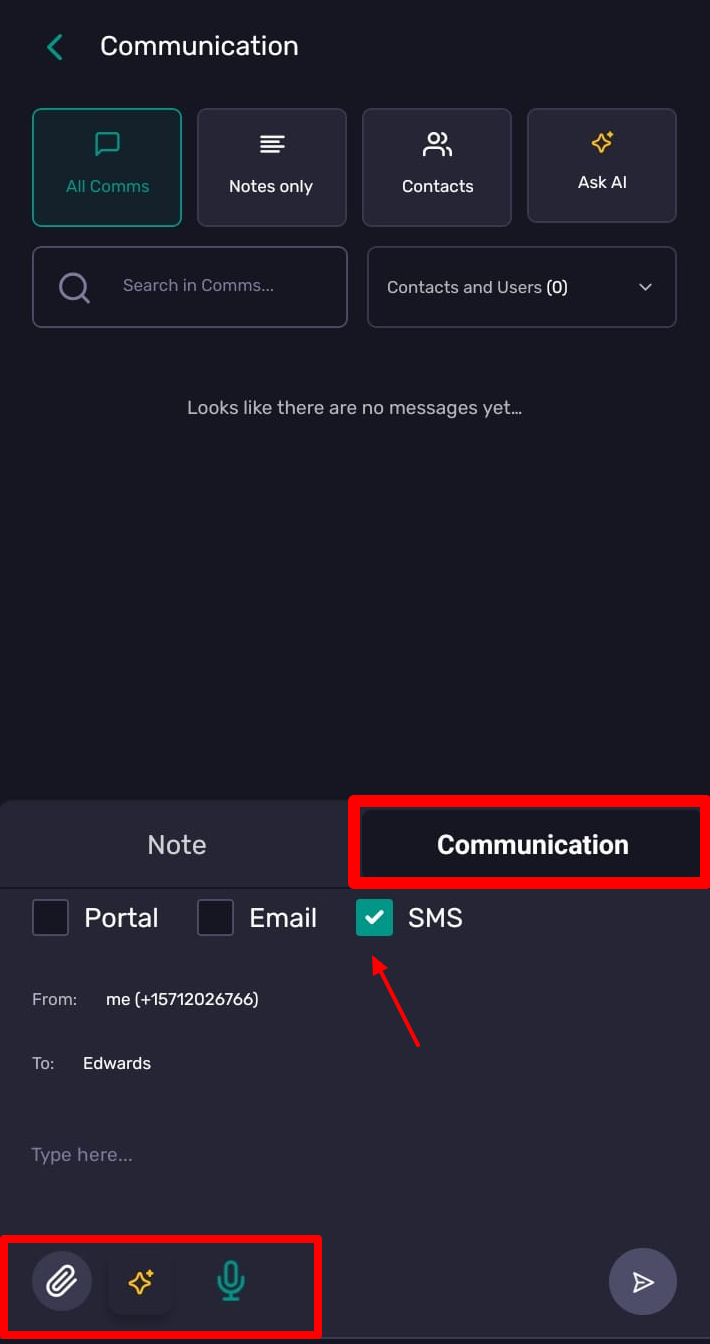
Type your note or tap the microphone to dictate it.
Tap the AI sparkle to improve your note’s wording or tone, then review the updated version.
Add attachments if needed.
Tap Send.
Notes support @mentions. Type @ or tap the mention button to mention users, teams, or active AI agents.
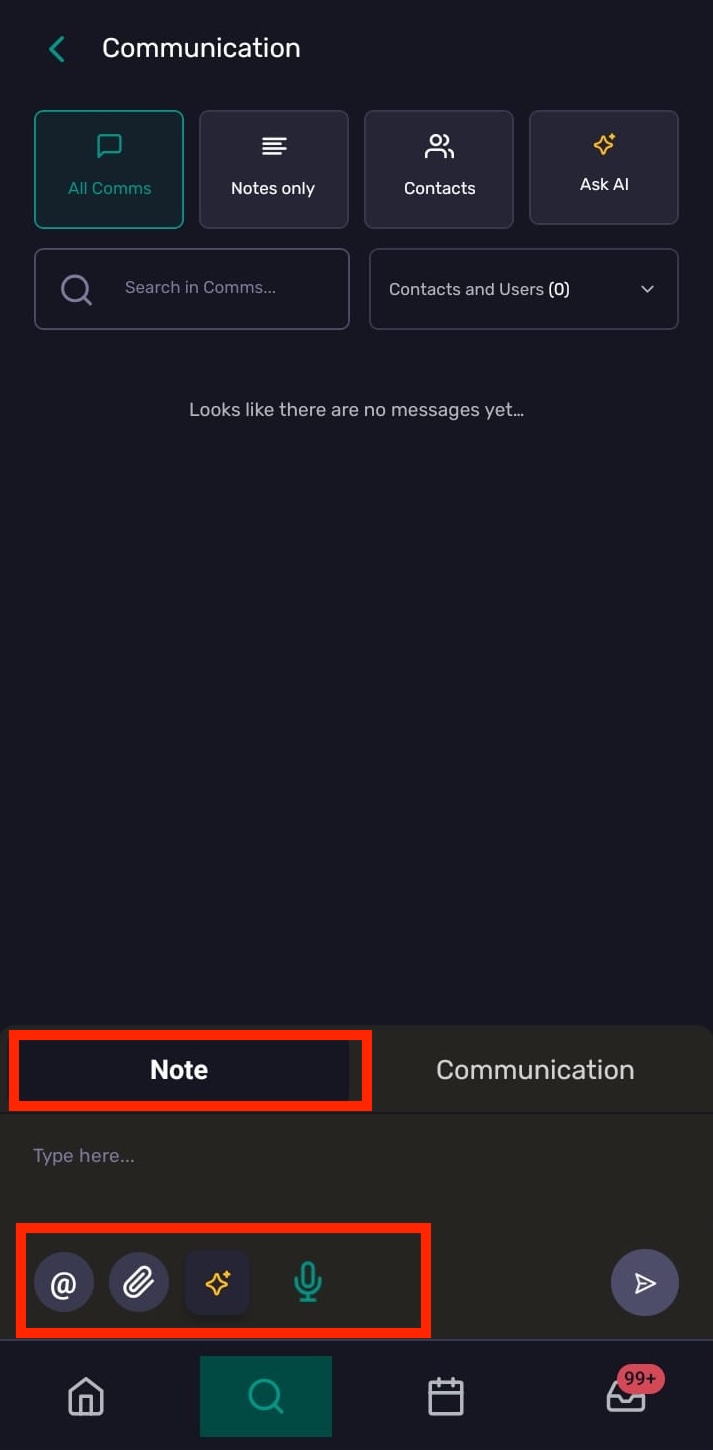
Send a customer communication
Use Communication mode when you want to send a message to a customer.
Open the record.
Tap Comms.
Switch the composer to Communication.
Select one or more channels:
Portal
Email
SMS
Add recipients and required fields.
Write your note or tap the microphone to dictate it. Add attachments if needed.
Tap the AI sparkle to refine the wording or tone, then review the updated note.
Tap Send.
You can select more than one channel for the same message.
Attachments
You can add attachments in Note and Communication mode. Each file can be up to 25 MB.
If an attachment is still uploading, Coperniq blocks sending until the upload finishes.
Reply to an existing message
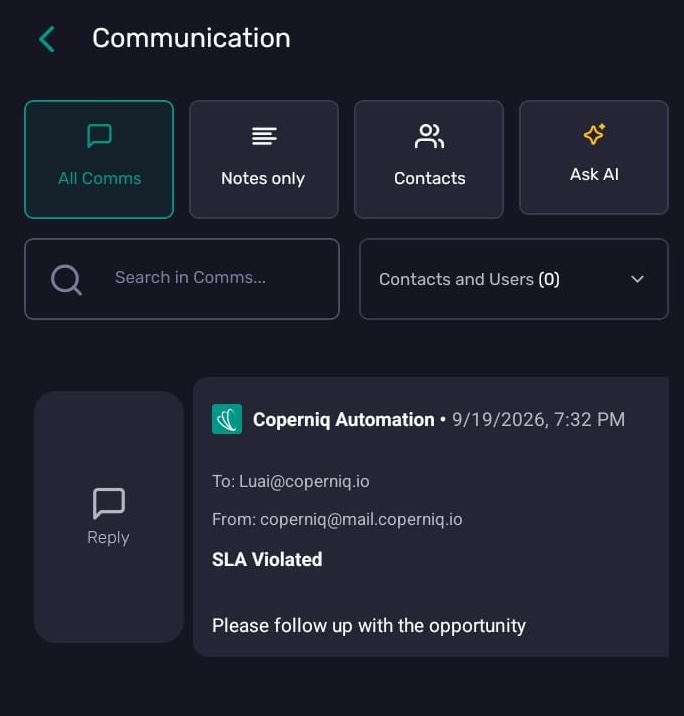
Swipe the message to the right or long-press it, then tap Reply. Coperniq preselects the channel or channels used for the original message, but you can change them before sending.
Manage notes
Depending on your permissions and whether you authored the note, swipe:
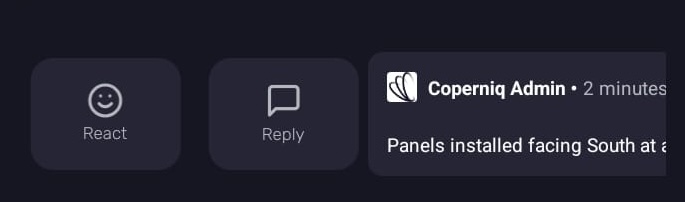
Right to reply or react with an emoji.
Left to pin or unpin, edit, or delete.
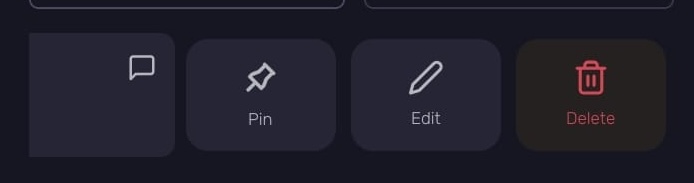
Alternatively, long-press a note/comment to access its actions.
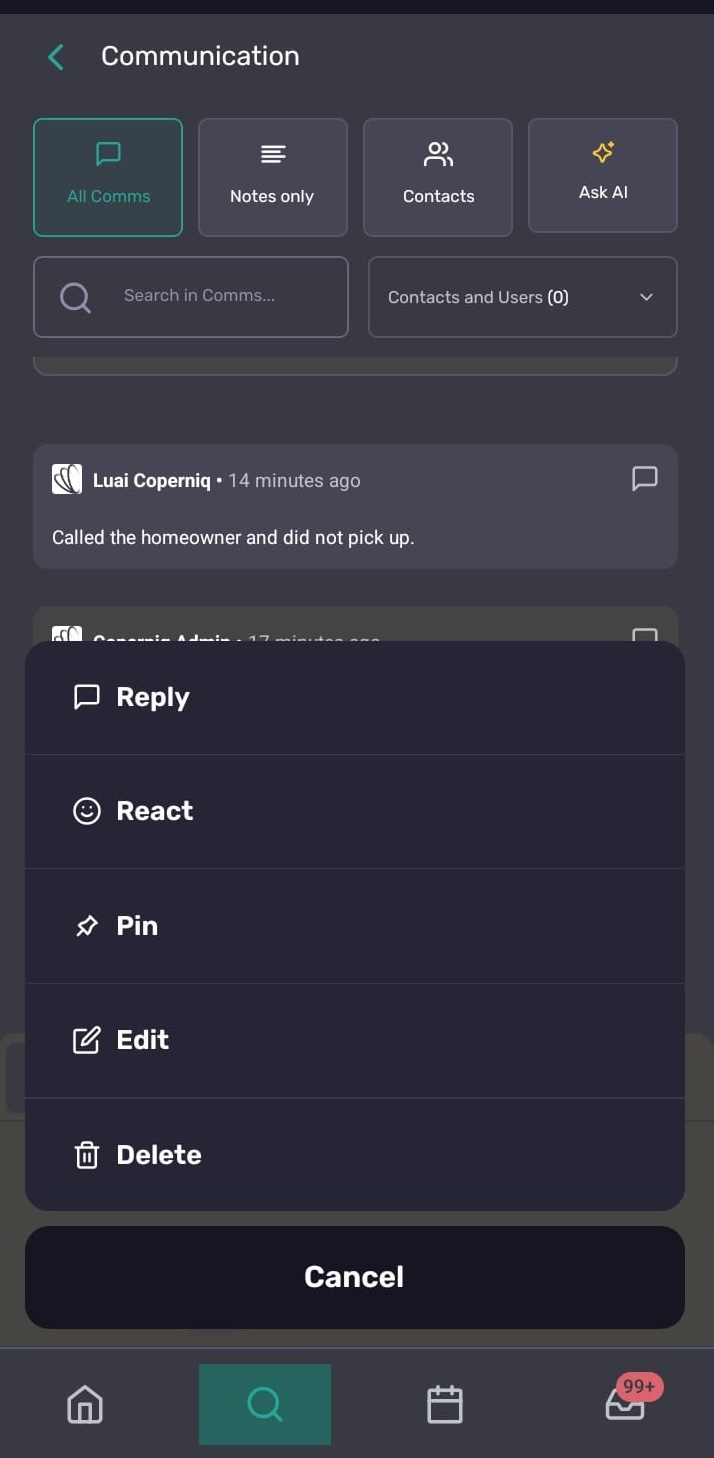
Only the author can edit their own internal note. Emails, SMS, and portal messages cannot be edited after they are sent.
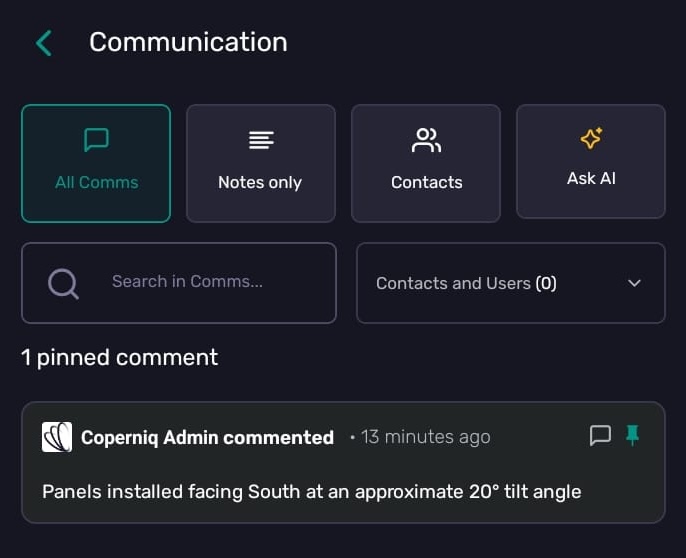
Pinned comments appear in a strip at the top of the feed.
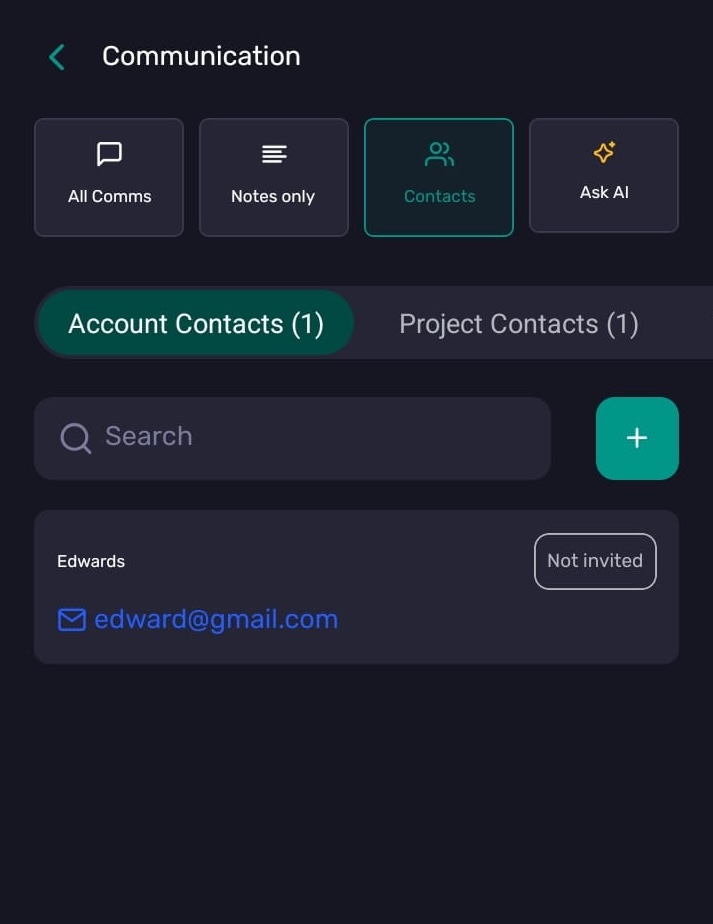
Contacts
Use the Contacts filter to view contacts related to the record. Contact cards can include actions such as call and email. Vendor contacts may be grouped separately.
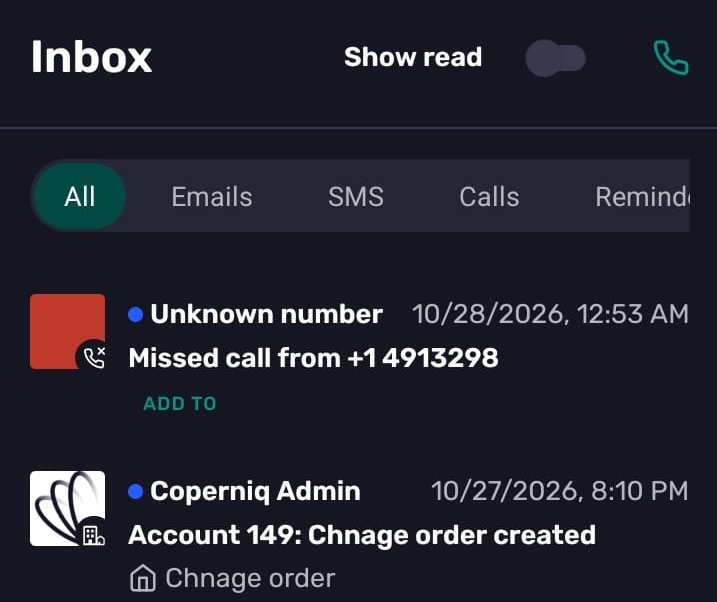
Inbox and missed communications
Inbound emails, SMS messages, missed calls, mentions, and portal messages can also appear in the mobile Inbox.
Use Inbox filters to focus on specific communication types.
Why sending may be blocked
If Send is disabled or blocked, check whether:
A channel is selected
An email account is selected for email
A phone number is selected for SMS
The recipient can receive the selected channel
The email subject is filled in
The message body is filled in, when required
Attachments have finished uploading
The user has permission to send email or SMS