How do I control property field visibility and permissions for different user roles?
Last updated: October 6, 2026
Context
Organizations often need to control which team members can view or edit specific property fields. For example, you may want certain financial or sensitive information to be visible only to administrators or office staff, while restricting access for field crews, contractors, or sales representatives.
Answer
The ability to control property field visibility and permissions depends on whether the field is a Standard Property or a Custom Property:
Standard Properties
For Standard Properties:
You cannot hide these fields from specific roles
You can set roles to "View Only" access, which allows users to see but not edit the fields
Custom Properties
For Custom Properties, you have more control over permissions:
You can configure which roles have access to view or edit these fields through the property settings.
Role-Based Access Control
To restrict editing capabilities while maintaining visibility:
Navigate to your role management settings
Set the appropriate role to "View Only" access
This will allow users with that role to see the properties but prevent them from making changes
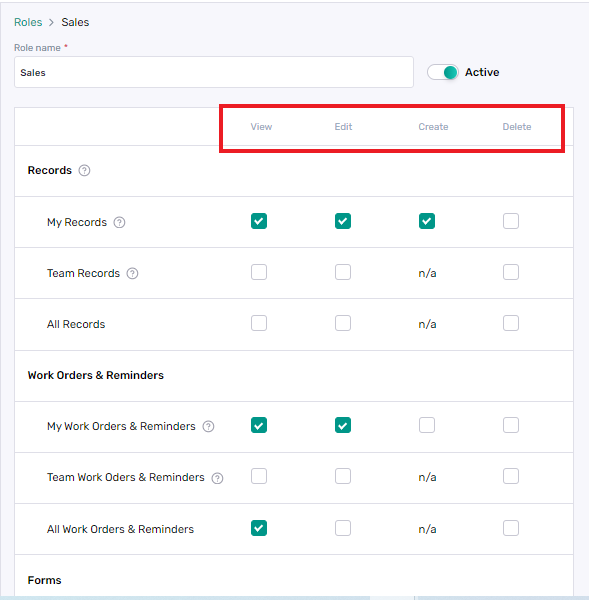
Permission changes will apply universally to all properties and projects associated with the assigned role. It is possible for custom properties but not standard properties.