ABC Supply Integration
Last updated: October 21, 2026
Estimated Reading Time: 2–4 minutes
Overview
The ABC Supply integration connects your ABC Supply account with Coperniq, bringing supplier products, branch-specific pricing, and material ordering into your existing workflow.
Once connected, you can link ABC Supply products to your Catalog, view pricing across your connected branches, keep supplier costs up to date, and use those Catalog items throughout Coperniq—including in Proposals, Invoices, Financials, and Material Orders.
Connect ABC Supply
To get started:
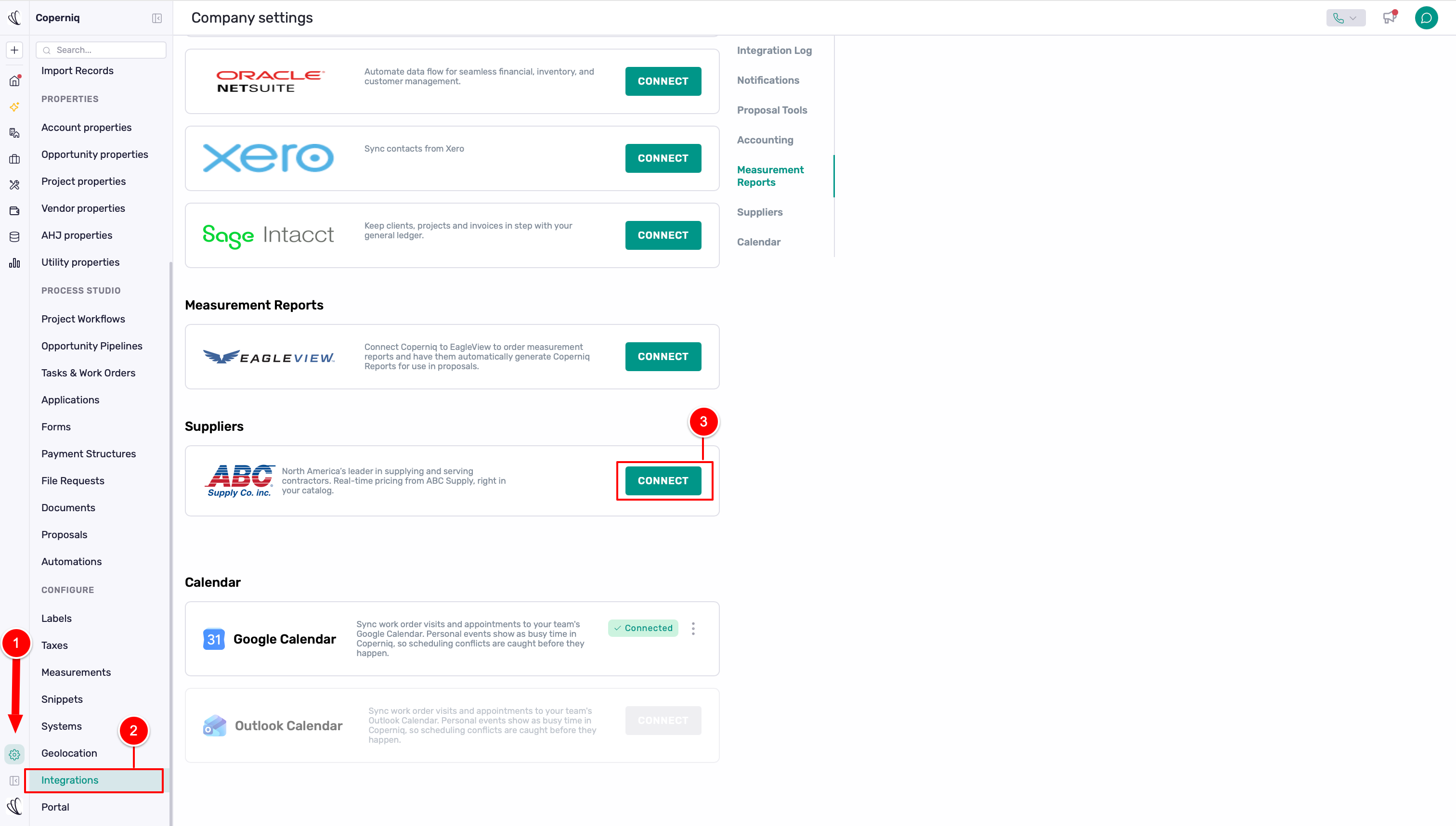
Click the Settings icon in the bottom-left corner.
Select Integrations from the left menu.
Find ABC Supply and click Connect.
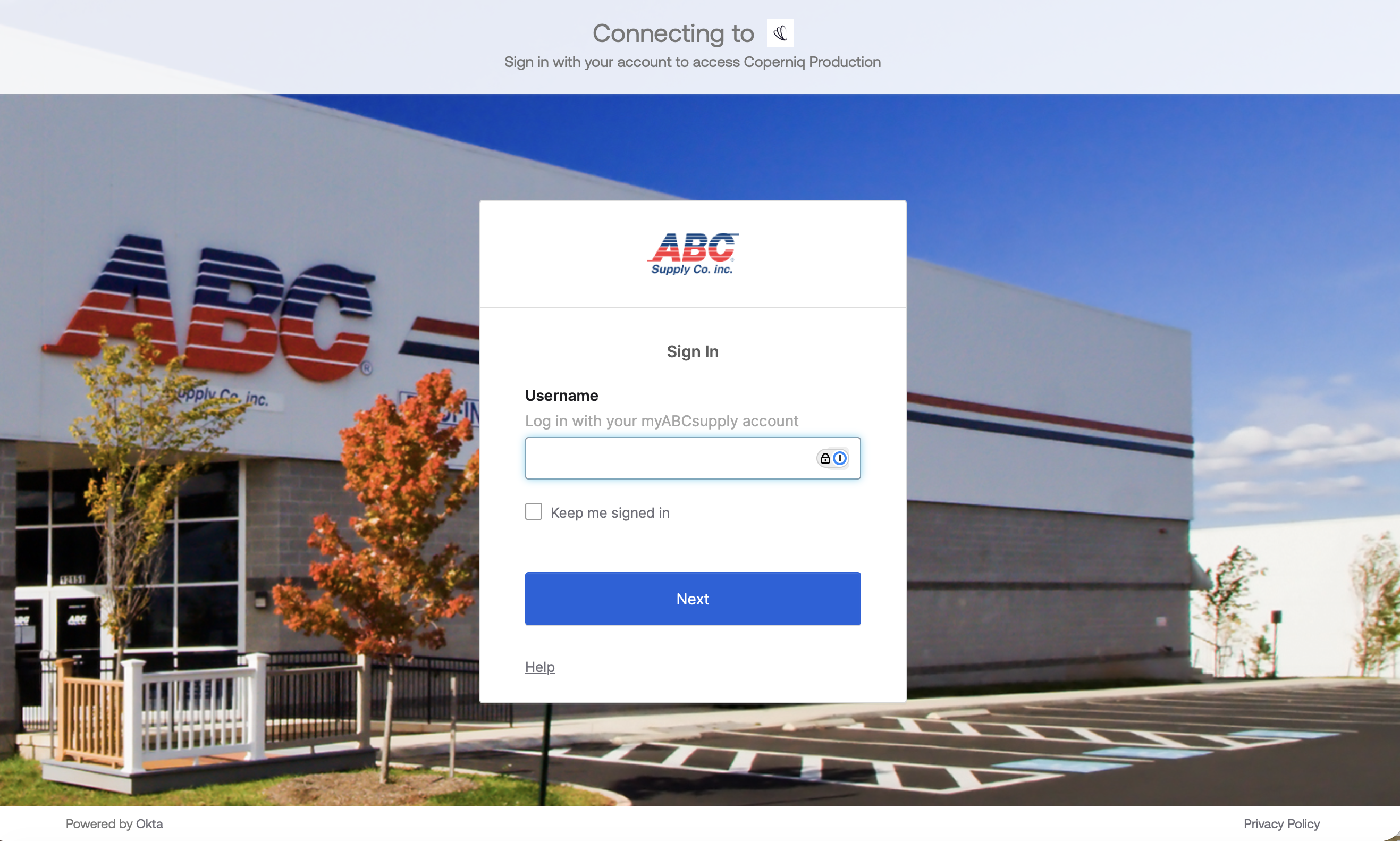
You'll be redirected to ABC Supply to sign in and authorize the connection.
After authorization, you'll automatically be redirected to Coperniq to set up your ABC Supply account.
Note: You sign in directly through ABC Supply. Your ABC Supply login credentials are not entered into Coperniq
Set Up Your ABC Supply Account
After connecting, Coperniq walks you through three steps:
Choose account → Choose branch → Branch contact information
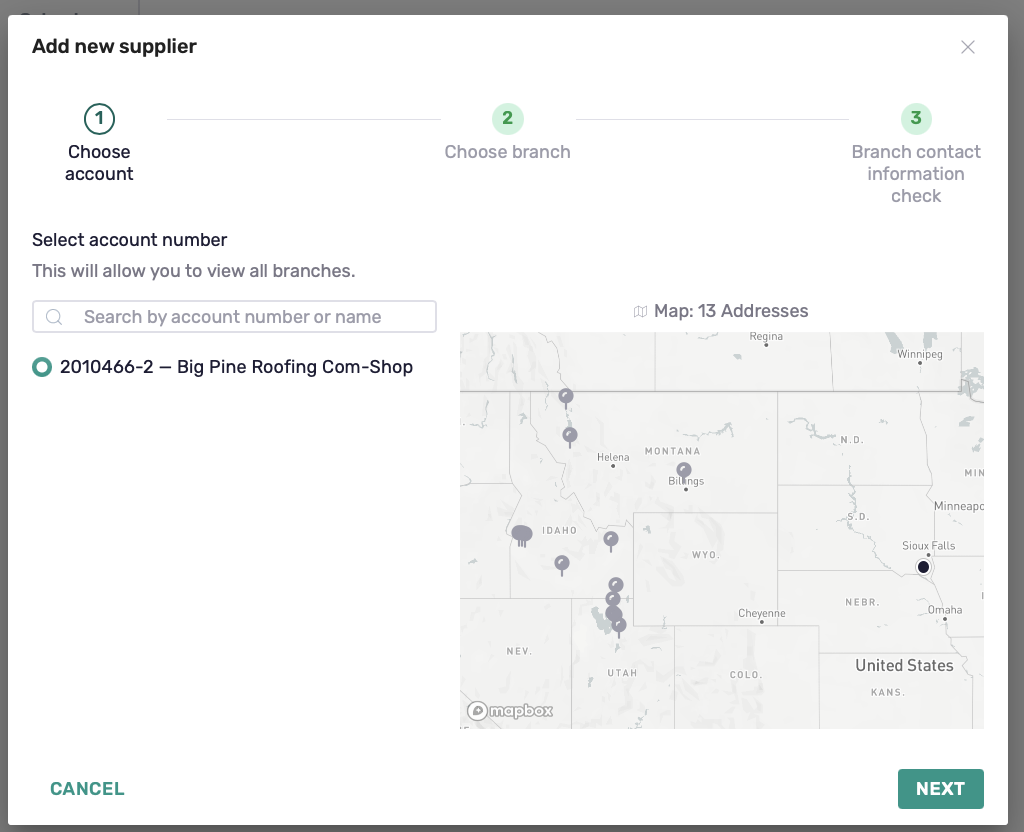
1. Choose an Account
Select the ABC Supply account number you want to connect.
If you have access to multiple accounts, search for and select the one you want to use.
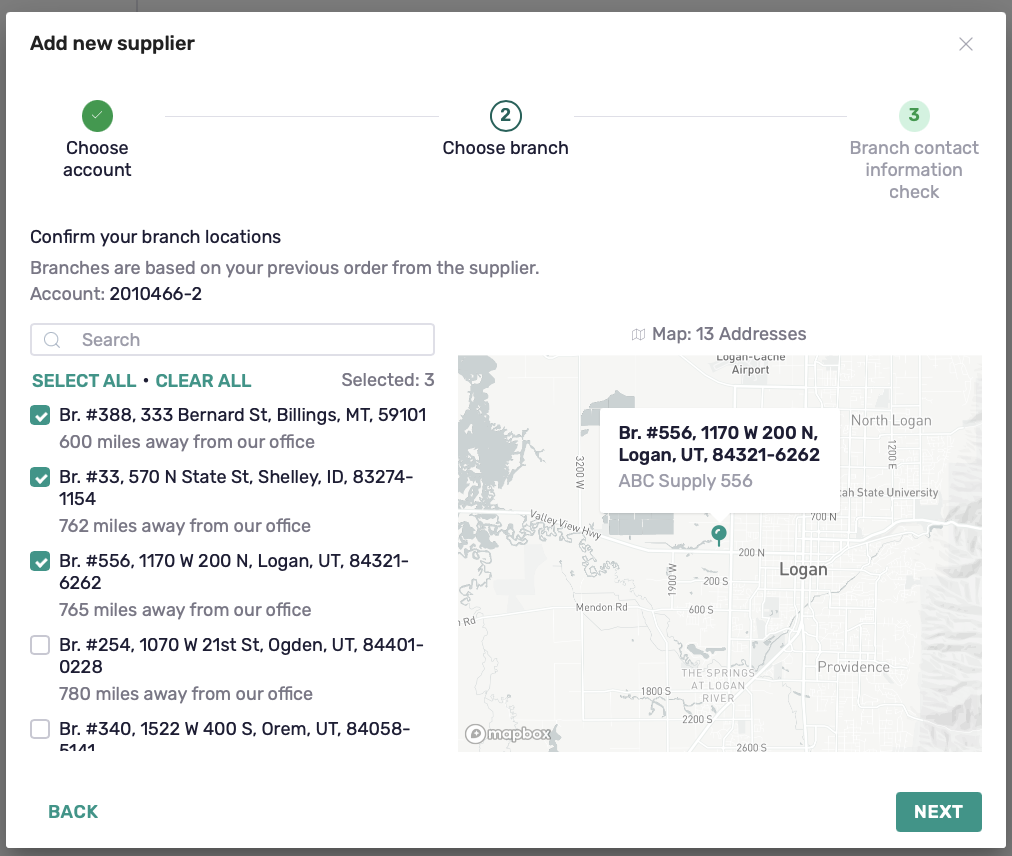
2. Choose Your Branches
Select the ABC Supply branches your company purchases from.
You can connect multiple branches. Once your Catalog is connected, you'll be able to see available pricing for your connected products across these locations.
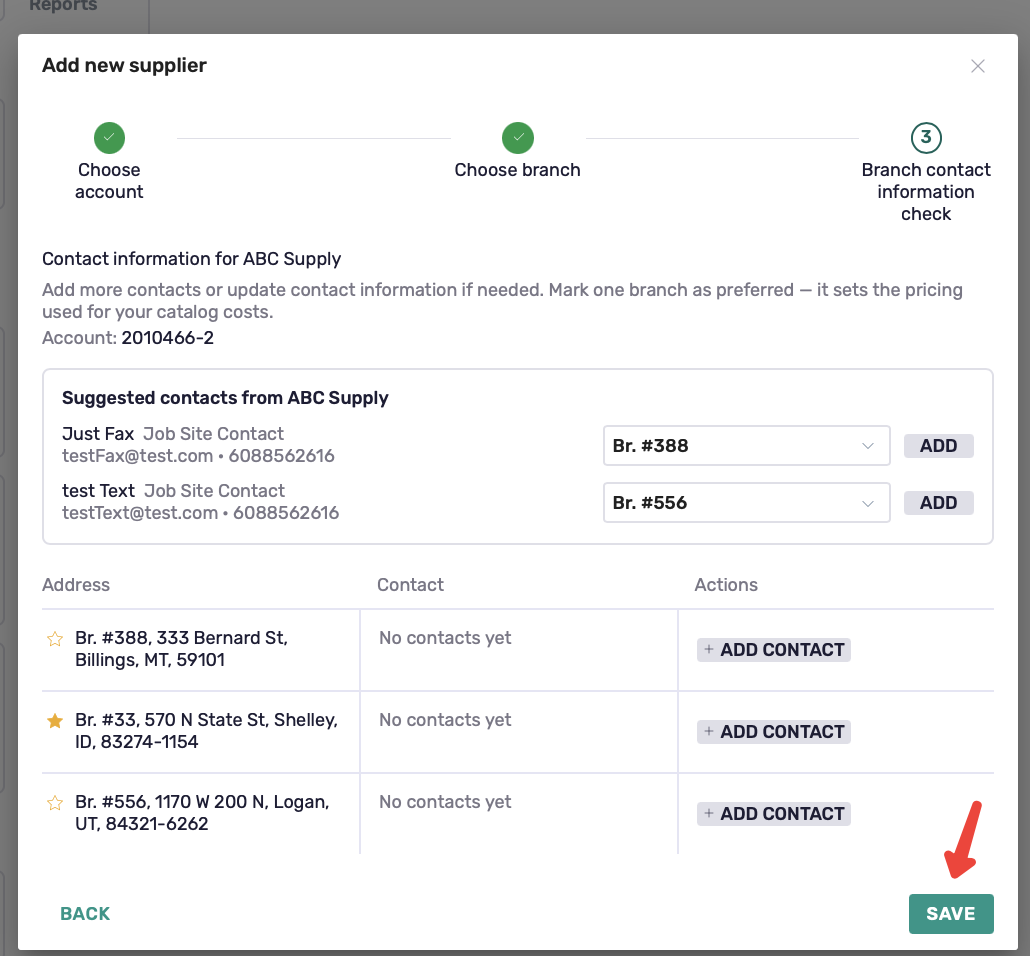
3. Review Contacts and Choose a Preferred Branch
Review the suggested ABC Supply contacts and assign them to the appropriate branches. You can also click + Add Contact to add a contact manually.
Then, mark one branch as your Preferred Branch. The preferred branch determines the ABC Supply pricing used for your Catalog costs.
Click Save when you're finished.
Set Up Your Catalog
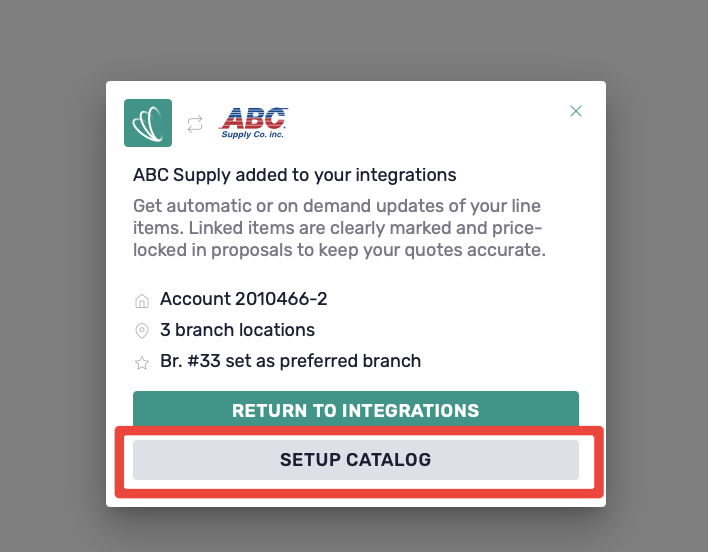
After completing your ABC Supply account setup, Coperniq confirms your account, connected branches, and preferred branch.
Click Setup Catalog to begin connecting your existing Catalog items to ABC Supply.
Then:
Open the Exteriors folder in your Catalog.
Coperniq displays how many products aren't linked to a supplier catalog.
Click Connect remaining items to start connecting those products to ABC Supply.
Note: You can select Return to Integrations and set up your Catalog later.
Catalog setup follows three steps:
Find matches → Confirm matches → Map units
Find and Confirm Matches
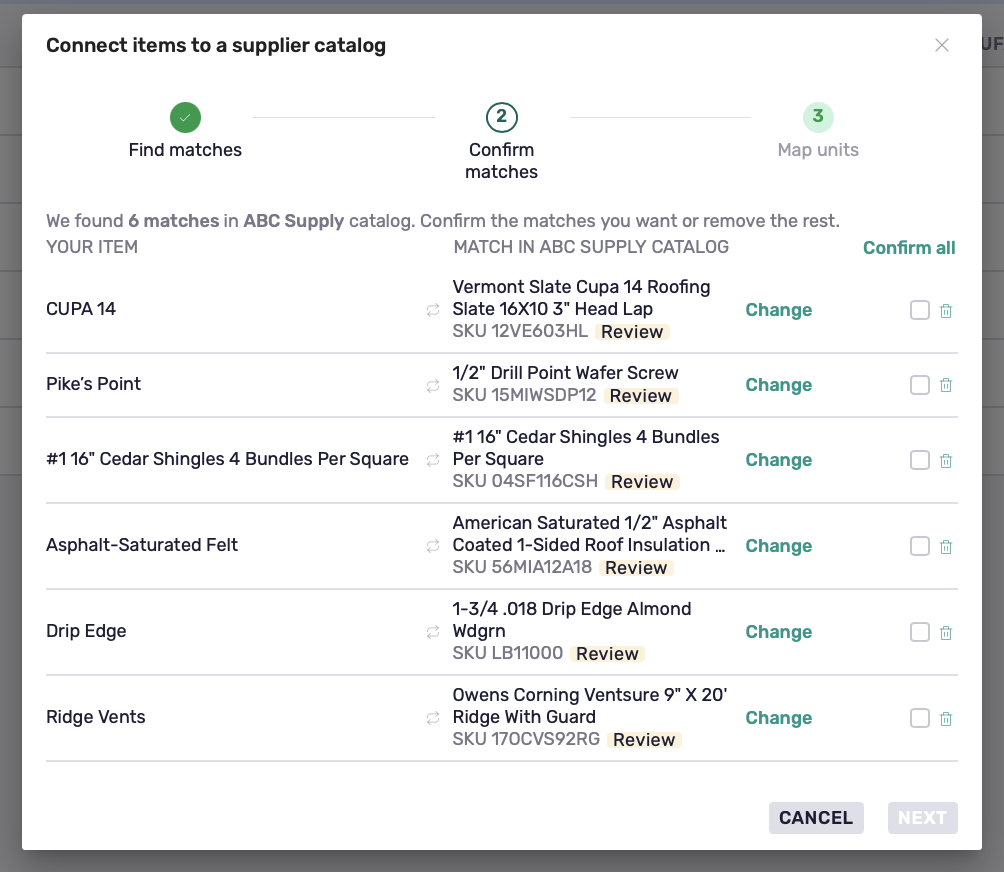
Coperniq searches the ABC Supply catalog for matches to your existing Catalog items.
Exact matches are preselected when available. Review the results and:
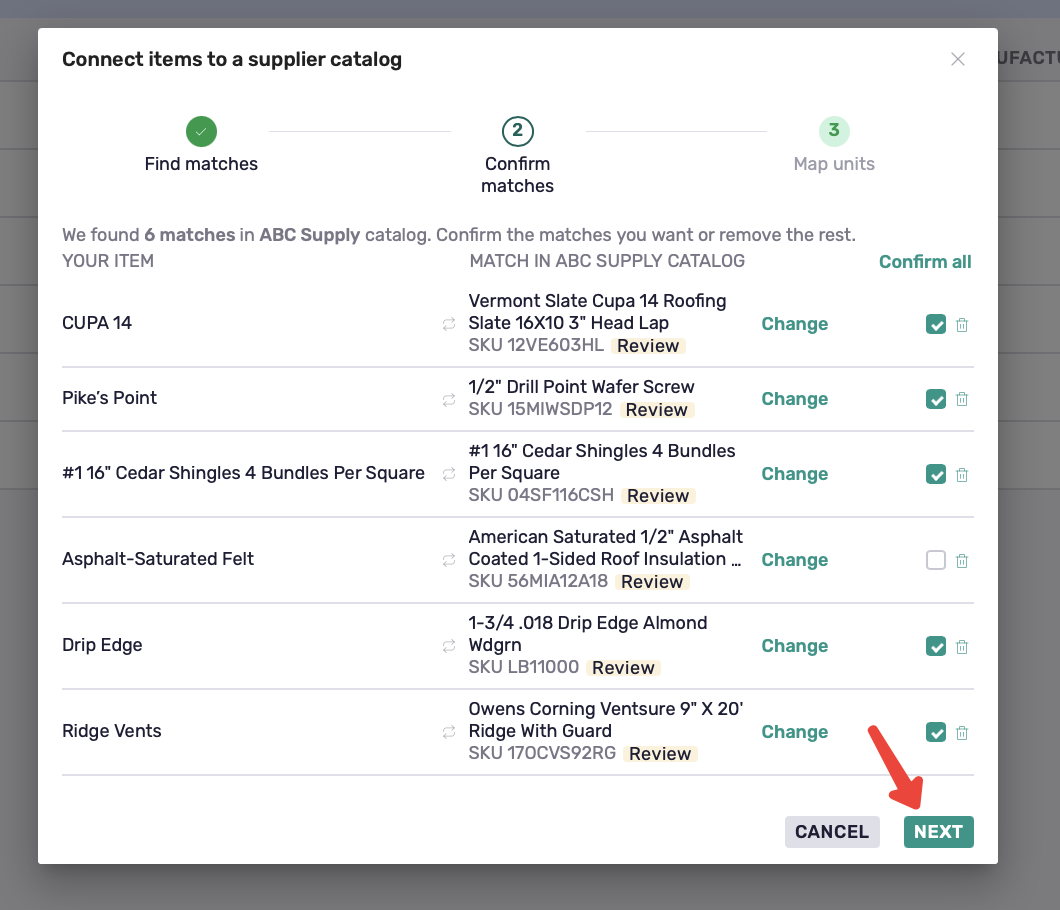
Confirm the correct matches.
Click Change to select a different ABC Supply product.
Use Search and connect to find a match for an unconnected item.
Leave an item unconnected if you want to connect it later.
You don't need to connect every item at once. Once you've reviewed your matches, click Next to continue to unit mapping.
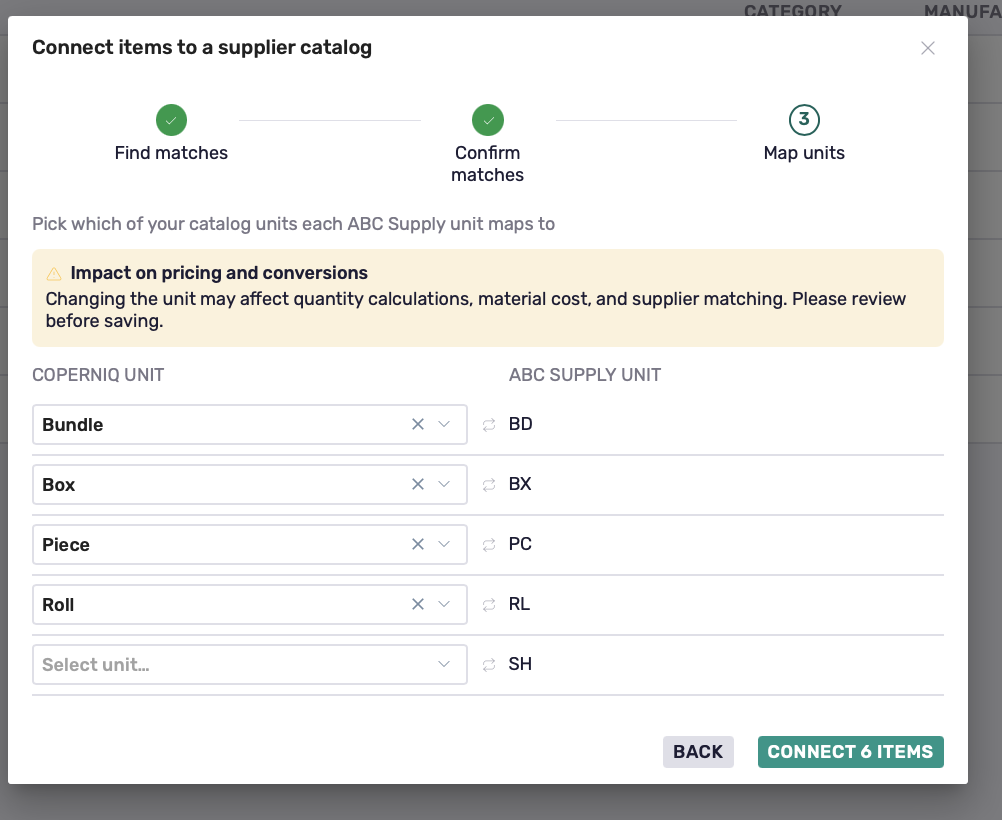
Map Units
Next, map your Coperniq units to the corresponding ABC Supply units.
For example, Box, Piece, Squares, or Tube can be mapped to their corresponding supplier units.
Important: Unit mappings can affect quantity calculations, material costs, and supplier matching. Review them before saving.
Click Connect Items to finish.
Connect Remaining Items
If some Catalog items aren't matched during the initial setup, Coperniq displays an Almost done! banner in the Catalog.
Click Connect remaining items to return to the matching process and connect them later.
This lets you start working with successfully connected products without having to match your entire Catalog at once.
Add Items to Your Catalog
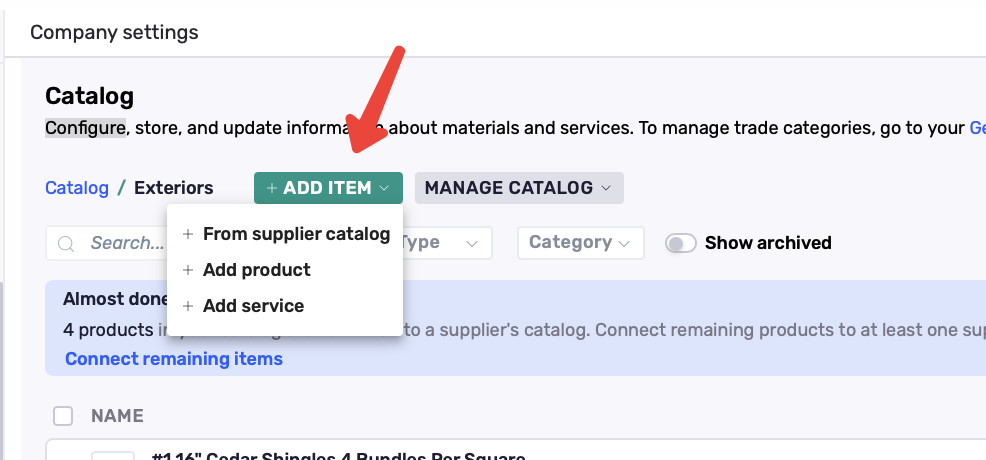
From the Catalog, click + Add Item and choose:
From supplier catalog — search the supplier catalog and add a product directly to your Catalog.
Add product — create a product manually.
Add service — create a service manually.
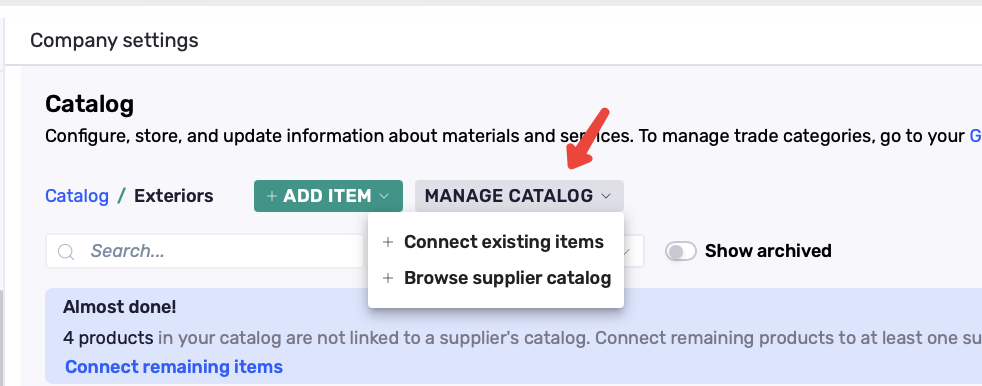
You can also use Manage Catalog to:
Connect existing items — connect products already in your Catalog to supplier products.
Browse supplier catalog — browse additional products available from your connected supplier.
View and Update ABC Supply Pricing
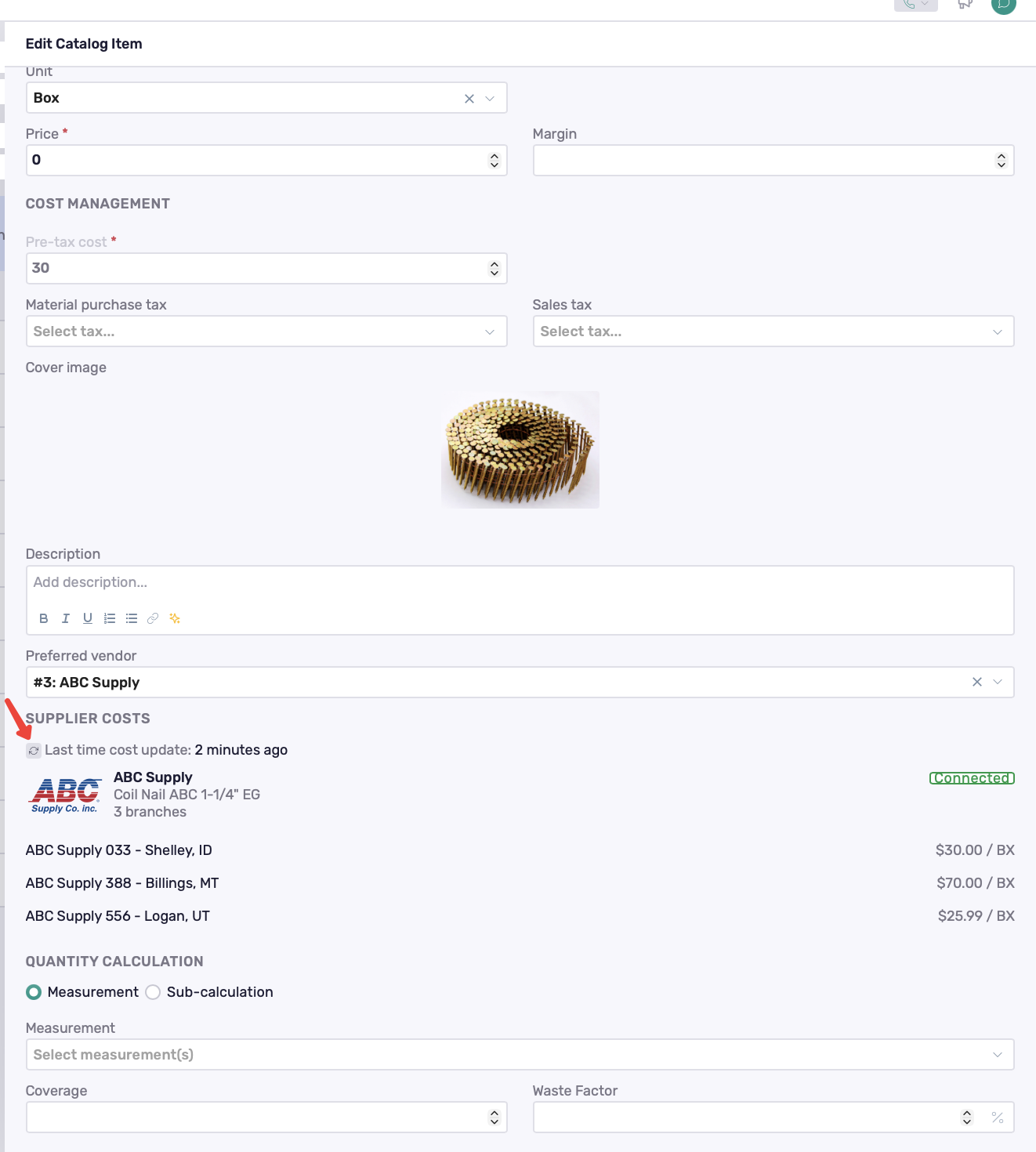
Open a connected Catalog item and go to Supplier Costs to view:
The connected ABC Supply product.
Your connected branches.
Available pricing for each branch.
The supplier unit.
When supplier costs were last updated.
This makes it easy to compare the same product across the ABC Supply branches you've connected.
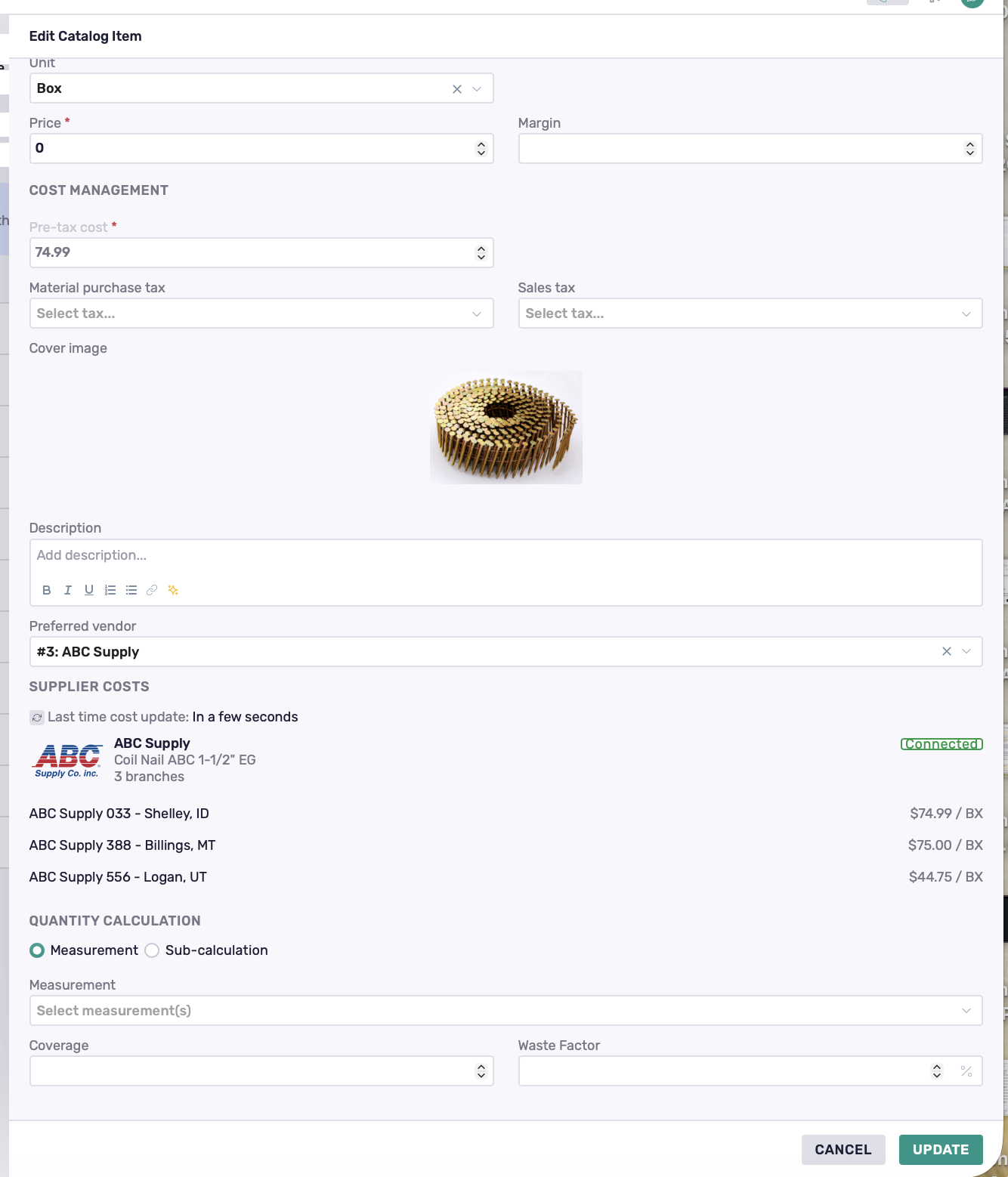
Pricing can vary between branches. If ABC Supply doesn't return a price for a location, you'll see Call branch for pricing.
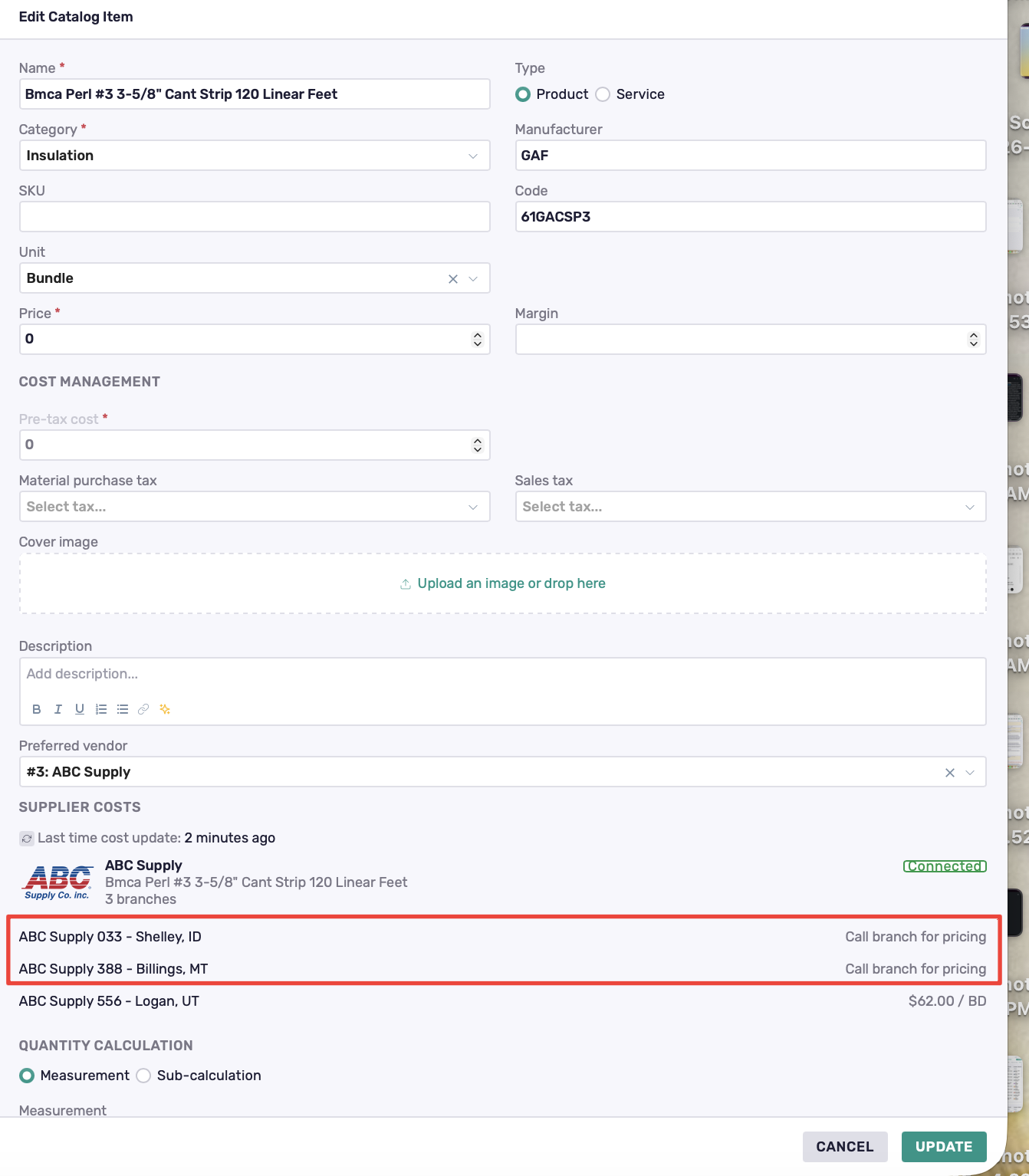
Your Preferred Branch determines which branch price is used for the item's Catalog cost.
Update Supplier Pricing
Click the Sync icon next to the last cost update to retrieve the latest available pricing and related supplier information from ABC Supply.
Manage the Catalog Item
Connecting a product to ABC Supply doesn't replace the normal Coperniq Catalog configuration.
You can continue managing the item's information, including fields.
The ABC Supply connection adds supplier information and live supplier costs while allowing the item to continue functioning as a standard Coperniq Catalog product.
Set Up Quantity Calculations
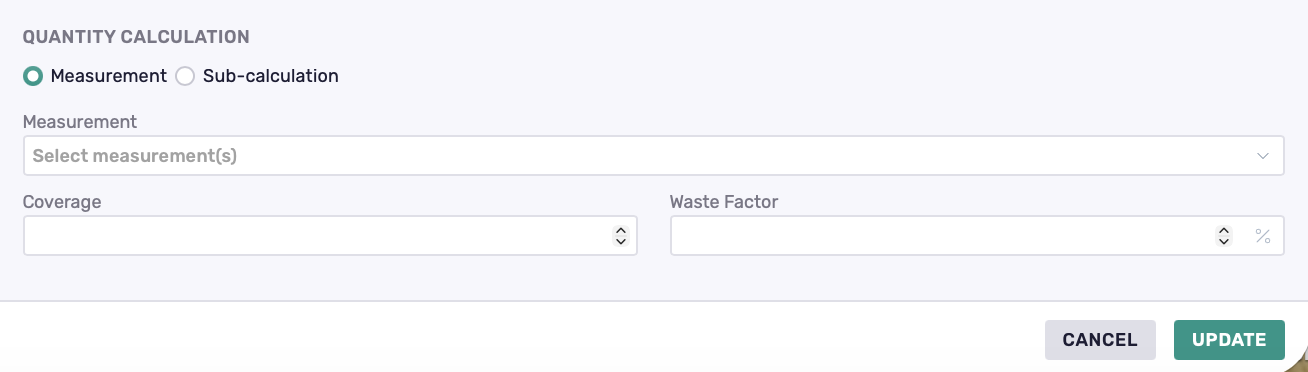
You can configure how Coperniq calculates the required quantity for a Catalog item under Quantity Calculation.
Choose between Measurement and Sub-calculation.
Measurement
Use Measurement when the required quantity should be calculated from project measurements.
Configure:
Measurement — select the measurement used for the calculation.
Coverage — define how much one unit of the product covers.
Waste Factor — add an additional percentage for expected material waste.
Sub-calculation
Use Sub-calculation when the required quantity should be based on another configured calculation instead of directly on a measurement.
Note: Quantity Calculation determines how much material is needed, while unit mapping determines how your Coperniq unit corresponds to the ABC Supply unit.
Order Materials from ABC Supply
Once your Catalog items are connected, you can create and send Material Orders directly to ABC Supply.
Create a Material Order
You can create a Material Order in two ways:
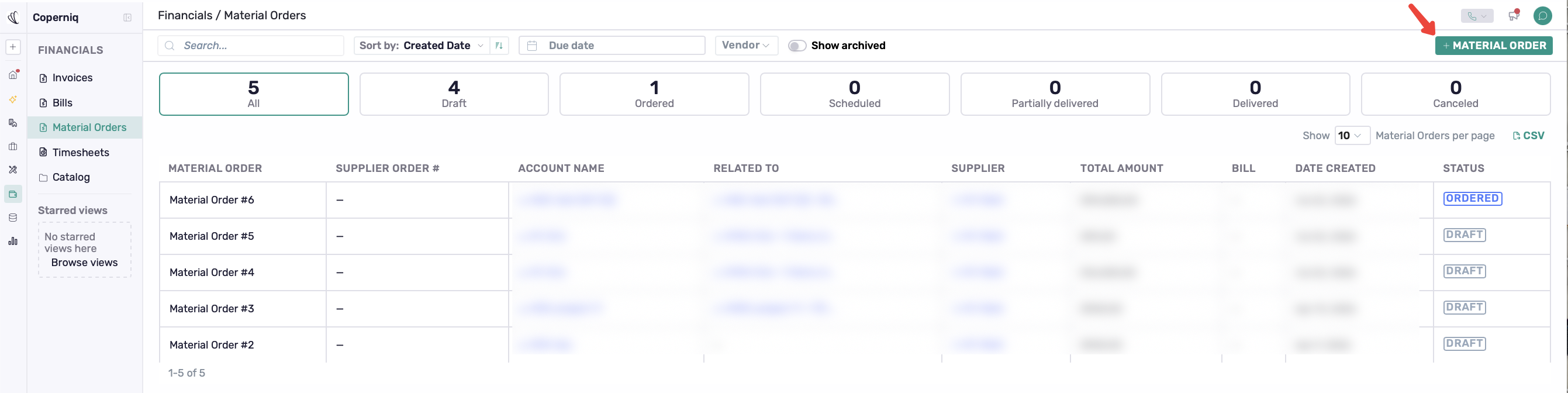
Go to Financials → Material Orders and click + Material Order.
Open the Project record, go to Financials, and click + Material Order.
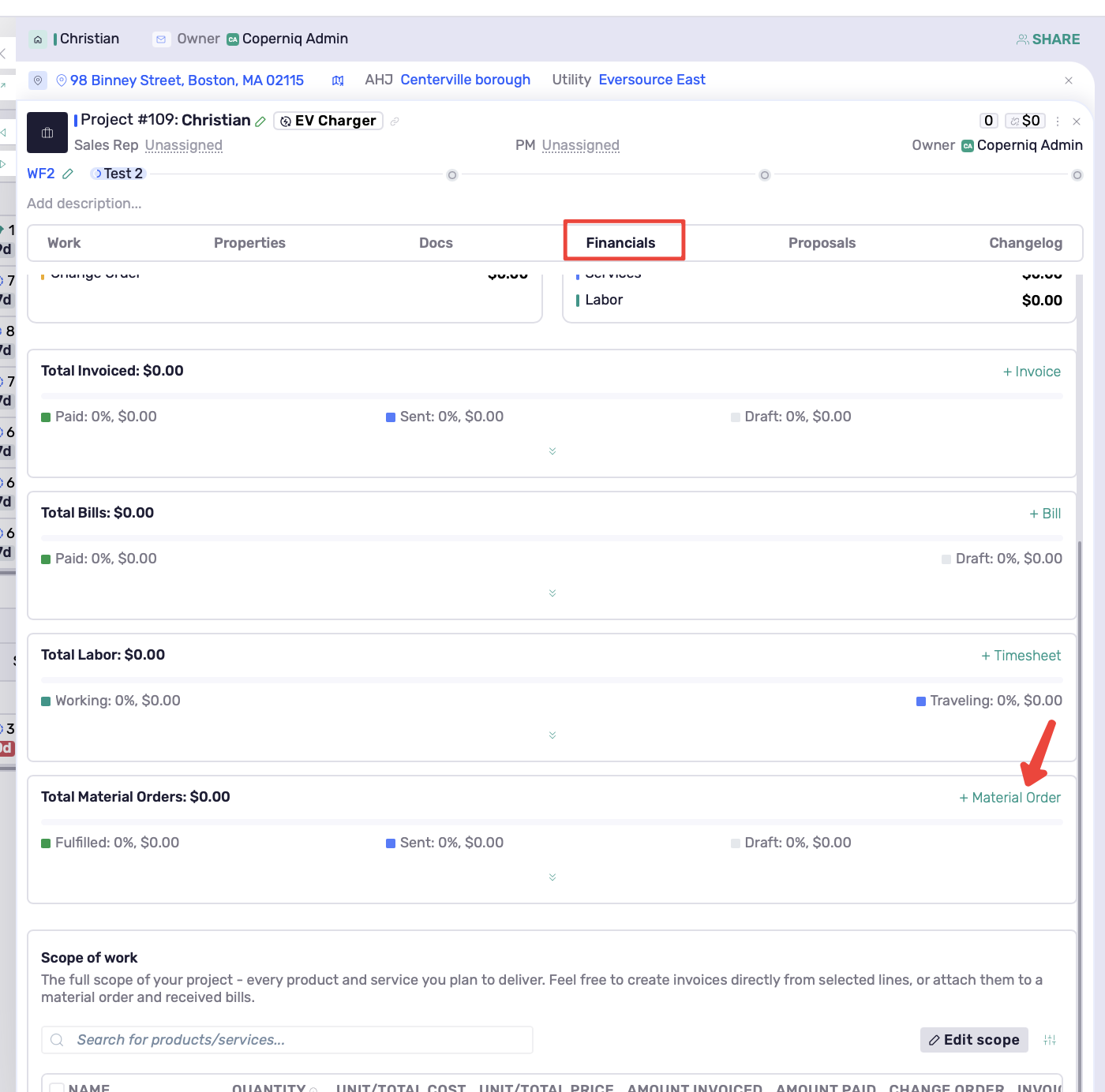
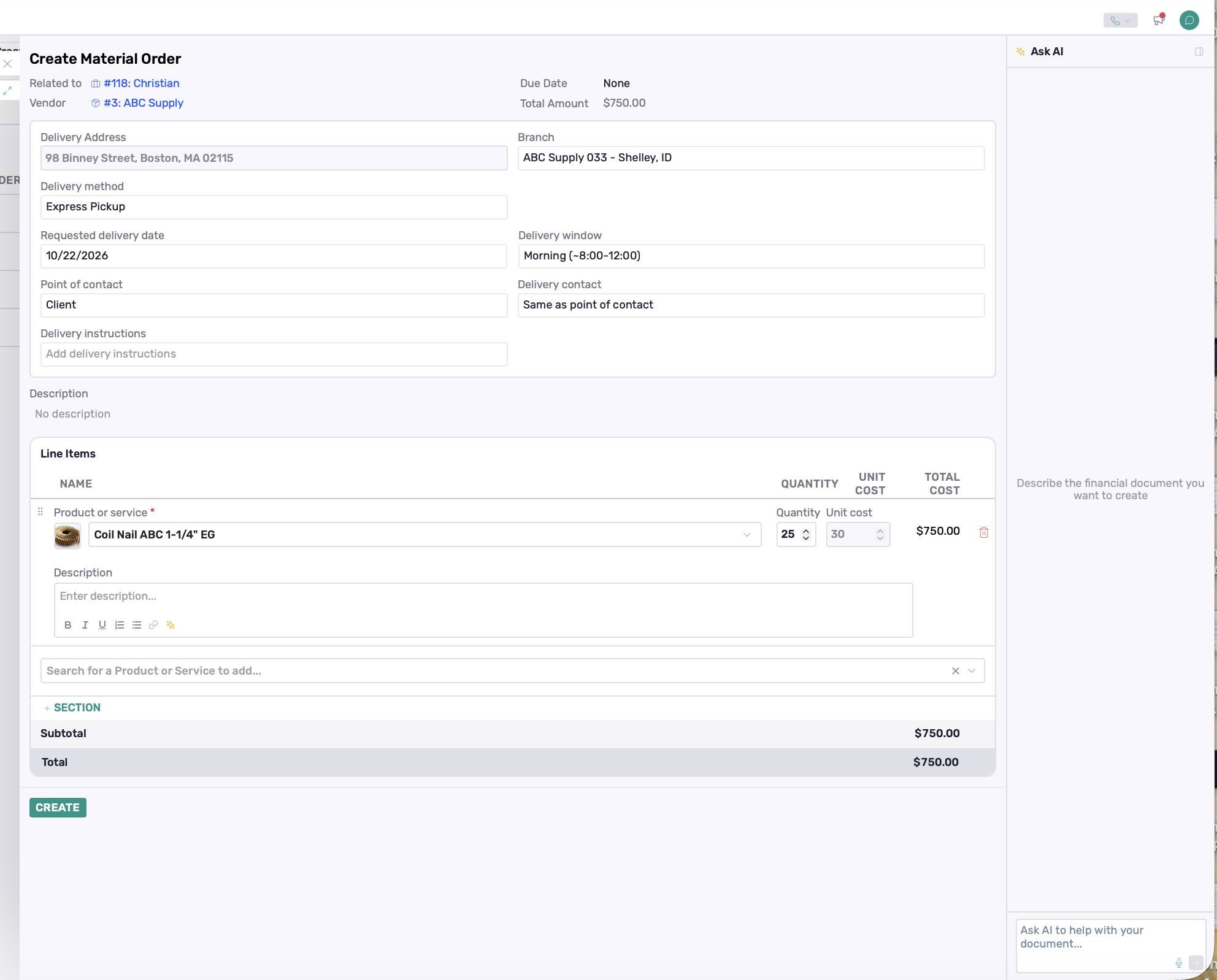
Select ABC Supply as the vendor, add the products you want to order, and complete the order details, including:
ABC Supply branch
Delivery address, method, date, and window
Point of contact and delivery contact
Delivery instructions
Line items, quantities, and costs
You can also use Ask AI to help create the Material Order. Describe the order you want to create, and AI can help populate the document based on your instructions.
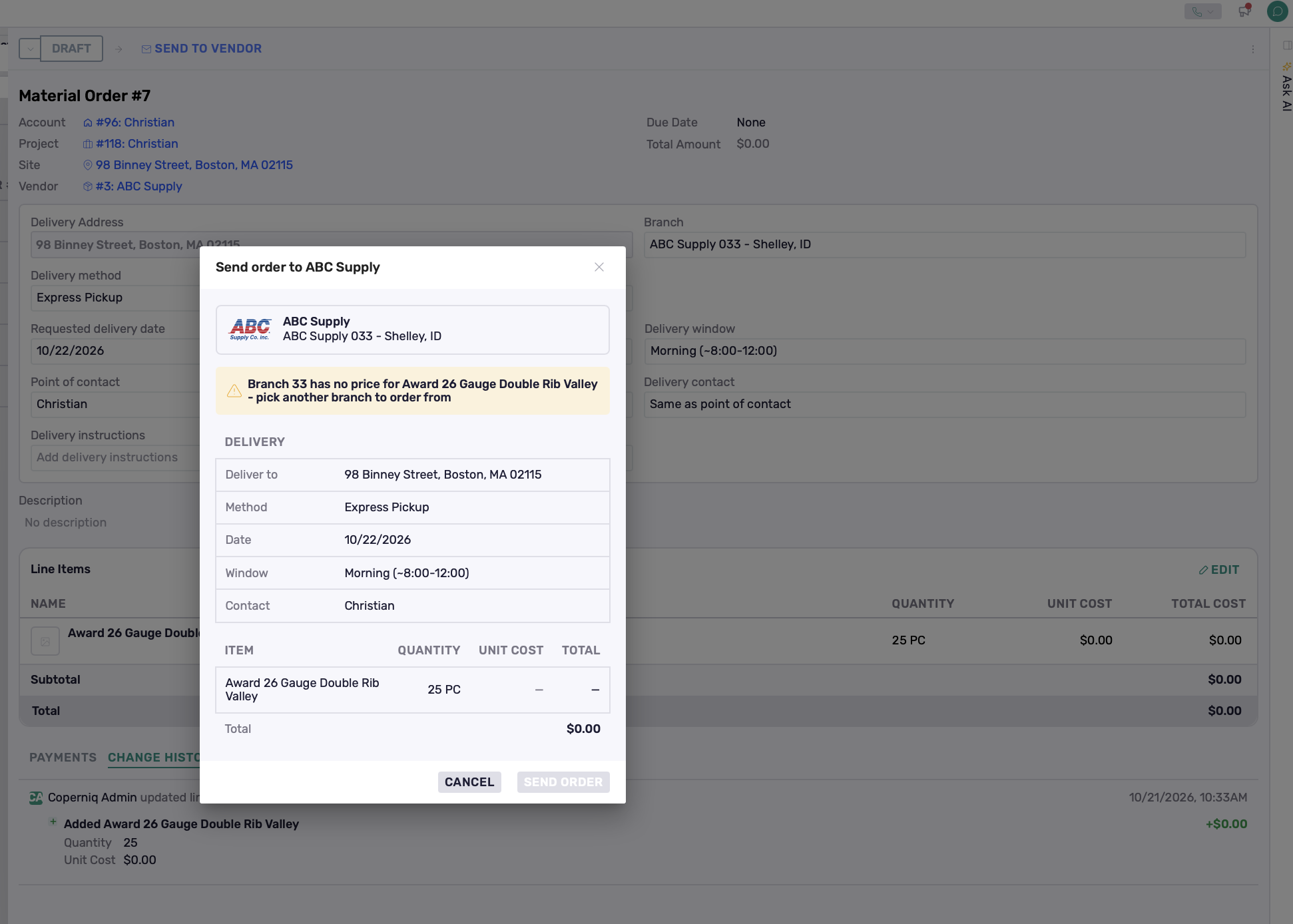
Coperniq checks pricing based on the ABC Supply branch selected on the Material Order.
If Pricing Isn't Available
If the selected branch doesn't have pricing for an item, Coperniq identifies the affected product and prevents the order from being sent.
Select another connected ABC Supply branch to check pricing again. If pricing isn't available from any connected branch, contact ABC Supply to confirm the product's pricing and availability.
Send the Order
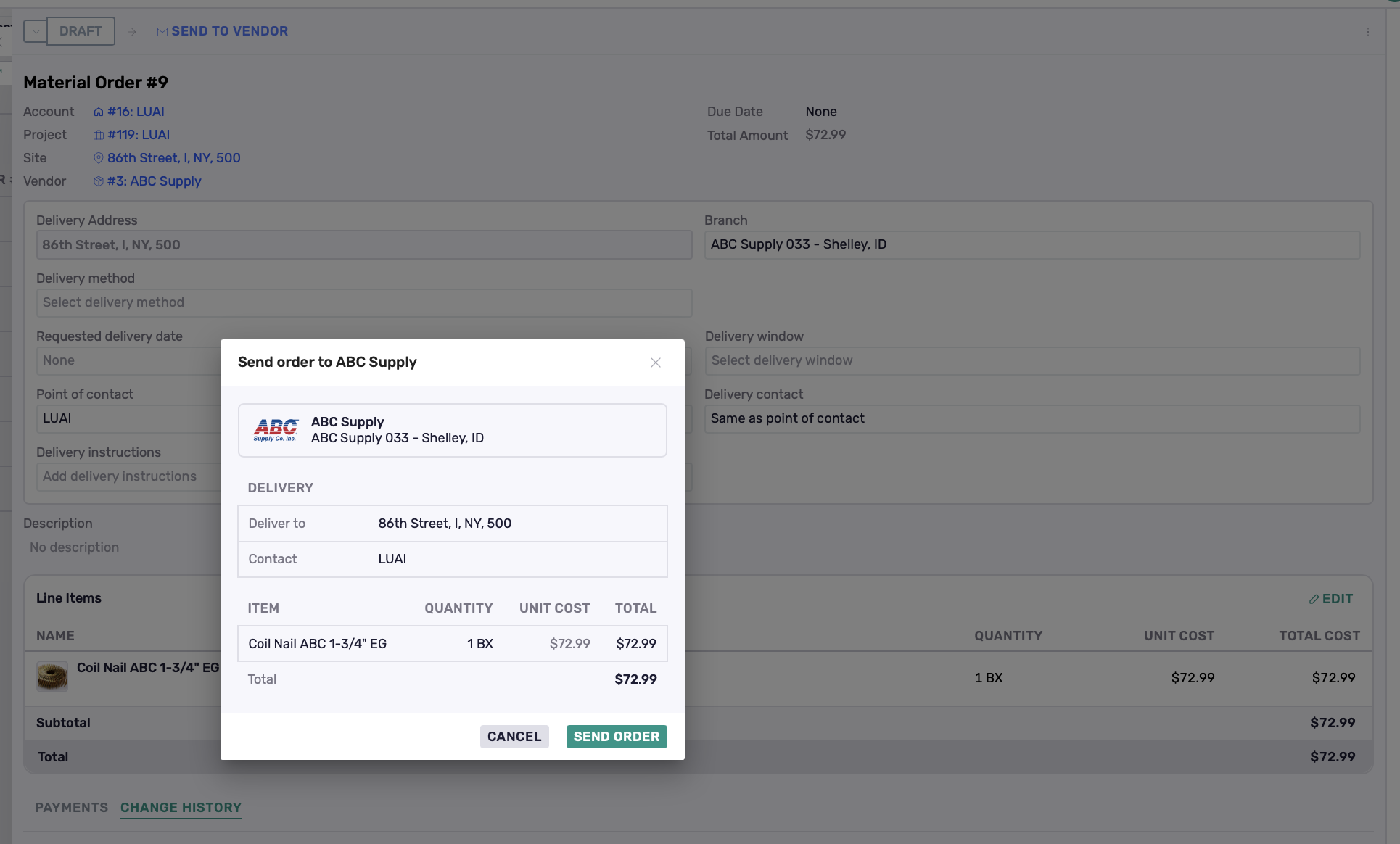
When you're ready, click Send to Vendor.
Review the final order summary, including the branch, delivery details, products, quantities, costs, and total, then click Send Order.
Until the order is submitted, it remains in Draft, so you can make changes as needed.
Track Your Material Orders
Go to Financials → Material Orders to view and manage all your orders in one place.
You can track key details such as the supplier, related record, total, supplier order number, and current status.
As an order progresses, its status updates through:
Draft → Ordered → Scheduled → Partially Delivered → Delivered
Canceled orders are tracked separately.
Use search or filters such as Due Date and Vendor to quickly find specific orders.

Use Your Catalog Items Across Coperniq
Connecting a product to ABC Supply doesn't limit it to supplier ordering. It remains a regular Coperniq Catalog itemthat you can use across your existing workflows.
For example:
Projects — add Catalog items to the project scope and use their costs in project financials.
Proposals — add Catalog items as proposal line items with their configured pricing and quantity calculations.
Invoices — use Catalog items as invoice line items for customer billing.
Financials — use Catalog items across supported financial documents and workflows.
Material Orders — use connected products when purchasing materials from ABC Supply.
This lets you manage a product once in the Catalog and use it throughout your workflow—from estimating and project scope to billing and material purchasing.
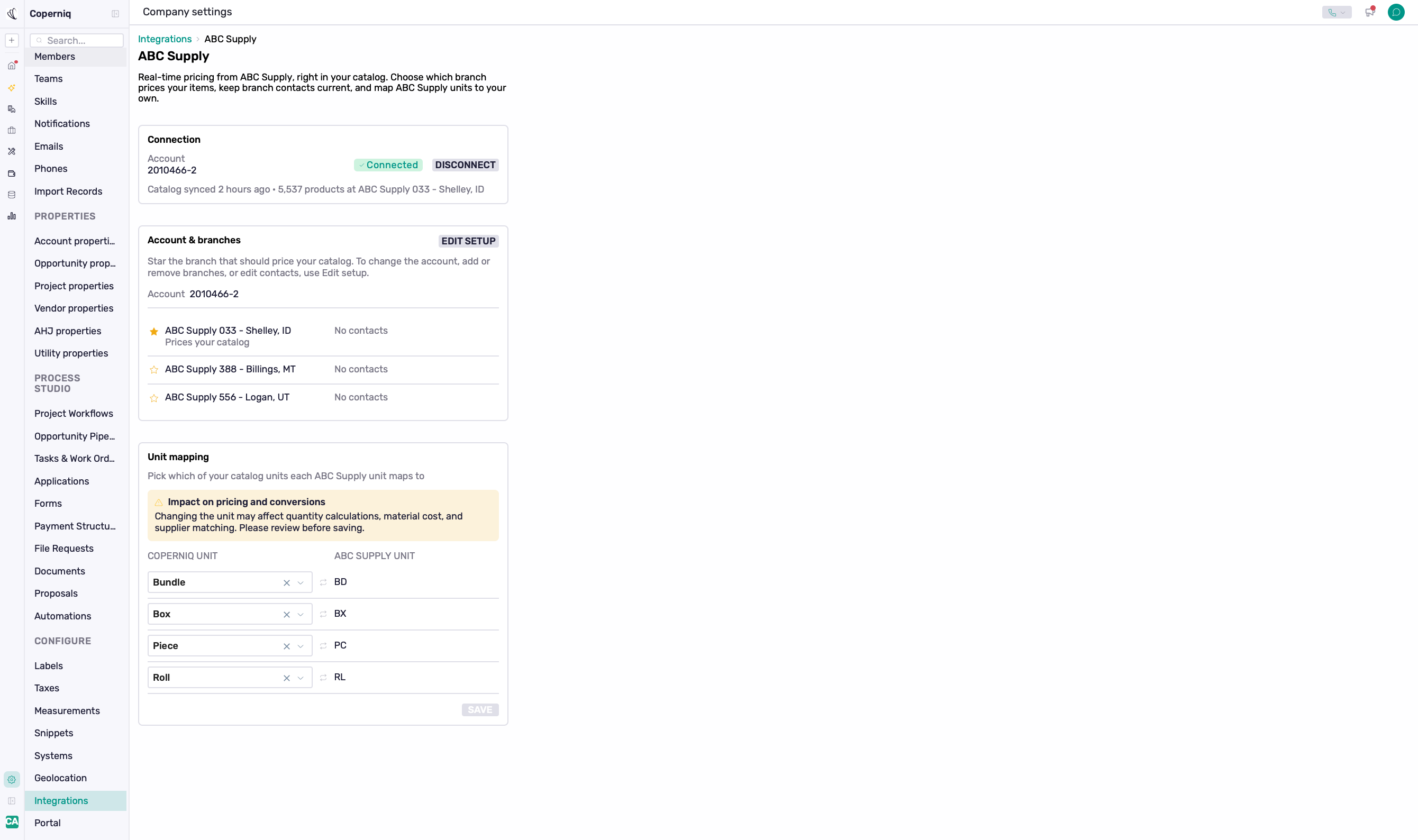
Manage Your ABC Supply Integration
Return to Company Settings → Integrations → ABC Supply whenever you need to review or update your supplier setup.
You can manage your:
Connected ABC Supply account.
Branch locations.
Preferred branch.
Branch contacts.
Supplier unit mappings.
This lets you maintain your ABC Supply setup as your purchasing needs change without rebuilding your Catalog.
When an ABC Supply Product Is No Longer Available
If a connected product is no longer available from ABC Supply, the Catalog item remains available in Coperniq.
You can continue using the item as is, or relink it to a replacement ABC Supply product if you want to restore its supplier connection and pricing.
Relinking preserves the existing Catalog item and its configuration, so you don't need to recreate the product.
Best Practices
Set the correct preferred branch to keep Catalog costs accurate.
Review product matches and unit mappings before connecting items.
Sync pricing when needed to retrieve the latest ABC Supply costs.
Review the branch, pricing, quantities, and delivery details before sending a Material Order.
Relink unavailable products when needed to restore their ABC Supply connection and pricing.