How to Use Work Order Due Dates
Last updated: May 30, 2025
Set Up Work Order Due Dates
What are Due Dates for?
The Due Date field helps manage task deadlines and prioritize work. You can set a due date for any Work Order to:
Manage project timelines
Prioritize urgent tasks
Ensure timely completion of Work Orders
How will I know that a Work Order has reached its Due Date?
Once a Due Date is breached, the Assignee of the Work Order will be notified.
Keep reading to see how you can set up a Tasklist based on Due Dates to stay on top of work that is due in the future!
How do I set up a Due Date?
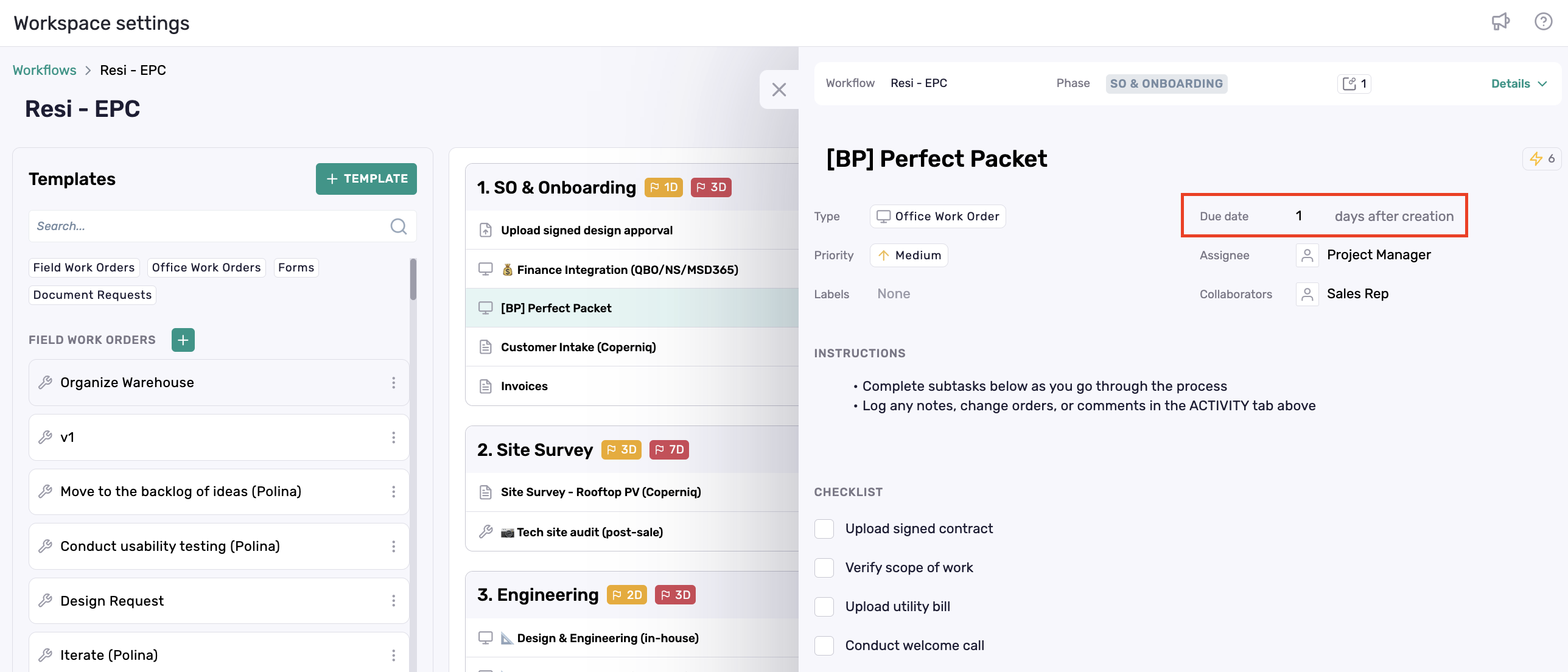
The Due Date field can be programmatically set up in the Work Order template in Workspace Settings. This can be done either in the "Templates" section, or directly from the Workflow builder itself.
While editing the selected Work Order, you can find the Due Date right above the Assignee.
Due Dates will be dynamically set from the date the Work Order is opened in each individual Project.
Leveraging Due Dates to Create Tasklists
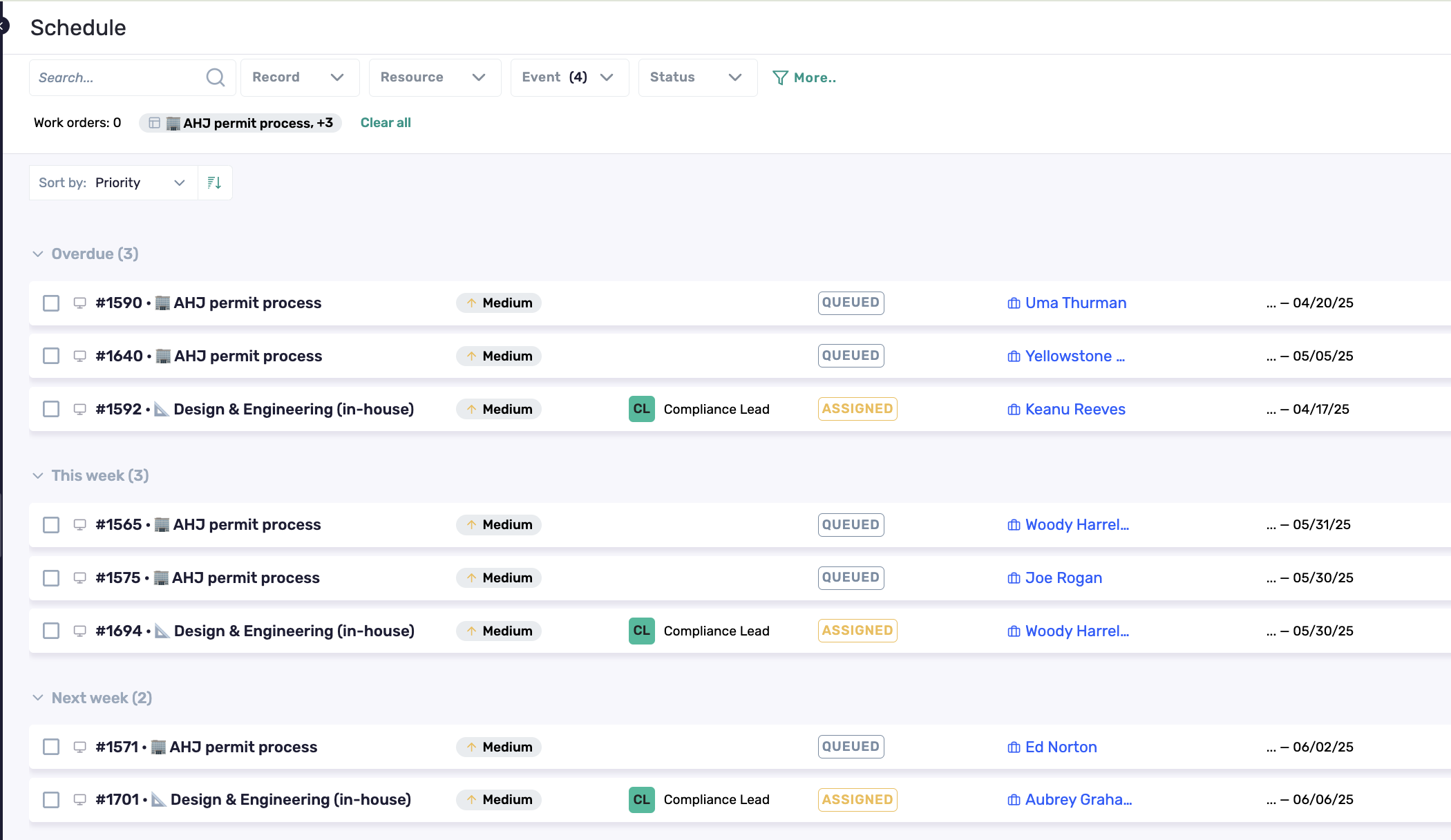
Due Dates make the most impact when they help your team prioritize their work. You can set up a tasklist grouped by Work Orders that are due this week, next week, or overdue.
How do I create a saved Tasklist?
A tasklist can be saved like any other SmartView. To access the view featured above, head to "Schedule" in the left navigation menu. In the top right corner of the calendar, toggle to "List" view.
From there, use the filters across the top to narrow down the Tasklist by user, event type, or Work Order Status.
Hit "Save" in the top right corner to save this SmartView and add it to your lefthand navigation menu for easy access!
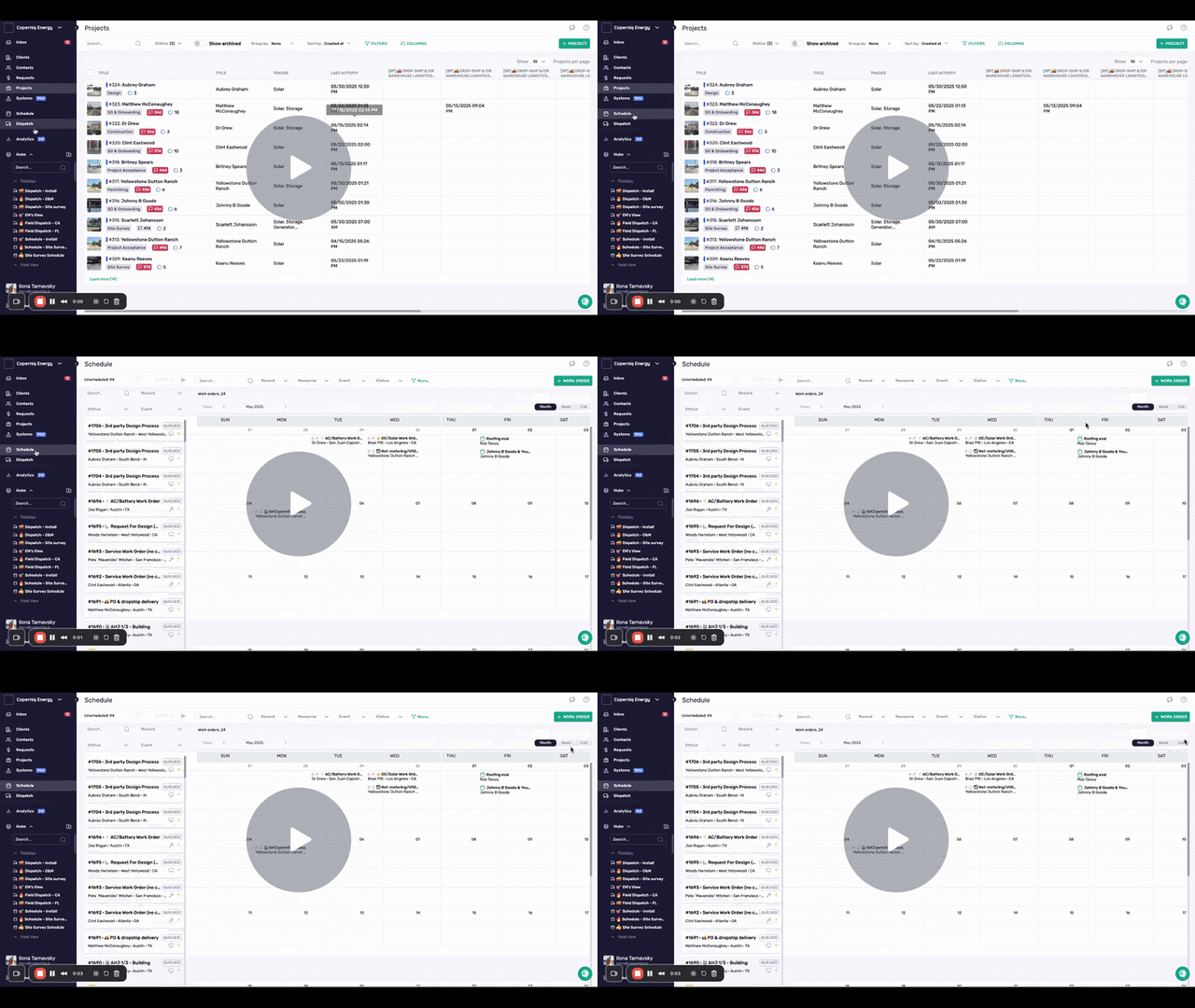
Check out the video below:
app.coperniq.io/112/projects - 30 May 2025 - Watch Video