Mobile App: Inbox and Notifications
Last updated: November 18, 2026
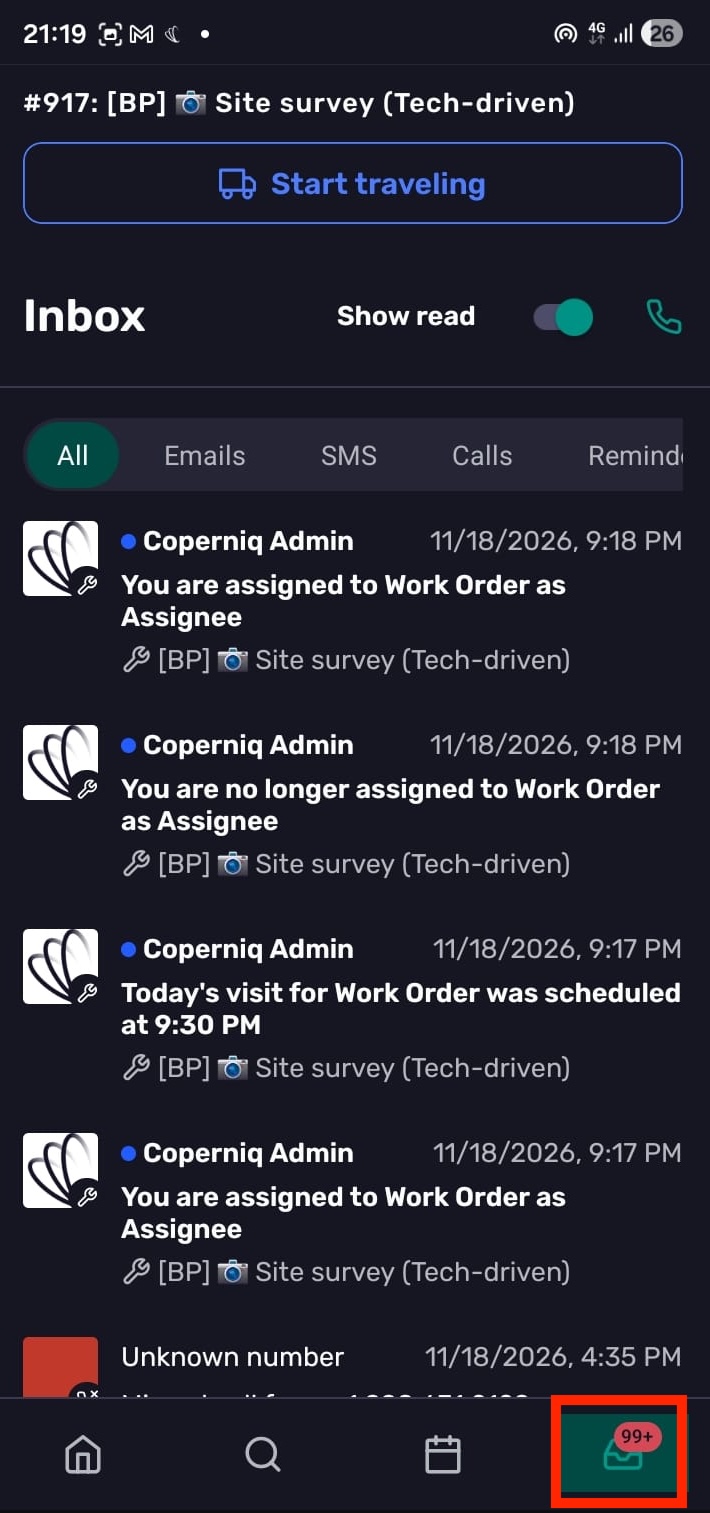
The mobile Inbox brings together unread communications and work updates so you can see what needs attention while you are in the field. Use Inbox filters to focus on a specific type of activity, open the related item, and manage mobile calling and notification behavior.
By default, the Inbox shows unread items. Turn on Show read to include items you have already opened.
Inbox filters
Use the horizontal filters at the top of the Inbox to focus on the type of item you need:
All: all supported Inbox activity.
Emails: received email messages.
SMS: received SMS messages.
Calls: missed calls.
Reminders: overdue reminders, assigned or reassigned reminders, and rescheduled reminders.
Work orders: scheduled visits, future visits, and assignee or collaborator changes.
Opportunities: created opportunities, sales rep, owner, or project manager updates, and scheduled appointments.
Projects: created projects and sales rep, owner, or project manager updates.
Accounts: created accounts and owner updates.
Mentions: items where you were mentioned.
Portal messages: portal messages, referrals, portal requests, actions sent for review, and portal document uploads. This filter appears only when the customer portal is enabled for your company.
Open and read Inbox items
Tap an Inbox row to open the related item. Opening an item marks it as read.
Depending on the item type, Coperniq can open:
Account, project, or opportunity records.
Work orders.
Reminders.
Forms.
Files, with the file comments sheet open.
Inbox notifications from push notifications or deep links.
Some items do not have a mobile destination yet, such as certain document, proposal, or system notifications. These rows expand in place instead of navigating to another screen.
If you receive an SMS or missed call from an unknown number, the row can expand and show Add to account. From there, you can add the number to an existing account contact or create a new account with that number as the primary phone. Creating a new account requires permission to create projects/accounts, and this action is unavailable while offline.
Unread badge
The Inbox tab shows a badge when you have unread items. The badge is counted per user and company.
The badge appears only when there is at least one unread item.
Counts above 99 display as 99+.
When you open an unread item, Coperniq lowers the badge count immediately.
If the item cannot be marked as read, Coperniq restores the unread state and shows an error message.

Refresh and offline behavior
Pull down on the Inbox to refresh the list and unread badge. As you scroll, Coperniq loads more Inbox items.
If your device is offline, Coperniq shows an offline banner. Actions that require a connection, such as adding an unknown phone number to an account, may be blocked until you are back online.
Push notifications
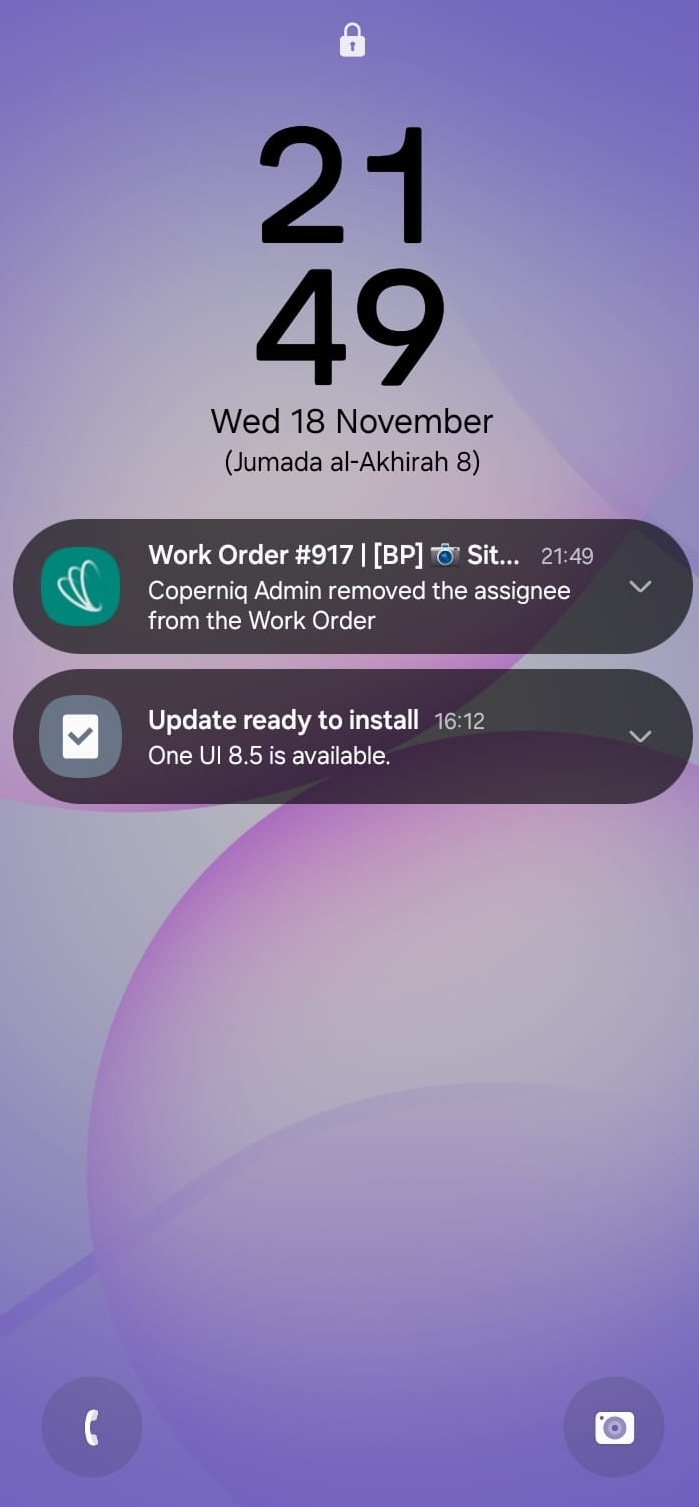
Push notifications can open the related screen in Coperniq when the notification includes a link. For example, a notification can open a work order, reminder, record, file, or a specific Inbox item.
If a push notification does not include a link, tapping it does not open a specific screen.
Notification permissions
Coperniq asks for notification permission when you log in, if your device still allows the app to request it.
If notification permission has been permanently denied, Coperniq shows a Notifications needed alert with an option to open your device settings. On Android, Coperniq uses a default notification channel at high importance.
To manage notification types, delivery methods, and recipients, use Settings → Notifications in Coperniq web. For details, see the Notification Settings Overview.
Troubleshooting notifications
Why aren’t push notifications coming through?
Check that notifications are enabled for Coperniq in your device settings and that you’re signed in to the app.
Why doesn’t an SMS or missed-call notification open a record?
If it isn’t linked to a record, tap Add To beneath the notification to create a new account or link it to an existing one. The communication will then appear in that account’s feed.