Accounts & CRM
Last updated: October 6, 2026
Estimated reading time: 2–3 minutes
Overview
The Accounts & CRM section gives you one place to manage Leads, Prospects, and Customers. Create and organize accounts, make bulk updates, archive records, and manage sites.
Open any account to view its properties, contacts, sites, reminders, service plans, invoices, and other related details.
Accessing the Accounts Page
Log into the Coperniq web app.
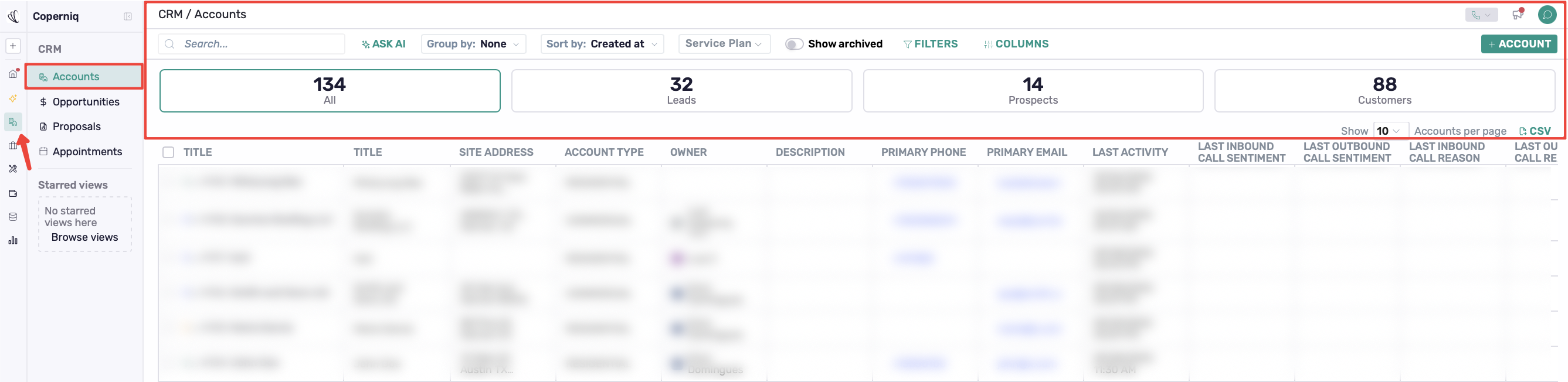
From the left-hand menu, select Accounts under the CRM section.
You’ll land on the Accounts dashboard, where you can view, search, filter, and export the accounts list by clicking the CSV icon.
Accounts Dashboard
Summary Tabs
At the top of the page, you’ll see counters:
All → all accounts in the system
Leads → potential accounts not yet converted
Prospects → in-progress opportunities
Customers → confirmed and active accounts
Clicking any tab will filter the table to only show those accounts.

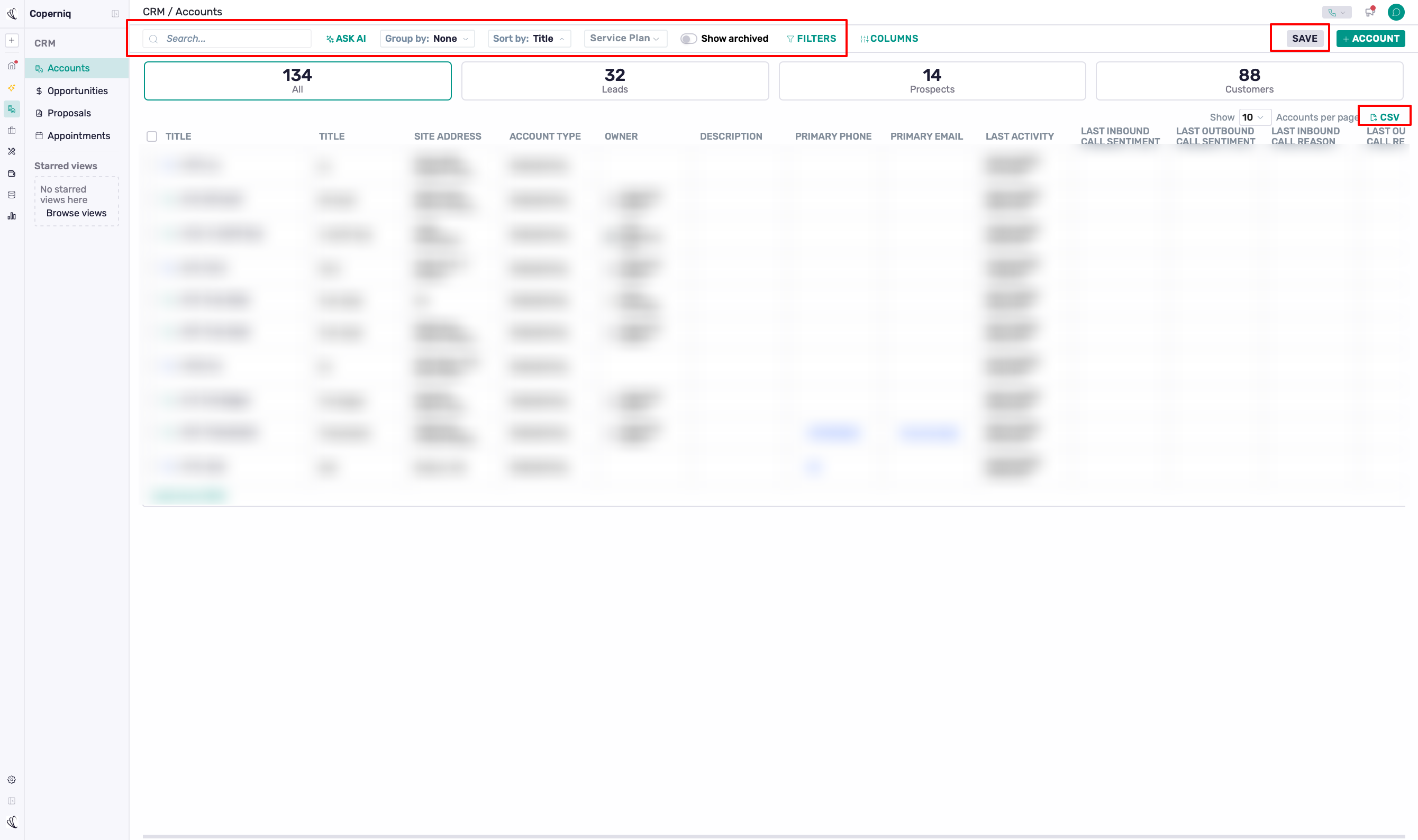
Toolbar Controls
Search → find accounts by name, phone, email, or project.
Group By → group accounts by fields (e.g., Owner, Account type).
Sort By → order results (e.g., Created at, Last activity).
Service Plan → filter accounts based on their associated service plan.
Filters → narrow results by account type, owner, or other conditions.
Save → click Save to save your current view, including the filters, grouping, and sorting, so you can quickly access it again later.
Show Archived → toggle archived accounts on or off.
CSV → click the CSV icon to export the accounts in your current view.
Customizing Columns
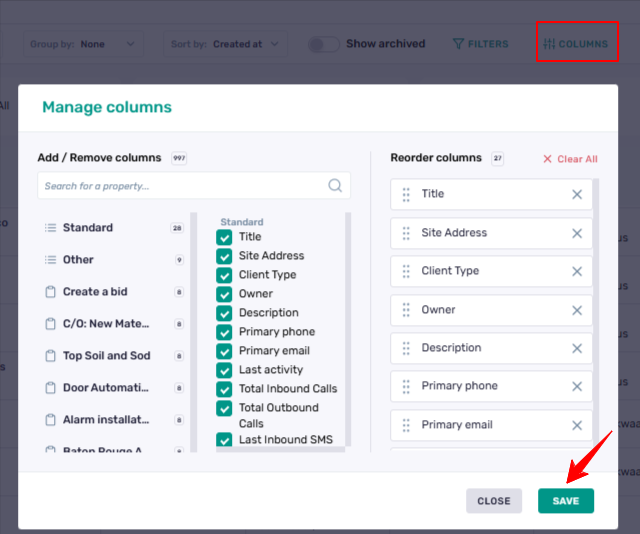
You can control which details are shown in the Accounts table:
Click COLUMNS in the top toolbar.
Check or uncheck the fields you want visible, such as:
Site address
Account type
Owner (Account manager)
Contact details
Last activity
Description
Creating a New Account
To add a new Account:
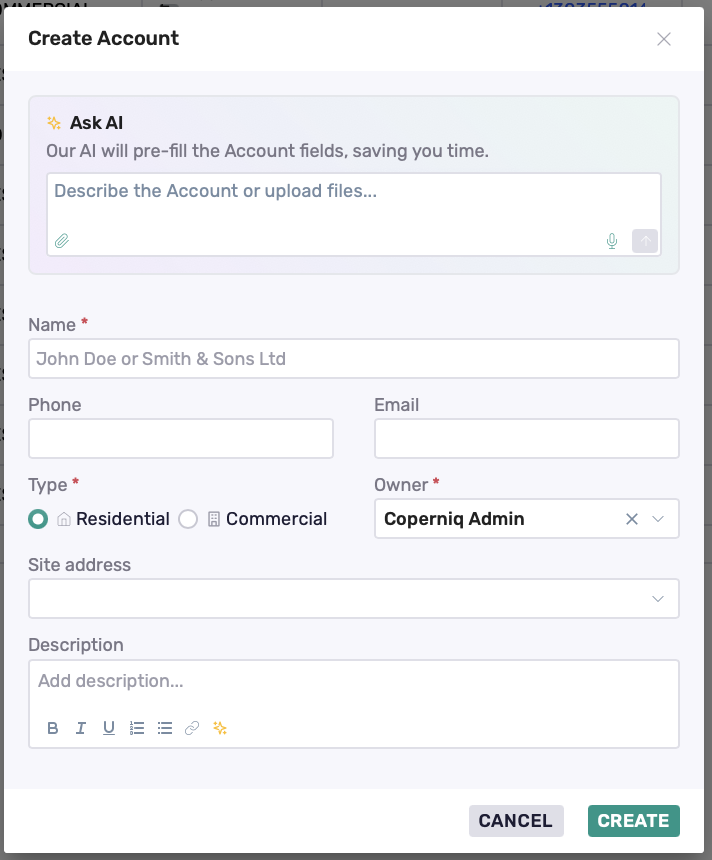
Click the + Account button (top-right).
Complete the Create Account form:
Account name (required)
Phone / Email
Account type (Residential / Commercial — required)
Account owner (required)
Site address (required)
Click Create.
Create an Account with Ask AI
You can also use Ask AI at the top of the form to help pre-fill the Account fields. Describe the account or upload supporting files, then review the populated information before creating the Account.
Inside a Account Record
When you click on a Account, you’ll open their profile view, which includes:
Header → Displays the account type, stage (Lead / Prospect / Customer), account manager, created date, and last activity. It also includes a Copy icon and a Share button, which shows who has access to the record (including assigned users and roles).
A
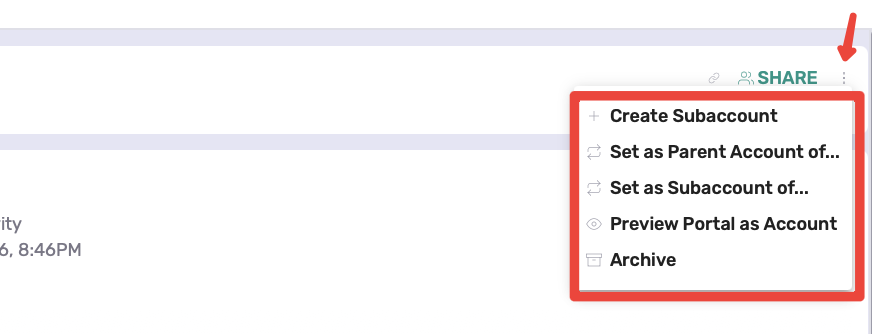
⋮menu with options such as:Create Subaccount
Set as Parent Account
Set as Subaccount
Preview Portal as Account
Archive
Properties → add or update general details and descriptions.
Reminders → create follow-up tasks or alerts.
Sites → list of projects/Opportunities addresses with details like AHJ and Utility.
Each site has a
⋮menu with the option Move to another Account.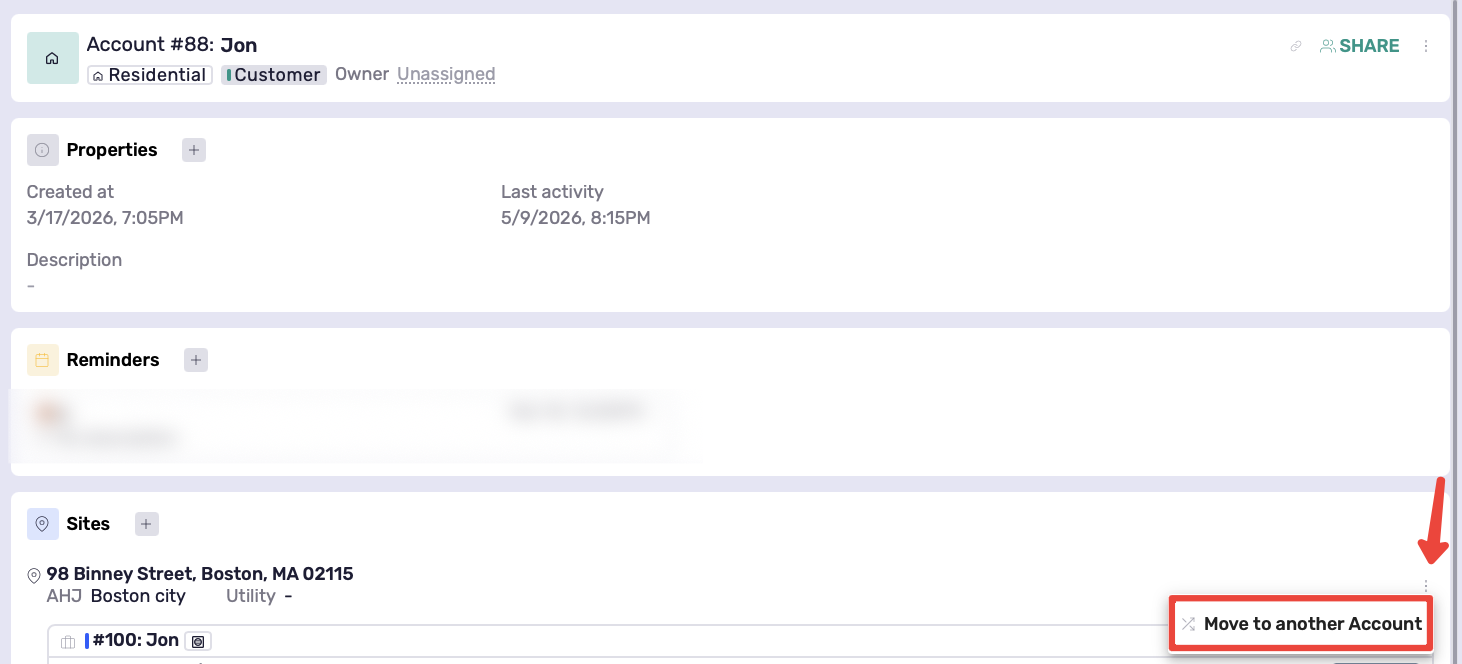
Each record has a
⋮menu with the option Move to another site.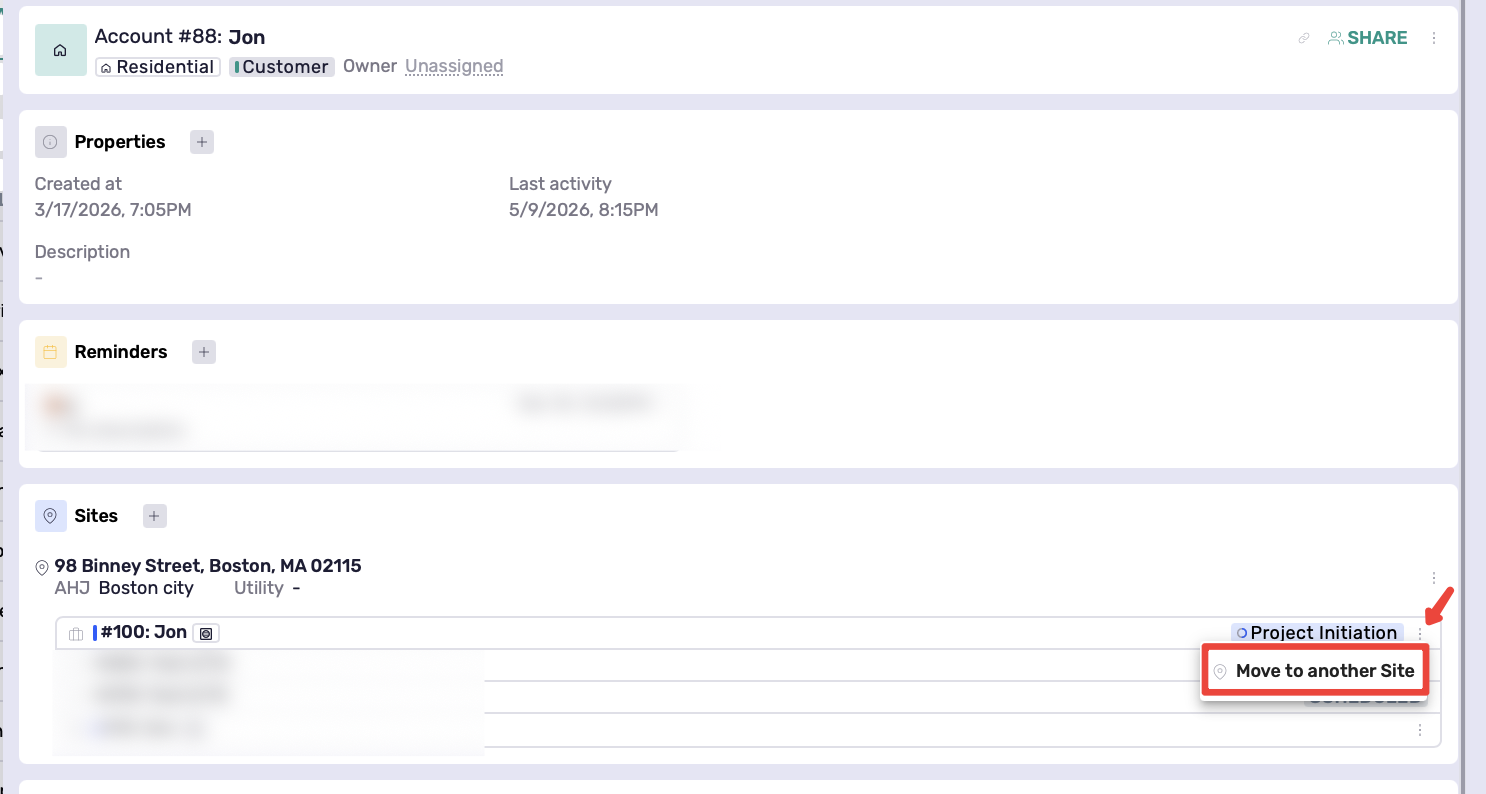
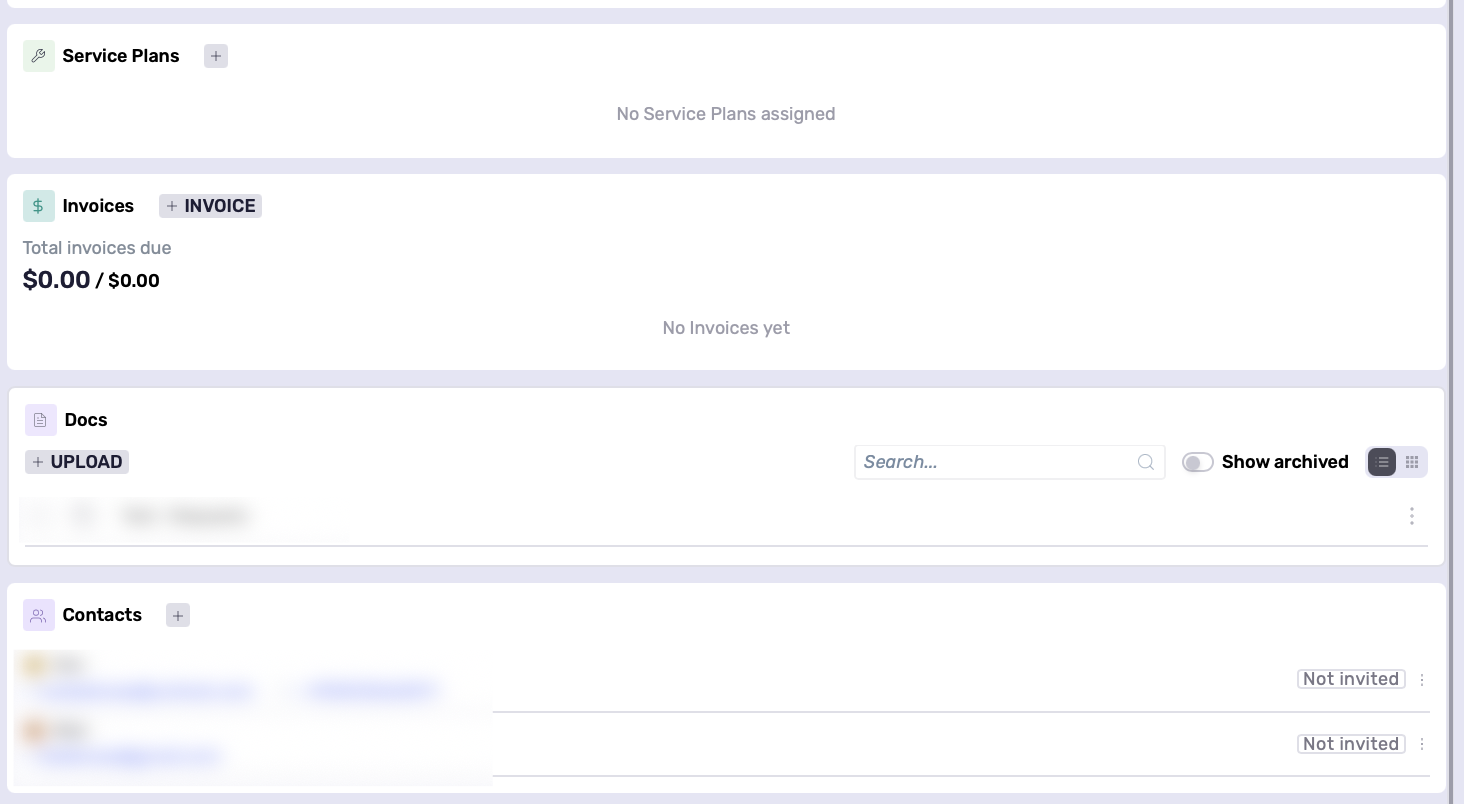
Service Plans → View or assign service plans connected to the account.
Invoices → View and create invoices while tracking total invoice balances.
Docs → Upload, search, view, and archive documents related to the account.
Contacts → main and secondary account contacts.
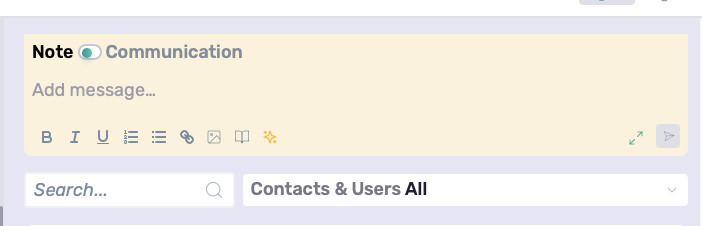
Notes → Create and manage internal notes with formatting, links, attachments, and snippets. This section is located on the right-hand side of the page.
Communication → View and manage account communication history, including emails, SMS messages, and portal communication. This section is also located on the right-hand side of the page.
Bulk Actions
From the Accounts list view, you can select multiple accounts and apply bulk actions:
Bulk Update (Properties Only) → Update a selected property across multiple accounts at once
Send Email → Send an email communication to selected accounts
Send SMS → Send SMS messages to multiple accounts simultaneously
Run Agents → Run configured automation agents/actions on selected accounts
Archive → Archive selected accounts

Best Practices
Customize columns to focus on the most important account details.
Use filters, grouping, and sorting to quickly find the right set of accounts.
Regularly use Move to another Account to eliminate duplicates.
Use bulk update and bulk archive to save time managing large sets of records.