Mobile App: Coperniq Phone
Last updated: November 18, 2026
Coperniq Phone in the mobile app lets users place and receive calls from the field, choose which number to call from, and keep customer communication connected to Coperniq records.
Open Coperniq Phone
You can access phone features from mobile areas such as the Home screen, record screens, contact actions, and communication flows where calling is available.
Use Coperniq Phone to:
Call customers or contacts
Receive incoming calls on your mobile device
Choose whether to call from your Coperniq number or your cell number
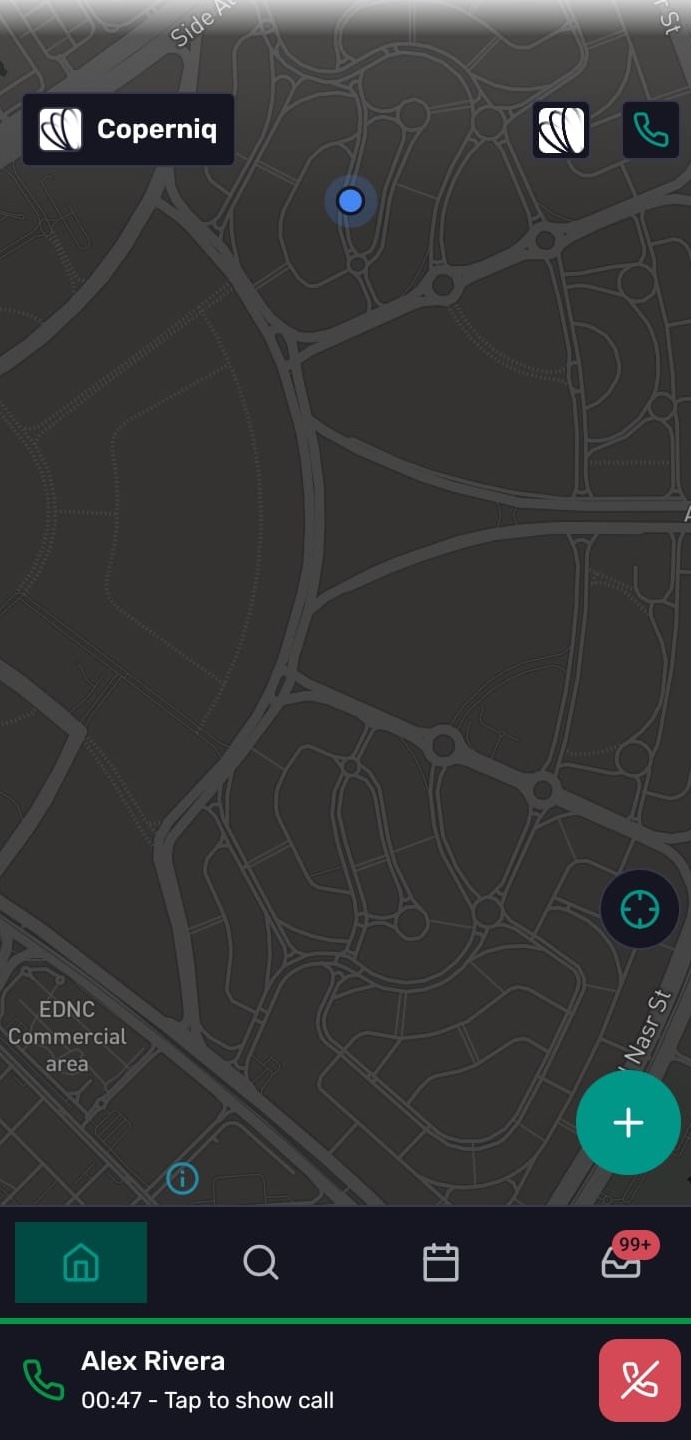
See an active call overlay while using the app
Phone settings
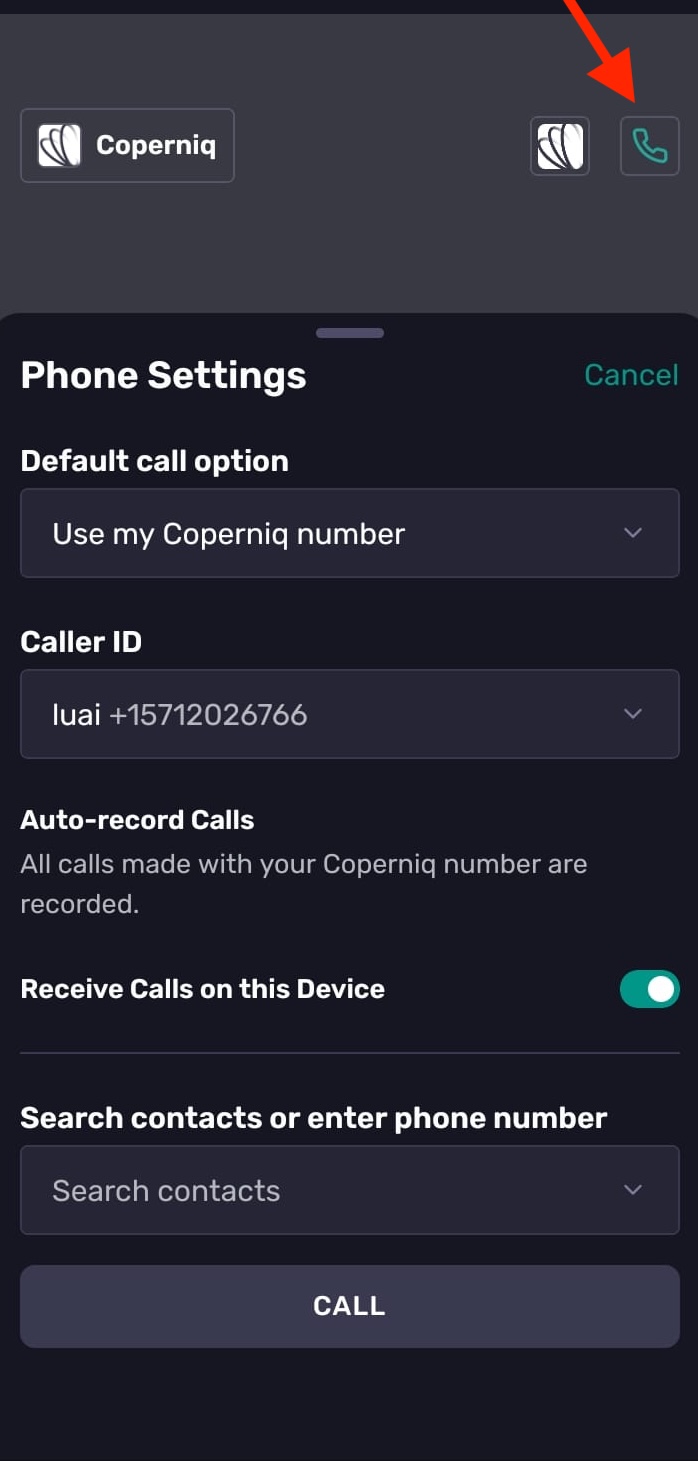
Open Phone Settings to configure how calls work on your device.
Available settings can include:
Receive Calls on this Device — allows incoming Coperniq calls to ring on the mobile app
Caller ID — controls the caller ID used for outbound calls
Default call option — choose whether to use your Coperniq number or your cell number by default
Receiving calls on the device requires microphone permission.
Make an outbound call
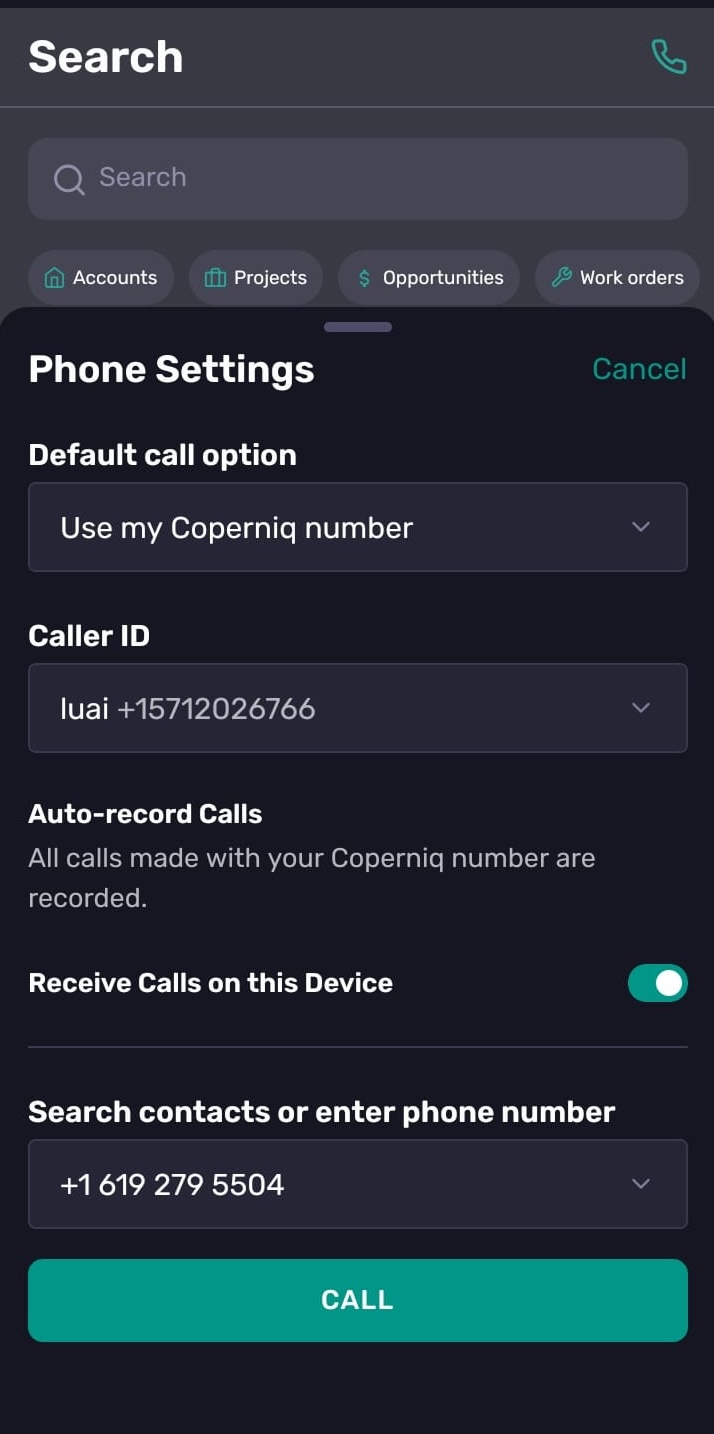
To place a call:
Tap the phone icon in the top-right corner.
Search for a contact or enter a phone number.
Select a caller ID if you have multiple Coperniq numbers.
Tap Call.
Your default call option is used automatically. You can change it if needed.
Receive incoming calls
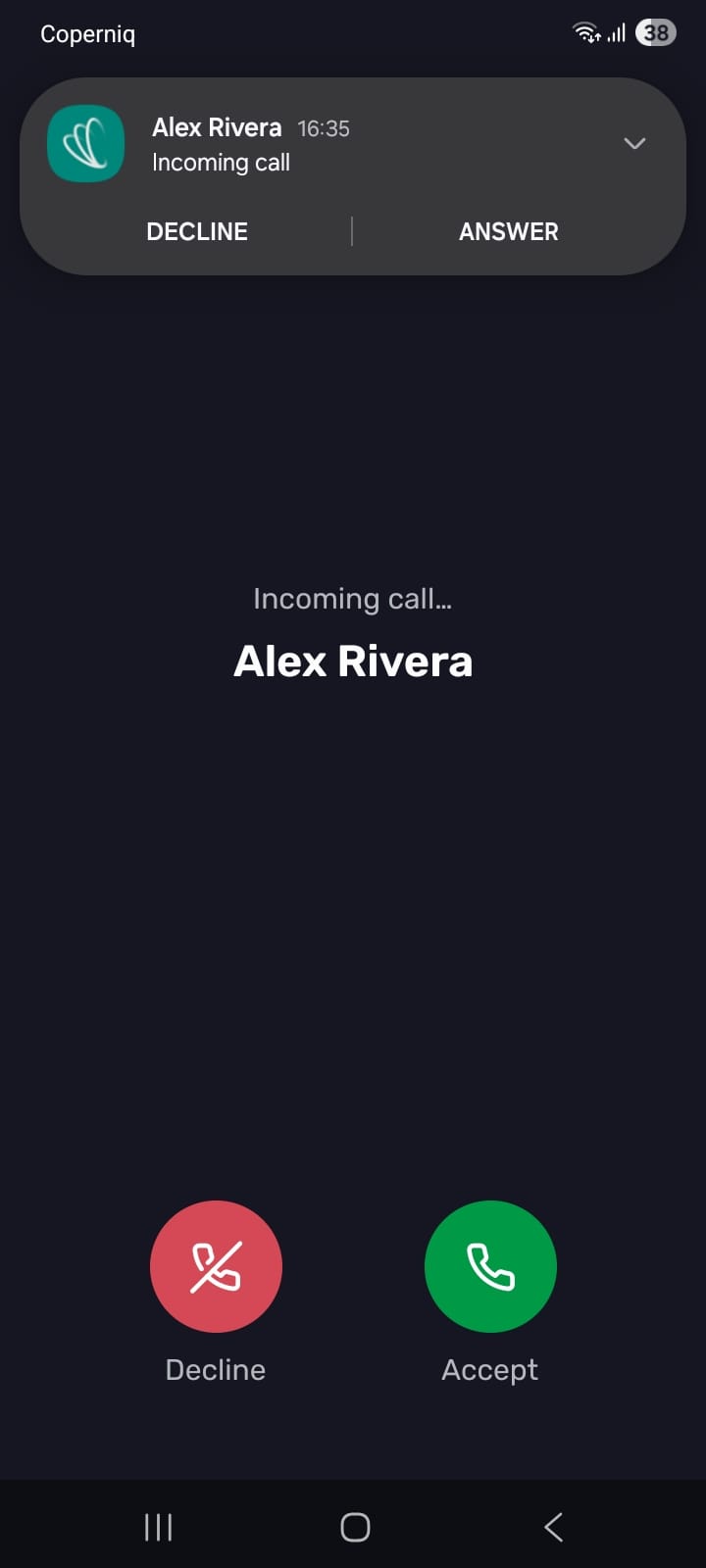
If Receive Calls on this Device is enabled, incoming Coperniq calls can appear in the mobile app.
When a call comes in, the app shows an incoming call screen so you can answer or decline.
In-call controls
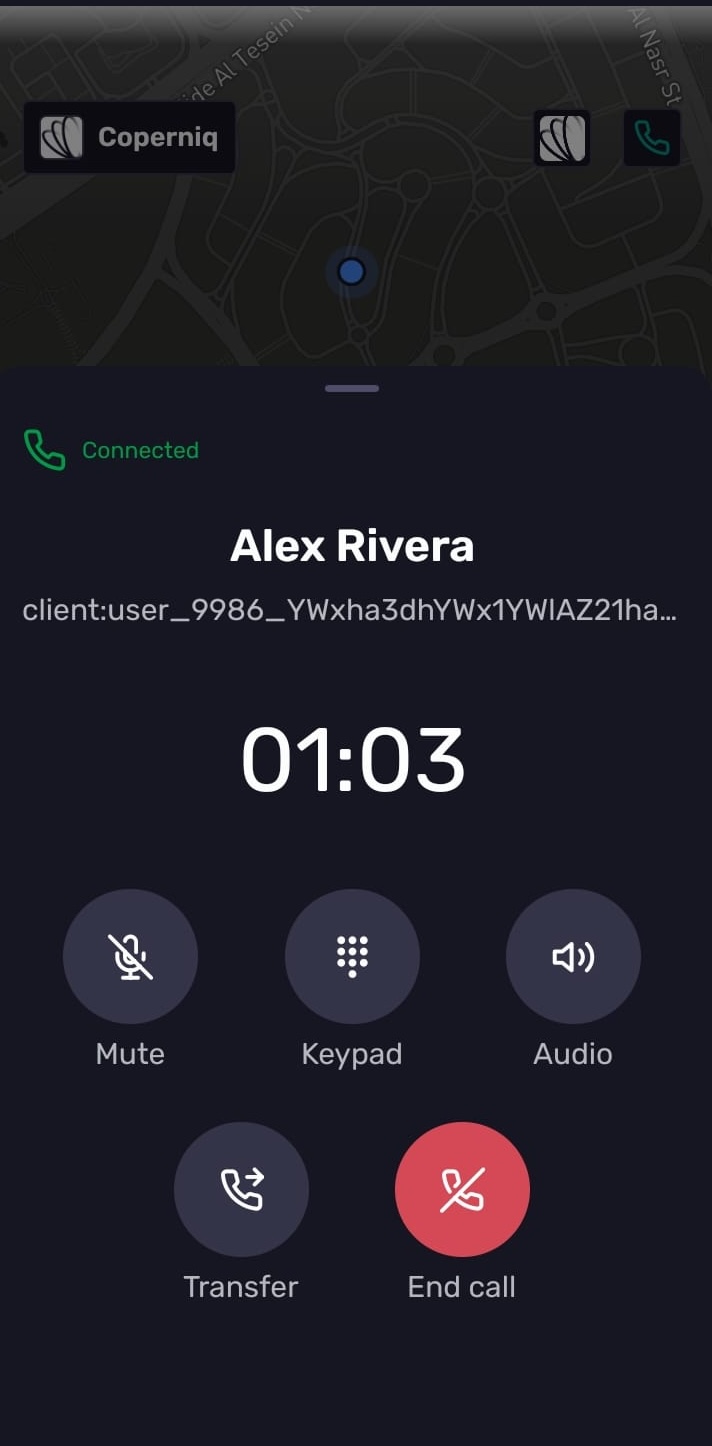
While on a call, you can:
Mute or unmute your microphone
Open the Keypad
Change the call’s Audio output
Transfer the call
End call
Active call overlay
During a live call, Coperniq can show an active call banner or overlay so you can continue navigating the app while staying aware of the call.
Permissions required
Coperniq Phone may require access to:
Microphone — required for calls
Notifications — recommended so incoming calls and call updates can appear promptly
If calling does not work, confirm the user has granted the required device permissions and that phone features are enabled for the company.
Troubleshooting
If a user cannot place or receive calls on mobile:
Confirm the user has phone access.
Check Phone Settings and make sure Receive Calls on this Device is enabled for incoming calls.
The account has enough credits for outgoing calls.
Confirm microphone permission is allowed for the Coperniq app.
Confirm notifications are enabled for the Coperniq app.
Ask the user to update to the latest app version and retry.