Notification Settings Overview
Last updated: October 7, 2026
Estimated reading time: 3–4 minutes
Overview
Notification Settings help keep your team informed about important activity across Coperniq. You can control which notifications are enabled, how they are delivered, and who receives them.
Access Notification Settings
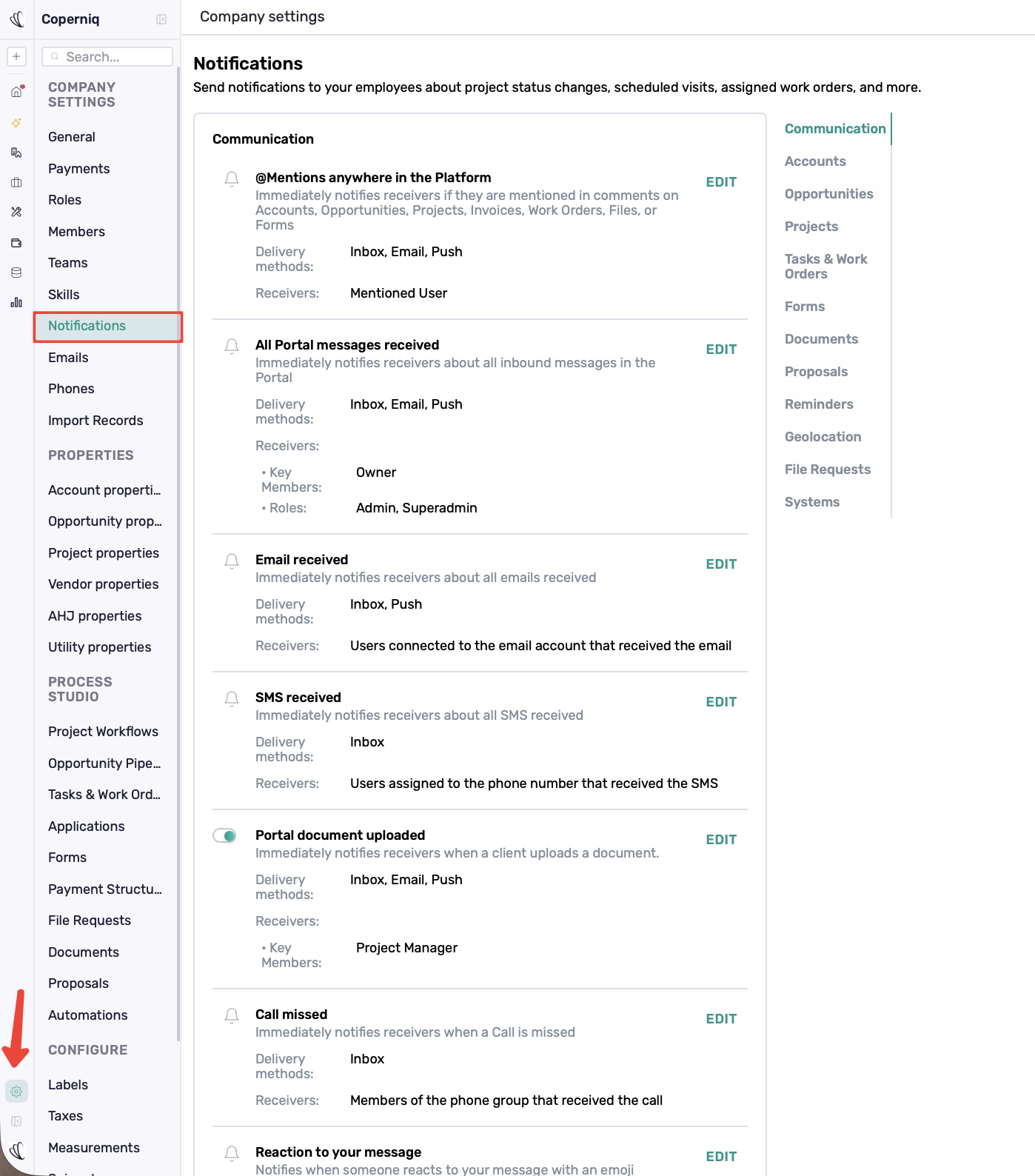
Click the Settings (gear) icon in the bottom-left corner of Coperniq.
Under Company Settings, select Notifications.
Use the categories on the right to quickly navigate between notification types.
Manage Notifications
Each notification shows:
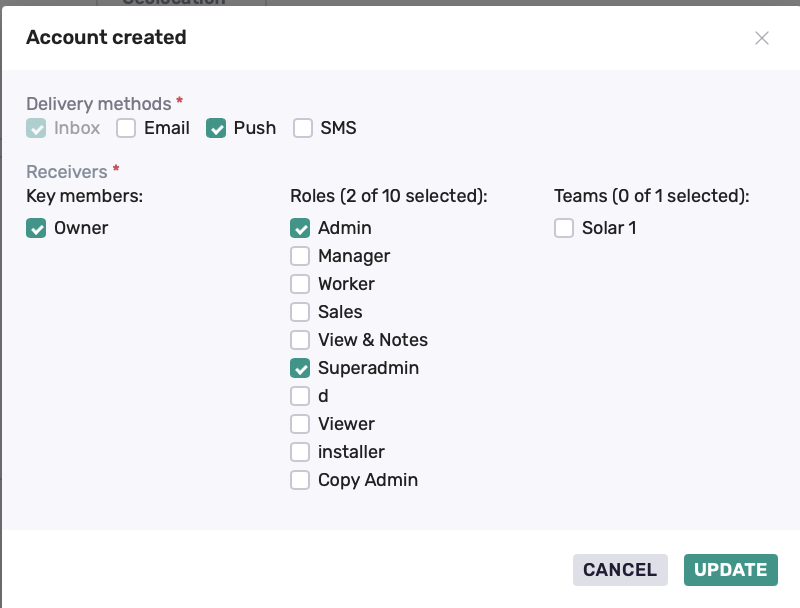
Delivery Methods — where the notification is sent, such as Inbox, Email, Push, or SMS.
Receivers — who receives the notification, such as Key Members, Roles, Teams, Assignees, or other relevant users.
Use the toggle next to a notification to enable or disable it. Click Edit to update its delivery methods and receivers.
Available delivery methods and receivers vary by notification.
Notification Categories
Notifications are organized by area, with each category covering alerts related to a specific part of Coperniq.
Communication
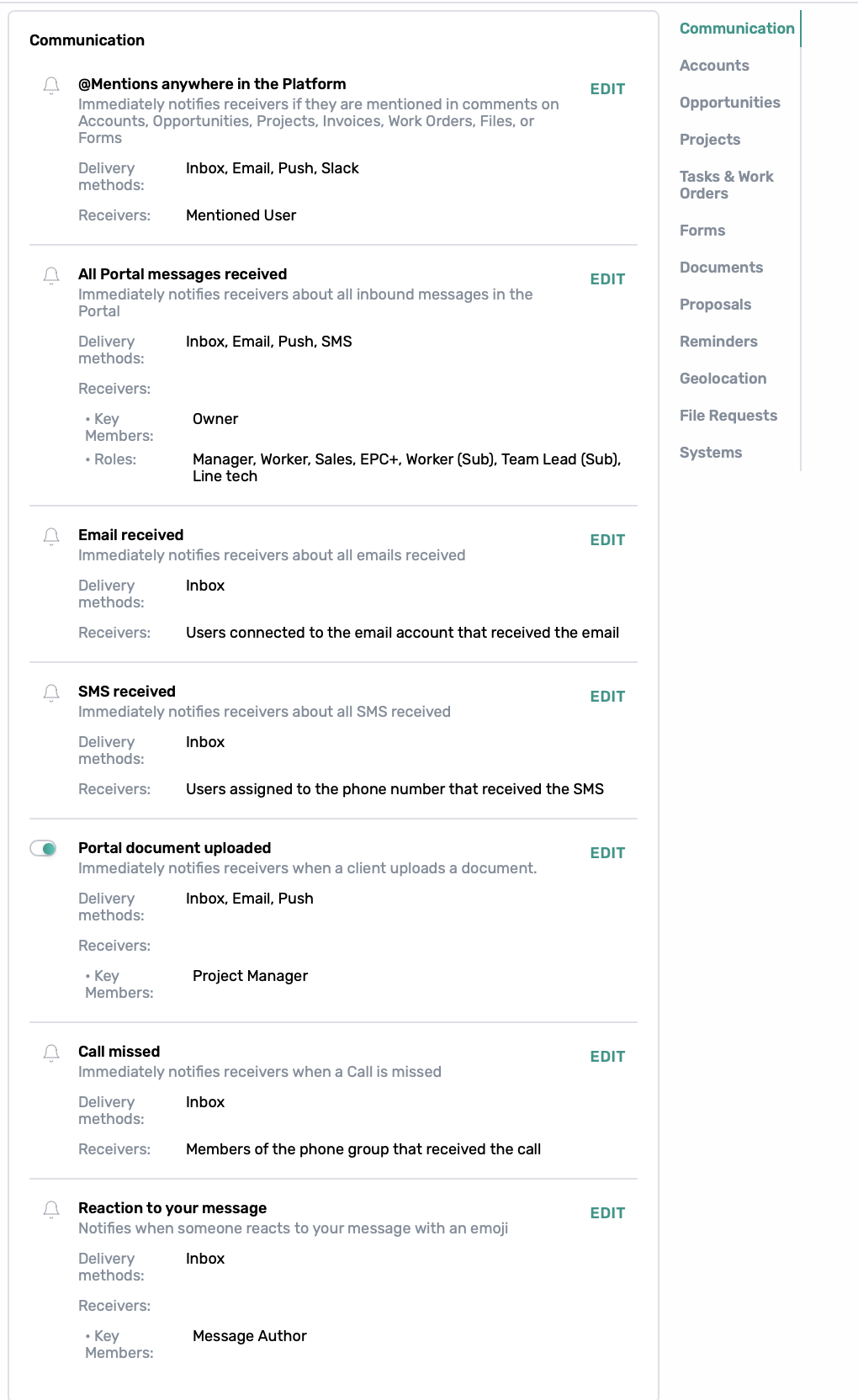
Communication notifications keep users informed about messages and activity across Coperniq, including:
@Mentions anywhere in the Platform
All Portal messages received
Email received
SMS received
Portal document uploaded
Call missed
Message reactions
Accounts
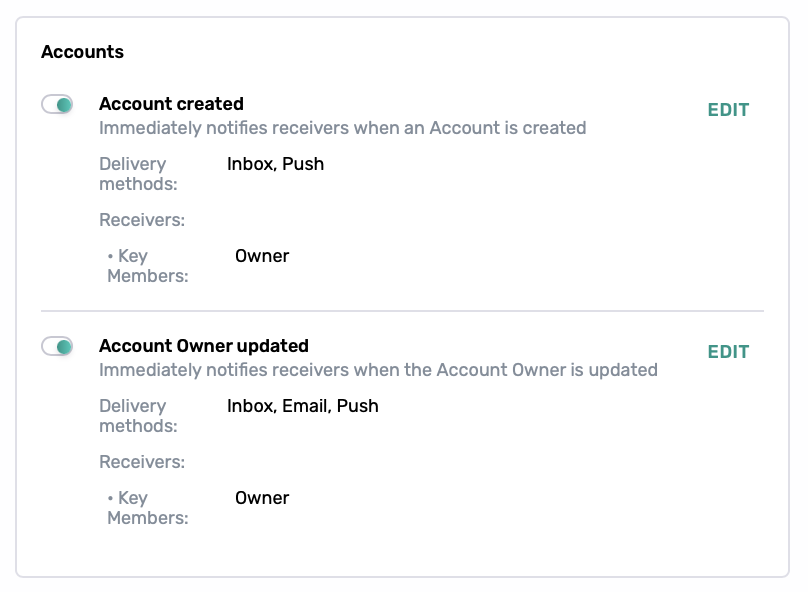
Account notifications keep teams informed about Account activity and assignment changes, including:
Account created
Account Owner updated
Opportunities
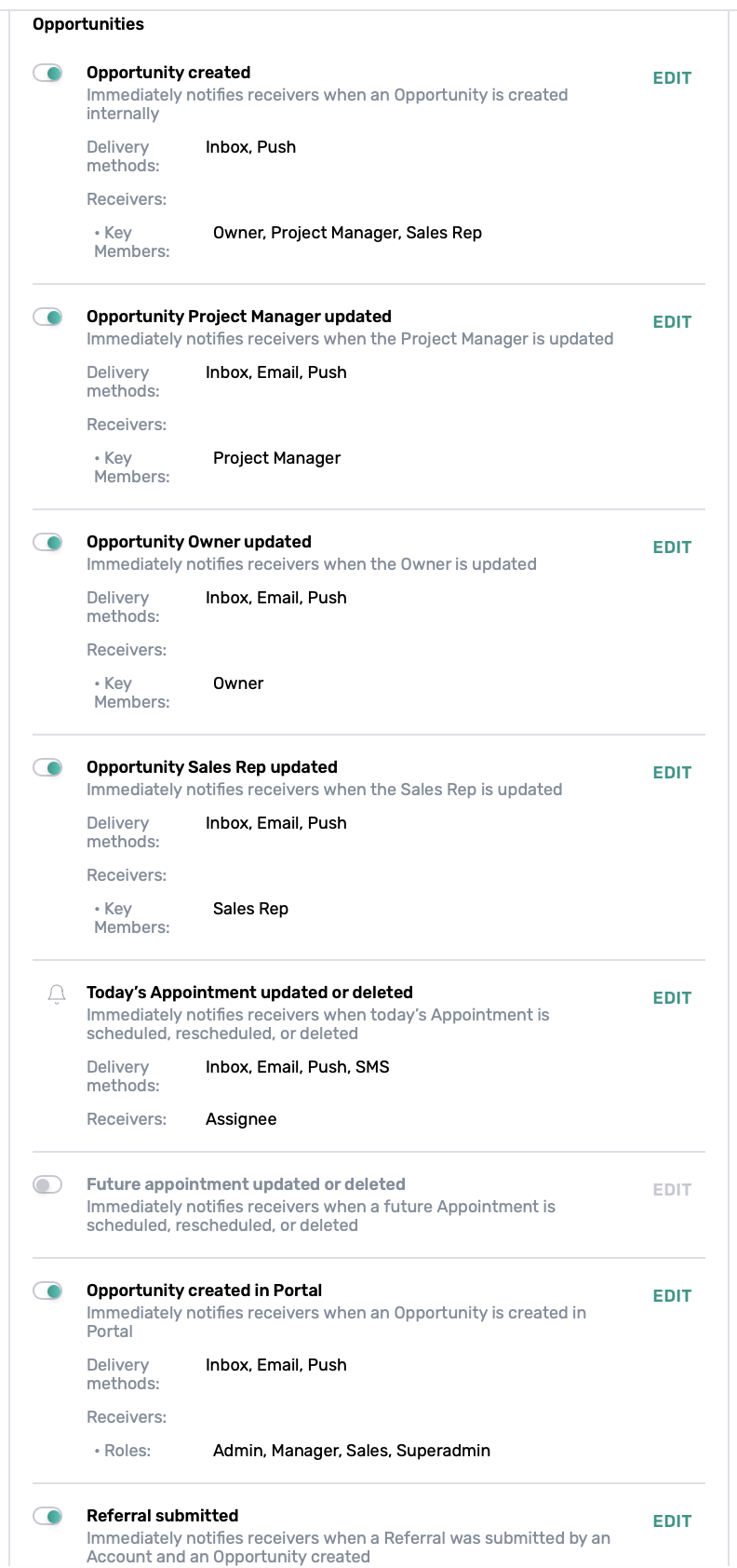
Opportunity notifications cover creation, assignments, appointments, Portal activity, and referrals, including:
Opportunity created
Opportunity Project Manager updated
Opportunity Owner updated
Opportunity Sales Rep updated
Today's Appointment updated or deleted
Future Appointment updated or deleted
Opportunity created in Portal
Referral submitted
Projects
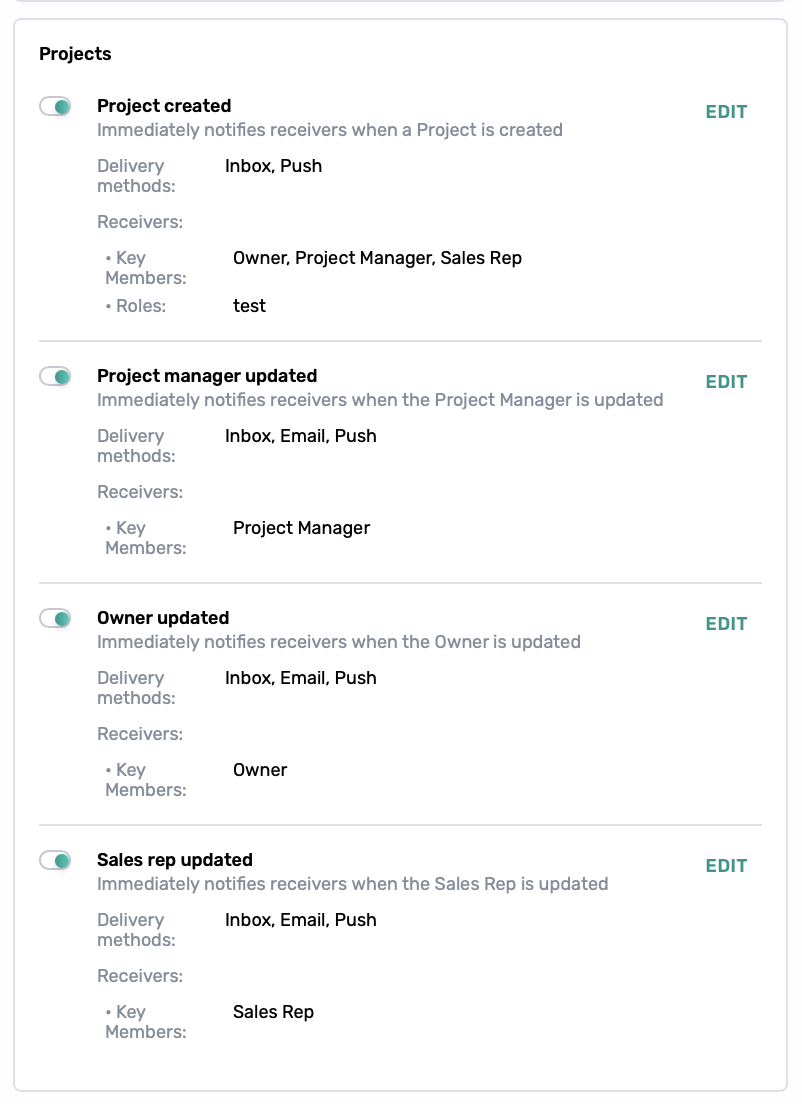
Project notifications keep teams informed about new Projects and assignment changes, including:
Project created
Project Manager updated
Owner updated
Sales Rep updated
Tasks & Work Orders
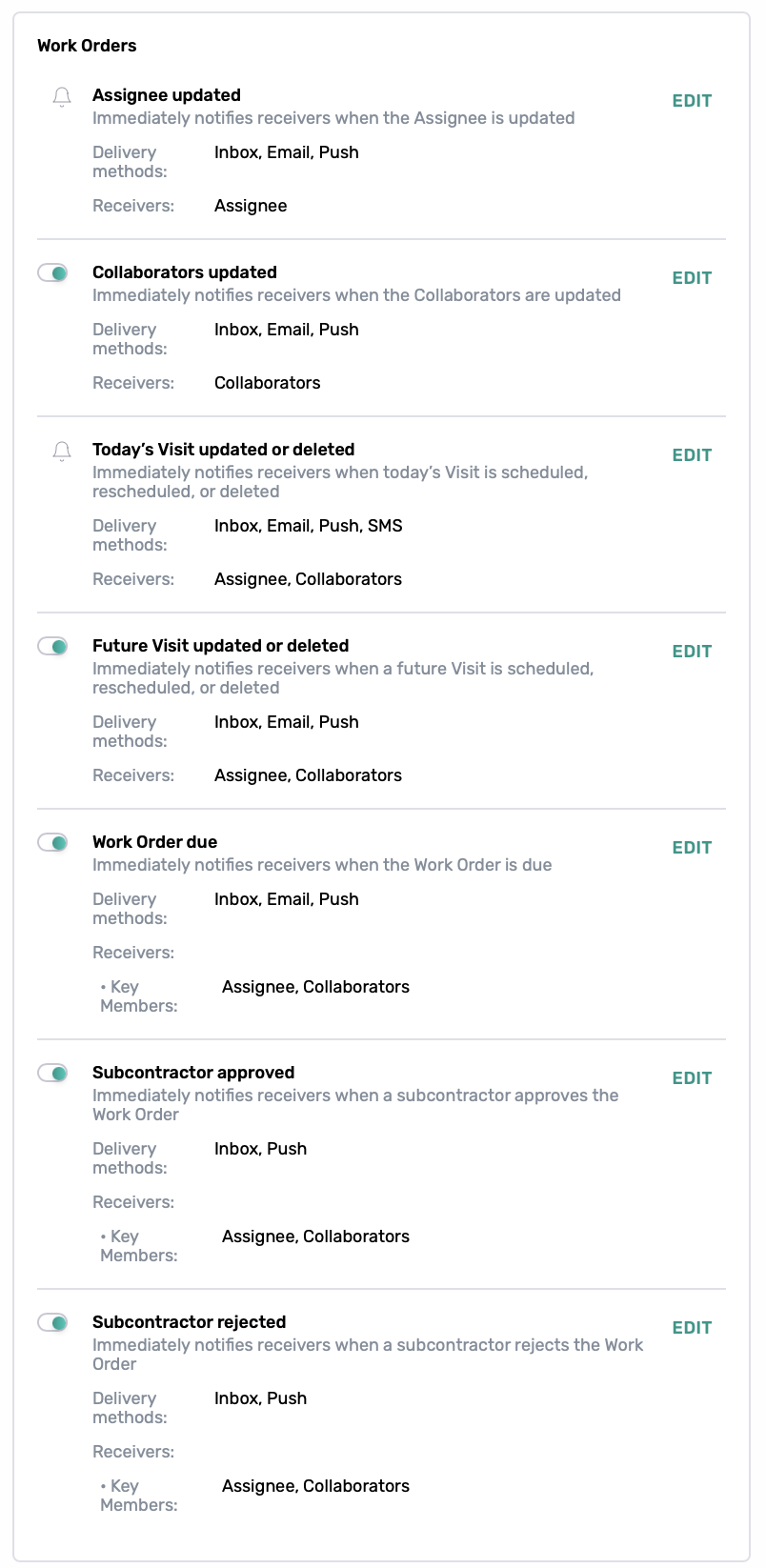
These notifications help teams stay on top of Work Order assignments, collaborators, visits, and due dates, including:
Assignee updated
Collaborators updated
Today's Visit updated or deleted
Future Visit updated or deleted
Work Order due
Subcontractor approved
Subcontractor rejected
Forms
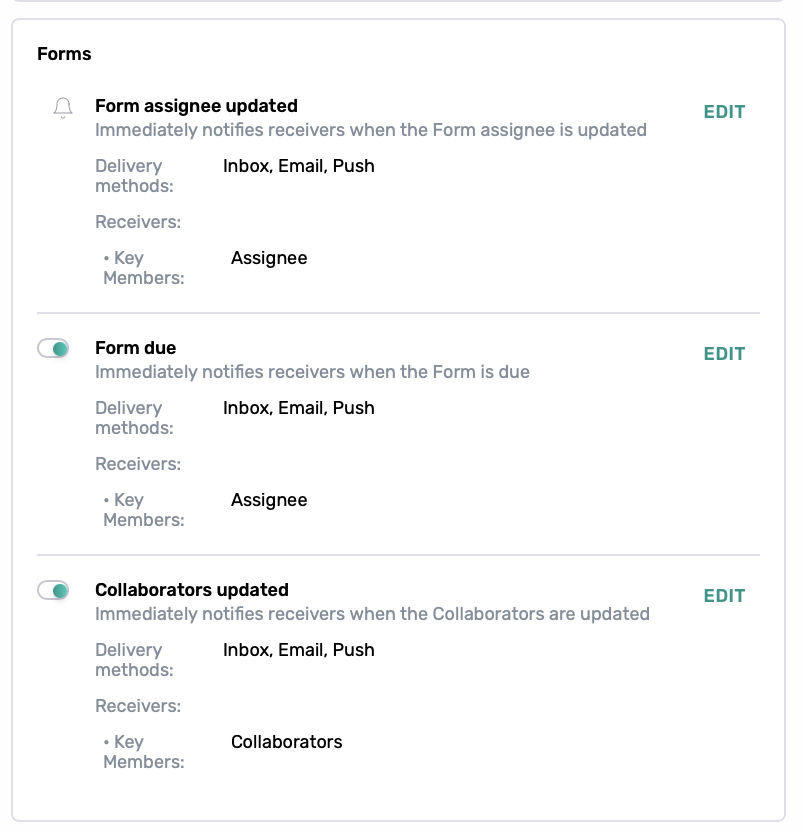
Form notifications keep users informed about assignments, collaborators, and due dates, including:
Form assignee updated
Form due
Collaborators updated
Collaborator notifications are available for Work Orders and Forms.
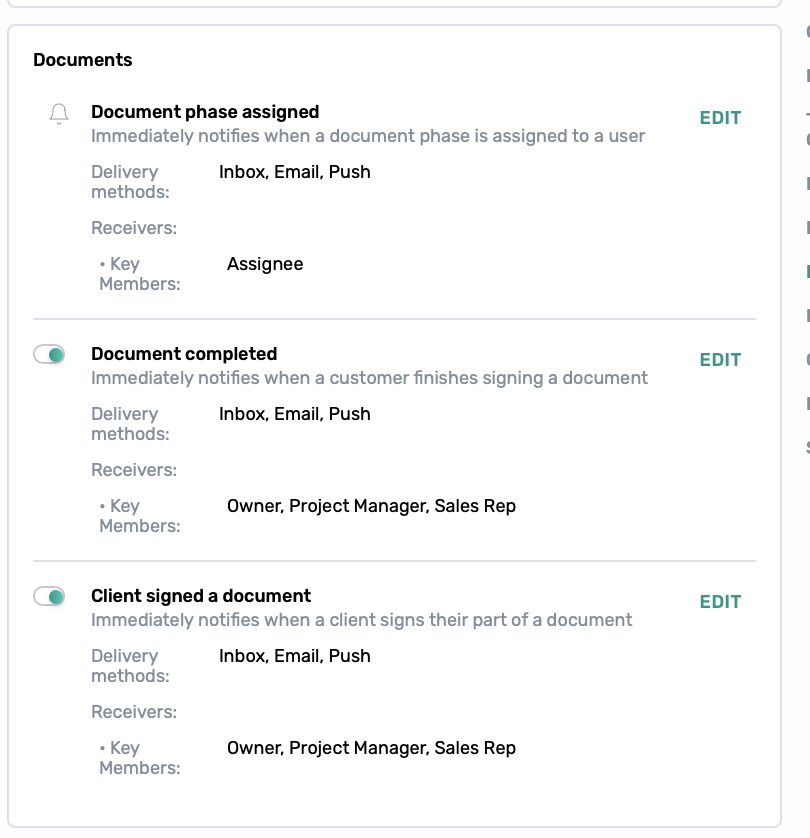
Documents
Document notifications help teams track document assignments and signing activity, including:
Document phase assigned
Document completed
Client signed a document
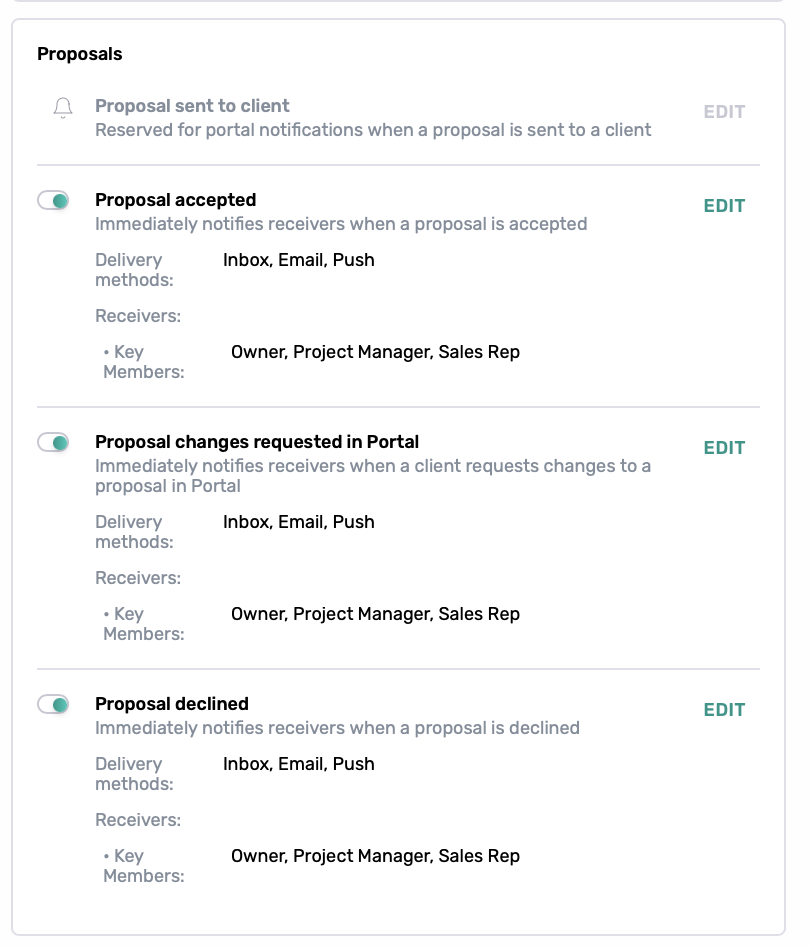
Proposals
Proposal notifications keep teams informed about proposal activity, including:
Proposal sent to client
Proposal accepted
Proposal changes requested in Portal
Proposal declined
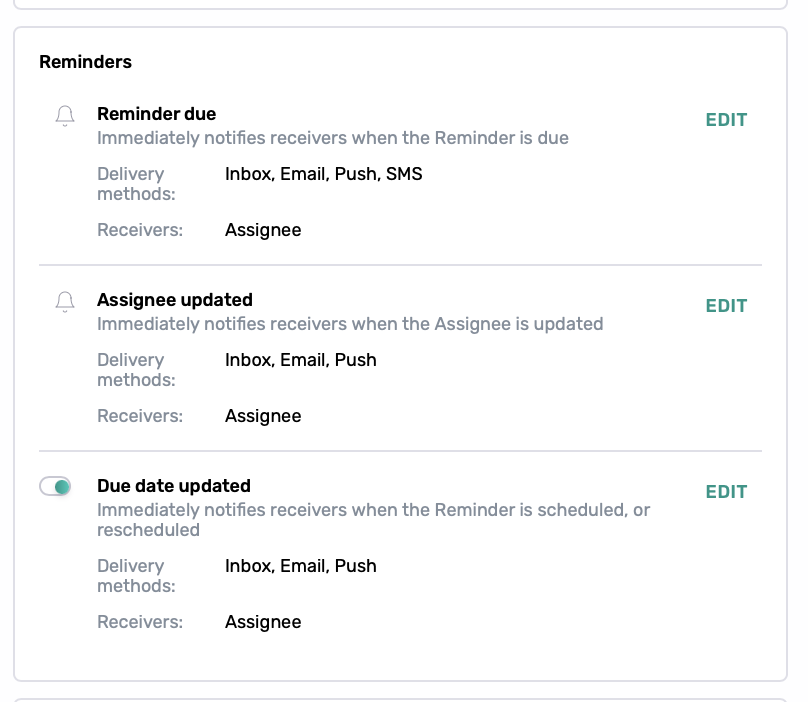
Reminders
Reminder notifications help users stay on top of assignments and due dates, including:
Reminder due
Assignee updated
Due date updated
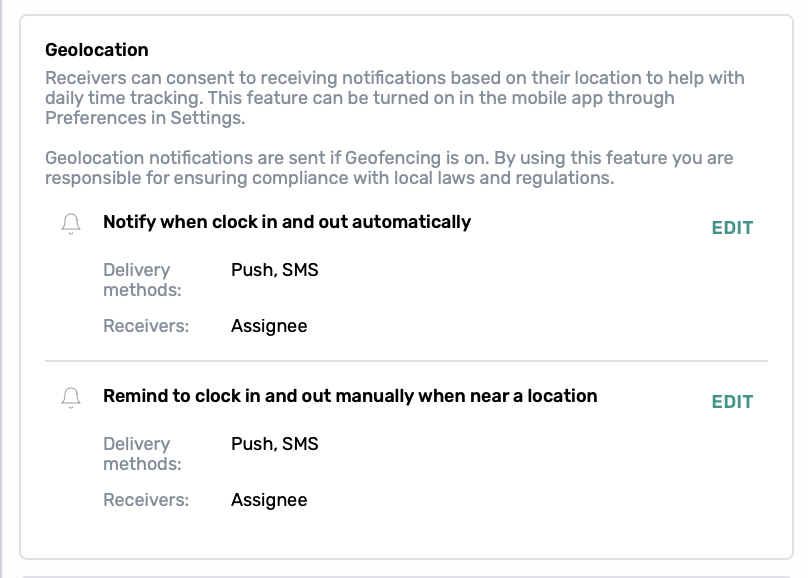
Geolocation
Geolocation notifications support location-based time tracking, including:
Notify when clock in and out automatically
Remind to clock in and out manually when near a location
These notifications can be delivered through Push and SMS to the assignee.
Geolocation notifications are sent when Geofencing is enabled. Users can manage this feature in the mobile app under Settings → Preferences.
File Requests
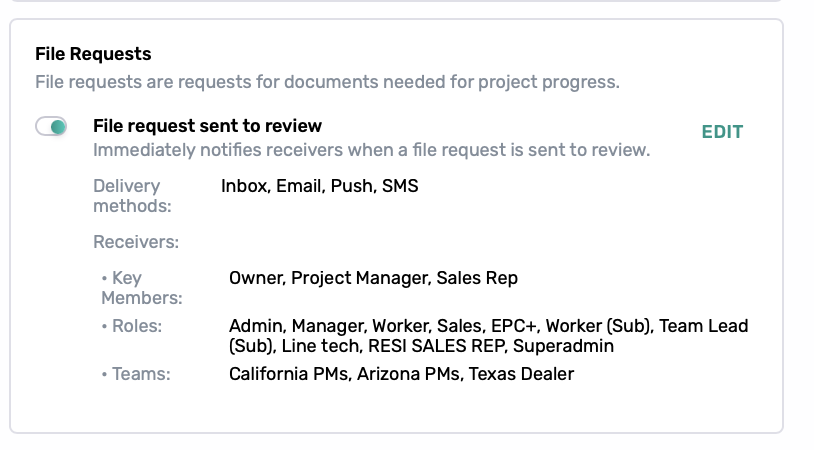
File Request notifications help teams track files sent for review.
File request sent to review
Receivers can include Key Members, Roles, and Teams.
Systems
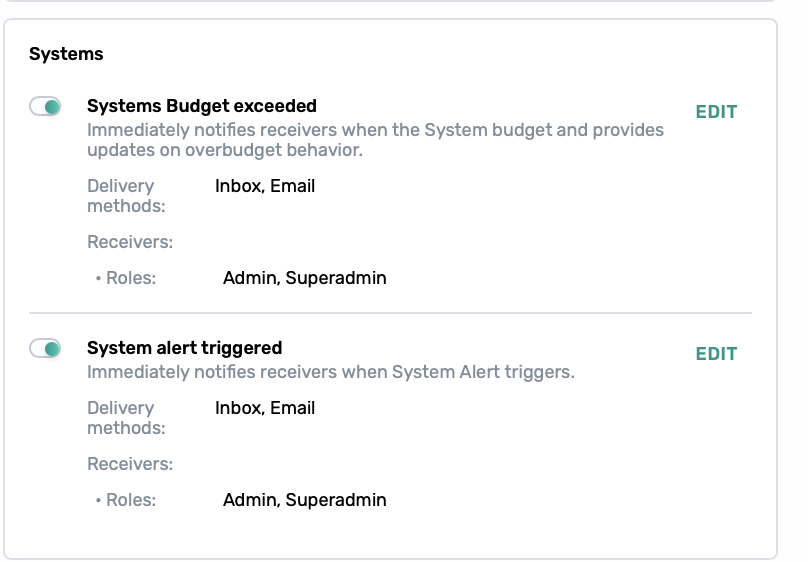
System notifications alert designated users to important system activity, including:
Systems Budget exceeded
System alert triggered
Delivery methods and receivers can be configured based on who needs to receive these alerts.
Best Practices
Enable notifications based on each user's or team's responsibilities.
Use Roles and Teams when multiple users should receive the same notification.
Use Push or SMS for time-sensitive notifications when available.
Review notification settings when team roles or responsibilities change.
Disable unnecessary notifications to reduce notification overload.