Making Calls from Coperniq
Last updated: August 5, 2025
Estimated reading time: 1–2 minutes
Overview
Coperniq’s new calling feature allows users to place outbound calls directly from the platform — no external tools required. With a built-in phone widget, browser microphone integration, and customizable ring settings, this feature helps streamline communication with clients, crews, and teammates.
Before You Begin: Activation Required
If you’ve never used the SMS feature before, your workspace may not yet be enabled to generate calls or send messages.
To enable calling and/or SMS, follow these steps:
Fill out the activation request form:
📄 Coperniq Call & SMS Activation FormAfter submitting, please contact Coperniq Support to finalize the setup.
Placing a Call
To place a call from within Coperniq:
Click the phone icon in the top-right corner of the platform.
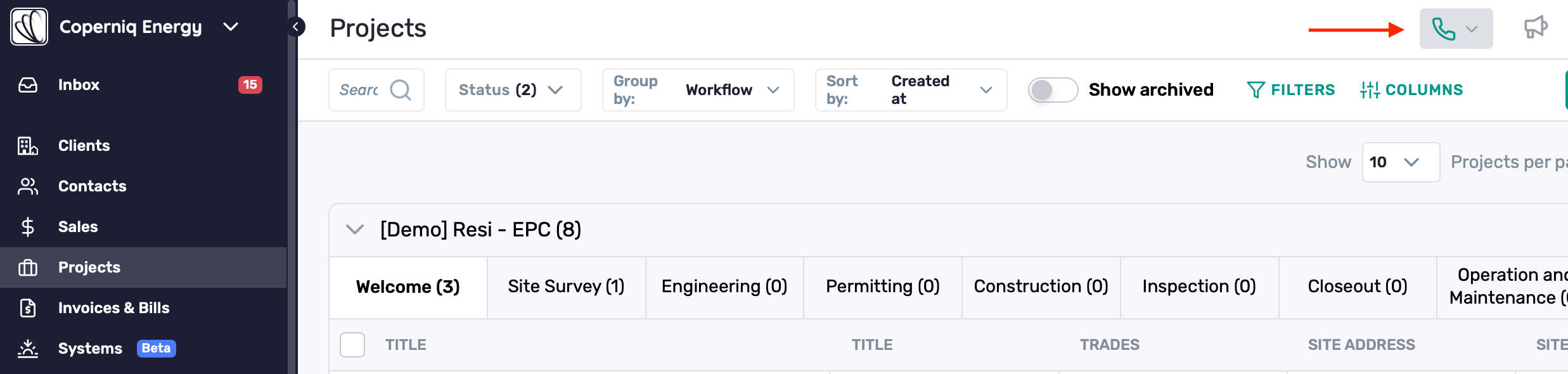
In the phone panel:
Select a phone group — this refers to the list of phone numbers that have been generated and assigned to your workspace. You must have access to at least one to place calls.
Adjust your Audio Settings: select output (speakers) and input (microphone) devices
Search for or enter a contact
Click Call to begin
On your first attempt, your browser will prompt you to allow microphone access.
Click Allow to proceed.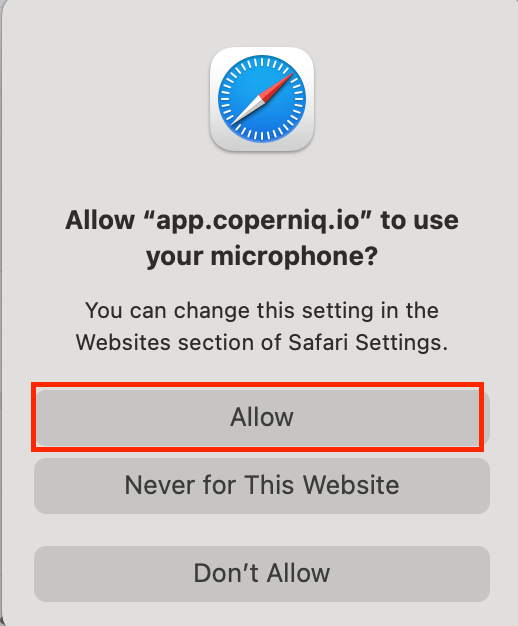
Managing Phone Numbers and Routing
To configure your phone setup:
Click your company name in the top-left corner
Navigate to Workspace Settings → Email and Phones
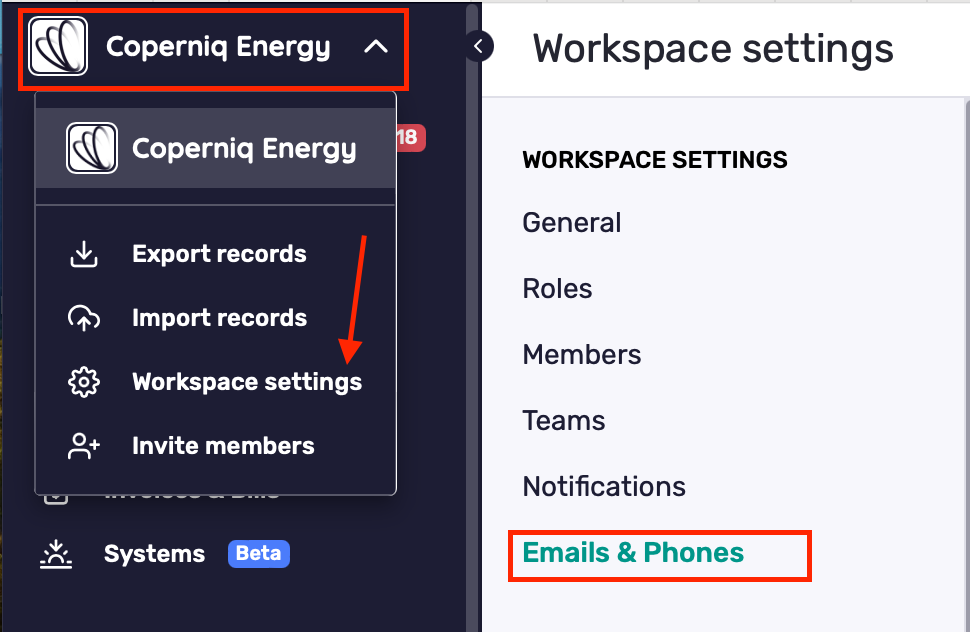
Click on a phone number to edit its configuration
Available settings include:
Ring Order – Choose whether to ring all members at once or one-by-one (Round Robin).
All At Once:
Calls all members in the phone group simultaneously. The first one to answer takes the call. If no one is online or available, the call is skipped and moved to fallback if set.Round Robin:
Rings members one at a time in the order they appear in the group. If someone doesn’t answer within the set ring duration, the system moves to the next. If no one answers, it falls back to the fallback number if set.
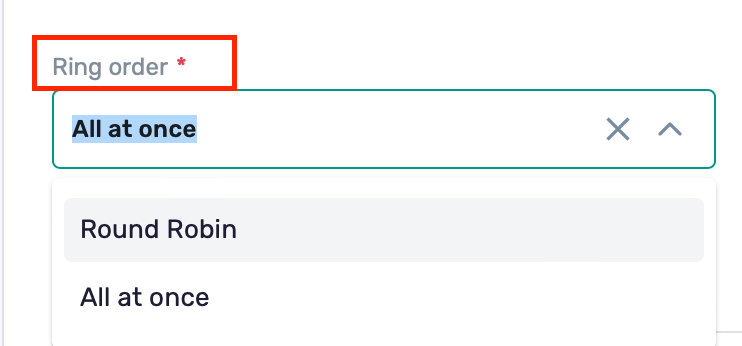
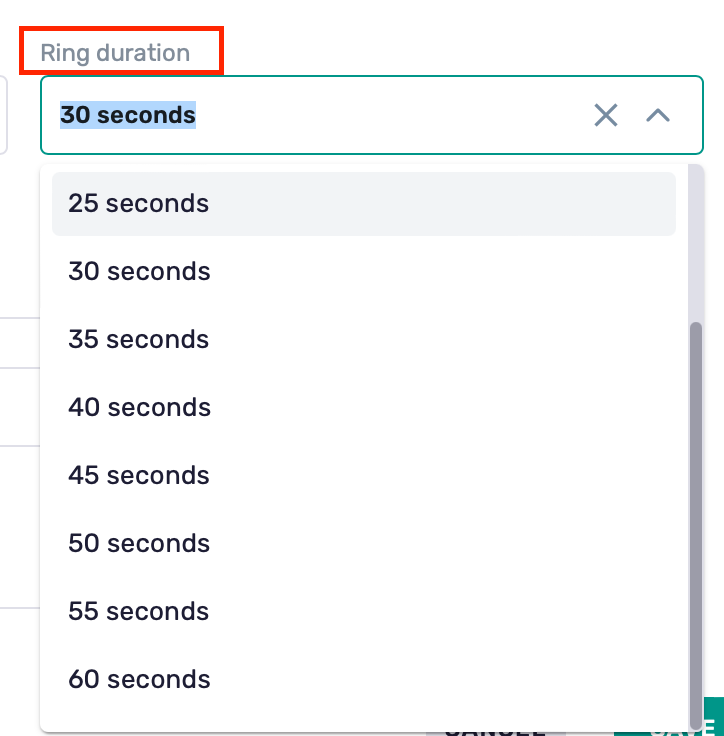
Ring Duration – Set how long each ring attempt lasts
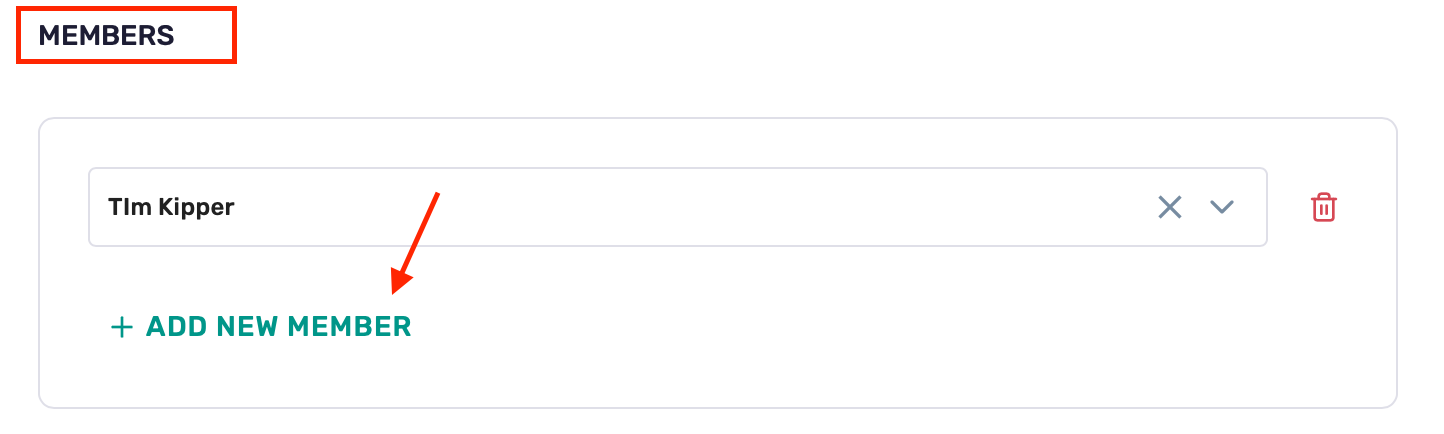
Members – Add or remove users from each phone group
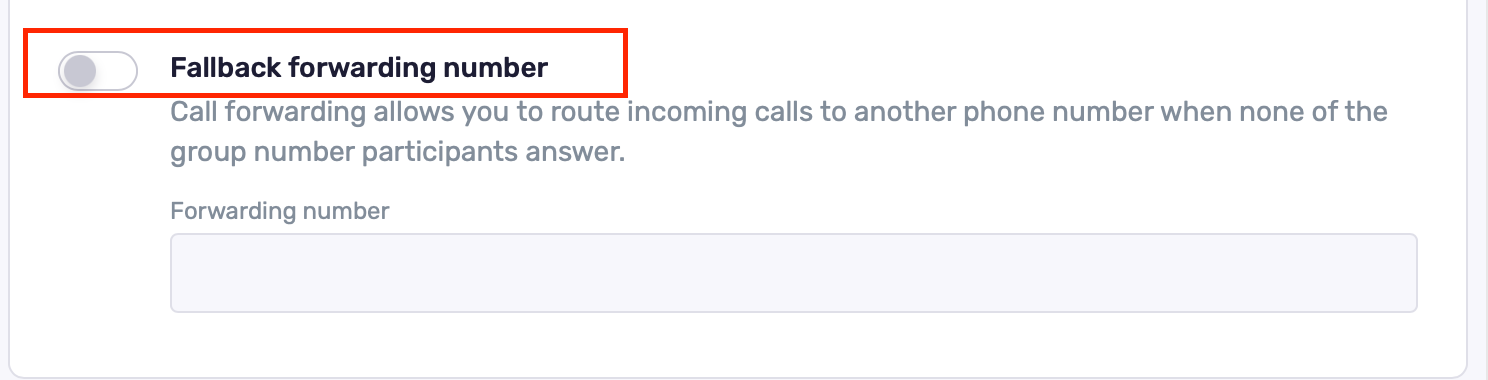
Fallback Forwarding Number – Forward calls to another number if no one answers
Best Practices
Ensure microphone permissions are granted in your browser
Use fallback numbers to reduce the chance of missed calls
Configure ring rules to fit your team's structure
Test with a teammate before using the feature live
Add relevant team members to each phone number so they can place and receive calls