Invite Members and Create Teams
Last updated: October 6, 2026
Estimated reading time: 1-2 minutes
Overview
You can invite members, assign roles, configure skills and availability, manage existing users, and group members into teams.
How to Invite a Member
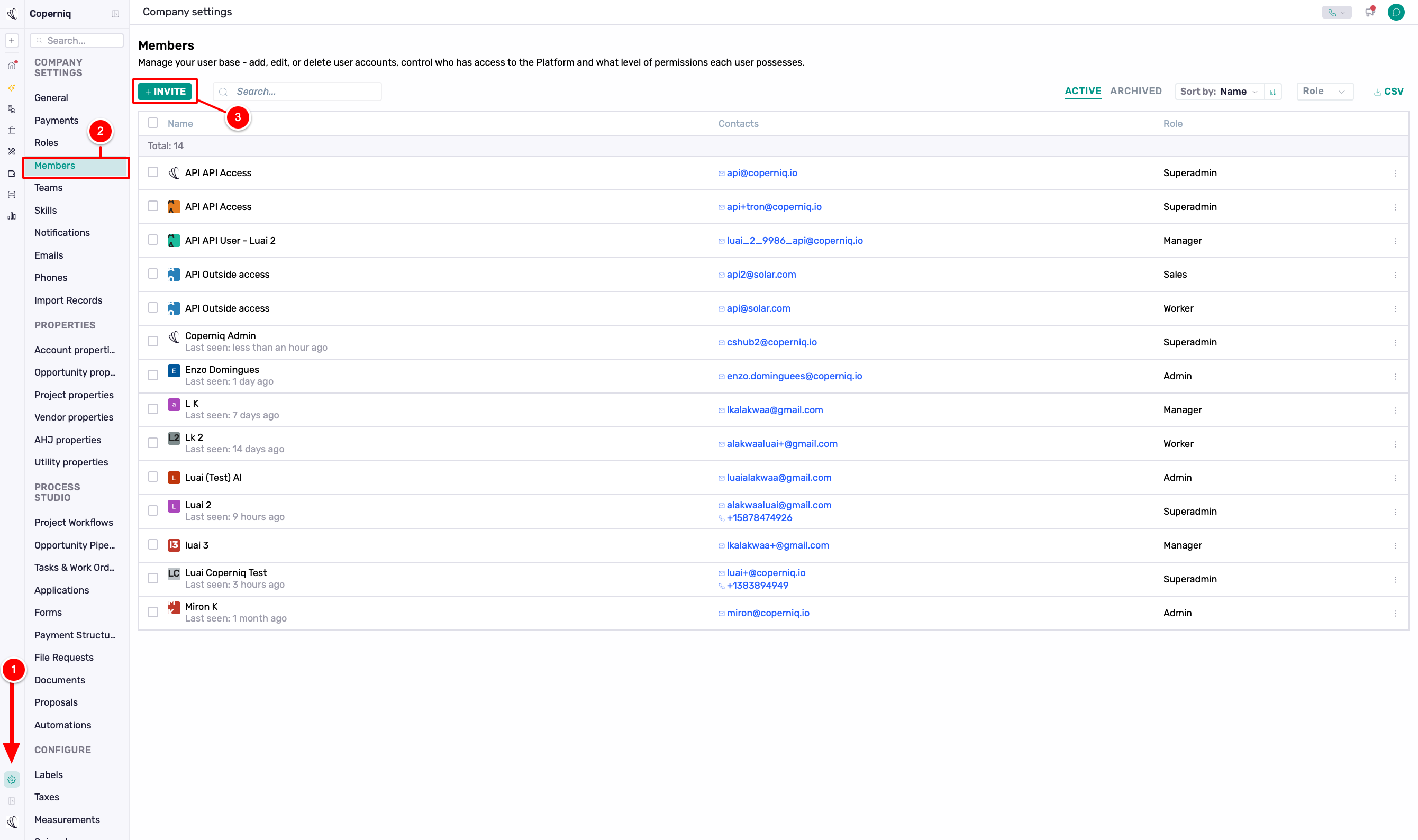
Go to Company Settings.
Select Members.
Click + Invite.
Member Details
Enter the member’s basic information:
First Name
Last Name
Email
Phone (optional)
Role
Labor Cost ($/hr) (optional)
Skills
Click + Skill to add the member’s qualifications or areas of expertise.
Availability
Set when the member is available for assignment:
Enable the applicable working days.
Set the start and end times for each day.
Use Copy to quickly apply the same hours to other days.
Once everything is set, click Invite.
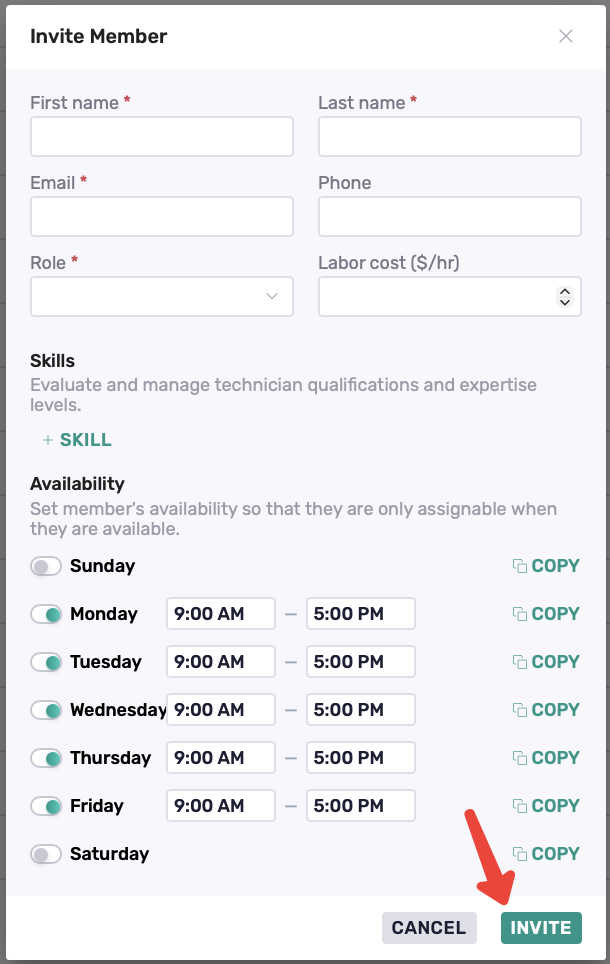
The member will receive an email invitation to activate their Coperniq account.
Manage Members
Go to Company Settings → Members to view and manage your workspace members.
From the Members page, you can:
Search for members
Switch between Active and Archived members
Sort members by name
Filter by Role
View each member’s contact information and role
Click CSV to export the member list
Member Actions
Click ⋮ next to a member to:
Edit their information and settings
Resend invite if they haven't activated their account
Archive the member
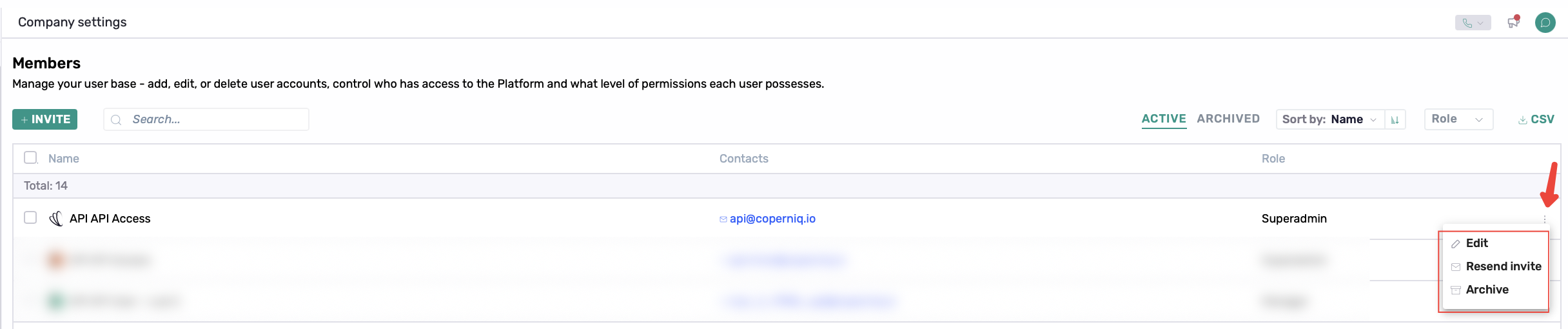
Archived members can be viewed from the Archived tab.
Creating and Managing Teams
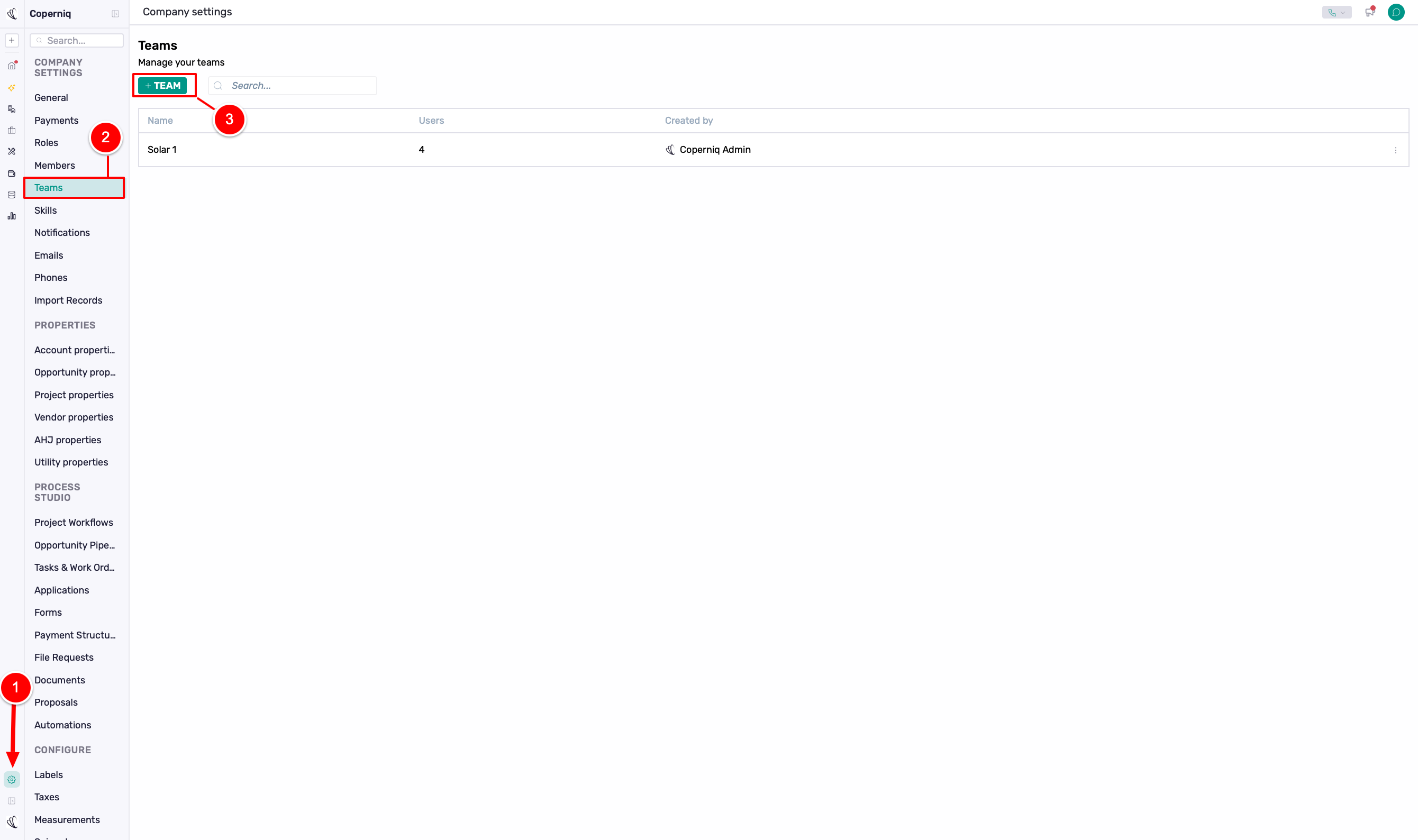
Go to Company Settings.
Select Teams.
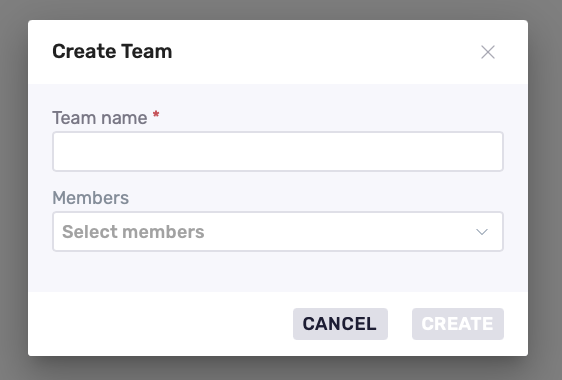
Click + Create Team.
Enter the Team Name.
Select the Members you want to include.
Click Create.
Team Management
To manage teams:
Go to Company Settings → Teams.
Select the team you want to manage.
Inside the team:
Add members by selecting from the dropdown list of existing users.
Click the vertical dots ⋮ next to a user to:
Make or remove a Team Lead
Remove from team
Best Practices
Use work email addresses and double-check them before sending invitations.
Assign the appropriate Role based on the access each member needs.
Use clear team names based on department, function, or region.
Assign Team Leads where appropriate.
Review members and teams regularly and archive users who no longer need access.