Exporting Records (Projects, Clients, Requests and Smart Views)
Last updated: January 4, 2026
Estimated reading time: 1–2 minutes
Overview
Exporting records in Coperniq allows you to quickly download project, client, or request data in CSV format for reporting, backups, and operational tracking. You can filter what you export using either predefined date ranges or Smart Views, giving you flexibility and control over the data you extract.
Exporting Records
To begin exporting:
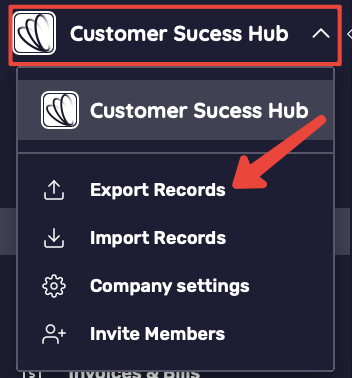
Click your company name in the top-left corner
Select Export Records from the dropdown menu
Set Your Export Preferences
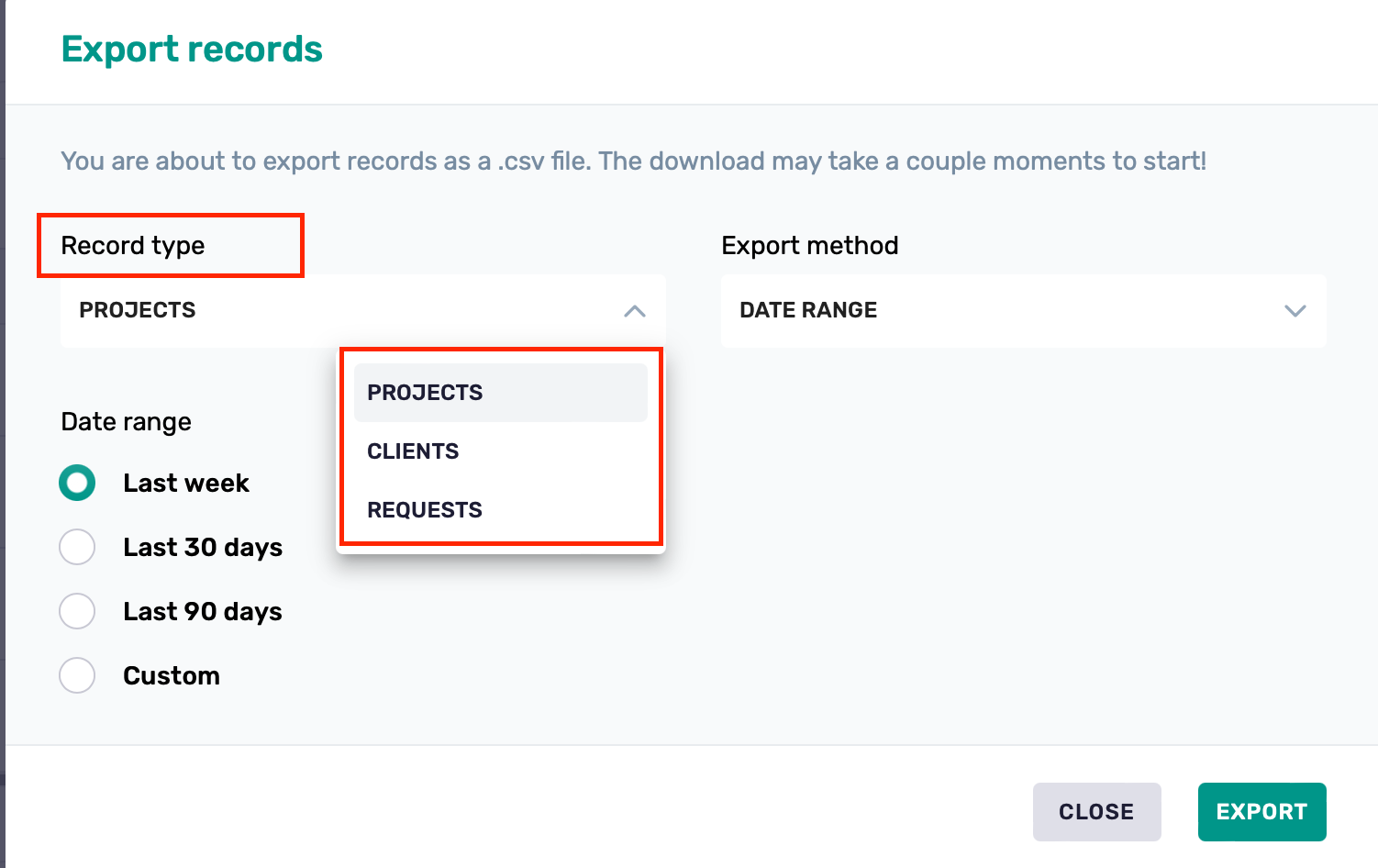
Choose the Record Type:
Projects
Clients
Requests
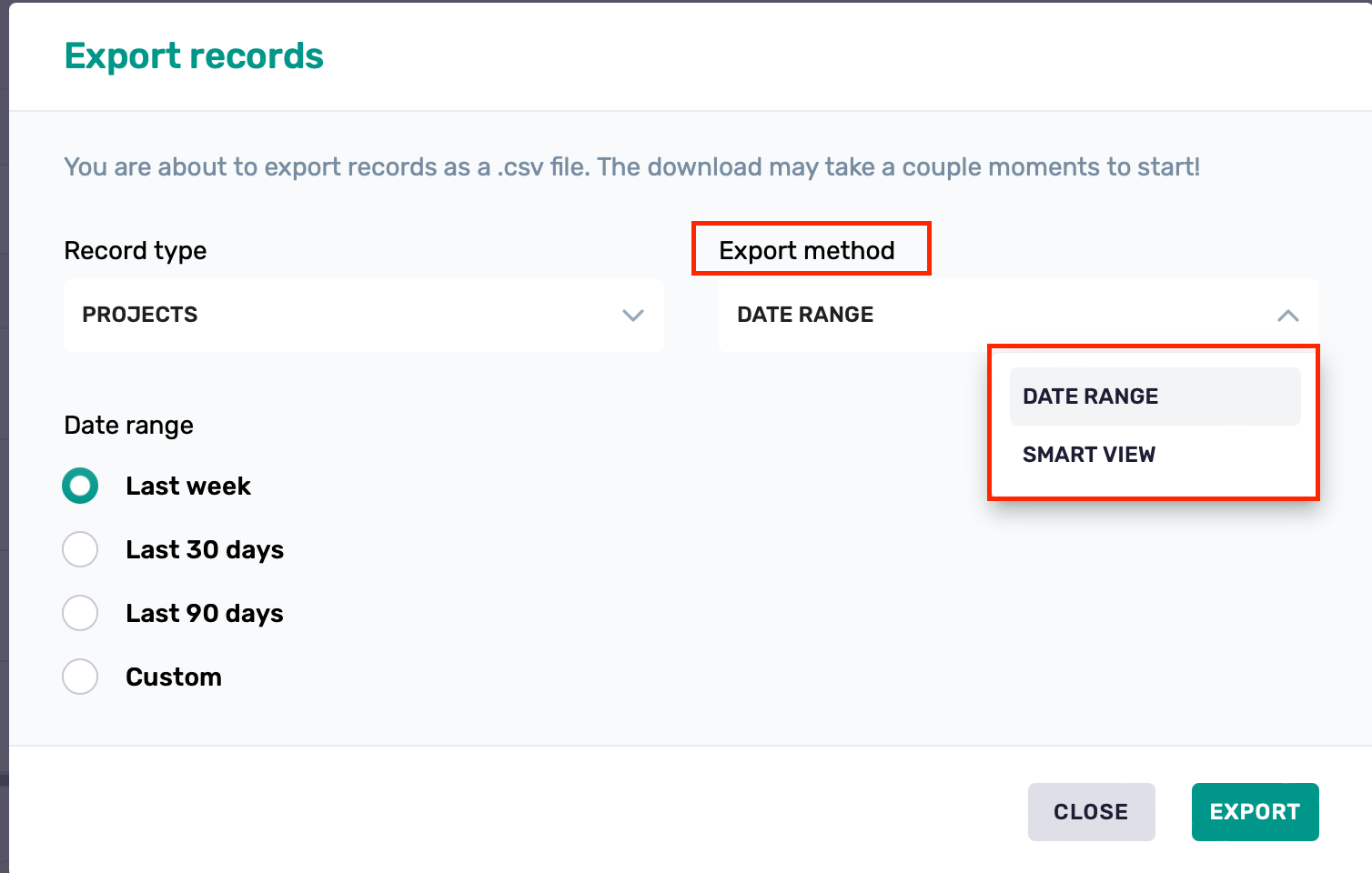
Choose the Export Method:
Date Range – Filter based on timeframes
Smart View – Use custom views you've previously saved
Using Date Range Method
When you select Date Range, you can choose from:
Last week
Last 30 days
Last 90 days
Custom – Set your own start and end dates
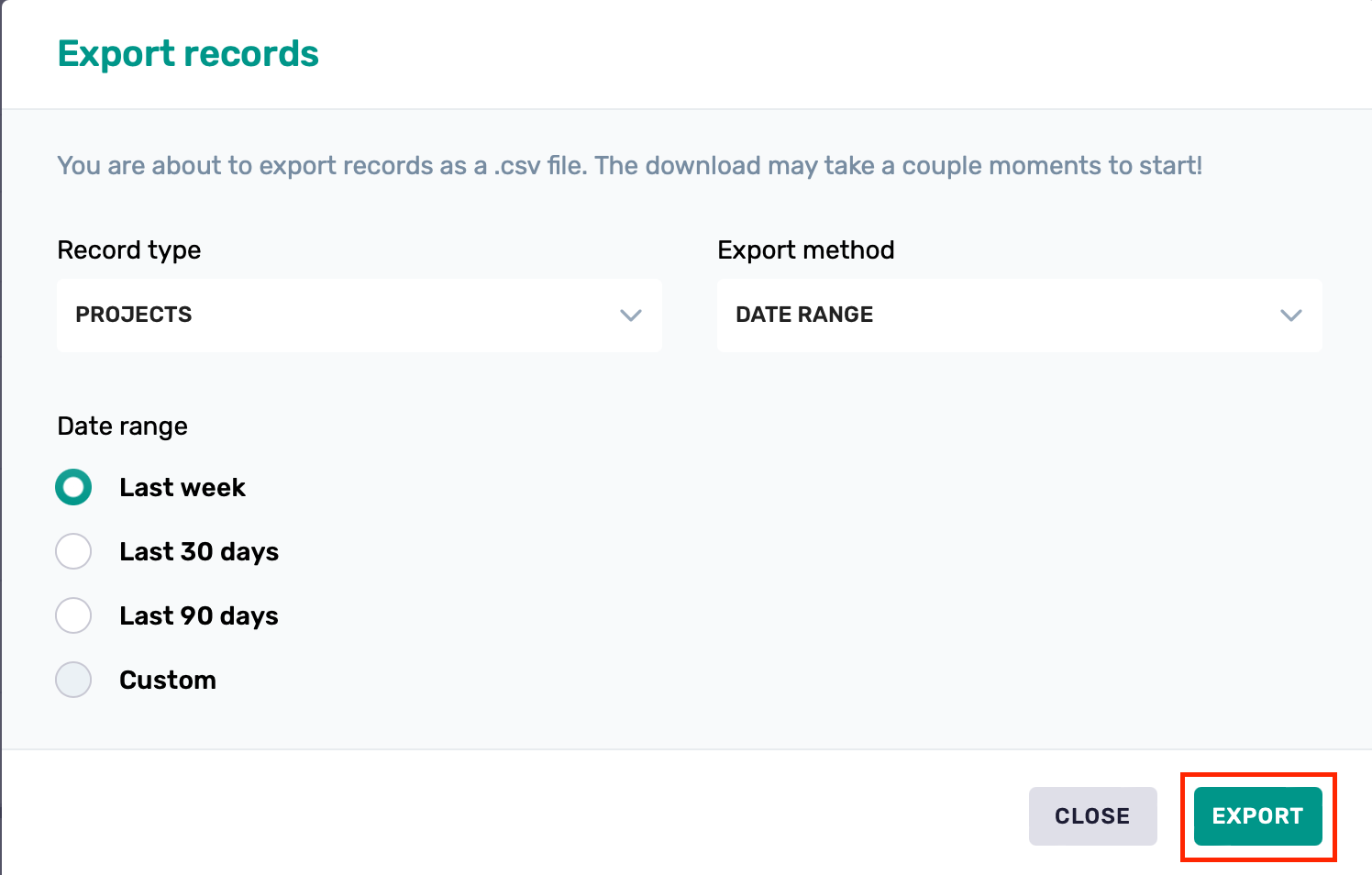
After setting your parameters, click Export to download the data as a CSV file.
Export Completion
Your download will begin shortly after clicking Export
Files are delivered in CSV format and can be opened in Excel, Google Sheets, or other spreadsheet tools
Best Practices
Use Smart Views when exporting recurring datasets to save time
Always double-check your selected record type before exporting
For large exports, start with a shorter date range to ensure performance