Mobile app permissions and device settings
Last updated: November 18, 2026
The Coperniq mobile app may request device permissions so field teams can complete work, communicate with customers, and share updates from the field.
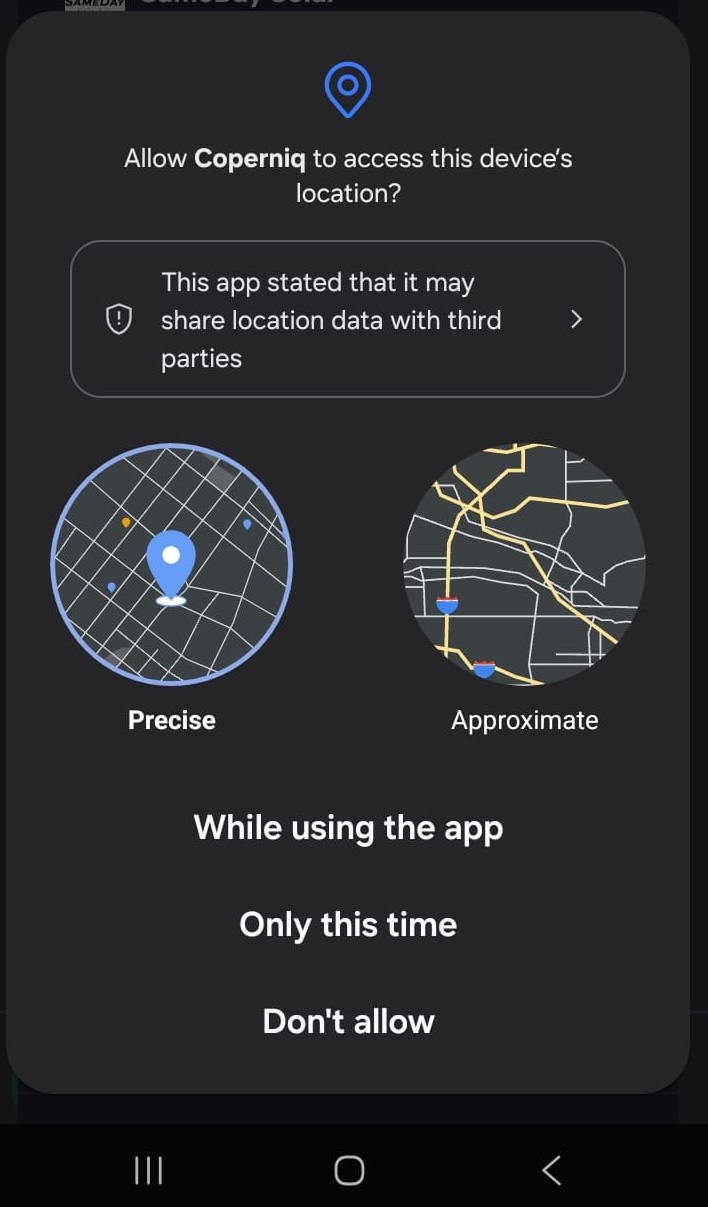
Location
Coperniq uses location access for workflows such as:
Real-time dispatch
Estimated arrival times
Geofenced timesheets
Clock-in reminders
If background location is enabled for your company, the app may show a Background Location Access disclosure before requesting access.
Camera and photo library
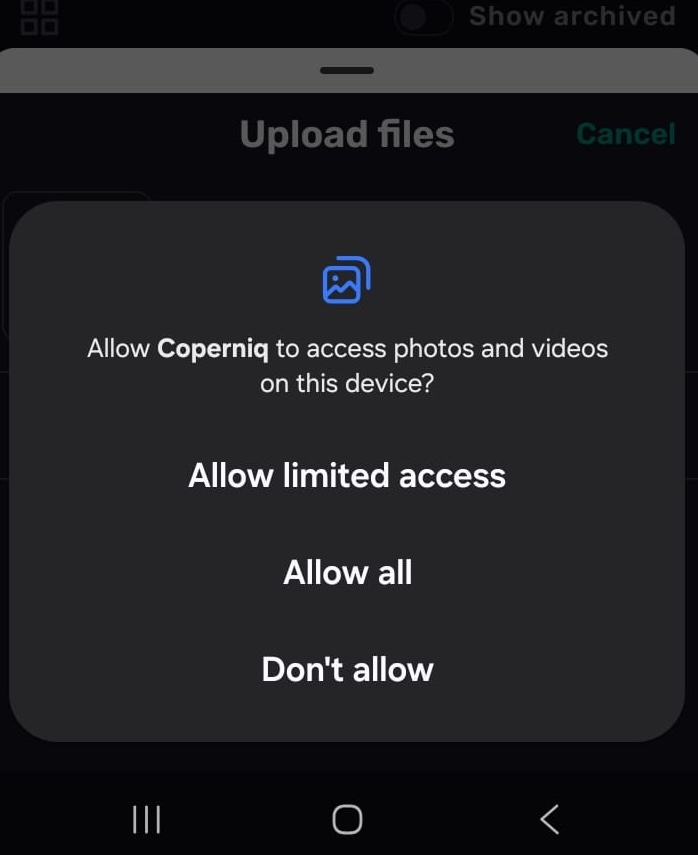
Coperniq uses camera and photo access so users can:
Take photos for forms
Upload existing photos or files
Save form photos to the device gallery, if enabled in profile settings
Microphone and speech recognition
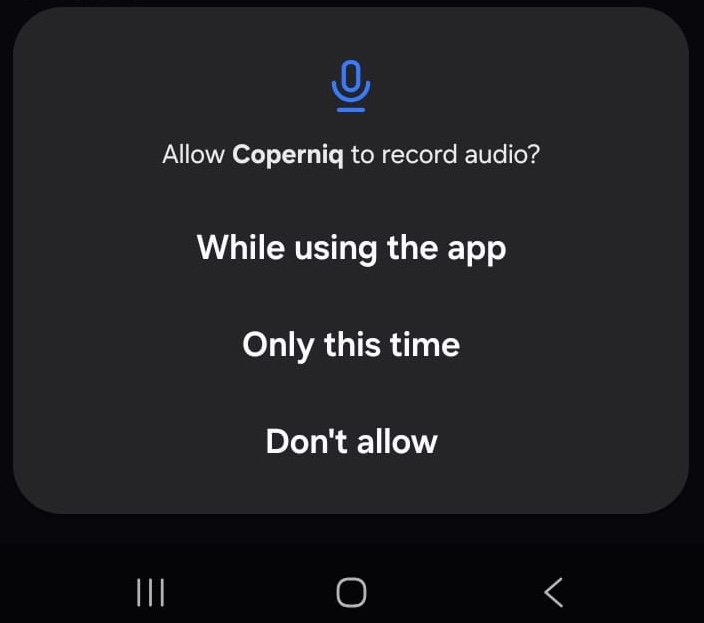
Coperniq may request microphone or speech recognition access for features such as:
Calls
Video or audio notes
Dictation
Ask AI voice input
Notifications
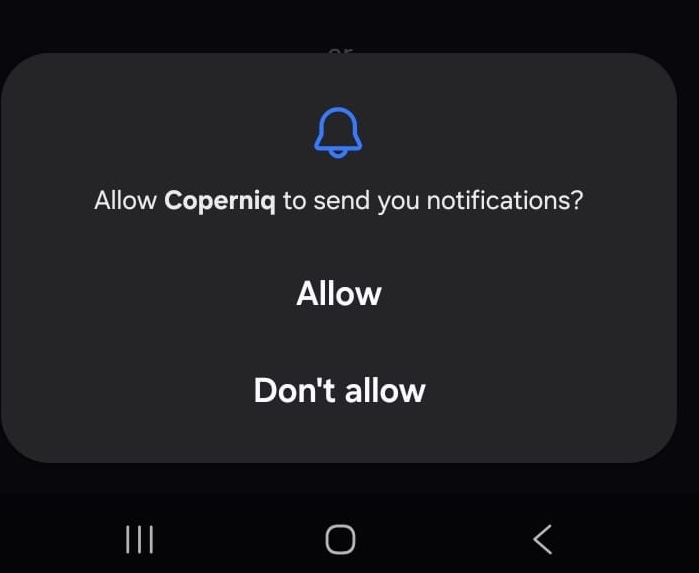
Enable notifications to receive timely updates for items like work orders, reminders, records, documents, and system notifications. Tapping a notification can open the relevant screen in the mobile app.
Motion
Coperniq may request motion access to support mobile workflows that depend on device activity or movement context.
Phone features
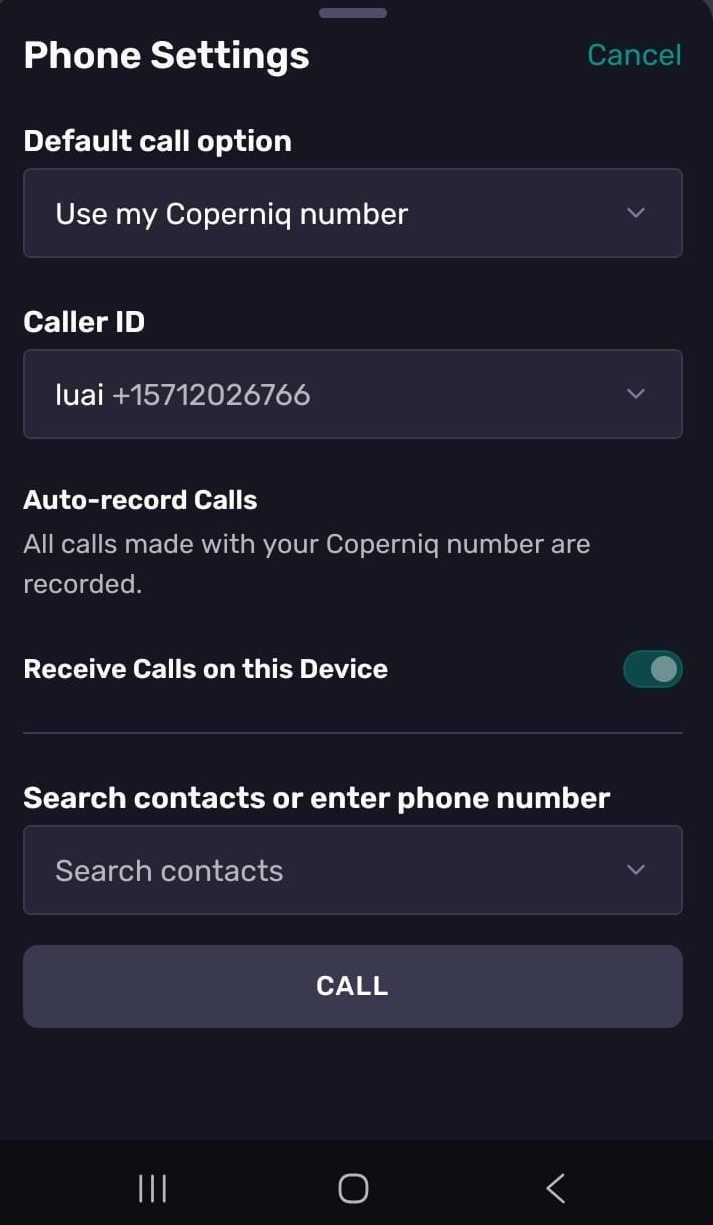
If your company uses Coperniq phone features, open Phone Settings to configure:
Whether to receive calls on this device
Caller ID
Default call option: use your Coperniq number or your cell number
Receiving calls on the device requires microphone permission.
Change permissions
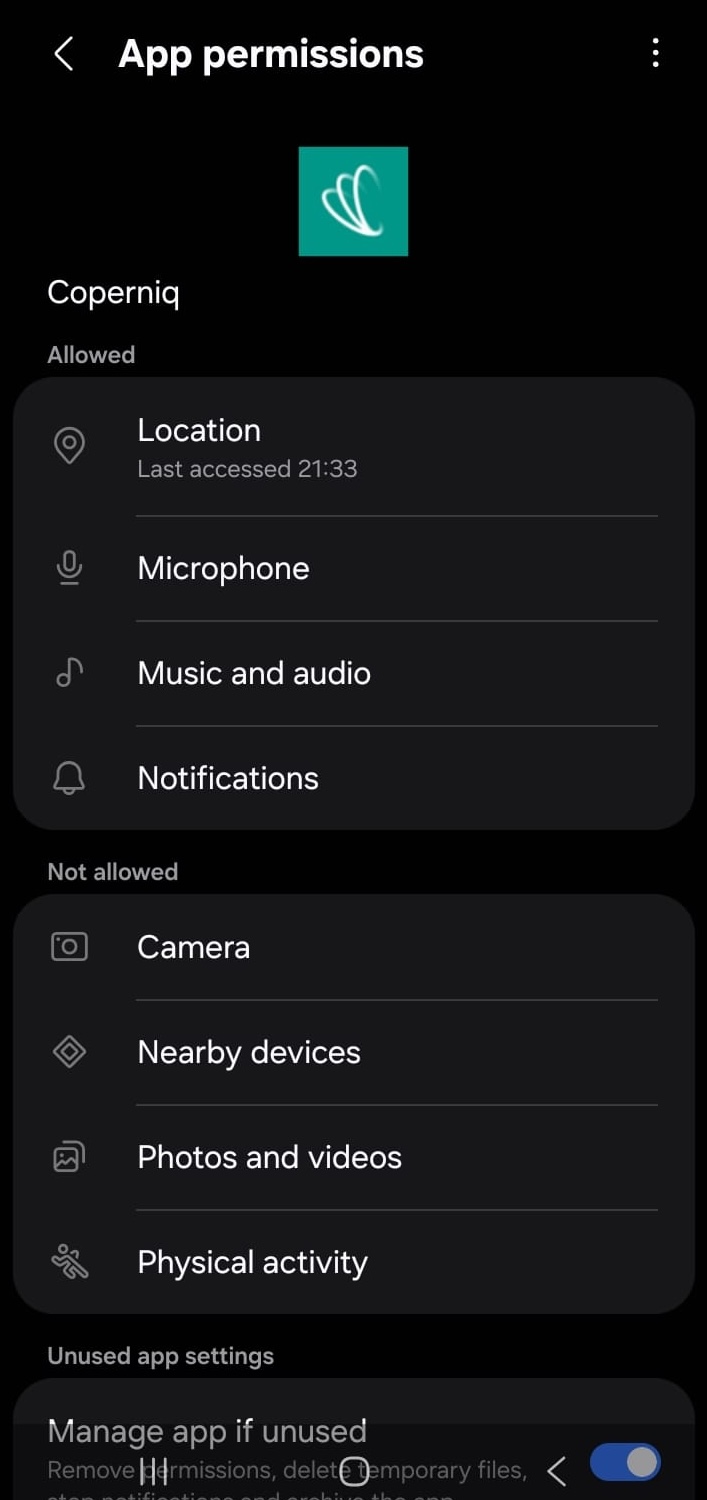
You can adjust Coperniq’s device permissions anytime. Open your device’s Settings, select Coperniq, and change the permissions as needed.
Troubleshooting
Why isn’t my location updating?
Check that location access is enabled for Coperniq. If your company uses background location, allow background access too.
Why can’t I take or upload a photo?
Check that Coperniq has permission to access your camera and photo library.
Why can’t I make or receive calls?
Allow microphone access. For incoming calls, open Phone Settings in Coperniq and turn on Receive Calls on this Device.
Why aren’t notifications coming through?
Make sure notifications are enabled for Coperniq in your device settings.