Offline Mode (Forms & Time Tracking)
Last updated: March 2, 2026
Estimated reading time: 2 minutes
Overview
Coperniq keeps you moving when you’re offline. Anything you do without internet is saved on your device and syncs automatically once you reconnect—no manual sync needed. .Offline access works for tasks that were already loaded on the Home page while you were connected.
Offline Status Indicator
When the app detects that the device has lost its internet connection, a notification bar appears at the top of the screen displaying:
"You're offline now"

Working While Offline
Forms
While offline, users can:
Complete all supported field types (text, numbers, dates, dropdowns, person selection)
Attach photos and files
Edit and save form data
All updates and attachments are stored securely on the device and uploaded automatically when the connection is restored.
Previously opened forms remain accessible. Forms that were never opened while online will not be available offline.
Time Tracking
Time tracking functions operate normally while offline, including:
Start Traveling
Clock In
Clock Out
Timer functionality (continues running without interruption)
All time entries are saved locally and automatically synced when connectivity returns.
Viewing Previously Loaded Data
Users can access:
Tasks that were previously opened
Form details that were already loaded
Any screens or records that were not accessed while online will not be available offline.
Task data remains accessible offline for up to 24 hours after it was last loaded.
Offline Limitations
The following actions require an internet connection:
Sending forms for review
Accessing the Actions screen
Creating new tasks
Viewing records that were never opened while online
Receiving real-time notifications or updates
Syncing Process
When the internet connection is restored:
The app automatically detects the connection.
Pending forms, attachments, and time entries are uploaded in sequence.
The offline notification bar disappears once syncing is complete.
No user action is required.
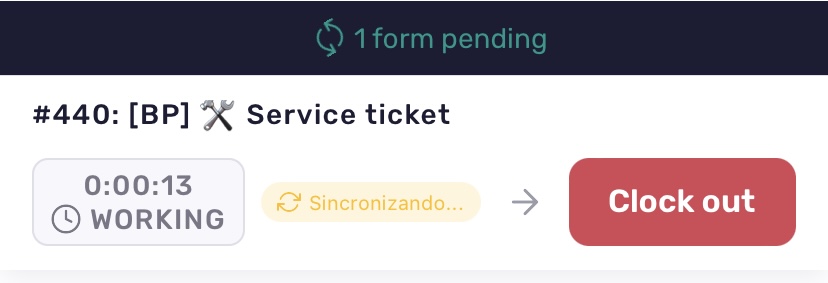
Monitoring Sync Status
Tapping the notification bar opens the Sync Status Screen, which displays:
Pending forms waiting to sync
Pending time entries
File upload progress indicators
Any sync errors

If an item fails to sync:
It is highlighted on the Sync Status Screen
The app automatically retries up to three times
Users can review the error message
Users can retry or dismiss the failed item if necessary
Best Practices
Open required tasks and forms while online before heading to low-connectivity areas.
Allow syncing to complete before closing the app after reconnecting.
Avoid uninstalling the app or clearing data while offline
Avoid force-closing the app while syncing is in progress.