Global Search
Last updated: November 23, 2026
Global search helps you quickly find records across Coperniq from one search field.
What is global search?
Global search is the Search… field in the top navigation bar. Use it to find Accounts, Opportunities, Projects, Work Orders, and Tasks without leaving the page you are on.
Where do I find global search?
Global search appears in the top navigation bar on wider web screens.
It is not shown on mobile-sized or narrow browser windows. If you do not see the search field, try widening your browser window. It may also be hidden if your role does not have access to any searchable record types.

What can I search for?
Global search can return:
Accounts
Opportunities
Projects
Work Orders
Tasks
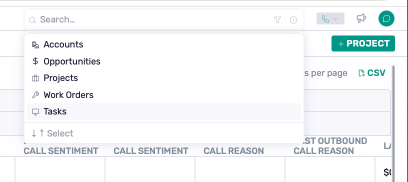
How do I search?
Click the Search… field in the top bar.
Type at least 3 characters, or type a positive record number.
Review the grouped results.
Click a result to open it, or use the keyboard to highlight it and press Enter.
Which fields are searched for Accounts, Opportunities, and Projects?
For Accounts, Opportunities, and Projects, global search can match:
Title
Parent title, when the record itself is untitled
Address
Site address
Linked contact name, email, or phone number
Record number, when you type digits only, such as
123
For these record types, use a plain number to search by record number. Do not include #.
Which fields are searched for Work Orders and Tasks?
For Work Orders and Tasks, global search can match:
Work Order or Task title
Its own site address
Number, such as
#123
Work Orders and Tasks are not searched by the parent project name, account name, or linked contact details.
How are results organized?
Results are grouped by type in this order:
Accounts
Opportunities
Projects
Work Orders
Tasks
Each group initially shows up to 5 results. Select View all to focus on one type and load more results, 20 at a time, as you scroll.
How are results sorted?
Results are sorted by newest created first.
Global search does not currently rank results by relevance and does not offer custom sorting.
Can I search within one result type?
Yes. When the search field is empty, the dropdown lists the available result types. Select a type, such as Opportunities, to add a type token and search only that type.
You can combine a type token with search text and filters.
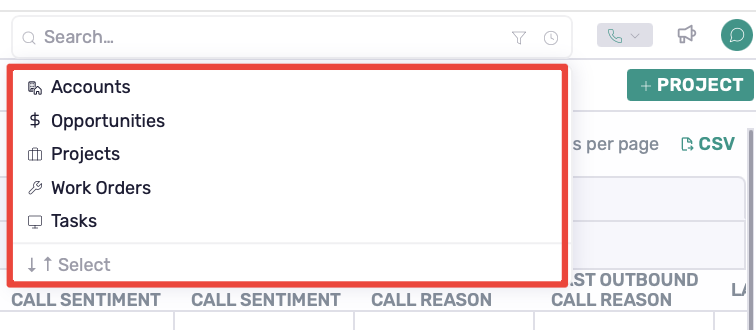
To remove the selected type, click the × on the token, click Clear, or press Backspace while the search field is empty.
What filters are available?
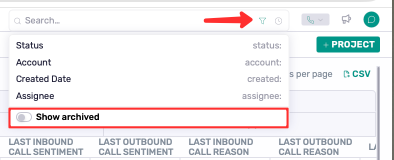
Use the filter icon in the search bar to narrow your results. Available filters include:
Status
Account
Created Date
Assignee
Active filters appear as tokens inside the search field. Click a filter token to edit it.
If you apply a filter or select a type, you can leave the search text empty to browse matching records.
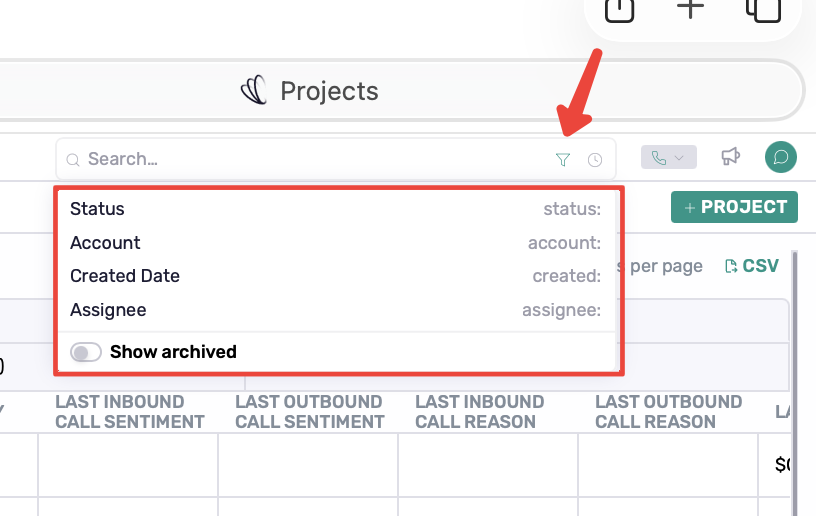
How does the Status filter work?
The Status filter lets you choose statuses by record type. For example, you may see account, opportunity, project, work order, and task statuses.
When you pick a status, results are limited to the types that use that status.
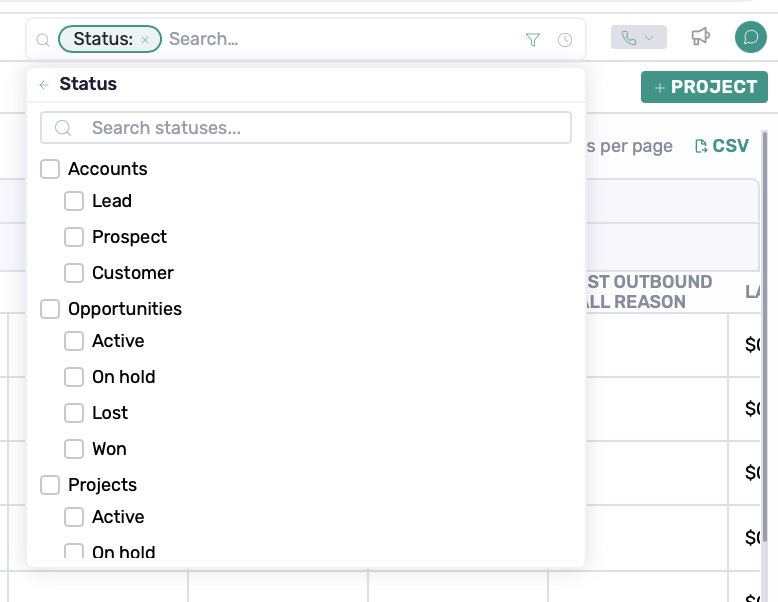
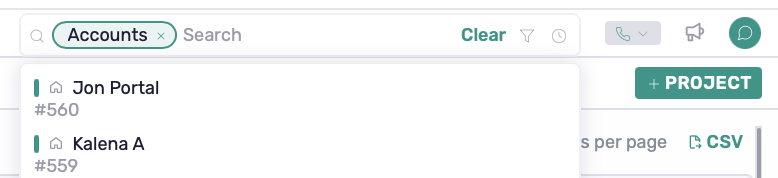
How does the Account filter work?
The Account filter lets you choose one or more accounts.
It can show:
The selected account itself
Opportunities for the selected account
Projects for the selected account
Work Orders connected to the selected account or its records
How does the Created Date filter work?
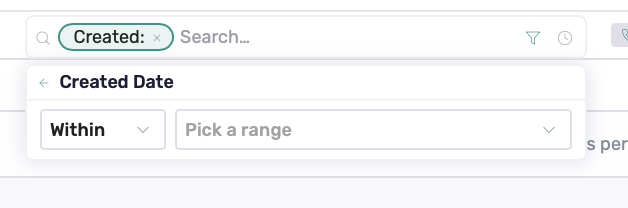
The Created Date filter narrows results by when records were created.
You can filter by:
A preset or custom date range
A specific date
Before a date
After a date
Dates use your local time zone.
How does the Assignee filter work?
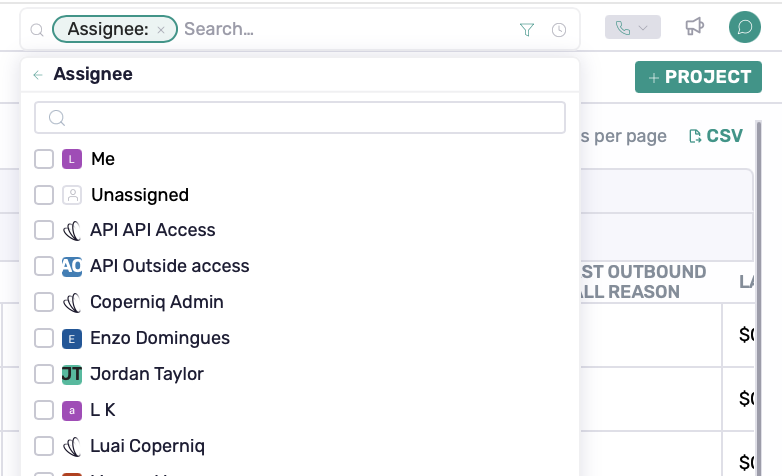
The Assignee filter lets you choose:
Me
Unassigned
Specific company users, including deactivated users
For Accounts, Opportunities, and Projects, this checks the record owner, sales rep, or project manager. For Work Orders and Tasks, this checks the assigned user.
Can I type filter shortcuts?
Yes. Type one of these shortcuts in the search field to open the matching filter:
status:opens the Status filteraccount:opens the Account filtercreated:opens the Created Date filterbefore:opens Created Date with Before selectedafter:opens Created Date with After selectedon:opens Created Date with On selectedassignee:opens the Assignee filter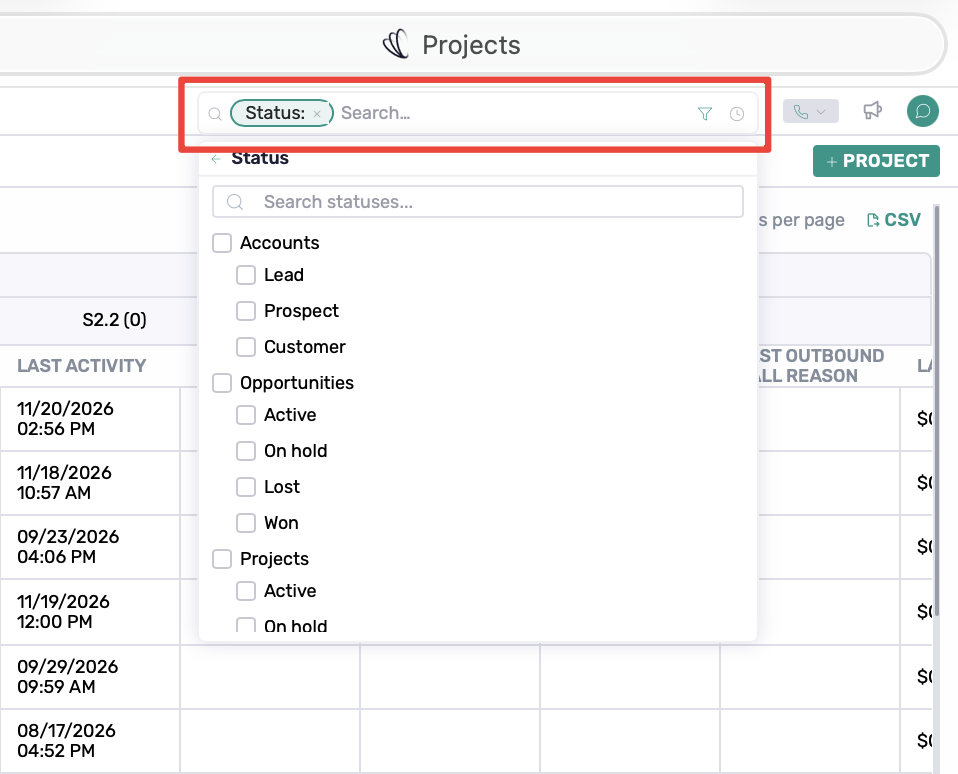
Does global search remember recent searches?
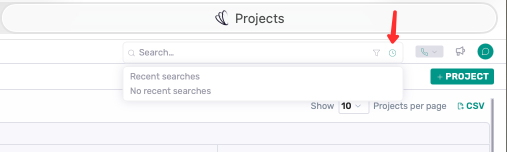
Yes. Use the clock icon to view recent searches.
Coperniq saves up to 10 recent search terms in your browser for your user and company. Recent searches do not sync across browsers or devices. You can remove individual recent searches from the list.
Does global search include archived records?
Archived records are hidden by default.
To include archived records, open the filter panel and turn on Show archived. Coperniq remembers this setting in your browser.
When Show archived is off:
Archived records are hidden
Archived Work Orders and Tasks are hidden
Work Orders and Tasks connected to archived records are hidden
Why do I not see certain result types?
Global search only shows result types your role can access.
Accounts and Projects require permission to view projects.
Opportunities require permission to view projects and require Opportunities/Requests to be enabled for your company.
Work Orders and Tasks require permission to view tasks.
Coperniq also applies access rules on the server, so your results are limited to records you can access in your current company.
What does global search not include?
Global search also does not currently return these as their own result types:
Contacts
Files
Comments
Forms
Invoices or other financial documents
Proposals
Sites
Systems
Catalog items
Custom property values