Mobile App: Search
Last updated: November 18, 2026
Use Search in the Coperniq mobile app to quickly find records and work while you are away from your desk.
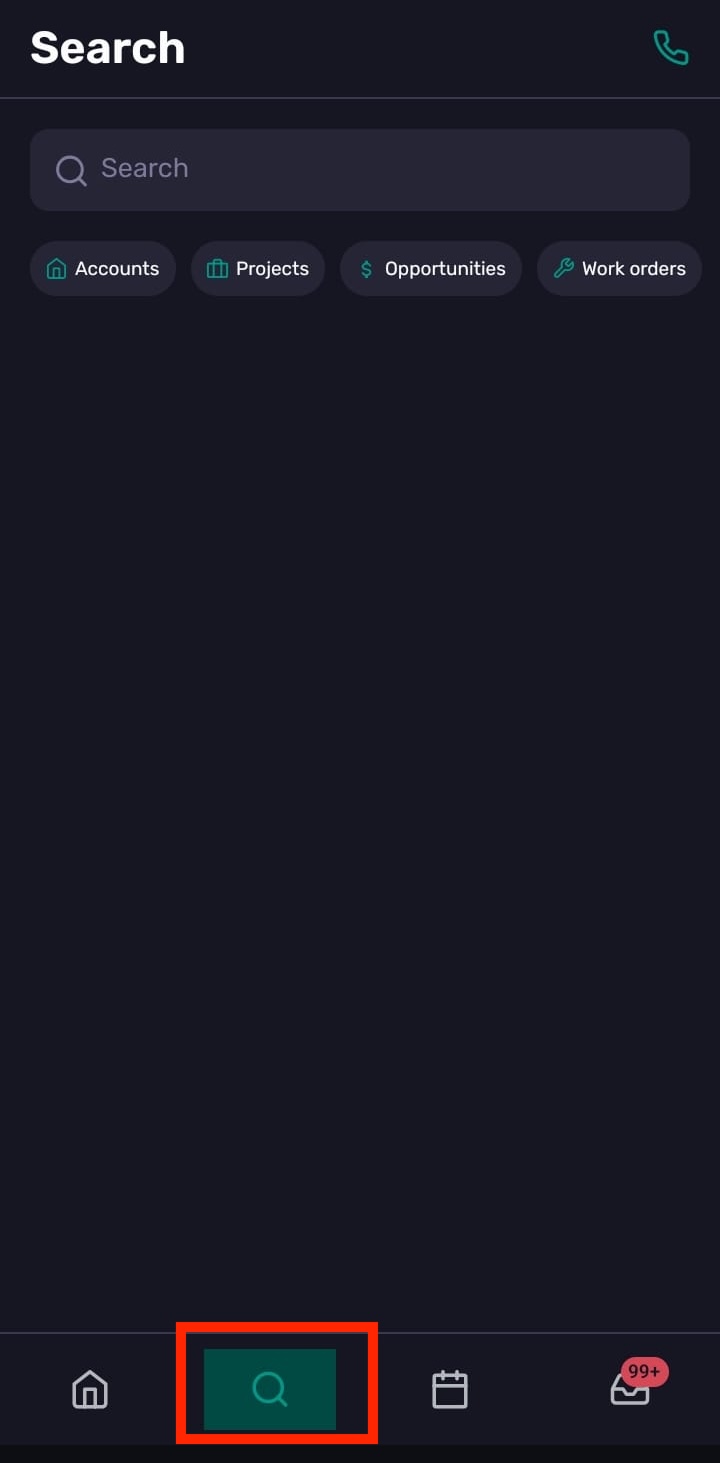
Open Search
Tap Search in the bottom navigation bar.
Search is one of the main mobile tabs, alongside Home, Schedule, and Inbox.
What you can search for
Search helps you find Coperniq records and work items, such as:
Accounts
Contacts
Opportunities
Projects
Work orders and tasks
Sites or related records, depending on your company setup
The records you can see depend on your permissions.
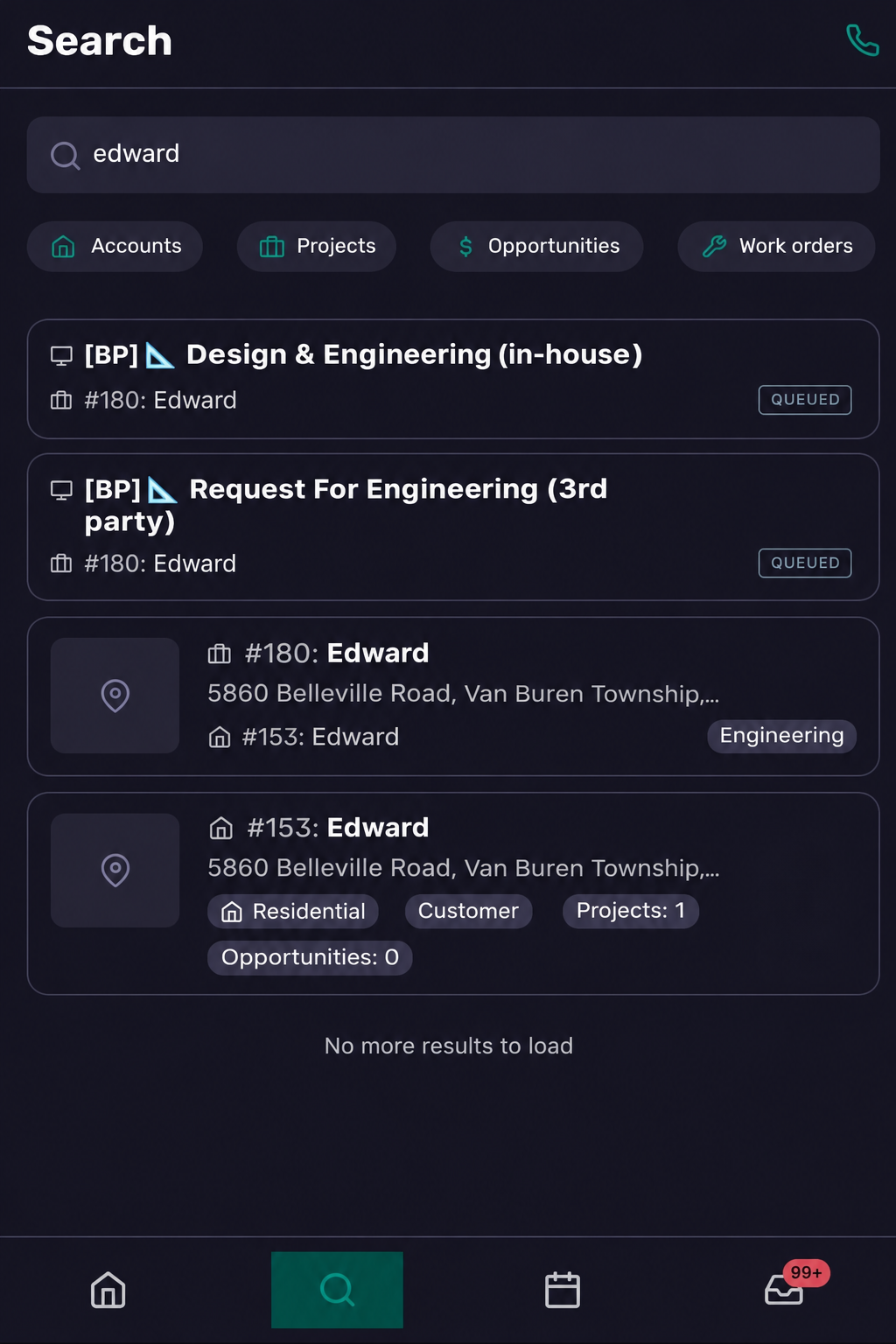
Search for a record
To search:
Open the Search tab.
Tap the search field.
Enter the name, keyword, address, customer, or other detail you are looking for.
Select the matching result to open it.
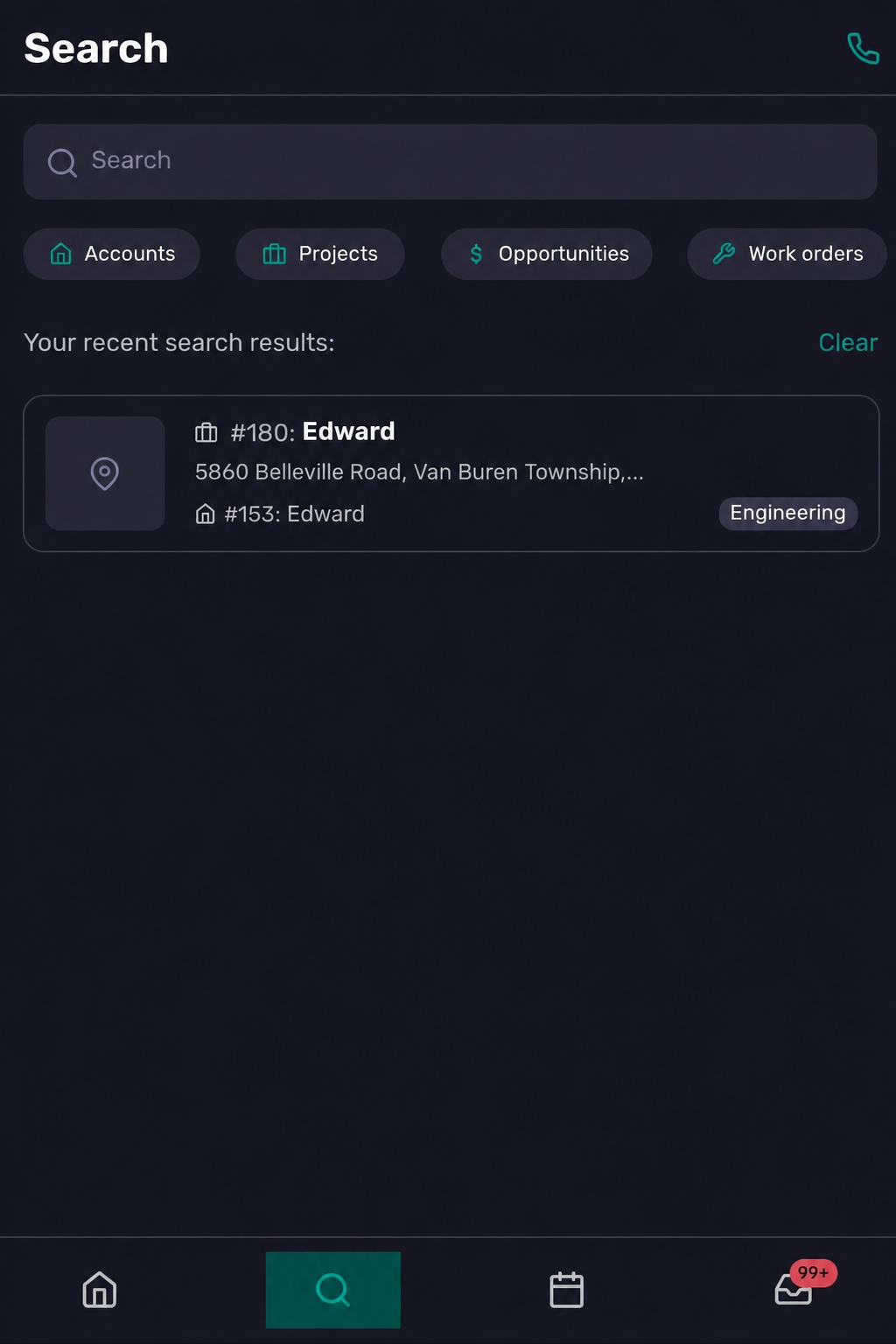
Recent searches
Search keeps recent search history so you can quickly return to records you opened before.
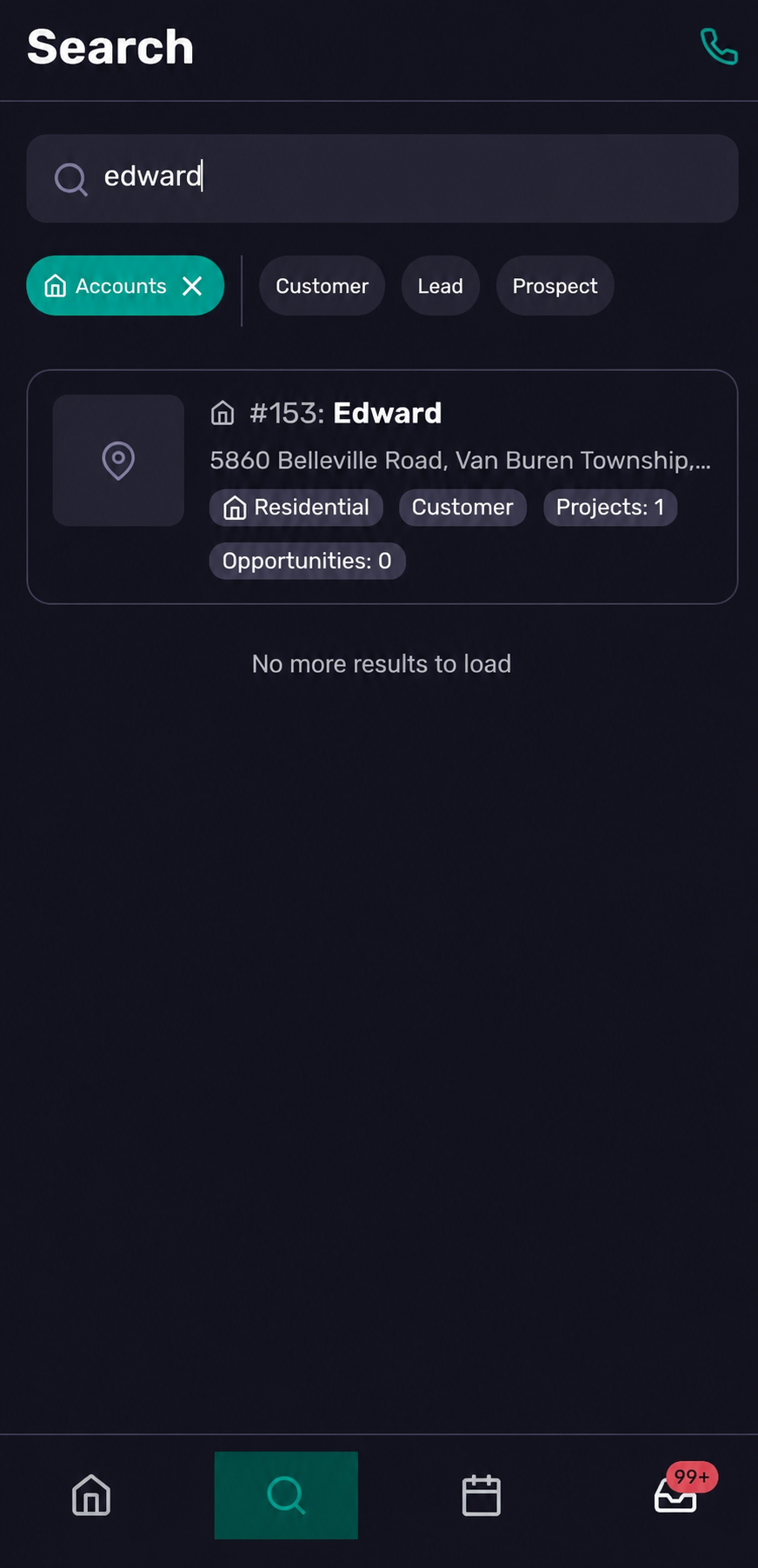
Filter search results
Use filters to narrow your results and find the right record faster.
Filters can help when a search returns too many results or when you only want to see a specific type of work or record.
Tips for better search results
Search by customer or account name when looking for customer records.
Search by project, opportunity, or work order details when looking for active work.
Use filters if you know the type of record you need.
Open recent searches for records you use often.
Why a record may not appear
If you cannot find a record in mobile search:
Confirm you are searching with the correct spelling or keyword.
Check whether a filter is hiding the result.
Confirm you have permission to view that record type.
Confirm you are in the correct company if your user has access to multiple companies.
Try refreshing or updating the mobile app if results look stale.