Client Notification Settings
Last updated: September 26, 2025
Estimated reading time: 2–3 minutes
Overview
This document outlines all client-related notification settings. These alerts ensure clients stay updated on project progress, messages, appointments, visits, tasks, and feedback opportunities.
Customization & Flexibility
Notification recipients are fixed to clients, and delivery methods can be tailored per notification type.
Available Delivery Methods:
Email
SMS
Each notification includes an Edit option where you can enable or disable the preferred delivery method.
How to Access Notification Settings
To configure notification settings:
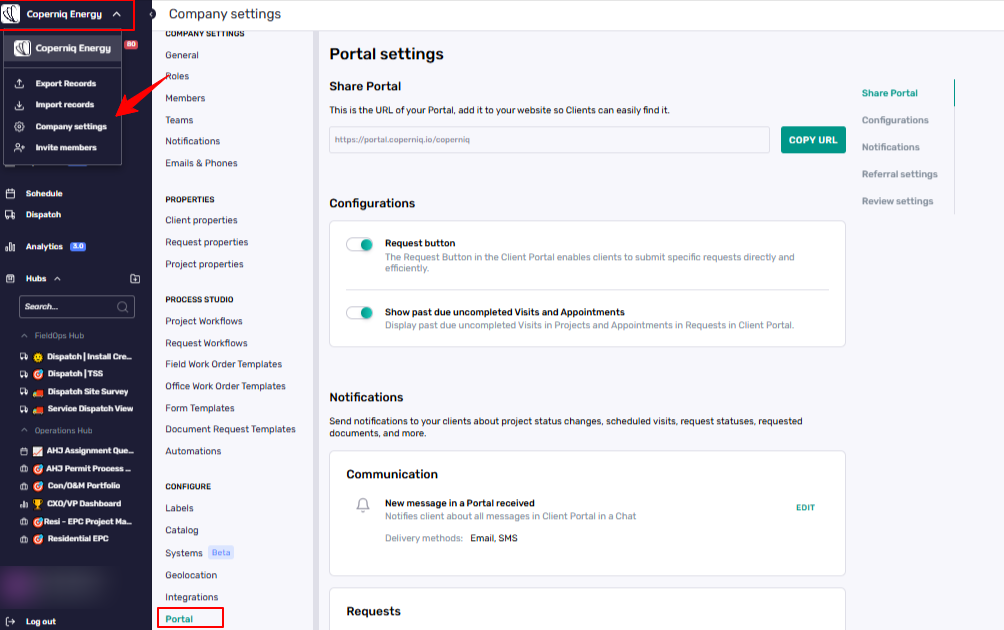
Click your company name at the top-left of the platform.
Choose Company Settings from the dropdown menu.
From the left-hand menu, click Portal.
🔗 Share Your Client Portal
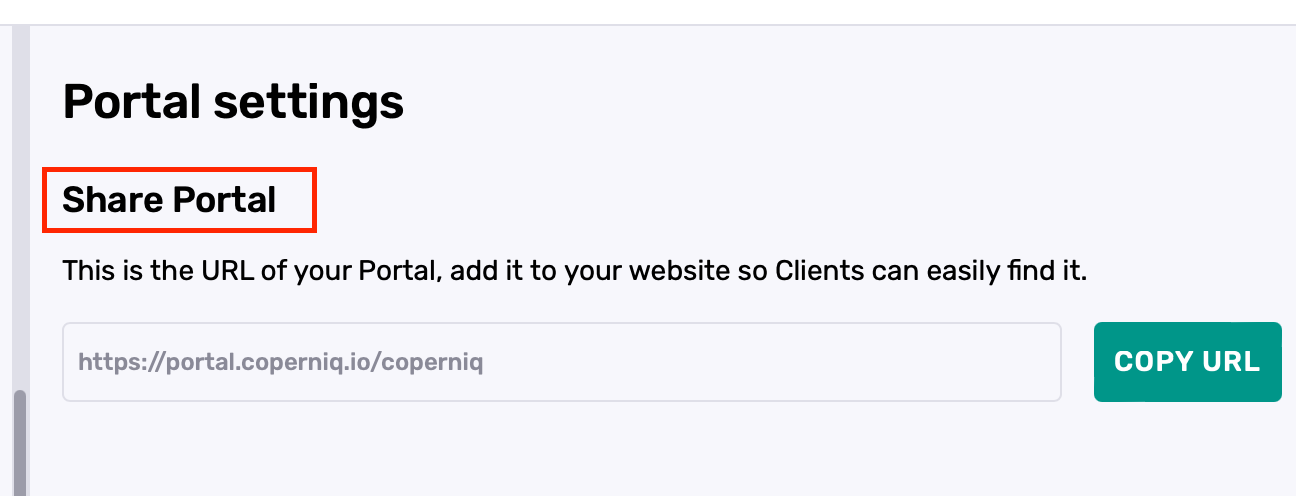
You can access and copy your portal URL from the same place where you manage notification settings:
This link can be added to your website or shared directly with clients
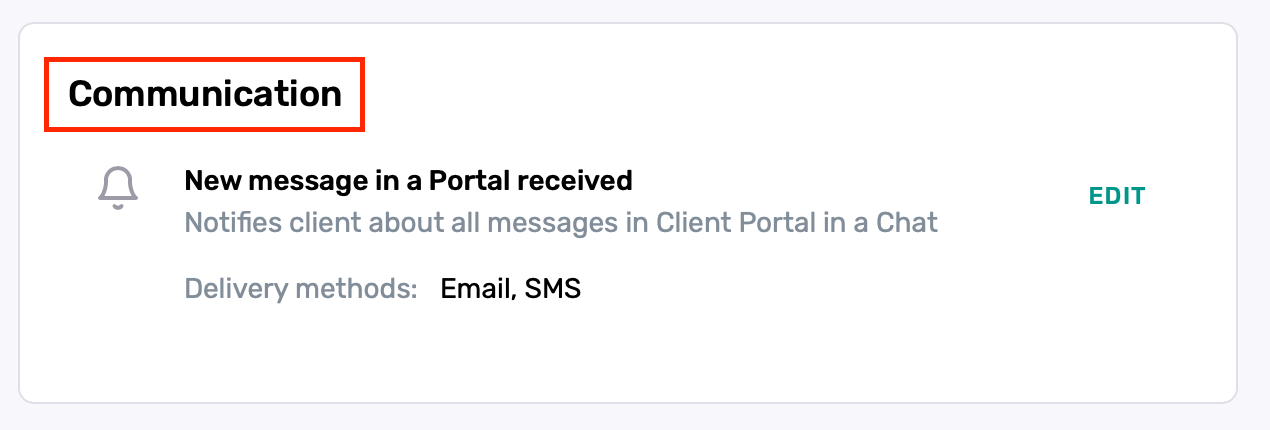
Communication (Client Notifications)
New Message in a Portal Received – Notifies the client when a new message is received via the client portal.
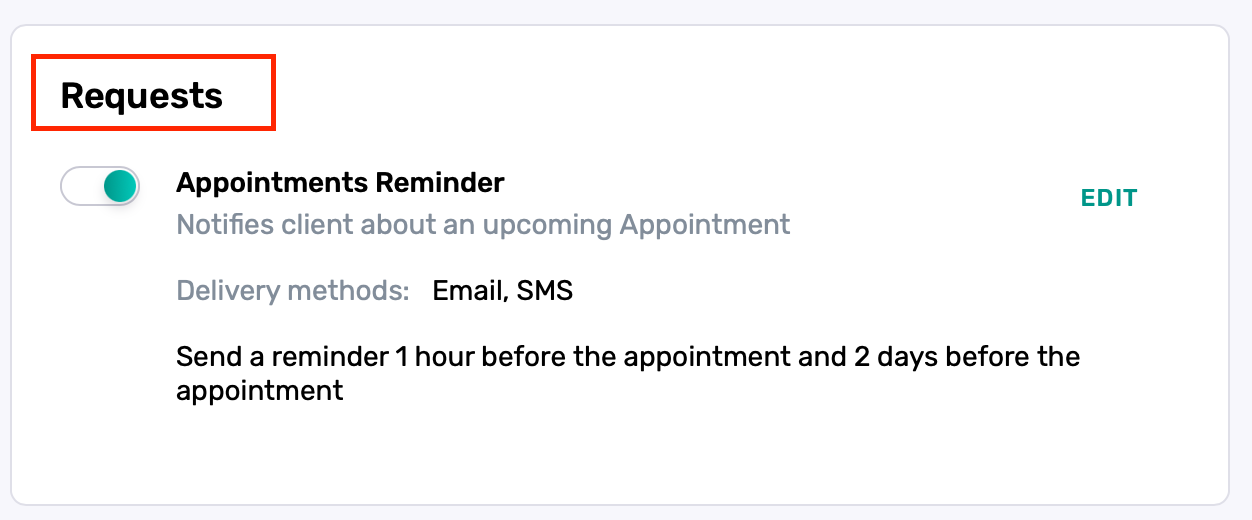
Requests (Client Notifications)
Appointments Reminder – Notifies the client about an upcoming appointment. You can create one or two separate reminders based on your needs:
Each reminder can be scheduled using either hours or days before the appointment.
The timing and message content of each reminder can be independently configured.
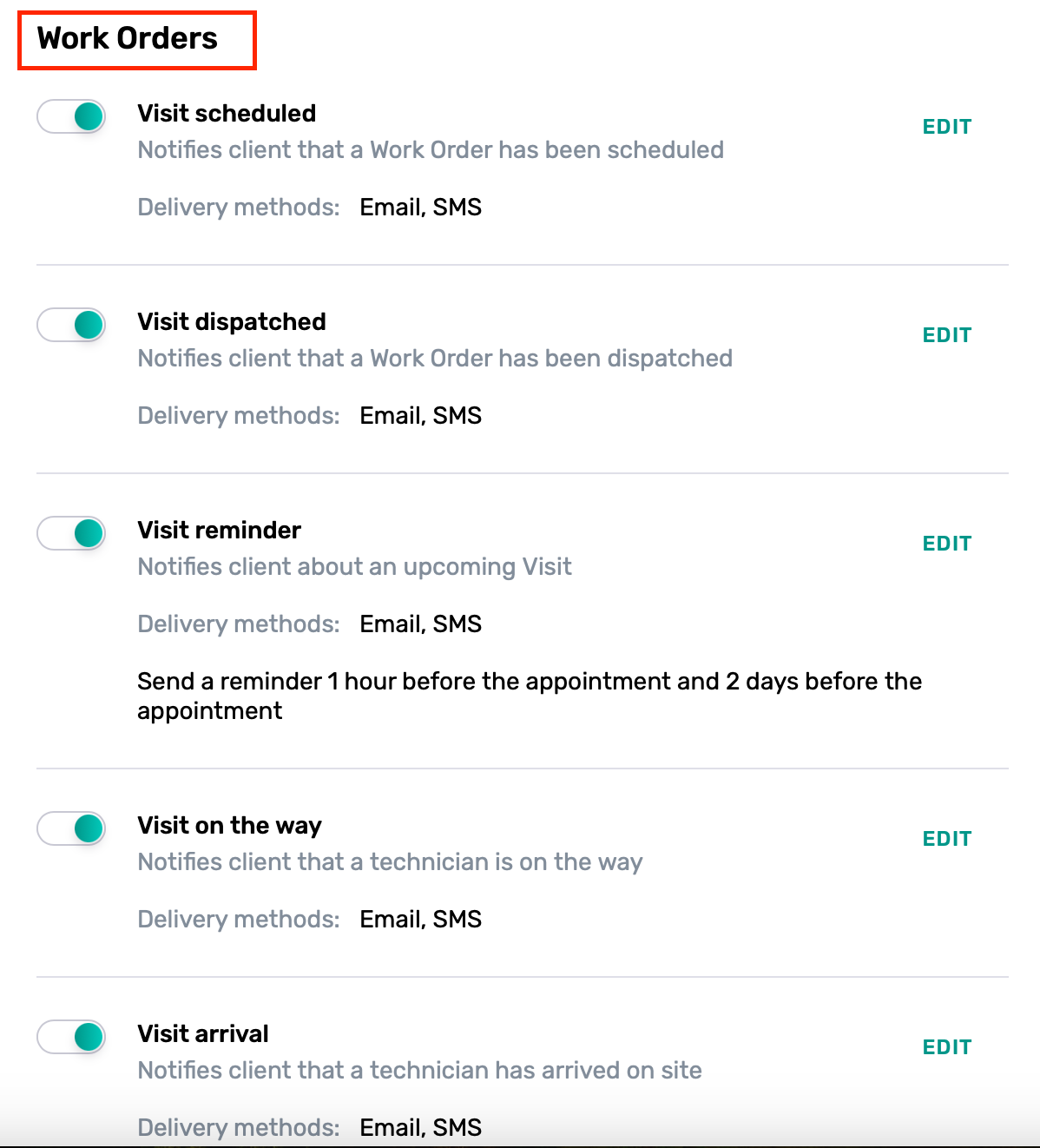
Work Orders (Client Notifications)
Visit Scheduled – Alerts the client that a visit has been scheduled.
Visit Dispatched – Informs the client that a technician has been dispatched.
Visit Reminder – Reminds the client about an upcoming visit.
Visit on the Way – Notifies the client when a technician is en route.
Visit Arrival – Confirms that a technician has arrived onsite.
Delivery options: Email and/or SMS.
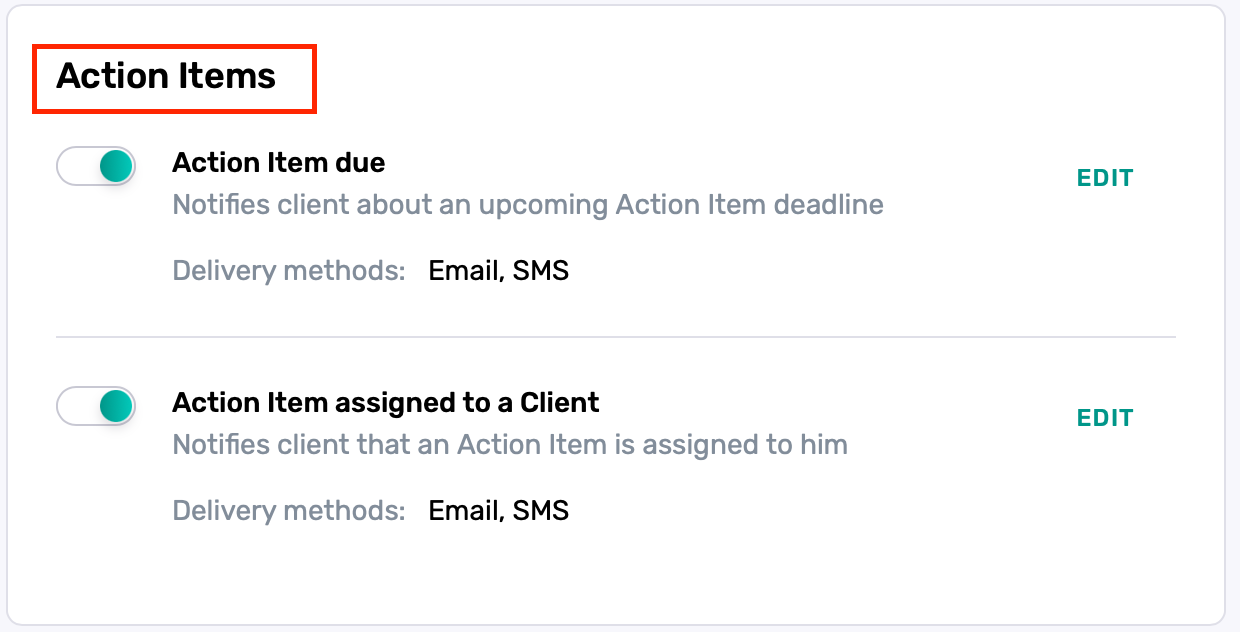
Action Items (Client Notifications)
Action Item Due – Notifies the client of an upcoming action item deadline.
Action Item Assigned to a Client – Alerts the client when an action item is assigned to them.
Delivery options: Email and/or SMS.
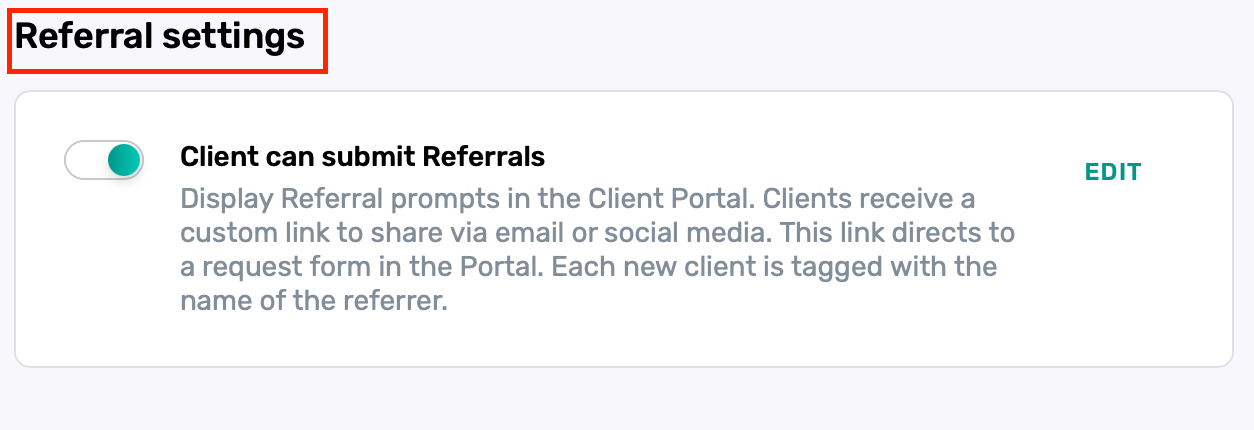
Referral Settings (Client Notifications)
Client Can Submit Referrals – Displays a referral prompt in the portal. Clients can share a referral form link via email or social media.
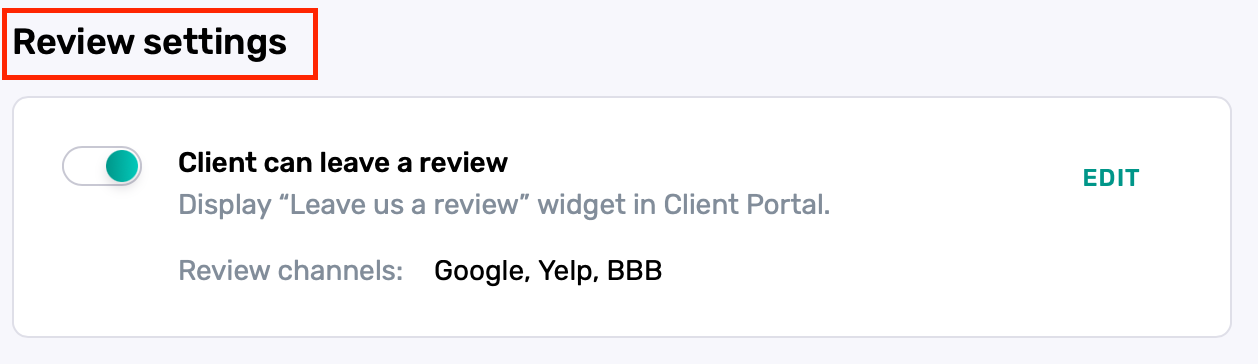
Review Settings (Client Notifications)
Client Can Leave a Review – Shows a "Leave us a review" widget in the client portal.
Best Practices
Only enable the most relevant notifications to avoid overwhelming clients.
Customize reminder timing and message content for clarity and professionalism.
Test your portal URL to ensure it's easily accessible from client-facing channels.
Periodically review your notification settings to align with changes in workflows or client needs