Create a Project
Last updated: October 6, 2026
Overview
Projects help you manage and track work for an account from start to finish. You can create a new project directly from an Account or from the main Projects page.
Create a Project from an Account
Go to CRM → Accounts.
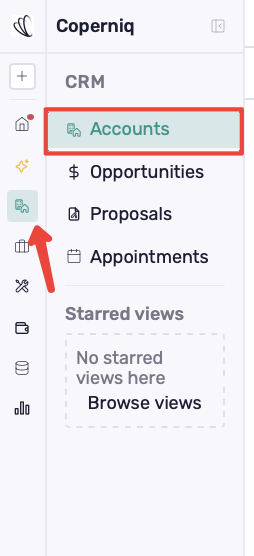
Search for and open the Account.
Select the Site where the project will be created.

Under Overview, click + and select Create Project.
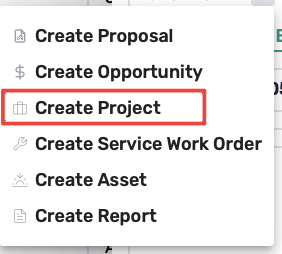
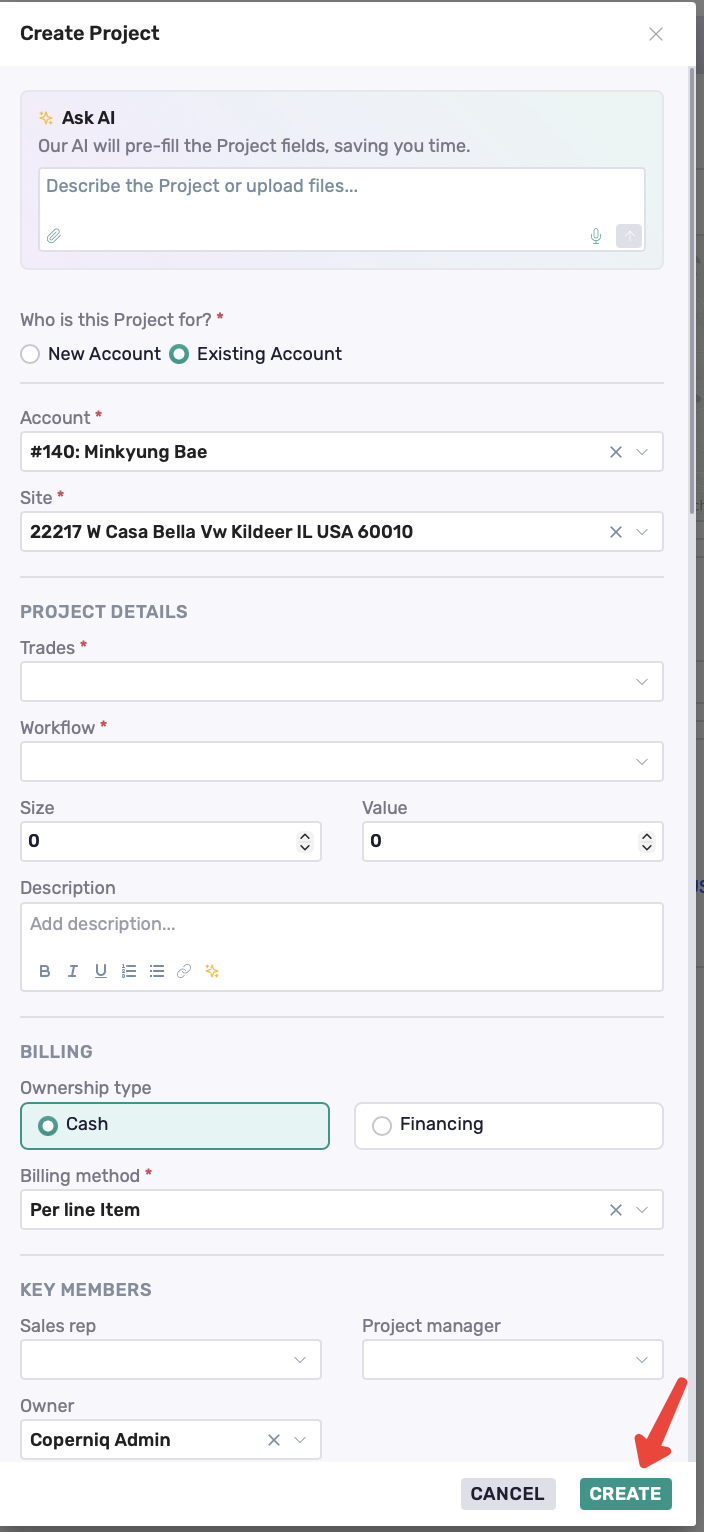
Enter the project details, then click Create.
Search for and open the client profile
Select the Site you want to add the project to, then click the + button under the Overview section.
From the dropdown, select Create Project
Create a Project from the Projects Page
From the left navigation, open Projects.
Select Projects.

Click + Project in the top-right corner.
Complete the project details.
Click Create.
Use Ask AI to Fill in Project Details
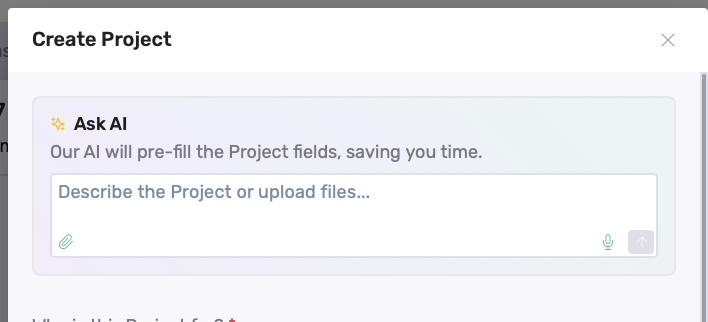
You can also use Ask AI at the top of the creation form to speed up project setup.
Describe the project or upload supporting files, and AI will pre-fill the relevant project fields for you. Review the populated information and make any necessary changes before clicking Create.
Best Practices
Select the correct Account and Site before creating the project.
Use clear, consistent project names.
Add important project details upfront to keep the project organized.
Always review information populated by Ask AI before creating the project.