Round robin for work orders
Last updated: November 16, 2026
Round robin lets you automatically assign work orders created from a template to members of a team in rotation.
When to use round robin
Use round robin when work from a template should be distributed evenly across a team instead of always going to the same owner.
Common examples:
Site survey work orders assigned across a field team
Installation or service work orders distributed among technicians
Follow-up work orders assigned to available operations team members in a fixed rotation
How round robin works
Round robin is configured on a work order template by choosing a team as the template assignee and selecting Round robin.
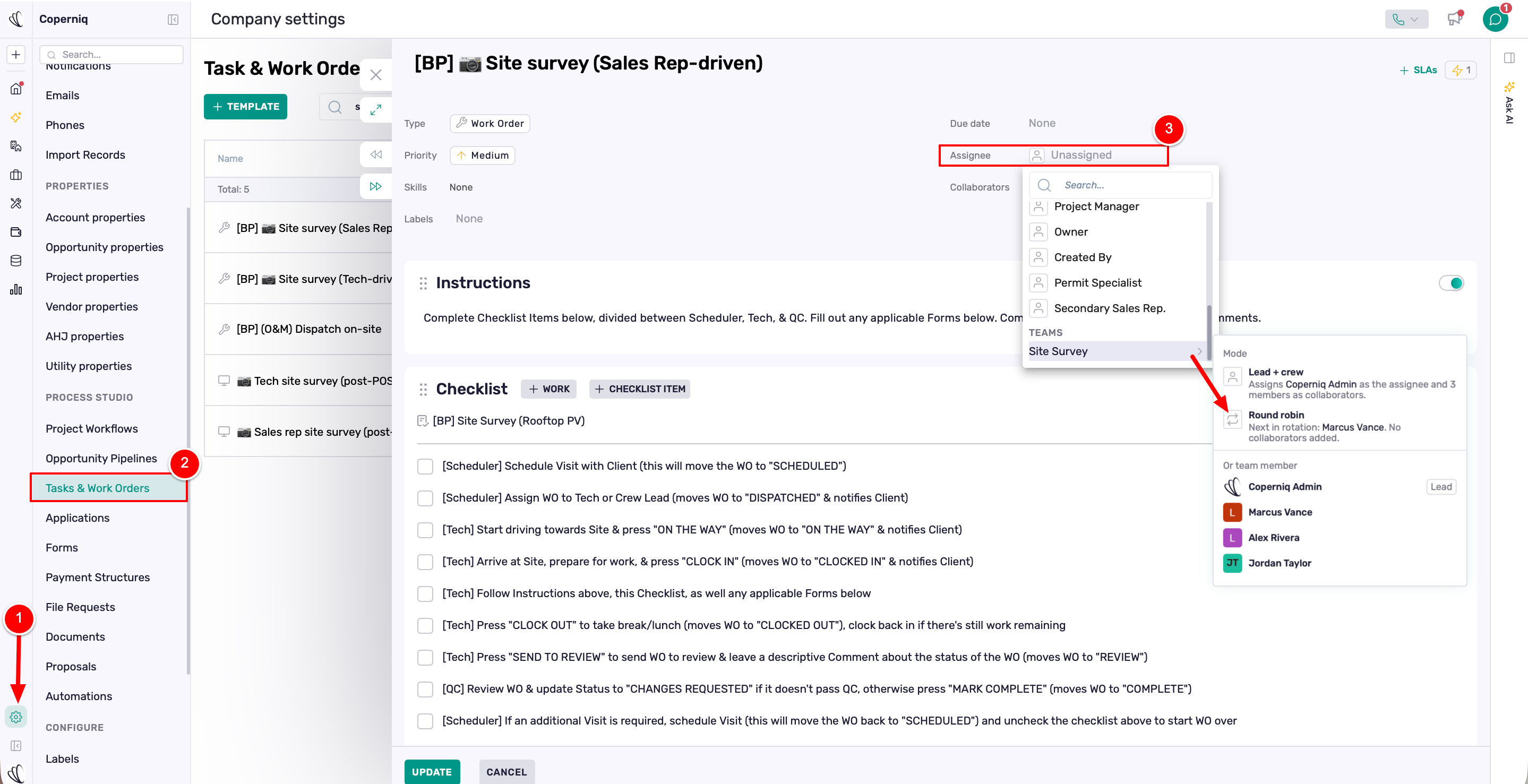
When a work order is created from that template:
Coperniq checks whether the new work order already has an assignee.
If the work order has no assignee, Coperniq looks at the template's round-robin team.
Coperniq picks the next eligible team member in the team's member order.
That person becomes the work order owner.
The team's round-robin cursor moves forward so the next work order goes to the next eligible member.
If an assignee is set explicitly when the work order is created, that assignee takes priority and round robin is not used.
Eligibility
A team member is eligible for round robin when they:
Are an active user in the company
Are not marked Skip in Round Robin on the team
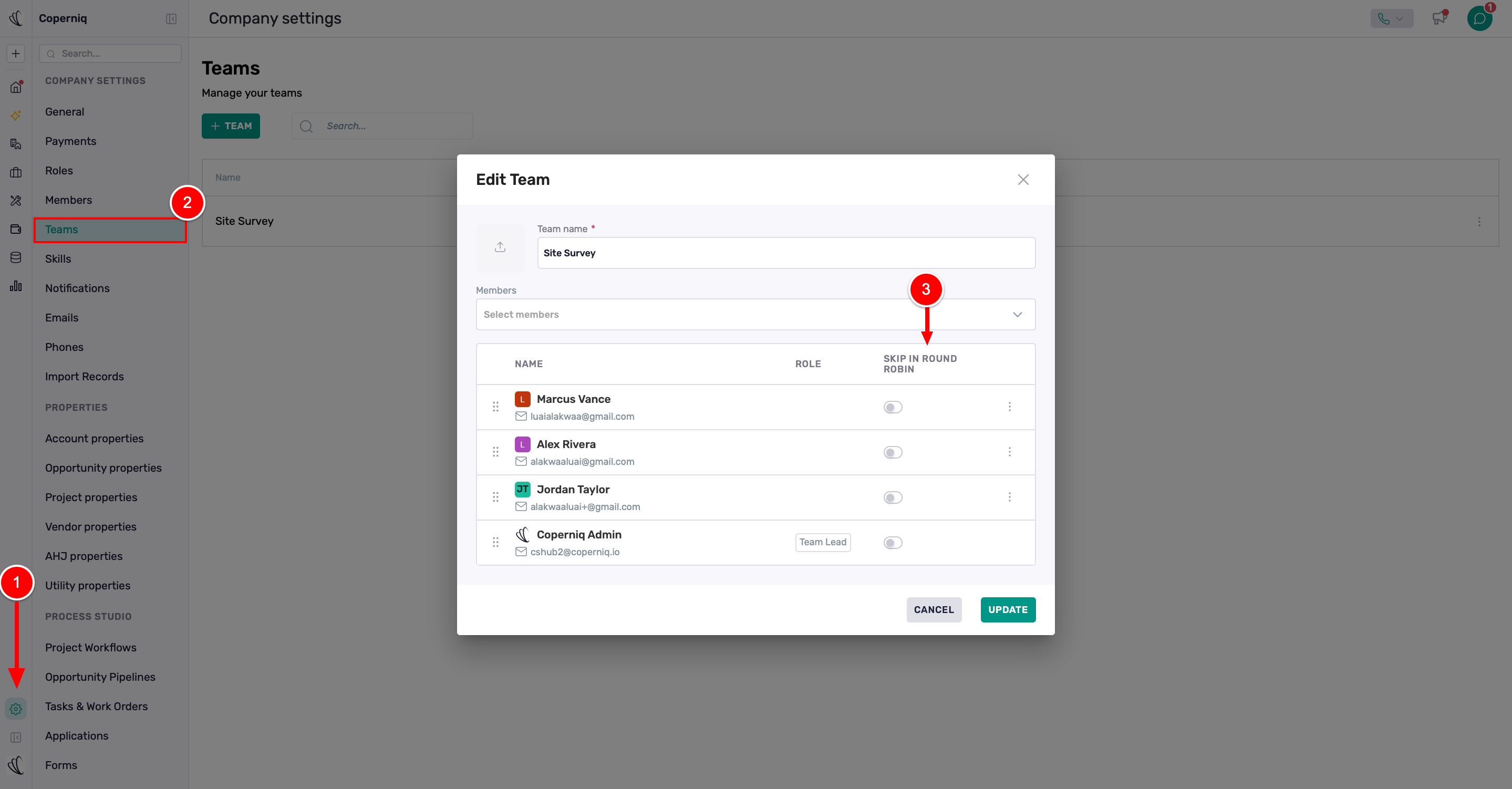
Members are considered in the order shown in the team configuration. If the rotation reaches the end of the list, it wraps back to the first eligible member.
Team lead fallback
If no team members are eligible, Coperniq falls back to the team lead, as long as the team lead is an active user.
If there are no eligible members and the team lead is not active, the work order remains unassigned.
Note: the team lead only participates in the regular rotation if they are also added as a team member. Otherwise, the lead is only used as the fallback when no eligible rotating member is available.
Shared rotation per team
The round-robin cursor belongs to the team, not to an individual template.
That means if multiple work order templates use round robin with the same team, they share the same rotation. For example, if Template A assigns Alex, the next work order from Template B using the same team may assign Jordan.
What changes affect the rotation?
Reordering team members
Changing the order of team members changes the future rotation order. Coperniq keeps the cursor aligned to the last assigned person where possible, so the rotation continues predictably after reordering.
Removing team members
If the last assigned person is removed from the team, Coperniq adjusts the cursor to the closest previous position in the old order, or resets it if needed.
Skipping members
Use Skip in Round Robin for a team member when they should remain on the team but not receive round-robin assignments.
Important limitations
Round robin runs only when the work order is created.
Updating a team later does not reassign existing work orders.
Round robin does not consider workload, schedule, availability, skills, or capacity.
The rotation is based on team order and eligibility only.
Round robin is available for work orders created from templates.
Manually created work orders do not use round robin unless they are created through a template-based flow.
The UI requires at least two team members to select round robin, though the backend can still rotate through a one-member team.
Round robin vs. Lead + crew
Round robin and Lead + crew behave differently:
Round robin assigns each new work order to the next eligible member of the selected team.
Lead + crew assigns the team lead as the owner and adds the other team members as collaborators immediately. It does not rotate ownership.
Troubleshooting
The work order was not assigned by round robin
Check the following:
Was the work order created from a template that has round robin configured?
Did the work order already have an explicit assignee at creation time?
Does the selected team have at least one active member who is not marked Skip in Round Robin?
If no rotating members are eligible, is the team lead active?
The same person received more work than expected
This can happen if:
Other members are marked Skip in Round Robin
Other members are inactive
Multiple templates share the same team rotation
Work orders were manually assigned instead of using the template's round-robin setting
Existing work orders did not update after changing the team
This is expected. Round robin assigns the owner only once, when the work order is created. Team changes affect future work orders only.