Client Portal
Last updated: January 5, 2026
What's the Client Portal?
Coperniq offers a Client Portal that allows you to engage with your customers:
Submit & track your requests (i.e. inquiring about services)
Upload Documents
Track their project's progress
Refer other customers to your portal
Write Reviews on your Business
Chat with your company representative

Configuring your Client Portal
You may access your Company Settings>CONFIGURE>Portal and apply settings as you see fit. Below is what you can expect to see!
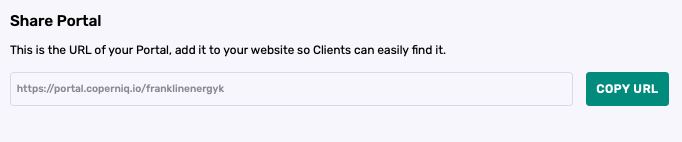
You may share with your customers the portal link and they could access the portal with either their phone number or email address. Note: They need to be invited first. See "Invite Clients to your Portal".
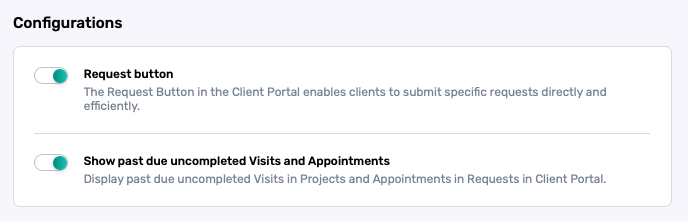
You may control the visibility of the above widgets by sliding the buttons
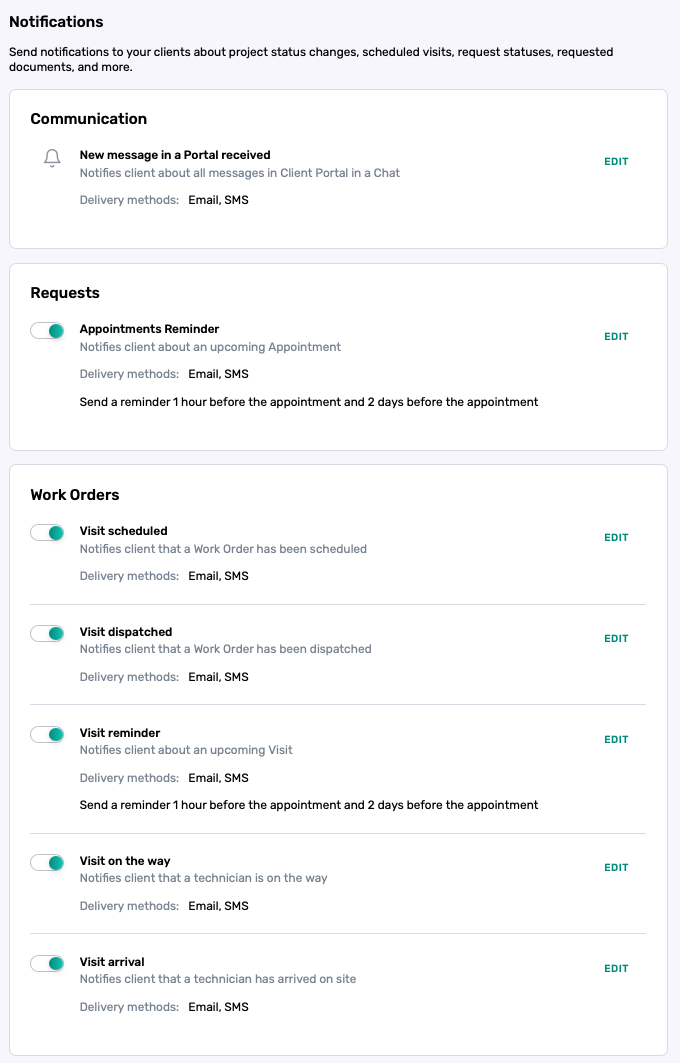
Under Work Orders, these are the communications customers will receive when you are ready to conduct field work for them (such as Site Surveys or Installations). You may turn them on/off or edit them accordingly.
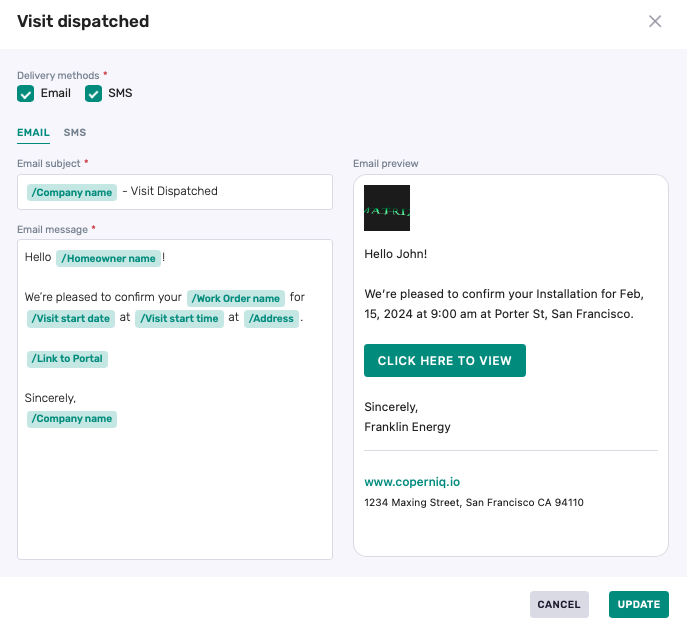
You have the liberty to edit the message and format as you see fit above.
Use "/" for merge fields
Invite Clients to your Portal
Go the Clients Tab and click not the Client you'd like to invite.
Preview what the Client would see by using the 3 dots on the upper right corner and select "Preview Portal as Client"
Make sure there no pop up blockers on your browser
When ready, use the Invite to Portal Client

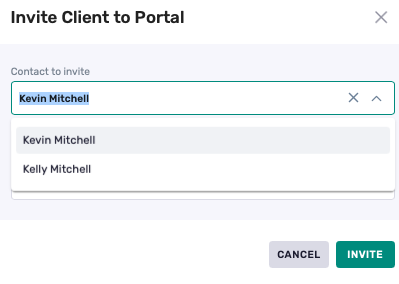
You can add contacts to a record under Client Contacts. The Primary contact is the main client, and you may add additional contacts as stakeholders. Any contact listed in Client Contacts can be invited to the portal and, once invited/accessed, will have access to the same client/project information available to portal users
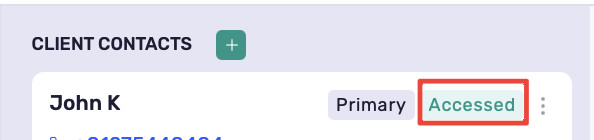
Stakeholders must be added to the Client Record under "Stakeholders before they are available for you to invite. Once they are invited, you'll see a Sun icon on their name.