Mobile App: Proposals
Last updated: November 18, 2026
Use proposals on mobile to create, edit, preview, present, and send proposal options while working with customers.
Where to create a proposal
You can create a proposal from the mobile + menu or from a project or opportunity.
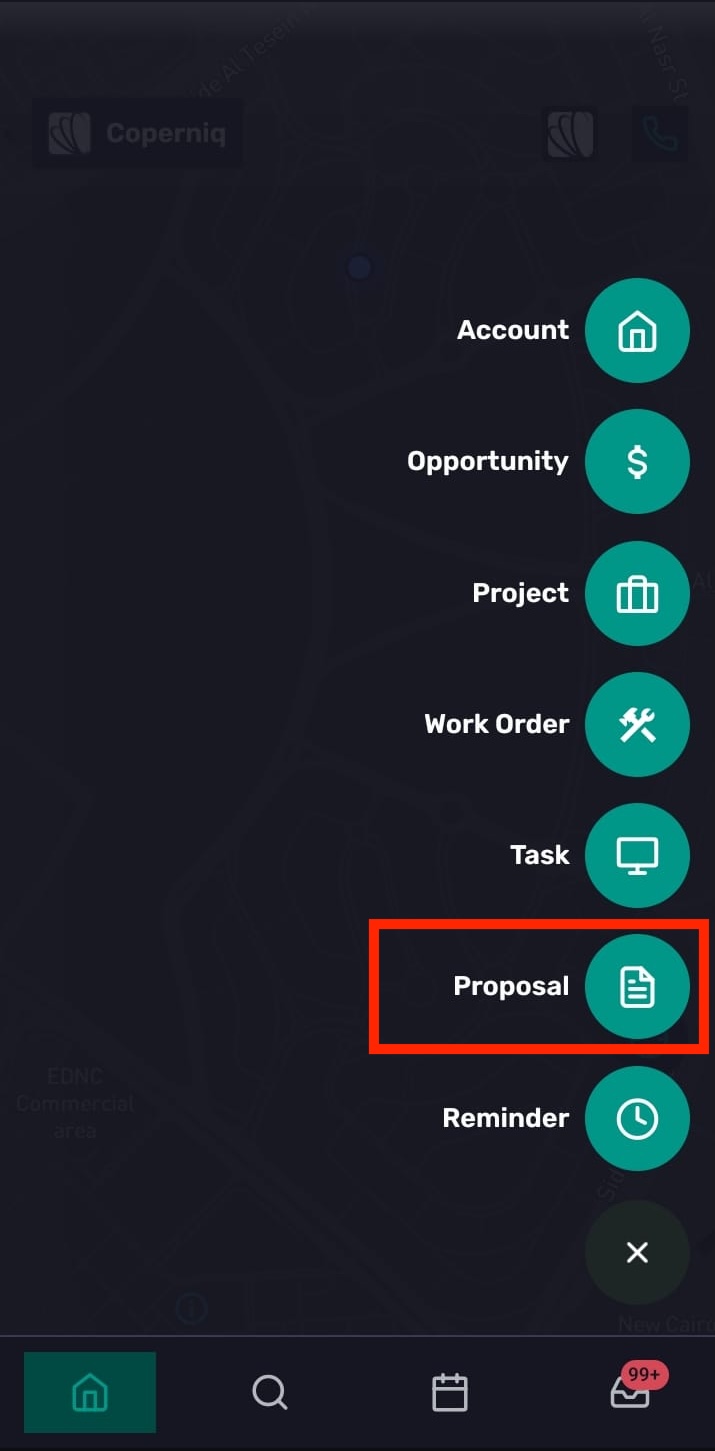
From the + menu:
Go to the home page and tap +.
Select Proposal.
Choose the related account, opportunity, or project if prompted.
From a project or opportunity:
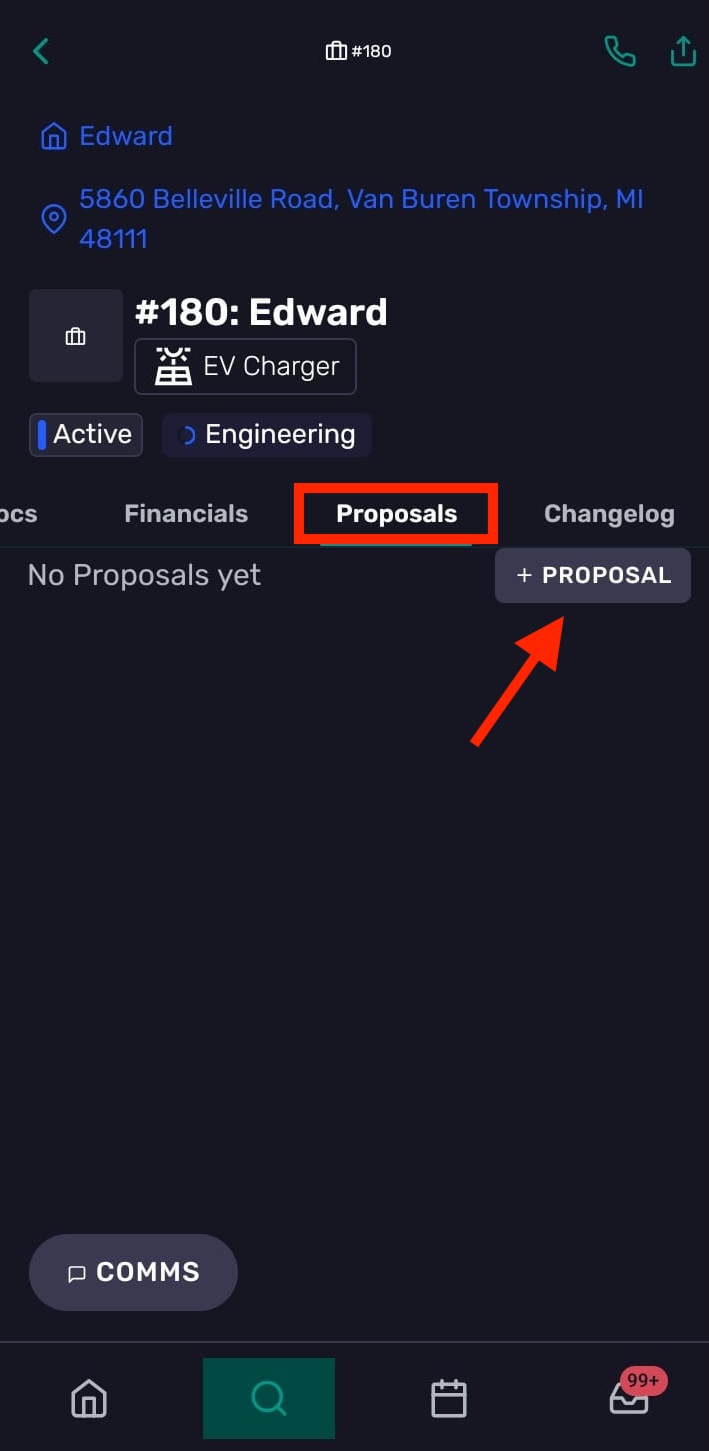
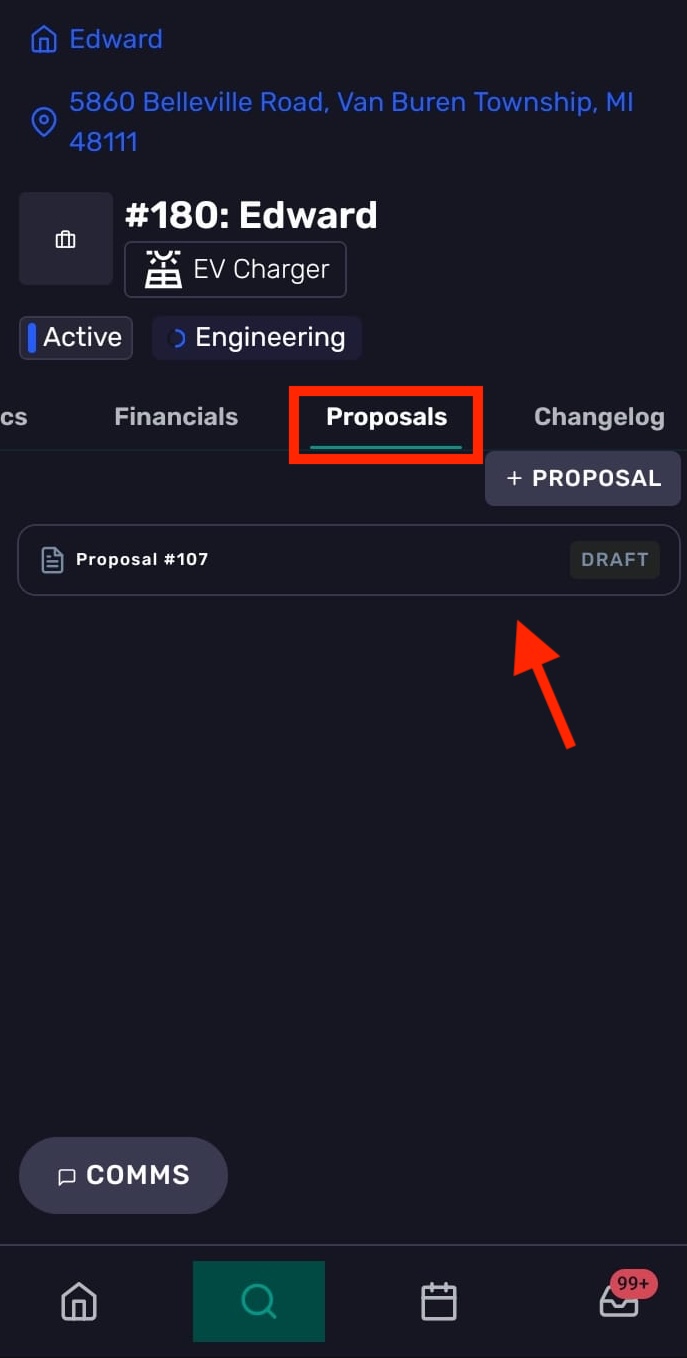
Open the record and tap Proposals.
Tap + Proposal.
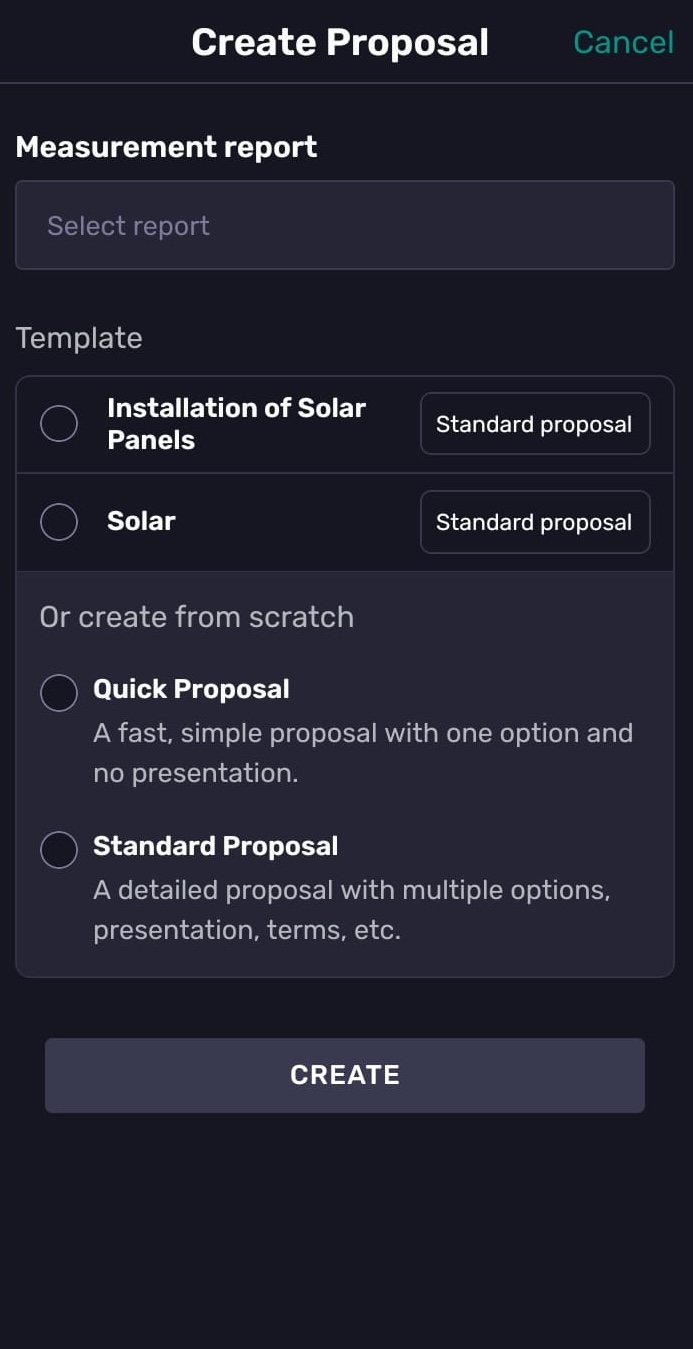
Select a Measurement report if needed, then choose a saved template or create from scratch:
Quick Proposal — one option, with no presentation.
Standard Proposal — supports multiple options, presentation, and terms.
Tap Create to continue
Where to find existing proposals
You can find proposals from related record screens, such as:
An Opportunity record under the Proposals tab
A Project record under the Proposals tab
Search, if you know the related customer or record
Edit a proposal
To edit a proposal:
Open the related opportunity or project.
Tap the Proposals tab.
Select the proposal.
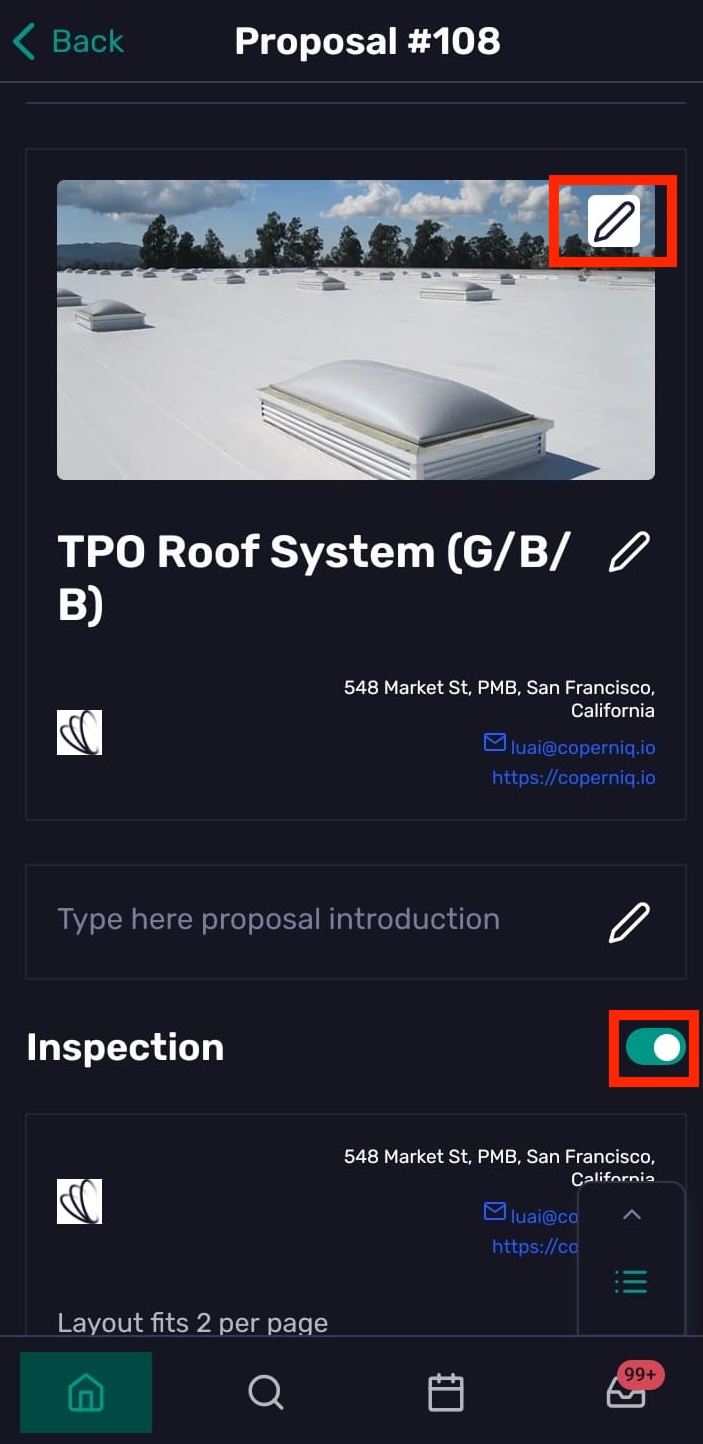
As you scroll through the proposal, edit sections or turn them on or off.
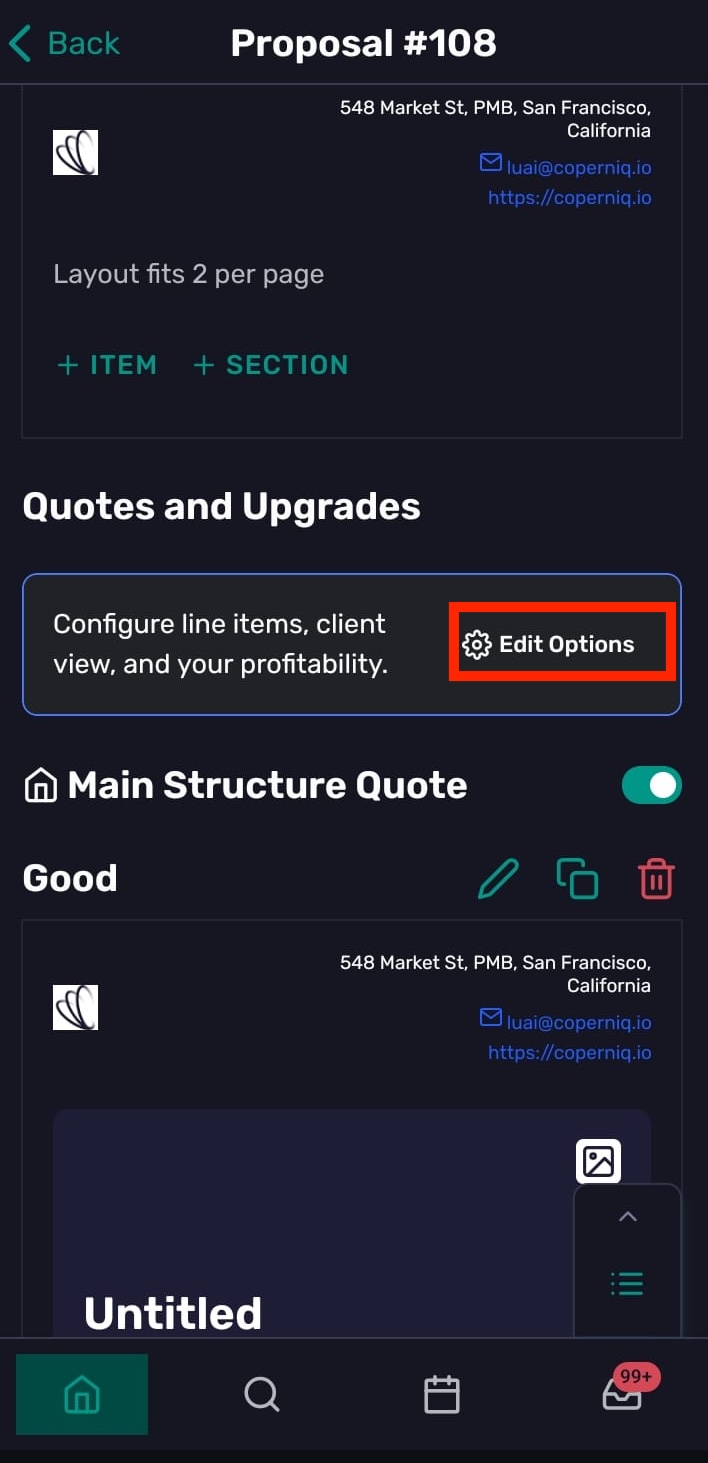
In Quotes and Upgrades, tap Edit Options to manage profitability, the client view and summary, service plans, and the line items and add-ons for each structure and option.
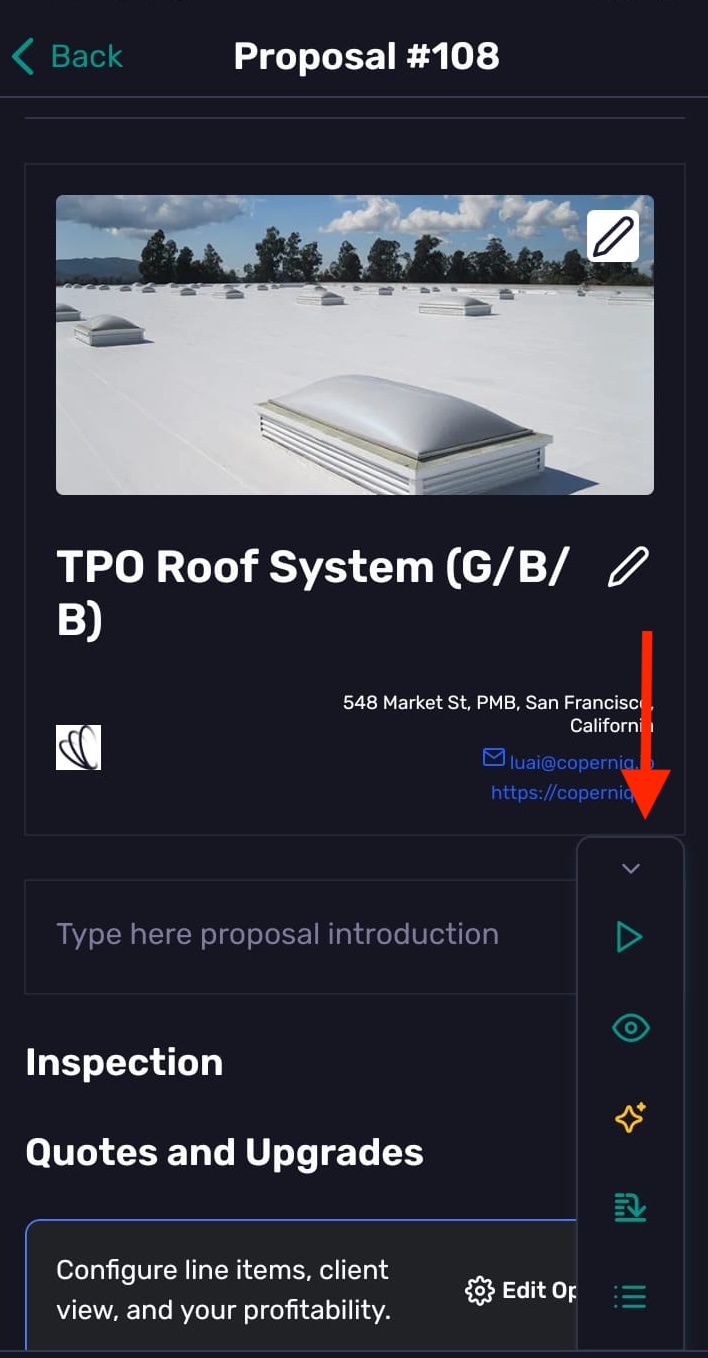
To access more proposal tools, expand icon at the bottom-right of the proposal to open the vertical toolbar. From top to bottom, its icons open Present, Preview, Ask AI, Summary, and Pages, structures, and options.
Present a proposal
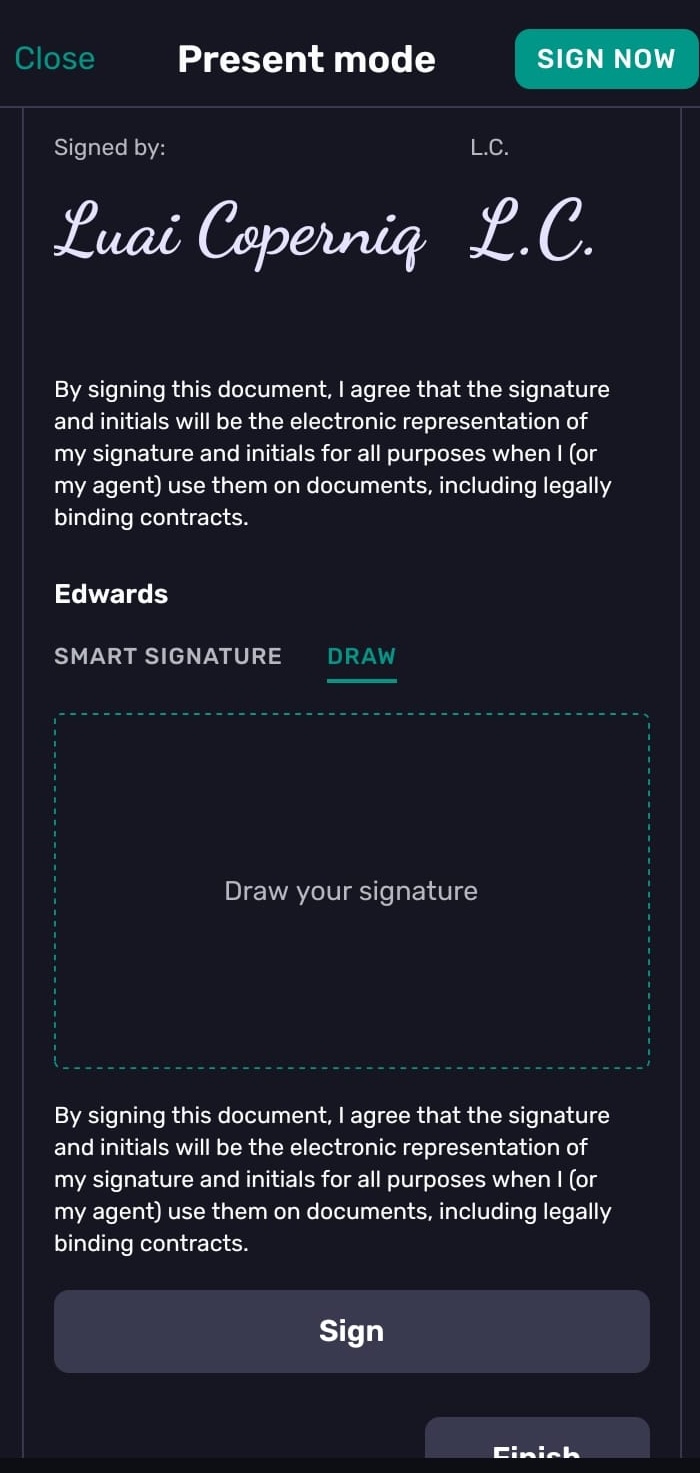
Tap the Present icon to review the proposal with the customer. Present mode supports customer acceptance and signature workflows.
Preview a proposal
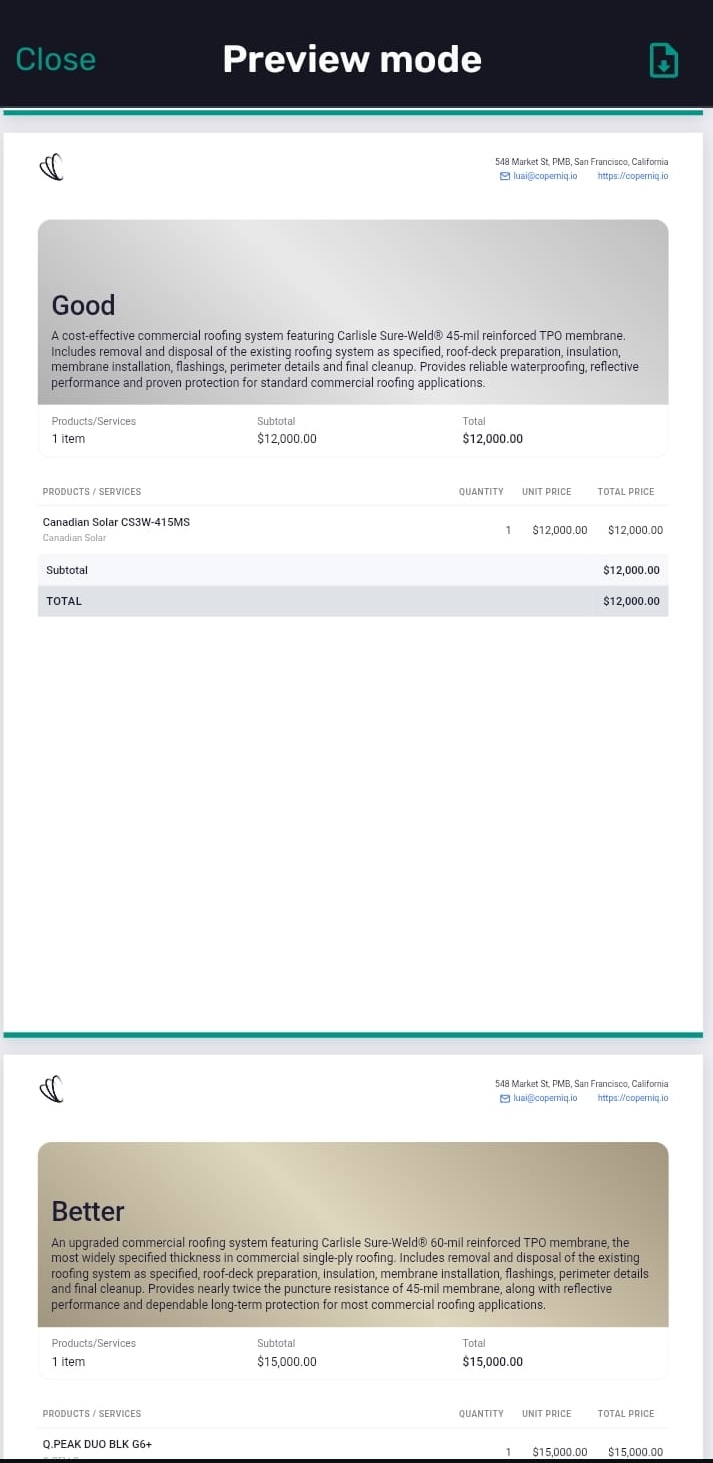
Tap the Preview icon to review how the proposal will appear and to download it.
Use Ask AI with proposals
Tap the Ask AI icon to update proposal content, such as options, line items, and add-ons, or to create an option. You can also attach a file to the conversation and include instructions for the AI. Review its changes, then approve or decline them

Proposal Summary
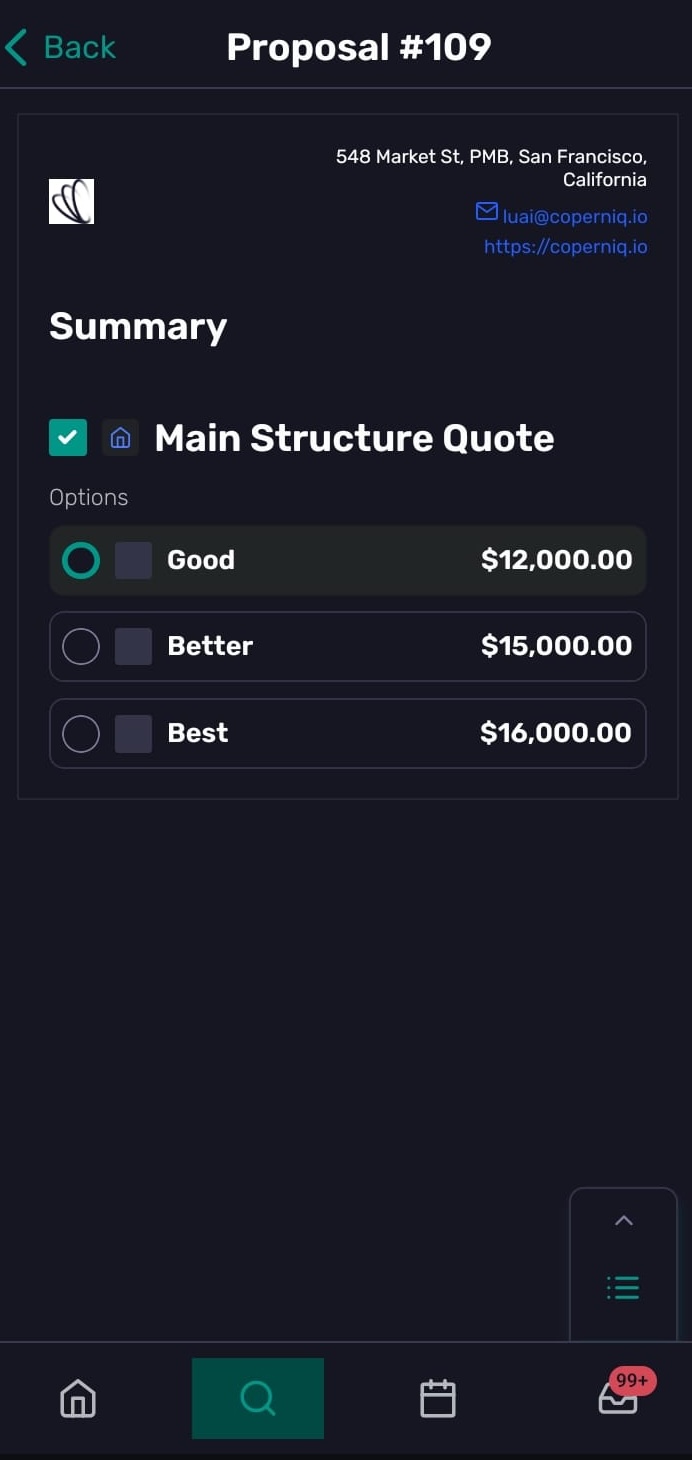
Tap the Proposal Summary icon to review the selected structures, options, add-ons, and service plans, along with the proposal totals.
Manage pages, structures, and options
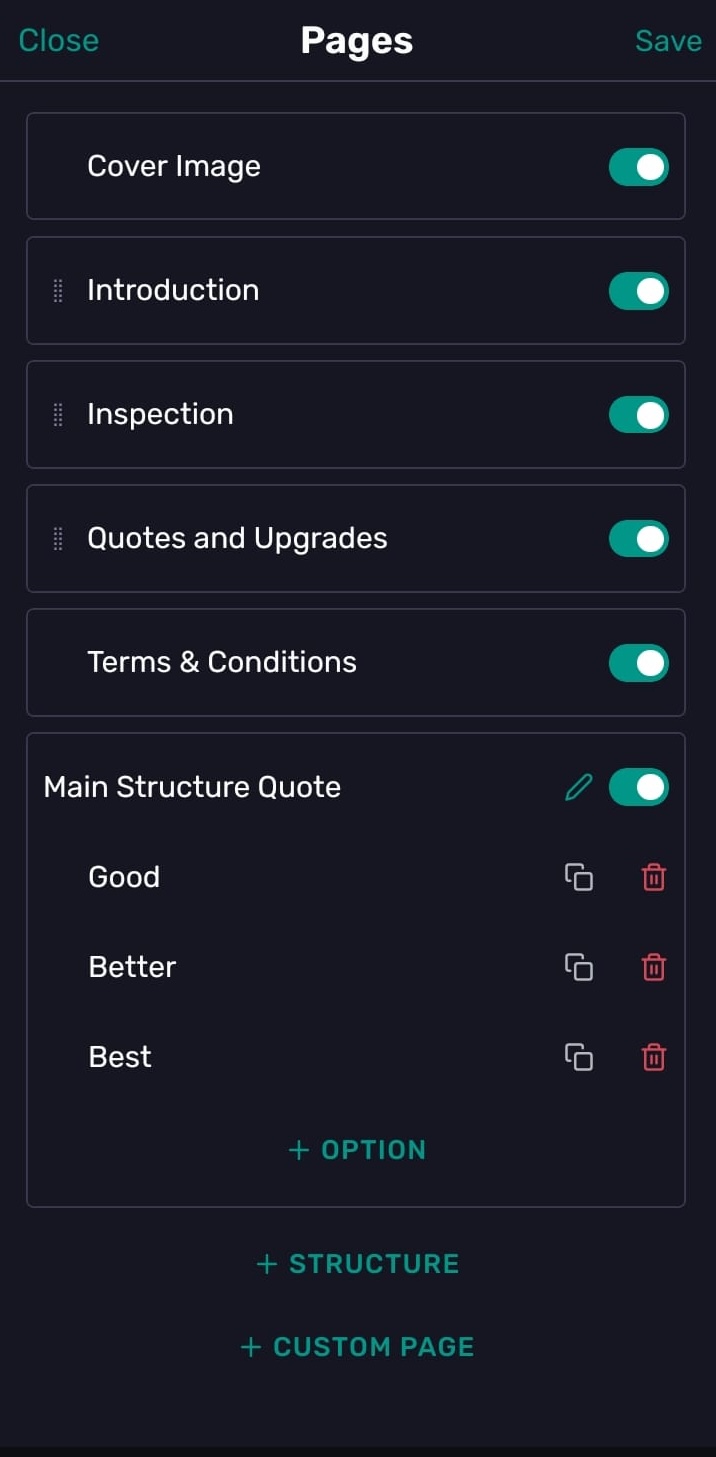
Tap the list icon icon to show, hide, or reorder pages; manage quote structures and options; and add structures, options, or custom pages. Y
Send a proposal
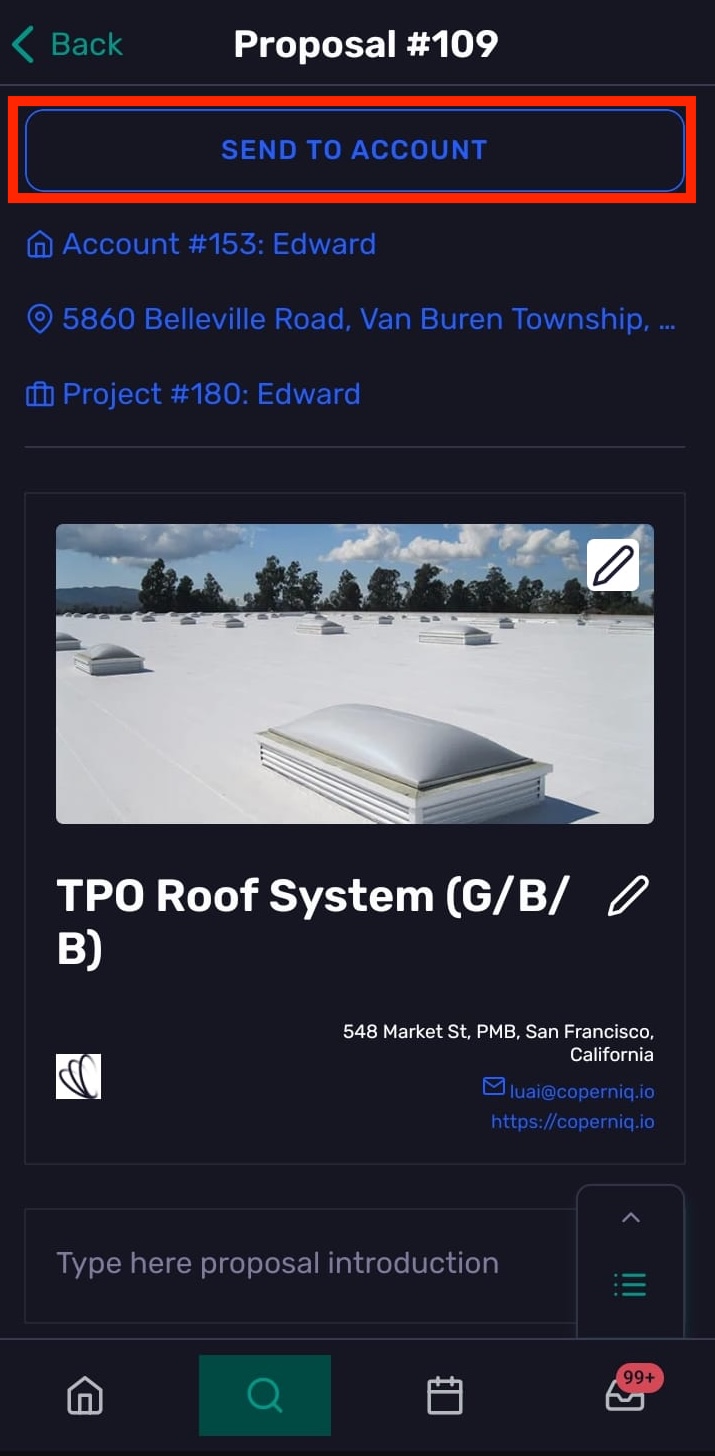
Once you’ve finished editing and reviewing the proposal, tap Send to Account to send it to the customer.