Mobile project financials, invoices, and payments
Last updated: November 18, 2026
Use the Coperniq mobile app to review project financials from the field, including the dashboard, timesheets, line items, invoices, bills, payments, and related document actions.
Open the Financials tab
Open a project.
Tap Financials.
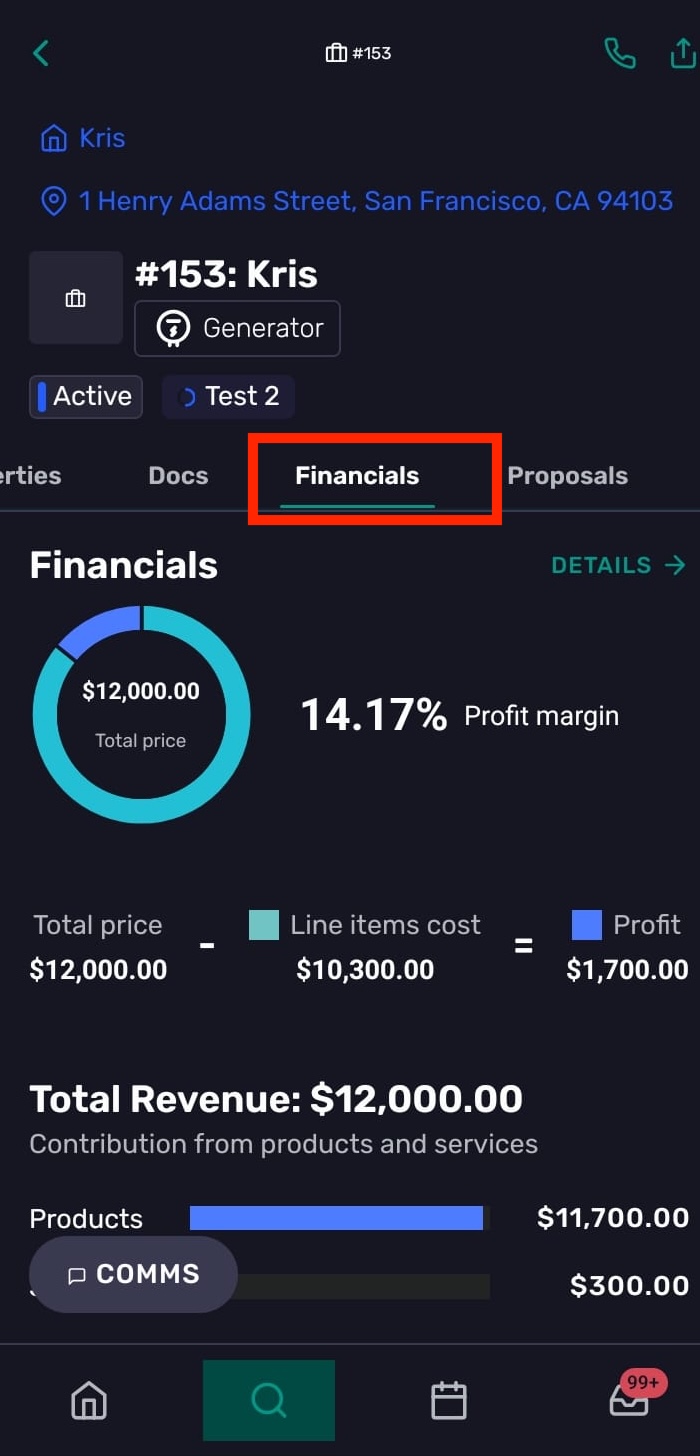
From the Financials tab, you can open:
Details for the full financial dashboard
Timesheets for project time entries
Line Items for project-level products and services
Invoices & Bills for project billing documents
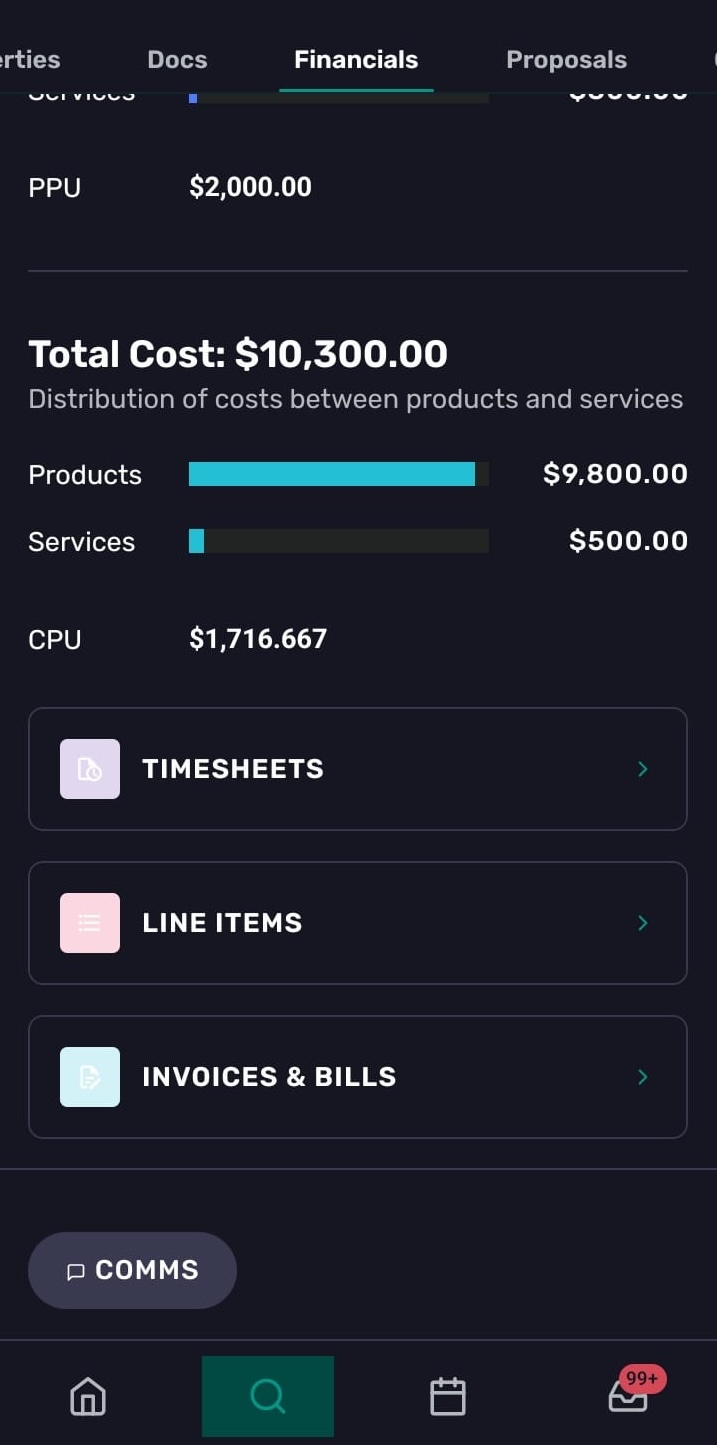
Financial dashboard
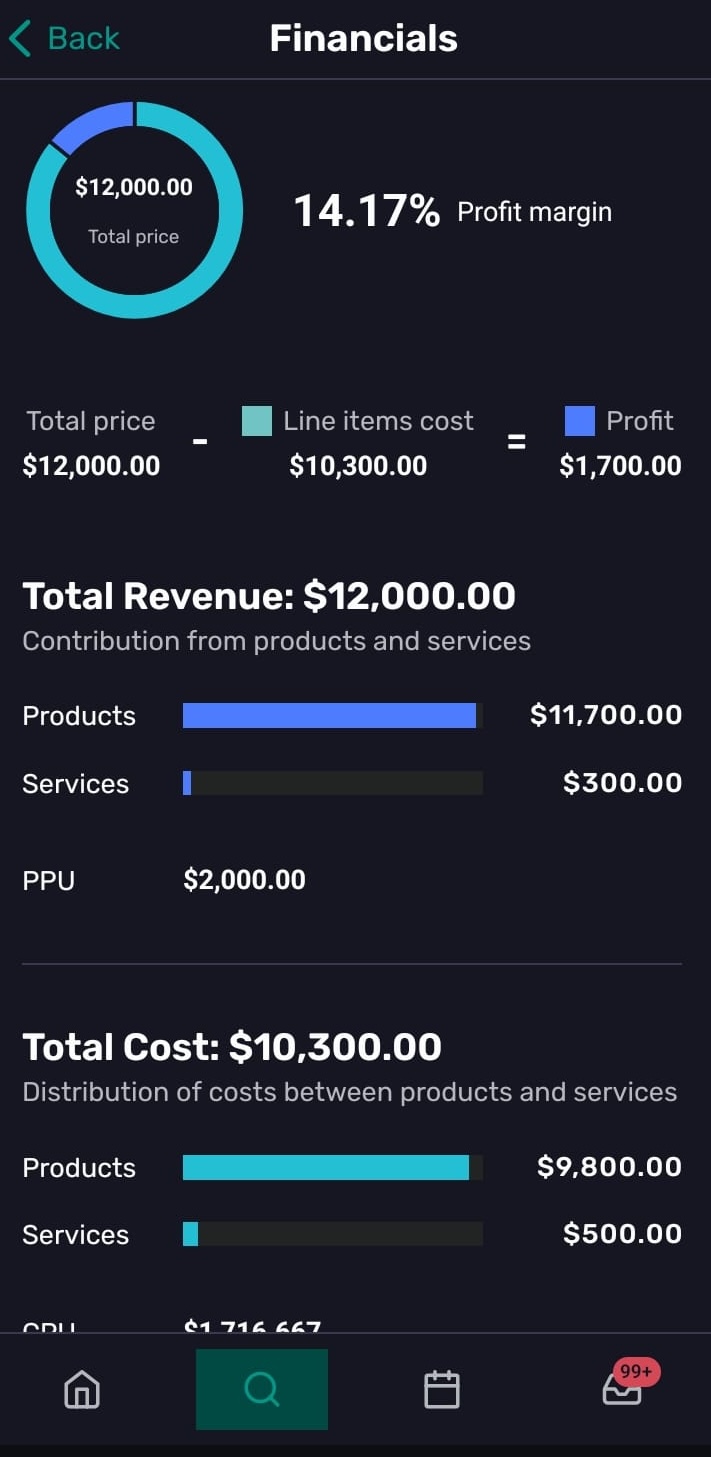
The dashboard summarizes project-level line items and shows key financial totals, including total price, line item cost, profit, profit margin, revenue, and cost.
Tap Details to open the dashboard in a full Financials screen.
Timesheets
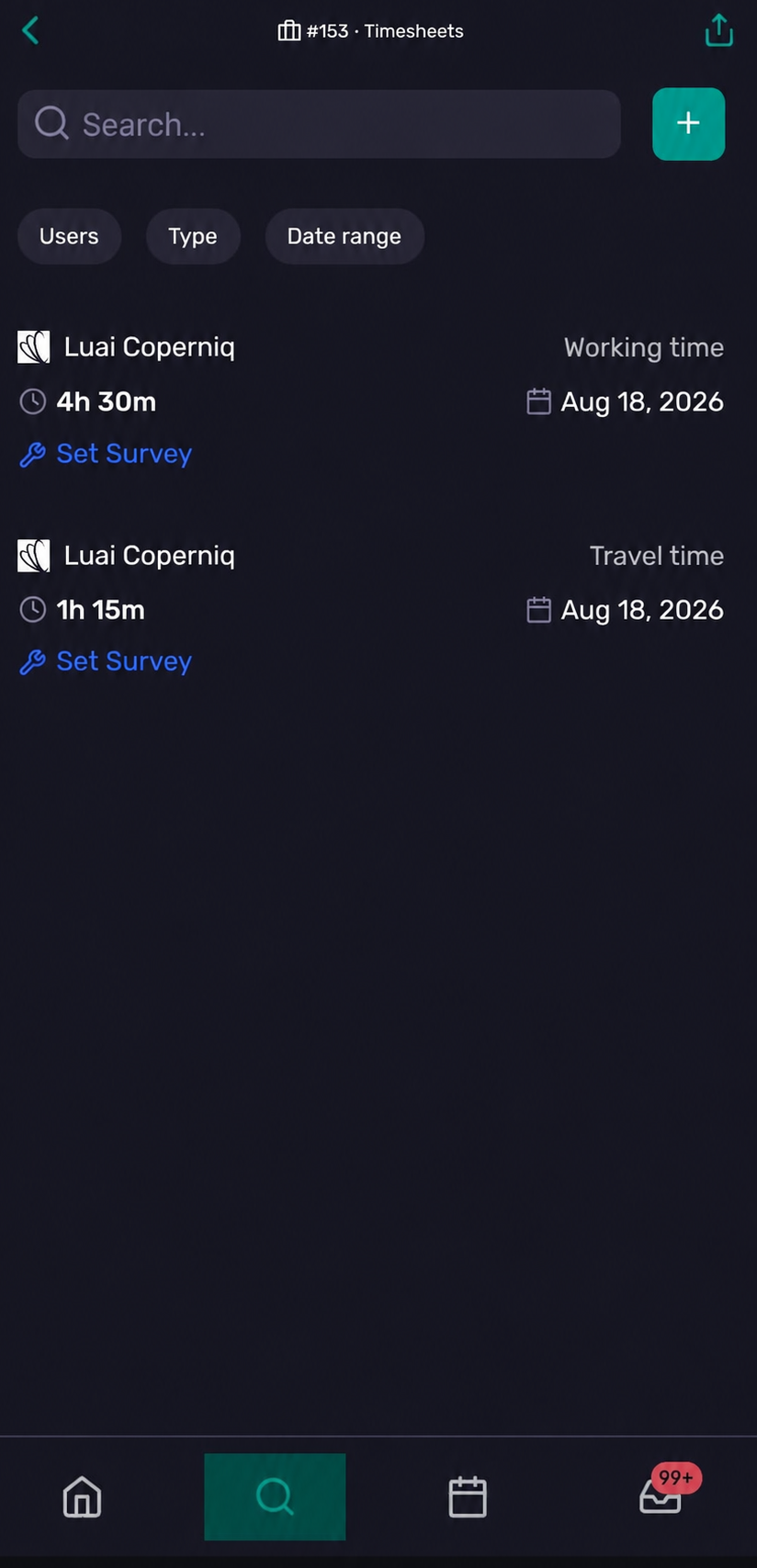
Tap Timesheets to review, search, filter, create, and edit project time entries.
Use timesheets to track:
Working time or travel time
User
Work order
Start and end time
Mileage for travel entries
Notes
Labor cost, when available to your role
To update a time entry, click on the entry you want to modify.
Line items
Tap Line Items to review the project’s products and services.
The Line Items screen lets you:
Search line items
Review products and services in separate sections
See section totals and a grand total
Review change order history
Edit line items when you have contract edit access
In edit mode, you can add catalog items, update quantity, unit cost, unit price, and description, or remove line items. Totals update automatically.
Tax and discount do not apply to project-level line items. They apply on financial documents instead.
Screenshot placeholder: Line Items list and edit screen.
Invoices and bills
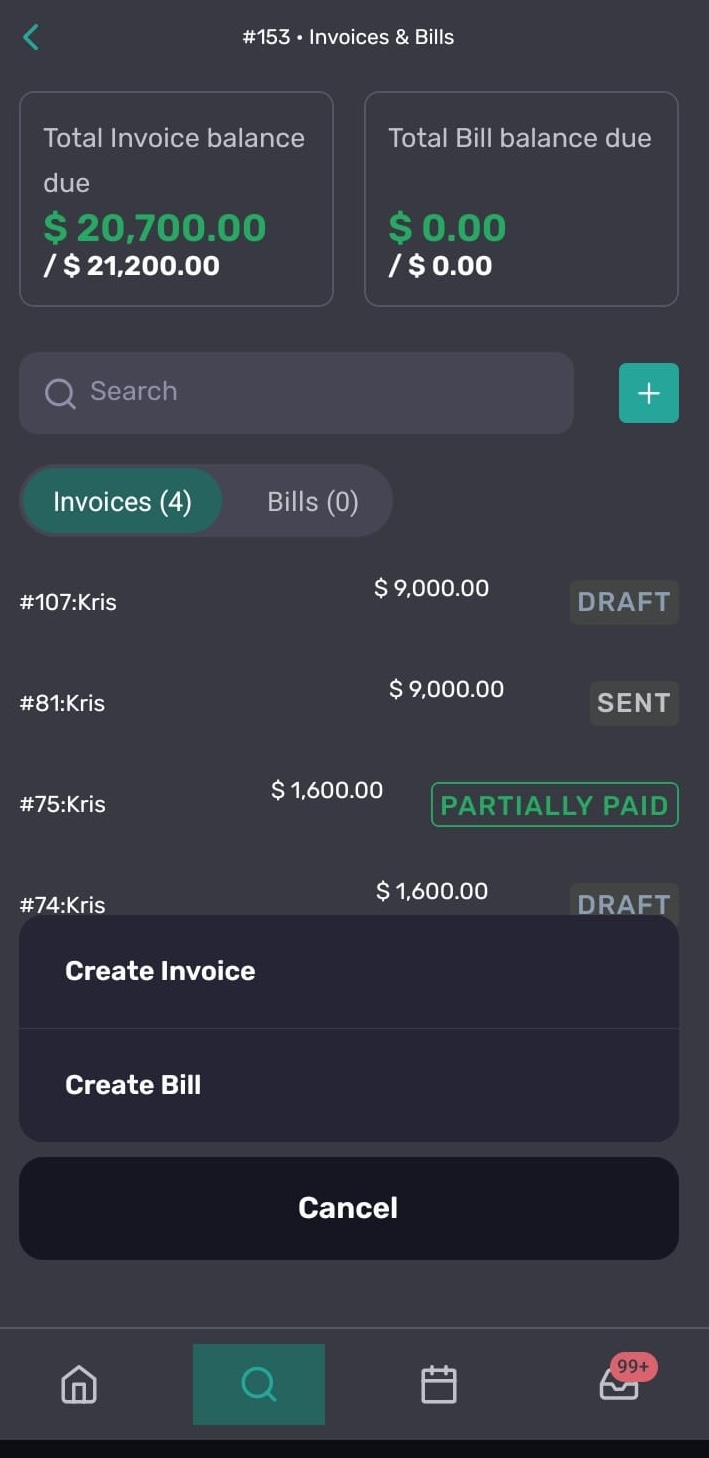
Tap Invoices & Bills to manage project billing documents.
The Invoices & Bills screen includes invoice and bill tabs, a balance summary, search, and a document list. Tap a document to open it, or tap + to create an invoice or bill.
When creating an invoice or bill, you can choose:
Percentage billing
Line Items billing
Long-press a document to edit or archive it. A document must be archived before it can be deleted.
Account invoices
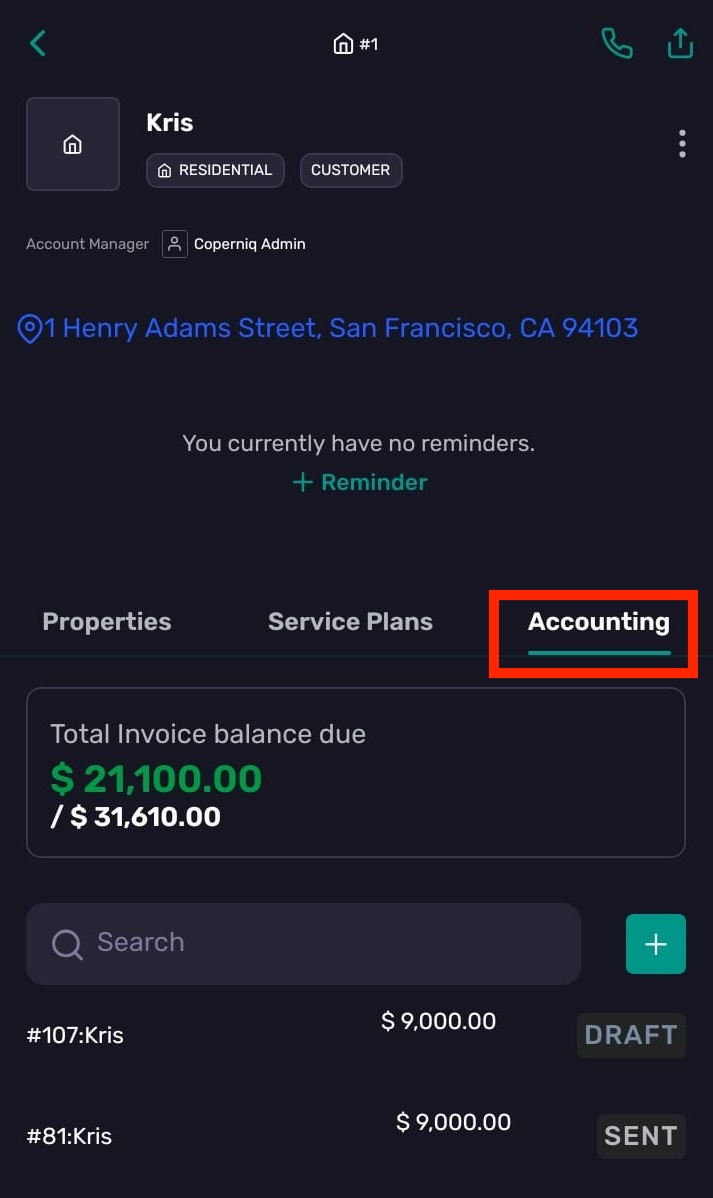
Accounts also have an Accounting tab for invoices:
Open the account.
Tap Accounting.
Review the invoice list.
Document actions
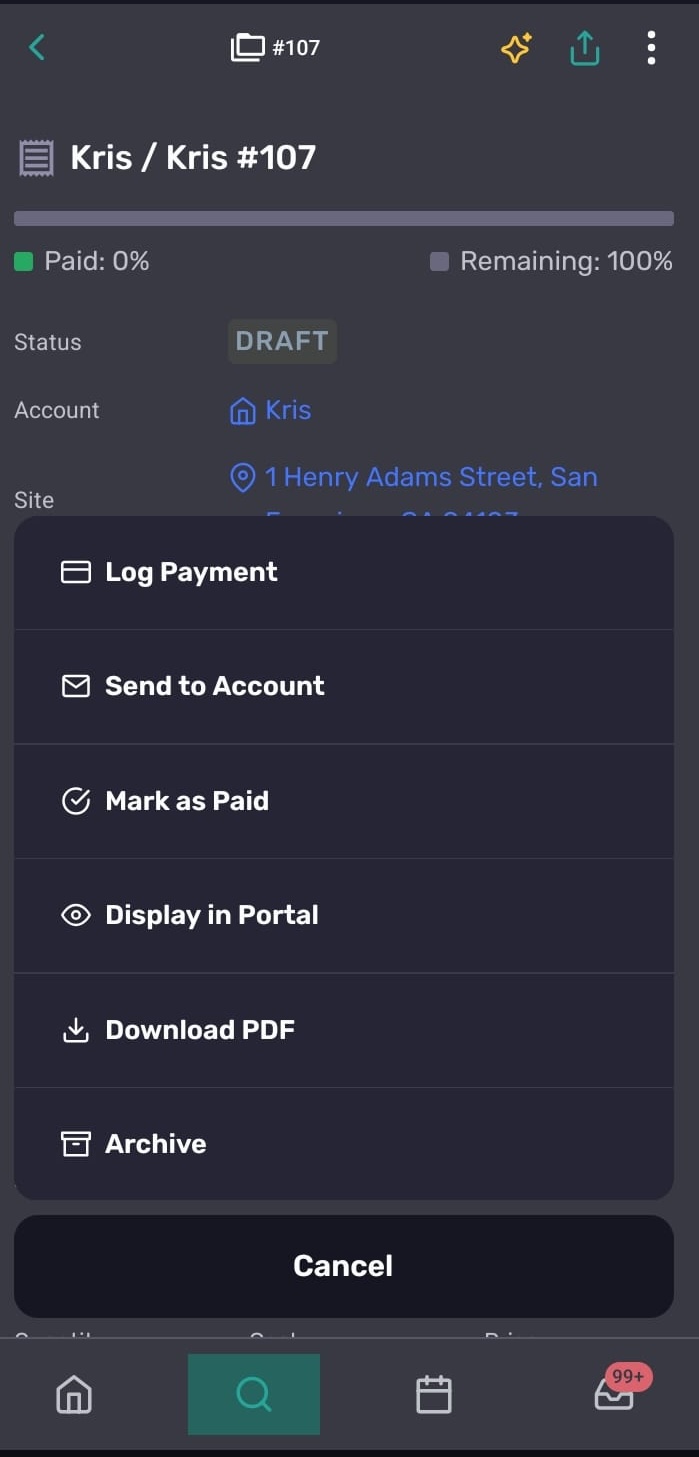
Open an invoice, bill, quote, or other financial document to see available actions. Actions depend on the document type, status, archive state, portal settings, and your permissions.
Available actions can include:
Log Payment or Mark as Paid for eligible invoices and bills
Send to Account or Send to Financier
Display in Portal or Hide from Portal for eligible invoices
Download PDF for supported document types
Archive, Unarchive, or Delete when allowed
Troubleshooting
Why can’t I see the Financials tab?
Your role may not have access to project financials. Ask your company admin to check your permissions and whether Financials is enabled.
Why can’t I edit a line item or document?
Your role may not include edit permissions. Ask your company admin to check your access.
Why can’t I create or delete an invoice or bill?
Your role may not have permission to create or delete invoices or bills. Ask your company admin to review your access.