How do I edit a client’s email address or phone number?
Last updated: January 4, 2026
Context
Client contact details may change over time. Coperniq allows you to update a contact’s email address and phone number directly from client-related records, ensuring the information stays consistent across all associated Clients, Requests, and Projects.
Answer
You can edit a client’s email address or phone number using one of the following options:
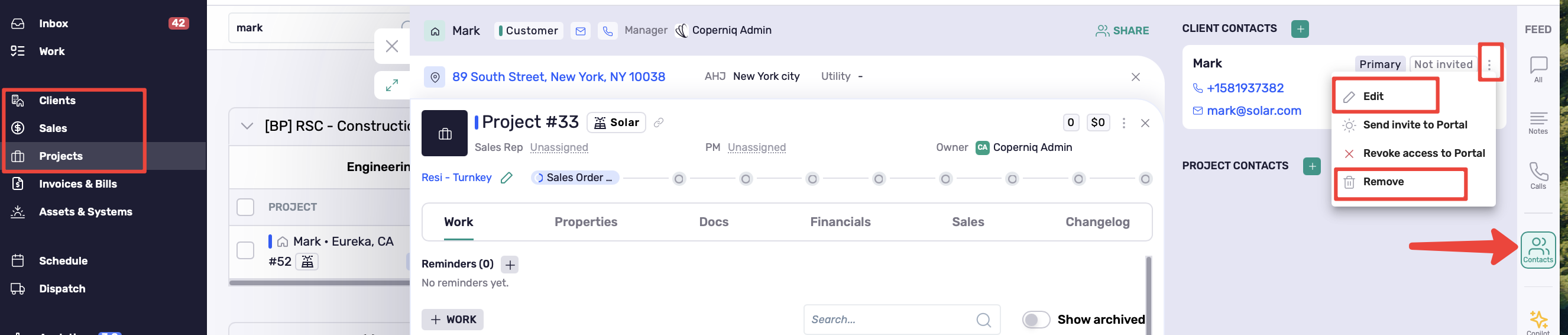
Option 1: From a record side panel (Clients, Sales, or Projects)
Open the relevant Client, Sale, or Project record.
On the right-side panel, locate the Contacts section.
Find the contact you want to update.
Click the three vertical dots (⋮) next to the contact.
Select Edit.
Update the Email and/or Phone fields.
Click Update.
From the same menu, you can also select Delete to remove the contact from the record.
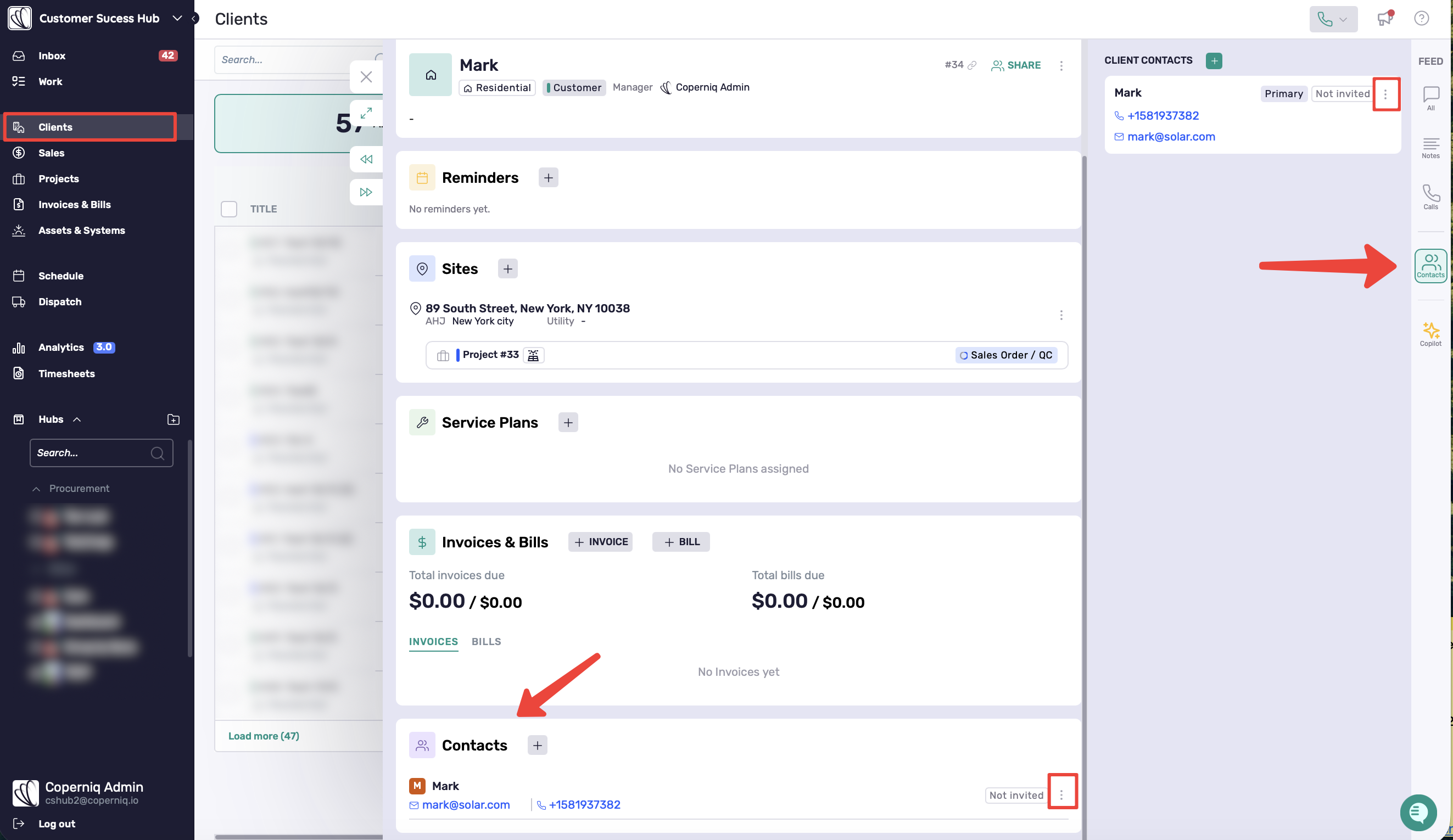
Option 2: From the Client record (Contacts section)
Open the Client record.
Navigate to the Contacts section.
Locate the contact you want to update.
Click the three vertical dots (⋮) next to the contact.
Select Edit.
Update the Email and/or Phone fields.
Click Save.