Create a Service Plan
Last updated: October 31, 2025
Overview
Service Plan provides a structured way to generate consistent cash flow and manage recurring revenue. A plan is configured as a template, then applied to a client + site. Once active, the system automatically creates plan-covered work orders on the defined Frequency and generates invoices on the selected invoice schedule. VIP badges identify plan customers in operational views. Plan invoices live in Invoices & Bills and can be filtered with the Service Plan filter.
Where to configure templates
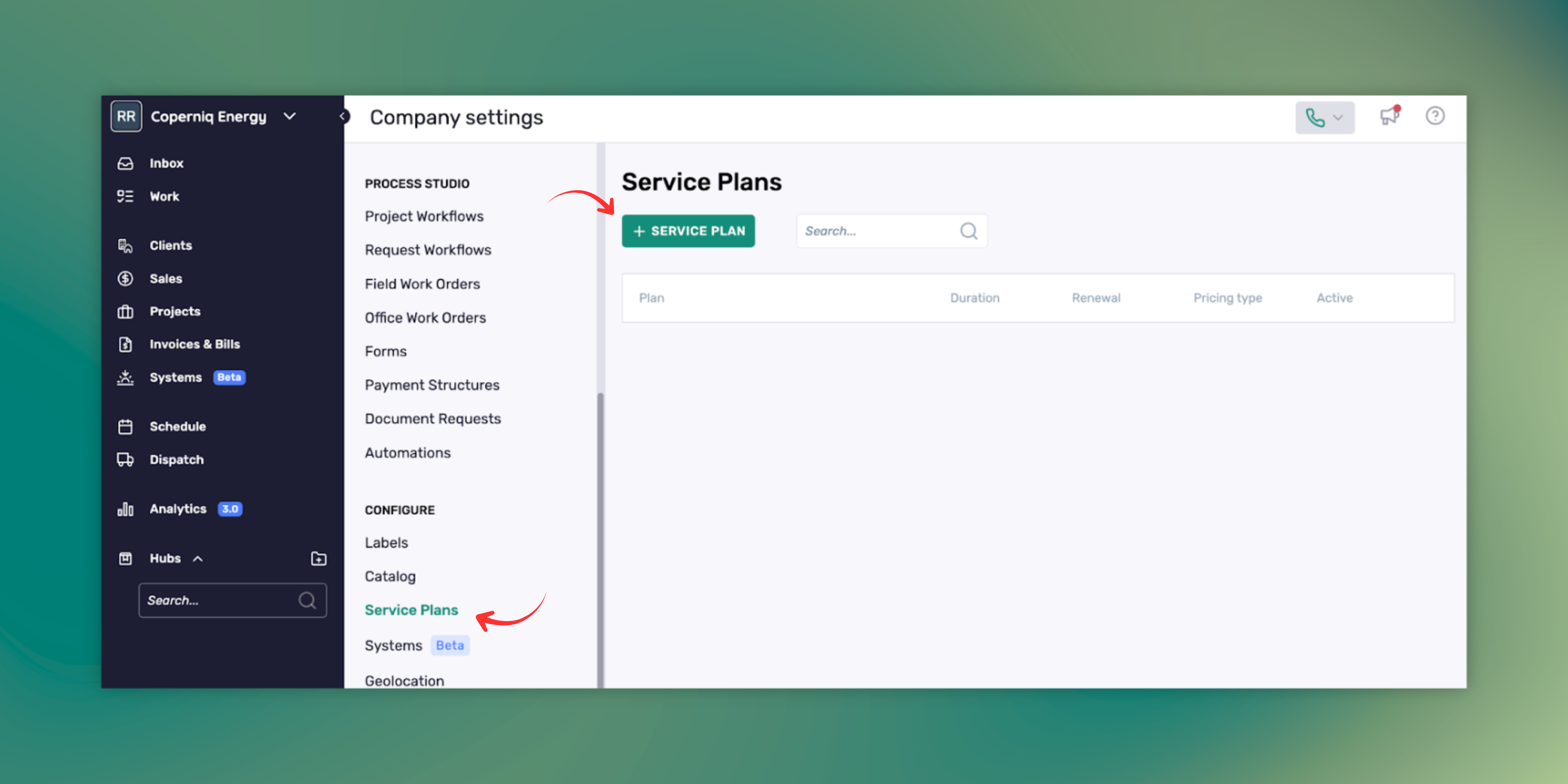
Company Settings → Service Plans → Click on (+ Service Plan
Where to activate and manage applied plans
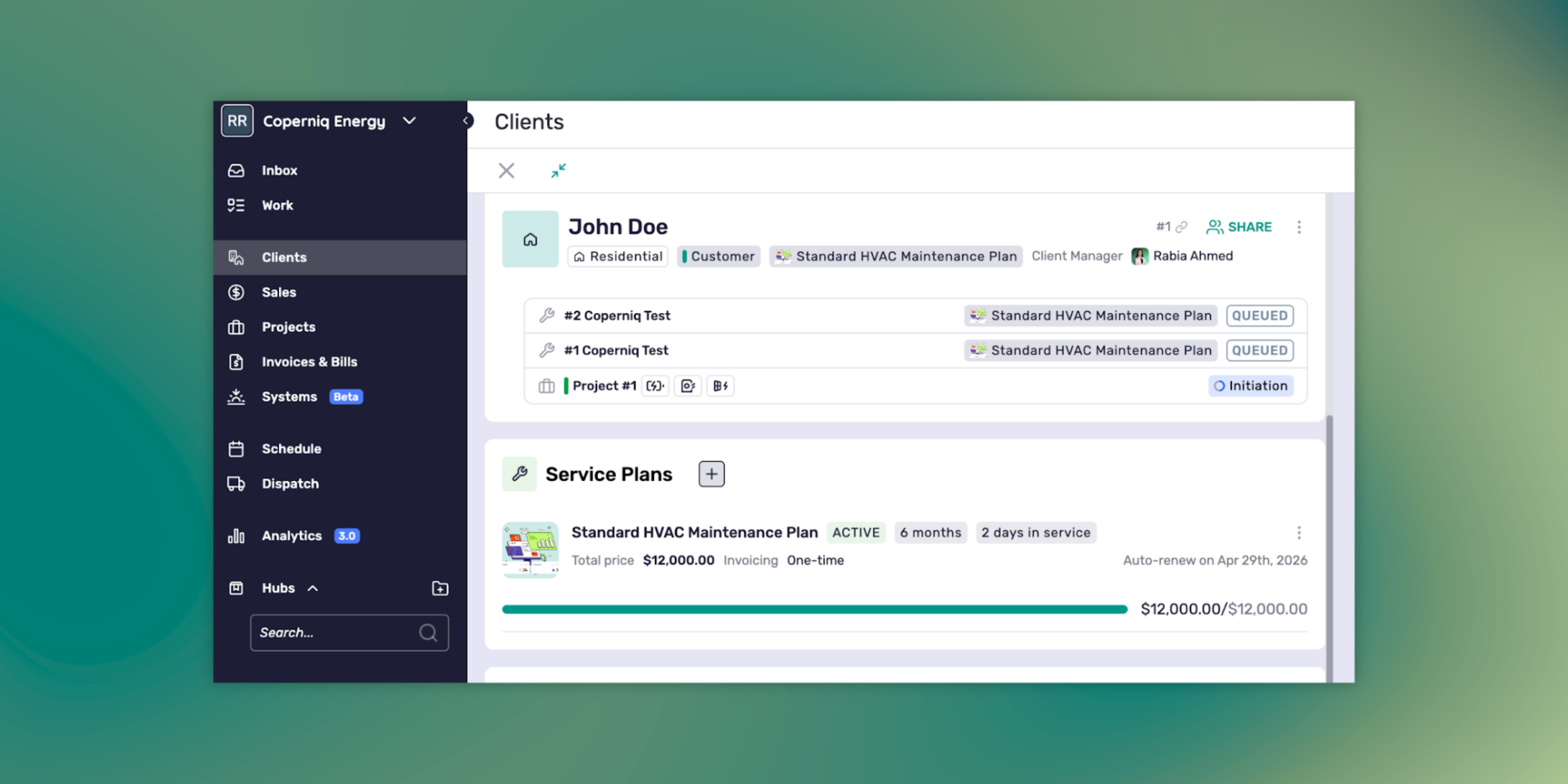
Client → Scroll all the way down to service plans
Service Plan Configuration (Template Creation)
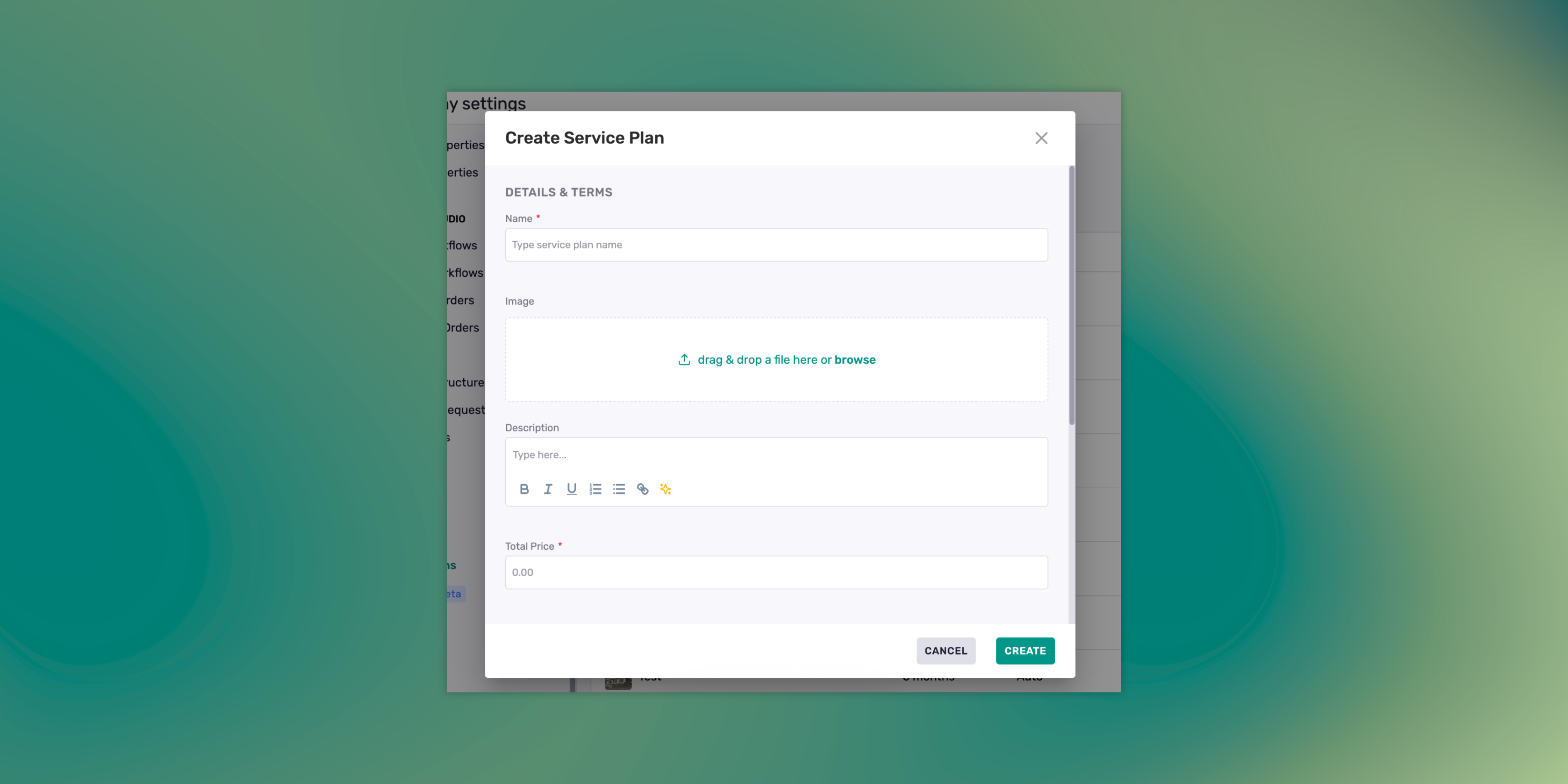
Service Plans are created and edited in Company Settings. The template defines structure, service components, and billing cadence.
Field reference
Section | Field | Purpose | Required |
Details & Terms | Name | Template name | Yes |
Details & Terms | Cover Image | Visual identifier | No |
Details & Terms | Description | Plan description shown internally | No |
Pricing & Duration | Total Price | Total for the Term | Yes |
Pricing & Duration | Duration | Term length in months | Yes |
Renewal | Auto-renew | Continue into a new Term | Yes |
Service Schedule | Work Order Template | Field Work Order template to spawn | Yes |
Service Schedule | Frequency | Recurrence for that row | Yes |
Invoice Schedule | Schedule | When invoices are created | Yes |
Invoice Schedule | Invoice term | Payment terms applied | No |
Validation rules
At least one Service Schedule row is required.
Each Service Schedule row requires a Work Order Template and a Frequency.
Total Price and Duration are required to save.
Procedure: create a template
Go to Company Settings → Service Plans.
Select + Service Plans.
Complete all fields in Details & Terms, Pricing & Duration, Renewal, Service Schedule, and Invoice Schedule.
Select Save.
Result
The template is added to the Service Plans list in Company Settings. It is available during client activation.
Plan Activation and Execution
Activation applies a template to a client + site and turns on scheduling for work orders and invoices.
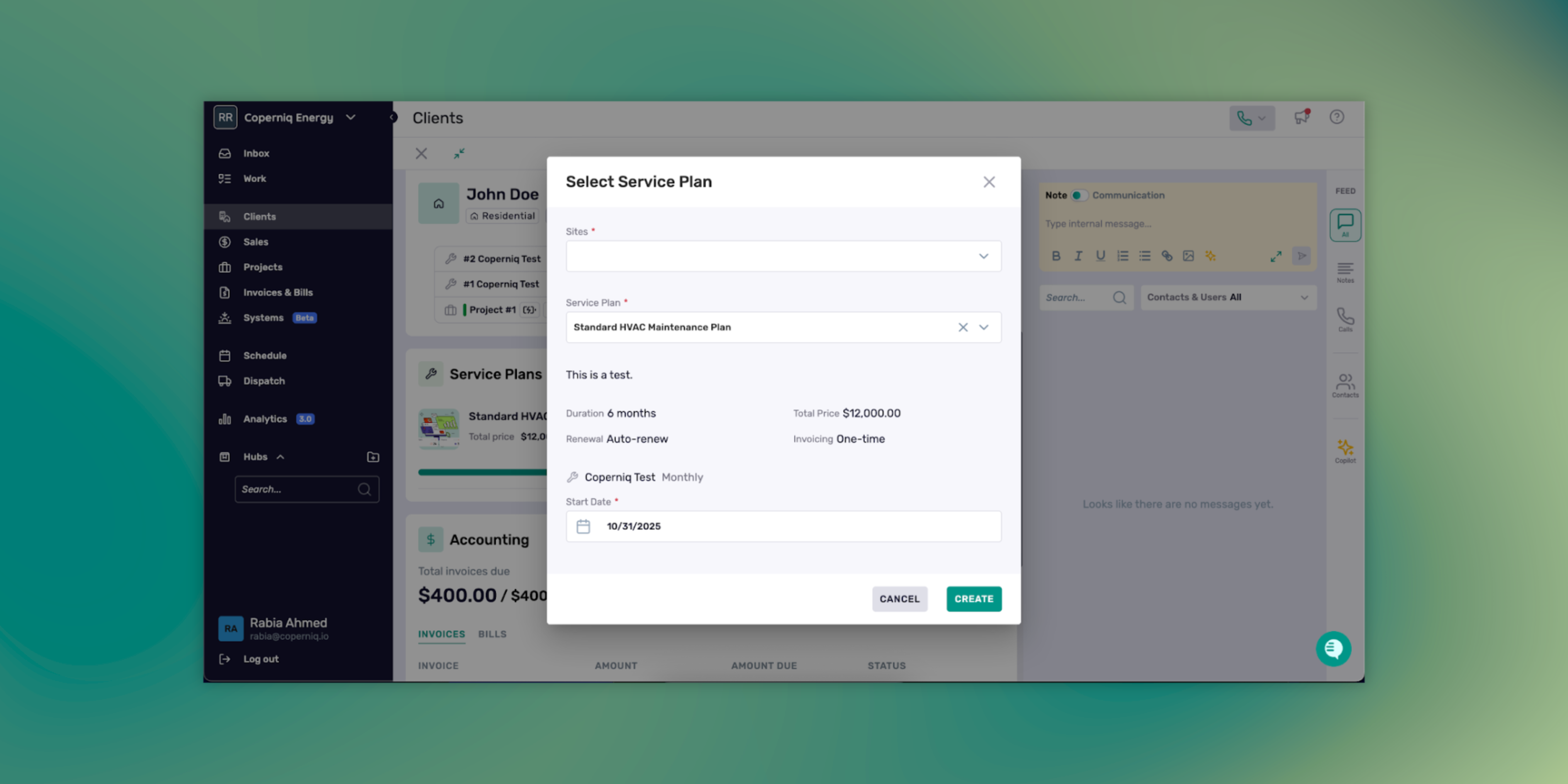
Apply a plan to a client + site
Open Client → Service Plans.
Select + next to Service Plans and select the Site. Note: Multiple sites are now supported per plan application.
Choose a Service Plan template.
Set Start date.
Confirm the Renewal state for this applied plan.
Confirm the Invoice Schedule and Invoice term.
Select Create.
Result
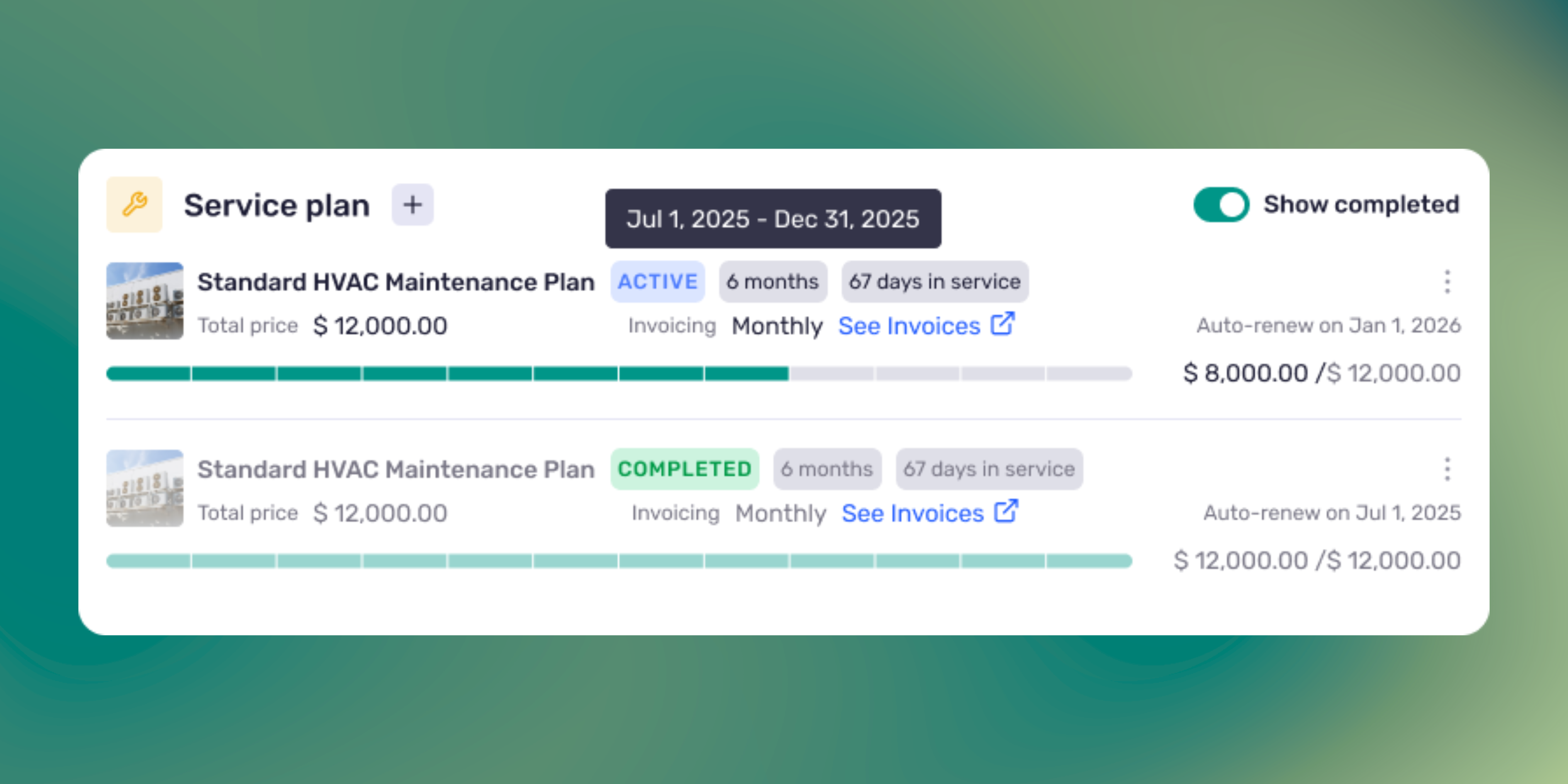
The plan is active for the selected client + site from the Start date, and the plan header shows duration, status, renewal date, and renewal state.
Recurring Work Order generation
The scheduler creates plan-covered work orders automatically according to each Service Schedule row’s Frequency.
Work orders are site-scoped.
Each generated work order links back to the plan.
Result
Upcoming jobs appear in the Work List and Dispatch with plan linkage.
Invoicing
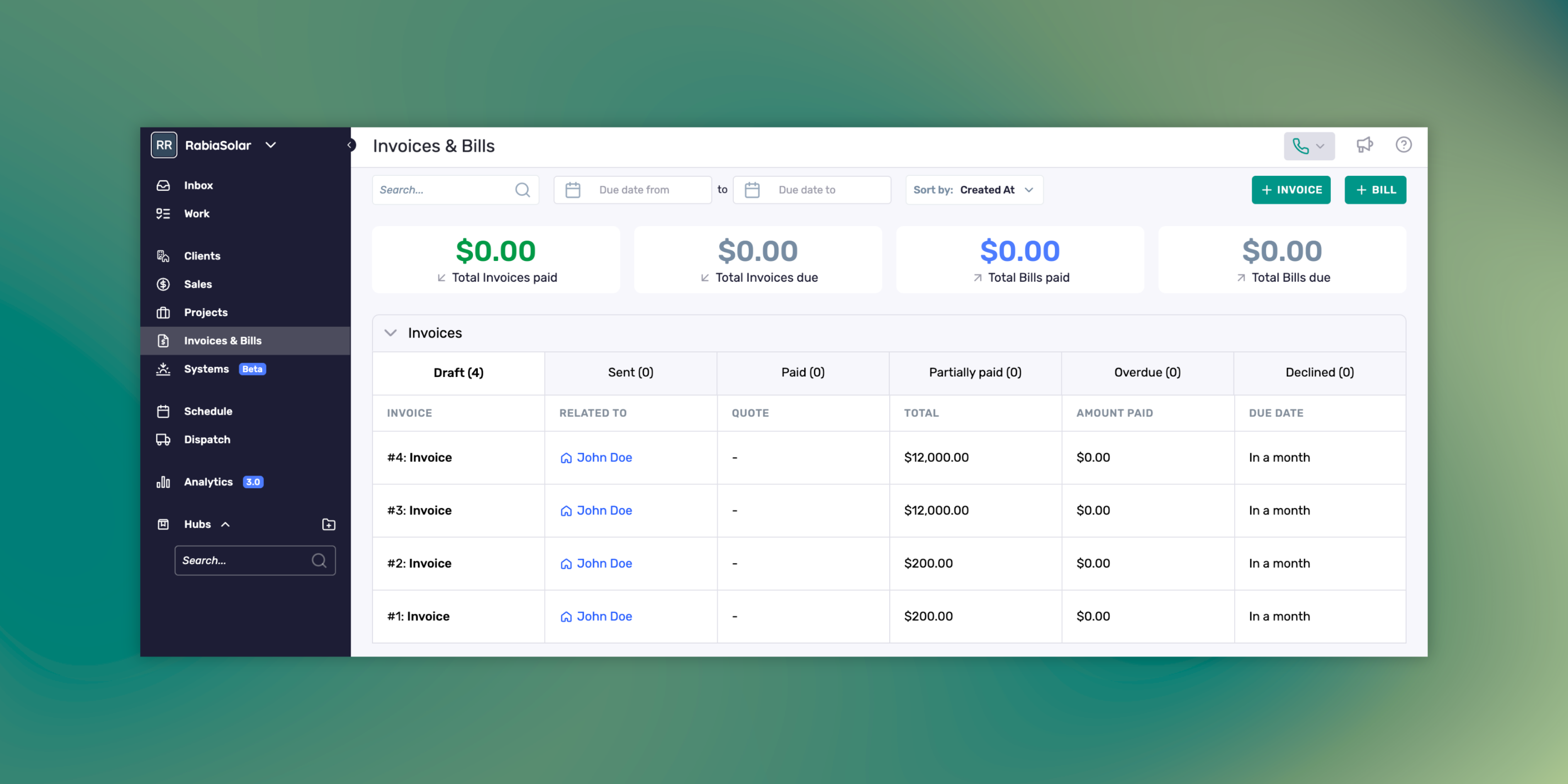
The system generates invoices based on Invoice Schedule.
Example: Quarterly schedule creates the first invoice upon instantiation, then subsequent invoices on the defined cadence.
Invoices appear in Invoices & Bills. Invoices are currently detailed on the description of the service plan they belong to
Result
Finance can locate plan invoices quickly and track payment using existing processes.
Sales handoff (one-off or planned work)
A request can be converted to a Service Work Order with one click for one-off visits or recurring plan work.
The created work order is site-scoped and links back to the plan when applicable.
Visibility and Triage
Where information appears
Client view: Client → Service Plans shows active and completed plans with duration and status.
Work identification: plan-covered work orders show VIP badges in Work List and Dispatch.
Finance: plan invoices are visible in Invoices & Bills and are currently detailed in the service plan description.
Result
Office staff can triage plan customers using VIP badges.
Finance can track and reconcile plan invoices centrally.
Manage an applied plan
Edit plan details that allow changes
Open Client → Service Plans.
Select the applied plan.
Select Edit.
Update allowed fields.
Select Save.
Result
Updates save to the applied plan. Already generated or completed work orders are not changed.
Renewal control
Open the applied plan.
Review the renewal date.
Toggle Auto-renew if needed.
Save.
Result
The plan continues or stops at the end of the current Term based on the Auto-renew state.
Known behaviors
Automatic generation of plan-covered work orders follows the Service Schedule Frequencies.
Work orders are site-scoped and link back to the plan.
The system generates invoices on the Invoice Schedule.
Invoices & Bills is the system of record for plan invoices. Invoices are currently detailed on the description the service plan they belong to, as the Service Plan filter is not yet implemented.
VIP badges are visual triage cues in Work List, Dispatch, Client header, and invoice lists.
Some clients may see a progress indicator for plan duration. This refers to a visual element indicating the progress through the plan's duration, and its availability depends on account configuration.
The plan card does not embed an invoice list.
Troubleshooting
No work orders generated
Check the applied plan’s Start date and Service Schedule.
Confirm Frequency is set on at least one schedule row.
Confirm the plan is applied to a single site.
Cannot find plan invoices
Open Invoices & Bills and use the Service Plan filter.
Confirm Invoice Schedule is not set to None.
VIP badges not visible
Confirm the work order is a plan-covered work order and the plan is active for the client + site.
Refresh the Work List or Dispatch view.
Auto-renew state unclear
Open the applied plan and review the header for renewal date and Auto-renew toggle.