Alert Thresholds, Fleets, and Preventive Maintenance
Last updated: January 26, 2026
Reading time: ~5 minutes
Overview
Coperniq uses threshold-based alerts to continuously evaluate system performance and notify teams when sustained deviations occur.
Alerts are configured using metrics, conditions, and time-based moving averages, and are evaluated in the context of fleets. Alerts can also be optionally exposed in the client portal, allowing customers to see relevant system health events while keeping operational-only alerts internal.
This article covers
How alert thresholds work in Coperniq
How alerts relate to fleets and service tiers
Client portal visibility vs. internal alerts
Notification triggers and delivery methods
Practical Scenarios
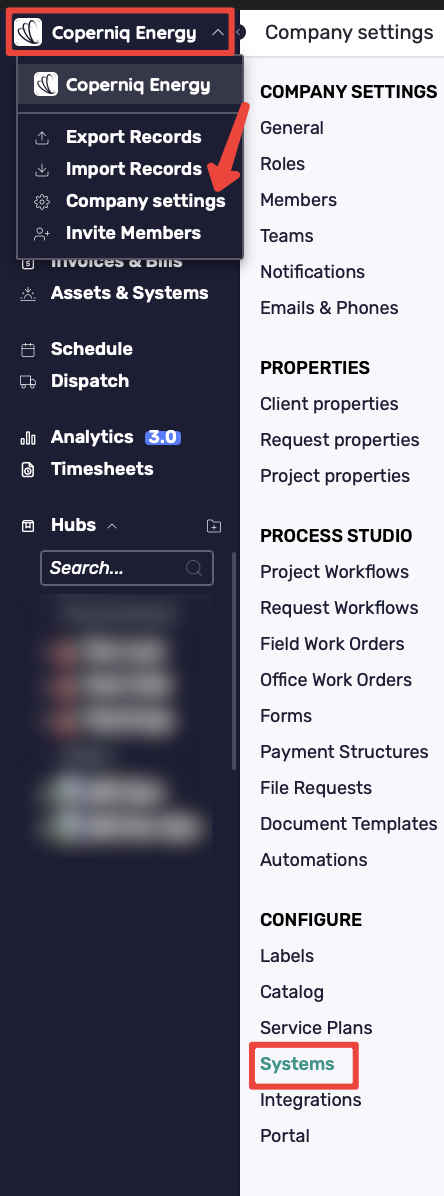
Getting to Systems
All inverter connections are managed from Systems.
Navigation
Sign in to Coperniq
Click the Company icon (top-left)
Go to Company Settings > Systems
Understanding Alert Thresholds
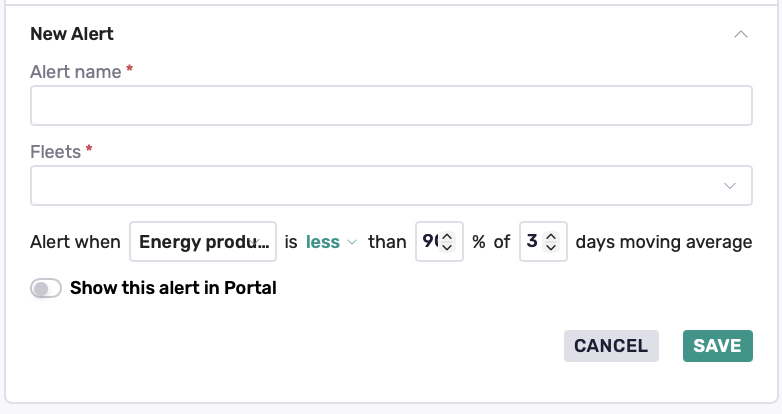
An alert threshold defines when Coperniq should trigger an alert based on system behavior over time.
Each alert is composed of:
Fleets
Defines which systems the alert applies to. Alerts are evaluated at the fleet level, so selecting one or more fleets determines the scope of systems monitored by this alert.
Metric
What is being evaluated (e.g., Energy production, Energy consumption)Condition
How the metric is evaluated (e.g., less than, more than)Threshold
The percentage deviation from a baseline or moving averageDuration (moving average)
How long the condition must persist before triggeringShow this alert in Portal
Controls whether the alert is visible in the client portal.Enabled → customers can see the alert
Disabled → alert is internal-only
Using moving averages reduces false positives caused by weather variability, short outages, or temporary data gaps.
How Alerts and Fleets Work Together
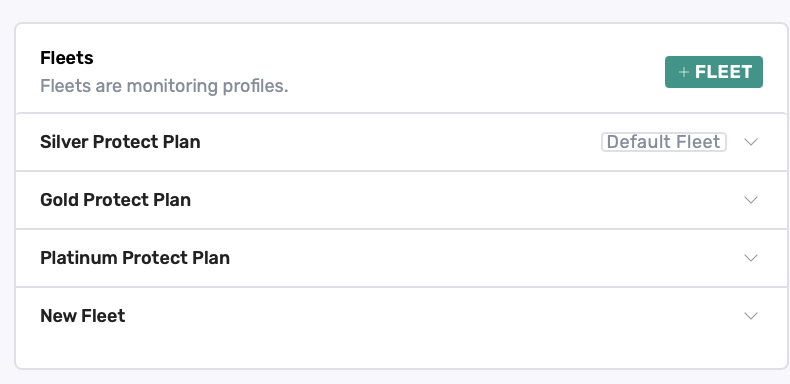
In Coperniq, alerts are always evaluated within the context of a fleet.
A fleet defines:
Which systems the alert applies to
How frequently data is evaluated
The service level associated with those systems
This design allows a single alert definition to scale across many systems while maintaining consistent behavior aligned to service tiers.
Fleet-Based Alerting Patterns
Common operational patterns include:
Silver fleets
Broader thresholds, longer durations, mostly internal alertsGold fleets
Balanced thresholds, selective portal visibilityPlatinum fleets
Tighter thresholds, shorter durations, customer-visible alerts with proactive response
You can also designate any fleet as the default fleet, so new alerts and newly added systems automatically inherit that fleet’s alerting configuration.
How Alerts and Fleets Power Preventive Maintenance
Alerts are not actions by themselves — they are signals.
Preventive maintenance happens when alerts are combined with fleet context and operational response.
In practice:
An alert detects a sustained deviation
The fleet determines service level and urgency
Teams take proactive action based on the alert
This approach allows teams to:
Identify degradation trends early (soiling, shading, aging equipment)
Prioritize inspections and maintenance across large portfolios
Reduce customer impact by acting before failures occur
Align response rigor with service tiers
Notifications
Notifications define who is notified and how when an alert fires.
Notification triggers
Systems budget exceeded
Delivery methods: Inbox, Email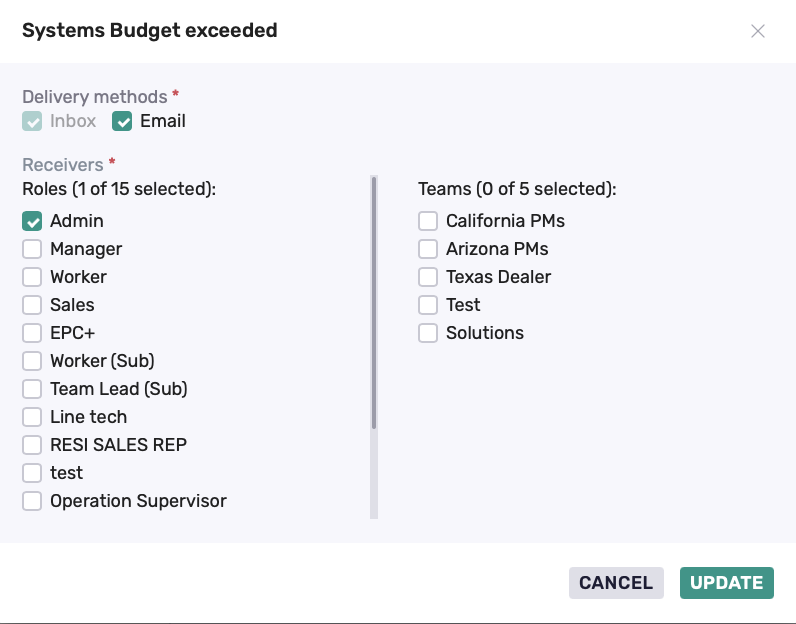
System alert triggered
Delivery methods: Inbox, Email, Push, SMS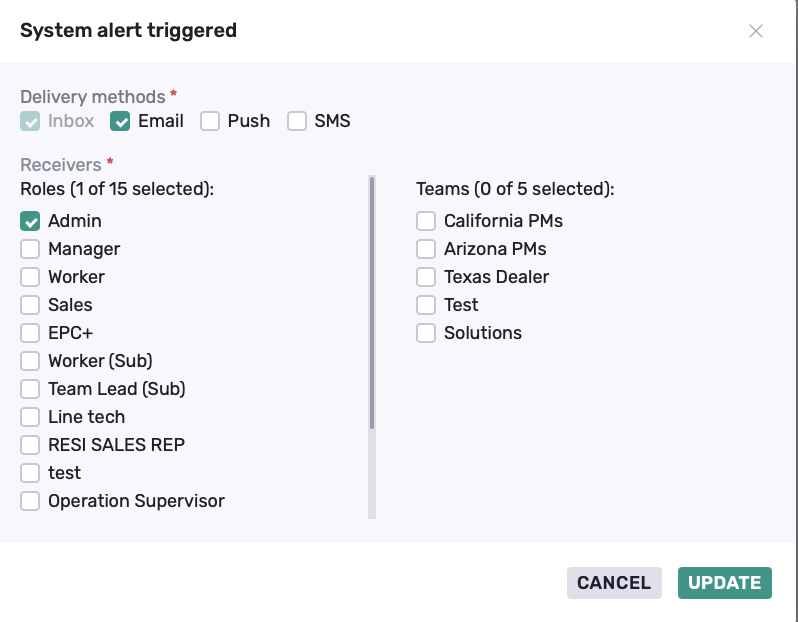
Recipients are assigned by role/Teams (e.g., Admin), ensuring alerts reach the team responsible for action.
Portal visibility and notifications are independent.
An alert can be visible in the client portal without sending notifications, and vice versa
Budgets and Overbudget Behavior
Coperniq allows you to configure a monthly monitoring/API budget to control costs associated with system monitoring.
Budget configuration includes:
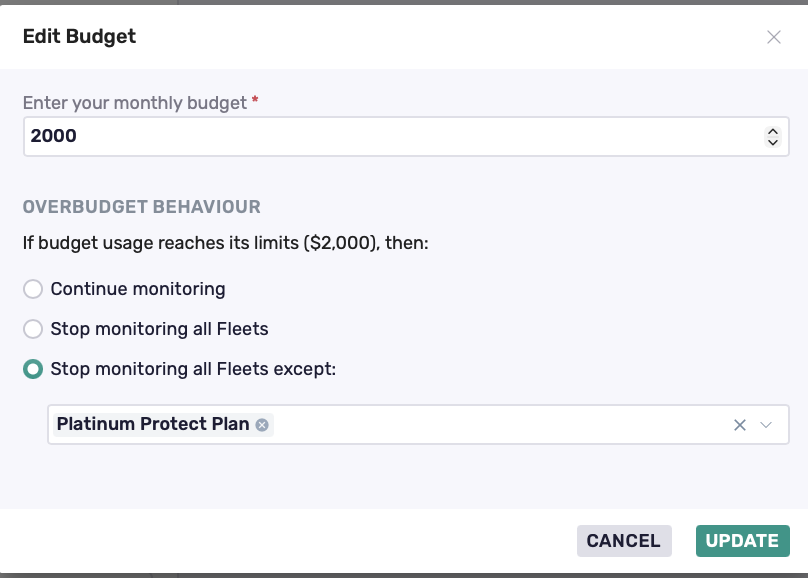
Monthly budget amount (e.g., $2,000 per month)
Overbudget behavior (what Coperniq should do once the limit is reached)
Overbudget behavior options:
Continue monitoring
Monitoring continues even after the budget is reached.Stop monitoring all Fleets
Monitoring pauses across all fleets to prevent additional usage.Stop monitoring all Fleets except…
Monitoring pauses for most fleets, but continues for selected high-priority fleets (for example, a Platinum Protect Plan).
You can choose which fleets remain active when the budget is exceeded, ensuring critical systems continue to be monitored while controlling overall spend.
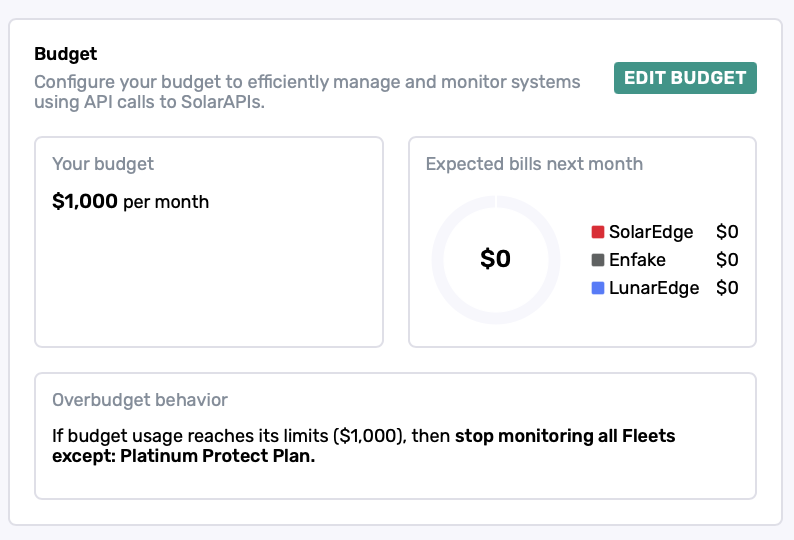
Coperniq also displays a budget summary showing:
Your current monthly budget
Expected bills for the next month (by provider)
The configured overbudget behavior
When the budget limit is reached, Coperniq can trigger notifications so teams are aware and can take action if needed.
Practical Alert Scenarios
Scenario 1: Gradual underproduction (customer-visible)
Situation
A solar system is slowly producing less energy over time—often due to inverter derating in high temperatures, an intermittently dropping PV string (e.g., a loose connector), or partial inverter limiting/curtailment. Production is still happening, but consistently lower than expected, and you want to catch the trend without triggering alerts on short-term issues like cloudy days.
How the alert is set up
Metric: Energy production
Trigger condition: Less than 80% of expected output
Evaluation window: 7-day moving average
Fleet: Gold Protect Plan
Shown in customer portal: Enabled
What happens
Customers see the alert in the portal and understand there may be a performance issue.
Admins and internal teams also receive notifications.
Short-term weather fluctuations are ignored, reducing false alarms.
Scenario 2: Abnormal energy consumption (internal-only)
Situation
A site suddenly starts consuming more energy than usual, for example due to a stuck HVAC compressor running continuously, a water pump cycling abnormally, or electric vehicle charging added to the site. This is important for internal analysis, but not something you’d want to immediately alarm customers about
How the alert is set up
Metric: Energy consumption
Trigger condition: More than 110% of normal usage
Evaluation window: 30-day moving average
Fleet: Silver Protect Plan
Shown in customer portal: Disabled
What happens
The alert is visible only to internal teams.
Engineers can investigate trends and root causes before contacting the customer.
Customers are not notified unless action is required.
Best Practices
Always use moving averages instead of single-day thresholds
Avoid exposing noisy or non-actionable alerts in the client portal
Route notifications only to teams that can act