Roles & Permissions
Last updated: October 8, 2026
Estimated Reading Time: 2–3 minutes
Overview
Roles control what users can access and do in Coperniq, helping you give each user the right level of access based on their responsibilities while keeping records and related information limited to what they need.
Access Roles
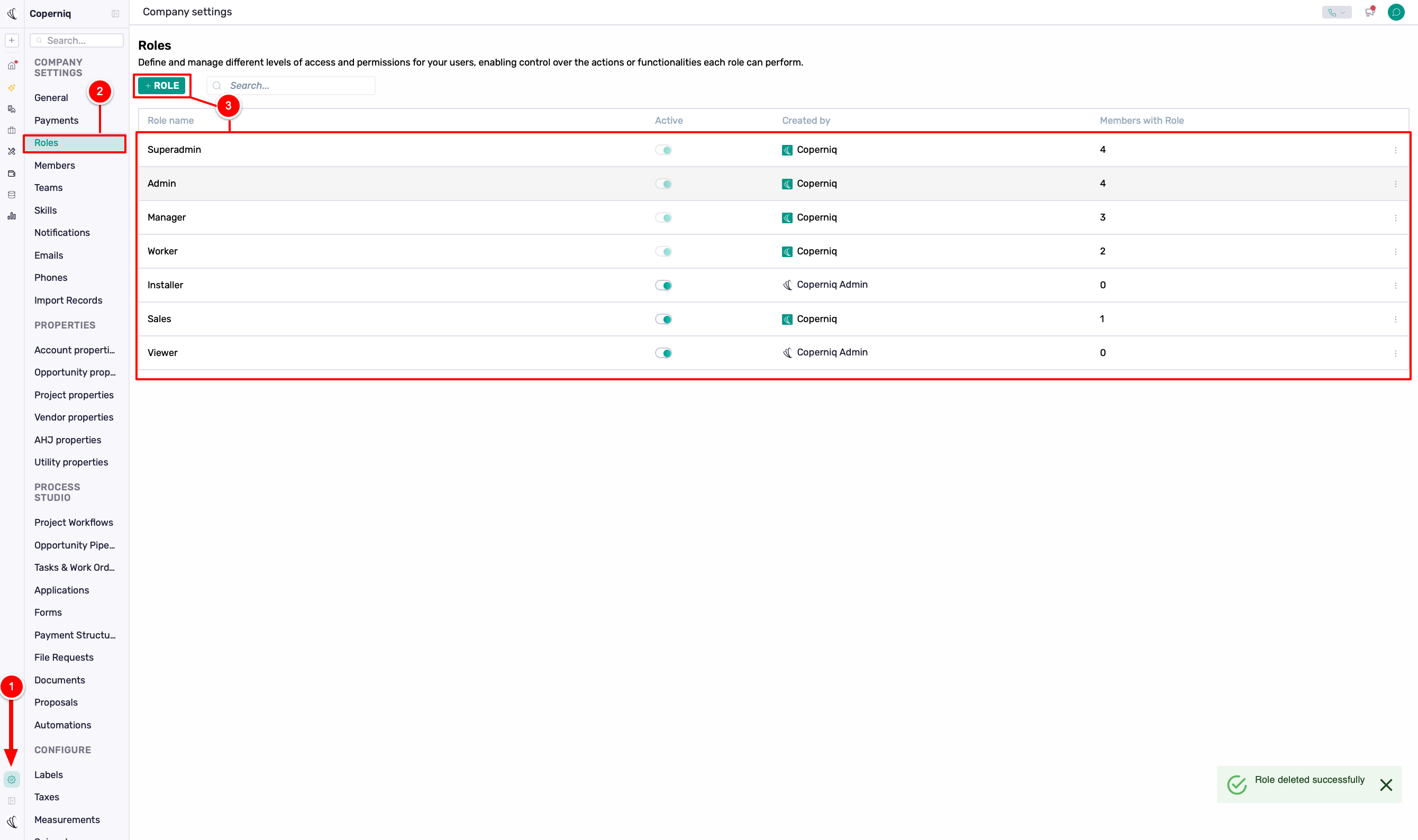
To view or manage roles:
Go to Company Settings.
Select Roles.
Open an existing role to view its permissions, or click + Role to create a new one.
Default Roles
Coperniq includes five default roles:
Super Admin
Admin
Manager
Worker
View & Notes
Default roles cannot be modified. If you need a different set of permissions, create a custom role.
Super Admin vs. Admin: Super Admin includes access to Billing, while Admin does not.
Role Types
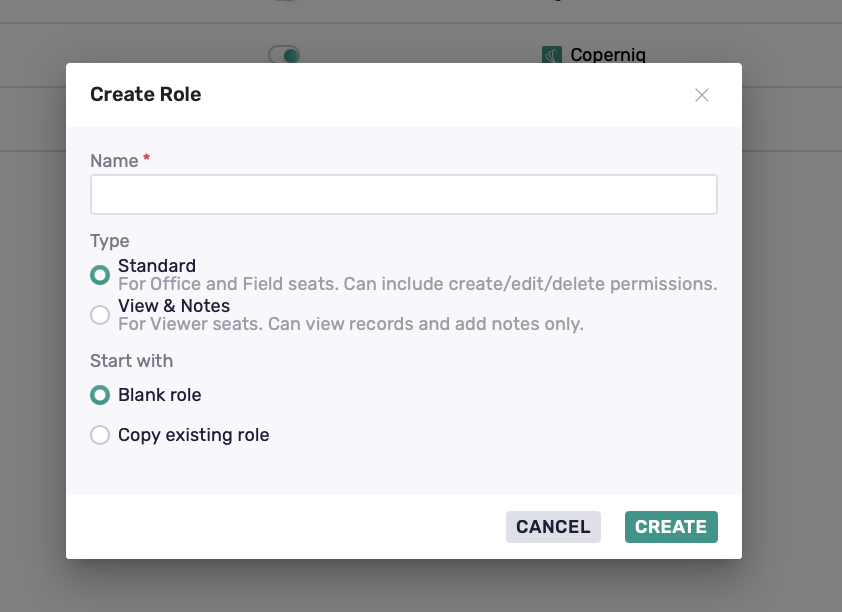
When creating a custom role, choose the Role Type based on the user's seat and the level of access they need.
Standard
Standard roles are available for users with Office or Field seats and are designed for users who actively work in Coperniq.
Depending on the permissions configured, users can be allowed to:
View information
Create new information
Edit existing information
Delete information
View & Notes
View & Notes roles are designed for users with Viewer seats who primarily need read-only access.
Users can:
View information available to their role.
Add notes where permitted.
Access supported features such as Company Settings or Export Records when enabled for their role.
Viewer seats use the default View & Notes role. If a Viewer needs different access, create a custom View & Notes role and configure the appropriate permissions.
Create a Custom Role
If the default roles don't provide the access you need:
Click + Role.
Enter a Name for the role.
Select the role Type:
Standard
View & Notes
Choose Start with:
Blank role — start with no permissions.
Copy existing role — copy an existing role and adjust its permissions.
Click Create.
Configure the permissions for the role.
Understanding Permissions
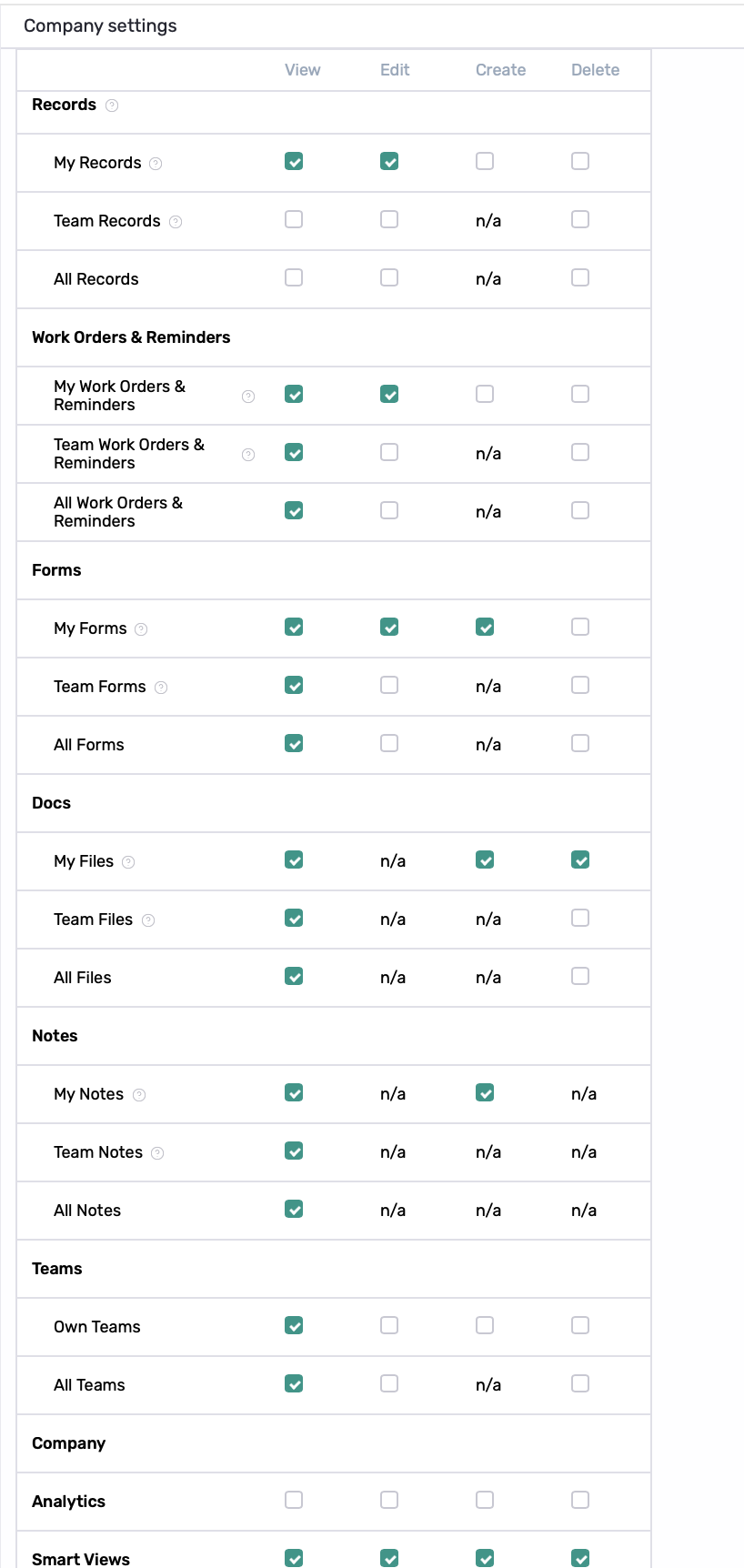
Permissions control two things:
What can the user do?
Depending on the permission, you can allow the user to:
Action | What It Allows |
|---|---|
View | See existing information |
Create | Add new information |
Edit | Update existing information |
Delete | Remove information |
Not every action is available for every permission. An unavailable action appears as n/a.

How much can the user access?
Most permissions offer these access levels:
My — items assigned to the user.
Team — items assigned to the user or members of their team.
All — all items available in that permission area.
These levels let you control how much access a user has in each area.
How to Set Up Permissions
When configuring permissions for a role, start by asking: Which records should users with this role be able to access?
First, configure Records to determine whether users should have access to My, Team, or All records.
Next, decide what they should be able to access within those records. Configure Work Orders & Reminders, Forms, Docs, and Notes based on what the role needs.
For example, if a user has:
My Records
All Work Orders & Reminders
The user can see all Work Orders and Reminders within the records assigned to them. Having All Work Orders & Reminders does not give them access to other Projects or records.
Finally, configure access to other areas of Coperniq, such as Teams, Analytics, Smart Views, AHJ, Utility, and Financials. These permissions are managed separately based on what users with the role need to access.
Tip: Configure permissions in this order: Records → related information → other features and settings.
Other Permission Areas
Each permission area controls access to a different part of Coperniq.
Permission Area | Controls Access To |
|---|---|
Records | Accounts, Projects, Opportunities, and other records |
Work Orders & Reminders | Work Orders and Reminders within accessible records |
Forms | Forms within accessible records |
Docs | Documents and files within accessible records |
Notes | Notes within accessible records |
Teams | Team information and management |
Analytics | Analytics dashboards, widgets, and reporting |
Smart Views | Saved and shared views |
Folders | Folders used to organize information |
AHJ | AHJ database records |
Utility | Utility database records |
Financials | Financial information and related features |
Proposals, Quotes, Invoices | Proposals, Quotes, and Invoices |
Vendors, Material Orders, Bills | Vendors, Material Orders, and Bills |
Available actions and access levels vary depending on the permission area.
Company-Level Permissions
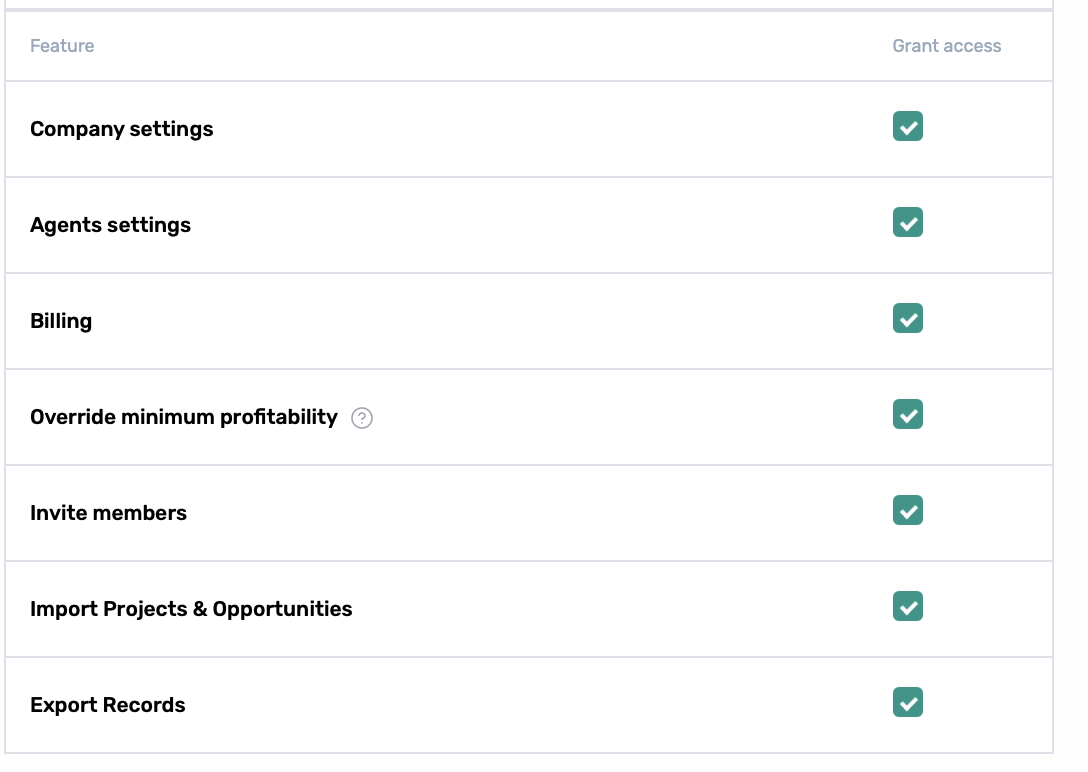
Roles can also control access to company-wide features and settings.
Permission | Allows the User To |
|---|---|
Company Settings | Access company settings and configuration |
Agents Settings | Access and manage agent settings |
Billing | Access billing information and settings |
Override Minimum Profitability | Go below the company's configured minimum profitability |
Invite Members | Invite new members |
Import Projects & Opportunities | Import Projects and Opportunities |
Export Records | Export records from Coperniq |
These permissions are separate from the Records hierarchy and can be enabled based on the user's responsibilities.
Best Practices
Configure Records first, since this determines which records the user can access.
Then configure Work Orders, Forms, Docs, and Notes based on what the user should access within those records.
Use My or Team access when users don't need company-wide access.
Use Standard roles for Office and Field seats and View & Notes roles for Viewer seats.
Create a custom role when the default roles don't provide the access you need.
Limit sensitive permissions such as Billing, Company Settings, Invite Members, and Export Records to users who need them.