Vendors
Last updated: October 6, 2026
Estimated Reading Time: 2–3 minutes
Overview
Vendors are the external partners your team works with, such as manufacturers, installers, suppliers, and service providers.
The Vendors database keeps vendor information, contacts, locations, related Opportunities and Projects, documents, and communication organized in one place.
View and Manage Vendors
From the left navigation, open Databases.
Select Vendors to view and manage your vendor records.
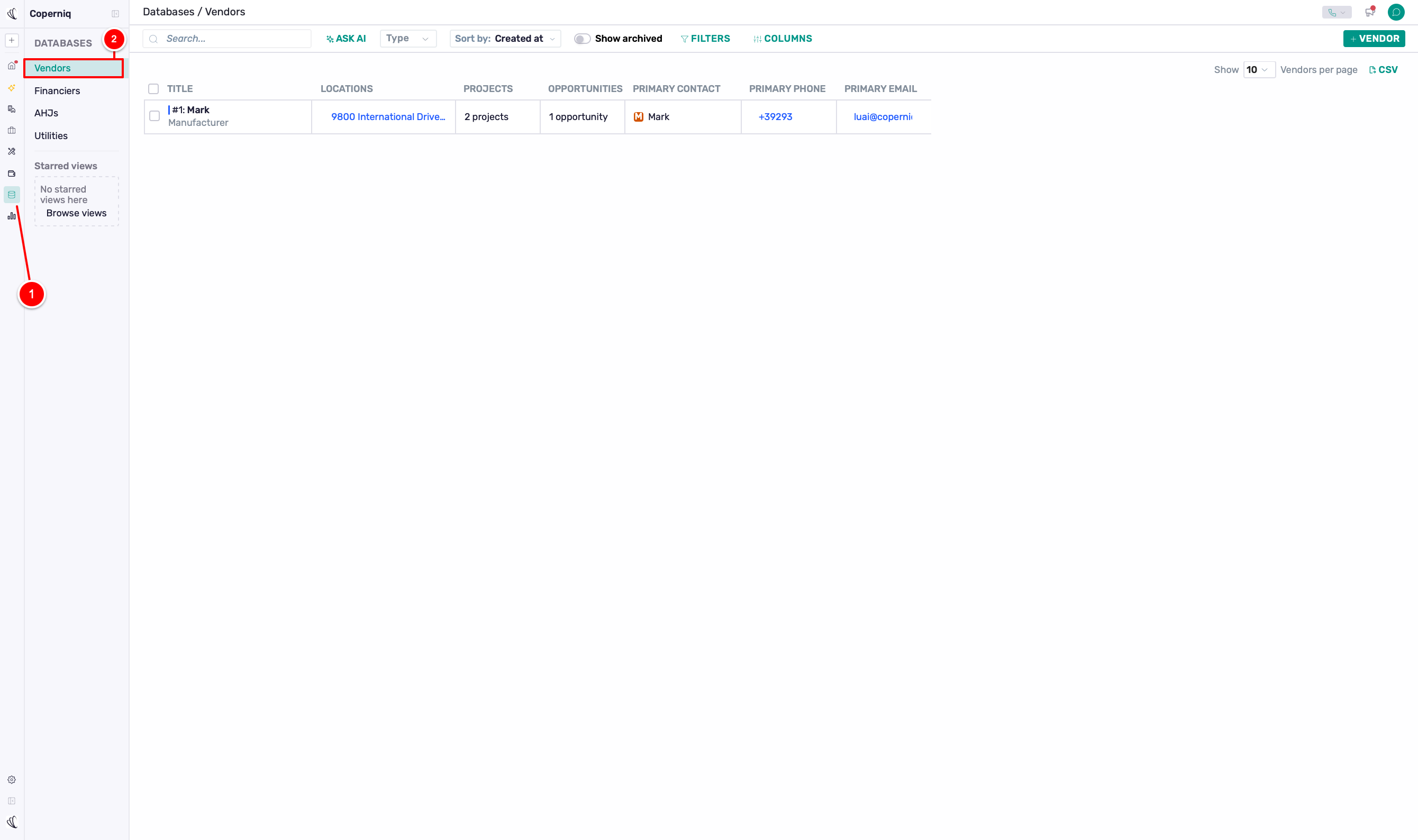
From this page, you can:
View all vendors
Search, filter, and sort records
Use Ask AI to ask questions and get insights about your vendor data
Customize columns
Toggle Show Archived
Export vendors to CSV
Click + Vendor to create a new vendor

If you apply filters , you can click Save in the top-left corner to save that view for later. This is useful if you want quick access to a specific vendor list without setting it up again each time.

Create a Vendor
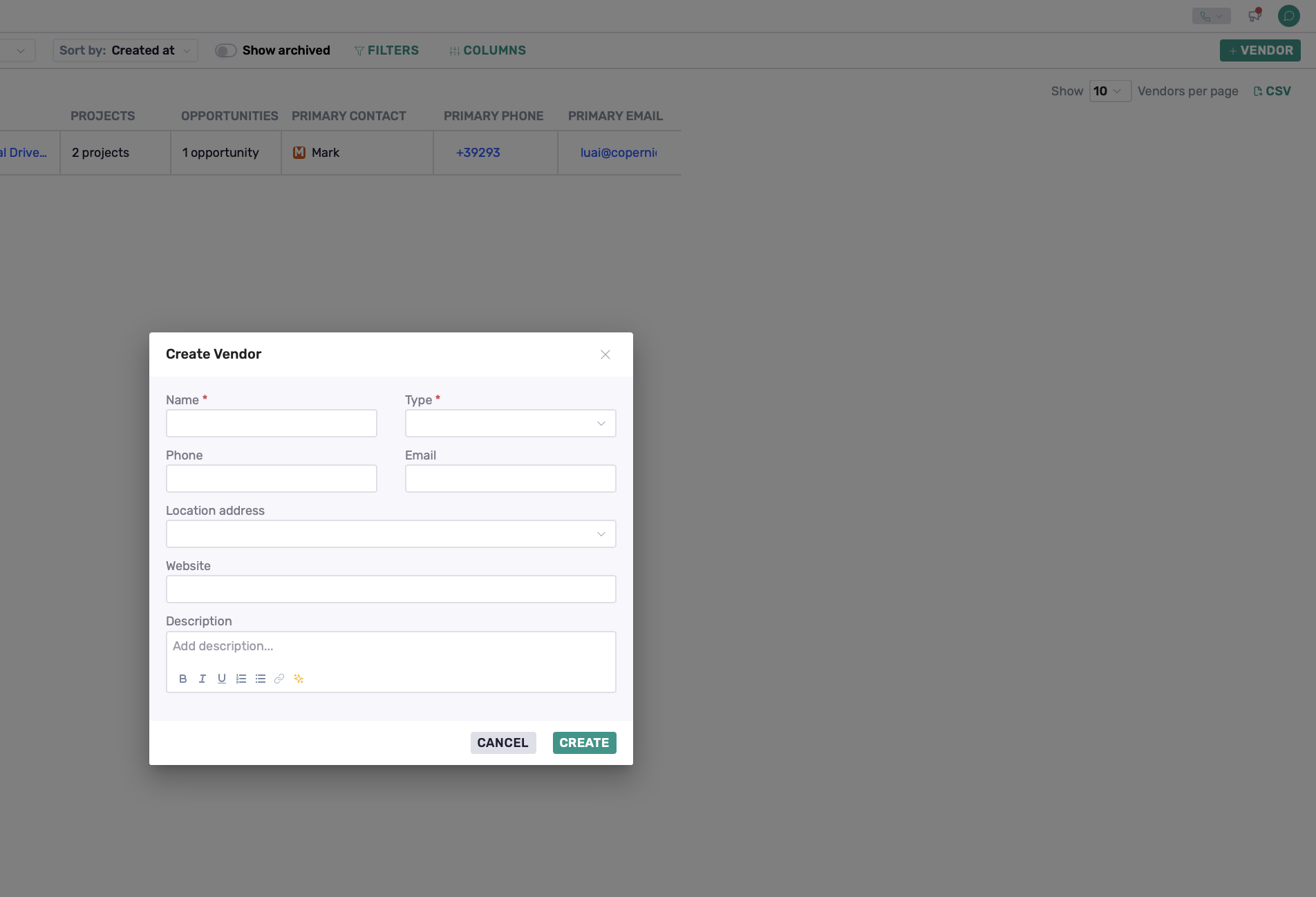
Click + Vendor, then complete the vendor details.
Required:
Name
Type
Optional:
Phone
Email
Site address
Website
Description
Vendor Record Overview
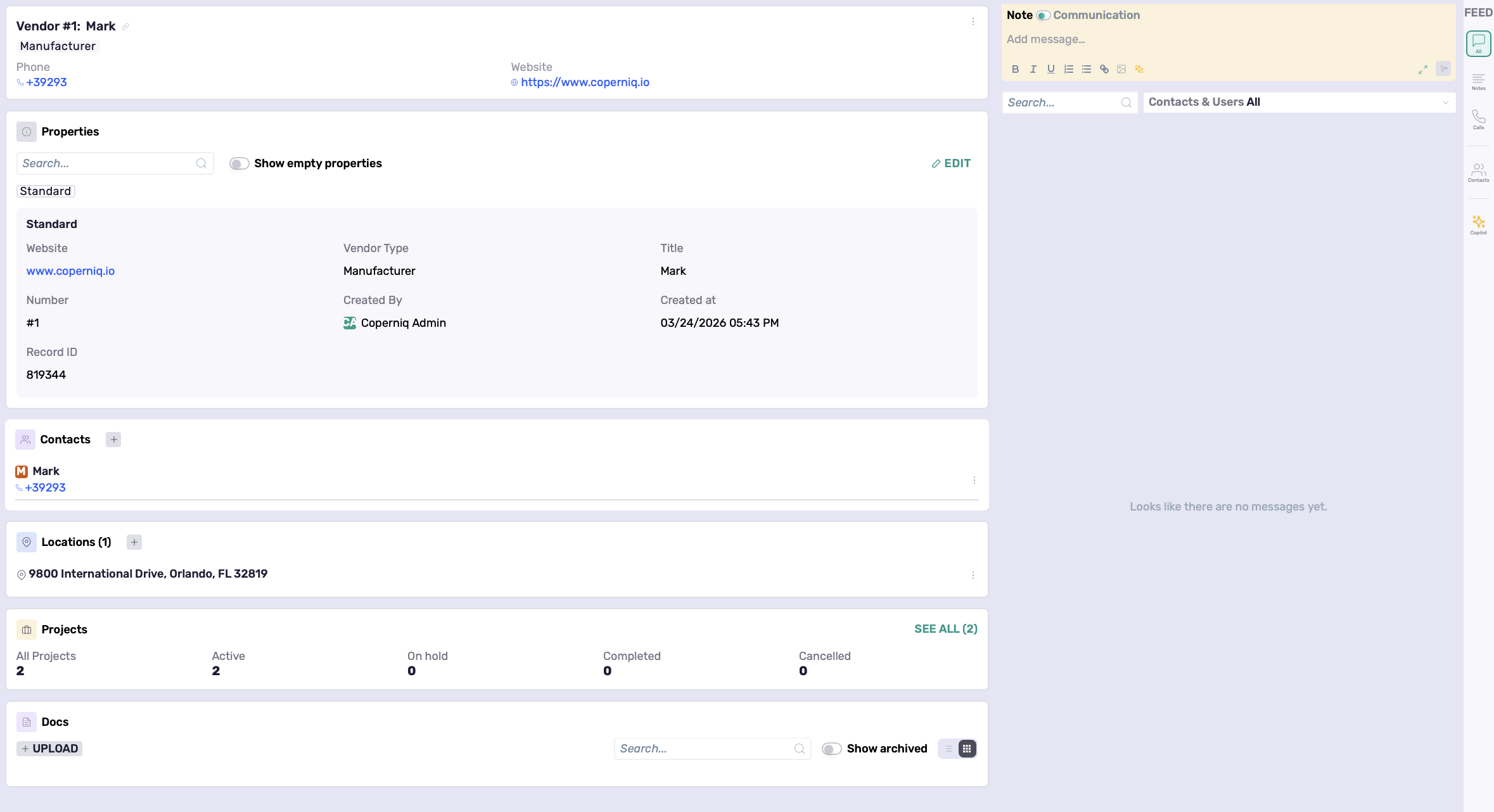
Opening a vendor provides a centralized view of all vendor-related details.
Header
Displays the following key information:
Vendor name and type
Phone number
Website
These details can be updated in the Properties section below.
Vendor name, type, and website can be updated in the Properties section, while the phone number can be modified in the Contacts section or via the panel on the right side.
Properties
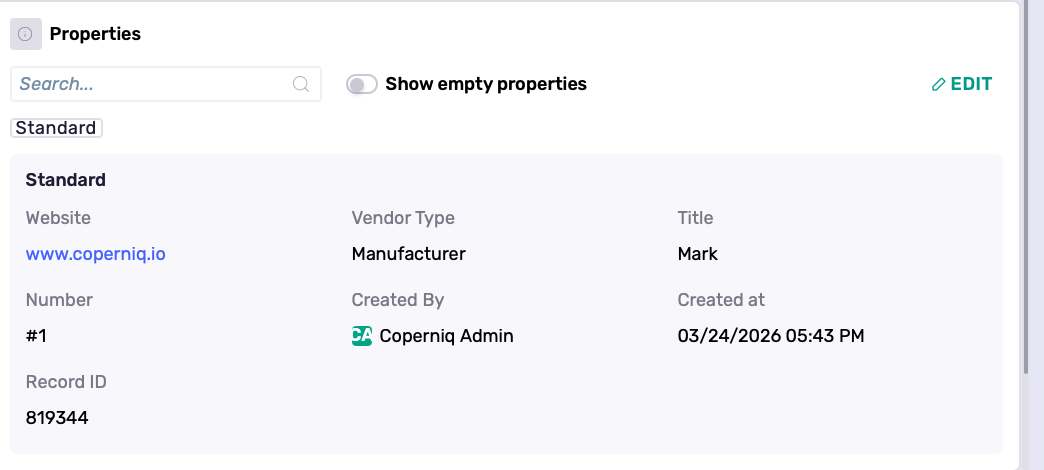
Stores structured vendor information such as:
Vendor Type
Website
Title
Number
Record ID
Created by
Created at
You can update properties by:
Clicking Edit, or
Clicking directly into a property value where applicable
You can also:
Toggle Show empty properties
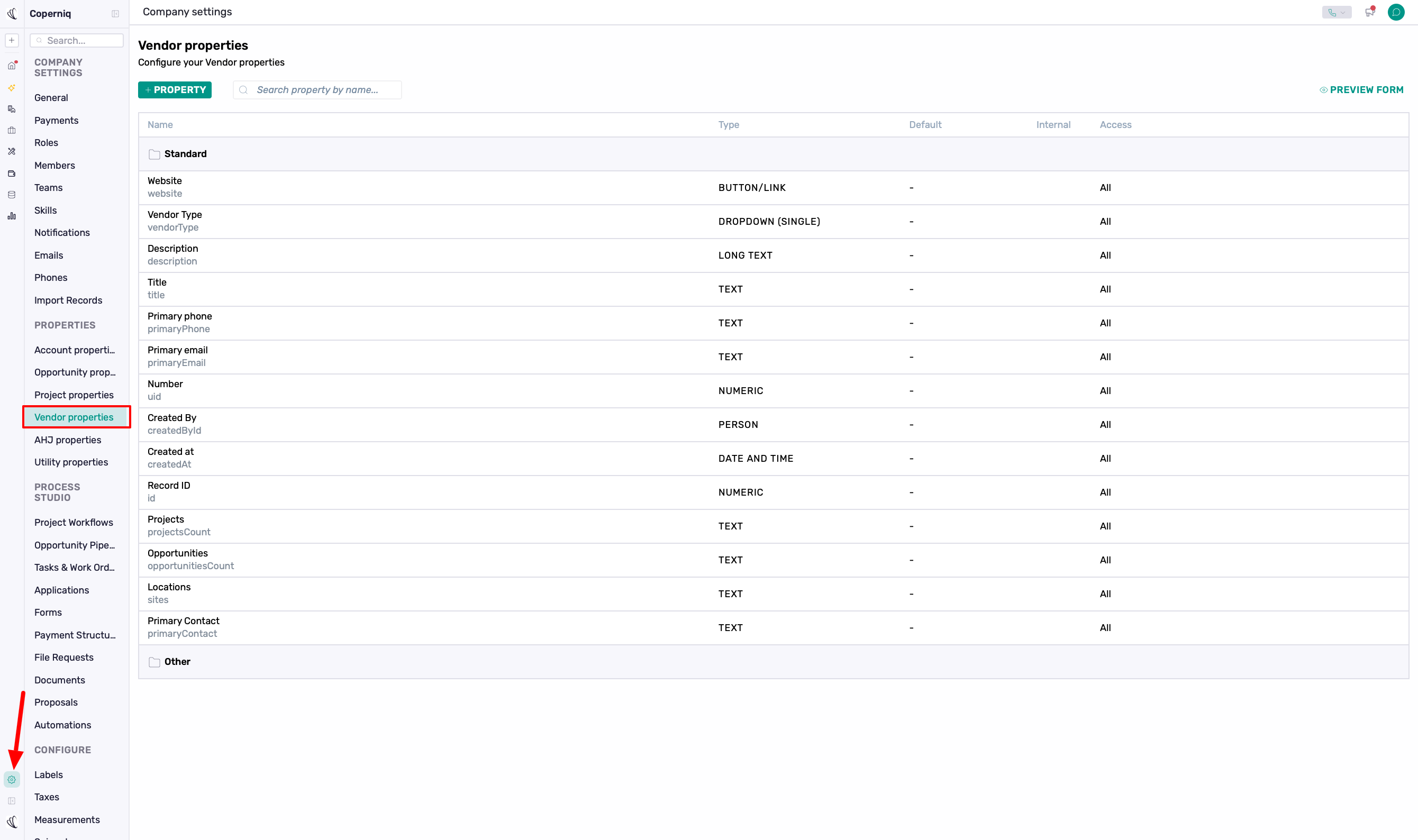
Vendor Properties
Custom vendor properties can be created to support your workflow.
Go to:
Company Settings → Vendor Properties
Once created, these properties will appear in the vendor record and can be populated as needed.
Contacts
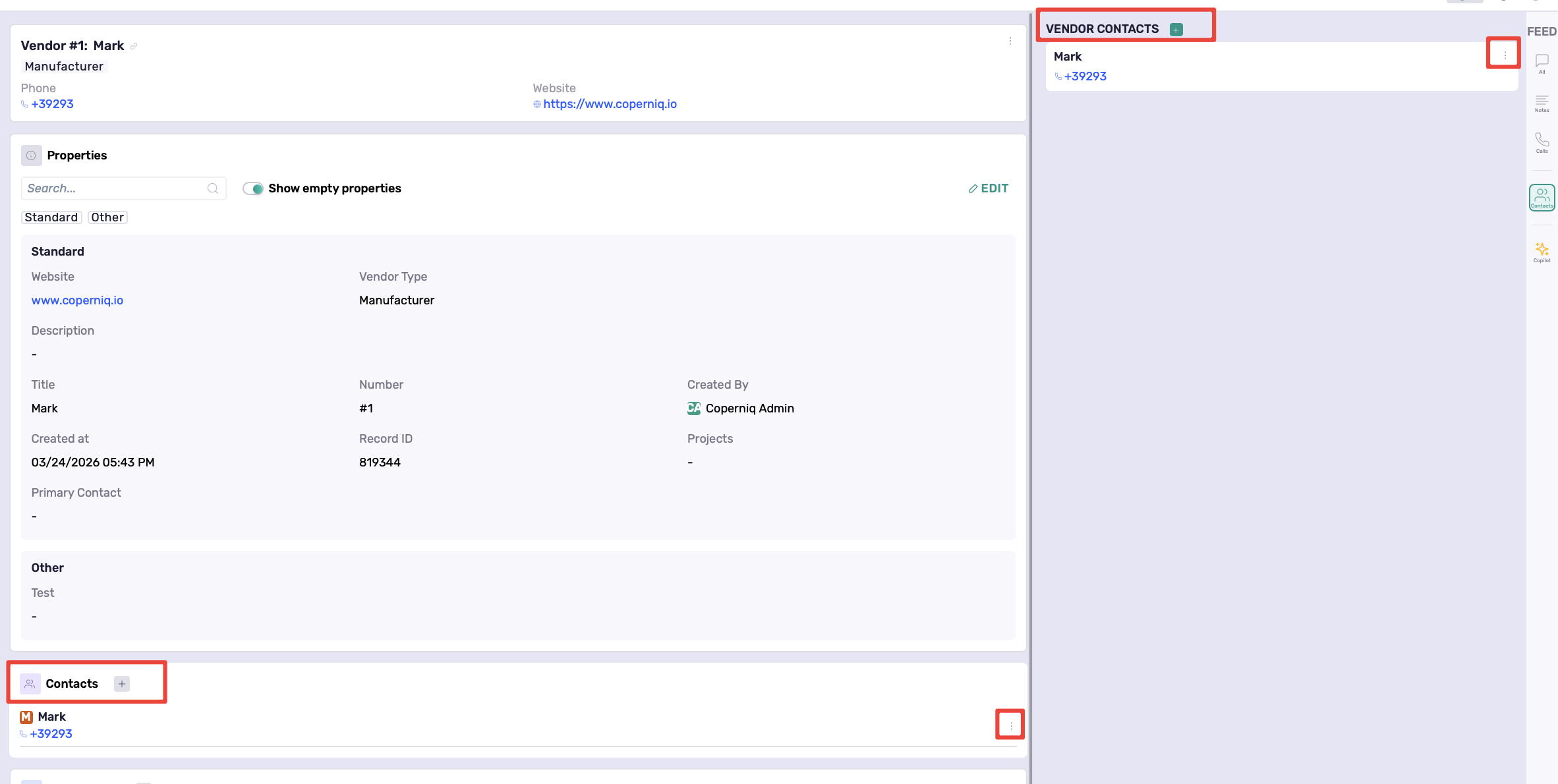
The Contacts section stores the people associated with the vendor.
You can view vendor contacts from:
The main record section
The right panel (Contacts)
To manage contacts:
Click + to add a contact
Click ⋮ next to a contact to edit or delete
Locations
Displays the vendor’s associated address.
To manage locations:
Click + to add another location
Click the ⋮ next to that location to delete it
Click the location, then edit to update it

Projects
Displays all projects linked to the vendor, including status:
Active
On hold
Completed
Cancelled
Click See All to view the full list of linked projects.

Docs
Upload and manage vendor-related documents such as:
Contracts
Agreements
Certifications
You can also toggle Show archived if needed.
Communication
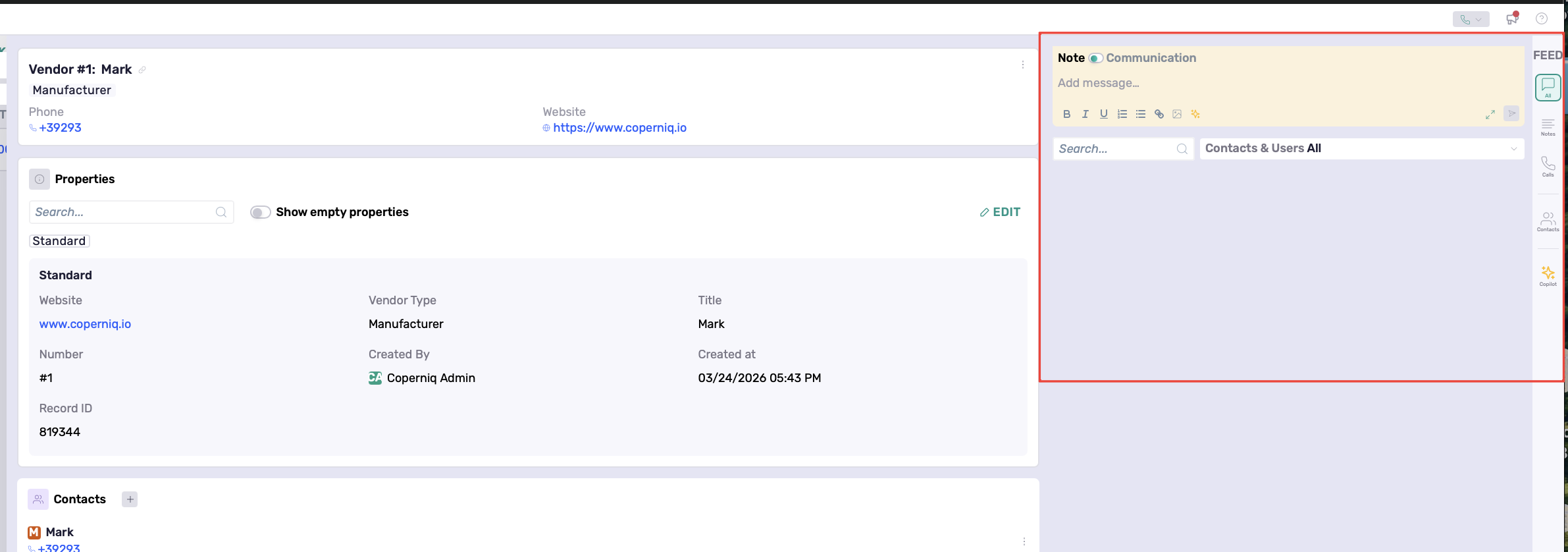
The right-side panel allows you to:
Add notes
Switch between Note / Communication
Send messages via Email or SMS
Link a Vendor to a Project or Opportunity
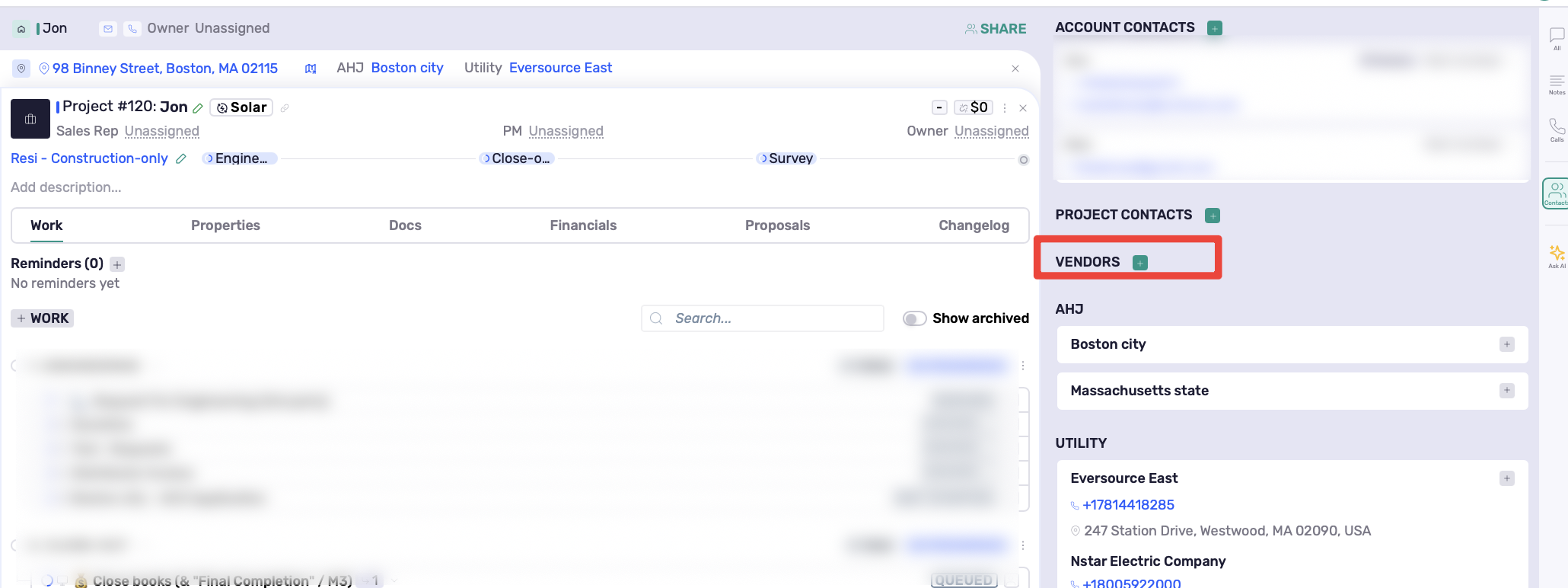
To associate a vendor with an existing Project or Opportunity:
Open the Project or Opportunity.
Open Contacts from the right-side panel.
Click + Vendors.
Search for and select the vendor.
Click Link.
Results
Vendor appears on the Project or Opportunity
Contact details are accessible inline
The linked record is reflected on the vendor record.
Archive a Vendor
To archive a vendor:
Open the vendor record.
Click ⋮.
Select Archive.

To view archived vendors, enable Show archived on the Vendors page.

Best Practices
Use Vendor Properties to standardize vendor data
Keep vendor records updated
Add multiple locations when applicable
Use the Docs section for contracts and certifications
Use the Communication panel to centralize messages
Archive vendors you no longer work with