Proposals
Last updated: March 27, 2026
Estimated Reading Time: 2–3 minutes
Overview
Proposal Templates help you build consistent, customer-facing proposals without having to start from scratch each time. You can control which pages are included, how they are ordered, and how the proposal flows from review to approval. Once created, a template can be reused across Opportunities and adjusted as needed before sending.
Create and Manage Proposal Templates
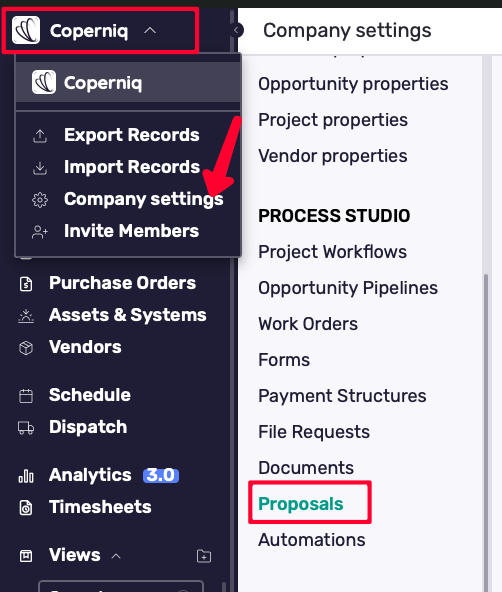
Go to:
Company Settings → Proposals → Proposal Templates
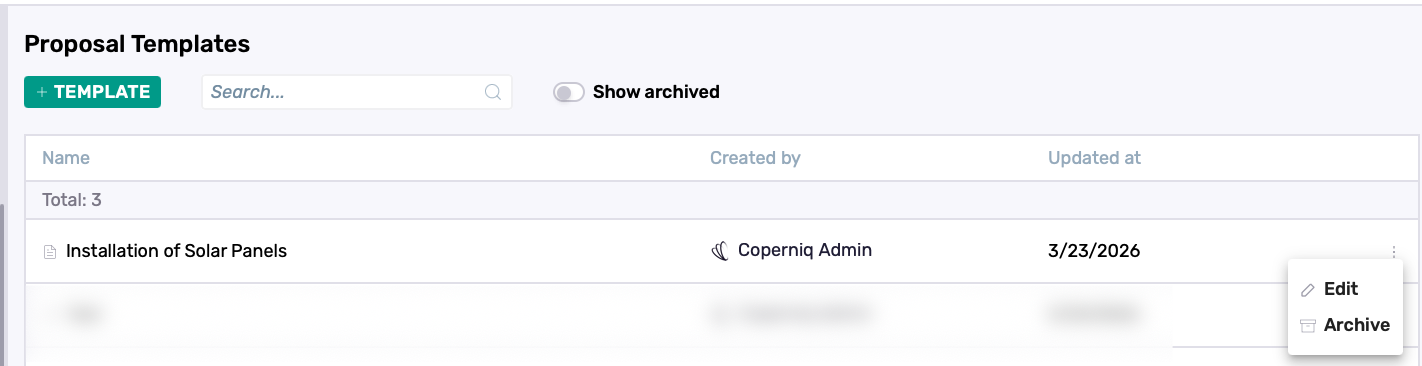
From this page, you can:
View all available templates
Toggle Show Archived off to view archived templates
Click ⋮ to edit or archive a template
Click directly on a template to open it
Create a New Template
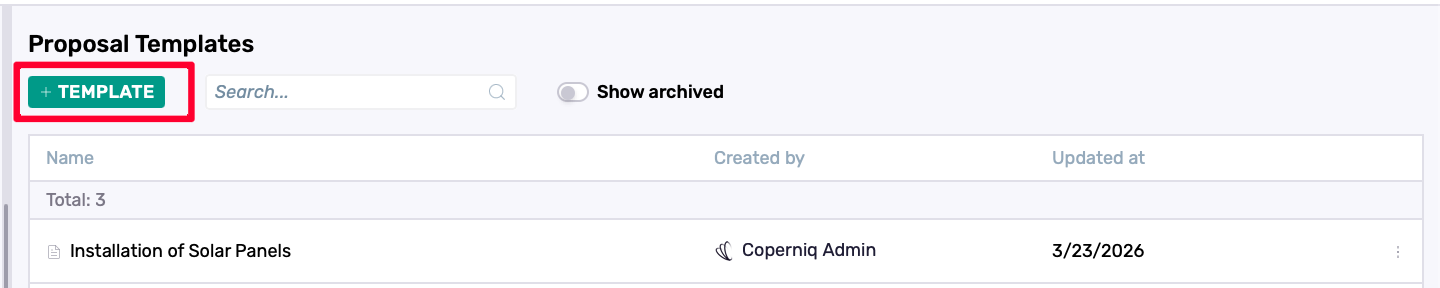
Click + Template
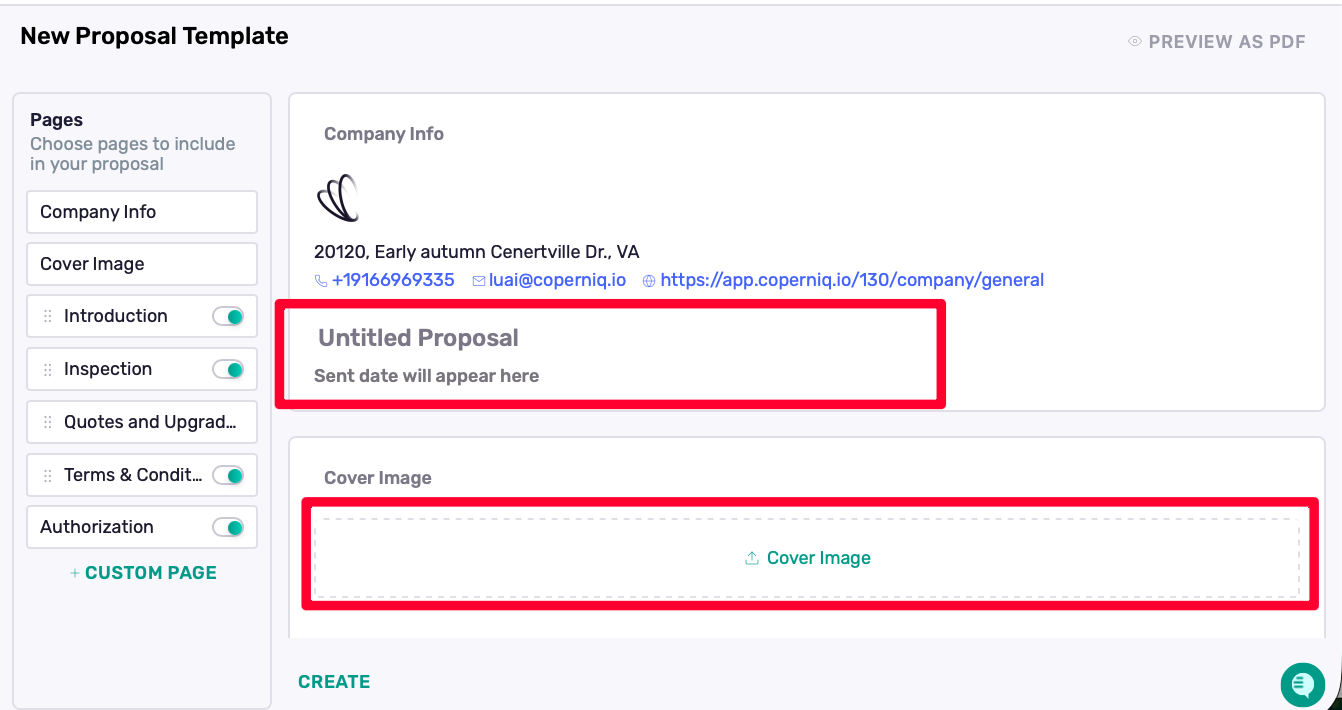
Enter the Template Title
Upload a Cover Image such as your company logo
Begin configuring the proposal pages
How Proposal Pages Work
When you open a template, the available pages appear on the left side. These pages make up the structure of the proposal and represent the flow your customer will see.
From the left panel, you can:
Turn pages on or off
Reorder pages
Add Custom Pages

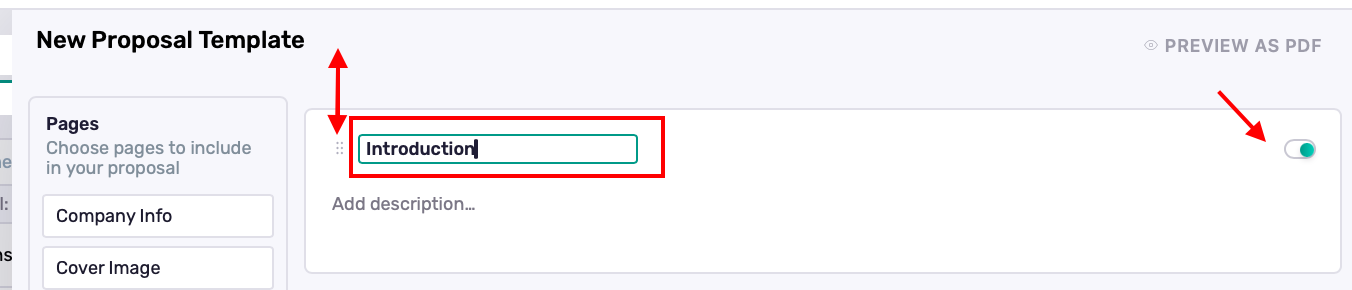
When you open an individual page, you can also rename it where supported , turn on/off the page, recorder the page and configure the content inside that section.
Page Overview
Page | What it’s used for | Helpful notes |
Company Info | Displays your business details at the top of the proposal | This information is pulled from Company Settings → General. Update it there if changes are needed. |
Cover Image | Adds a visual header near the beginning of the proposal | Commonly used for company branding, a banner image, or a cleaner presentation. |
Introduction | Adds a short text section before the main proposal details | Useful for a welcome message, project summary, or short introduction. |
Inspection | Organizes visual and descriptive project content | You can add sections, items, images, and notes. Useful for site photos, findings, and other visual project details. |
Quotes and Upgrades | Presents pricing, products, services, and optional items | You can configure products, add-ons, service plans, quantity, pricing, and totals. Checkboxes can be used to control which options are shown to the customer. |
Terms & Conditions | Includes the proposal terms the customer should review | Can be added as uploaded content, such as a PDF or image, or entered directly as text. |
Authorization | Supports the acknowledgment and approval flow | Can include disclaimers, acknowledgment, document template selection, footer notes, and Send contract for signature after approval. Please review this guide for contracts/documents: Documents. |
Custom Pages | Adds extra content beyond the standard structure | You can add as many Custom Pages as needed for financing info, warranty details, special instructions, or extra notes. |
Save the Template
Click Create when saving a new template
Click Save when updating an existing one
Once saved, the template will remain available in the Proposal Templates list.
Use a Template in an Opportunity
To use the template:
Open the relevant Opportunity
Go to Proposal / Quote
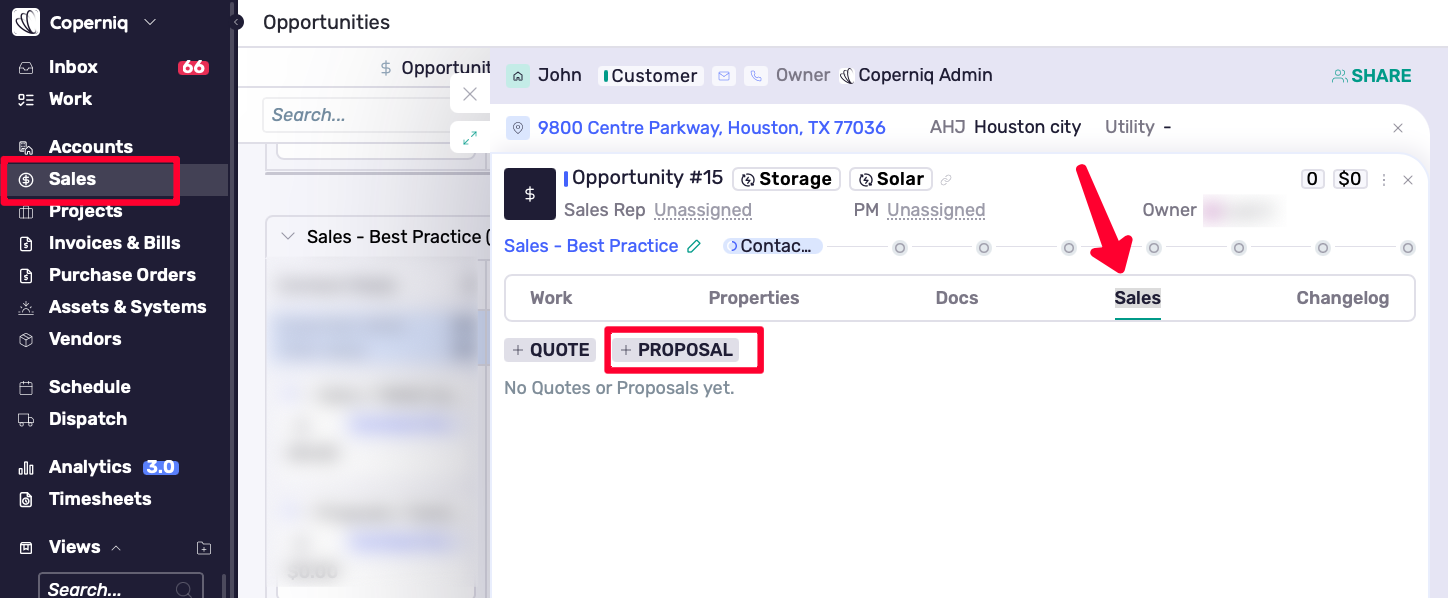
Choose either:
Start from scratch, or
Select an existing Proposal Template
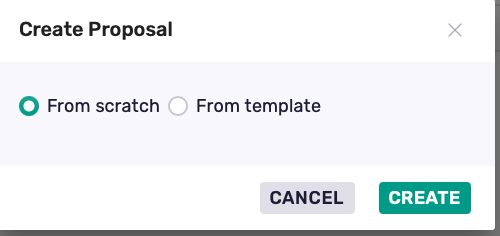
If a template is selected, its configured pages will be applied to the proposal. You can still review and adjust the content before sending it to the customer.
After creating the proposal, you can:
Save it
Send it to the customer
Preview it as PDF before sending
If sent to the customer, the customer will receive an email notification with a link to the Client Portal, where they can view the proposal.
Proposal Notifications and Portal Notifications
Proposal-related notifications can be managed from the following areas:
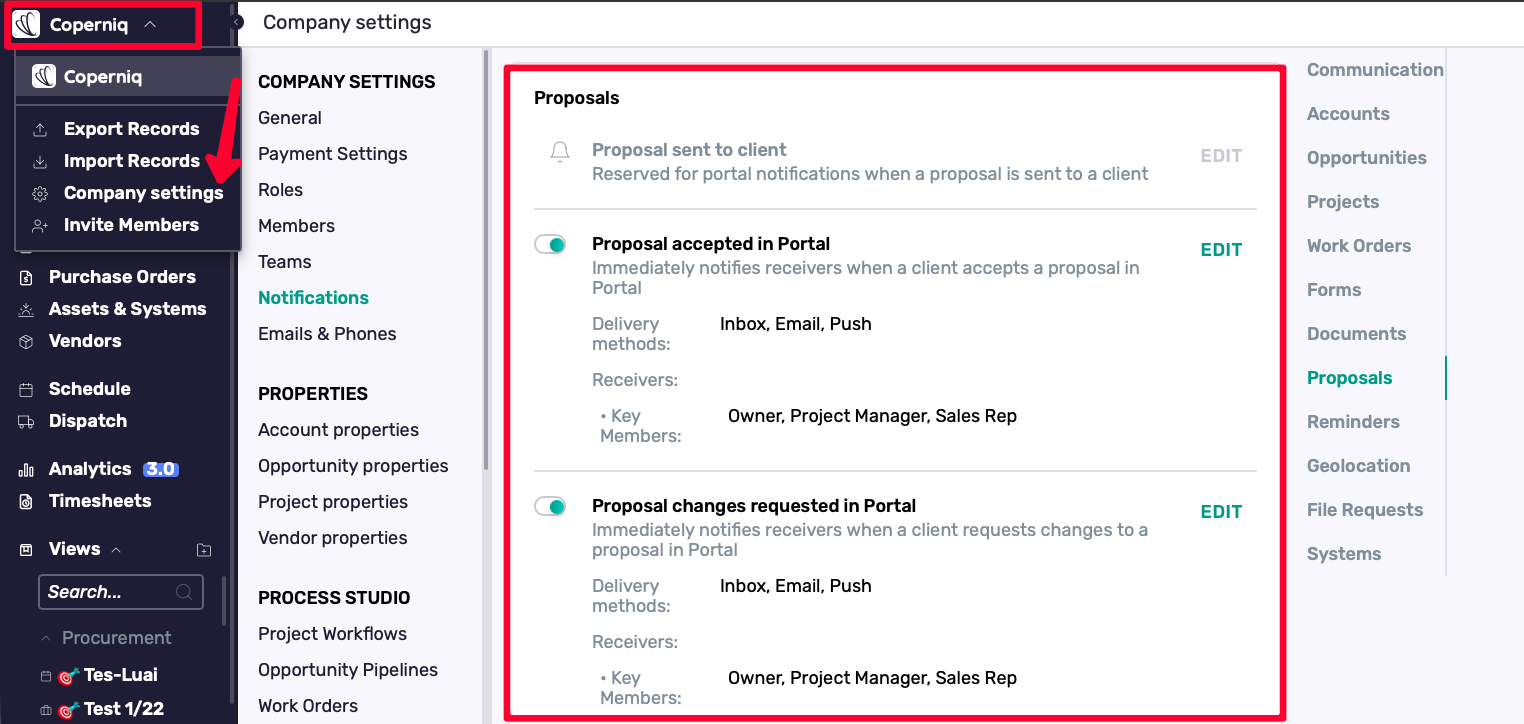
Internal proposal notifications
Go to:
Company Settings → Notifications → Proposals
From here, you can manage internal notifications such as:
Proposal sent to client
Proposal accepted in Portal
Proposal changes requested in Portal
These can notify internal receivers such as key members, owners, project managers, or sales reps depending on the configuration.
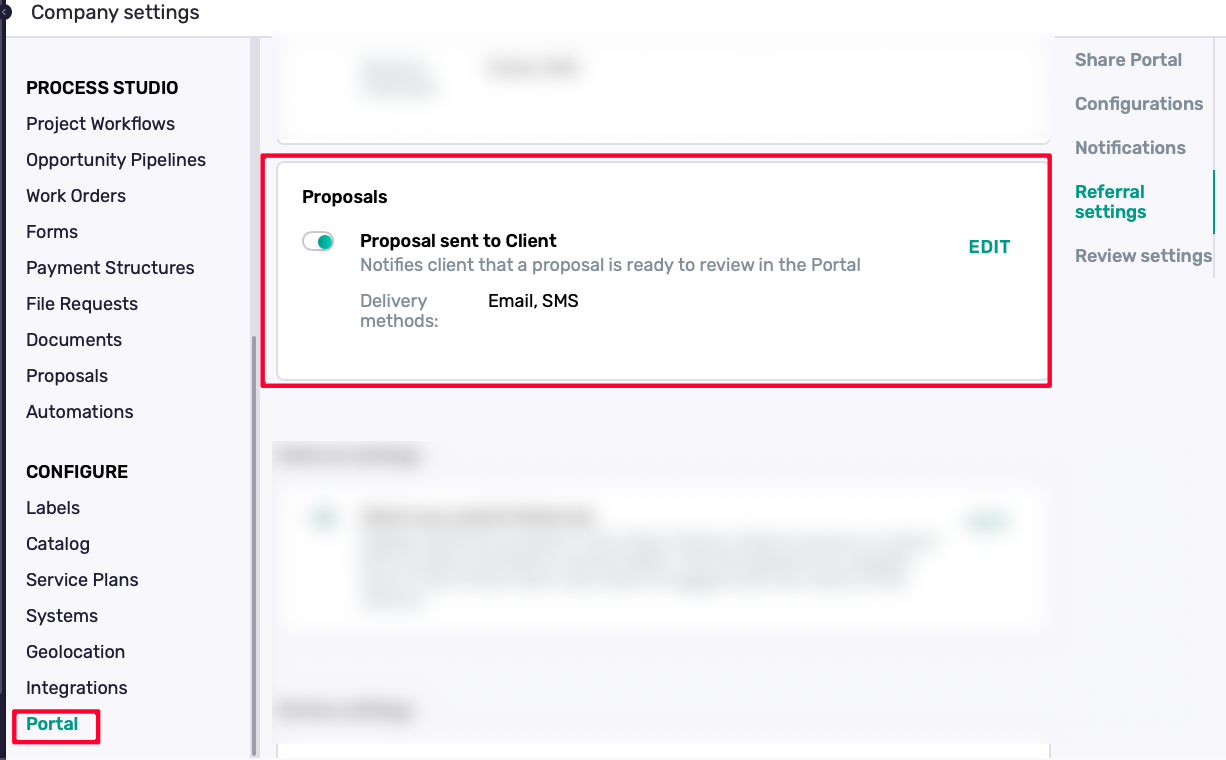
Portal notification to the customer
Go to:
Company Settings → Portal
From the Portal settings, you can manage the customer-facing notification for:
Proposal sent to Client
This controls the notification sent to the customer when a proposal is shared and ready to review in the Portal.
Best Practices
Use Preview as PDF before sending to confirm layout and content
Review company details in Company Settings → General to make sure branding and contact information are up to date
Use Quotes and Upgrades to control which options are shown to the customer
Archive outdated templates to keep your list organized
Use Authorization when approval should lead directly into the next step, such as contract signing
Review the full proposal before sending, even when using a template