Documents
Last updated: June 29, 2026
Overview
Coperniq Documents provide a structured way to create, send, and complete documents within Coperniq. Documents are commonly used for agreements, commissioning forms, site sign-offs, and other customer or internal paperwork tied to a record.
Document Templates help standardize documents, prefill record data, manage recipients, and track progress from creation through completion.
What This Article Covers
This article explains:
How to create and manage document templates
How recipients and fields work (and how they can be adjusted)
How properties are used for auto-filling record data
How documents are created from records
How recipients access and complete documents in the client portal
Creating a Document Template
To create a reusable document template:
Go to Company Settings → Document
Review existing templates, or click + Template to create a new one
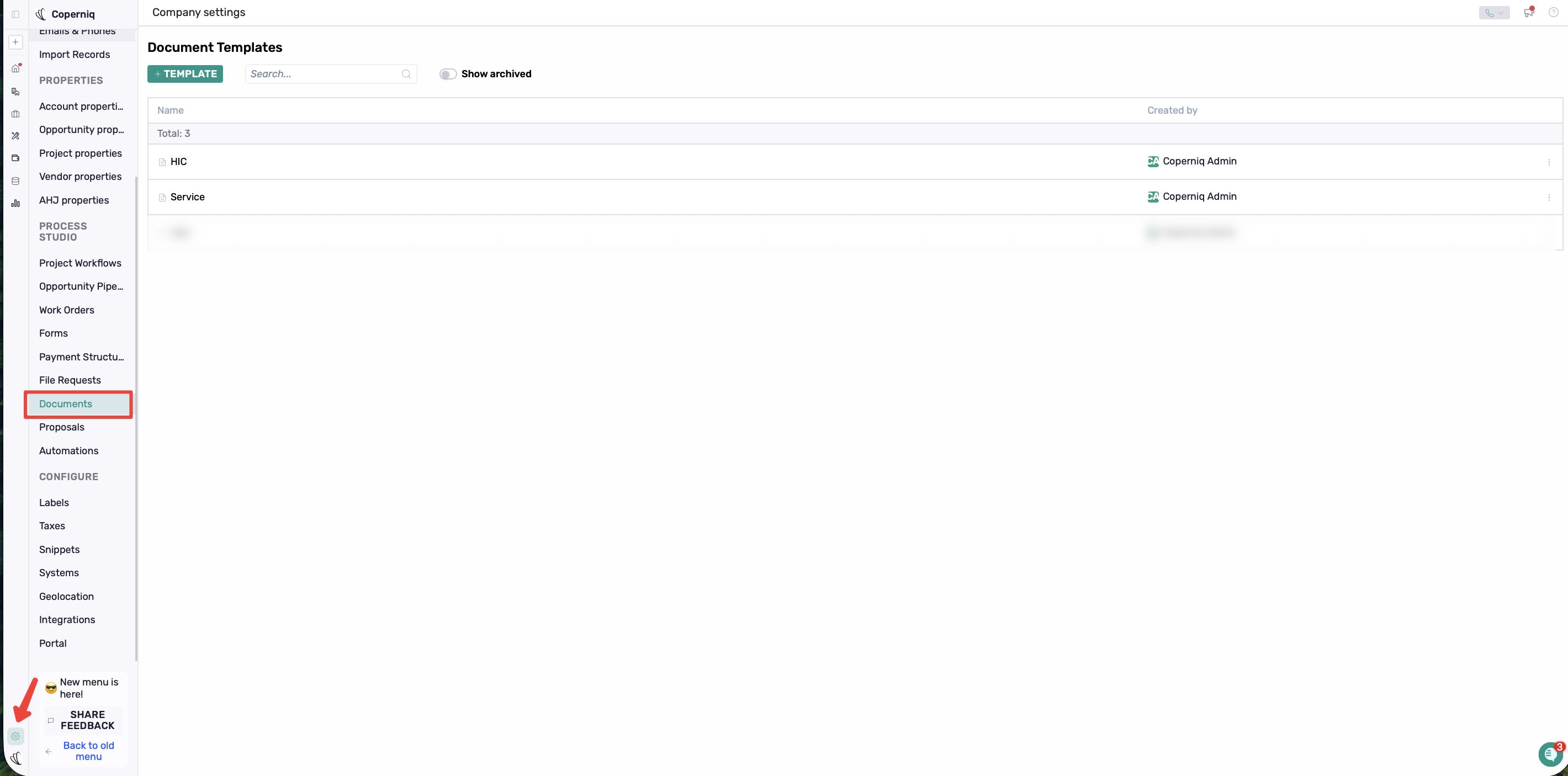
When you click + Template, the Create Document Template dialog opens. From there, you can:
Enter a Title
Add Recipients
Upload a PDF template that will be used for field placement and signing
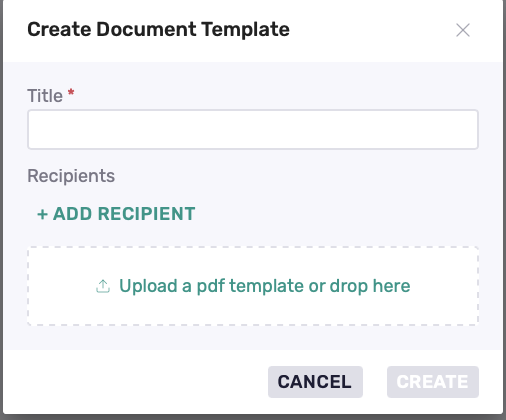
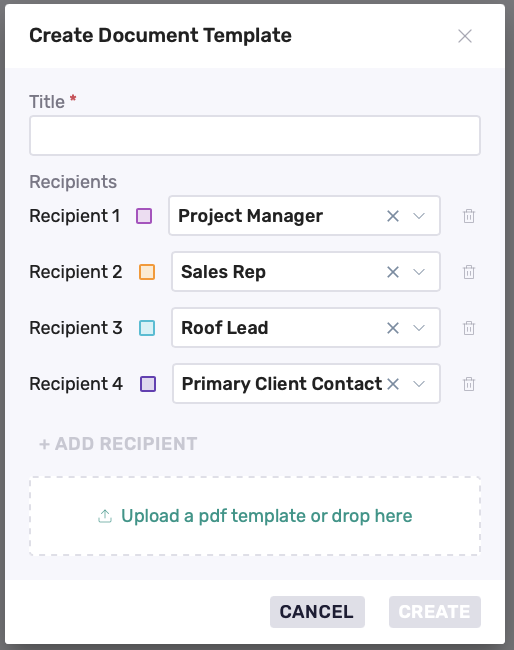
Adding Recipients
Recipients define who will review, fill, or sign the document.
Common recipients include:
Primary Client Contact (customer)
Owner
Sales Rep
Project Manager
Other internal or external stakeholders
Recipients can be adjusted later as needed, allowing you to update roles or participants before sending the document.
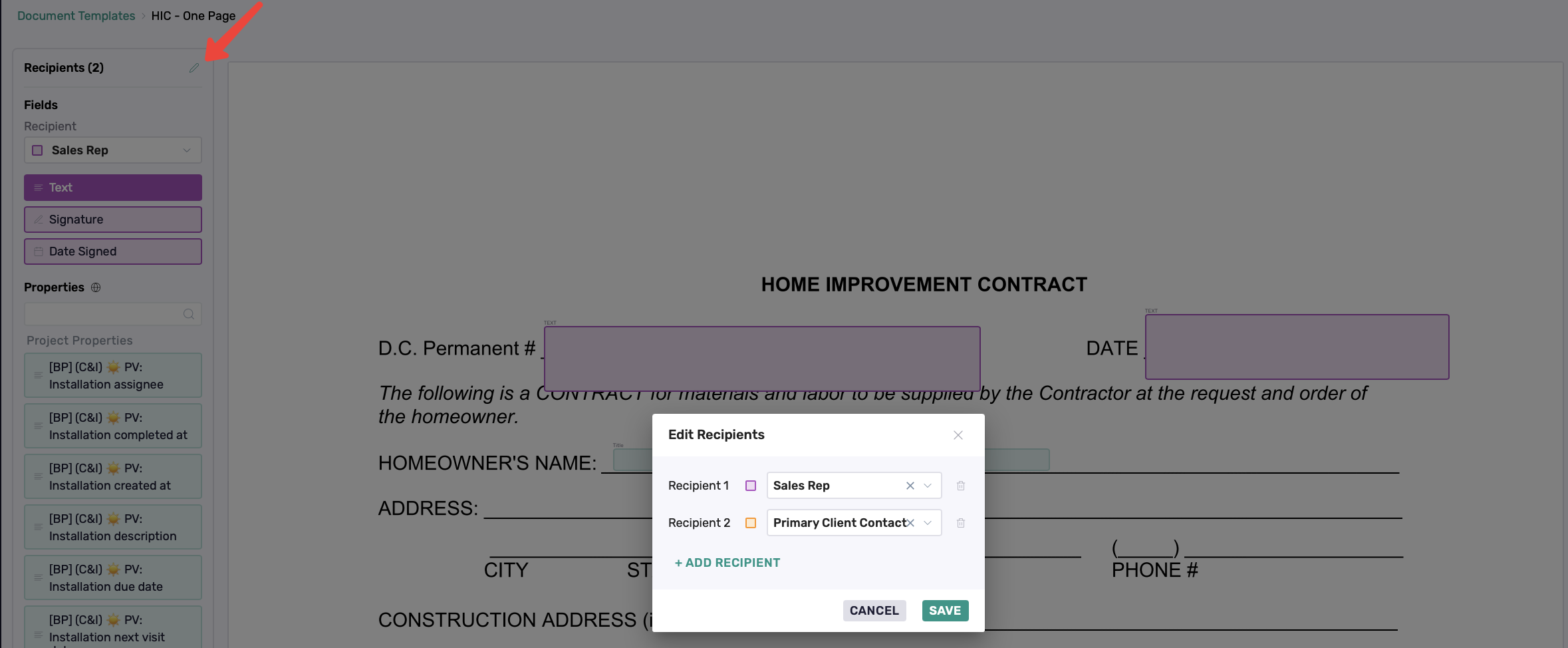
Recipients also determine:
Which fields each person can interact with
The order in which the document is sent (when applicable)
Uploading the PDF Template
Upload the PDF file that will serve as the document layout (for example: a solar agreement, inspection form, commissioning checklist, or completion sign-off).
Once uploaded, you can begin placing fields and properties onto the document.
Adding Fields to the Document
Fields are added by dragging and dropping them onto the PDF.
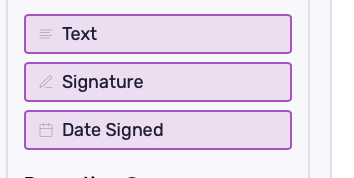
Common field types include:
Text
Signature
Date
Fields are not required by default. You can choose which fields are required depending on the document and recipient.
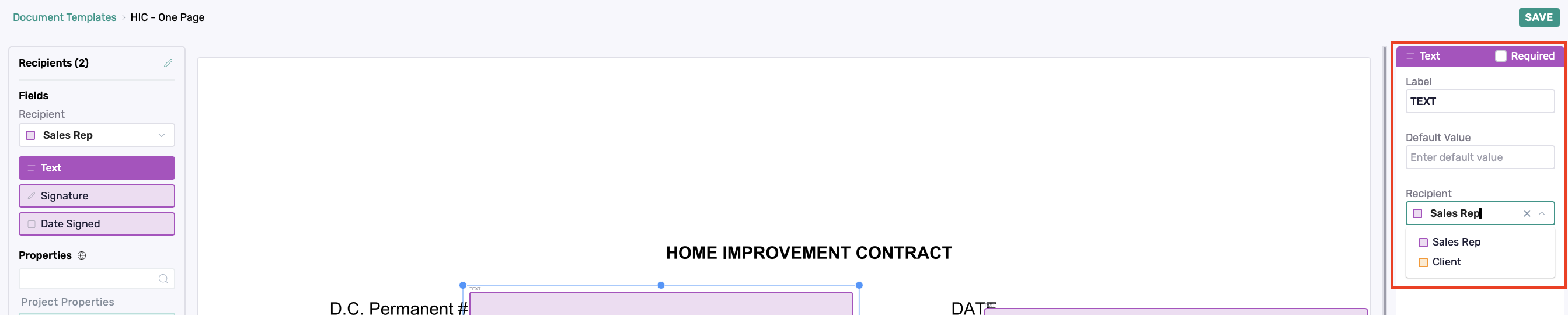
After placing a field, you can configure it from the left side of the page by:
Marking it as Required (if needed)
Setting a Label
Providing a Default value
Assigning or changing the Recipient
Adjusting its position on the document (for example, placing fields on the left or right side to match the form layout)
Using Properties for Auto-Fill
You can also drag and drop properties onto the document.
If a property is already filled on the record, it will be auto-filled automatically in the document.
If a property is not filled yet but gets updated later, it will still auto-fill into the document as long as the document remains in Draft status.
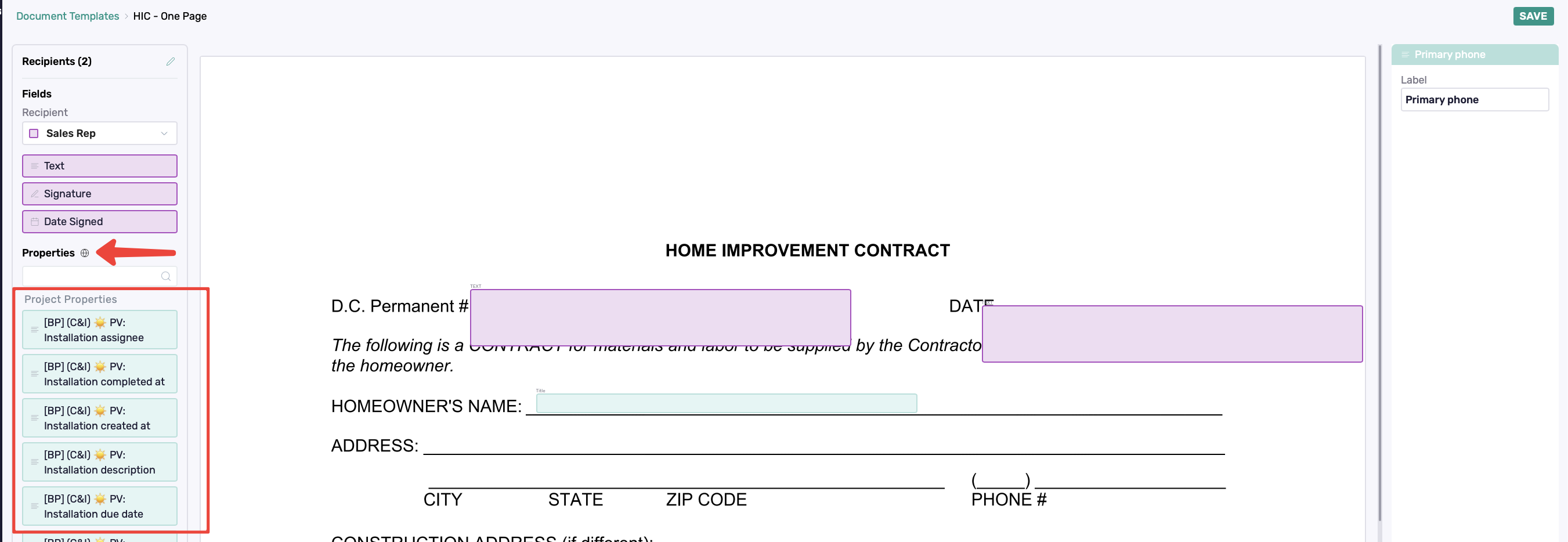
This ensures documents reflect accurate solar project and site data while reducing repetitive manual entry.
Saving the Template
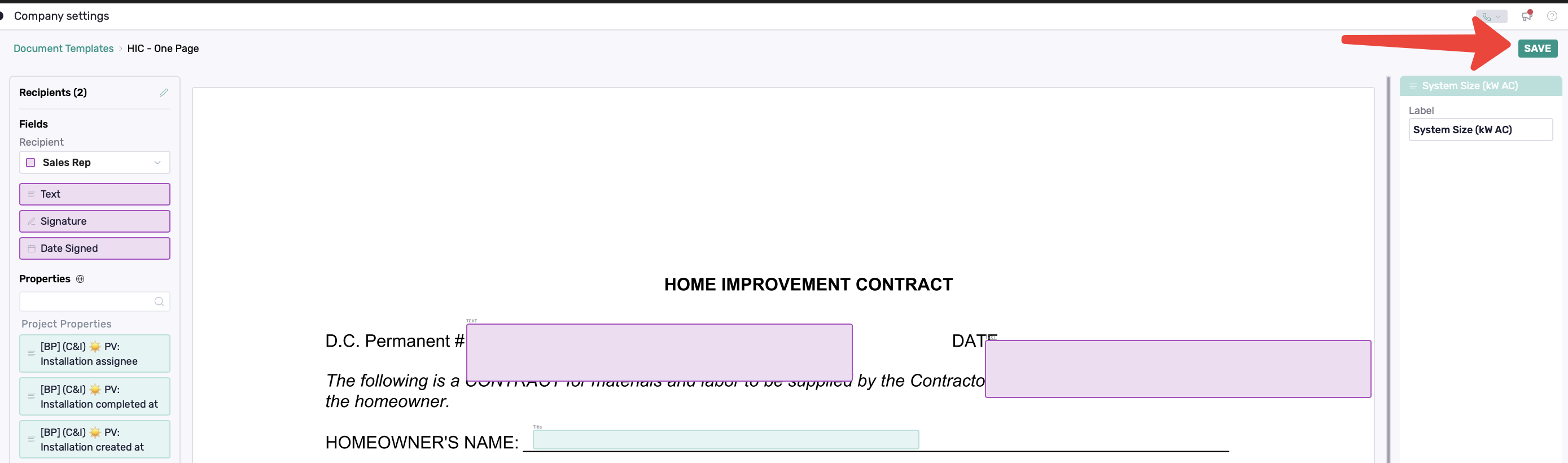
Once recipients, fields, and properties are configured, click Save at the top left of the page. The document template is now ready to be reused across records.
You can also follow this video walkthrough on how to create a document template:
How to create a document template
Creating Documents from a Record
Documents without recipients (internal use)
Templates with no recipients can be added directly to a record for internal documentation:
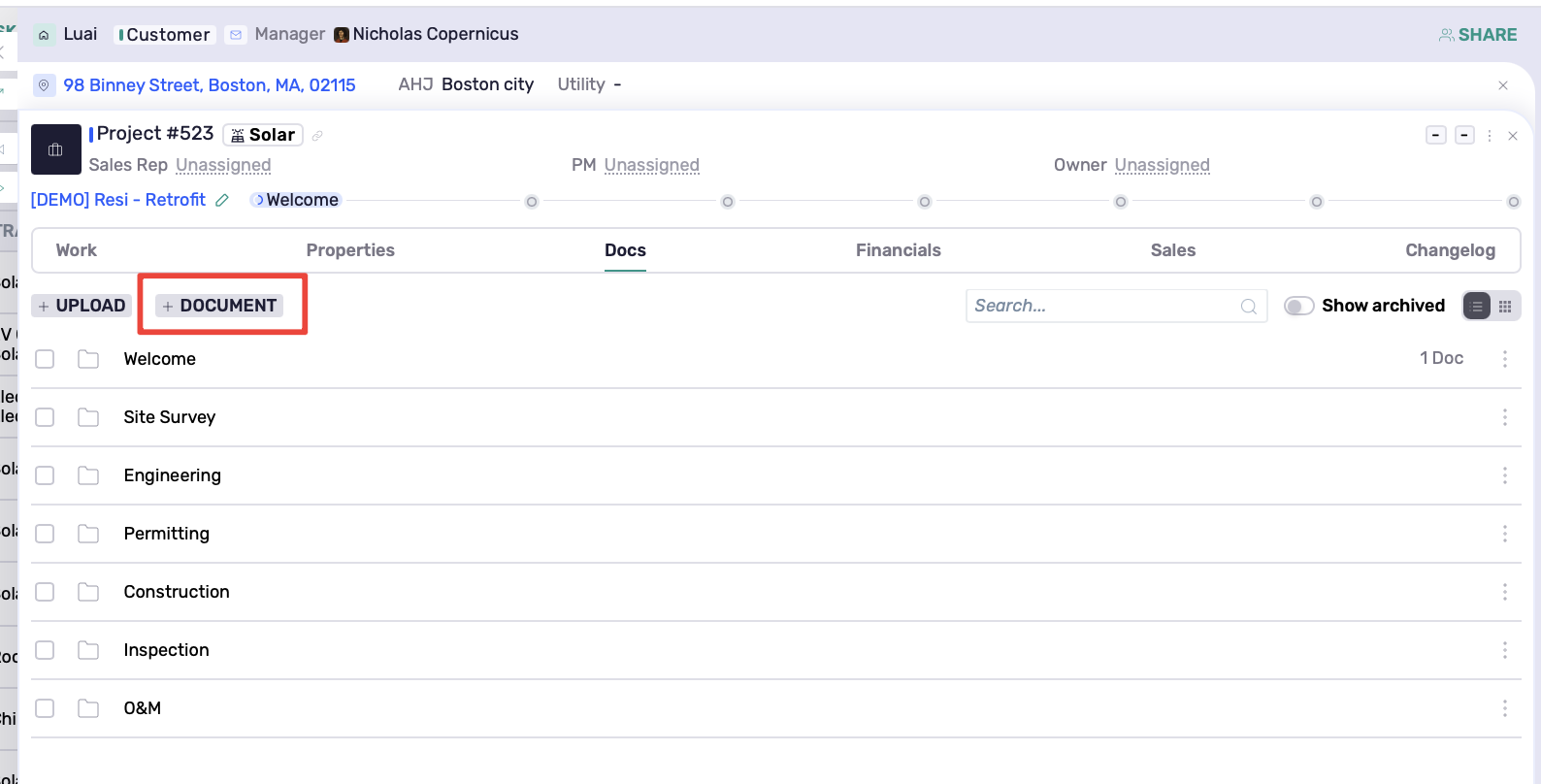
Open the record
Go to Docs
Click + Document
Select the Template from the Select document template drop-down menu
Choose the folder under Upload to
Click Create
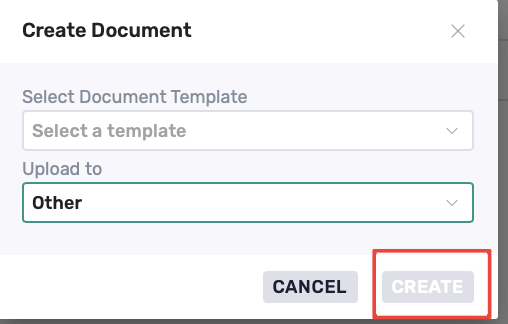
These documents are stored on the record without a send or signature workflow.
Documents with recipients (review and signature workflow)
Templates with recipients follow a send-and-complete workflow.
To add one:
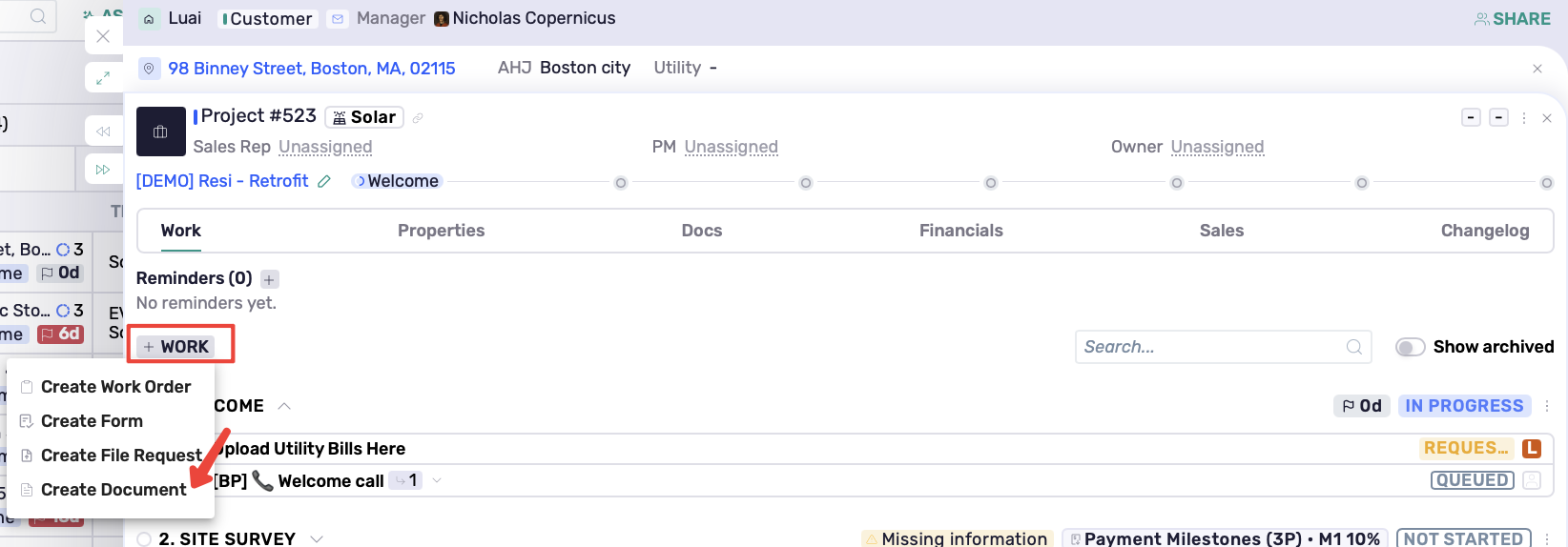
Open the record
Click + Work
From the top drop-down menu, select Create a document
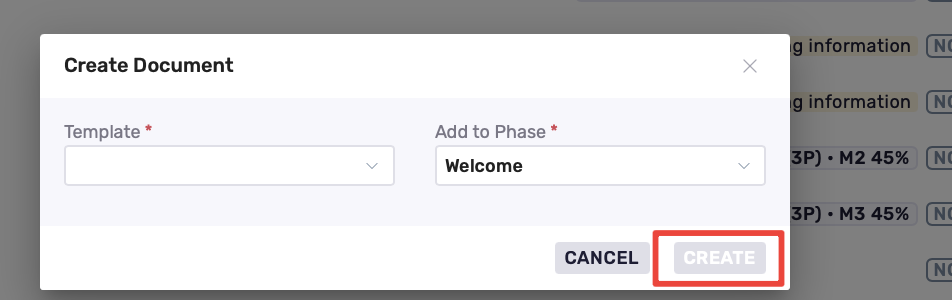
In the Create Document window:
Select the Template from the Template drop-down
Choose the phase under Add to Phase
Click Create
Once created:
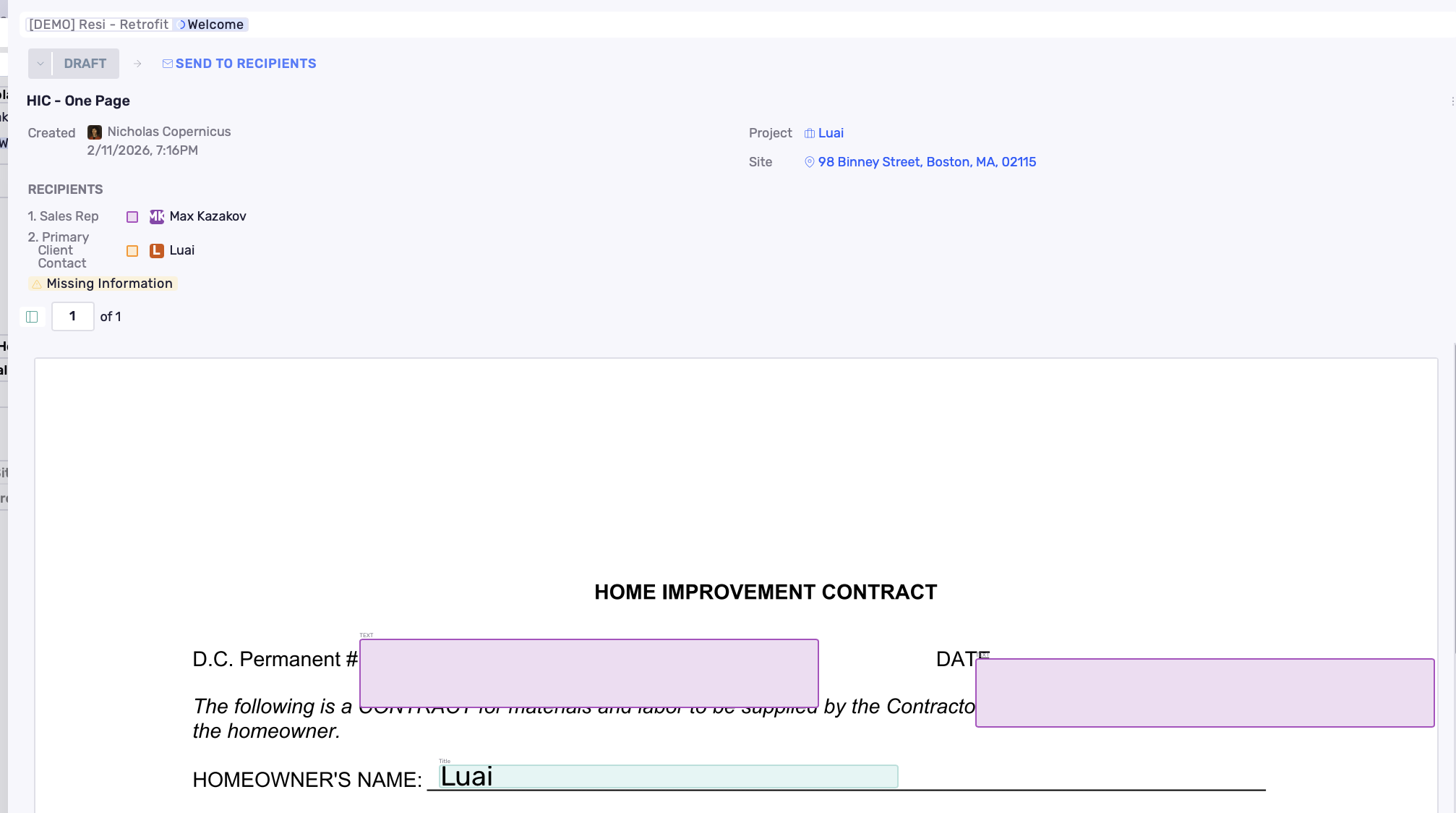
The document appears with its site and record context
The recipient list is visible
The document starts in Draft status
Sending Documents to Recipients
Only a Project Manager or Owner can send documents to recipients.
Before sending:
Ensure properties are filled.
To send:
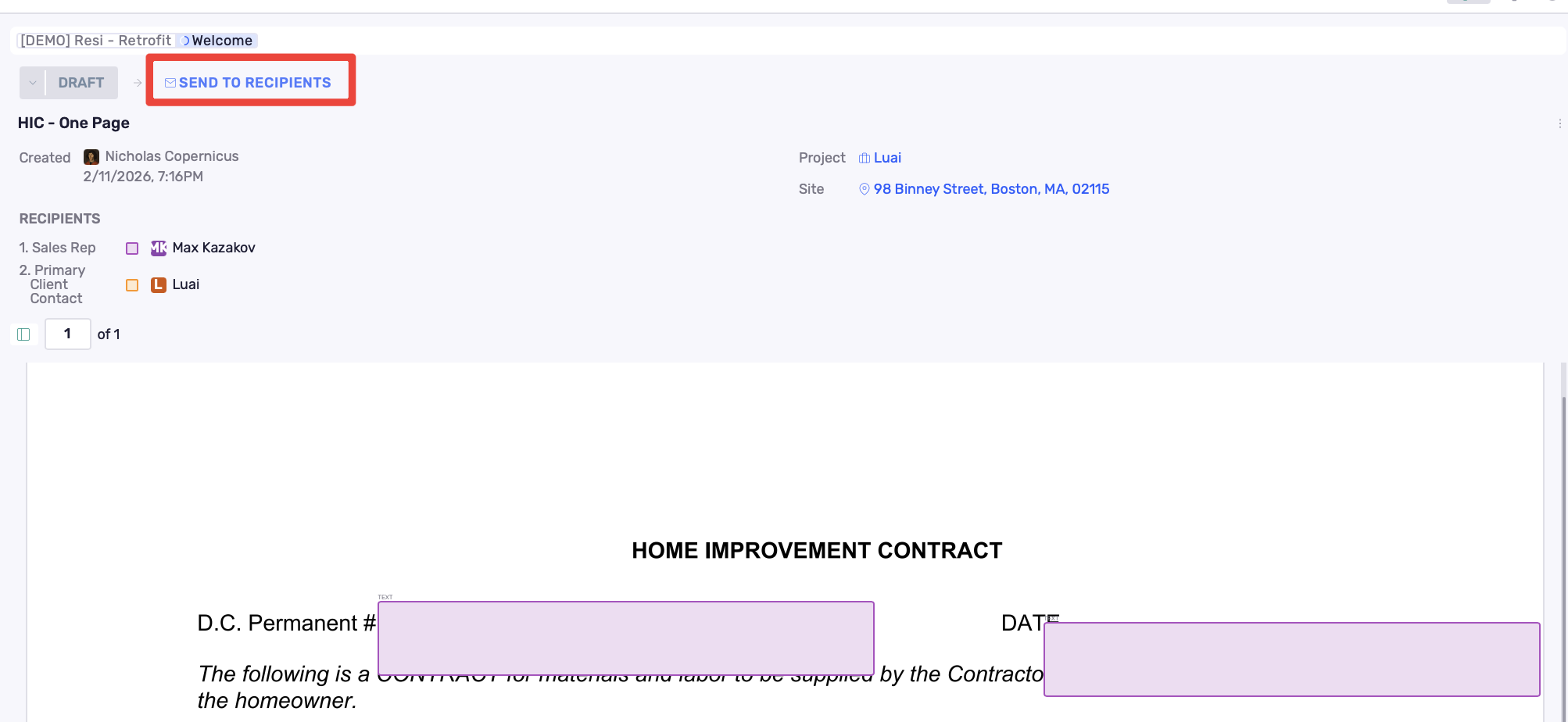
Click Send to recipients
The document is sent to the first recipient in the sequence
The recipient status updates to Sent
If the customer is one of the recipients and hasn’t already been invited to the Client Portal, clicking the link will grant them access so they can review, fill, and sign the document directly in the portal
Completing and Routing the Document
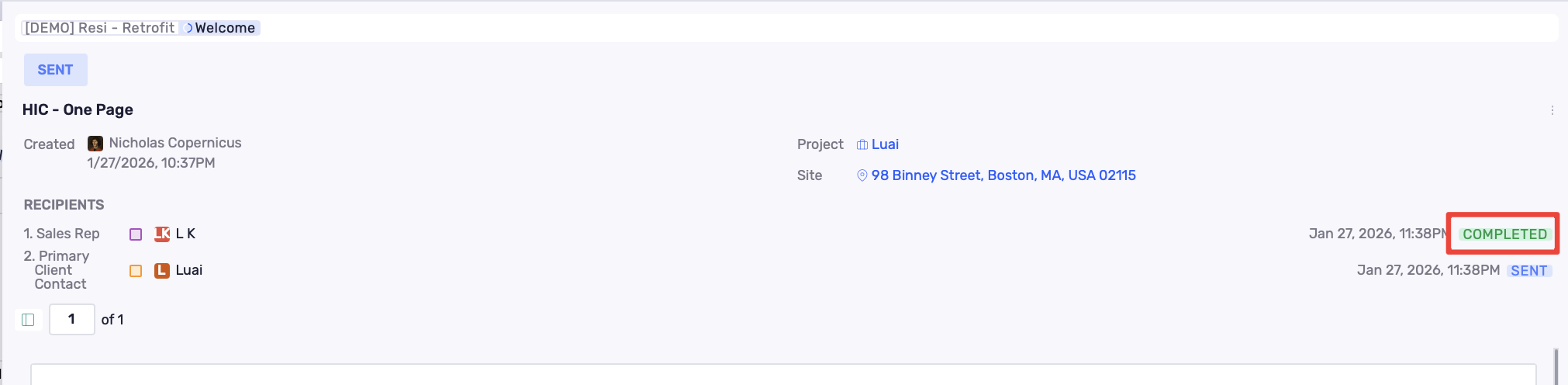
Once a recipient completes their portion, their status changes to Completed
The document can then be sent to the next recipient (if applicable)
This continues until all recipients have completed their required steps
Best Practices
Create separate templates for customer-facing and internal documents
Mark only truly necessary fields as required
Use properties to auto-fill record data whenever possible
Review recipients and field assignments before sending
Keep document titles clear and specific (e.g., Residential Commissioning Form)