How to Connect Your Email in Coperniq
Last updated: March 5, 2026
Estimated Reading Time: 1–2 minutes
Overview
Connecting your email allows you to send and receive messages directly inside Coperniq. Emails automatically sync and stay attached to the correct client, project, or request so your communication remains organized.
Step 1: Connect Your Email
Click your Company Name in the top-left corner.
Select Company Settings.
Click Emails & Phones from the left menu.
Click + Email.

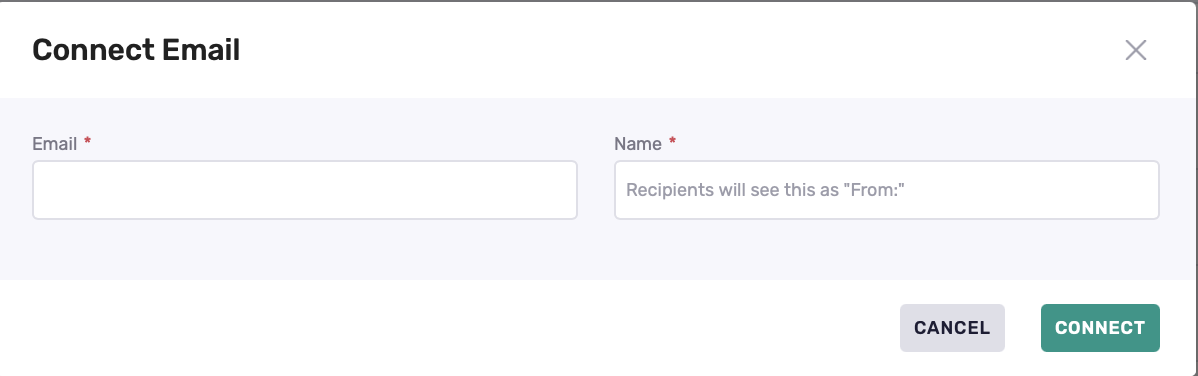
A Connect Email window will appear.
Enter:
Your Email address
The Name you want recipients to see in the From field
Then click Connect.
If you don’t see Company Settings in the top-left dropdown, you don’t currently have access.
Please reach out to an Admin user in your company to grant you access before proceeding.
Step 2: Sign In and Grant Access
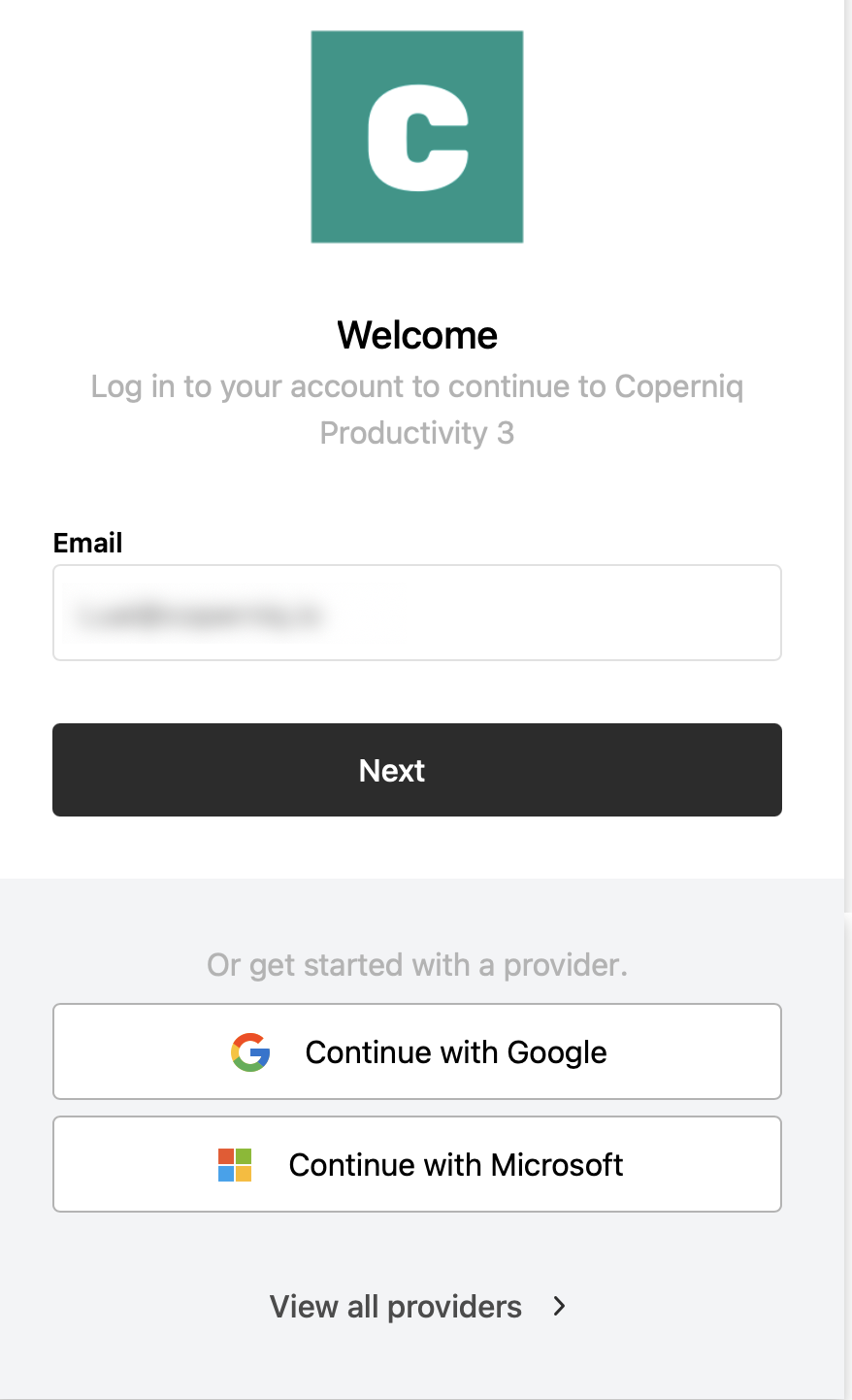
After clicking Connect, you’ll be redirected to your email provider.
Choose:
Continue with Google
Continue with Microsoft
Or follow the standard sign-in flow
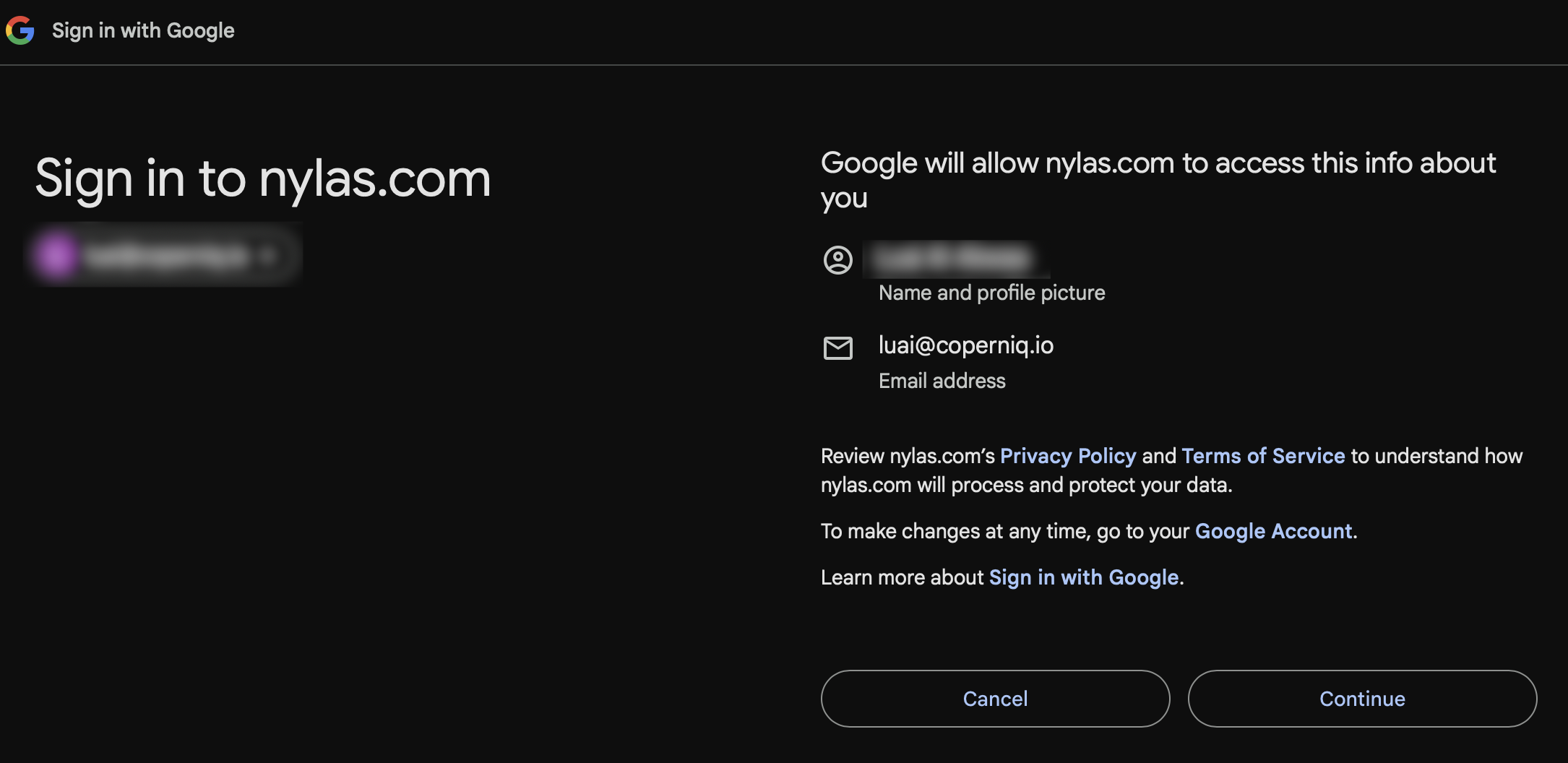
If you connect with Google, you may see:
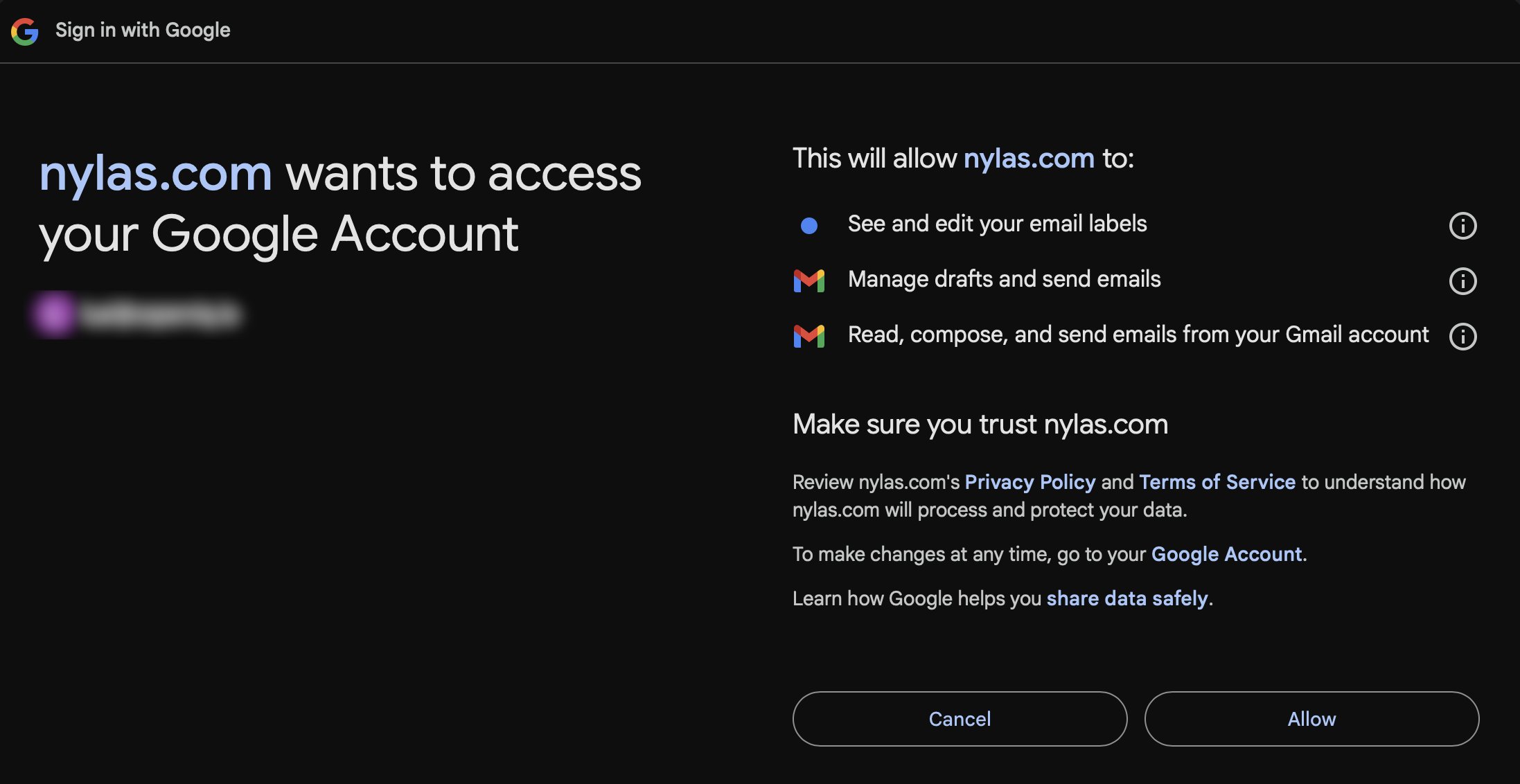
“nylas.com wants to access your Google Account”
This is expected. Coperniq uses a secure integration service to connect your email.
Click Continue,
then click Allow
Step 3: Connection Status
After authorization, you’ll return to Coperniq.
Under Company Settings → Emails & Phones, your email will first show as:
Syncing (initial setup)

Then it will automatically change to:
Connected

Once it shows Connected, your email is ready to use.
Where Do Email Replies Appear?
When someone replies to an email:
The conversation remains inside the record where the email was sent.
A notification appears in your Coperniq Inbox.
To view email notifications:
Open the Inbox
Filter by Email

Share the Email with Team Members
If multiple team members need access to the same email:
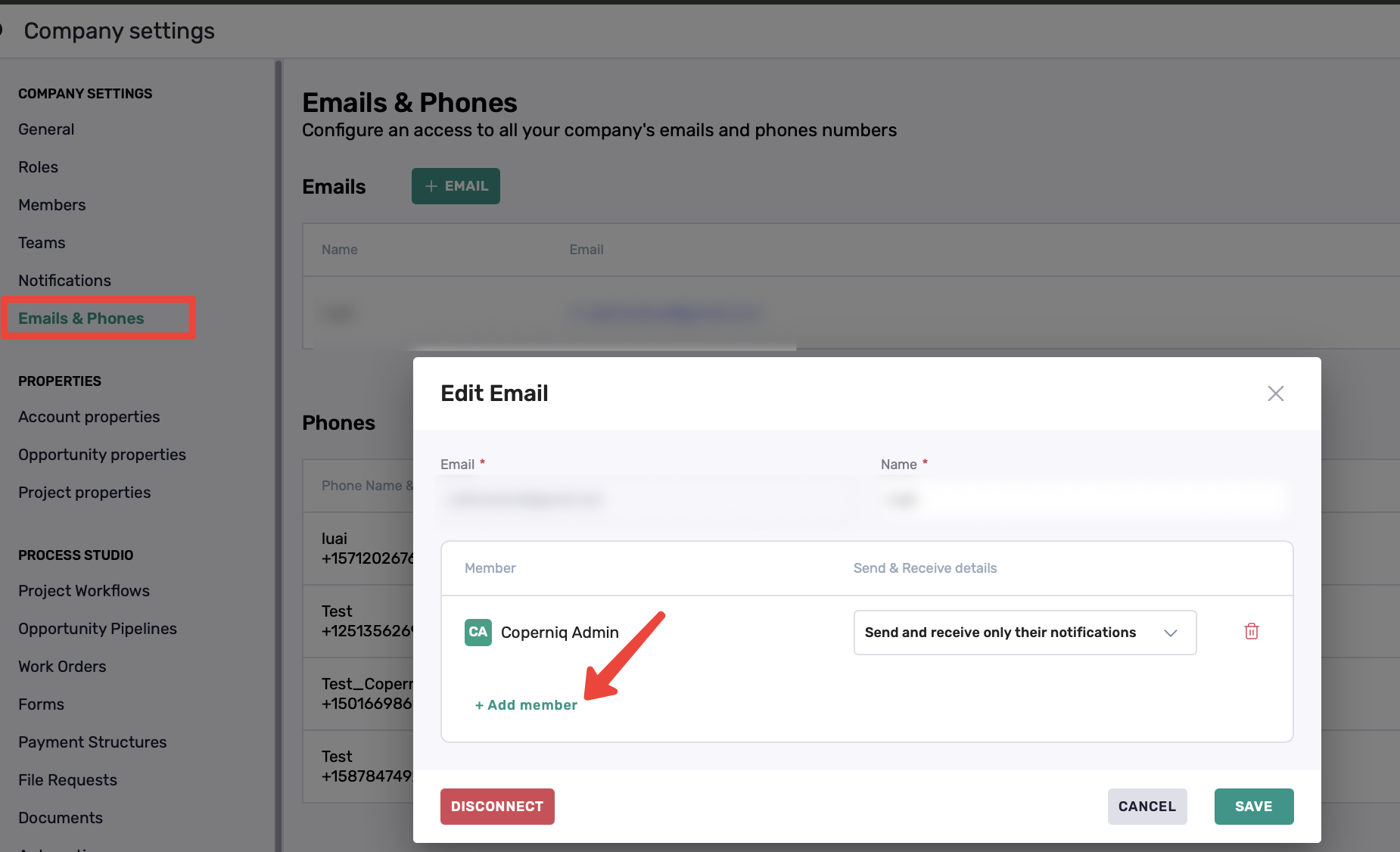
Go to Company Settings → Emails & Phones
Click on the connected email
Click + Add member
Select the users who should have access
Click Save
Manage Notification Settings
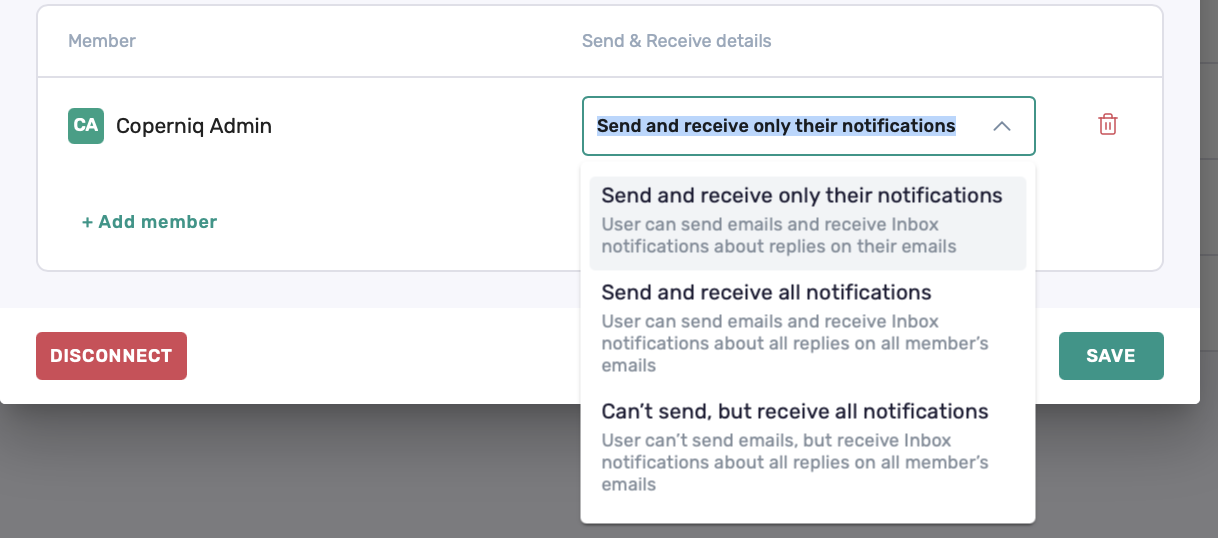
Each member can have different access levels:
Send and receive only their notifications
Can send emails
Receives notifications only for replies to emails they sent
Send and receive all notifications
Can send emails
Receives notifications for all replies from that shared email
Can’t send, but receive all notifications
Cannot send emails
Receives notifications for all replies
Best Practices
Use Add member to provide secure access instead of sharing credentials.
Check your Coperniq Inbox regularly and filter by Email to stay on top of replies.
Set each member’s notification level to match their responsibility for replies.