Purchase Orders – Create, Manage, and Track
Last updated: April 21, 2026
Overview
Purchase Orders (POs) help you manage vendor purchases from start to finish. You can create them manually or generate them using AI, link them to projects or accounts, and track their progress through different stages—all in one place.
Access Purchase Orders
Go to:
Left Menu →Financials → Purchase Orders
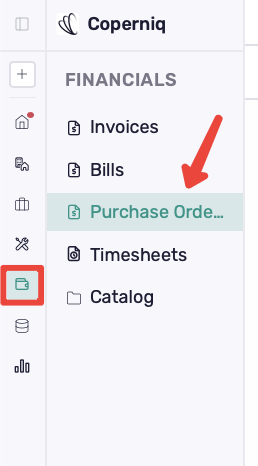
From here, you can:
View all purchase orders
Filter by status (Draft, Sent, Partially Fulfilled, Fulfilled, Canceled)
Search and sort records
Show Archived
Filter by Due Date or Vendor
To create a new one, click + Purchase Order in the top-right corner.

Create a Purchase Order
After clicking + Purchase Order, choose how you want to create it:
Option 1: Ask AI (Copilot)
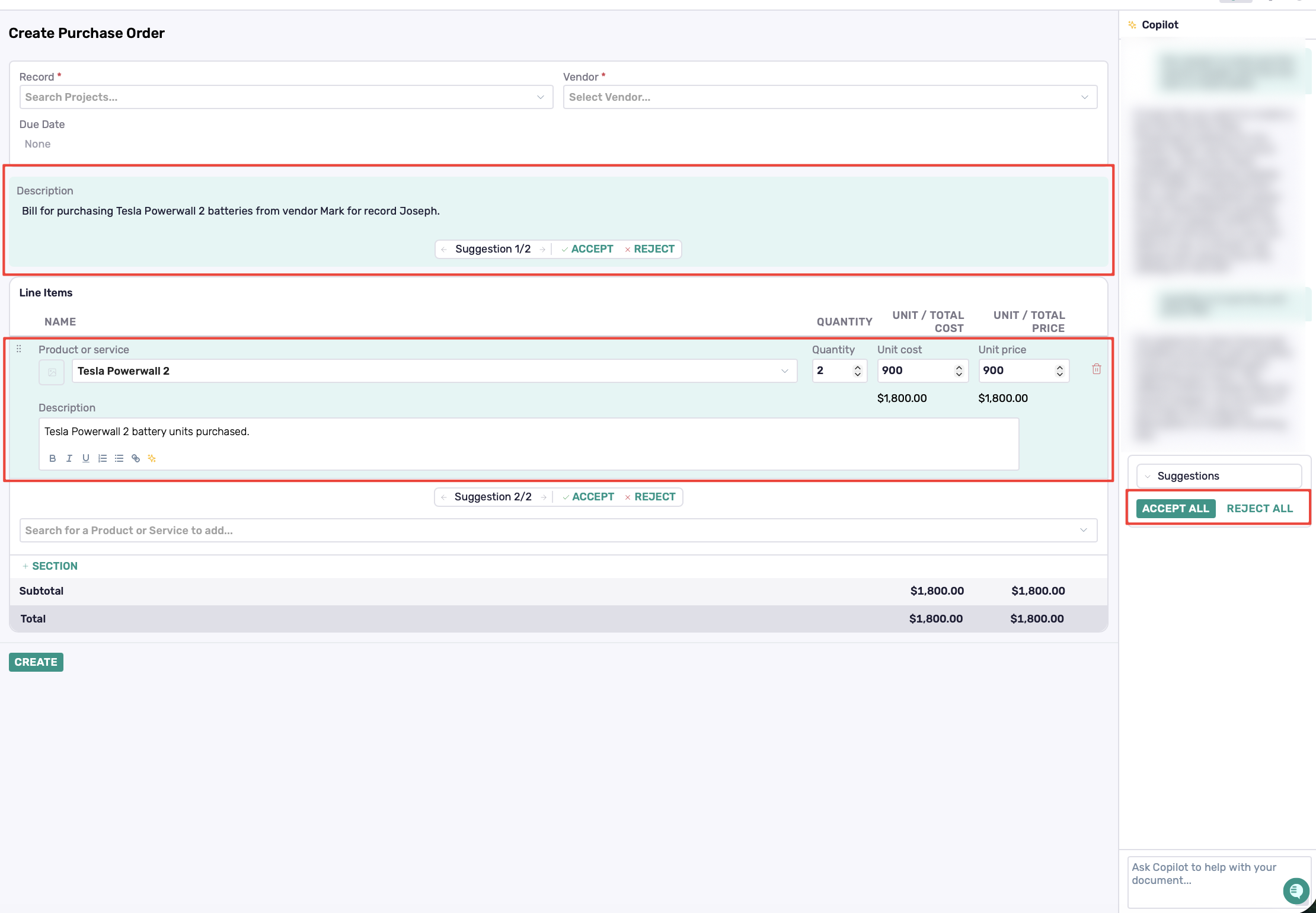
Describe what you want (e.g., vendor, record, items), and Copilot will generate the purchase order.
How Copilot Suggestions Work
Fields highlighted in green = suggested content
Suggestions are not applied until you accept them
You can:
Accept → apply a single suggestion
Reject → remove it
Accept All → apply all suggestions at once
Reject All → discard all suggestions
💡 Tip: Review suggestions before accepting—especially line items and descriptions.
Option 2: Create Manually
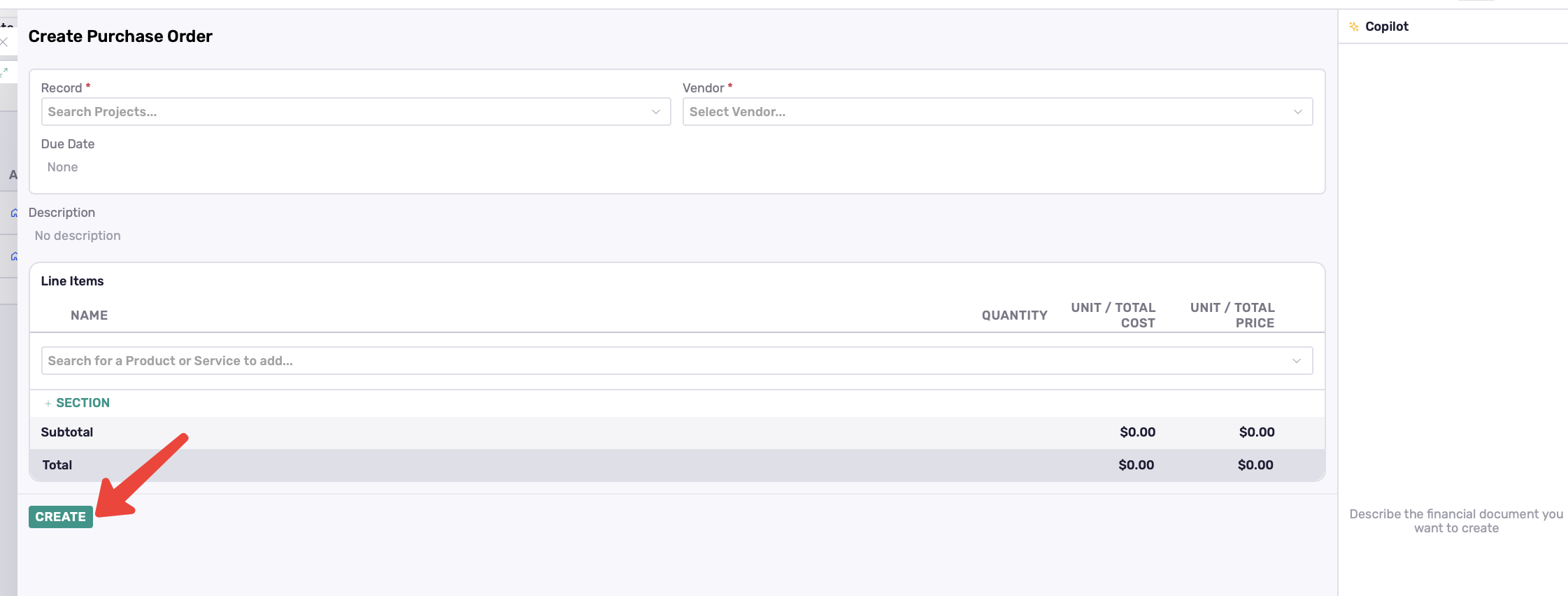
Use this option to complete the purchase order yourself.
Fill in:
Record (required): Select an Account or Project
Vendor (required): Select the vendor
Due Date: Optional
Description: Optional
Under Line Items, add:
Product or service
Quantity
Unit / Total Cost
Unit / Total Price
Review and Create
After the purchase order is generated or filled out manually:
Review all fields carefully
Confirm the selected Record and Vendor
Review the Line Items and pricing
Add or adjust Discount and Tax if needed
Click Create
After Creating a Purchase Order
Once created:
The purchase order appears in the Purchase Orders list
It is also connected to the selected Account or Project
You can access it from:
The Purchase Orders page
The related Account or Project record
Manage a Purchase Order
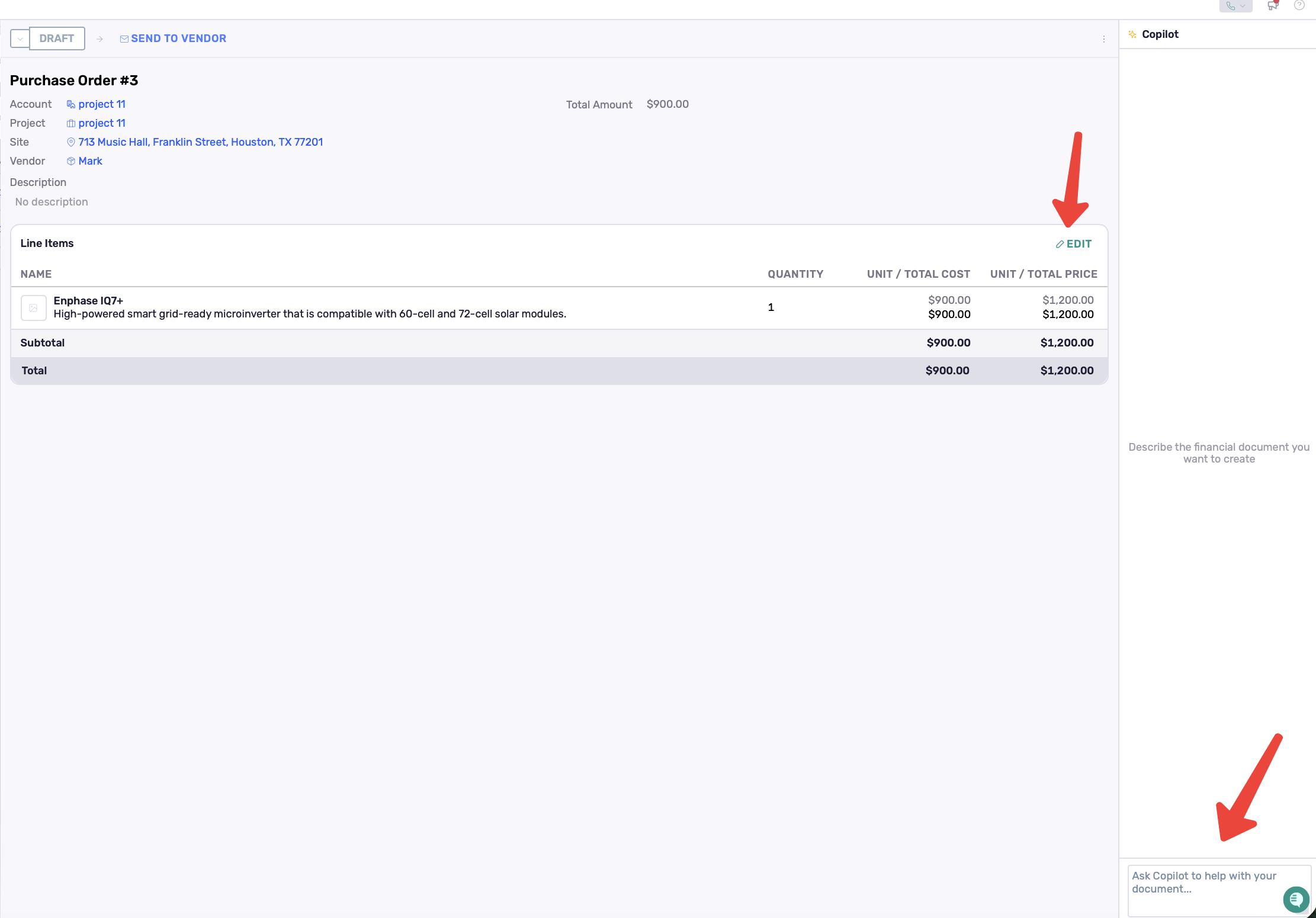
Open a purchase order to view details, update items, or take action.
You can update a purchase order in two ways:
Edit → Make manual changes
Update line items, quantities, pricing
Add or remove items
Adjust discount or tax
Copilot → Make changes using AI
Describe what you want to update
Copilot suggests changes (highlighted in green)
Accept or reject suggestions before applying.
More Actions
Inside the purchase order record, click ⋮ in the top-right corner to access:
Convert to Bill
Send to Vendor
Mark as Fulfilled
Download PDF
Archive /Unarchive

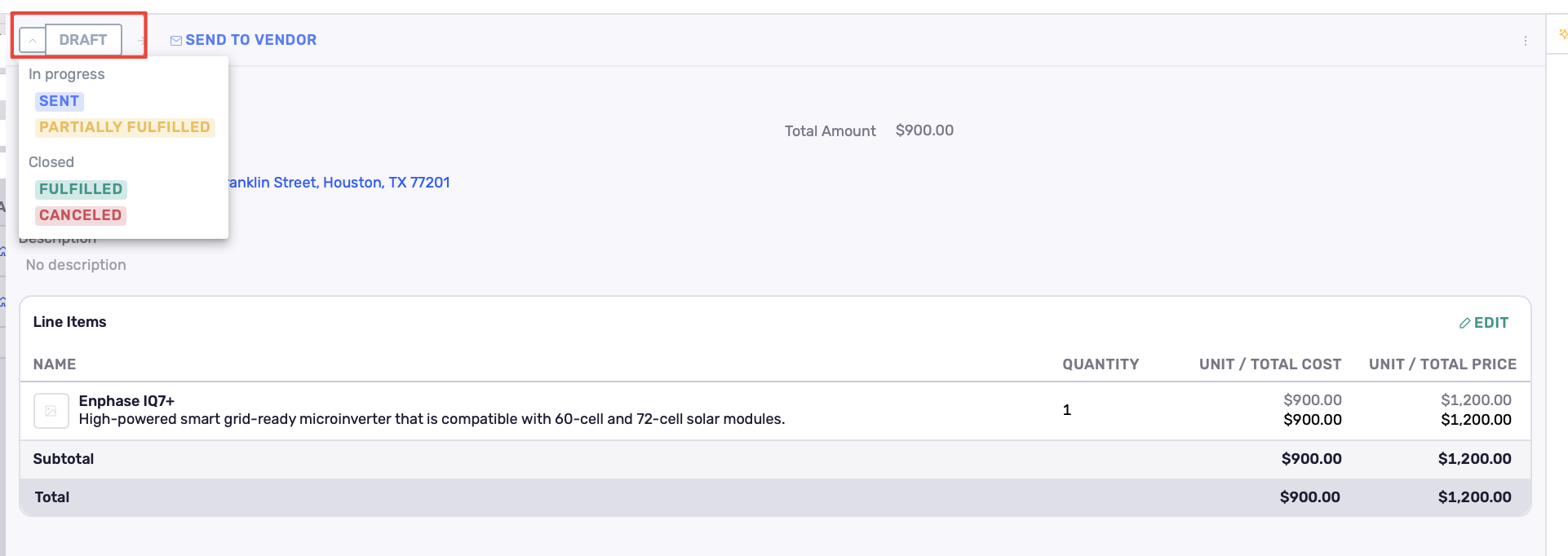
Status Management
Purchase orders move through the following statuses:
Draft
Sent
Partially Fulfilled
Fulfilled
Canceled
You can update the status from the dropdown at the top of the purchase order record.
Mark as Fulfilled
Once the order has been completed, click Mark as Fulfilled.
Best Practices
Confirm the correct Record and Vendor before creating
Review AI-generated purchase orders before clicking Create
Keep line items clear and accurate
Add Discount and Tax only when applicable
Update the status as the order progresses