Dispatch Board
Last updated: January 4, 2026
Estimated reading time: 2–3 minutes
Overview
The Dispatch Board in Coperniq helps you assign and manage field work orders with speed and clarity. It provides a live, technician-based calendar to see who's available and when — making it easy to schedule tasks, optimize routes, and balance workloads across your team.
Accessing the Dispatch Board
To open the Dispatch Board:
Log into the Coperniq web app
From the left-hand sidebar, click Dispatch
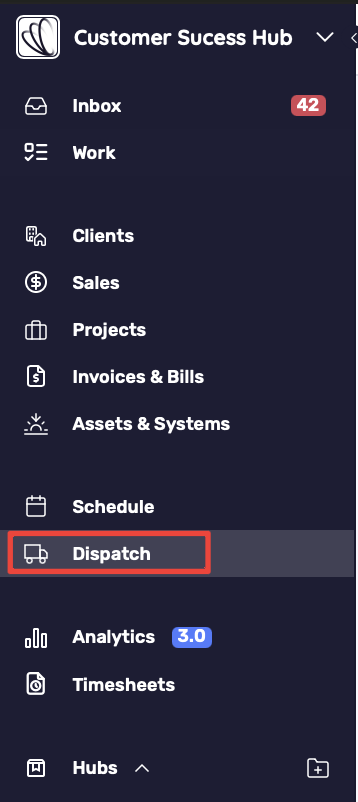
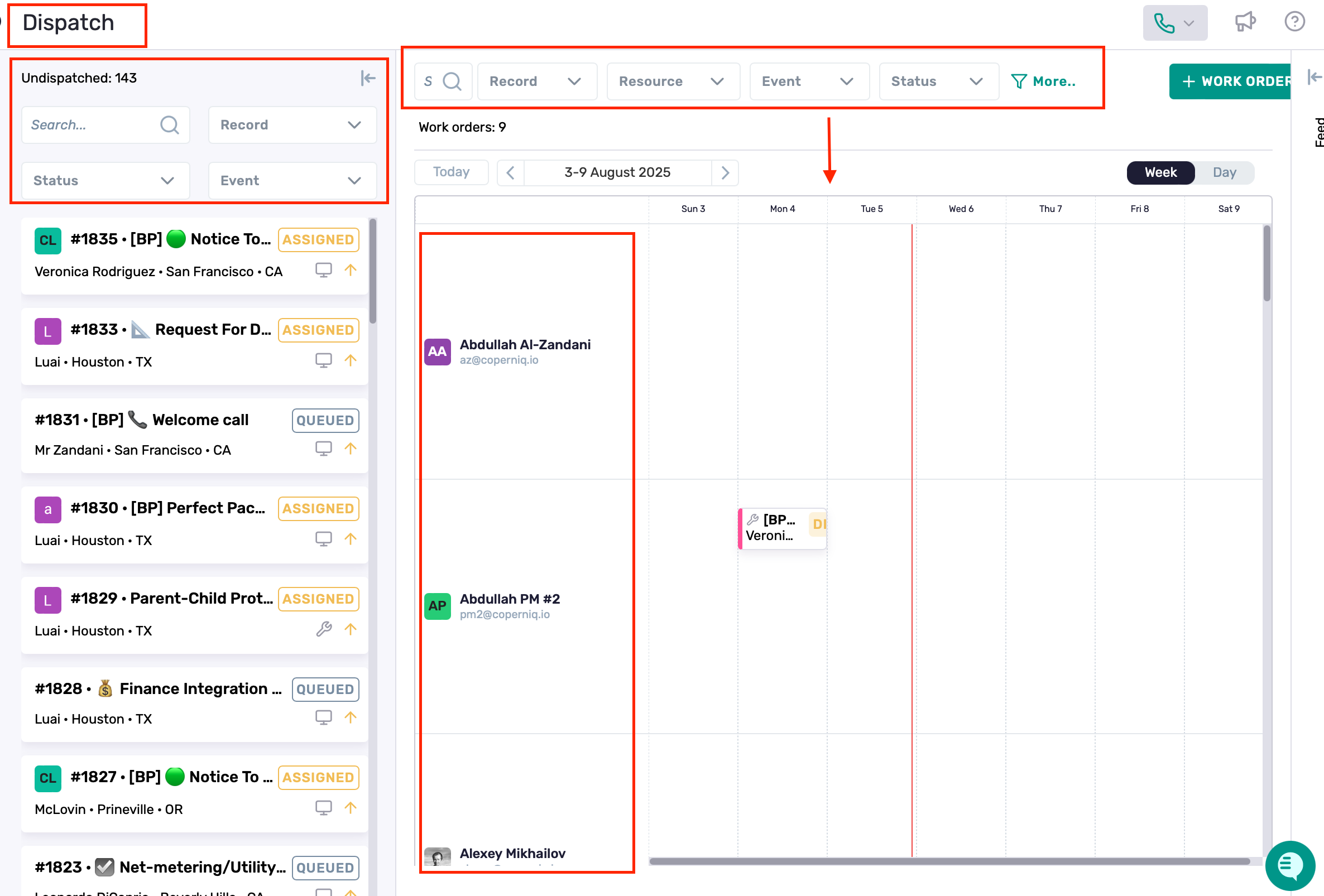
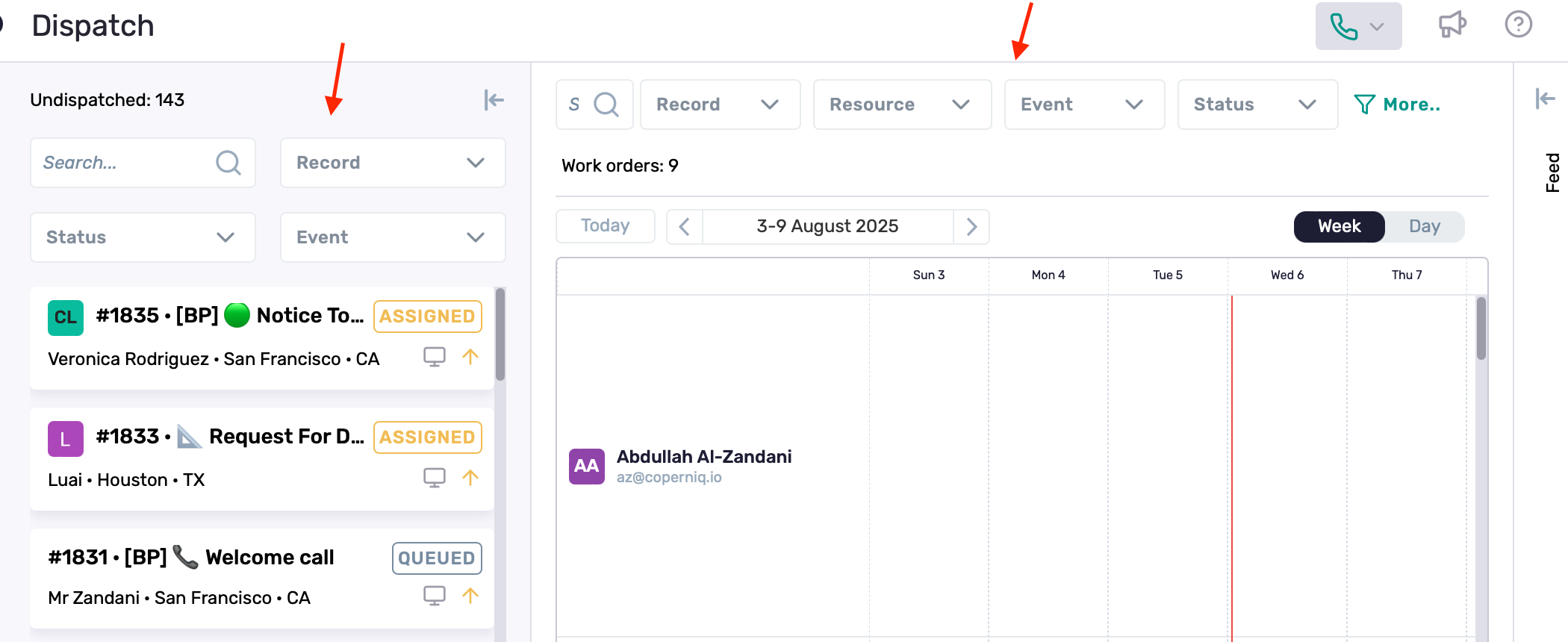
You’ll be taken to the Dispatch Board view, where you’ll see:
A calendar grouped by technicians on the right
Undispatched work orders on the left, with filters above
A top bar with global filters and Smart View options
Purpose and Functionality
The Dispatch Board addresses a critical operations need:
Assign the right task to the right technician, at the right time — and in the right place.
It enables dispatchers to:
Assign work orders directly to field staff
Set both time and date during assignment
View each technician’s real-time schedule and availability
Make quick adjustments as things change throughout the day
Technician-Based Calendar View
On the right, the Dispatch Board displays a scrollable timeline where each row represents a technician or resource. Time slots are aligned horizontally to reflect the scheduling window.
View Modes
Day View: Hour-by-hour breakdown of today’s assignments
Week View: A technician-centric overview of the current week
Today: Instantly jump to the current date
Navigation Arrows: Move forward/backward in time across views

Each work order appears in the appropriate row and day block, making it easy to see exactly who is doing what and when.
Map View (Day View Only)
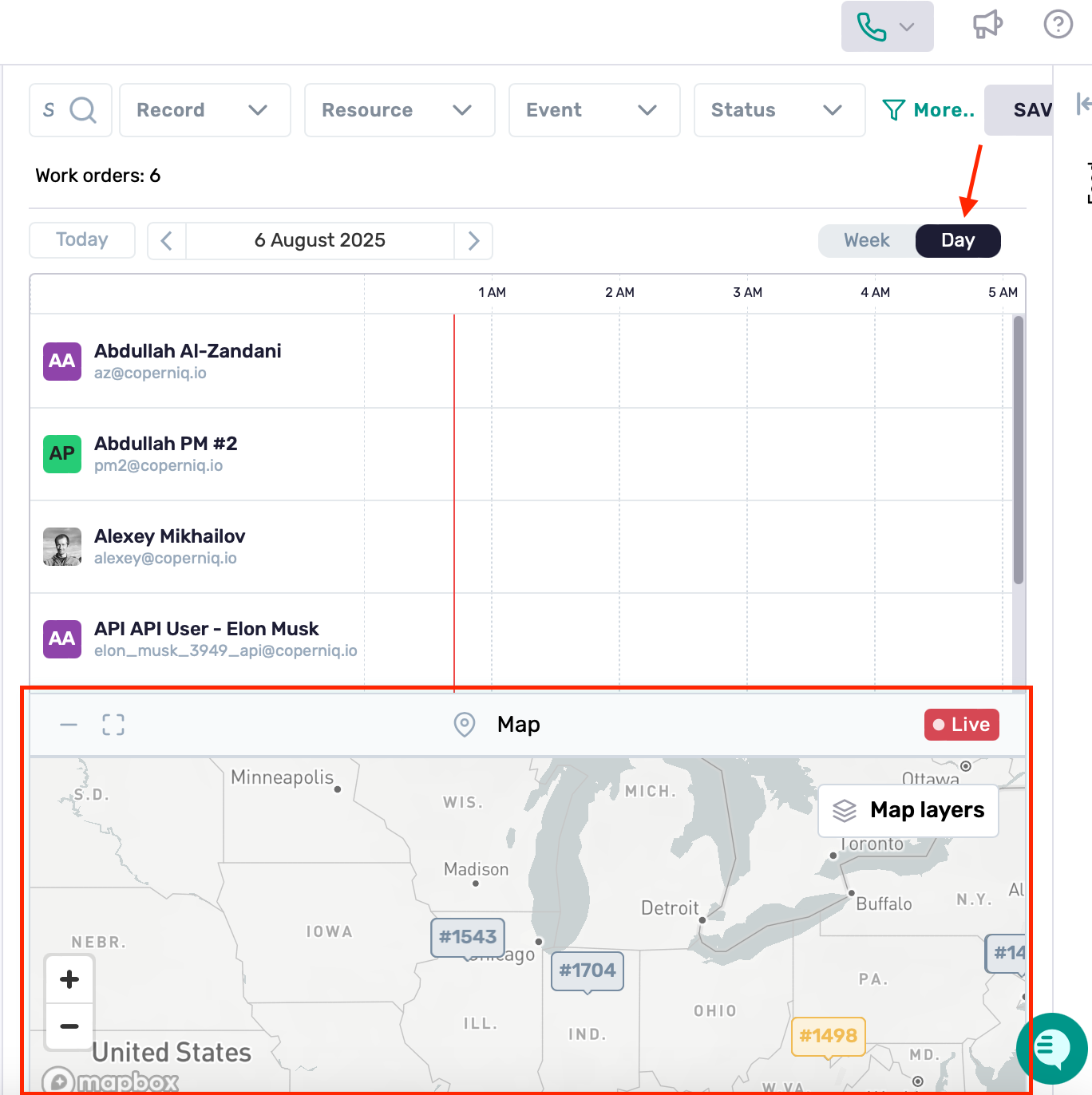
The Map view is available exclusively in Day View, and appears below the technician timeline. It provides a geographic view of all job locations for better dispatch planning.
What It Displays
📍 Dispatched work orders: Already assigned and scheduled
📍 Undispatched work orders: Still unassigned (visible from the left panel)
How It Helps
Visualizes where each job is located in relation to the technician
Identifies job clusters for better batching and route planning
Prevents assigning distant jobs to technicians with closer tasks
Pinpoints each job on the map with interactive click-to-view details
Allows toggling of Map Layers to control job label visibility and category highlighting
Use the map to improve field efficiency and reduce technician travel time.
Assigning Work Orders
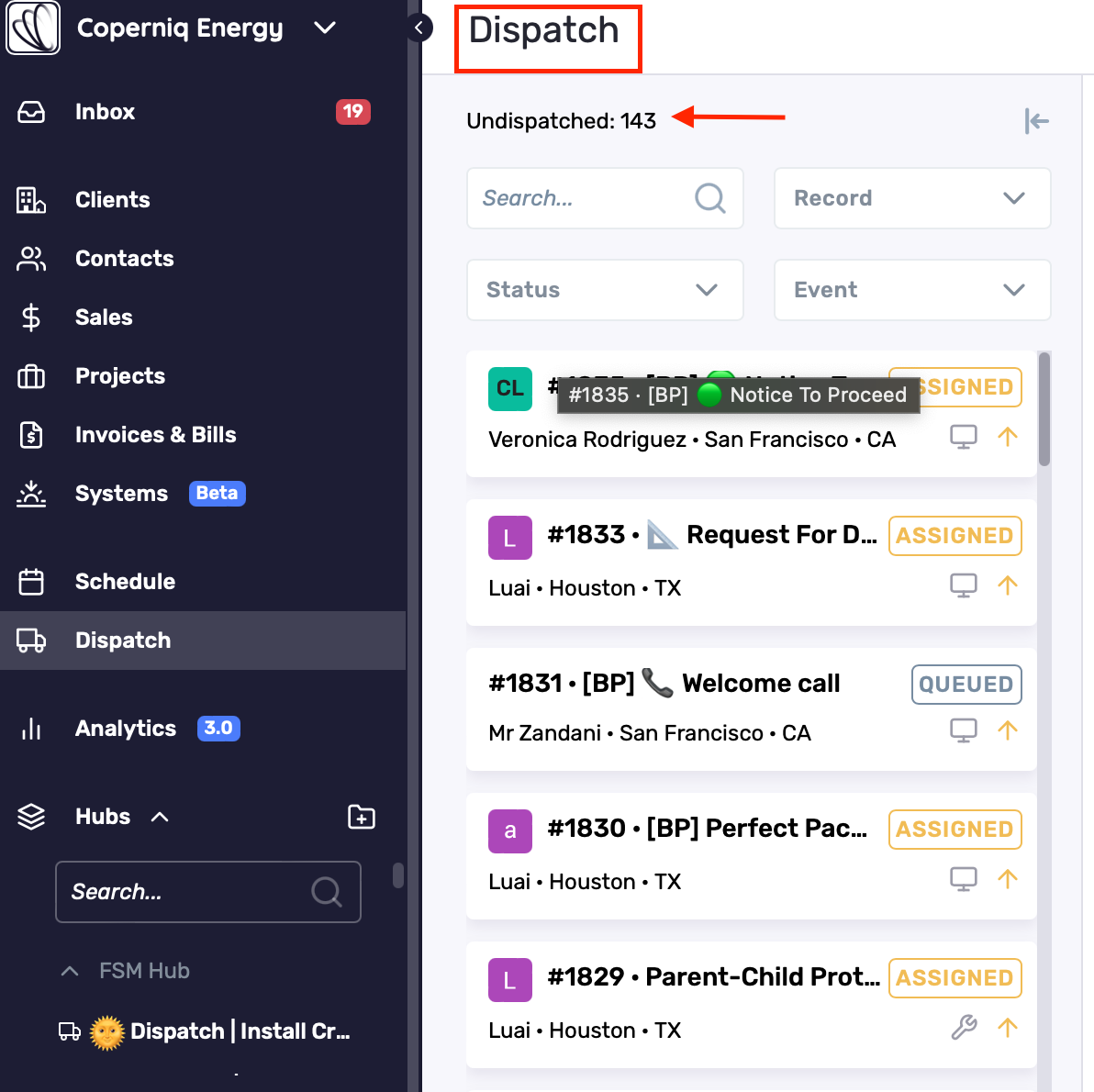
The left panel contains all Undispatched work orders, which haven’t been assigned or scheduled yet.
How to Assign:
Drag the work order from the left panel
Drop it onto the timeline of the desired technician at the preferred date and time
The work order is now scheduled and assigned
🔹 Use drag-and-drop to reschedule or reassign any time
🔹 Changes are saved instantly and visible to all users
Filters and Smart Views
Filters are available above both the Undispatched list and the technician schedule.
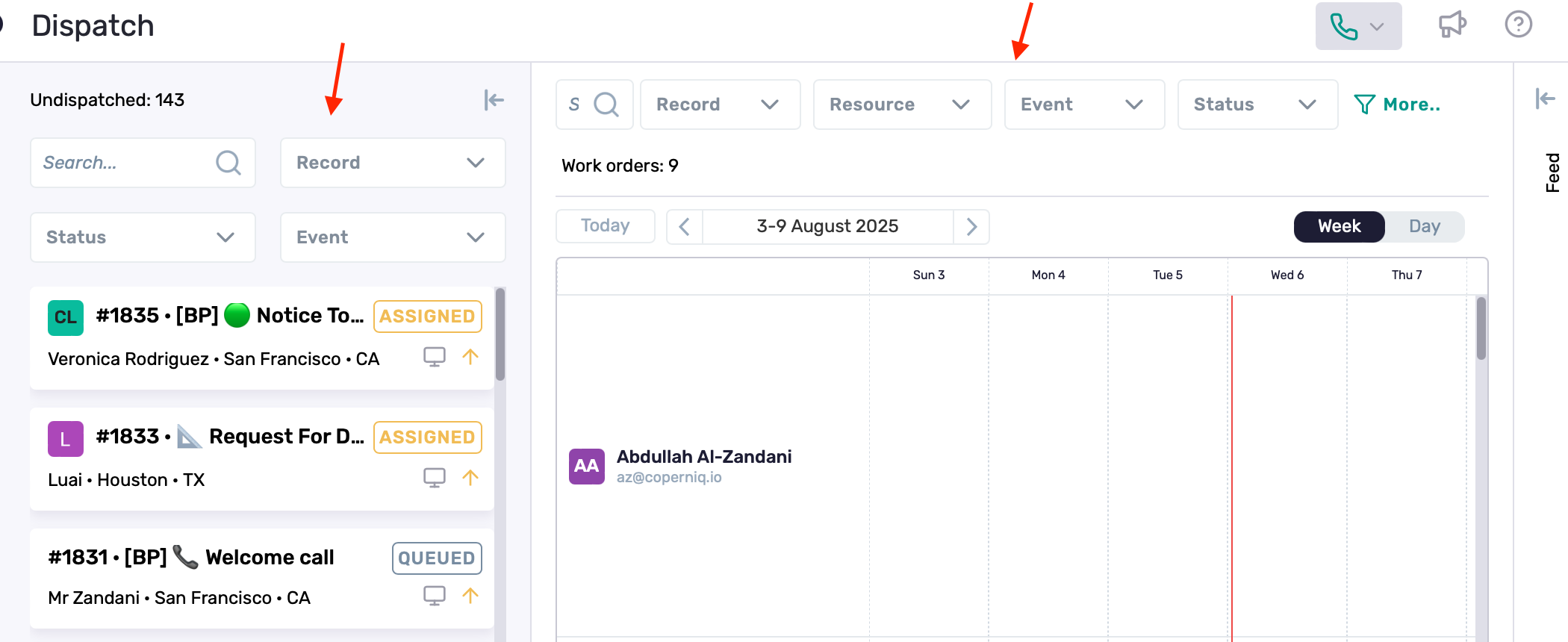
Filter Options
Search: Find by name, address, or order number
Record Type: Filter by Client, Project, or Request
Resource: View only selected users or teams
Event Type: Filter by job type (e.g., Installation, Survey, PTO)
Status: Show work orders by stage (Queued, Assigned, Completed)
Labels & Priority: Categorize and highlight tasks visually
All filters include built-in search bars for fast navigation.
Smart Views
Save any combination of filters as a Smart View to quickly toggle between dispatch setups, such as:
Technicians by region
High-priority jobs
Daily team schedules
Best Practices
Use Day View + Map to dispatch based on technician location
Apply Smart Views for repeatable dispatch filters by job type or team
Adjust assignments easily using drag-and-drop during the day