Schedule Board
Last updated: January 4, 2026
Estimated reading time: 2–3 minutes
Overview
The Schedule Board in Coperniq allows you to schedule, organize, and manage work orders across a calendar interface. Whether you're assigning field work or office tasks, the board gives you full visibility and control with drag-and-drop functionality, smart filters, and flexible viewing options.
Accessing the Schedule Board
Log into the Coperniq web app
From the left-hand menu, select Schedule
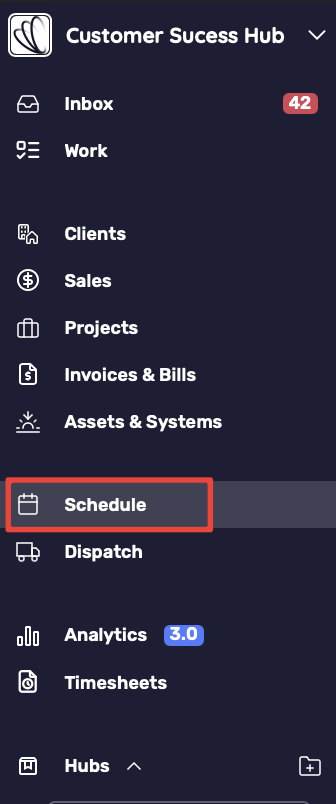
You’ll land on a page with:
A left panel listing unscheduled work orders
A calendar view for placing scheduled tasks
A top filter bar to customize what’s displayed
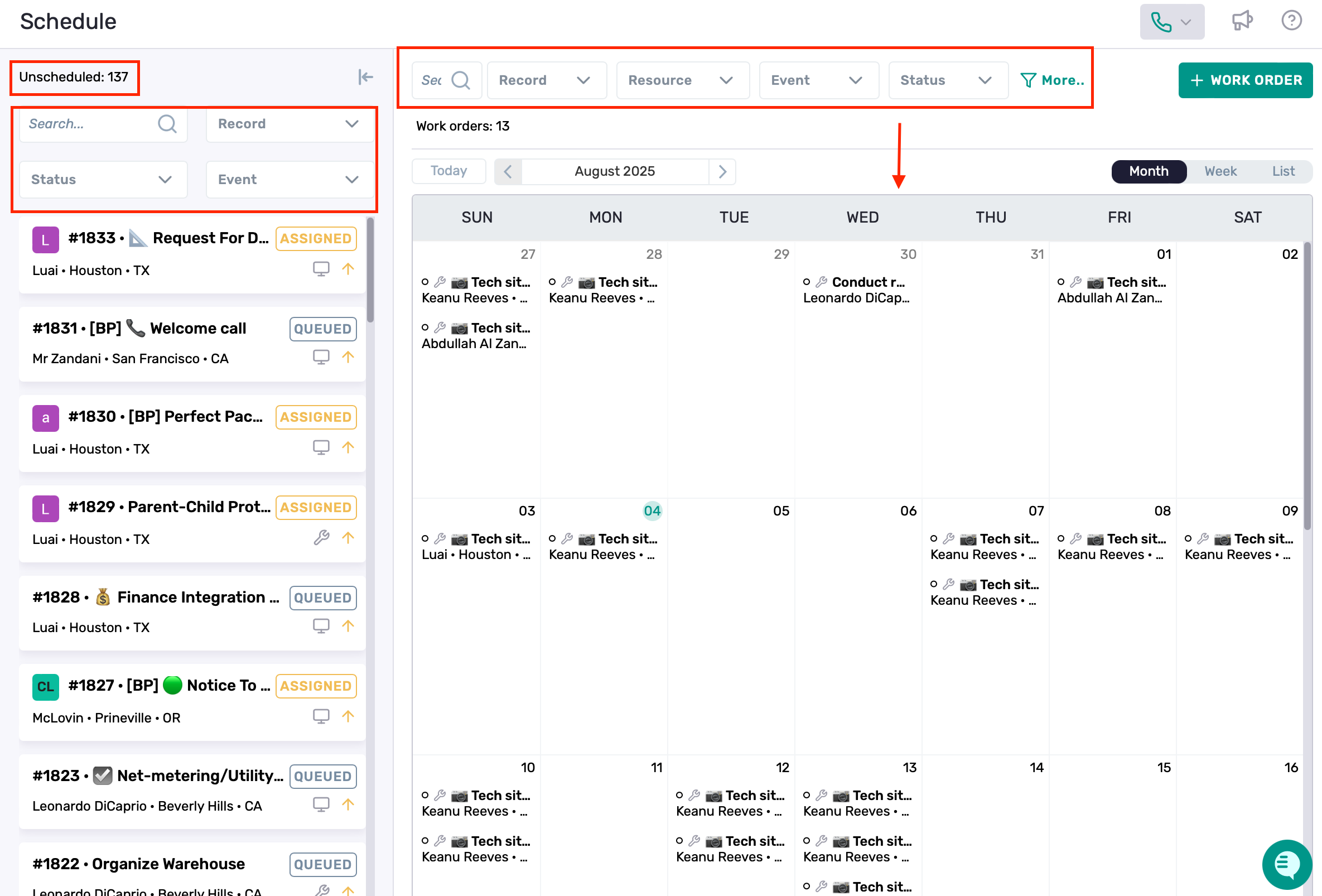
Left Panel – Unscheduled Work Orders
This section displays work orders that have not yet been assigned to a date.
Key features:
Filter by:
Status – Assigned, Queued, Review, etc.
Event Type – Call, Inspection, Re-survey, etc.
Record Type – Client, Project, or Request
Use the search bar to find specific work orders by name, number, or keyword
Drag & Drop Scheduling:
Drag any unscheduled work order into the calendar
Drop it on the desired date to schedule it instantly
This action updates its status from unscheduled to scheduled
Calendar View – Right Panel
The right side shows scheduled work orders in a calendar layout.
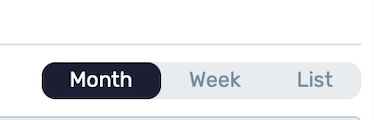
View Modes:
Use the toggle at the top-right to switch between:
Month – Default view showing the entire month
Week – Focused view for weekly planning
List – Streamlined view of all upcoming work orders in order
The calendar view supports both field and office tasks, helping you coordinate your team’s workload effectively.
Navigation Controls:
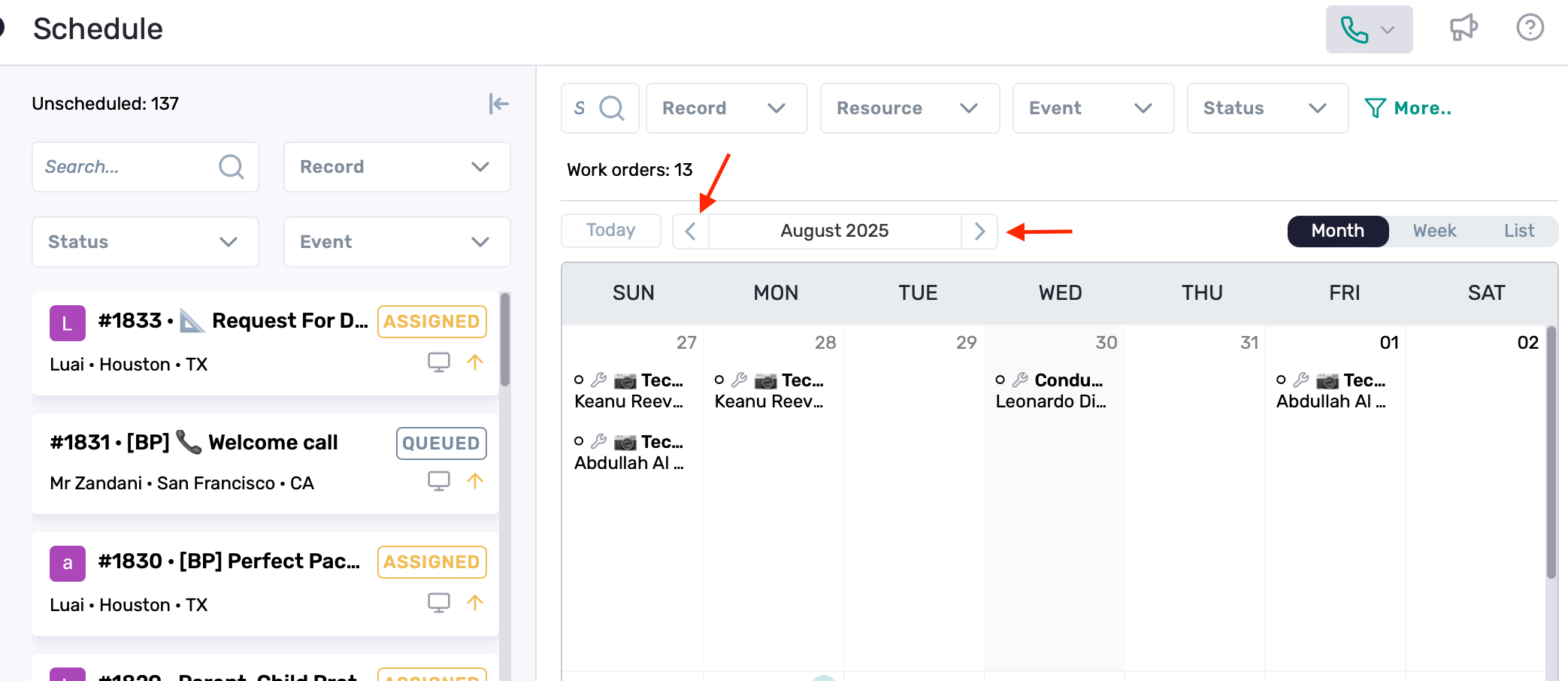
Tap Today to jump to the current date
Use the arrow buttons next to the date range to navigate:
In Month View, arrows move between full months
In Week View, arrows move week by week
In List View, arrows scroll through grouped time intervals (e.g., weekly chunks)
Top Filters Bar
Use the top filter bar to control what's shown in both the calendar and unscheduled list.
Available Filters:
Search – Global search by title, client, project, or ID
Record – Filter by record type: Client, Project, or Request
Resource – Filter by assigned user or technician
Event – Filter by type of task (e.g., Installation, Call, Survey)
Status – Filter by the current progress (e.g., Assigned, Completed)
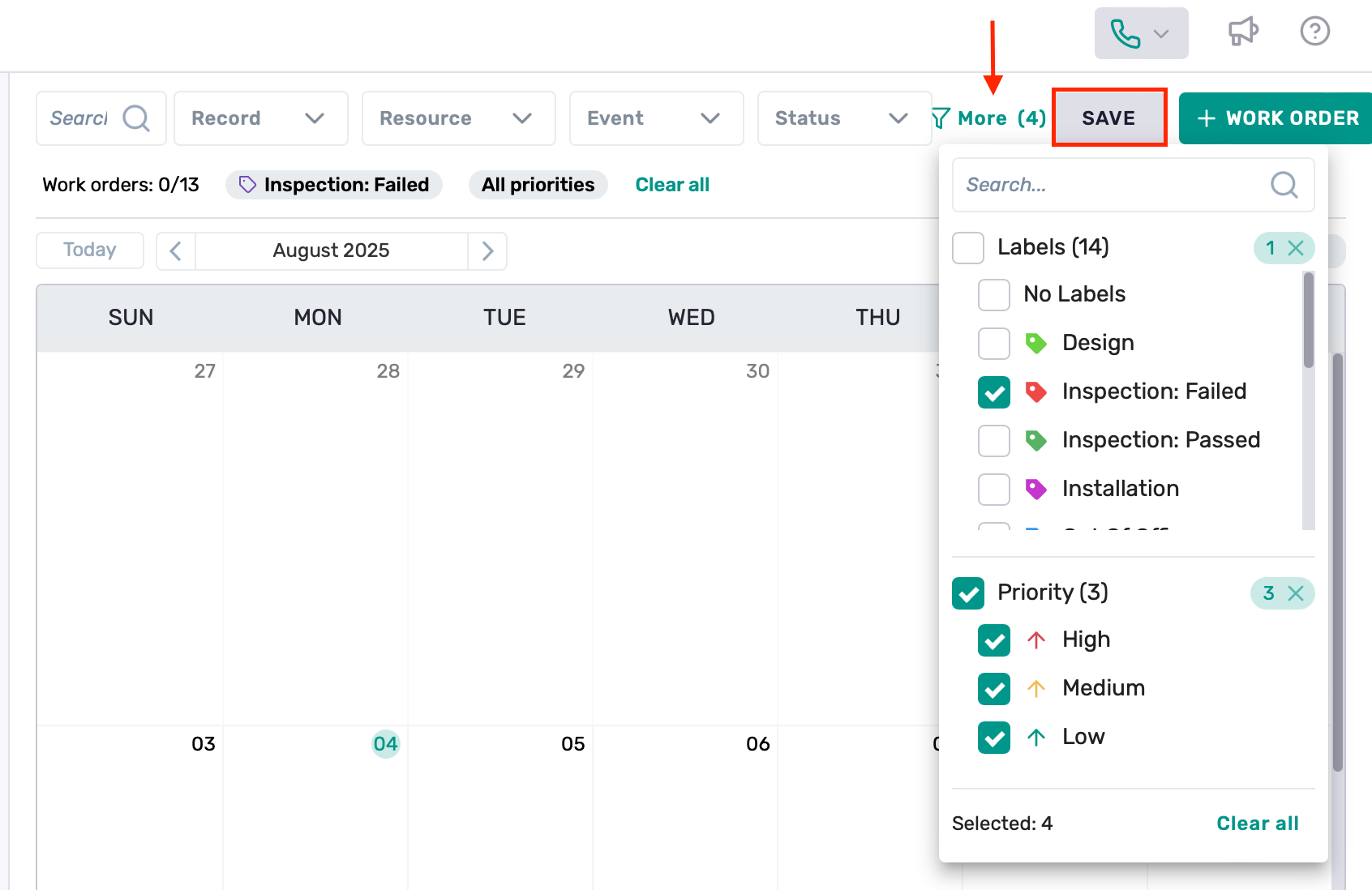
More… (Advanced Filtering)
Click More… to open extended filters:
Labels – Tag-based filtering (e.g., Installation, PTO, Re-survey)
Priority – High, Medium, or Low
Each filter group includes its own search box, so you can quickly locate a label, user, or type without scrolling
You can apply multiple filters at once
Save your applied filters as a Smart View for quick access in the future
Creating a New Work Order
To add a new work order:
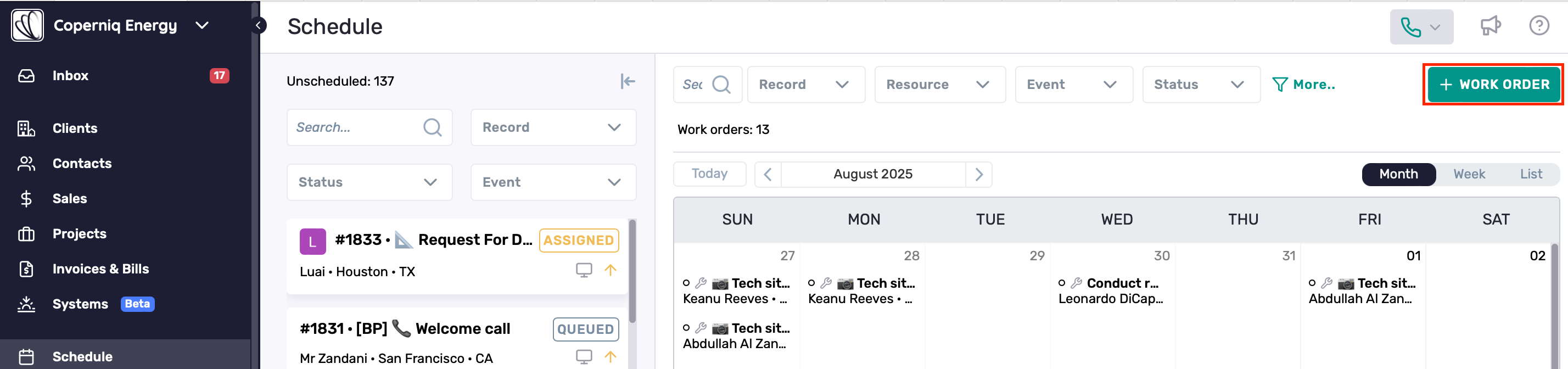
Click the + Work Order button at the top-right
Fill out the required fields (name, record link, type, etc.)
Assign a date manually or drag it onto the calendar after creation
Optionally add labels, priority, and assign a resource
Best Practices
Use drag-and-drop to schedule quickly
Apply multiple filters and search within filters to refine results
Use Record Type filters to control whether you’re viewing work tied to Clients, Projects, or Requests
Save frequently used filter sets as Smart Views for faster navigation
Switch between Month, Week, and List views depending on planning needs