Creating Automations (Triggers → Actions)
Last updated: January 5, 2026
Estimated reading time: 2–3 minutes
Overview
The Automation Builder lets you set up rules that run automatically in Coperniq. Each automation follows a simple structure:
Trigger: the event that starts the automation
Action: what Coperniq does automatically after the trigger happens
Example logic:
When something happens (trigger) → Coperniq does something (action).
Automations help teams save time, reduce manual follow-ups, and keep workflows consistent.
Access Automations
Steps:
Click your company name in the top-left corner of the platform.
Select Company Settings from the dropdown menu
Under Process Studio, click Automations
You’ll see a list of existing automations
Click + Automation to create a new one

Create an Automation
Steps:
Click + Automation.
Enter a clear Name.
Choose a Trigger.
Select the Parent Record if required (Client, Project, or Request).
Choose an Action.
Fill in all required action fields.
Click Save.
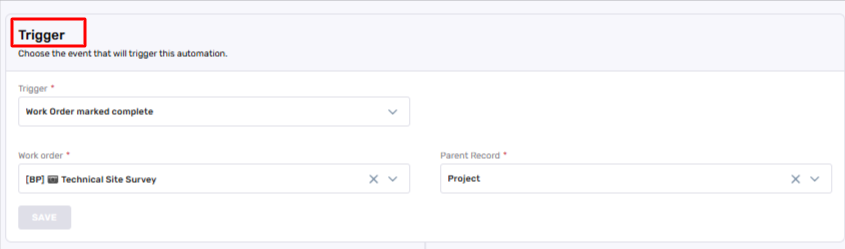
Triggers
A trigger is the event that starts an automation. Coperniq provides triggers across multiple modules (Projects, Requests, Work Orders, Appointments, Calls, and more).
Common trigger examples:
Work Order marked complete
Request created
Project phase started
Project phase SLA violated
Actions
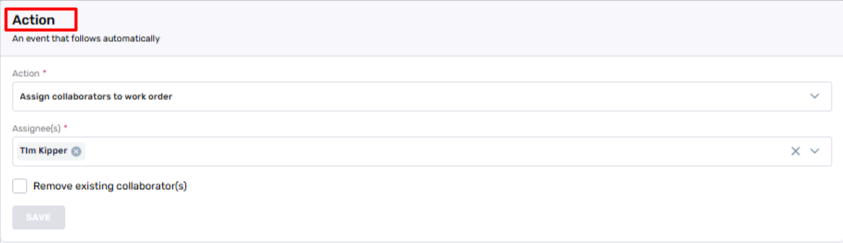
An action is what Coperniq runs automatically after the trigger happens.
Actions are grouped below by purpose:
Communication Actions
Use these to notify customers or internal teams.
Send email
Send SMS
Operational Actions
Use these to automatically create, assign, or update work.
Create project
Create work order
Assign work order
Assign collaborators to work order
Create reminder
Update property
Integration Actions
Use these to connect Coperniq with external systems.
Call webhook
Once you select an action, Coperniq will show its required setup fields.
Trigger → Action Examples
Below are common examples showing triggers and actions together.
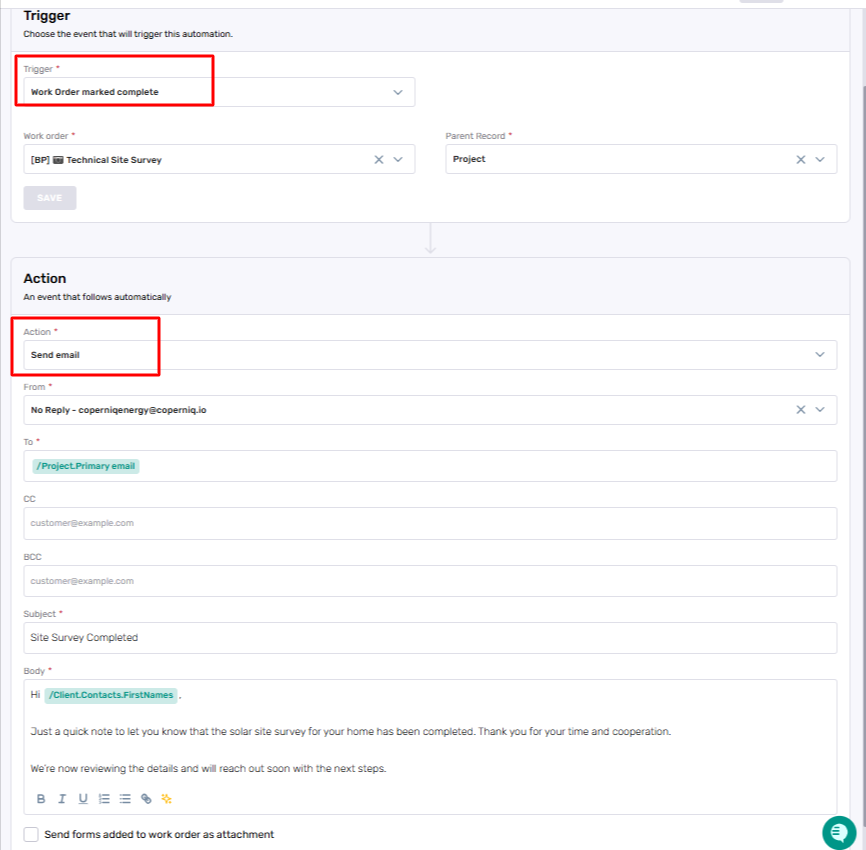
Example 1: Work Order Completed → Send Email
Trigger: Work Order marked complete
Action: Send email
Parent Record: Client (recommended when notifying customers)
What happens:
When a Work Order is marked complete, Coperniq automatically sends an email to the recipients you define.
Key fields:
From (required)
To (required)
CC (optional)
BCC (optional)
Subject (required)
Body (required)
Send forms added to work order as attachment (optional)
Example 2: Request Created → Update Property
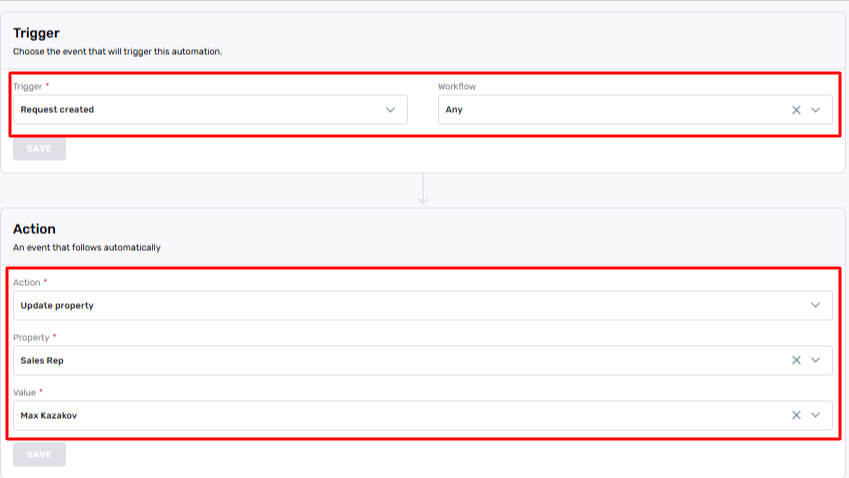
Trigger: Request created
Action: Update property
Parent Record: Request
What happens:
When a Request is created, Coperniq automatically updates a selected Request field.
Key fields:
Property (required) — Select the field you want to update. Example properties include:
Status
Owner
Trades
Sales Rep
Project Manager
Request Value / Size
Value / Rule (required) — Define what Coperniq should set for that property.
Note:
The Property dropdown contains additional Request fields depending on your workspace configuration.
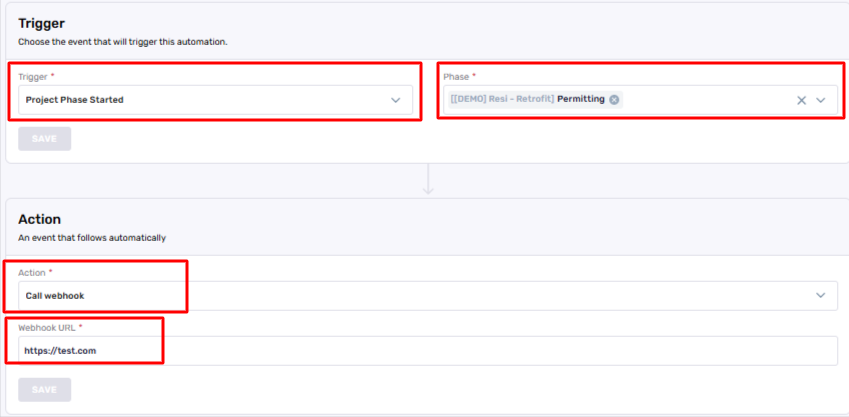
Example 3: Project Phase Started → Call Webhook
Trigger: Project phase started
Phase: (required) select which phase to monitor
Action: Call webhook
Parent Record: Project
What happens:
When the chosen Project phase starts, Coperniq sends an event to an external system.
Key fields:
Phase (required)
Webhook URL (required)
Managing Automations
You can manage automations from the Automation list.
Available options:
Enable/Disable: use the toggle switch
Edit: click the ⋯ (three dots) on the right side → select Edit
Duplicate: click the ⋯ (three dots) on the right side → select Duplicate
Delete: click the ⋯ (three dots) on the right side → select Delete
Search: use the search bar to find automations quickly

Each automation displays:
Name
Trigger type
Action type
Active status
Created by

Best Practices
Use descriptive automation names
Avoid duplicate or conflicting automations unless intentional
Test automations by performing the trigger once
Keep customer-facing vs internal rules separate
Review automations periodically as workflows evolve