Customize Email and SMS Automations
Last updated: October 7, 2026
Estimated reading time: 2–3 minutes
Overview
Email and SMS automations allow you to send messages automatically when a workflow event occurs. This is useful for keeping customers and internal teams informed without manual follow-up.
This article explains how to configure and customize Send email and Send SMS actions inside the Automation Builder, including how to use tokens (dynamic fields) in your messages.
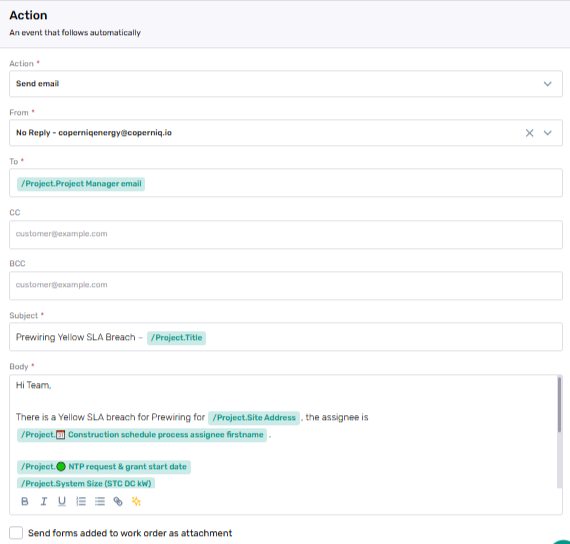
Email Automation Setup
When Send email is selected as the action, Coperniq displays the email configuration fields.
Required fields
From
To
Subject
Body
Optional fields
CC
BCC
Attach Work Order forms (if enabled)
Tokens can be used in To, Subject, and Body to insert record information automatically.
SMS Automation Setup
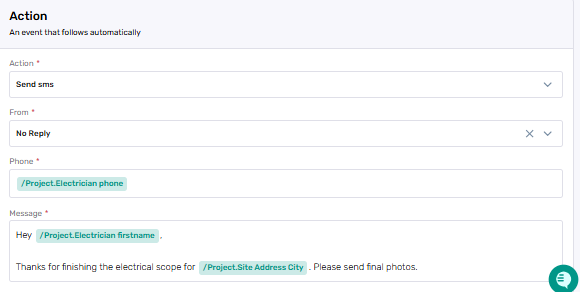
When Send SMS is selected as the action, Coperniq displays the SMS configuration fields.
Required fields
From (sender line)
Phone
Message
Tokens (Dynamic Fields)
Tokens are placeholders that Coperniq replaces with actual record values when the automation runs. Tokens help ensure each message is accurate and tailored to the specific record.
What tokens look like
Examples:
/Project.Title/Project.Primary phone/Work Order.Next visit date/Request.Status
How tokens work
Template:Your appointment for /Project.Title is scheduled on /Work Order.Next visit date.
Message sent:Your appointment for Riverside Home Upgrade is scheduled on Dec 12, 2025.
Where tokens can be used
Tokens can be inserted into supported text fields, including:
Email To / Subject / Body
SMS Phone / Message
Examples
The examples below show common automation patterns and illustrate different tokens. Replace wording and tokens based on your workflow.
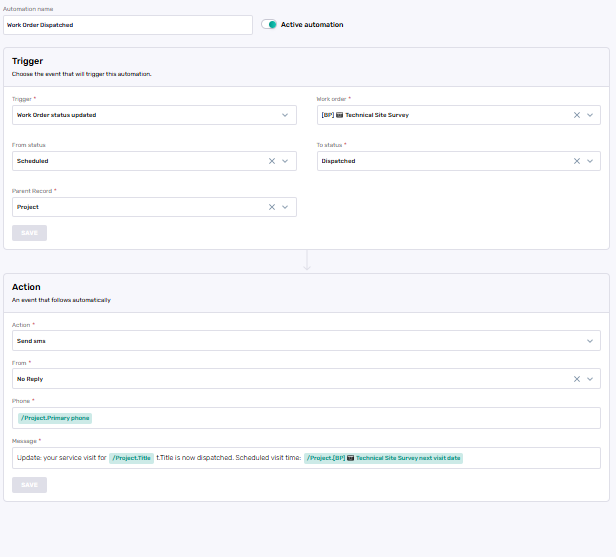
Example 1: Work Order Dispatched → SMS Notification
Setup
Trigger: Work Order status updated
Work Order: Select the Work Order type this automation applies to
(example: “[BP] 📷 Technical Site Survey”)Condition: from Scheduled → to Dispatched
Parent Record: Project
Action: Send SMS
From: Select a registered sender
(example: “No-reply SMS line” or your approved company phone number)Phone:
/Project.Primary phoneMessage:
Update: your service visit for /Project.Title is now dispatched. Scheduled visit time: /Work Order.Next visit date.
Outcome
When the Work Order moves to Dispatched, Coperniq sends an SMS to the project’s primary phone number.
The recipient receives a message with real values inserted, for example:
Update: your service visit for Green Valley Site is now dispatched. Scheduled visit time: Dec 12, 2025.
Example 2: Request Created → Email Confirmation
Setup
Trigger: Request created
Workflow: Select the workflow this automation should run on
(example: “Solar Requests Workflow”)Action: Send email
From: No-reply / Operations email address
To:
/Request.Primary emailSubject:
Request received — /Request.TitleBody:
We’ve received your request "/Request.Title". Current status: /Request.Status. Our team will follow up with next steps.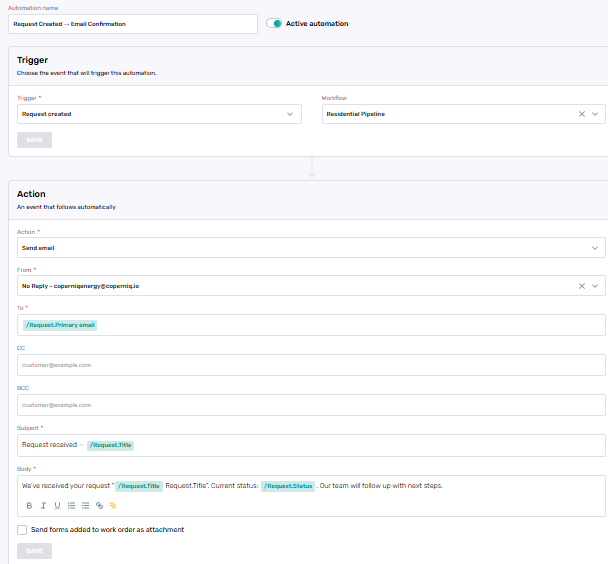
Outcome
When a new Request is created, Coperniq sends a confirmation email to the request’s primary email.
The requester receives something like:
Subject:Request received — Site Assessment
Body:We’ve received your request "Site Assessment". Current status: New. Our team will follow up with next steps.
Edit or Duplicate Email/SMS Automations
Open the Automations list.
Find the automation you want to update.
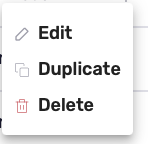
Click ⋯ (three dots) on the right.

Options:
Edit — change recipients, tokens, or content.
Duplicate — copy the automation and reuse the message template.
Delete — remove the automation.
Best Practices
Run the trigger on a sample record to confirm tokens and wording render correctly.
Use clear automation names (e.g., “SMS on Install Dispatch”, “Email on Site Survey Complete”)
Review and refresh templates whenever workflows or roles change