Manage AHJs and Utilities
Last updated: August 17, 2026
READING TIME ~3 minutes | AREA Databases → AHJs / Utilities |
Overview
Coperniq’s AHJ and Utility databases help your team manage permitting, jurisdiction, and utility information in one place.
From these pages, you can search for AHJs and Utilities, review shared database information, add company-specific details, request updates, and upload document templates for specific AHJs or Utilities.
Access AHJs and Utilities
To access AHJs or Utilities:
Go to the Databases tab in the left menu
Select AHJs or Utilities.
From each database page, you can search by name, state code, or location details, sort records, apply filters, customize visible columns, and open an AHJ or Utility record for more details.
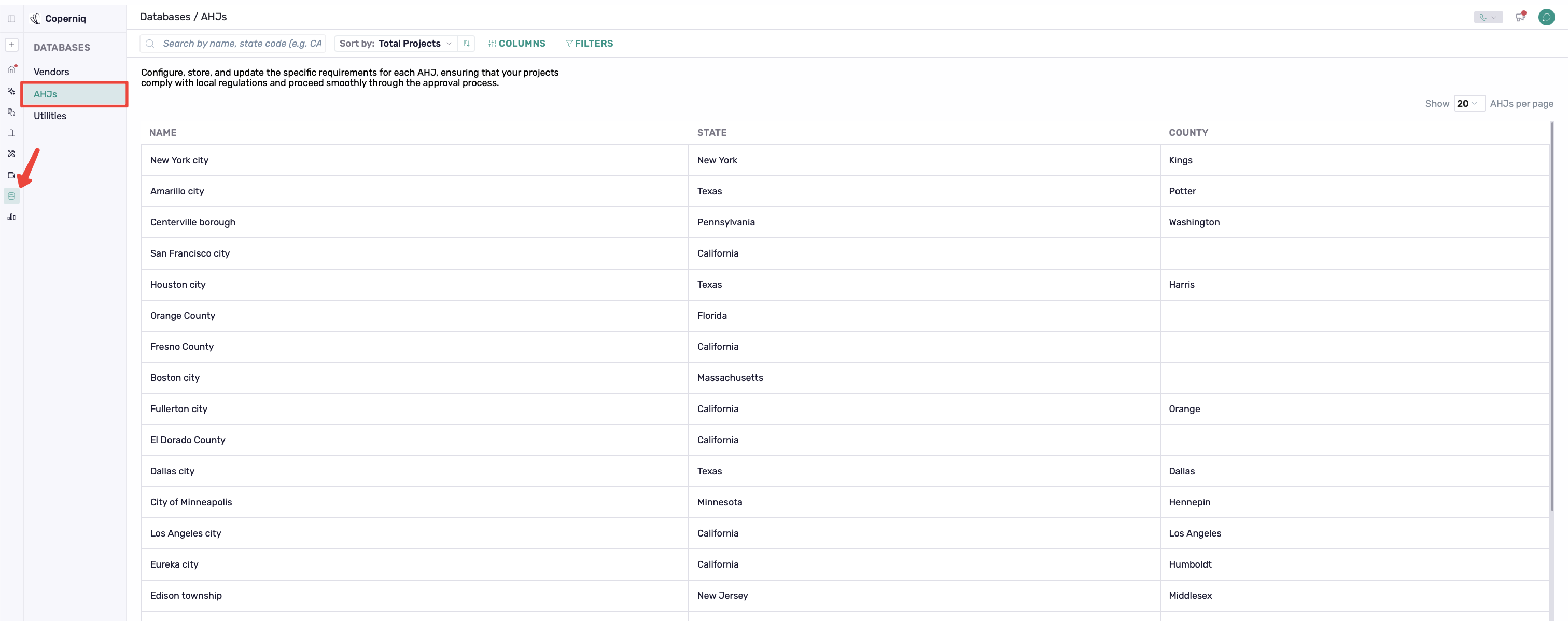
AHJs database list page
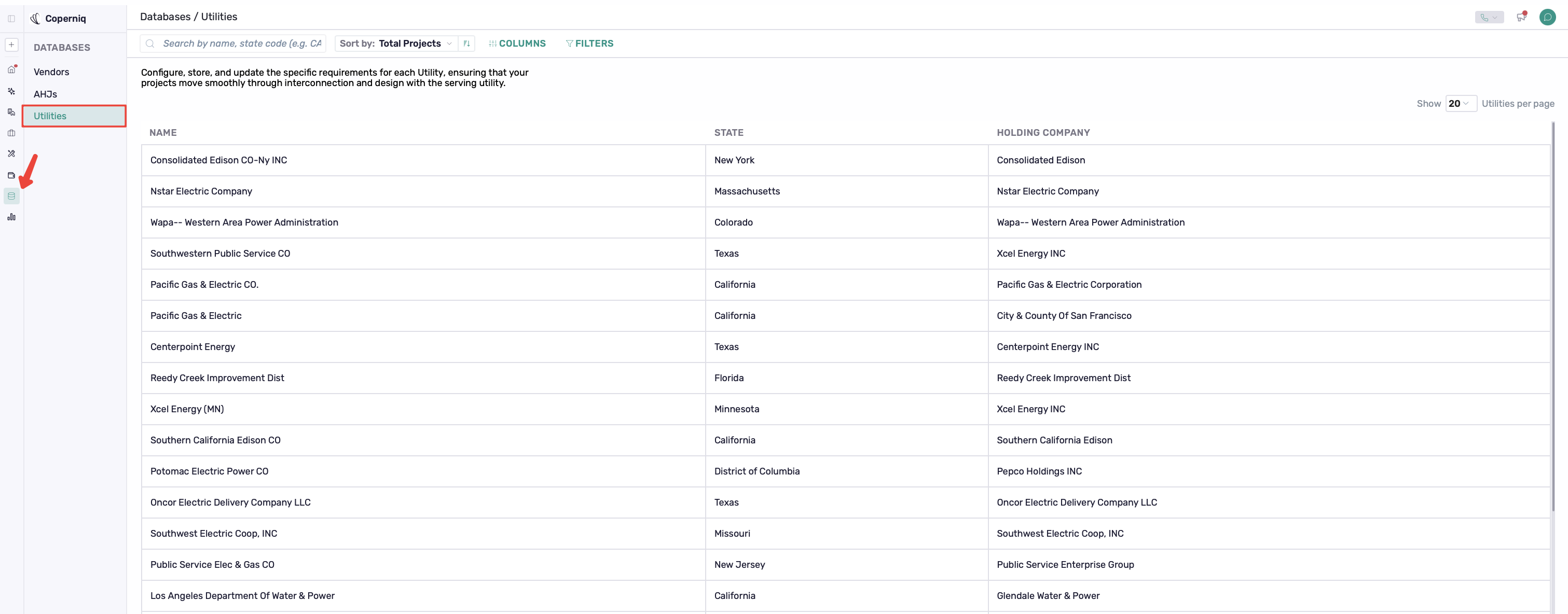
Utilities database list page
Open an AHJ or Utility Record
Click an AHJ or Utility from the list to open its full record.
Each record may include:
Project statistics
AHJ Community Data or Utility General information
Contacts
Custom Properties
Document Templates
Project statistics give your team a quick view of how many projects are related to that AHJ or Utility, including projects in progress and completed projects.
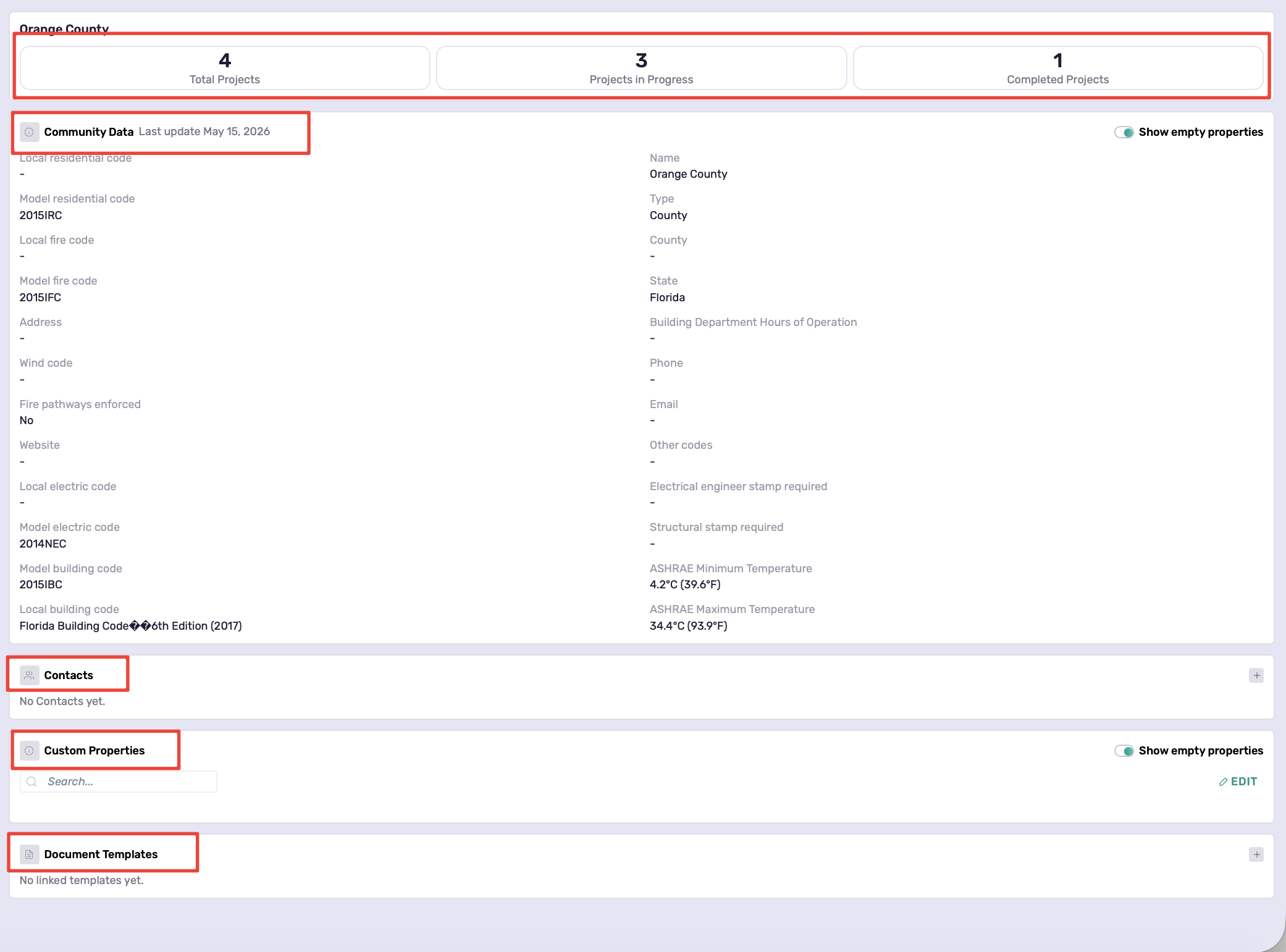
AHJ record overview
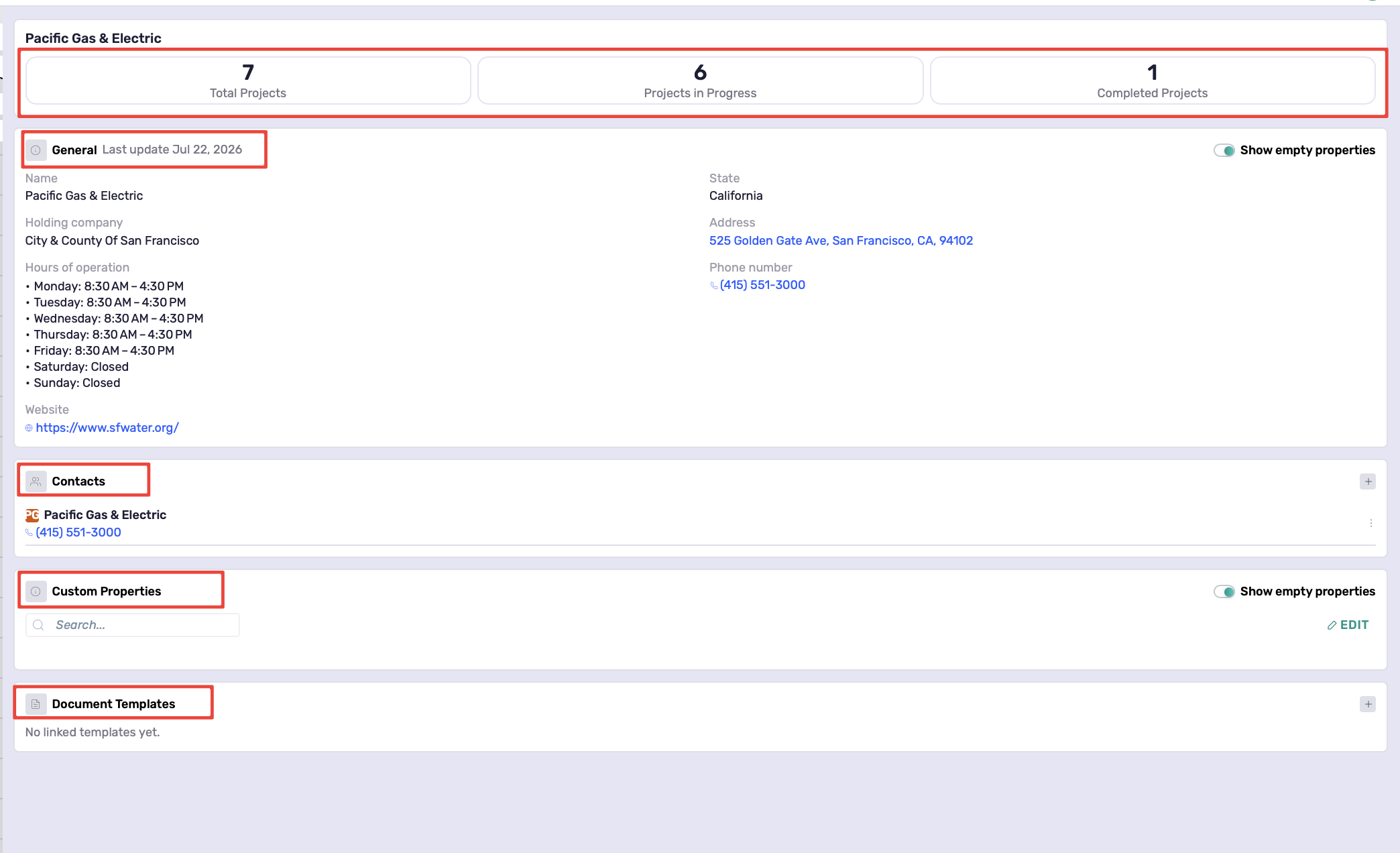
Utility record overview
AHJ Community Data and Utility General Information
AHJ Community Data and Utility General information are shared database details maintained by Coperniq.
These sections may include details such as codes, address, phone number, email, website, requirements, notes, and other AHJ or Utility-specific information.
If any information is missing or outdated, you can submit a change request from the AHJ or Utility record.
To request an update:
Open the AHJ or Utility record.
Find the field that needs to be updated.
Hover over the field and click Know this? Edit it!
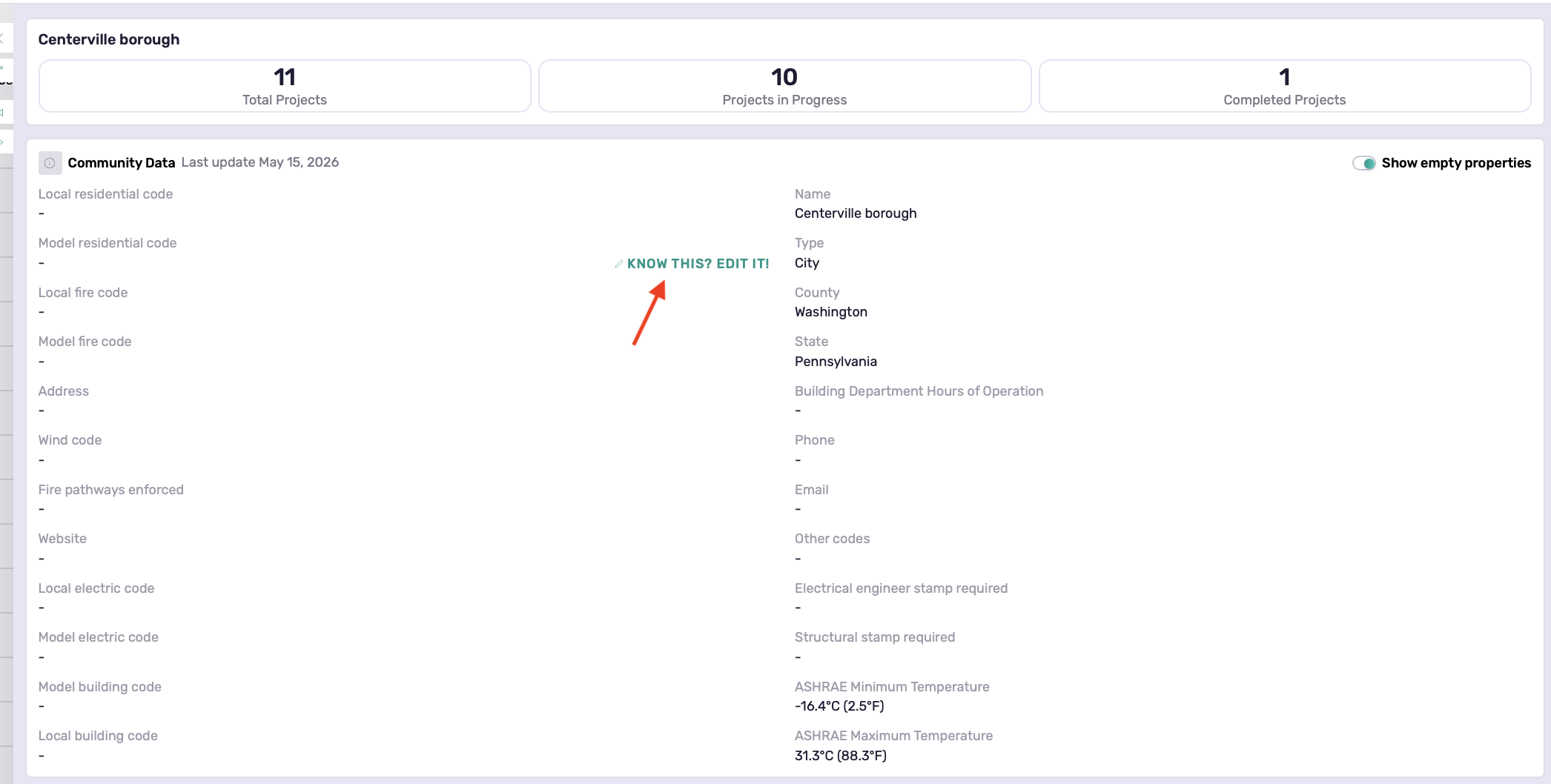
Fill in the Proposed Value.
Click Send.
After the request is submitted, the field may show a Proposed Value while it is waiting for review.
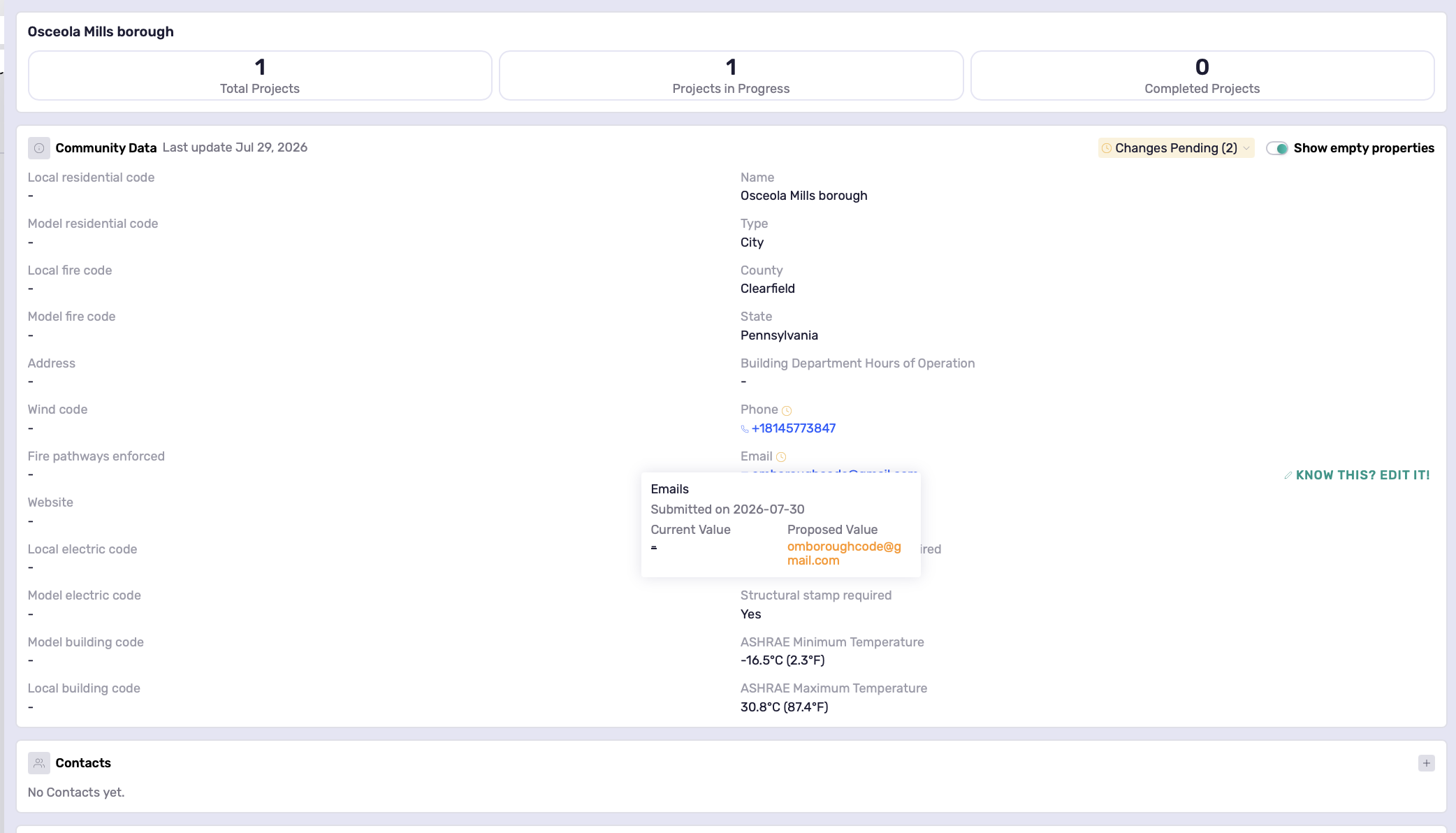
Proposed Value dialog
Once reviewed, the request will be approved or rejected. If approved, the updated value will display on the AHJ or Utility record.
Users may also receive an Inbox/email notification when a submitted change is approved or rejected.
Custom Properties
Custom Properties allow you to store company-specific information separately from Coperniq's shared AHJ and Utility database.
Use them to track internal notes, requirements, or any additional details unique to your organization.
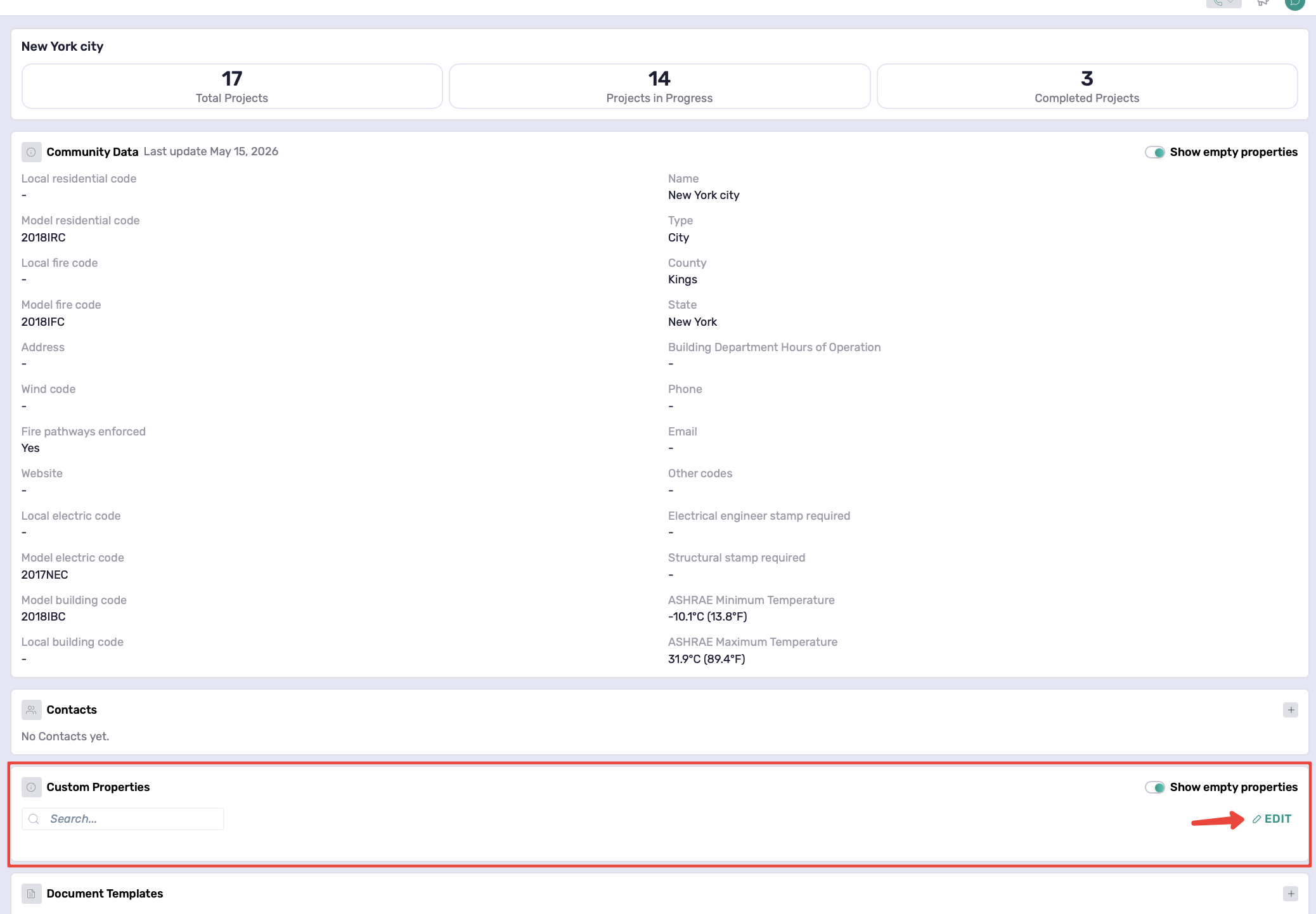
To create or manage custom properties:
Go to Company Settings.
Open AHJ Properties or Utility Properties.
Create or update the properties your team needs.
Once created, those fields appear in the Custom Properties section on the related AHJ or Utility record.
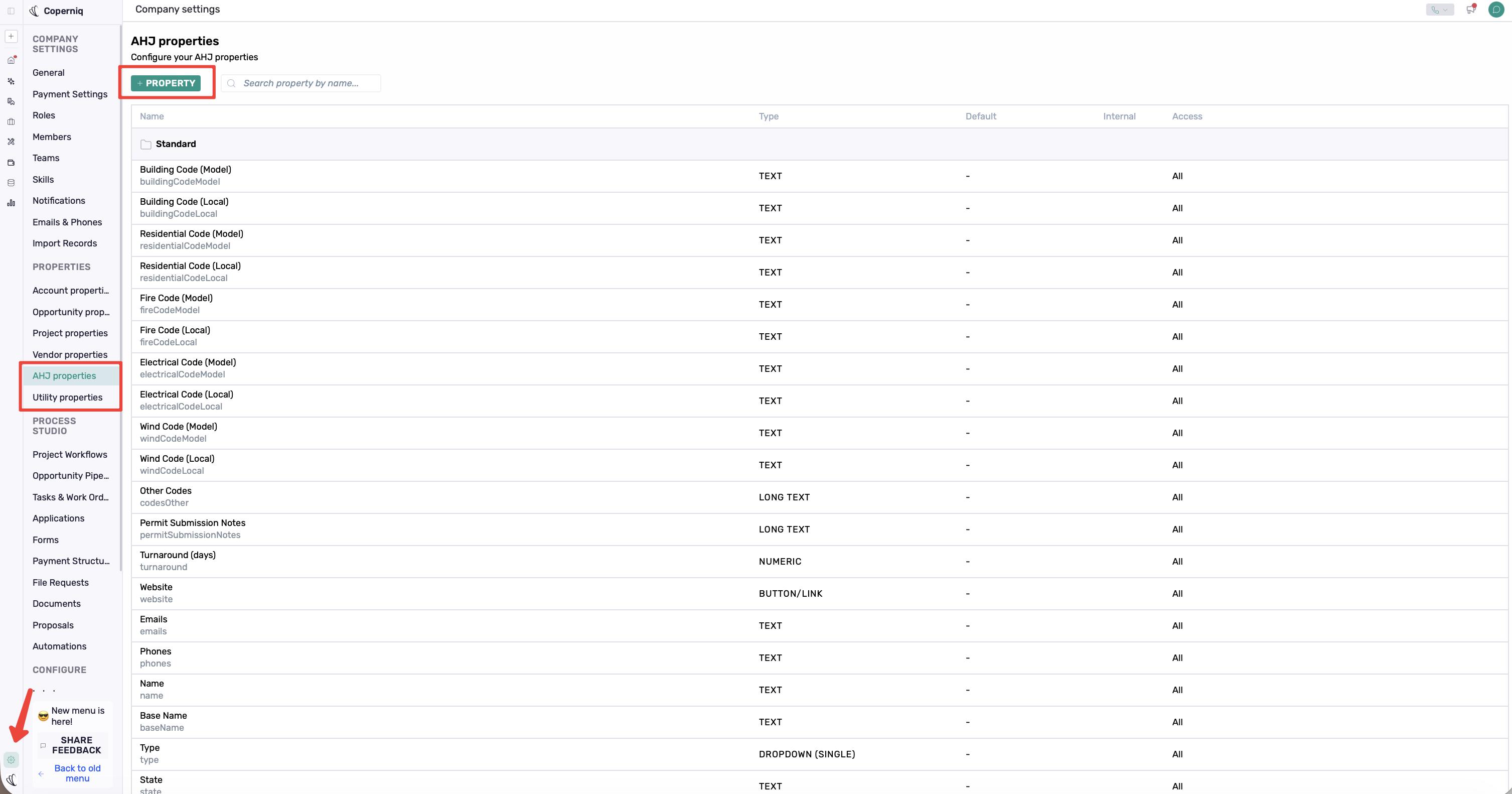
View Company-Specific Custom Properties
Custom Properties are only for your organization and do not update the shared AHJ/Utility database information.
Document Templates
The Document Templates section is used to upload templates related to a specific AHJ or Utility.
Use this section for PDF templates your team commonly needs for permitting, interconnection, or other AHJ/Utility application processes.
To upload a document template:
Open the AHJ or Utility record.
Scroll to Document Templates.
Click the + button.
Upload the PDF file.
Create the template.
After adding a document template, you can configure it as needed. For example, you can add recipients, insert properties, adjust fields, and customize the document for the related AHJ or Utility application process.
For more details on configuring documents, see this guide: How to Configure Documents.
Document templates are tied to the specific AHJ or Utility where they are uploaded.

Document Templates section with the + button
AHJ and Utility Applications in Projects
AHJ and Utility applications can be added to a project and tracked as part of the project workflow. This helps your team manage permitting and utility-related progress directly from the project.
Add an AHJ or Utility Application
Open the project record.
Click + Work.
Select Create Application.
Choose the AHJ or Utility application you want to add.
Complete the required details and save.
Once added, the application can move through statuses such as Not Started, Submitted, Approved, Rejected, or Cancelled.
Admins can also configure AHJ and Utility application templates from Settings so the required documents, fields, and application details are ready whenever an application is added to a project.
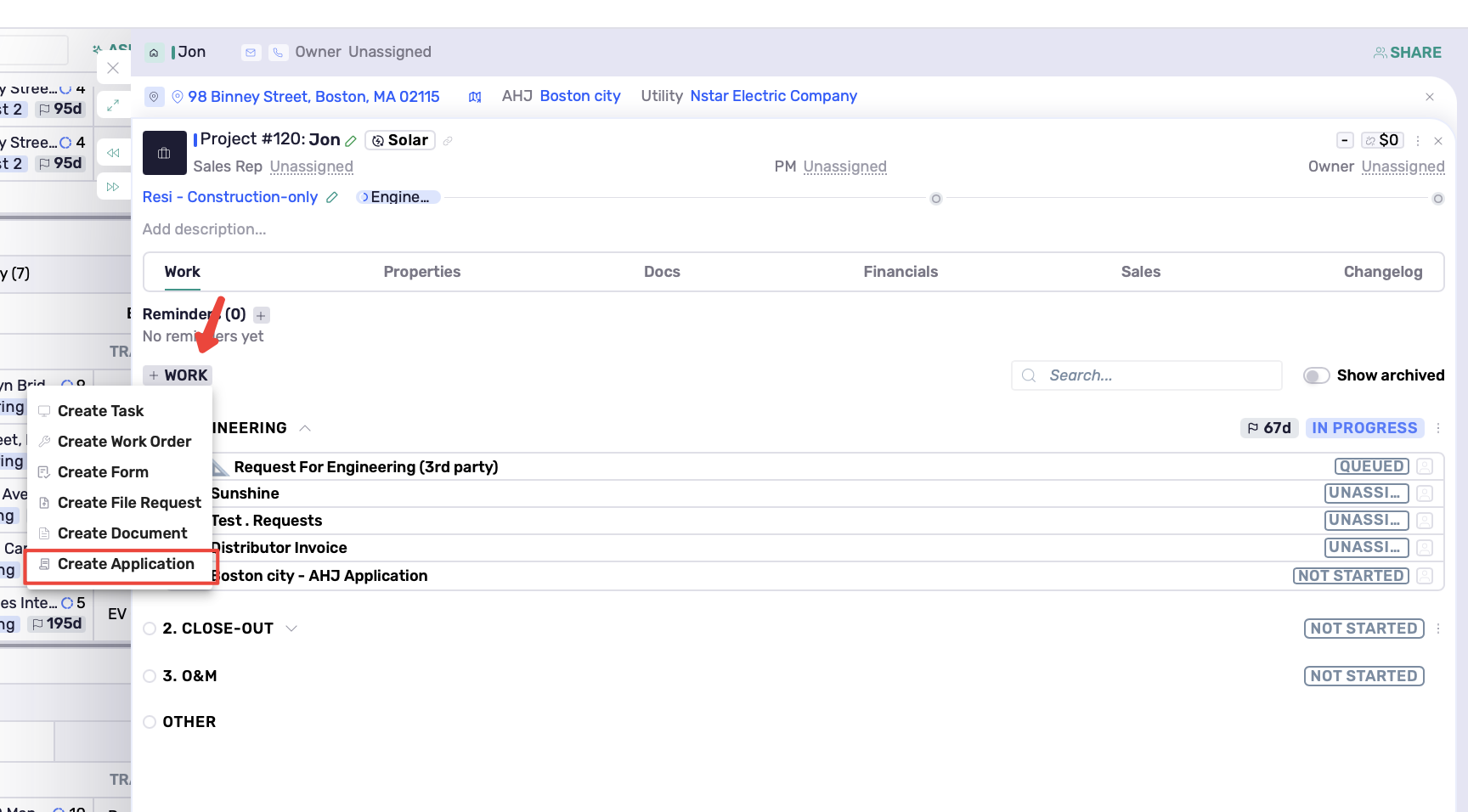
Add an AHJ or Utility Application to a Project
Sharing Files with the Customer Portal
Files related to AHJ or Utility applications can be shared with the customer portal when needed.
Files are not shared automatically. Your team must manually choose which files to share.
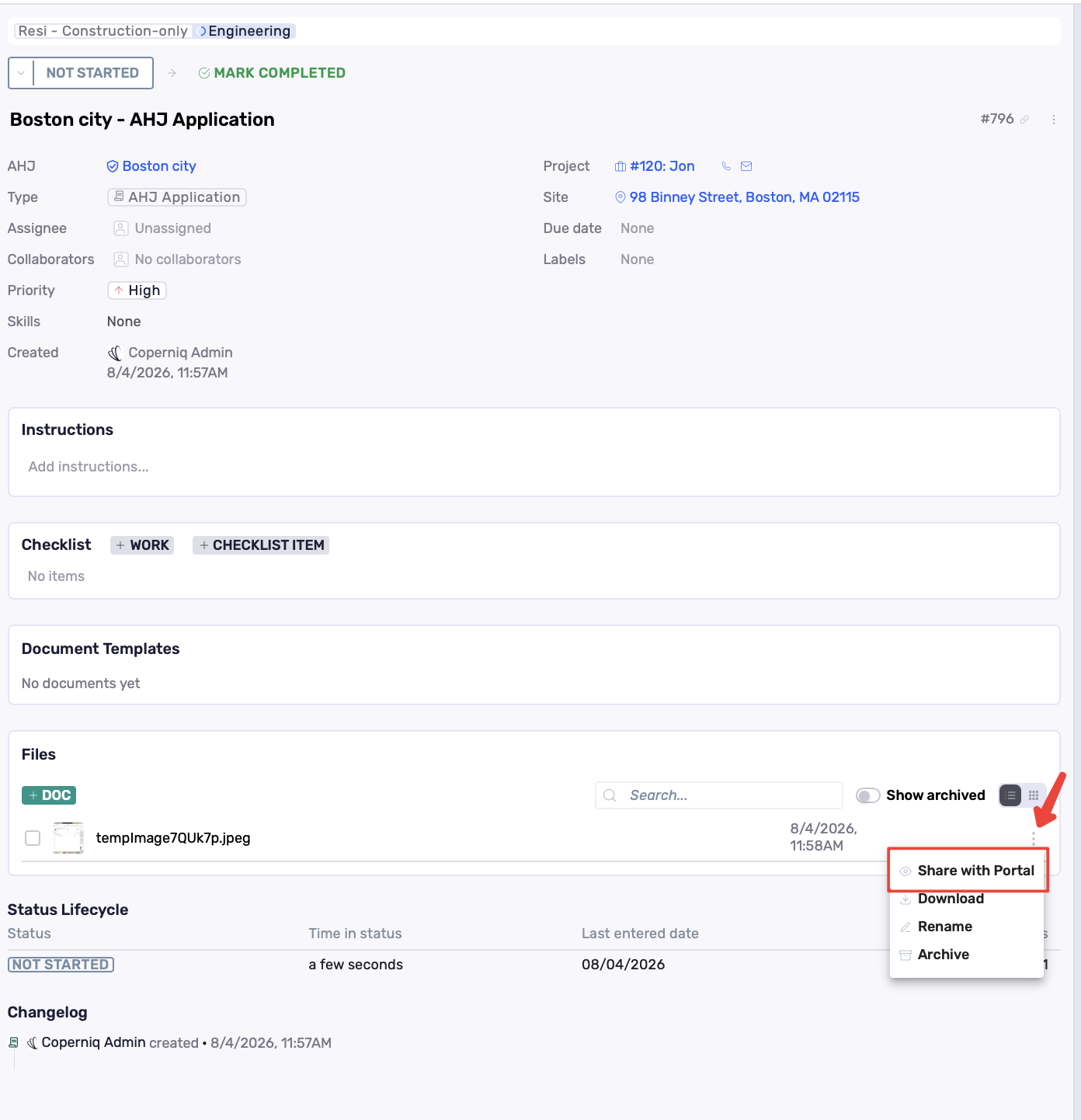
Share Application Files with the Customer Portal
How AHJs and Utilities Connect to Projects
When a project site is created or updated, Coperniq automatically links the AHJ and Utility based on the site address.
Once linked, the assigned AHJ and Utility can be referenced from the site and project record, helping your team keep permitting and utility-related information connected to the correct project.
If the assigned AHJ or Utility is incorrect, you can update it from the Site record. Click the ⋮ (three-dot) menu next to the assigned AHJ or Utility and select Unlink. Then click the + button to search for and assign the correct AHJ or Utility.
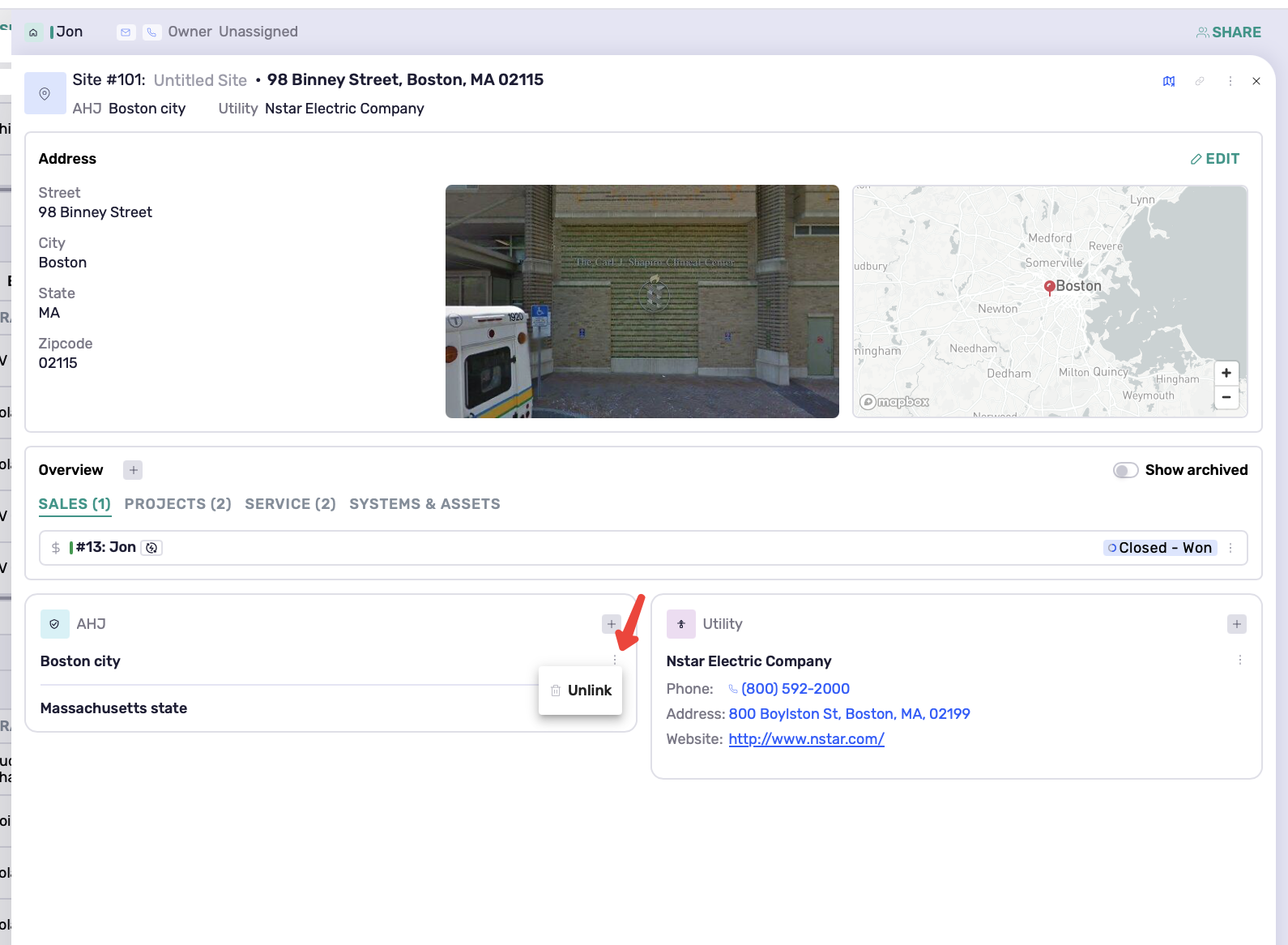
Unlink the current AHJ or Utility, then select the correct one from the Site record
Best Practices
Keep AHJ and Utility information accurate by submitting update requests when you find missing or outdated shared data.
Use Custom Properties for company-specific notes or internal process details.
Upload document templates as PDFs and make sure they are added to the correct AHJ or Utility record.
Configure AHJ and Utility application templates from Settings so they are ready to use when added to workflows or projects.
Use the Show empty properties toggle when reviewing records with missing information.
Review proposed values so your team knows which updates are still waiting for approval.