Project Financials and Scope
Last updated: August 27, 2026
READING TIME ~4 minutes | AREA: Project Record → Financials |
Overview
The Financials tab gives your team a complete view of a project’s financial health in one place.
Track scope, revenue, costs, invoices, bills, purchase orders, labor, and profitability without switching between pages. Use Project Scope to keep products and services connected to the financial records they support, so reporting stays accurate and teams can spot missing costs, billing gaps, or margin changes earlier.
This article covers
How to read the financial overview
How to review invoices, bills, purchase orders, and labor
How to use Project Scope
How to add line items and create financial records
How linked financial records work
How to customize Project Scope columns
How Change Order History works
Open the Financials tab
To access project financials:
Open a project record.
Select the Financials tab.
The page includes two main areas:
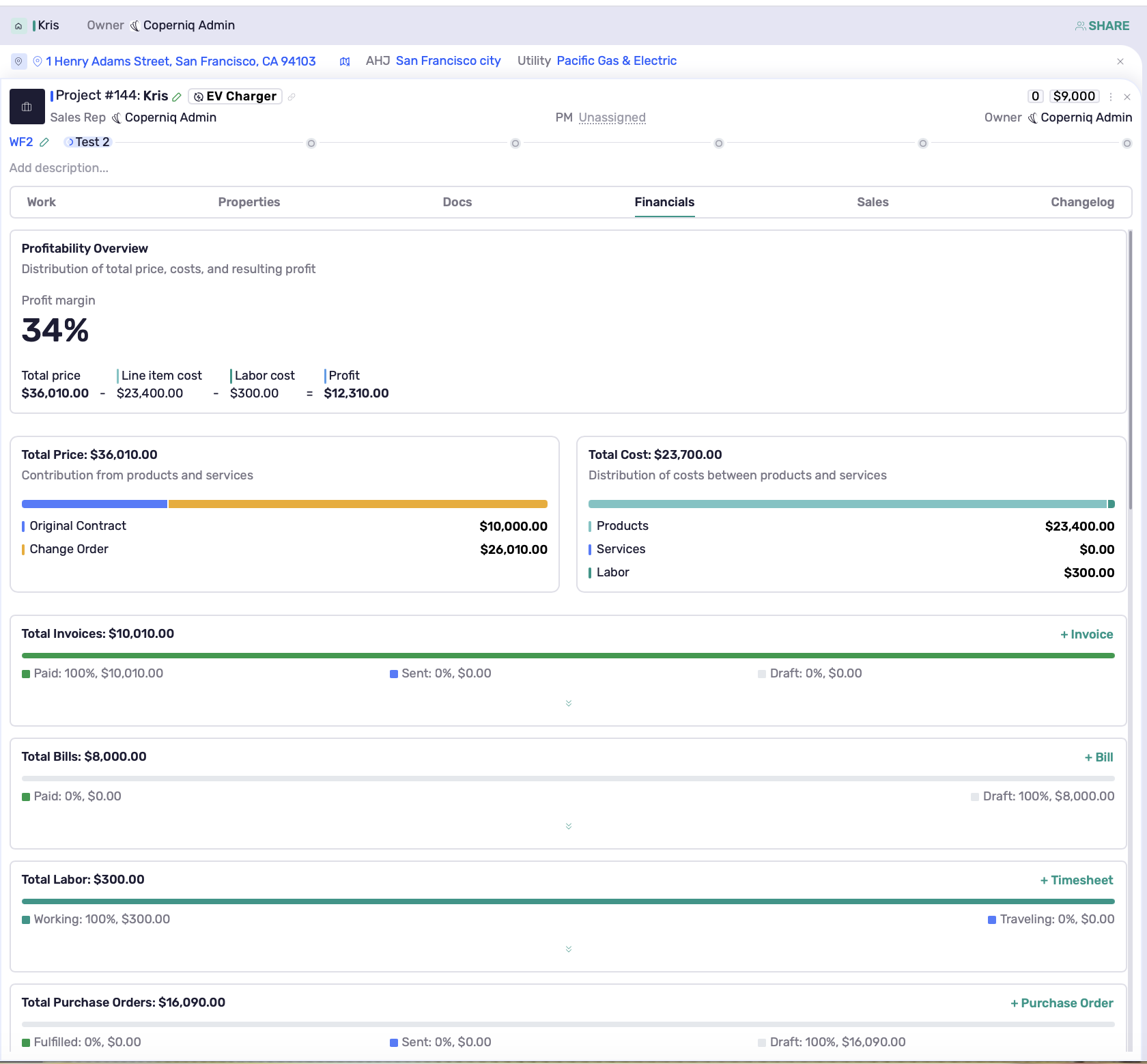
Financial Overview
Profitability, revenue, costs, invoices, bills, labor, and purchase orders connected to the project.
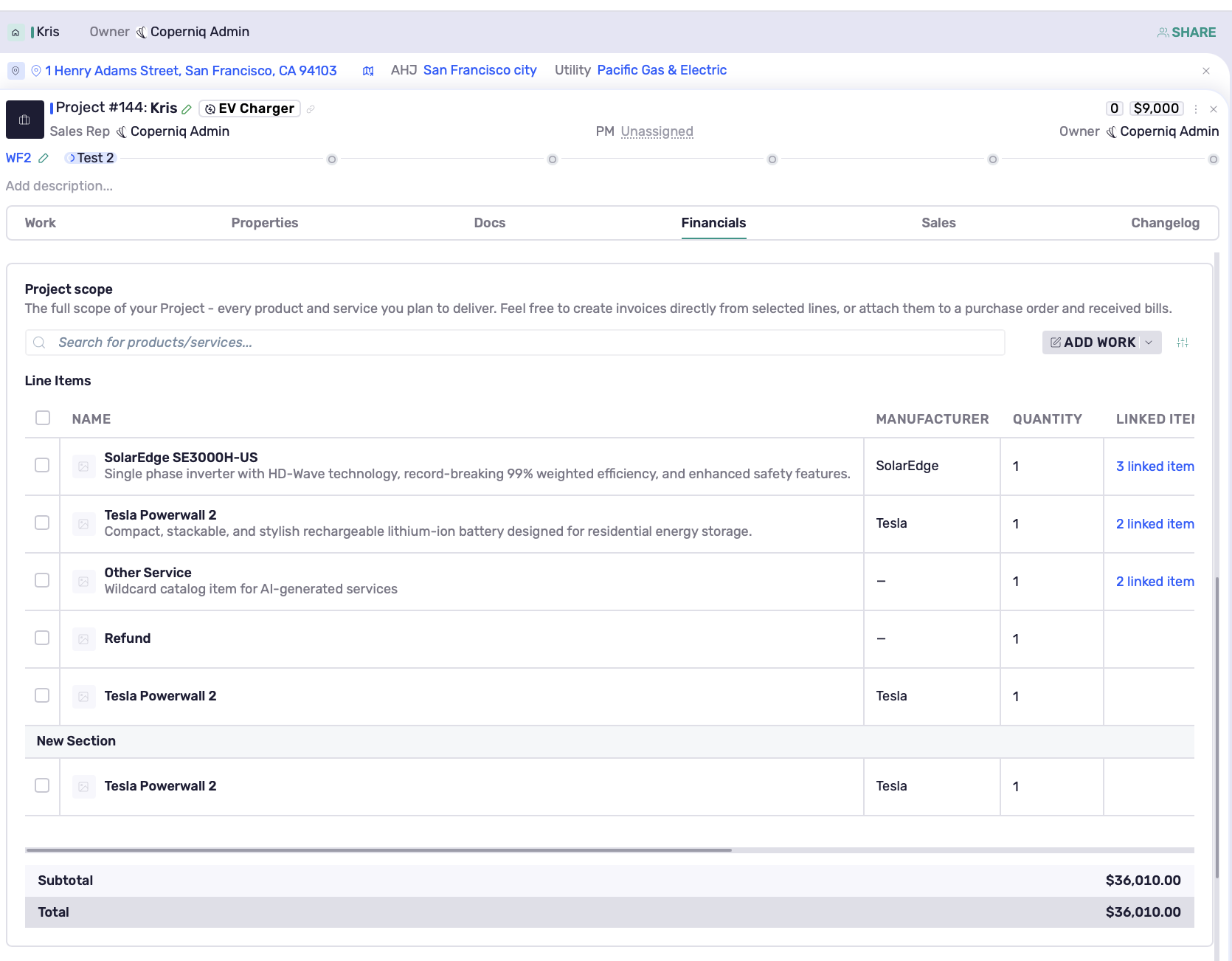
Project Scope
Products and services included in the project, with options to add line items and create invoices, bills, and purchase orders.
Understand the project’s financial health
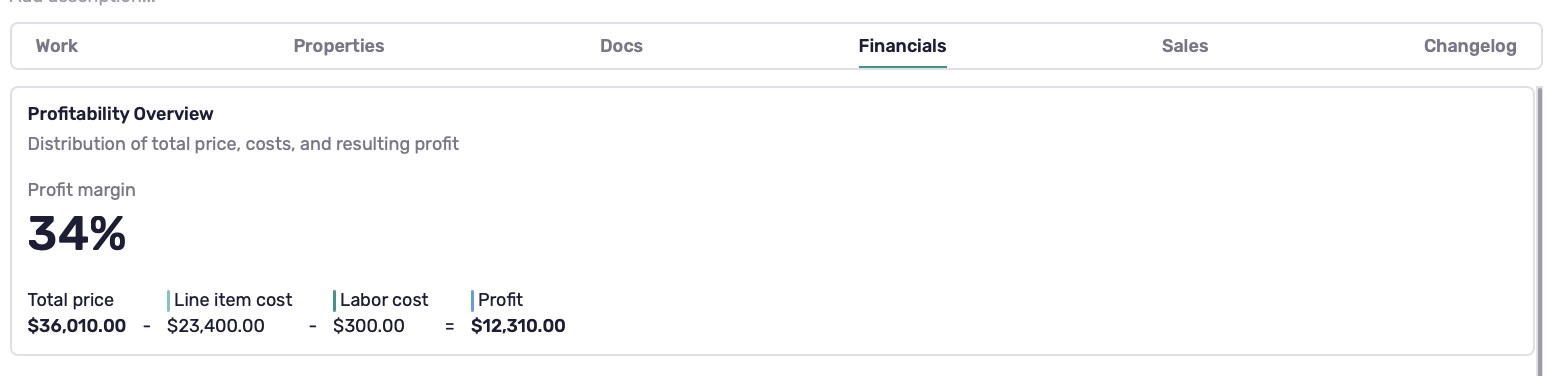
The Profitability Overview shows whether the project is profitable, breaking even, or running at a loss.
It calculates profit using the project’s total price, line item costs, and labor costs.
Calculation
Total Price - Line Item Cost - Labor Cost = Profit
This section gives you a quick view of revenue, costs, labor, profit, and profit margin before sending financial records or closing out a project.
Review Total Price and Total Cost
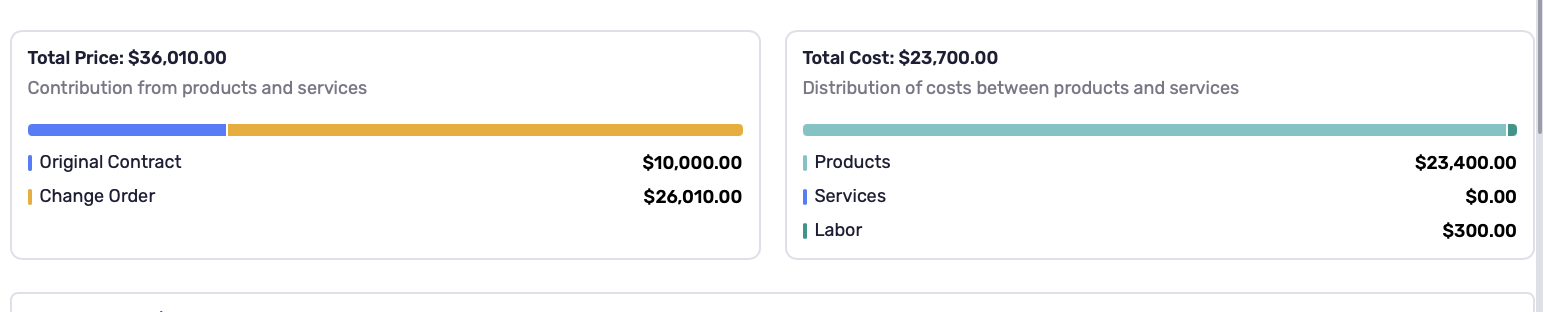
The financial overview breaks down both revenue and cost so you can understand what is driving the project’s margin.
Total Price
The Total Price section shows the project’s revenue contribution from products and services. This may include the original contract amount and any change orders that increase or decrease the project total.
Total Cost
The Total Cost section shows the project’s cost distribution.This may include product costs, service costs, and labor costs.
Track invoices, bills, purchase orders, and labor
The Financials tab summarizes every financial record connected to the project.
Each section displays the total value of that record type with a visual breakdown by status, so you can understand the project’s financial activity without opening each record one by one.
You can also create new records directly from this page:
Action | Use it to |
|---|---|
+ Invoice | Create a customer invoice for the project. |
+ Bill | Create a vendor bill or project cost. |
+ Purchase Order | Create a purchase order for items or services. |
+ Timesheet | Add labor time to the project. |
Build and manage Project scope
The Project Scope section is the financial foundation of the project.
It contains the products and services planned for delivery and connects those items to the invoices, bills, and purchase orders created from them. This helps keep billing, purchasing, costs, and profitability aligned with the actual work being delivered.
Select Add Work to add line items or create financial records from Project Scope.
You can use Add Work to:
Add a line item
Create an invoice
Create a bill
Create a purchase order
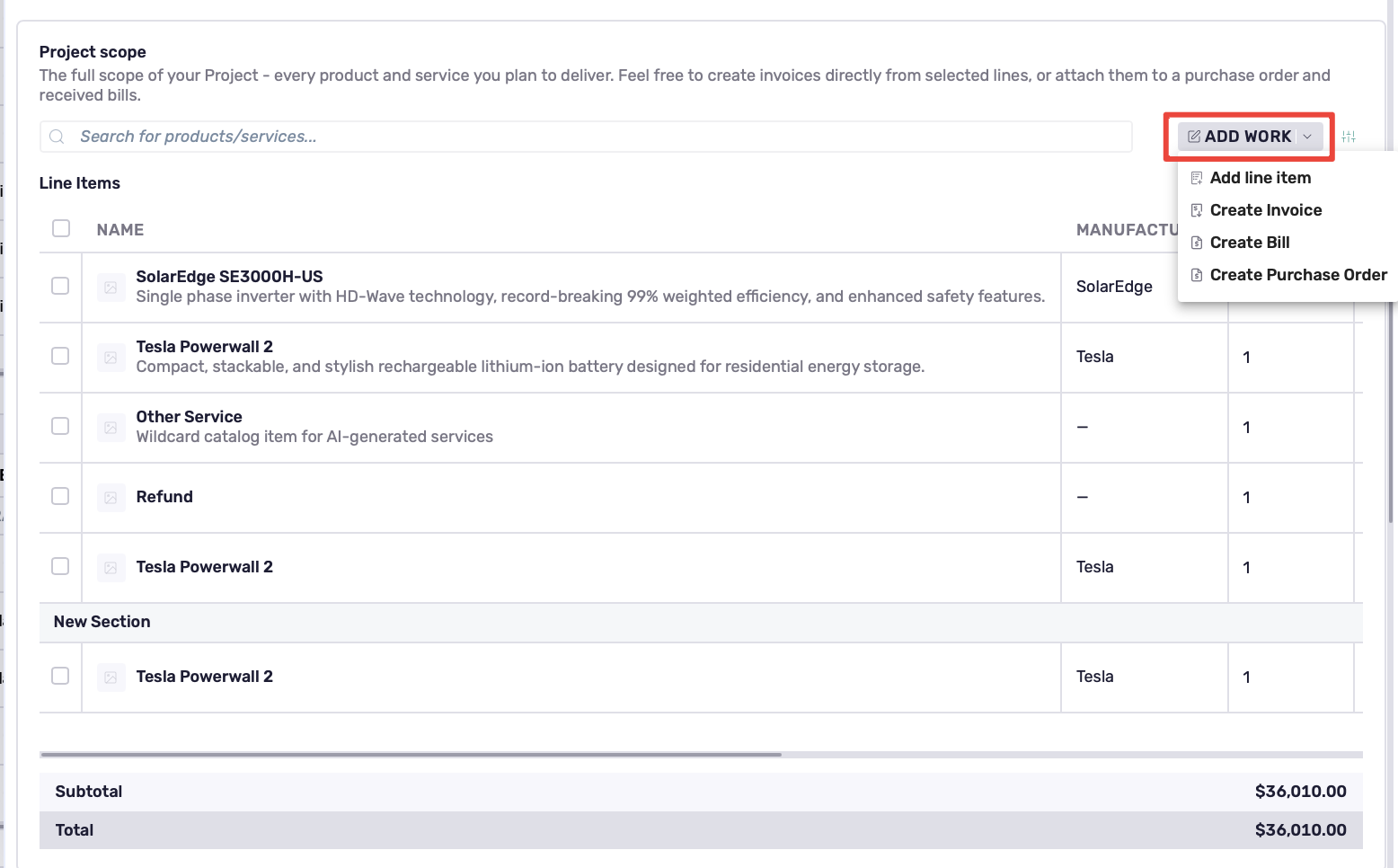
To add a line item, choose Add line item, then search for the product or service you want to add.
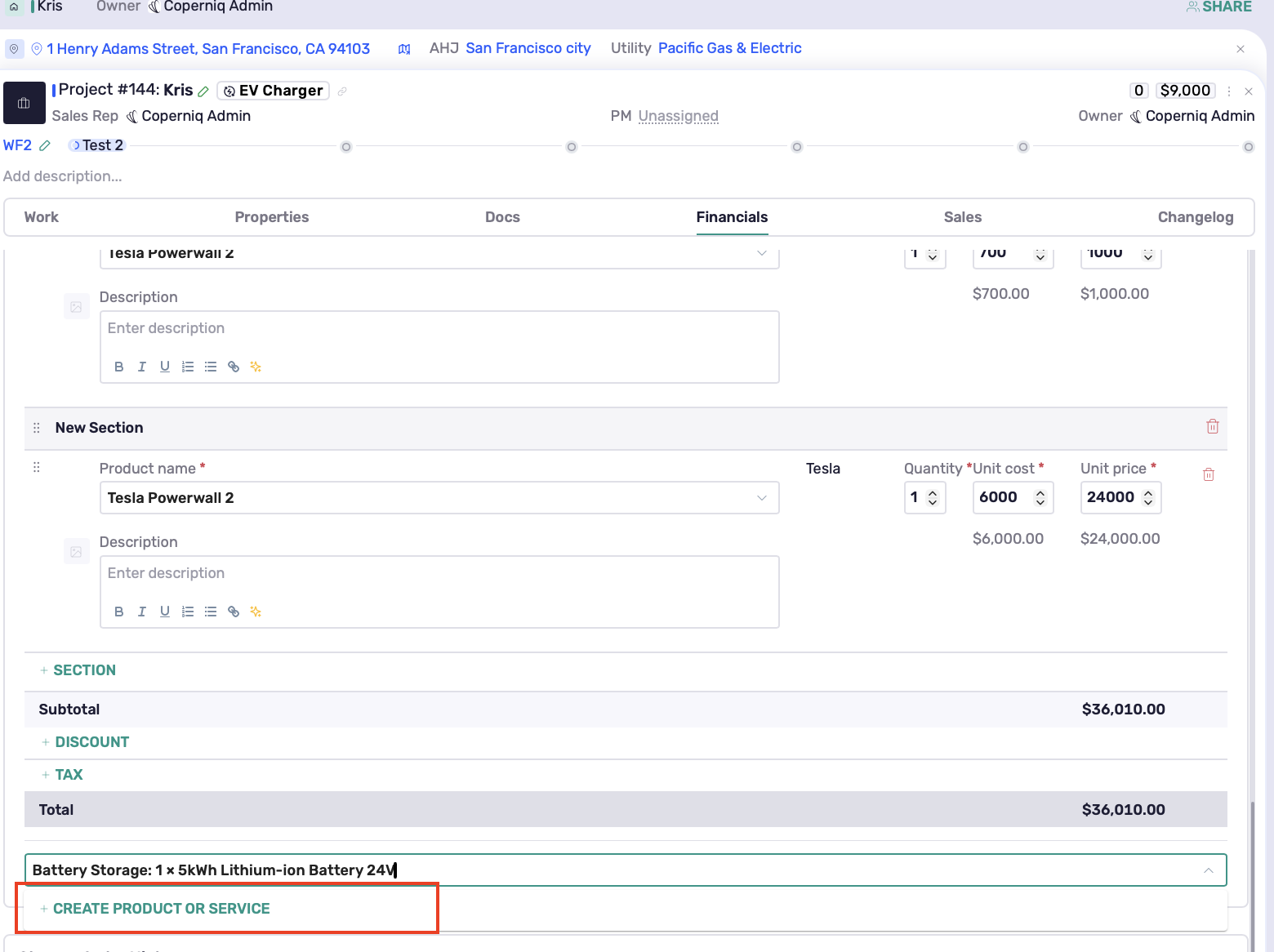
If the product or service is not available in the dropdown, type the item name and select + Create a product or + Create a service.
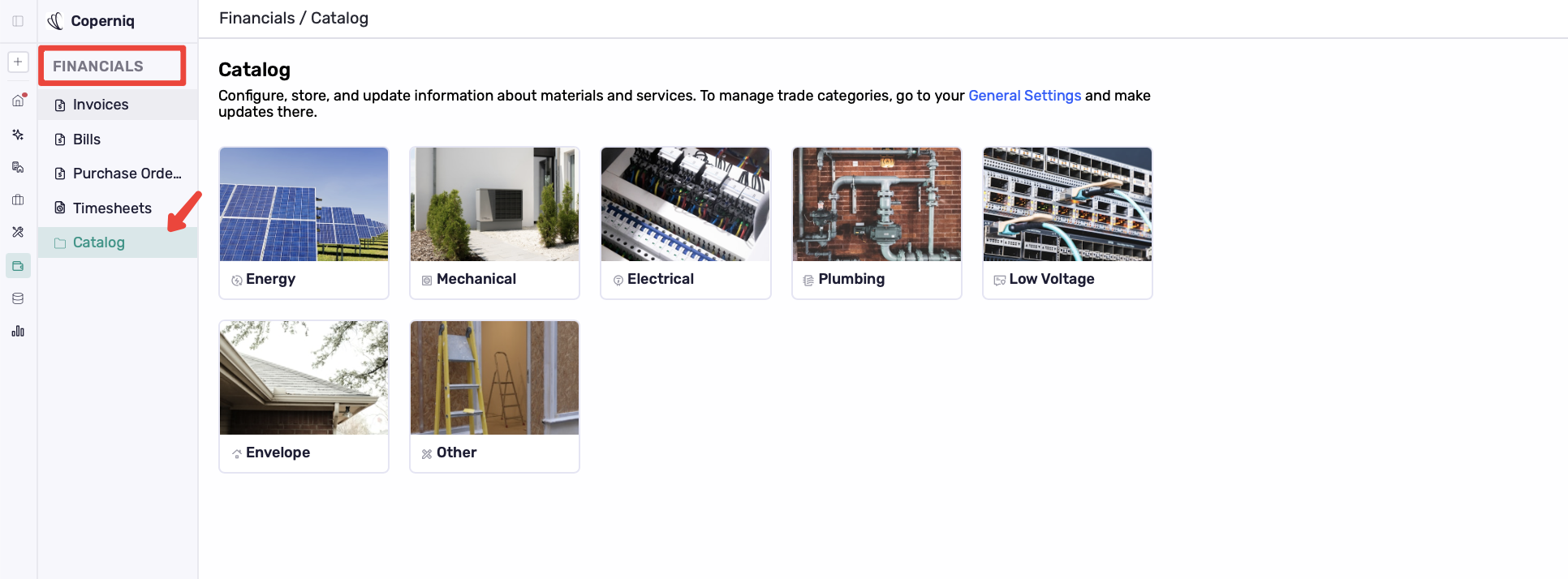
You can also add it from Financials → Catalog so it can be reused later.
Project Scope also helps you review pricing, costs, quantities, and linked financial records in one place.
Create financial records from Project Scope
Project Scope lets you create financial records without entering the same information multiple times. You can create an invoice, bill, or purchase order from Add Work or from the line item Actions menu (⋮).
Action | Use it to |
|---|---|
Create Invoice | Bill the customer for selected products or services. |
Create Bill | Track vendor charges or project costs for selected items. |
Create Purchase Order | Order selected products or services from a vendor. |
When a financial record is created from Project Scope, it stays linked to the selected line item. This makes it easier to see which items have already been invoiced, billed, or added to a purchase order.
Linked financial records
When you create an invoice, bill, or purchase order from Project Scope, it stays linked to the selected line item.
A line item can be linked to one invoice, one bill, and one purchase order at the same time. It cannot be linked to more than one record of the same type.
For example, the same line item can be linked to one invoice and one purchase order, but not to two different invoices.
If you need to use the same product or service again on another invoice, bill, or purchase order, add a new line item with the same details and link that new line instead
Customize Project Scope columns
You can choose which columns appear in the Project Scope table.
To manage columns:
Select the column settings icon.
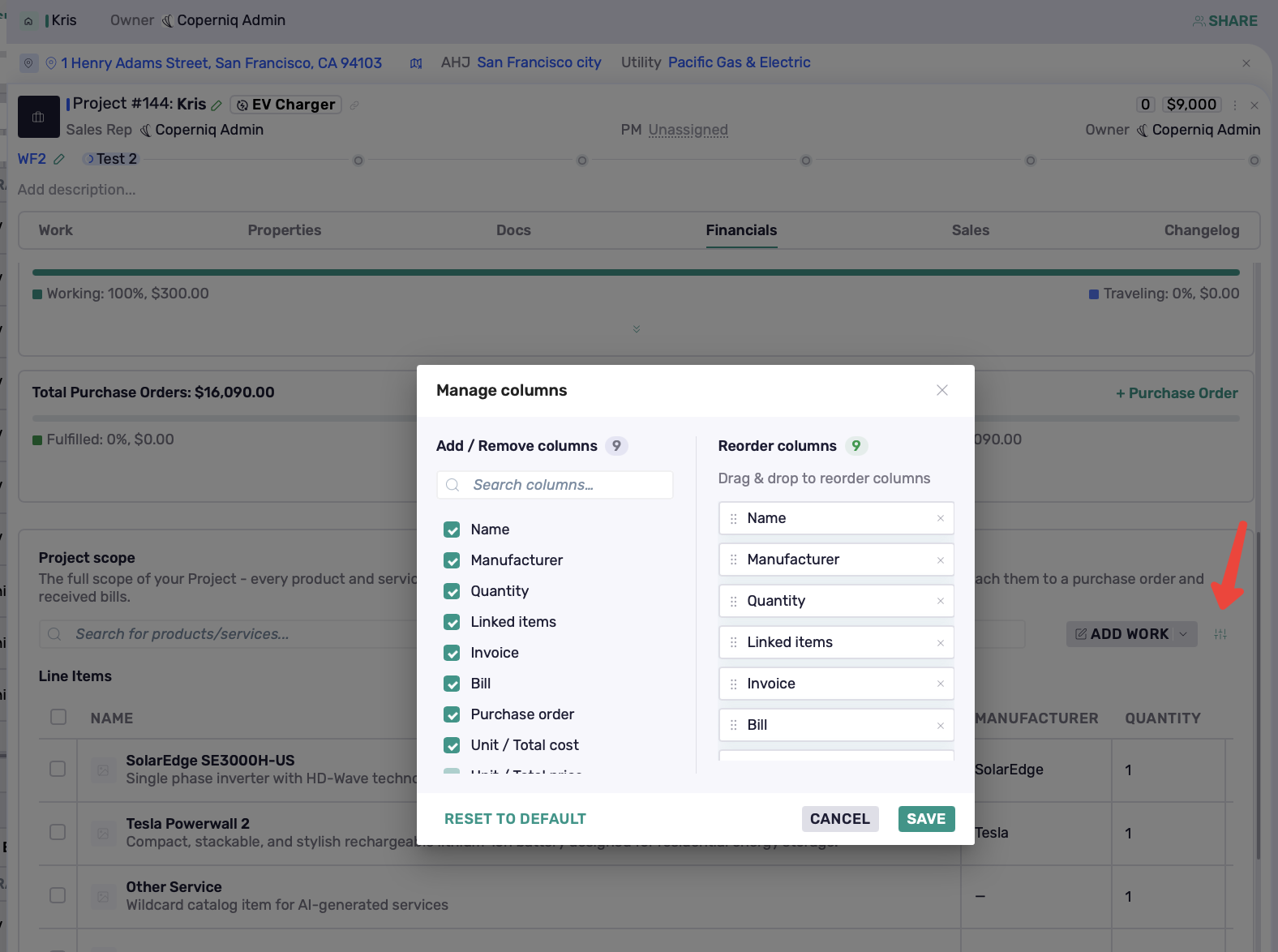
Add, remove, or reorder columns.
Select Save.
Column | What it shows |
|---|---|
Name | The product or service name. |
Manufacturer | The manufacturer associated with the line item, when applicable. |
Quantity | The number of units included. |
Linked items | Related financial records connected to the line item. |
Invoice | Invoice values linked to the line item. |
Bill | Bill values linked to the line item. |
Purchase order | Purchase order values linked to the line item. |
Unit / Total cost | The unit cost and total cost of the line item. |
Unit / Total price | The unit price and total price of the line item. |
Actions | Opens the line item action menu. |
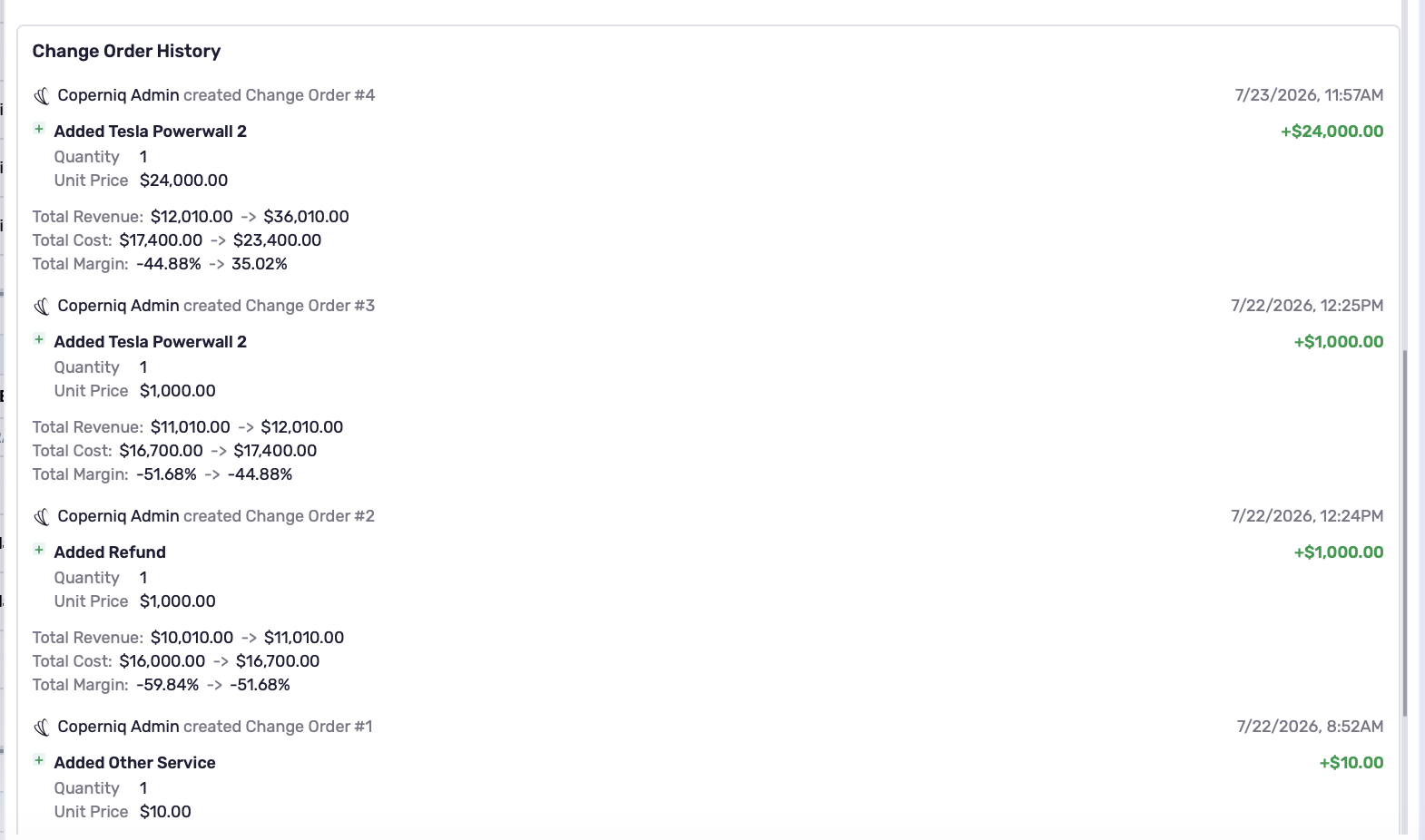
Review Change Order History
The Change Order History section shows changes made to the project scope through change orders.
Use it to see what changed, when it changed, who made the update, and how the change affected project totals.
This helps explain why revenue, cost, or margin changed over time.
How Project Scope affects profitability
Project Scope directly affects the project’s financial totals.
Price → increases the project’s total revenue.
Cost → increases the project’s total expense.
Labor → adds to the project’s total cost and affects margin.
Invoices → show what has been billed to the customer.
Bills → show vendor costs connected to the project.
Purchase orders → show what has been ordered or committed.
For accurate profitability reporting, make sure line items include both price and cost whenever possible.
If a line item has a price but no cost, the project may show revenue without the matching expense, making profit look higher than it actually is.
Best practices
Keep Project Scope updated before creating invoices, bills, or purchase orders.
Add both unit price and unit cost when possible so profitability stays accurate.
Use linked items to confirm whether a product or service has already been invoiced, billed, or added to a purchase order.
Use Financials → Catalog to create reusable products and services your team uses often.
Add a new line item when the same product or service needs to be used on another financial record of the same type.
Review the profitability overview before sending financial records or closing out a project.
Check Change Order History when project totals change and you need to understand why