Payment Structure Templates
Last updated: November 23, 2026
Overview
Payment Structure Templates create invoices or bills automatically as a project moves through its workflow. You define the milestones once, map each one to a workflow phase, and Coperniq generates the financial document when the project reaches that phase.
What payment structures do
A payment structure can create either:
Invoices — documents billed to the account or financing provider
Bills — documents used for vendor or project cost tracking
Each template contains one or more milestones. A milestone can be either:
A percentage of the selected project value
A fixed dollar amount
When a project reaches the workflow phase mapped to a milestone, Coperniq creates the invoice or bill automatically.
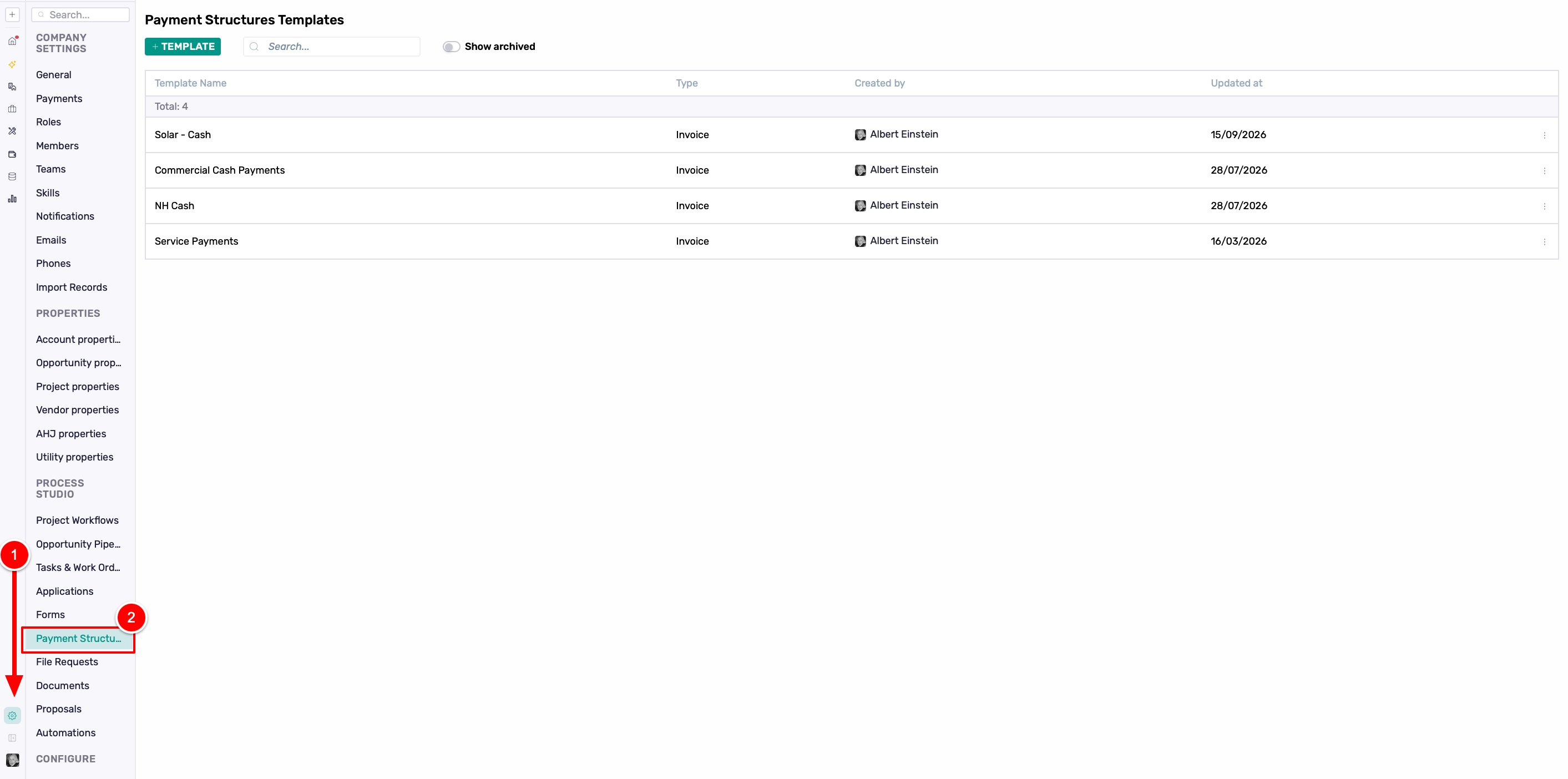
Open Payment Structure Templates
Go to Company Settings.
Select Templates.
Click Payment Structures.
From the list page, you can view each template’s name, type, creator, and last updated date.
Create a template
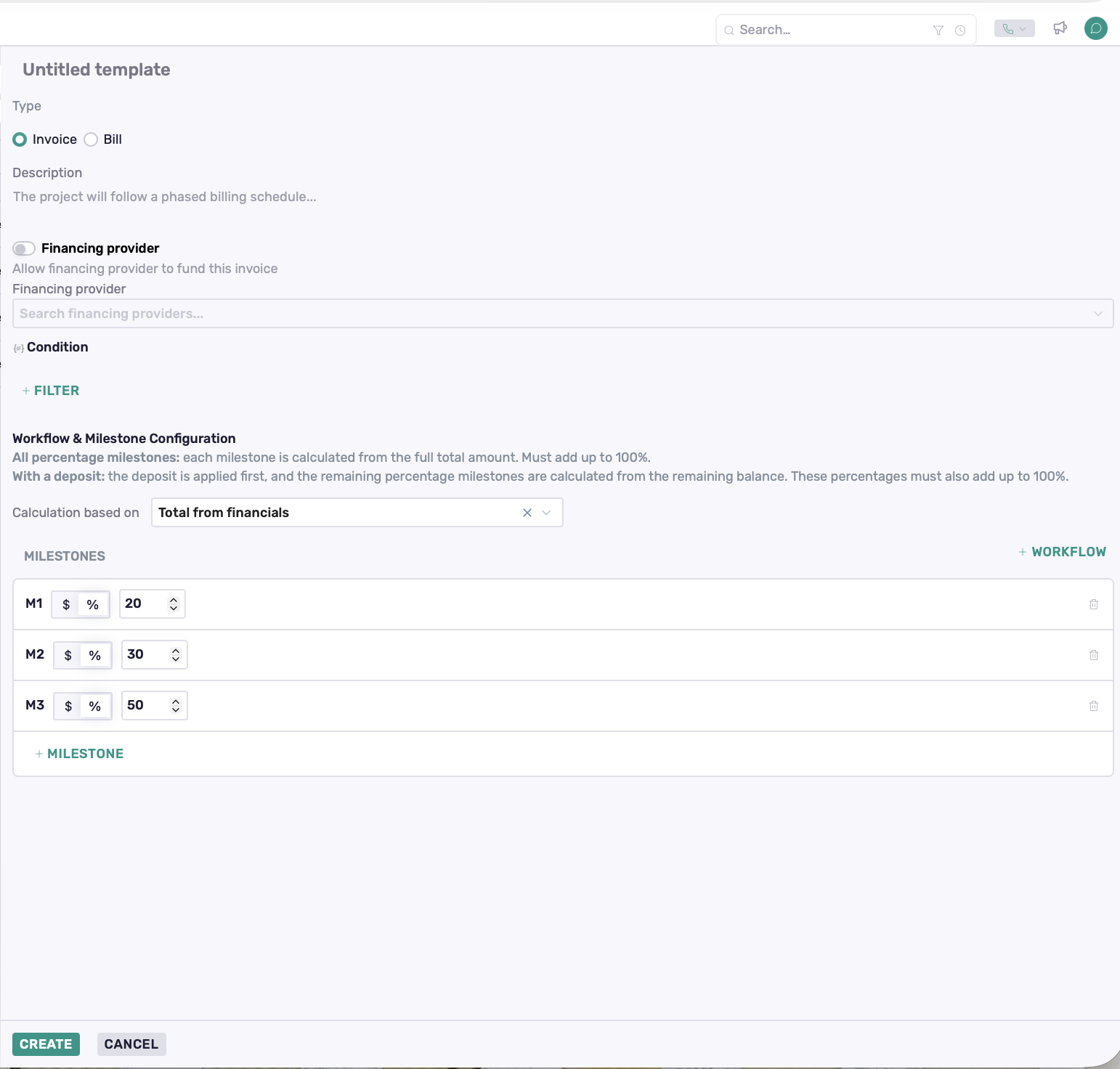
Click + Template or the create button on the Payment Structures page.
Enter a Name.
Choose the template Type:
Invoice
Bill
Add an optional Description.
Configure financing provider settings, conditions, workflows, and milestones.See the section below.
Click Create.
Configure the template
Allow a financing provider to fund invoices
For invoice templates, you can turn on Allow financing provider to fund this invoice.
When enabled, choose the financing provider that should be billed. Generated invoices are billed to the selected financier instead of the client.

Set template conditions
Conditions control which projects the template applies to.
If no conditions are set, the template applies to every project.
If conditions are set, the project must match those filters before Coperniq creates the milestone invoice or bill.
Use conditions when different project types, trades, financing types, regions, or workflows need different billing structures.

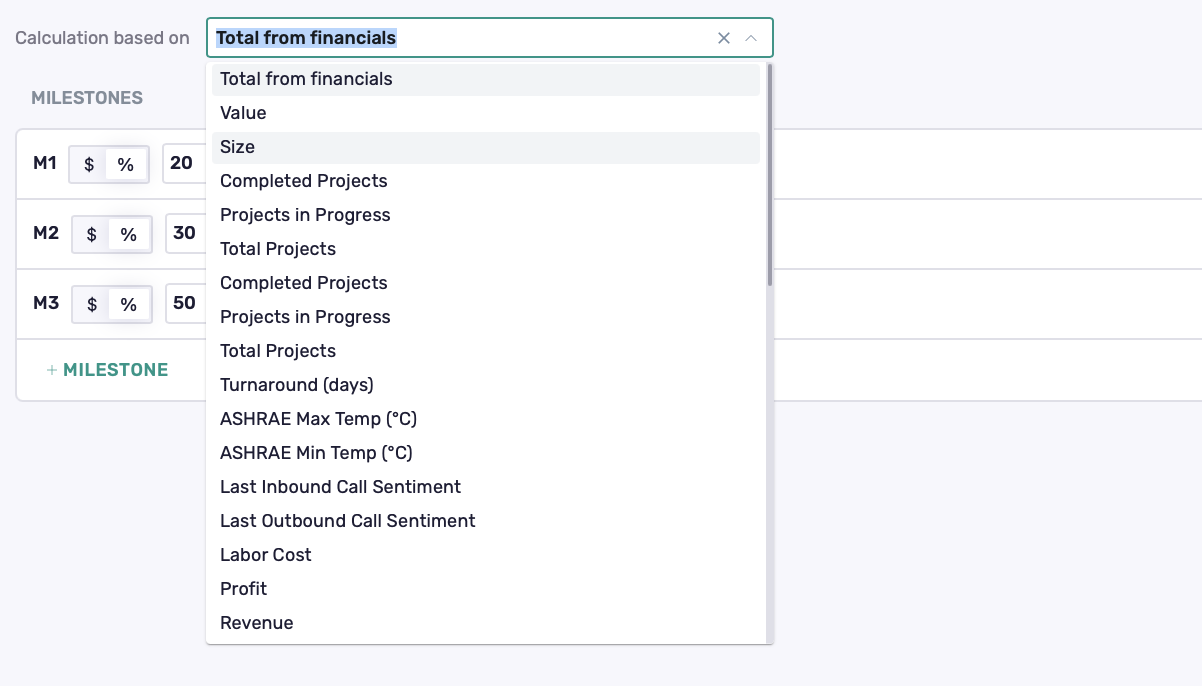
Choose the calculation base
The Calculation based on field controls which value percentage milestones use.
You can calculate milestones from:
Total from financials
A numeric project property
If a selected project property is empty or not greater than zero, Coperniq waits until that value is available before creating the milestone document.
Configure workflows and milestones
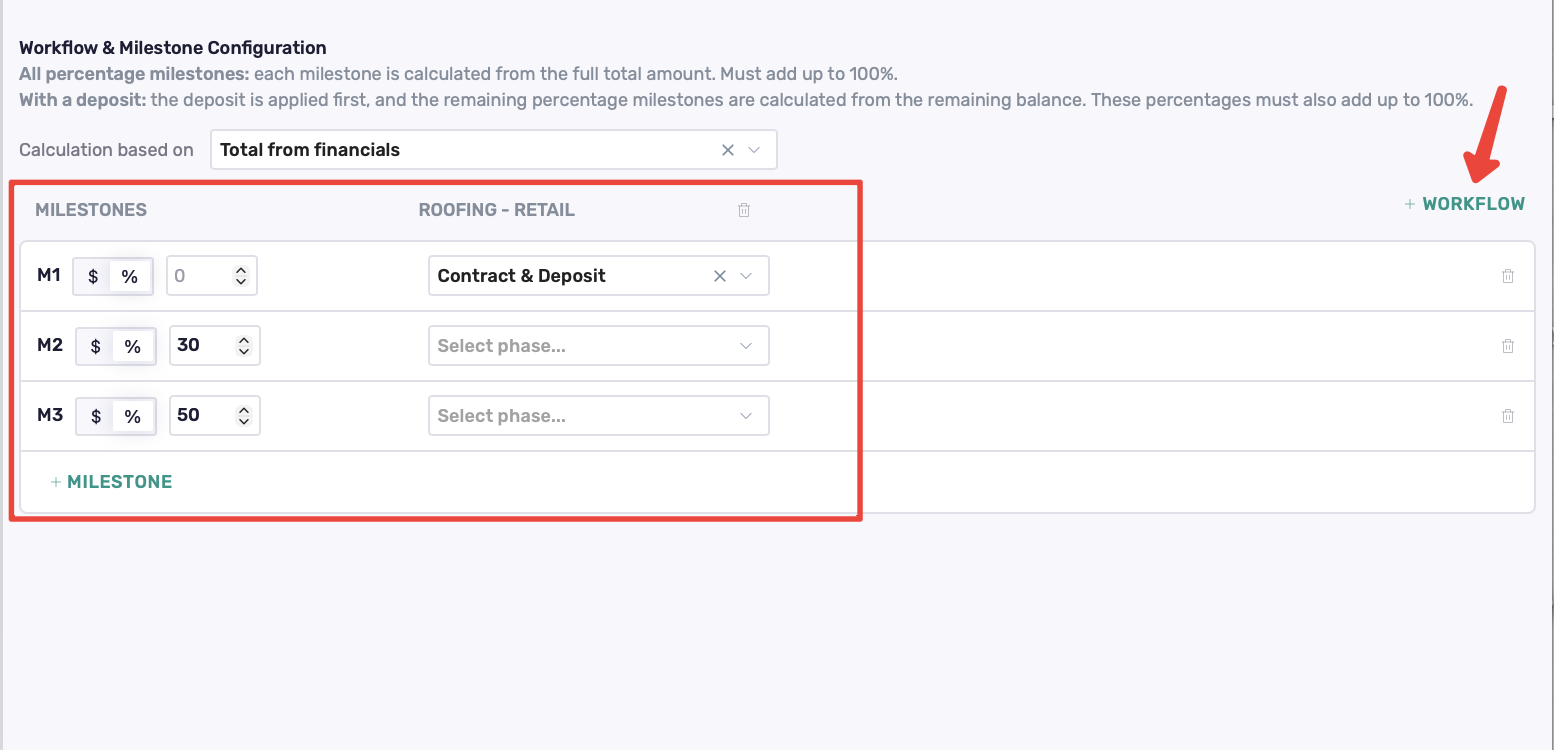
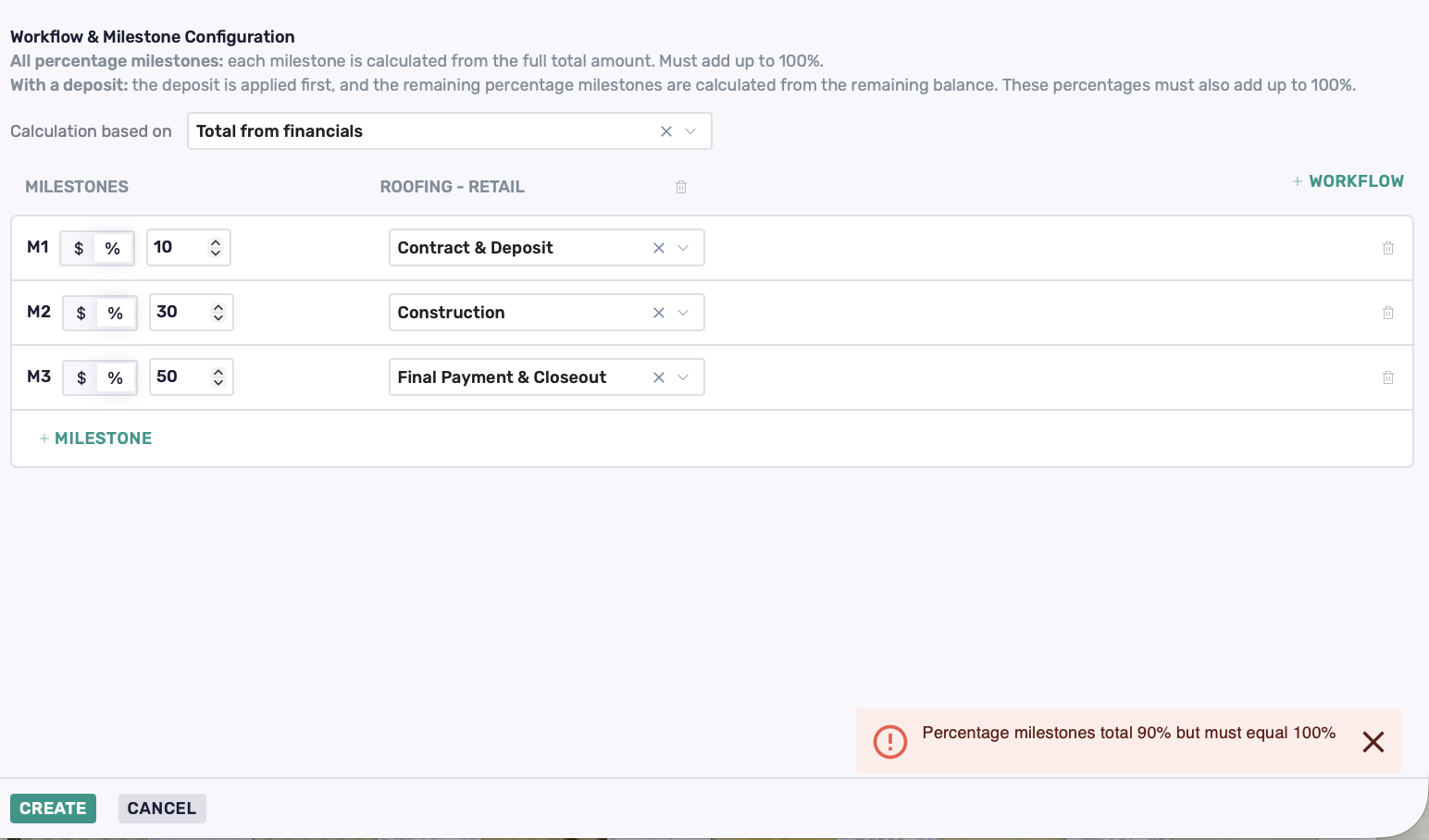
In Workflow & Milestone Configuration, select the workflows where this template should apply. Each selected workflow adds a column to the milestone table.
For each milestone:
Choose whether the milestone is a percentage or fixed amount.
Enter the value.
Select the workflow phase where the milestone should trigger.
Add more milestones with + Milestone if needed.
Percentage and fixed-amount milestones
Percentage milestones must add up to 100%.
If your template uses fixed-amount milestones, Coperniq subtracts those fixed amounts first. Percentage milestones are then calculated from the remaining balance.
Example:
Project value: $10,000
Fixed deposit: $1,000
Remaining balance: $9,000
50% milestone: $4,500
Validation rules
Before saving, Coperniq checks that:
Each milestone has a valid value.
Percentage milestones total 100%.
Percentages use no more than two decimal places.
Each milestone has a phase selected for each workflow.
The same workflow phase is not used by multiple milestones in the same template.
When invoices or bills are created
Coperniq creates the milestone document when the mapped workflow phase starts or becomes unblocked.
The generated document title uses this format:
Template Name - Milestone Name
Each milestone is created only once per project. If the generated invoice or bill is deleted later, Coperniq does not automatically recreate it.

Edit or archive a template
Open the three-dot menu on a template to:
Edit the template
Archive the template
Unarchive an archived template
Archived templates stop creating future milestone documents. Any invoices or bills that were already created remain in place.
When you unarchive a template, Coperniq rebuilds the milestone elements for projects that are still in progress.

Troubleshooting
A project reached the phase, but no invoice was created. Check that the project matches the template's conditions, that the template isn't archived, and that the calculation property is greater than zero.
I can't add another milestone. Each milestone needs its own phase. If the workflow has 4 phases, the template can hold at most 4 milestones.
I deleted an invoice by mistake. Will it come back? No. Create it manually from the project's financials.
Can one project use two templates? Yes, if it matches both. Each template creates its own documents, so review your conditions to avoid billing twice.
The financing provider I need isn't in the picker. Add the lender as a vendor and set Vendor Type to Financing.