Snippets – Reusable Templates for Notes & Communications
Last updated: October 8, 2026
Overview
Snippets are reusable templates for frequently used notes and messages. They help your team quickly insert consistent content into Notes, Emails, SMS, and Portal communications without typing the same message each time.
Access Snippets
Click the Settings (gear) icon in the bottom-left corner.
Under Company Settings, select Snippets.
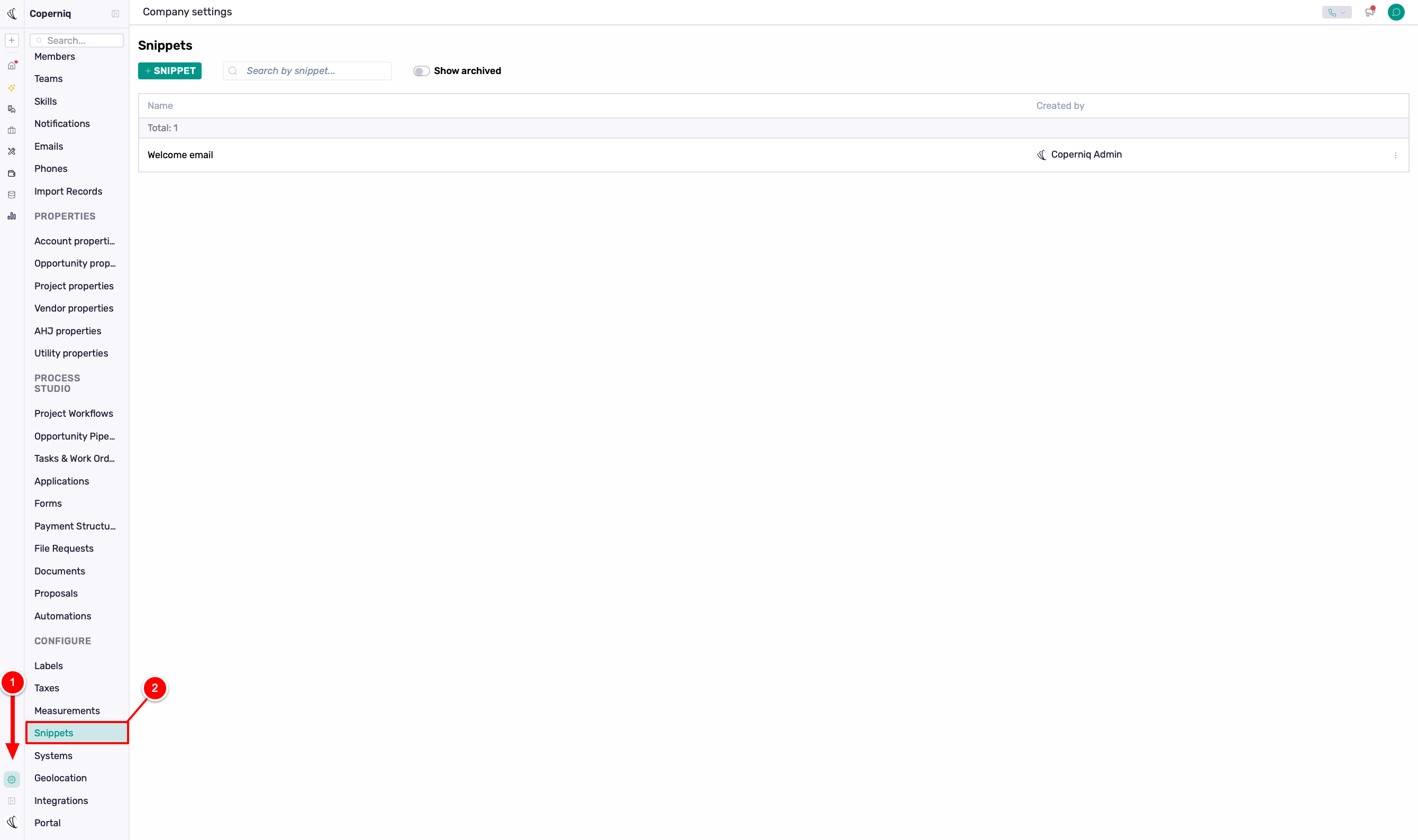
From here, you can:
View all existing snippets
Create new snippets
Edit existing snippets
Archive old snippets
Search for snippets
Toggle on Show Archived to display archived snippets
To create a new one, click + Snippet in the top-left corner.

Create a Snippet
Create a Snippet
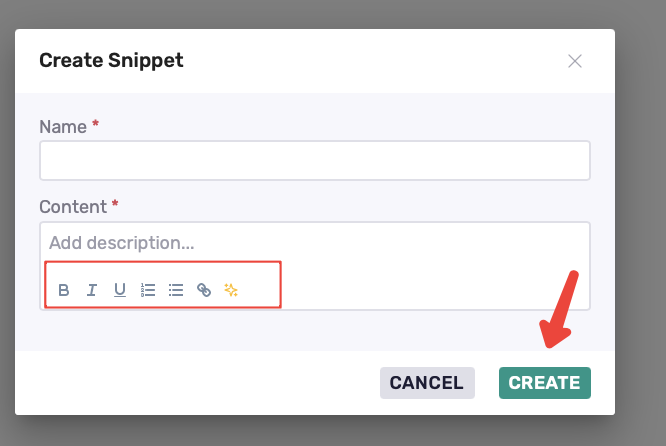
Click + Snippet.
Add a Name to make the snippet easy to identify.
Enter your template under Content. Format your message using bold, italic, underline, lists, or links, or use the AI toolsto improve, shorten, expand, or adjust the tone.
Click Create.
Use a Snippet
Snippets can be used in Notes, Emails, SMS messages, and Portal communications.
Notes
Communications
Emails
SMS messages
Portal communications
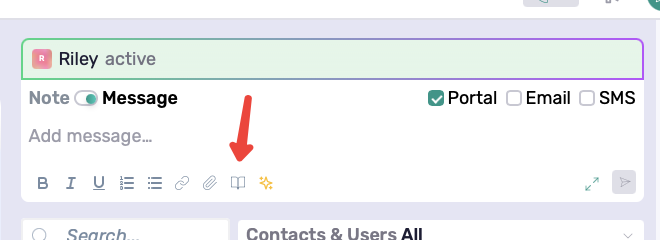
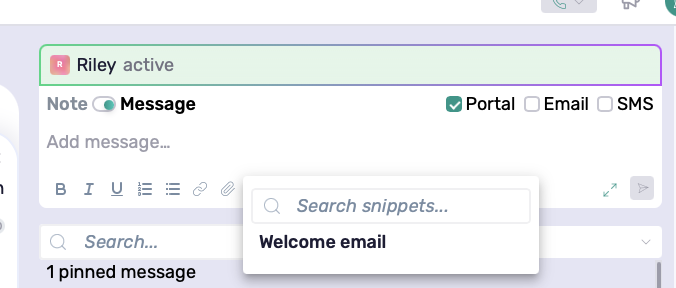
To use a snippet:
Open the desired Account, Opportunity, Project, or Work Order record
Navigate to the Notes or Communications section
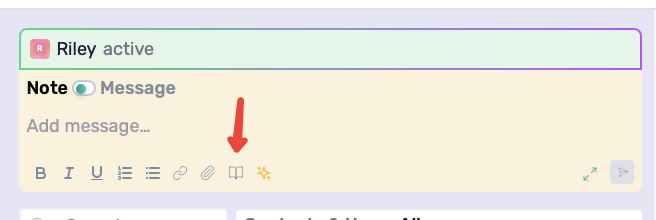
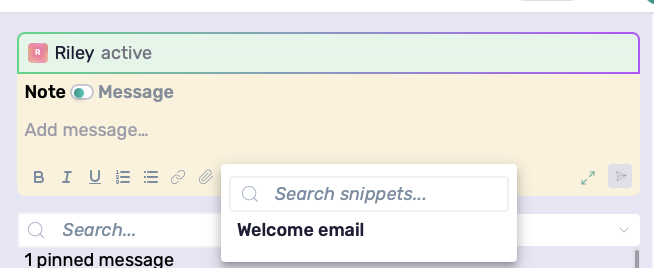
Click the Snippets icon inside the text field. The icon appears as a small book symbol and allows users to quickly browse and insert saved snippets.
Select the desired snippet
The content will automatically populate into the field
This allows teams to quickly insert standardized updates without manually typing the same message each time.
Example Snippet
Snippet Name
Construction Update
Example Content
Hello /Account.Contacts.FirstNames,
Construction is scheduled to begin on Monday, May 12th, and is expected to take approximately 2–3 business days depending on weather conditions and inspection approvals.
Please ensure the property is accessible for the crew upon arrival. If you have any questions before construction begins, please feel free to reach out.
Thank you!
Best Practices
Use clear, descriptive snippet names.
Keep snippets short and easy to customize.
Review the message before sending it.
Update or archive outdated snippets.
Avoid adding record-specific information to reusable snippets.