Searching Records in the Coperniq Mobile App
Last updated: August 5, 2025
Estimated reading time: 2–3 minutes
Overview
The Search feature in the Coperniq mobile app helps users quickly find Clients, Projects, Requests, and Work Orders. You can apply filters and use the search bar to narrow down your results — making it easy to locate exactly what you need.
Accessing the Search Page
Open the Coperniq mobile app.
Tap the Search icon from the bottom navigation bar.

You’ll see four main categories at the top of the screen:
Clients
Projects
Requests
Work Orders
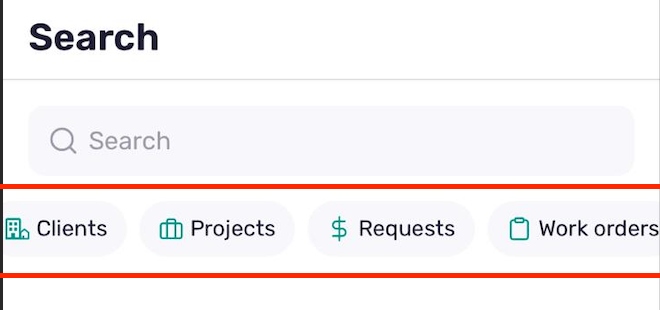
You can:
Tap on any category to begin filtering and searching within that record type
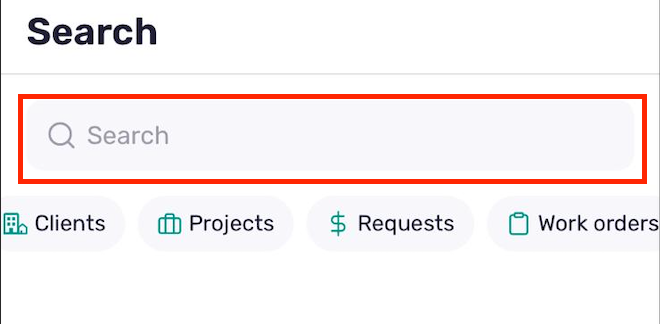
Or simply use the search bar without selecting a category to search across all record types (Clients, Projects, Requests, and Work Orders)
Clients
Tap Clients to view all client records
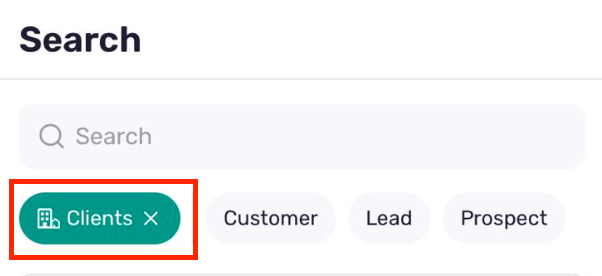
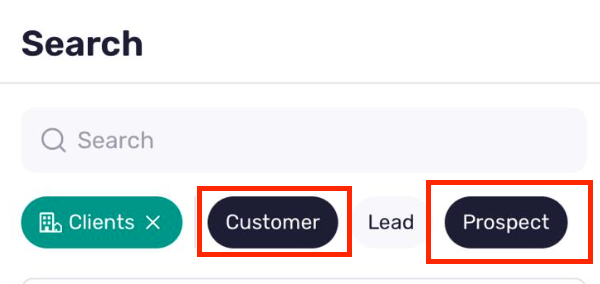
Select one, two, or all three filters at once
Use the search bar to find clients by name, address, or related info
Projects
Tap Projects to view all project records
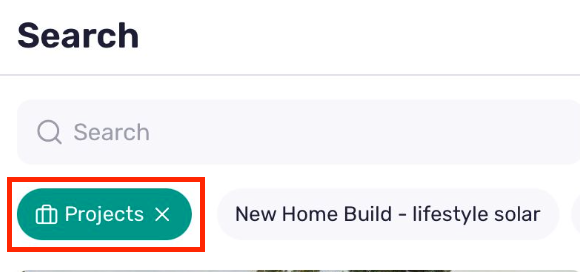
Use the search bar to search by name, number, or location
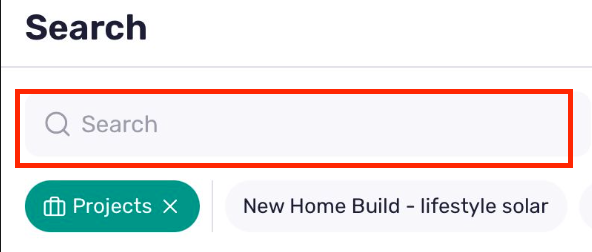
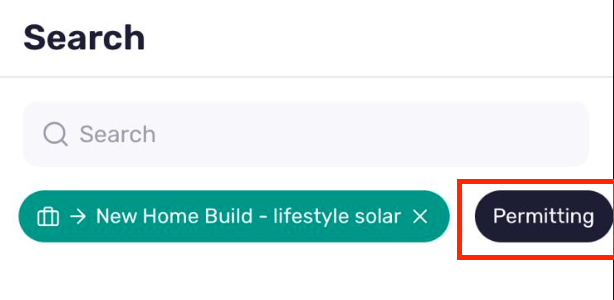
Filter by a single workflow to narrow results to a specific project category
After selecting a workflow, you can further filter by phases within that workflow (e.g., Lead, Design, Installation)
Requests
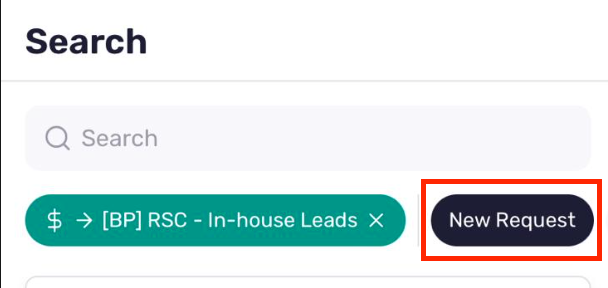
Tap Requests to view all request records
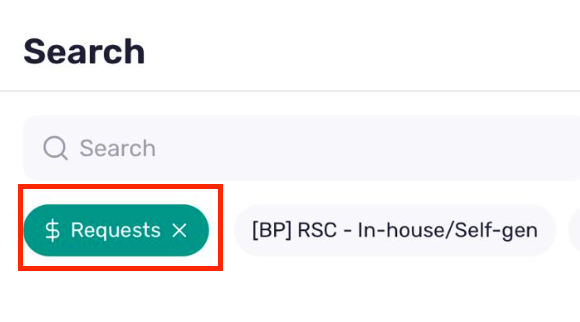
Use the search bar to search by title, project, or client
Filter by a single workflow to view only requests under that type
After selecting a workflow, filter by phases to further narrow your results
Work Orders
Tap Work Orders to view all active and completed tasks
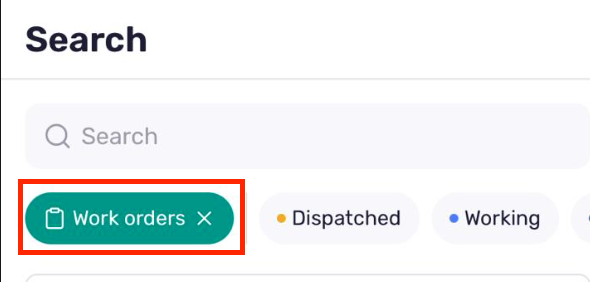
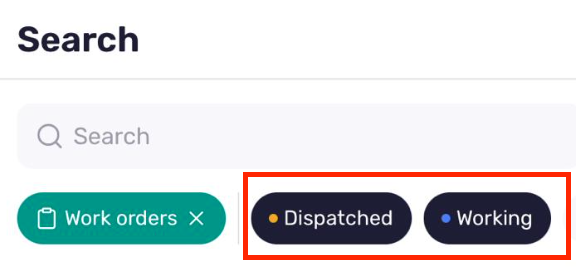
Filter by status (e.g., Dispatched, Working, Closed)
Select multiple statuses at the same time
Use the search bar to search by title, number, or address
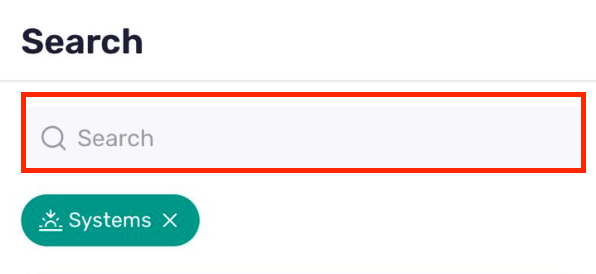
Systems
Tap Systems to view all system records
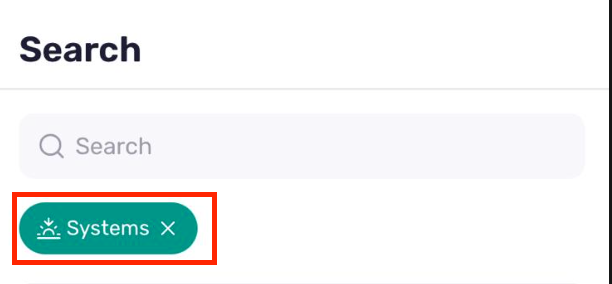
Use the search bar to search by system name or location
Best Practices
The search bar works in every section
Multiple filters (like status or client type) can be used together
Workflow filtering in Projects and Requests is limited to one workflow at a time
After choosing a workflow, use phase filters to drill down further