Analytics Widgets & Drill-Down
Last updated: January 4, 2026
Estimated reading time: 2–3 minutes
Overview
Widgets are the building blocks of Analytics dashboards. Each widget visualizes a specific metric and allows you to explore underlying data through drill-down.
This article explains how to create, configure, and interact with widgets.
This article covers
Creating and configuring widgets
Widget types and data sources
Reordering and resizing widgets
Filtering and date ranges
Using data drill-down
Create a Widget
From the left-hand menu, click Analytics.
Select the dashboard you want to edit from the dashboard dropdown.
Turn Edit mode ON.
Click + Widget.
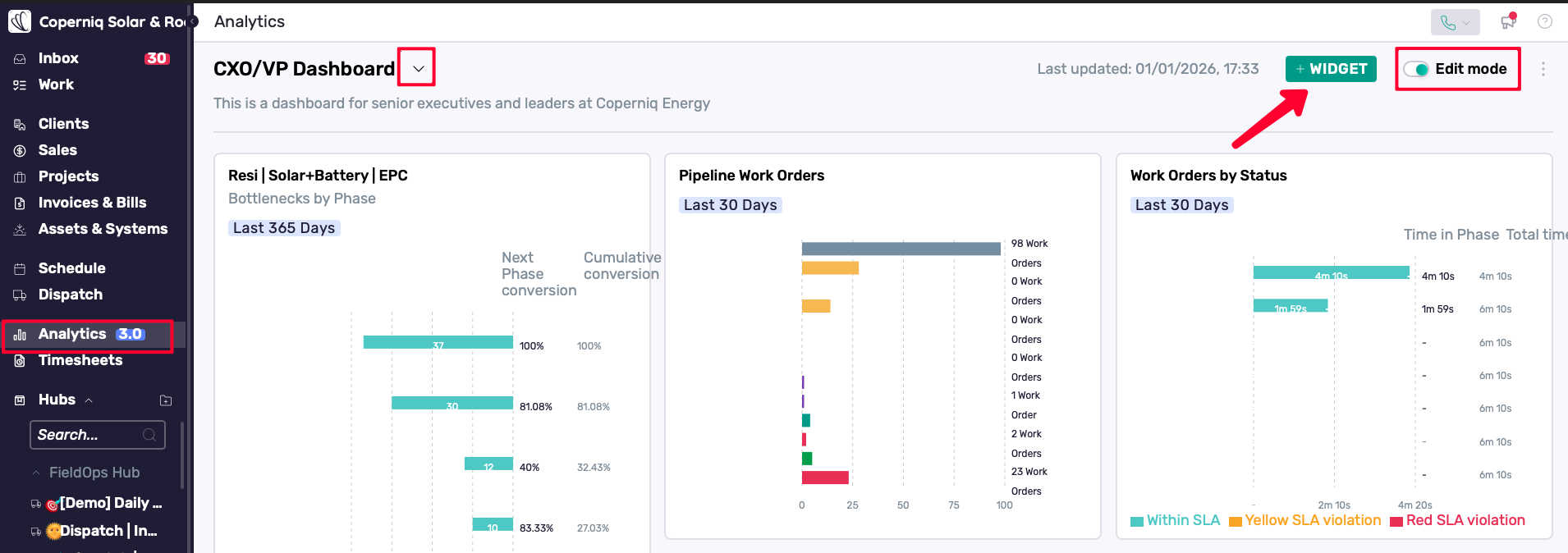
Configure the widget settings (explained below).
Review the data preview.
Click Create.
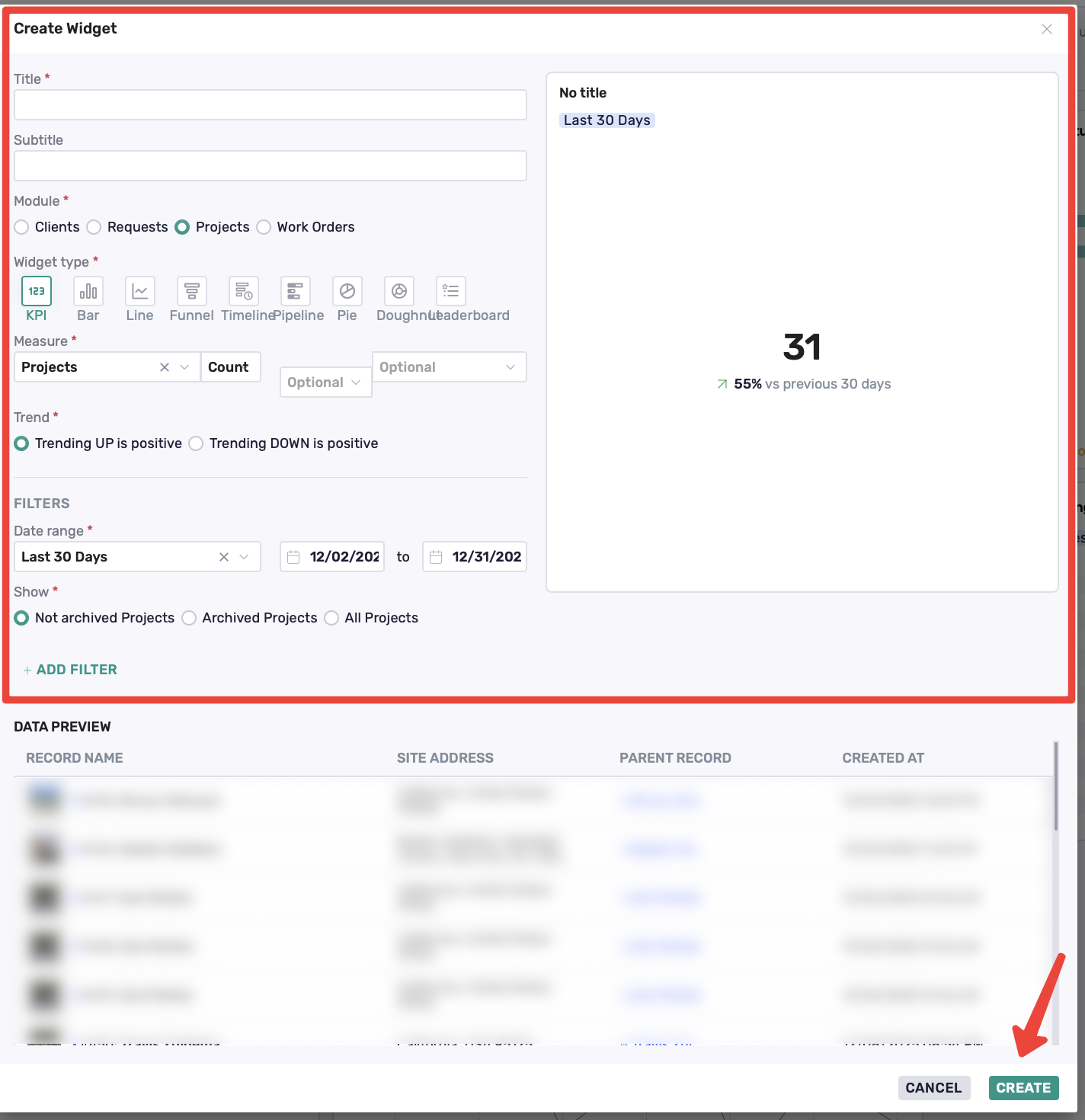
Widget Configuration
Title and Subtitle
Title – Main label shown on the widget
Subtitle (optional) – Additional context such as time range
Module (Data Source)
Choose which records the widget pulls data from:
Clients
Requests
Projects
Work Orders
Widget Types
Available widget types include:
KPI – Single metric summary
Bar – Category comparison
Line – Trend over time
Funnel – Phase progression
Timeline – Activity across time
Pipeline – Distribution by phase or status
Pie / Doughnut – Proportional breakdown
Leaderboard – Ranked users or teams
Metrics & Measures
Widgets allow you to define:
What is being measured
Optional groupings or breakdowns
If you don’t select a grouping, Coperniq groups results by Created at by default
Trend Direction
You can specify whether:
Trending up is positive
Trending down is positive
This controls KPI trend indicators.
Filters and Date Range
Widgets support:
Date ranges (Last 30/60 days or custom)
Status filters
Archived vs active records
Module-specific filters
Filters apply only to the widget.
Data Preview
Before saving, widgets display a preview so you can verify:
Included records
Filter behavior
Reorder and Resize Widgets
With Edit mode enabled:
Click and drag widget edges
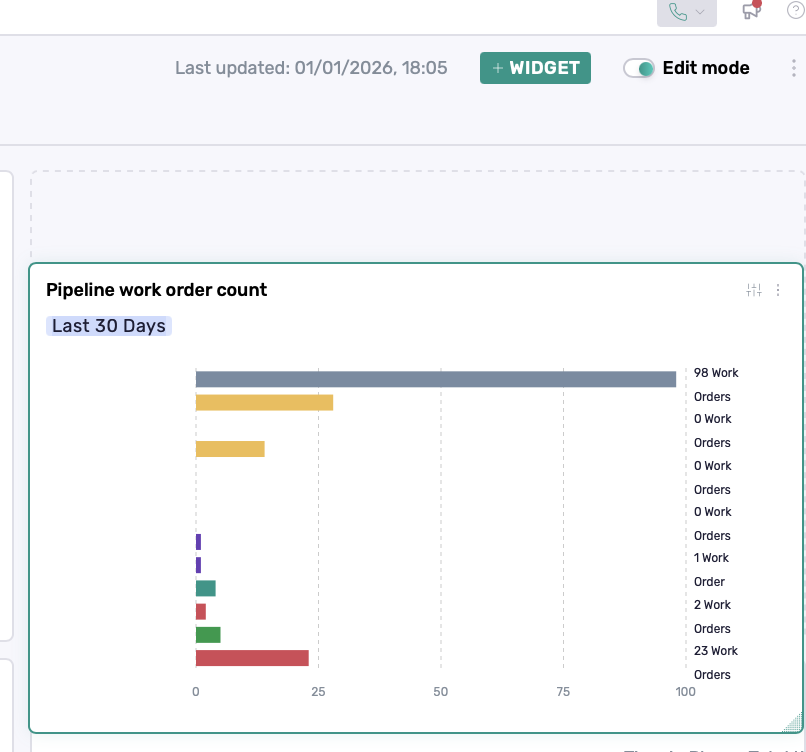
Click on the edge of the widget to resize it horizontally or vertically.
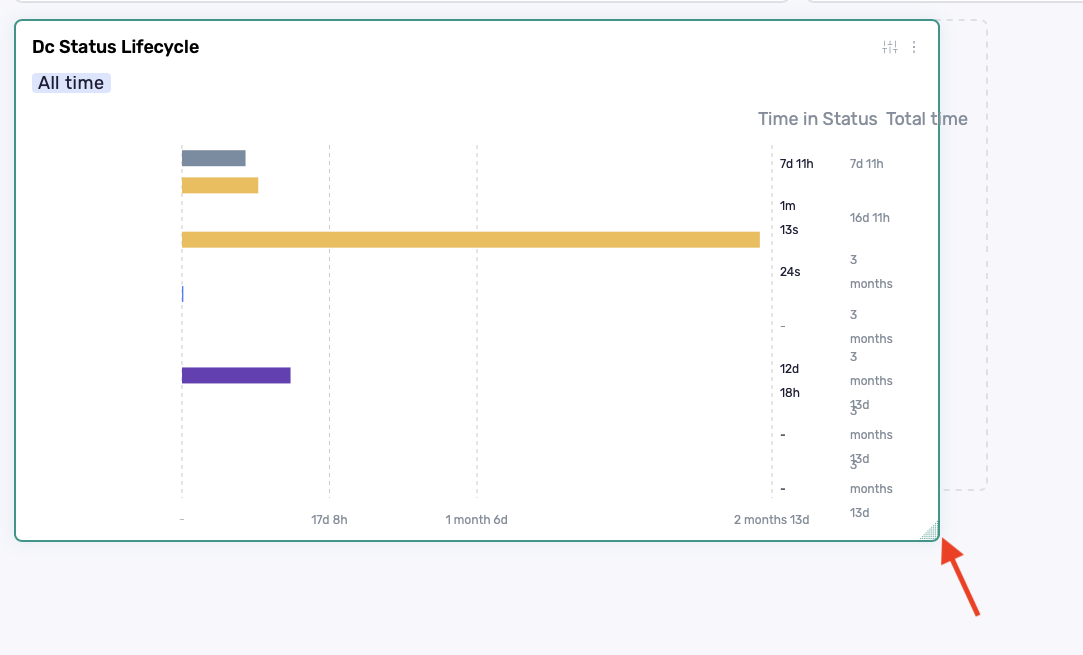
Manage Existing Widgets
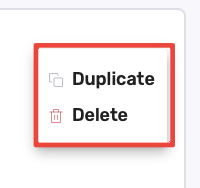
Each widget menu allows you to:
Edit
Duplicate
Delete

Data Drill-Down
Drill-down allows you to see the records behind a metric.
How Drill-Down Works
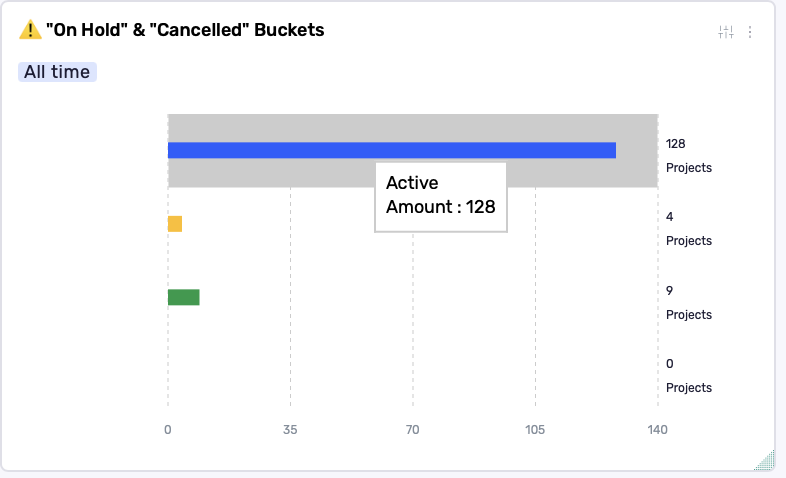
Click a widget value or chart segment
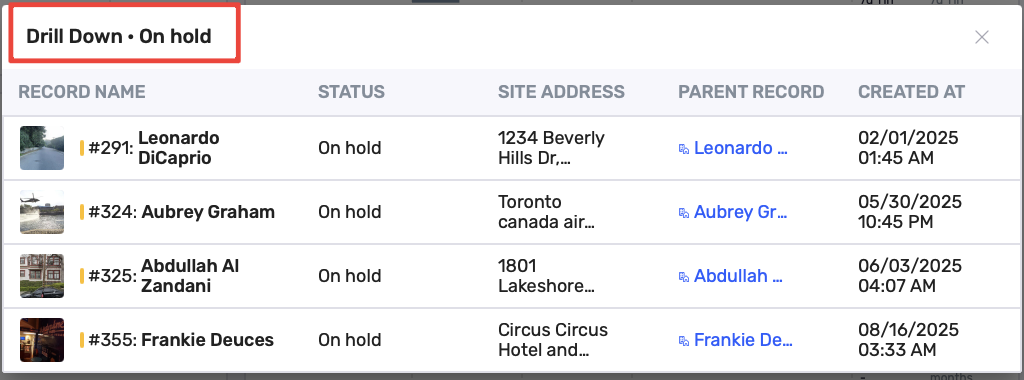
A drill-down panel opens
The panel lists contributing records
Drill-Down Details May Include
Record name
Phase or status
Site address
Parent record
Created date
Status
Assignee
Visits
Labels
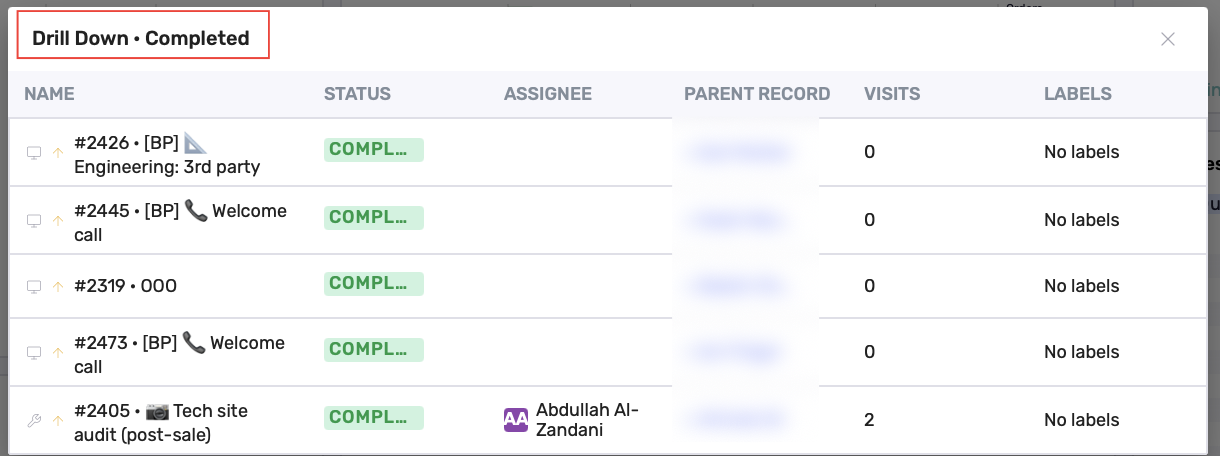
You can open any record directly from this view.
Best Practices
Keep widgets focused on a single insight
Name widgets clearly (what it shows + scope)
Set a clear, consistent date range
Resize widgets so charts and labels are readable
Use drill-down to verify counts and investigate spikes/drops