Analytics Dashboards
Last updated: January 4, 2026
Estimated reading time: 2–3 minutes
Overview
Analytics Dashboards in Coperniq provide a high-level view of performance across your organization. Dashboards group multiple metrics into a single view, allowing teams to monitor trends, identify bottlenecks, and track progress at a glance.
Coperniq includes default dashboards for immediate visibility and supports custom dashboards for tailored reporting.
This article covers
Accessing Analytics dashboards
Understanding default dashboards
Creating custom dashboards
Managing dashboard settings and permissions
Access Analytics Dashboards
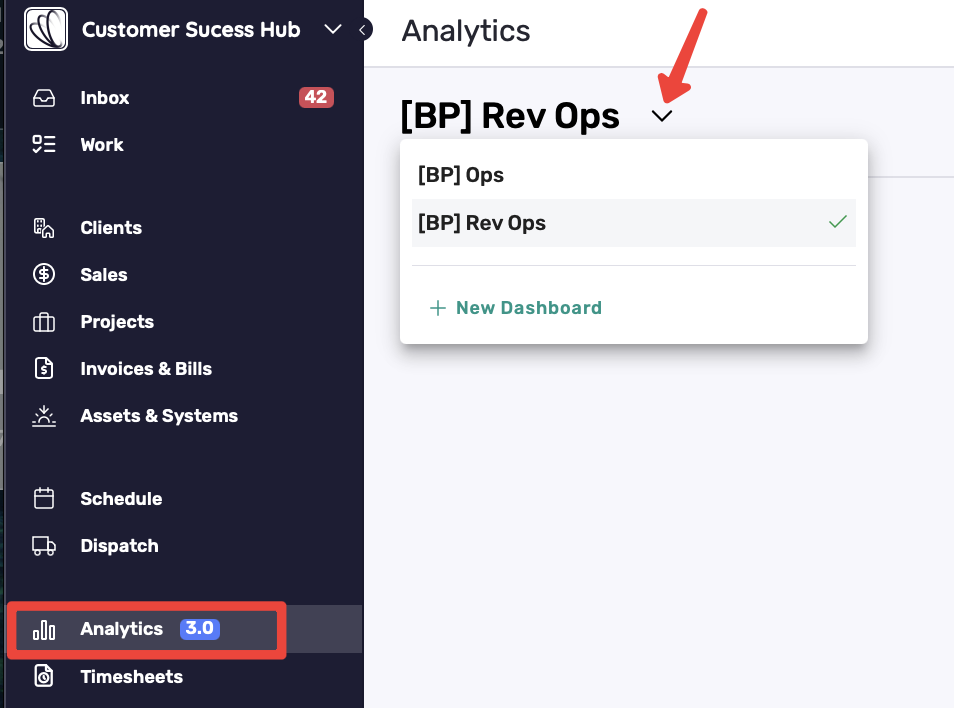
Click Analytics from the left-hand menu.
Use the dashboard selector at the top of the page to switch between dashboards.
Default Dashboards Explained
Default dashboards, such as [BP] Ops and [BP] Rev Ops, are pre-built dashboards provided by Coperniq. They are designed to deliver immediate insights without requiring any setup, giving teams quick visibility into key operational and revenue metrics.
Common Default Dashboard Widgets
Default dashboards typically include widgets such as:
Work Orders by Status
Shows how many work orders exist in each status to help teams understand workload distribution.Time in Phase
Displays how long records spend in each phase to surface workflow delays.Average Time to Completion
Measures the average duration from start to completion across records.Contracts Signed
Tracks signed contract volume over time.
Create a Custom Dashboard
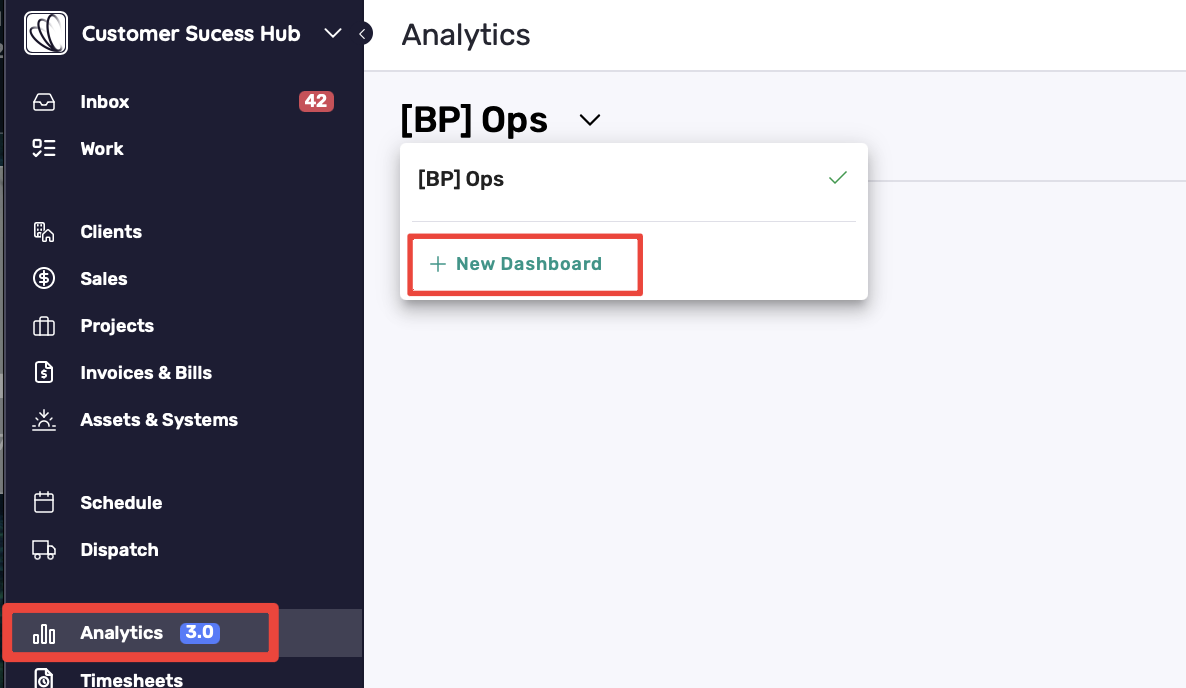
Open Analytics from the left-hand menu.
Click the dashboard dropdown.
Select + New Dashboard.
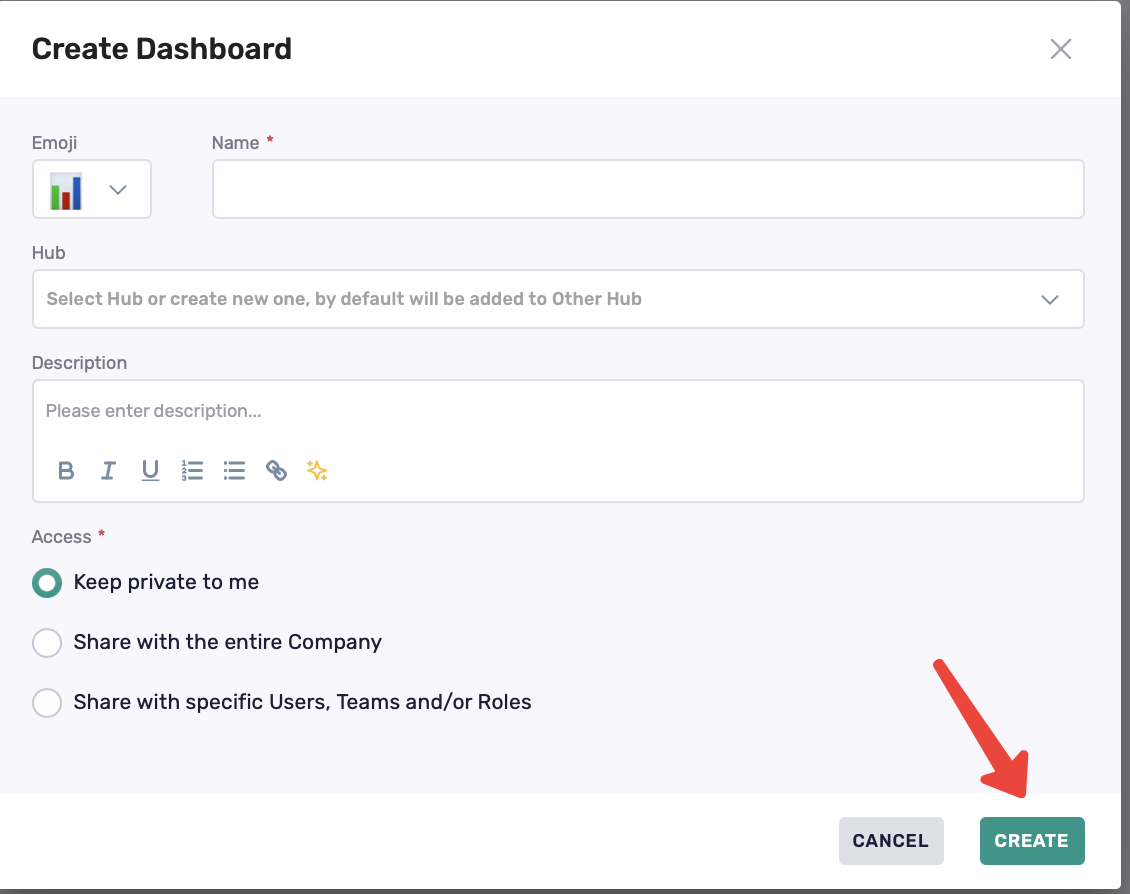
Enter:
Emoji (optional) – icon shown next to the dashboard name
Name (required)
Hub (optional) – if not selected, the dashboard is added to Other Hub by default
Description (optional)
Choose Visibility (required):
Private
Shared with the company
Shared with specific users, teams, or roles
Click Create.
Manage Dashboards
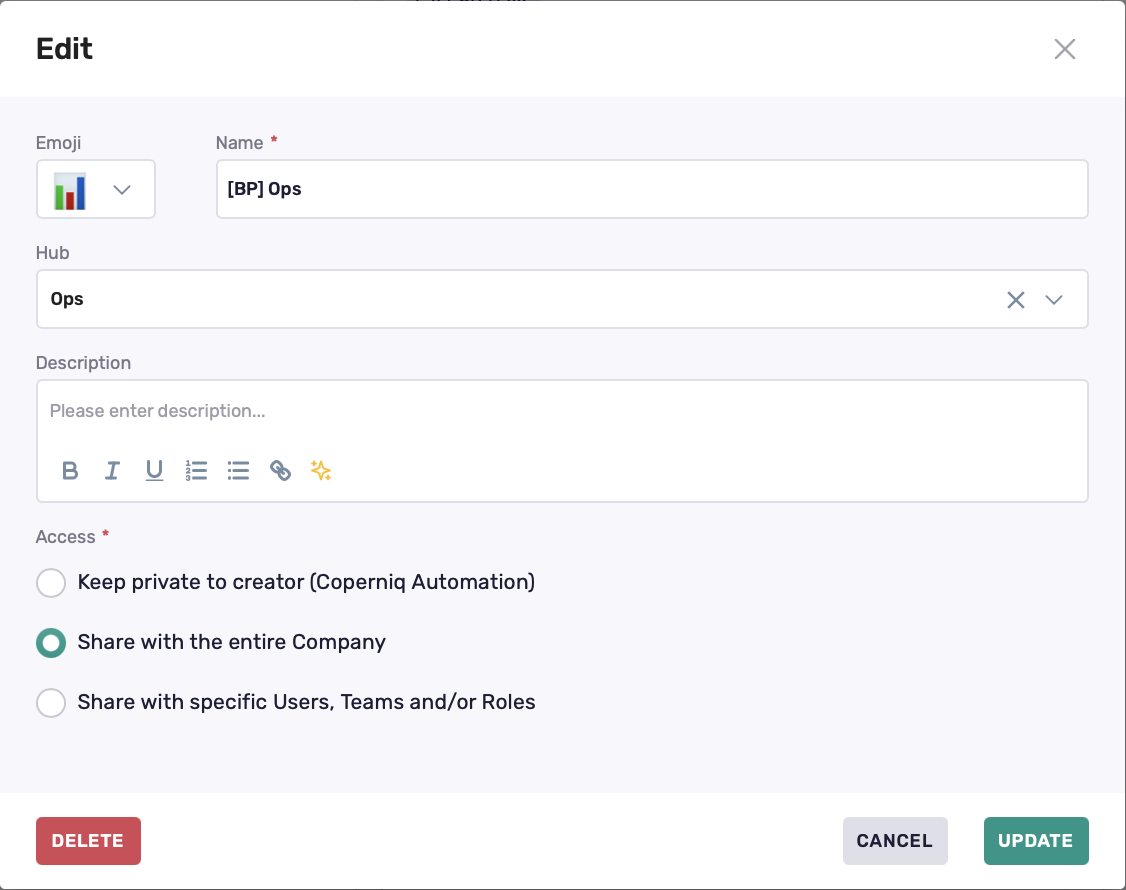
With Edit mode enabled, you can:
Edit dashboard name and description
Update sharing permissions
Duplicate dashboards
Delete custom dashboards

Dashboard Updates
Dashboards update automatically as data changes
A Last updated timestamp appears at the top
No manual refresh is required
Best Practices
Use default dashboards as a baseline
Duplicate default dashboards before customizing
Keep dashboards focused on a single audience or goal
Limit edit access for shared dashboards