How to Connect QuickBooks Online to Coperniq
Last updated: October 7, 2026
This guide will walk you through connecting your QuickBooks Online account to Coperniq. Once connected, you can automatically sync customer information, invoices, and payments between the two systems.
Prerequisites
Before you begin, make sure you have:
- A Coperniq account with admin or appropriate permissions
- A QuickBooks Online account with admin access
- The ability to authorize third-party integrations in QuickBooks
Step-by-Step Connection Process
Step 1: Navigate to Integrations
1. Log in to your Coperniq account
2. Go to Company Settings
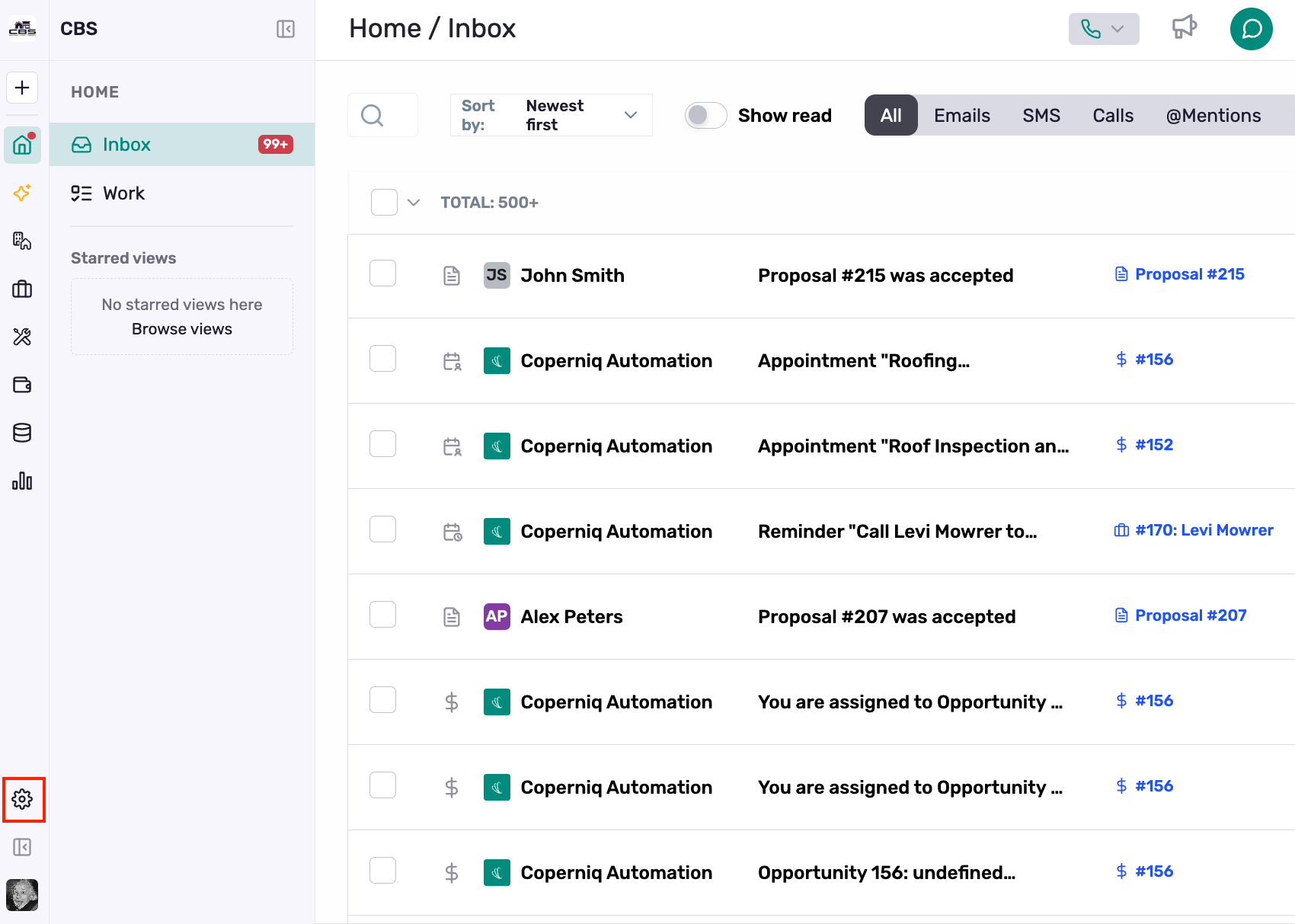
3. Navigate to Integrations under the Configure section in the settings menu
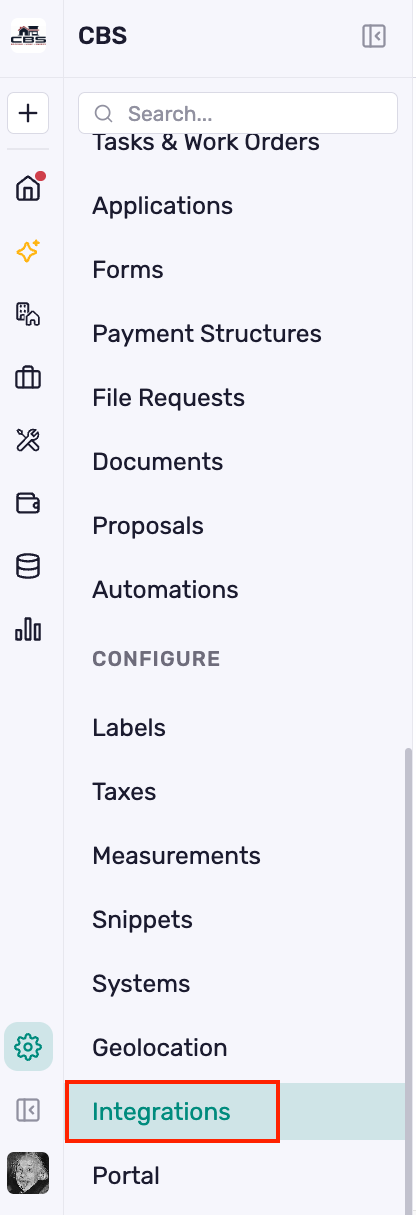
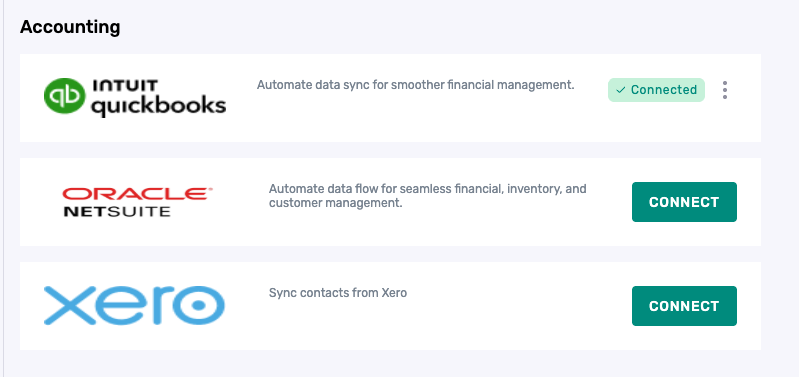
4. Find the Accounting section
Step 2: Locate QuickBooks Online
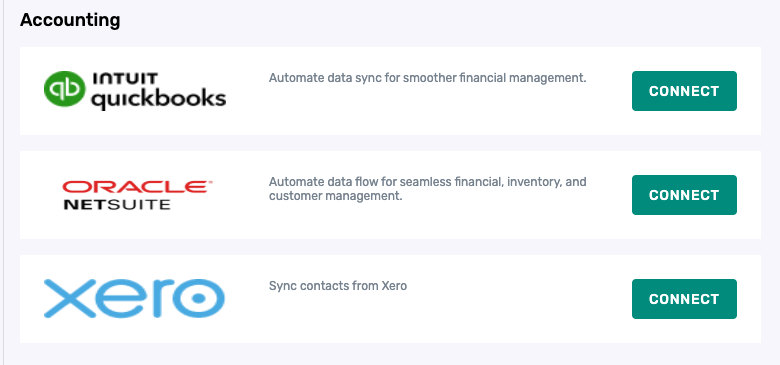
Step 3: Initiate the Connection
1. Click the Connect button next to QuickBooks Online
2. A connection dialog will open (this is powered by Merge.dev, our integration partner)
3. Wait a moment for the connection dialog to initialize
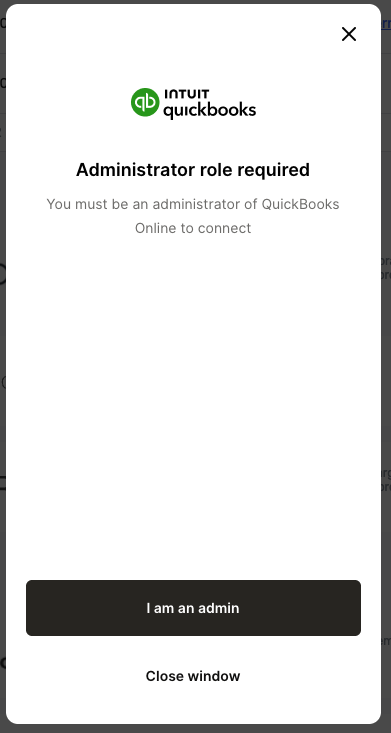
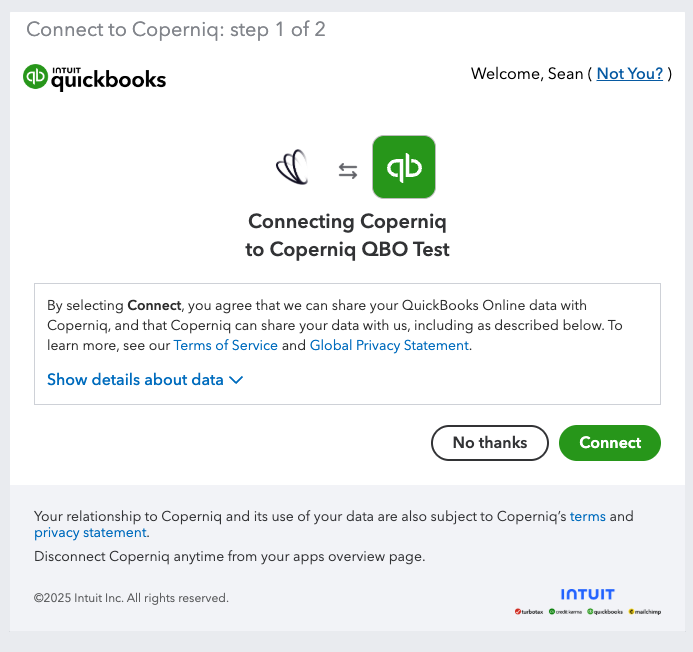
Step 4: Authorize with QuickBooks
1. In the connection dialog, you'll be prompted to sign in to QuickBooks Online
2. Enter your QuickBooks Online credentials
3. Select the QuickBooks company you want to connect (if you have access to multiple companies)
4. Review and accept the permissions requested by the integration
5. Click Authorize or Connect to complete the authorization
Note: The connection dialog will automatically close once authorization is complete.
Step 5: Complete the Connection
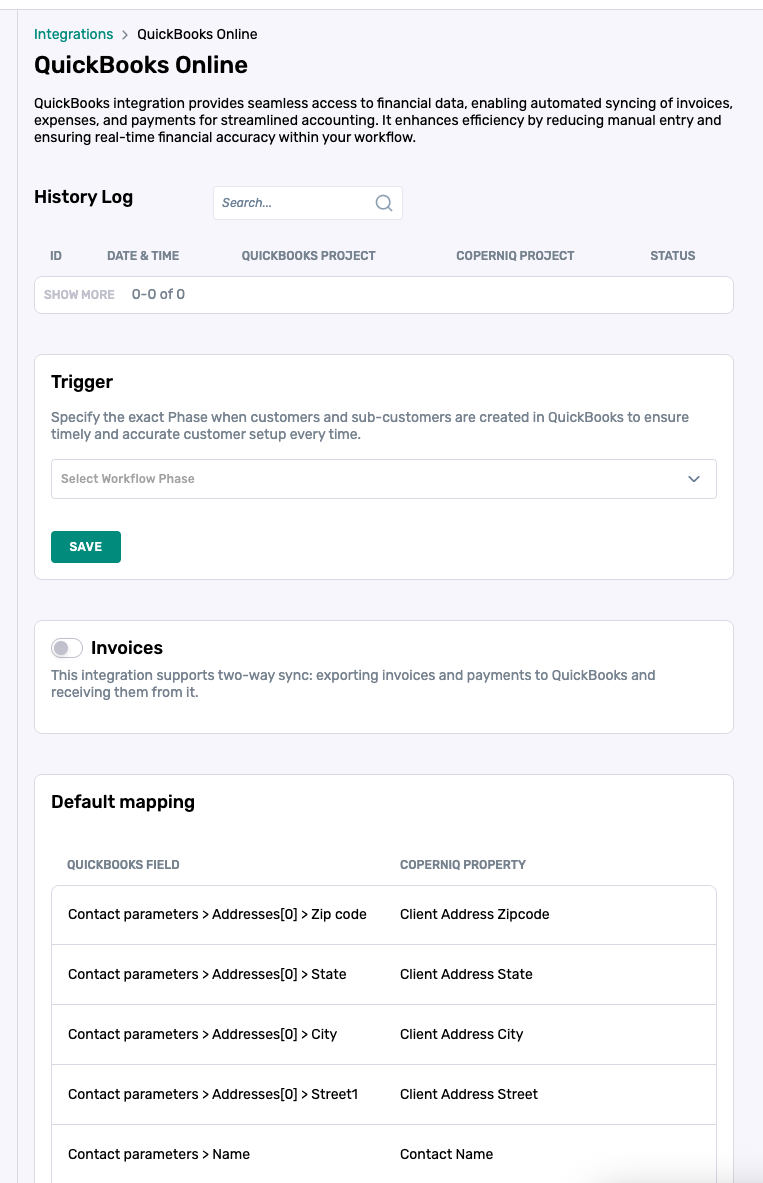
1. After successful authorization, you'll be automatically redirected to the QuickBooks integration configuration page
2. You should see a green "Connected" badge indicating the connection was successful
3. The integration is now active and ready to configure
Post-Connection Configuration
After connecting QuickBooks, you'll need to configure a few settings to control how the integration works:
Configure Workflow Triggers
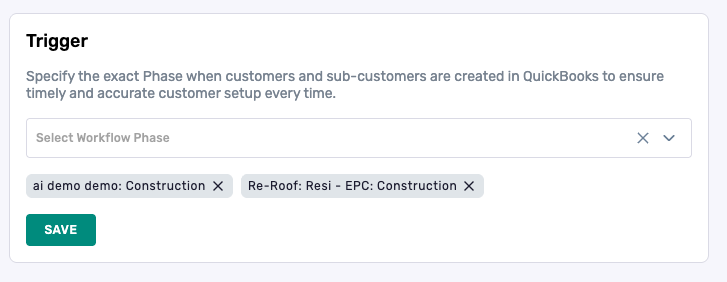
This determines when customer and project data is synced to QuickBooks:
1. On the integration configuration page, find the Trigger section
2. Select which phases should trigger the integration (one allowed per workflow)
3. When a project enters one of these phases, the customer and job (sub-customer) will automatically synced to QuickBooks
4. Click Save to apply your changes
Tip: You can select multiple phase templates. For example, you might want to sync when projects enter the "Installation" phase in Workflow #1 or the "Billing" phase in Workflow #2.
Enable Invoice Sync (Optional)
If you want invoices and payments to sync automatically:
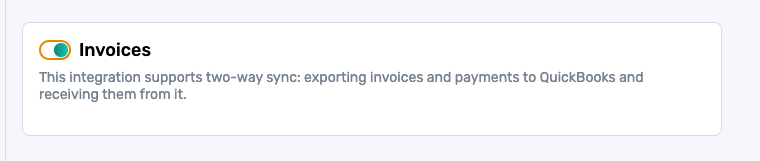
1. Find the Invoices section on the configuration page
2. Toggle the switch to Enable invoice and payment syncing
3. When enabled:
- Invoices created in Coperniq will automatically sync to QuickBooks
- Payments recorded in Coperniq will automatically sync to QuickBooks
- Invoices and payments created in QuickBooks (for synced customers) will sync back to Coperniq
Note: Invoice sync can be enabled or disabled at any time without disconnecting the integration.
Set Matching Strategy (Optional)
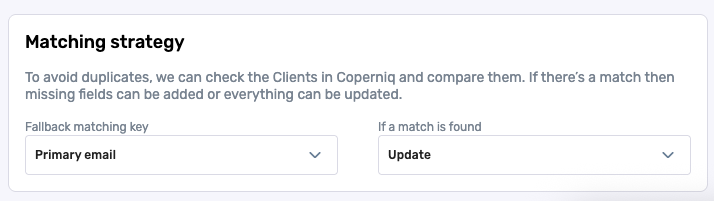
Control what happens when the integration finds existing records in QuickBooks:
1. Find the Matching Strategy section
2. Choose one of the following options:
- Enrich: Update existing records with new information from Coperniq
- Replace: Replace existing records with Coperniq data
- Skip: Leave existing records unchanged
3. Your selection is saved automatically
Verifying the Connection
To verify your connection is working:
1. Check the Integration Log section on the configuration page
2. Look for recent sync activity
3. Move a test project into a configured phase to trigger a sync
4. Check your QuickBooks account to see if the customer and job were created
Troubleshooting
Connection Dialog Won't Open
- Make sure pop-up blockers are disabled for Coperniq
- Try refreshing the page and clicking Connect again
- Check your internet connection
Authorization Fails
- Verify your QuickBooks Online credentials are correct
- Make sure you have admin access to the QuickBooks company
- Try logging into QuickBooks Online directly in another tab to verify your account is active
Can't See QuickBooks in Integrations
- Make sure you have the appropriate permissions in Coperniq
- Contact your Coperniq administrator if you don't see the Integrations section
Connection Appears Successful But Nothing Syncs
- Verify you've configured at least one workflow trigger (phase template)
- Check that projects are actually entering the configured phases
- Review the Integration Log for any error messages
- Make sure invoice sync is enabled if you're expecting invoices to sync
Disconnecting QuickBooks
If you need to disconnect QuickBooks:
1. Go to the Integrations page
2. Find QuickBooks Online (it should show a "Connected" badge)
3. Click the three-dot menu (⋮) next to the integration
4. Select Disconnect
5. Confirm the disconnection
Warning: Disconnecting will stop all syncing. Existing synced data will remain in both systems, but no new data will sync.
Next Steps
Once your QuickBooks integration is connected and configured:
1. Test the Integration: Move a test project into a configured phase to verify contacts sync correctly
2. Enable Invoice Sync: If you want automatic invoice and payment syncing, enable this feature
3. Monitor Sync Activity: Check the Integration Log regularly to ensure syncing is working as expected
Need Help?
If you encounter any issues or have questions about the QuickBooks integration:
- Review the QuickBooks Integration Overview Guide for detailed information about how the integration works
- Check the Integration Log for specific error messages
- Contact your Coperniq support representative for assistance at support@coperniq.io